1、注册并登录高德开放平台获取
2、安装高德依赖(amap-jsapi-loader)
3、初始化地图
4、首次打开地图获取当前定位并标记
5、根据已有地址自动定位到指定地址并标记
6、新增、清除标记及自定义信息窗体
7、鼠标点击地图并选点标记
8、根据关键字搜索并自动定位
9、效果图
10、完整代码
高德官方api:高德官方开放平台
一、注册并登录高德开放平台获取(key和秘钥)
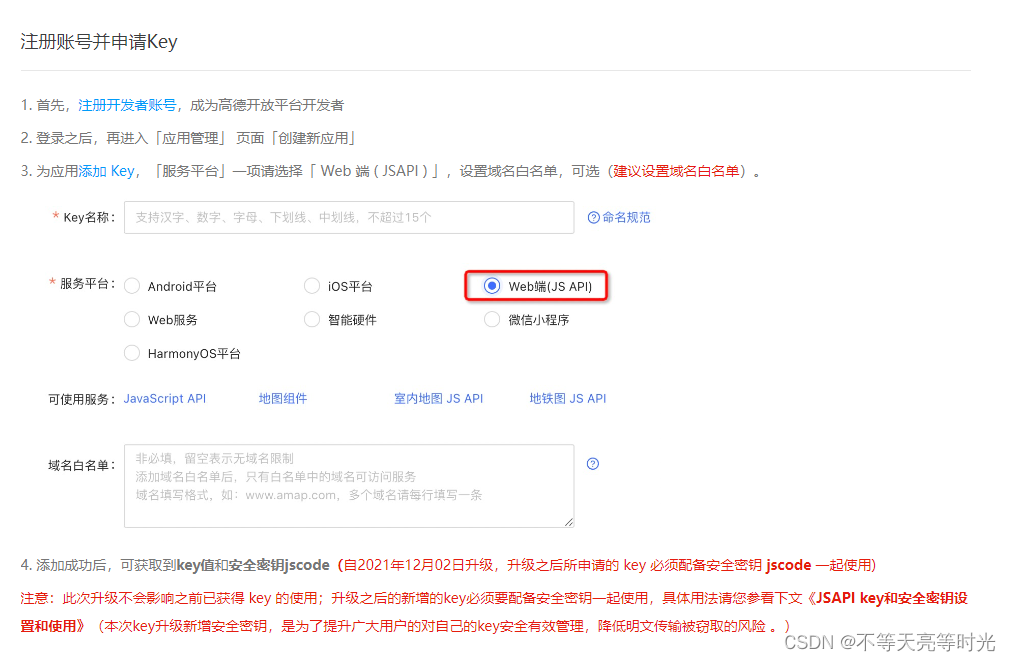
引用:
<script>
  import AMapLoader from '@amap/amap-jsapi-loader';
  window._AMapSecurityConfig = {
    securityJsCode: '**************************',//你的秘钥
  }
 </script>
二、安装高德依赖
npm i @amap/amap-jsapi-loader --save
三、初始化地图
封装公共的地图组件:
<map-container :positionInfo ='positionInfo' @select ='getLocationInfo'></map-container>
 mounted() {
      this.initMap()
 },
 methods:{
    initMap(){
      AMapLoader.load({
        key:"**********************", // 申请好的Web端开发者Key,首次调用 load 时必填
        version:"2.0",      // 指定要加载的 JSAPI 的版本,缺省时默认为 1.4.15
        plugins: [          //需要使用的插件
          'AMap.ToolBar',
          'AMap.Scale',
          'AMap.Geolocation',
          'AMap.PlaceSearch',
          'AMap.AutoComplete',
          'AMap.Geocoder',
          'AMap.CitySearch'
        ],
        resizeEnable: true,
      }).then((AMap)=>{
        const that = this;
        that.map = new AMap.Map("container",{  //设置地图容器id
          viewMode:"3D",    //是否为3D地图模式
          zoom:12,          //初始化地图级别
        });
     }).catch(e=>{
      console.log(e);
     })
 },
四、首次打开地图获取当前定位并标记
initMap(){
   AMapLoader.load({
      key:"*******************", // 申请好的Web端开发者Key,首次调用 load 时必填
      version:"2.0",      // 指定要加载的 JSAPI 的版本,缺省时默认为 1.4.15
      plugins: [
        'AMap.ToolBar',
        'AMap.Scale',
        'AMap.Geolocation',
        'AMap.PlaceSearch',
        'AMap.AutoComplete',
        'AMap.Geocoder',
        'AMap.CitySearch'
      ],
      resizeEnable: true,
    }).then((AMap)=>{
      const that = this;
      that.map = new AMap.Map("container",{  //设置地图容器id
        viewMode:"3D",    //是否为3D地图模式
        zoom:12,          //初始化地图级别
      });
      that.getCurrentLocation();//获取当前定位
      that.geocoder = new AMap.Geocoder()
      that.map.addControl(new AMap.Scale())  // 在图面添加比例尺控件,展示地图在当前层级和纬度下的比例尺
      that.map.addControl(new AMap.ToolBar())  //在图面添加鹰眼控件,在地图右下角显示地图的缩略图
    }).catch(e=>{
      console.log(e);
    })
  },
  //获取当前定位
  getCurrentLocation(){
    const that = this;
    that.geolocation = new AMap.Geolocation({
      timeout: 3000,          //超过3秒后停止定位,默认:5s
      enableHighAccuracy: true,
      zoomToAccuracy: true,   //定位成功后是否自动调整地图视野到定位点
    });
    that.geolocation.getCurrentPosition(function(status,result){
    //备注:getCurrentPosition方法会调用超时或失败:
    //Get geolocation time out:浏览器定位超时,包括原生的超时,可以适当增加超时属性的设定值以减少这一现象。
    //另外还有个别浏览器(如google Chrome浏览器等)本身的定位接口是黑洞,通过其请求定位完全没有回应,也会超时返回失败。
    //Get geolocation failed:定位失败,Chrome、火狐以及部分套壳浏览器接入的定位服务在国外,有较大限制,失败率高。
      console.log(status,result);
      if(status=='complete'){
        that.onComplete(result)
      }else{
        that.onError(result) //失败后可使用getCityInfo获取非精准定位(具体到省市)
      }
    });
  },
  //解析定位结果
  onComplete(data) {
    console.log('定位结果:' + data.position) //经纬度信息
    let lnglat = data.position;
    let marker = new AMap.Marker({  //创建标记
      position: new AMap.LngLat(lnglat[0], lnglat[1])
    })
    this.map.clearMap()// 清除所有覆盖物(点标志)
    this.map.add(marker)// 添加点标志
    let that = this
    //经纬度转换为中文地址详情
    that.geocoder.getAddress(lnglat, function (status, result) {
      if (status === 'complete' && result.regeocode) {
        that.address = result.regeocode.formattedAddress;
        that.showInfoWindow(marker);//自定义信息窗体
      } else {
        that.$message.error('根据经纬度查询地址失败')
      }
    })
  },
  //解析定位错误信息
  onError(data) {
    this.getLngLatLocation()
  },
  //在获取具体定位失败时调用的代码:(非精准定位!!!)
  getLngLatLocation() {
    const that = this;
    that.geolocation.getCityInfo(function (status, result) {
      if (status === 'complete') {
        let data = result.position
        that.address = result.province + result.city;
        that.showLocation(data)
      } else {
        that.$message.error('获取地址失败')
      }
    })
  },
五、根据已有地址自动定位到指定地址并标记
initMap(){
   AMapLoader.load({
      key:"*******************", // 申请好的Web端开发者Key,首次调用 load 时必填
      version:"2.0",      // 指定要加载的 JSAPI 的版本,缺省时默认为 1.4.15
      plugins: [
        'AMap.ToolBar',
        'AMap.Scale',
        'AMap.Geolocation',
        'AMap.PlaceSearch',
        'AMap.AutoComplete',
        'AMap.Geocoder',
        'AMap.CitySearch'
      ],
      resizeEnable: true,
    }).then((AMap)=>{
      const that = this;
      that.map = new AMap.Map("container",{  //设置地图容器id
        viewMode:"3D",    //是否为3D地图模式
        zoom:15,           //初始化地图级别
        center:[that.positionInfo.lng,that.positionInfo.lat];   // 首次加载地图自动加载到指定位置中心
      });
      that.showLocation(data) //新增标记并展示信息窗体
      that.map.addControl(new AMap.Scale())  // 在图面添加比例尺控件,展示地图在当前层级和纬度下的比例尺
      that.map.addControl(new AMap.ToolBar())  //在图面添加鹰眼控件,在地图右下角显示地图的缩略图
    }).catch(e=>{
      console.log(e);
    })
  },
六、新增、清除标记及自定义信息窗体
//新增标记
showLocation(data){
   let marker = new AMap.Marker({
     position: new AMap.LngLat( data[0],data[1]) //参数为经纬度
   })
   this.map.clearMap()// 清除所有覆盖物(点标志)
   this.map.add(marker)// 添加点标志
   this.showInfoWindow(marker);//自定义信息窗体
 },
//自定义信息窗体
showInfoWindow(marker){
  let infoWindow = new AMap.InfoWindow({
    isCustom: true, //是否自定义信息窗体
    content:  `<div style="background-color: white;padding: 0 5px; border-radius: 5px;border: 1px solid #cccccc;"> 地址:${this.address}</div>`,
    closeWhenClickMap: true,
    zIndex: 999,
    offset: new AMap.Pixel(16, -35)
  });
  infoWindow.open(this.map, marker.getPosition());
},
七、鼠标点击地图并选点标记
 initMap(){
   AMapLoader.load({
      key:"*******************", // 申请好的Web端开发者Key,首次调用 load 时必填
      version:"2.0",      // 指定要加载的 JSAPI 的版本,缺省时默认为 1.4.15
      plugins: [
        'AMap.ToolBar',
        'AMap.Scale',
        'AMap.Geolocation',
        'AMap.PlaceSearch',
        'AMap.AutoComplete',
        'AMap.Geocoder',
        'AMap.CitySearch'
      ],
      resizeEnable: true,
    }).then((AMap)=>{
      const that = this;
      that.map = new AMap.Map("container",{  //设置地图容器id
        viewMode:"3D",    //是否为3D地图模式
        zoom:12,           //初始化地图级别
      });
      that.geocoder = new AMap.Geocoder()
      that.map.addControl(new AMap.Scale())  // 在图面添加比例尺控件,展示地图在当前层级和纬度下的比例尺
      that.map.addControl(new AMap.ToolBar())  //在图面添加鹰眼控件,在地图右下角显示地图的缩略图
       that.handleClick(AMap)//地图选点
    }).catch(e=>{
      console.log(e);
    })
  },
   //点击地图获取地理位置
  handleClick(){
    this.map.on('click', (e) => {
      let lng = e.lnglat.lng
      let lat = e.lnglat.lat
      let marker = new AMap.Marker({
        position: new AMap.LngLat(lng, lat)
      })
      this.map.clearMap()// 清除所有覆盖物(点标志)
      this.map.add(marker)// 添加点标志
      let lnglat = [lng, lat]
      let that = this
      that.geocoder.getAddress(lnglat, function (status, result) {
        if (status === 'complete' && result.regeocode) {
          that.address = result.regeocode.formattedAddress;
          that.showInfoWindow(marker);//自定义信息窗体
         let thisPosition = {
           address: that.address,
           lng: lng,
           lat: lat
          };
          that.$emit("select",thisPosition) //返回给父组件
        } else {
          that.$message.error('根据经纬度查询地址失败')
        }
      })
    })
  },
八、根据关键字搜索并自动定位
//搜索框及搜索结果选择窗
<template>
  <div>
  	//搜索框
    <div class="map-box">
      <div class="label">关键字搜索</div>
      <el-input
        v-model="mapAddress"
        placeholder="请输入内容"
        id="tipinput"
        @keyup.enter.native="searchKeyWord"
      >
      </el-input>
      <el-button type="primary" @click="searchKeyWord"  icon="el-icon-search" ></el-button>
    </div>
    //搜索结果选择窗
    <div class="map_search_result"  v-if="showSearchResult">
      <ul>
        <li  @click="markerResult(item)" v-for="(item,index) in poiList" :key="index">{{item.name}}</li>
      </ul>
    </div>
    //地图
    <div id="container" :style="{width: width, height: height}"></div>
  </div>
</template>
initMap(){
   AMapLoader.load({
      key:"*******************", // 申请好的Web端开发者Key,首次调用 load 时必填
      version:"2.0",      // 指定要加载的 JSAPI 的版本,缺省时默认为 1.4.15
      plugins: [
        'AMap.ToolBar',
        'AMap.Scale',
        'AMap.Geolocation',
        'AMap.PlaceSearch',
        'AMap.AutoComplete',
        'AMap.Geocoder',
        'AMap.CitySearch'
      ],
      resizeEnable: true,
    }).then((AMap)=>{
      const that = this;
      that.map = new AMap.Map("container",{  //设置地图容器id
        viewMode:"3D",    //是否为3D地图模式
        zoom:12,           //初始化地图级别
      });
      that.handleClick(AMap)//地图选点
      that.map.addControl(new AMap.Scale())  // 在图面添加比例尺控件,展示地图在当前层级和纬度下的比例尺
      that.map.addControl(new AMap.ToolBar())  //在图面添加鹰眼控件,在地图右下角显示地图的缩略图
      that.geocoder = new AMap.Geocoder()
      that.mapSearchInit()
    }).catch(e=>{
      console.log(e);
    })
  },
 /** 初始化搜索 */
  mapSearchInit(){
     let autoOptions = {
       input: "tipInput",
     }
     let autoCompleteComponent= new AMap.Autocomplete(autoOptions);
     this.autoCompleteComponent = autoCompleteComponent;
     // 注册placeSearch组件
     this.placeSearchComponent = new AMap.PlaceSearch()
   },
   //根据输入内容查询
   searchKeyWord(){
     let that= this
     that.placeSearchComponent.search(that.mapAddress, function (status, result) {
       if(status==='complete' && result.info === "OK"){
         that.showsearchResult = true
         that.poiList = result.poiList.pois
       }else{
         that.showsearchResult = false
         that.poiList = []
         that.$message({
           message: "没有查到结果",
           type: "warning",
         });
       }
     })
   },
   //选择搜索的内容
   markerResult(data){
     this.showsearchResult = false;
     this.address = data.name;
     var marker = new AMap.Marker({
       position: [Number(data.location.lng),Number(data.location.lat)],
     });
     this.map.clearMap()// 清除所有覆盖物(点标志)
     this.map.add(marker)// 添加点标志
     this.showInfoWindow(marker);
     setTimeout(() => {
       this.map.setCenter(data.location);
       this.map.setZoom(15);
     }, 50)
     let thisPosition = {
       address: this.address,
       lng: data.location.lng,
       lat: data.location.lat
     };
     this.$emit("select",thisPosition)
   },
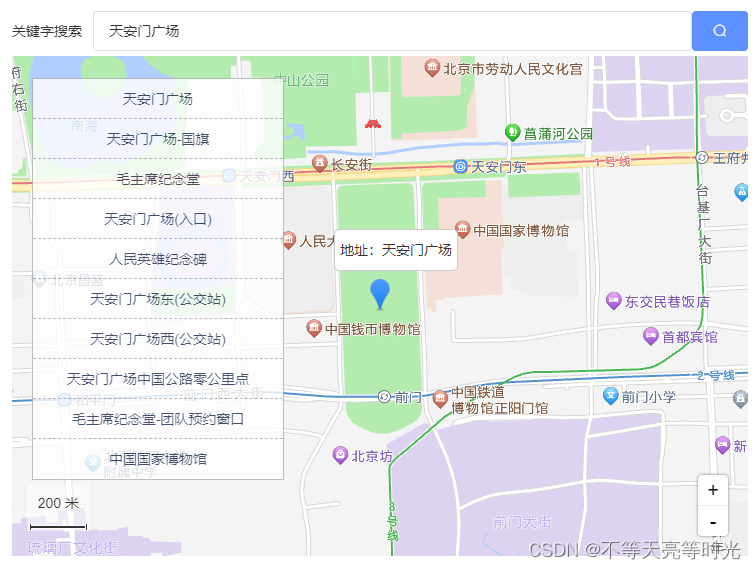
九、效果图
十、完整代码
点赞收藏留言会提供哈~~~
我正在学习如何使用Nokogiri,根据这段代码我遇到了一些问题:require'rubygems'require'mechanize'post_agent=WWW::Mechanize.newpost_page=post_agent.get('http://www.vbulletin.org/forum/showthread.php?t=230708')puts"\nabsolutepathwithtbodygivesnil"putspost_page.parser.xpath('/html/body/div/div/div/div/div/table/tbody/tr/td/div
我有一个Ruby程序,它使用rubyzip压缩XML文件的目录树。gem。我的问题是文件开始变得很重,我想提高压缩级别,因为压缩时间不是问题。我在rubyzipdocumentation中找不到一种为创建的ZIP文件指定压缩级别的方法。有人知道如何更改此设置吗?是否有另一个允许指定压缩级别的Ruby库? 最佳答案 这是我通过查看rubyzip内部创建的代码。level=Zlib::BEST_COMPRESSIONZip::ZipOutputStream.open(zip_file)do|zip|Dir.glob("**/*")d
类classAprivatedeffooputs:fooendpublicdefbarputs:barendprivatedefzimputs:zimendprotecteddefdibputs:dibendendA的实例a=A.new测试a.foorescueputs:faila.barrescueputs:faila.zimrescueputs:faila.dibrescueputs:faila.gazrescueputs:fail测试输出failbarfailfailfail.发送测试[:foo,:bar,:zim,:dib,:gaz].each{|m|a.send(m)resc
很好奇,就使用rubyonrails自动化单元测试而言,你们正在做什么?您是否创建了一个脚本来在cron中运行rake作业并将结果邮寄给您?git中的预提交Hook?只是手动调用?我完全理解测试,但想知道在错误发生之前捕获错误的最佳实践是什么。让我们理所当然地认为测试本身是完美无缺的,并且可以正常工作。下一步是什么以确保他们在正确的时间将可能有害的结果传达给您? 最佳答案 不确定您到底想听什么,但是有几个级别的自动代码库控制:在处理某项功能时,您可以使用类似autotest的内容获得关于哪些有效,哪些无效的即时反馈。要确保您的提
假设我做了一个模块如下:m=Module.newdoclassCendend三个问题:除了对m的引用之外,还有什么方法可以访问C和m中的其他内容?我可以在创建匿名模块后为其命名吗(就像我输入“module...”一样)?如何在使用完匿名模块后将其删除,使其定义的常量不再存在? 最佳答案 三个答案:是的,使用ObjectSpace.此代码使c引用你的类(class)C不引用m:c=nilObjectSpace.each_object{|obj|c=objif(Class===objandobj.name=~/::C$/)}当然这取决于
我正在尝试使用ruby和Savon来使用网络服务。测试服务为http://www.webservicex.net/WS/WSDetails.aspx?WSID=9&CATID=2require'rubygems'require'savon'client=Savon::Client.new"http://www.webservicex.net/stockquote.asmx?WSDL"client.get_quotedo|soap|soap.body={:symbol=>"AAPL"}end返回SOAP异常。检查soap信封,在我看来soap请求没有正确的命名空间。任何人都可以建议我
我需要在客户计算机上运行Ruby应用程序。通常需要几天才能完成(复制大备份文件)。问题是如果启用sleep,它会中断应用程序。否则,计算机将持续运行数周,直到我下次访问为止。有什么方法可以防止执行期间休眠并让Windows在执行后休眠吗?欢迎任何疯狂的想法;-) 最佳答案 Here建议使用SetThreadExecutionStateWinAPI函数,使应用程序能够通知系统它正在使用中,从而防止系统在应用程序运行时进入休眠状态或关闭显示。像这样的东西:require'Win32API'ES_AWAYMODE_REQUIRED=0x0
关闭。这个问题是opinion-based.它目前不接受答案。想要改进这个问题?更新问题,以便editingthispost可以用事实和引用来回答它.关闭4年前。Improvethisquestion我想在固定时间创建一系列低音和高音调的哔哔声。例如:在150毫秒时发出高音调的蜂鸣声在151毫秒时发出低音调的蜂鸣声200毫秒时发出低音调的蜂鸣声250毫秒的高音调蜂鸣声有没有办法在Ruby或Python中做到这一点?我真的不在乎输出编码是什么(.wav、.mp3、.ogg等等),但我确实想创建一个输出文件。
我在我的项目目录中完成了compasscreate.和compassinitrails。几个问题:我已将我的.sass文件放在public/stylesheets中。这是放置它们的正确位置吗?当我运行compasswatch时,它不会自动编译这些.sass文件。我必须手动指定文件:compasswatchpublic/stylesheets/myfile.sass等。如何让它自动运行?文件ie.css、print.css和screen.css已放在stylesheets/compiled。如何在编译后不让它们重新出现的情况下删除它们?我自己编译的.sass文件编译成compiled/t
我想将html转换为纯文本。不过,我不想只删除标签,我想智能地保留尽可能多的格式。为插入换行符标签,检测段落并格式化它们等。输入非常简单,通常是格式良好的html(不是整个文档,只是一堆内容,通常没有anchor或图像)。我可以将几个正则表达式放在一起,让我达到80%,但我认为可能有一些现有的解决方案更智能。 最佳答案 首先,不要尝试为此使用正则表达式。很有可能你会想出一个脆弱/脆弱的解决方案,它会随着HTML的变化而崩溃,或者很难管理和维护。您可以使用Nokogiri快速解析HTML并提取文本:require'nokogiri'h
