网络爬虫—selenium详讲
前言:
🏘️🏘️个人简介:以山河作礼。
🎖️🎖️:Python领域新星创作者,CSDN实力新星认证
📝📝第一篇文章《1.认识网络爬虫》获得全站热榜第一,python领域热榜第一。
🧾 🧾第四篇文章《4.网络爬虫—Post请求(实战演示)》全站热榜第八。
🧾 🧾第八篇文章《8.网络爬虫—正则表达式RE实战》全站热榜第十二。
🧾 🧾第十篇文章《10.网络爬虫—MongoDB详讲与实战》全站热榜第八,领域热榜第二
🧾 🧾第十三篇文章《13.网络爬虫—多进程详讲(实战演示)》全站热榜第十二。
🎁🎁《Python网络爬虫》专栏累计发表十三篇文章,上榜五篇。欢迎免费订阅!欢迎大家一起学习,一起成长!!
💕💕悲索之人烈焰加身,堕落者不可饶恕。永恒燃烧的羽翼,带我脱离凡间的沉沦。
🧾 🧾Selenium是一个自动化测试工具,用于测试Web应用程序。它可以模拟用户在Web浏览器中的操作,如点击链接、填写表单、提交表单等。
JUnit、TestNG、Maven、Ant等。Selenium IDE、Selenium WebDriver和Selenium Grid。用于编写和执行测试脚本用于在多台计算机上并行执行测试脚本。1.跨平台:Selenium 可以在多种操作系统和浏览器上运行,可以在不同的环境中进行测试。
2. 灵活性:Selenium 提供了多种 API 和工具,可以根据具体需求进行定制化开发,满足不同的测试需求。
3. 易于学习:Selenium 的 API 简单易懂,学习成本较低,而且有丰富的文档和社区支持
4. 可扩展性:Selenium 可以与其他测试工具和框架集成,例如 TestNG、JUnit 等,从而实现更加完善的测试流程。
🧾 在pycharm的终端输入安装模块的命令:
pip install selenium
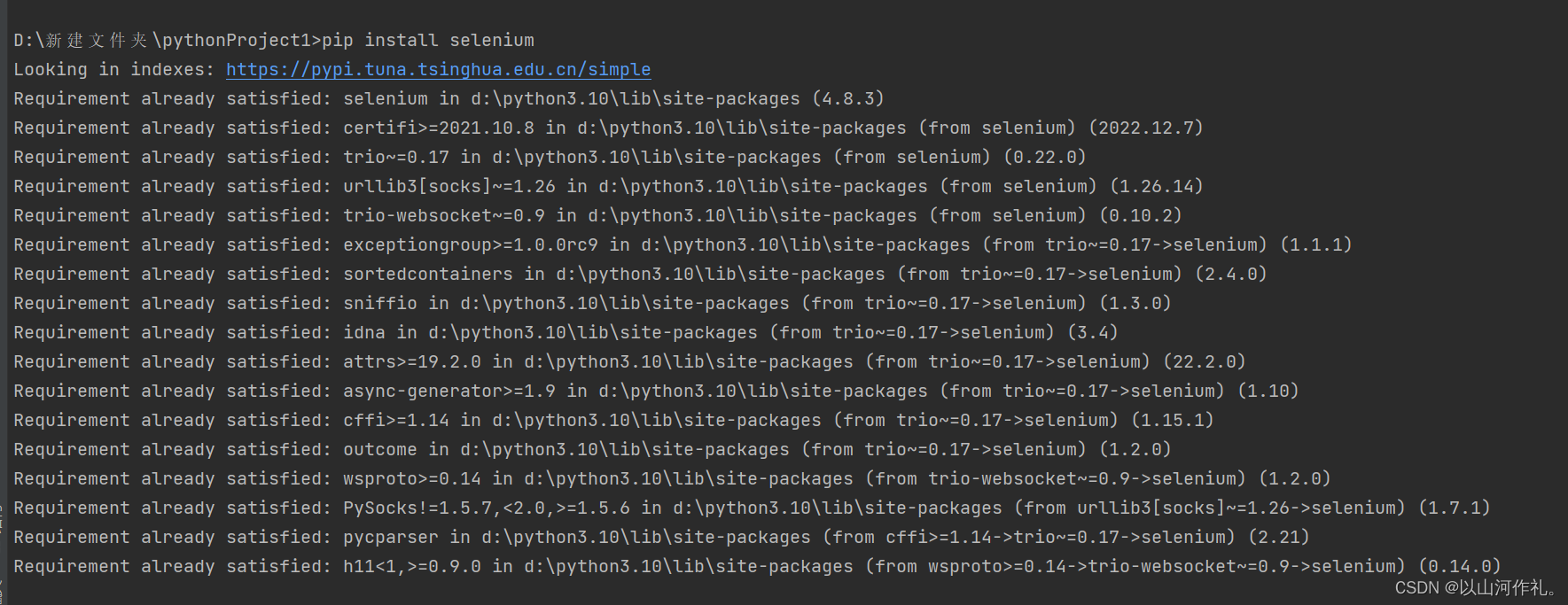
可以使用清华源安装加快安装速度:
pip install -i https://pypi.tuna.tsinghua.edu.cn/simple selenium
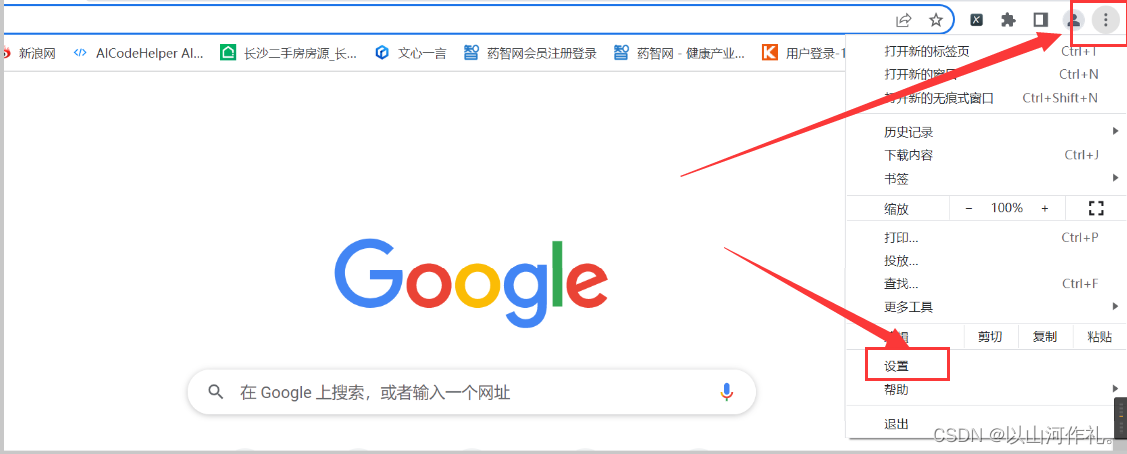
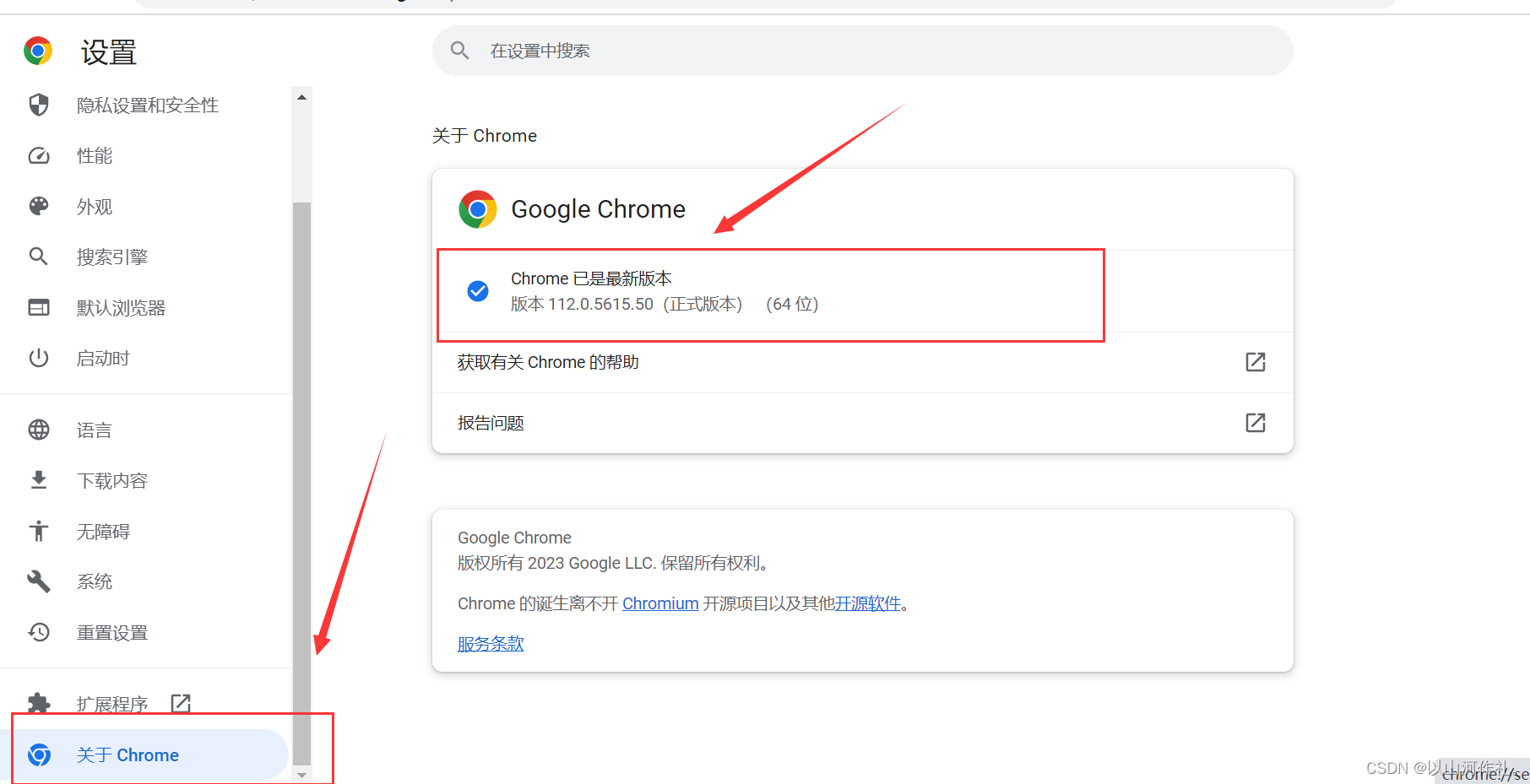
🧾 博主使用的是谷歌浏览器,确认版本的方法如下:
点击右上的三个点->点击浏览器的设置->点击关于谷歌->查看版本(版本 112.0.5615.50(正式版本) (64 位))
http://chromedriver.storage.googleapis.com/index.html
查找和浏览器版本最近的一个驱动版本(版本向下兼容)
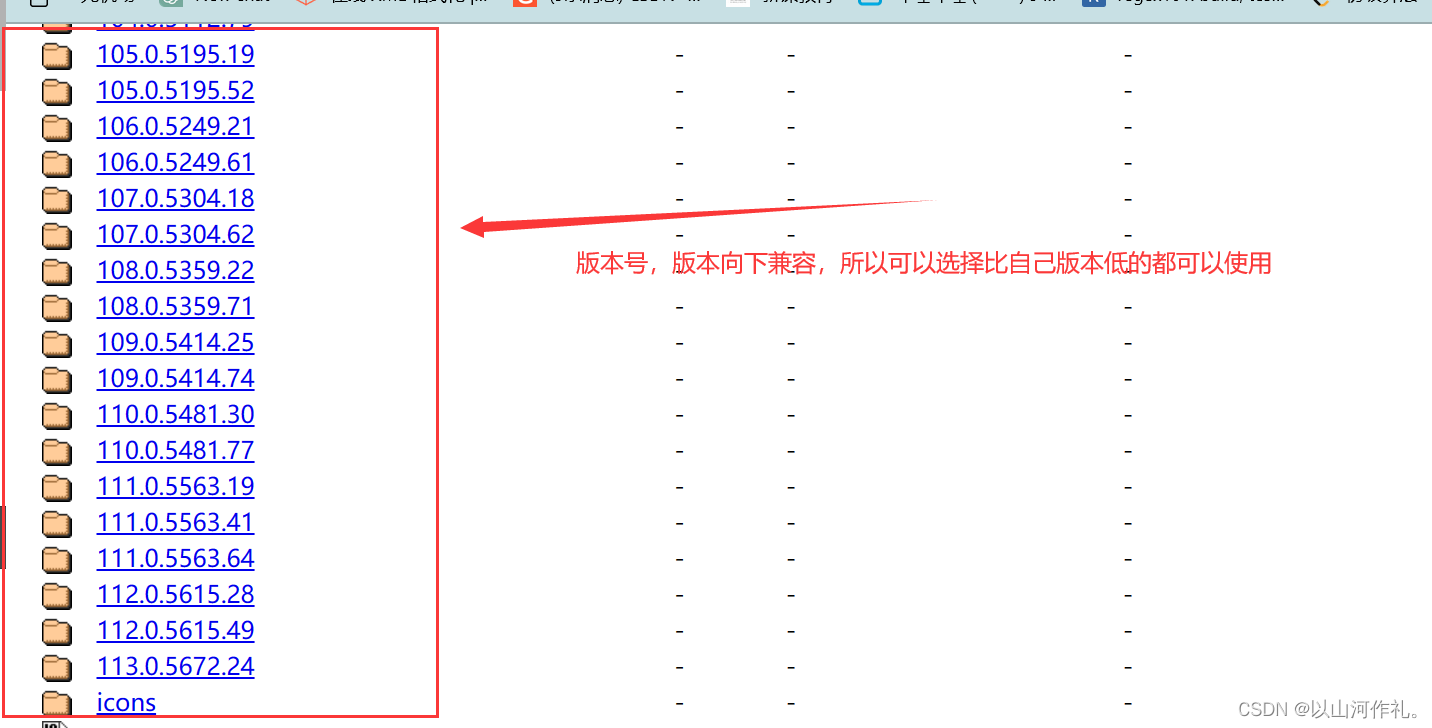
博主的浏览器版本是:版本 112.0.5615.50(正式版本) (64 位)
所以下载的是112.0.5616.28 向下兼容,所以可以正常使用。
下载chromedriver_win32.zip
系统是 64 位的,也可以使用 32 位的 ChromeDriver。因为 ChromeDriver
只是一个独立的可执行文件,它与您的操作系统架构无关。只要您的 Chrome 浏览器和 ChromeDriver
版本匹配,就可以在任何系统上运行 ChromeDriver。
解压chromedriver.exe 存放到一个位置(后续会使用)
注意点:
浏览器版本更新后,对应的驱动也需要更新才可以使用(可以去查找一下如何取消浏览器更新)
🧾 我们以打开百度浏览器为例:
from selenium.webdriver.chrome.service import Service
from selenium import webdriver

service = Service(executable_path='D:\chorm\chromedriver_win32/chromedriver.exe')
driver = webdriver.Chrome(service=service)

driver.set_window_size(1100, 850)  # 设置打开的窗口大小
driver.get('https://www.baidu.com/?tn=02003390_84_hao_pg&')  # 选择自动化操作页面

input()  # 加入input()是为了让程序暂停,等待用户输入任意字符后才继续执行下一步操作。
运行结果:
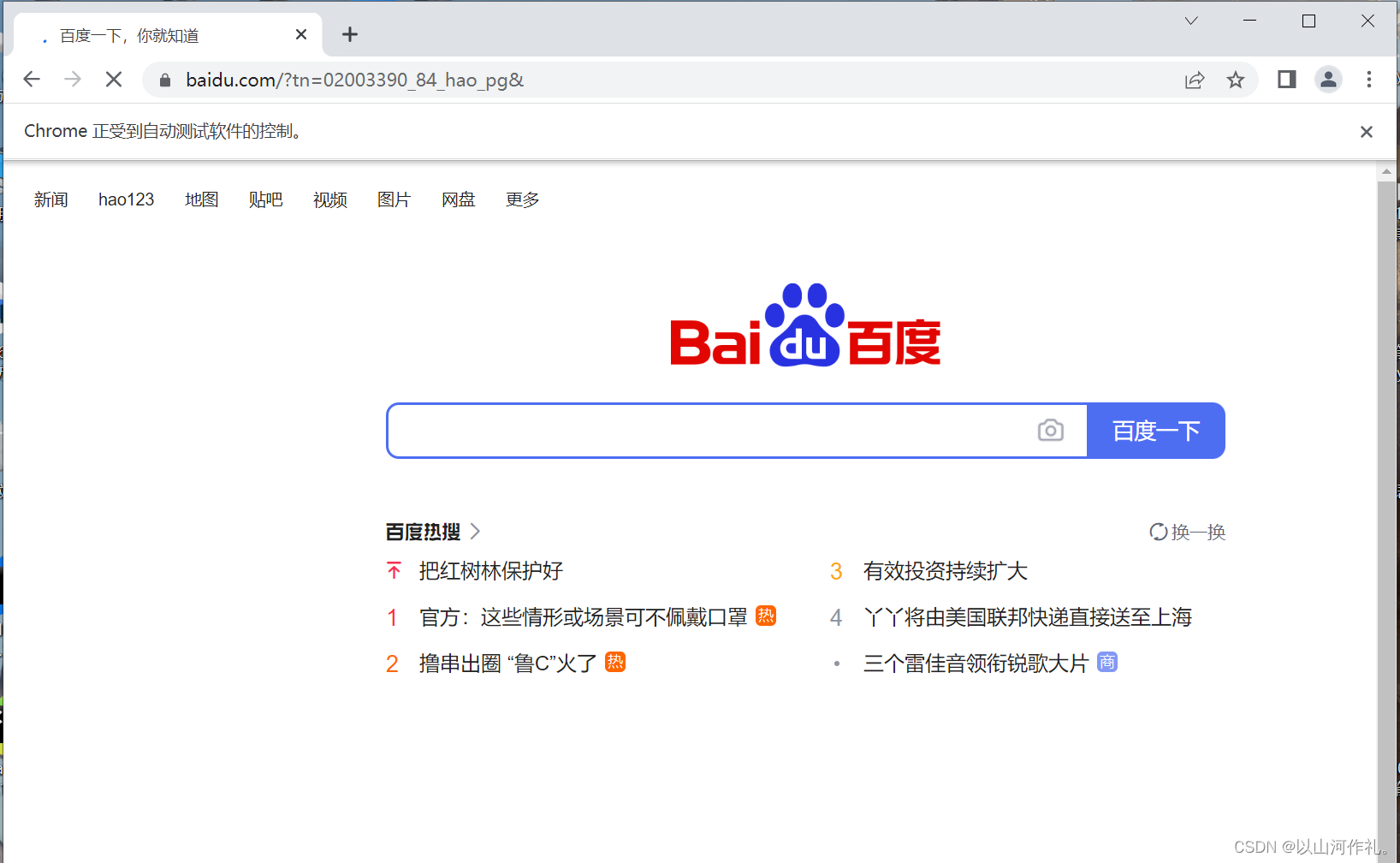
运行成功后,他会帮我们自动打开百度网页。我们可以看见上方出现chrome正受到自动测试软件的控制

加入input()是为了让程序暂停,等待用户输入任意字符后才继续执行下一步操作。这样做是为了防止程序执行完毕后自动关闭浏览器窗口,让用户有足够的时间观察程序的执行结果或手动进行后续操作。
find_element获取满足条件的第一个元素find_elements获取满足条件的所有元素| 序号 | 方法 | 描述 |
|---|---|---|
| 1 | find_element_by_id() | 通过ID定位元素 |
| 2 | find_element_by_name() | 通过name定位元素 |
| 3 | find_element_by_class_name() | 通过类样式名称定位元素 |
| 4 | find_element_by_tag_name() | 通过标签名称定位元素 |
| 5 | find_element_by_link_text() | 通过链接定位元素(a标签) |
| 6 | find_element_by_css_selector() | 通过CSS定位元素 |
| 7 | find_element_by_xpath() | 通过xpath语法来获取元素 |
示例:
from selenium.webdriver.common.by import By

driver.find_element(By.ID, 'kw').send_keys('飞机')
在百度输入框自动输入夕阳两个字。
from selenium.webdriver.chrome.service import Service
from selenium import webdriver

service = Service(executable_path='D:\chorm\chromedriver_win32/chromedriver.exe')
driver = webdriver.Chrome(service=service)

driver.set_window_size(1100, 850)  # 设置打开的窗口大小
driver.get('https://www.baidu.com/?tn=02003390_84_hao_pg&')  # 选择自动化操作页面

from selenium.webdriver.common.by import By

driver.find_element(By.ID, 'kw').send_keys('夕阳')

input()  # 加入input()是为了让程序暂停,等待用户输入任意字符后才继续执行下一步操作。
接下来我们使用代码来操作,让它执行搜索功能:

import time

from selenium.webdriver.chrome.service import Service
from selenium import webdriver
from selenium.webdriver.common.by import By

service = Service(executable_path='D:\chorm\chromedriver_win32/chromedriver.exe')
driver = webdriver.Chrome(service=service)

driver.get('https://tieba.baidu.com/')
# 方法1 直接使用嵌套的网页进行使用

# 跳转到嵌套网页
# 选取嵌套网页元素
element = driver.find_element(By.ID, 'iframeu6739266_0')
# 切换网页
driver.switch_to.frame(element)

driver.find_element(By.ID, 'title0').click()
time.sleep(5)
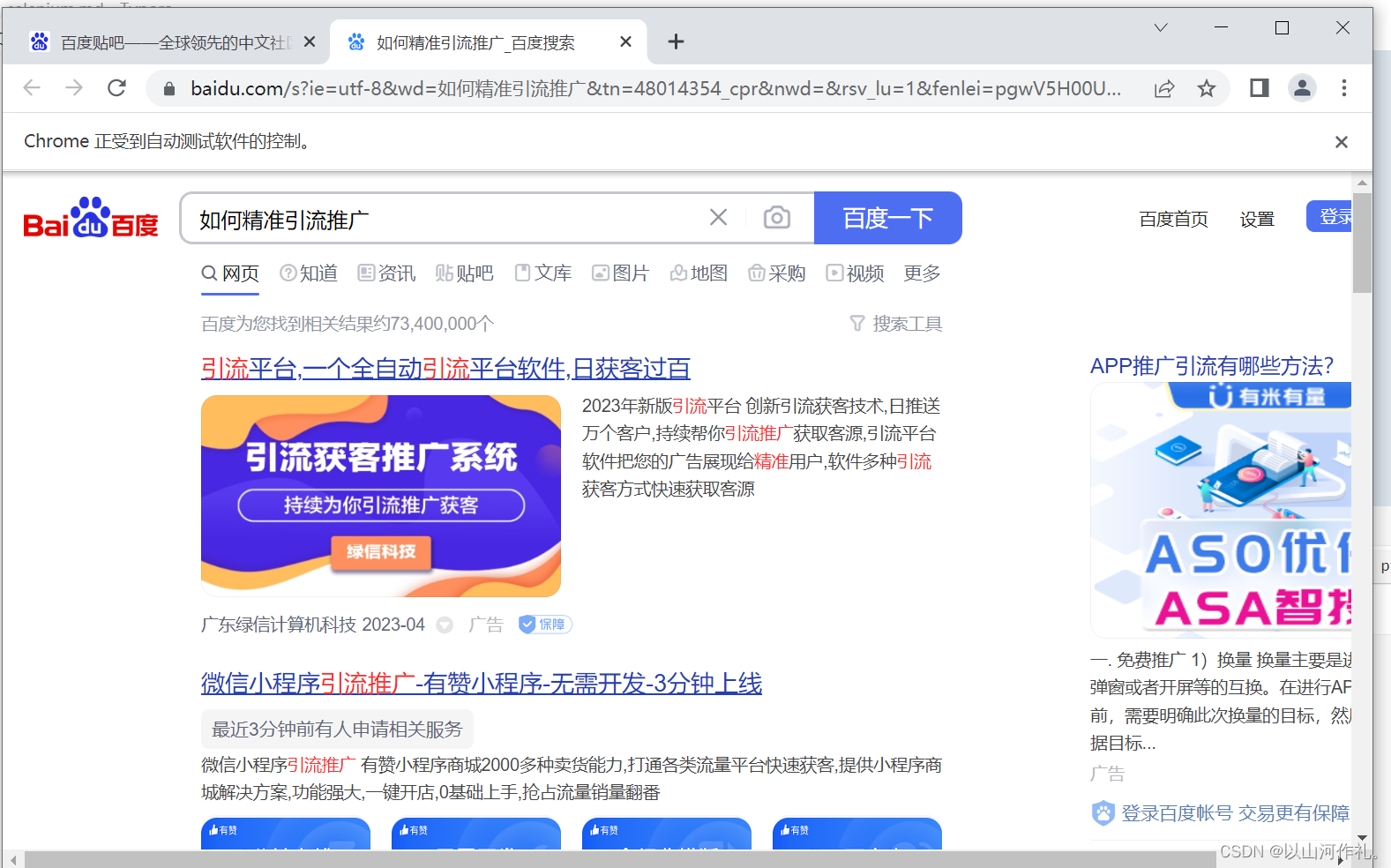
from selenium.webdriver.chrome.service import Service
from selenium import webdriver
import time

service = Service(executable_path='D:\chorm\chromedriver_win32/chromedriver.exe')
driver = webdriver.Chrome(service=service)

driver.get('https://www.duitang.com/category/?cat=wallpaper')

s = 0
n = 100
for i in range(s, n, 5):  # 实现网页滑动下拉
    js = 'window.scrollTo(0,%s)' % (i * 100)
    driver.execute_script(js)
    time.sleep(0.5)
运行这段程序后,会自动打开堆糖网页,并且实现自动下拉页面,方便我们浏览。

from selenium.webdriver.chrome.service import Service
from selenium import webdriver
from selenium.webdriver.common.by import By

service = Service(executable_path='F:\chrom\chromedriver.exe')
driver = webdriver.Chrome(service=service)

driver.get('https://kyfw.12306.cn/otn/regist/init')

from selenium.webdriver.support.ui import Select

select_element = driver.find_element(By.ID,'cardType')

select = Select(select_element)
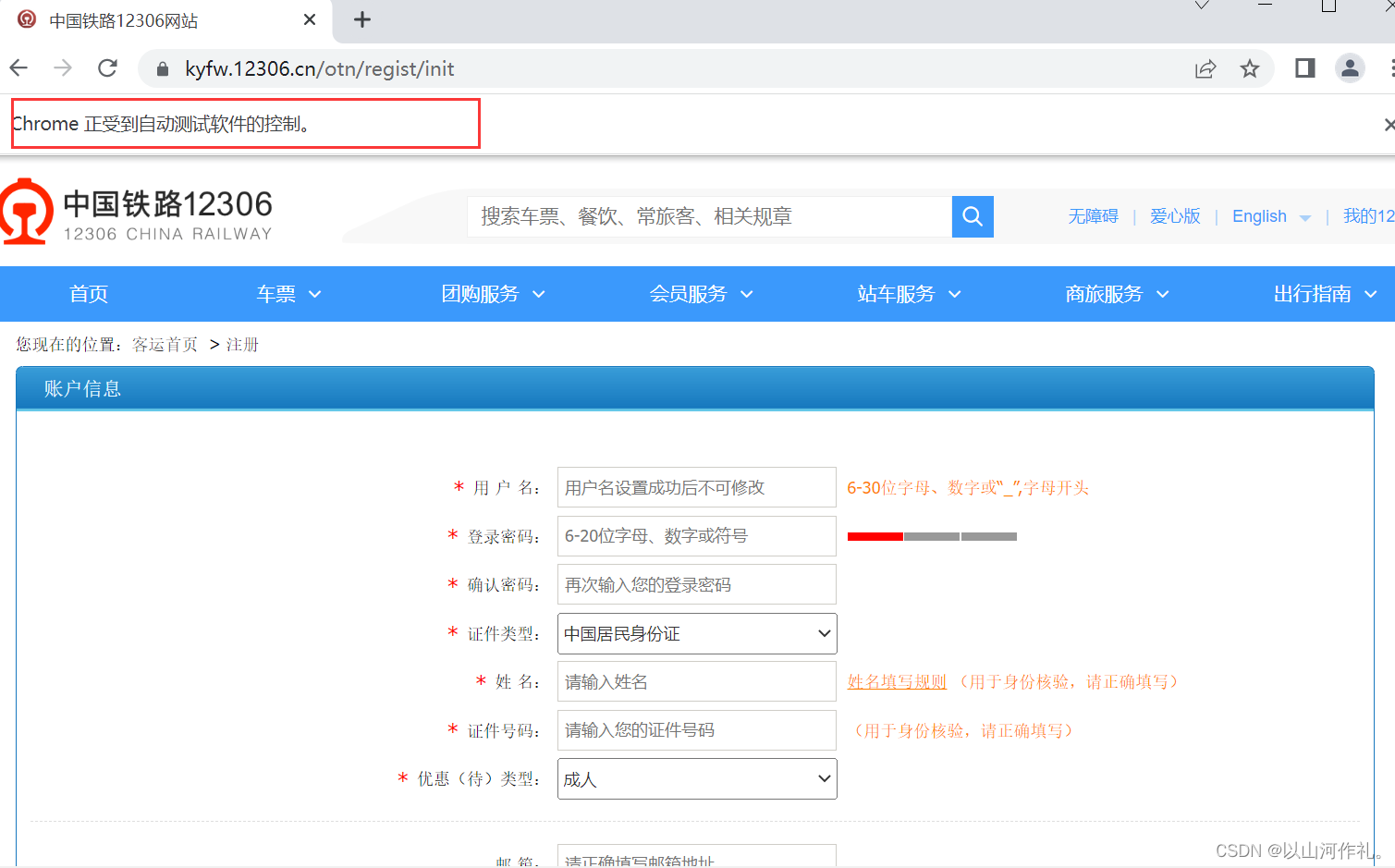
Selenium行为链(ActionChains)是Selenium中的一个Python库,它允许我们模拟用户的交互行为,例如鼠标移动、单击、双击、右键单击等。使用行为链,我们可以创建一个动作序列,然后将其执行在我们的Web应用程序上,从而模拟用户的行为。
from selenium.webdriver.common.action_chains import ActionChains
from selenium.webdriver.chrome.service import Service
from selenium import webdriver
from selenium.webdriver.common.by import By

service = Service(executable_path='F:\chrom\chromedriver.exe')
driver = webdriver.Chrome(service=service)

driver.get('https://www.baidu.com/')

action = ActionChains(driver)  # 在driver创建行为链对象

inp = driver.find_element(By.ID, 'kw')  # 获取到输入框位置
action.move_to_element(inp)  # 把鼠标移动到输入框
action.send_keys_to_element(inp, '百度贴吧')  # 模拟输入

btn = driver.find_element(By.ID, 'su')  # 获取搜索按钮
action.move_to_element(btn)  # 移动鼠标到搜索按钮
action.click(btn)  # 模拟点击

action.perform()  # 注意记得写 执行行为
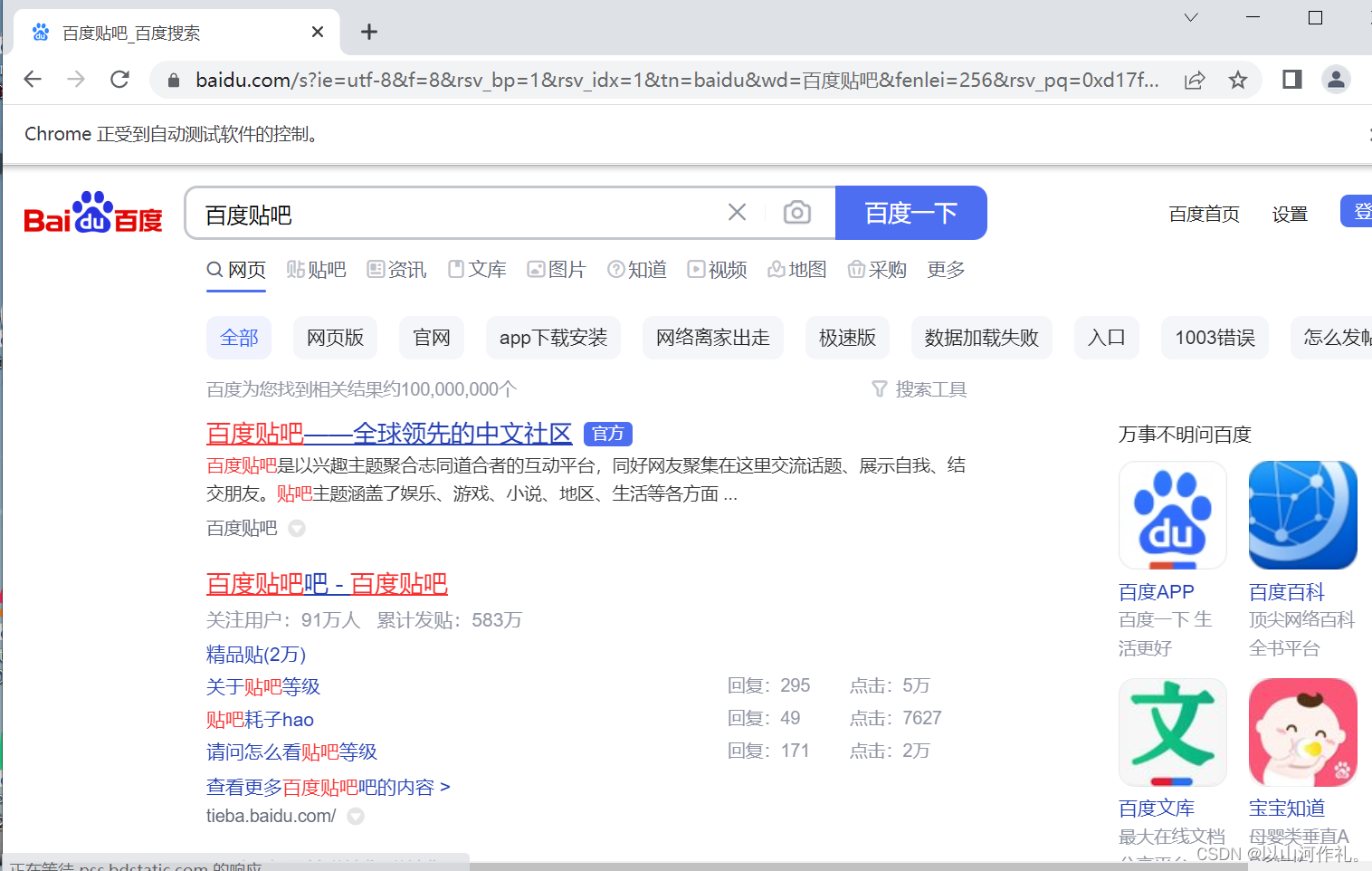
from selenium.webdriver.chrome.service import Service
from selenium import webdriver
from selenium.webdriver.common.by import By
from selenium.webdriver.support.ui import WebDriverWait
from selenium.webdriver.support.expected_conditions import presence_of_element_located as PE

service = Service(executable_path='F:\chrom\chromedriver.exe')
driver = webdriver.Chrome(service=service)

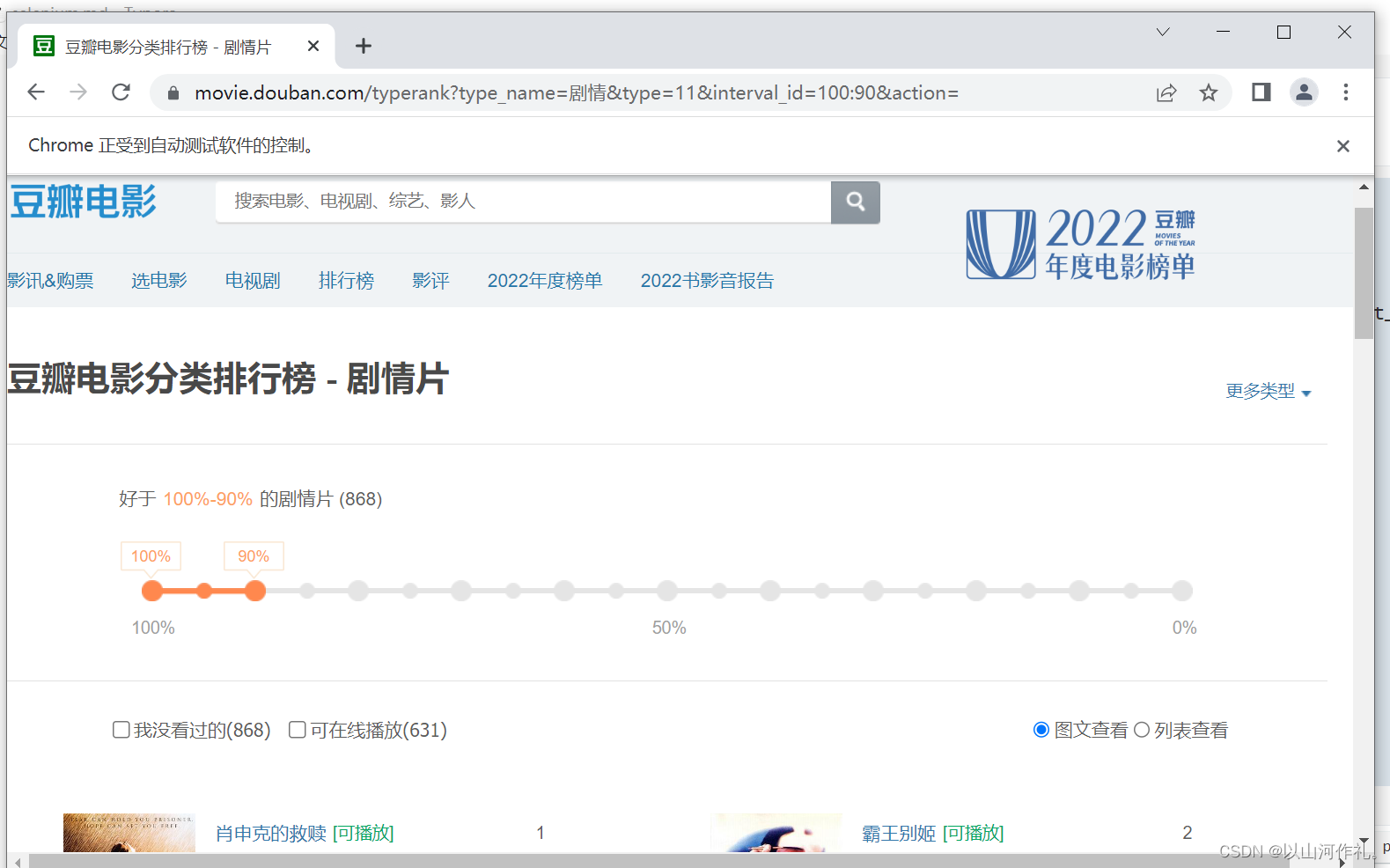
driver.get('https://movie.douban.com/typerank?type_name=%E5%89%A7%E6%83%85&type=11&interval_id=100:90&action=')
# 肖申克的救赎
# 需要等待页面加载完成再执行打印
# time.sleep(5)
# print(driver.page_source)

wait = WebDriverWait(driver, 10)  # 等待10秒,有数据就进行操作,没有就报错
wait.until(PE((By.CLASS_NAME, 'rank-num'))).click()

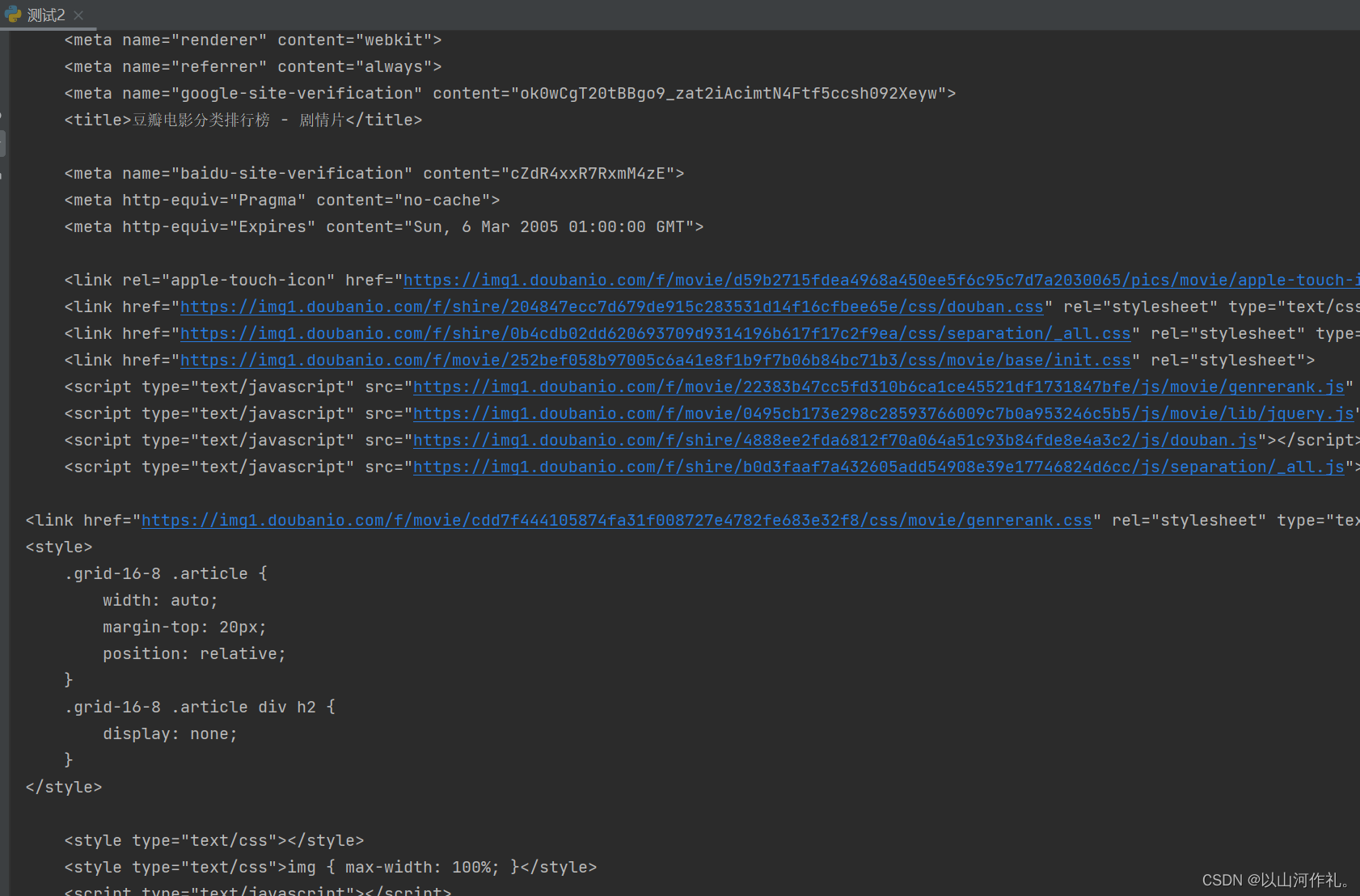
print(driver.page_source)
( 1)109.0.5414.75
selenium.common.exceptions.SessionNotCreatedException: Message: session not created: This version of ChromeDriver only supports Chrome version 86
Current browser version is 109.0.5414.75 with binary path C:\ProgramFiles\Google\Chrome\Application\chrome.exe
需要指定驱动位置
1.将驱动放置在代码的同级目录
2. 直接指定驱动的位置
(2) 浏览器闪退
selenium代码没有进行阻塞 和浏览器的驱动版本是有关系
如果想要阻塞 可以在代码最后加上sleep(10) 或者是input()
(3)运行代码出现警告
F:\pythonSpider2208\day14-selenium\selenium自动化.py:5: DeprecationWarning: executable_path has been deprecated, please pass in a Service object
  driver = webdriver.Chrome(executable_path=r'F:\chrom\chromedriver.exe')
需要我们更新代码,使用新的方式指定驱动位置(代码依然是可以正常使用的)
(4) 元素选择异常
selenium.common.exceptions.NoSuchElementException: Message: no such element: Unable to locate element: {"method":"css selector","selector":"[id="wd"]"}
(5)元素没有选择到
检测value参数是否正确
👉👉本专栏所有文章是博主学习笔记,仅供学习使用,爬虫只是一种技术,希望学习过的人能正确使用它。
博主也会定时一周三更爬虫相关技术更大家系统学习,如有问题,可以私信我,没有回,那我可能在上课或者睡觉,写作不易,感谢大家的支持!!🌹🌹🌹
我想在Ruby中创建一个用于开发目的的极其简单的Web服务器(不,不想使用现成的解决方案)。代码如下:#!/usr/bin/rubyrequire'socket'server=TCPServer.new('127.0.0.1',8080)whileconnection=server.acceptheaders=[]length=0whileline=connection.getsheaders想法是从命令行运行这个脚本,提供另一个脚本,它将在其标准输入上获取请求,并在其标准输出上返回完整的响应。到目前为止一切顺利,但事实证明这真的很脆弱,因为它在第二个请求上中断并出现错误:/usr/b
网络编程套接字网络编程基础知识理解源`IP`地址和目的`IP`地址理解源MAC地址和目的MAC地址认识端口号理解端口号和进程ID理解源端口号和目的端口号认识`TCP`协议认识`UDP`协议网络字节序socket编程接口`sockaddr``UDP`网络程序服务器端代码逻辑:需要用到的接口服务器端代码`udp`客户端代码逻辑`udp`客户端代码`TCP`网络程序服务器代码逻辑多个版本服务器单进程版本多进程版本多线程版本线程池版本服务器端代码客户端代码逻辑客户端代码TCP协议通讯流程TCP协议的客户端/服务器程序流程三次握手(建立连接)数据传输四次挥手(断开连接)TCP和UDP对比网络编程基础知识
本文主要介绍在使用Selenium进行自动化测试或者任务时,对于使用了iframe的页面,如何定位iframe中的元素文章目录场景描述解决方案具体代码场景描述当我们在使用Selenium进行自动化测试的时候,可能会遇到一些界面或者窗体是使用HTML的iframe标签进行承载的。对于iframe中的标签,如果直接查找是无法找到的,会抛出没有找到元素的异常。比如近在咫尺的例子就是,CSDN的登录窗体就是使用的iframe,大家可以尝试通过F12开发者模式查看到的tag_name,class_name,id或者xpath来定位中的页面元素,会抛出NoSuchElementException异常。解决
我有一个使用SeleniumWebdriver和Nokogiri的Ruby应用程序。我想选择一个类,然后对于那个类对应的每个div,我想根据div的内容执行一个Action。例如,我正在解析以下页面:https://www.google.com/webhp?sourceid=chrome-instant&ion=1&espv=2&ie=UTF-8#q=puppies这是一个搜索结果页面,我正在寻找描述中包含“Adoption”一词的第一个结果。因此机器人应该寻找带有className:"result"的div,对于每个检查它的.descriptiondiv是否包含单词“adoption
我看到其他人也遇到过类似的问题,但没有一个解决方案对我有用。0.3.14gem与其他gem文件一起存在。我已经完全按照此处指示完成了所有操作:https://github.com/brianmario/mysql2.我仍然得到以下信息。我不知道为什么安装程序指示它找不到include目录,因为我已经检查过它存在。thread.h文件存在,但不在ruby目录中。相反,它在这里:C:\RailsInstaller\DevKit\lib\perl5\5.8\msys\CORE\我正在运行Windows7并尝试在Aptana3中构建我的Rails项目。我的Ruby是1.9.3。$gemin
我将Cucumber与Ruby结合使用。通过Selenium-Webdriver在Chrome中运行测试时,我想将下载位置更改为测试文件夹而不是用户下载文件夹。我当前的chrome驱动程序是这样设置的:Capybara.default_driver=:seleniumCapybara.register_driver:seleniumdo|app|Capybara::Selenium::Driver.new(app,:browser=>:chrome,desired_capabilities:{'chromeOptions'=>{'args'=>%w{window-size=1920,1
我试图在Ubuntu14.04中使用Curl安装RVM。我运行了以下命令:\curl-sSLhttps://get.rvm.io|bash-sstable出现如下错误:curl:(7)Failedtoconnecttoget.rvm.ioport80:Networkisunreachable非常感谢解决此问题的任何帮助。谢谢 最佳答案 在执行curl之前尝试这个:echoipv4>>~/.curlrc 关于ruby-在Ubuntu14.04中使用Curl安装RVM时出错,我们在Stack
是否可以在不实际下载文件的情况下检查文件是否存在?我有这么大的(~40mb)文件,例如:http://mirrors.sohu.com/mysql/MySQL-6.0/MySQL-6.0.11-0.glibc23.src.rpm这与ruby不严格相关,但如果发件人可以设置内容长度就好了。RestClient.get"http://mirrors.sohu.com/mysql/MySQL-6.0/MySQL-6.0.11-0.glibc23.src.rpm",headers:{"Content-Length"=>100} 最佳答案
我在这方面尝试了很多URL,在我遇到这个特定的之前,它们似乎都很好:require'rubygems'require'nokogiri'require'open-uri'doc=Nokogiri::HTML(open("http://www.moxyst.com/fashion/men-clothing/underwear.html"))putsdoc这是结果:/Users/macbookair/.rvm/rubies/ruby-2.0.0-p481/lib/ruby/2.0.0/open-uri.rb:353:in`open_http':404NotFound(OpenURI::HT
我使用RVM安装Ruby-2.1.5并再次运行bundle。现在pggem不会安装,我得到这个错误:geminstallpg-v'0.17.1'----with-pg-config=/Applications/Postgres.app/Contents/Versions/9.3/bin/pg_configBuildingnativeextensionswith:'--with-pg-config=/Applications/Postgres.app/Contents/Versions/9.3/bin/pg_config'Thiscouldtakeawhile...ERROR:Error