Link of original Github repo
Link of personal made study case of HR-VITON
Content
According to explanation from authors: Preprocessing.md. At least a few steps are needed for getting all required inputs of model.
Most of those are reproduced on Colab, except Human Parse, which needs Tensorflow 1.15 and GPU is highly prefered.
(1) Install OpenPose, taking about 15 minutes
import os
from os.path import exists, join, basename, splitext

git_repo_url = 'https://github.com/CMU-Perceptual-Computing-Lab/openpose.git'
project_name = splitext(basename(git_repo_url))[0]
if not exists(project_name):
  # see: https://github.com/CMU-Perceptual-Computing-Lab/openpose/issues/949
  # install new CMake becaue of CUDA10
  !wget -q https://cmake.org/files/v3.13/cmake-3.13.0-Linux-x86_64.tar.gz
  !tar xfz cmake-3.13.0-Linux-x86_64.tar.gz --strip-components=1 -C /usr/local
  # clone openpose
  !git clone -q --depth 1 $git_repo_url
  !sed -i 's/execute_process(COMMAND git checkout master WORKING_DIRECTORY ${CMAKE_SOURCE_DIR}\/3rdparty\/caffe)/execute_process(COMMAND git checkout f019d0dfe86f49d1140961f8c7dec22130c83154 WORKING_DIRECTORY ${CMAKE_SOURCE_DIR}\/3rdparty\/caffe)/g' openpose/CMakeLists.txt
  # install system dependencies
  !apt-get -qq install -y libatlas-base-dev libprotobuf-dev libleveldb-dev libsnappy-dev libhdf5-serial-dev protobuf-compiler libgflags-dev libgoogle-glog-dev liblmdb-dev opencl-headers ocl-icd-opencl-dev libviennacl-dev
  # install python dependencies
  !pip install -q youtube-dl
  # build openpose
  !cd openpose && rm -rf build || true && mkdir build && cd build && cmake .. && make -j`nproc`
Now, OpenPose will be installed under your current path.
(2) Get all needed models
!. ./openpose/models/getModels.sh
(3) Prepare your test data
# for storing input image
!mkdir ./image_path
# copy official provided data to image_path, you may need to download and unzip it in advance
!cp ./test/image/000* ./image_path/
# create directories for generated results of OpenPose
!mkdir ./json_path
!mkdir ./img_path
(4)Run
# go to openpose directory
%cd openpose
# run openpose.bin
!./build/examples/openpose/openpose.bin --image_dir ../image_path --hand --disable_blending --display 0 --write_json ../json_path --write_images ../img_path --num_gpu 1 --num_gpu_start 0
Then json files will be saved under …/json_path and images will be saved under …/img_path.
The image result looks like
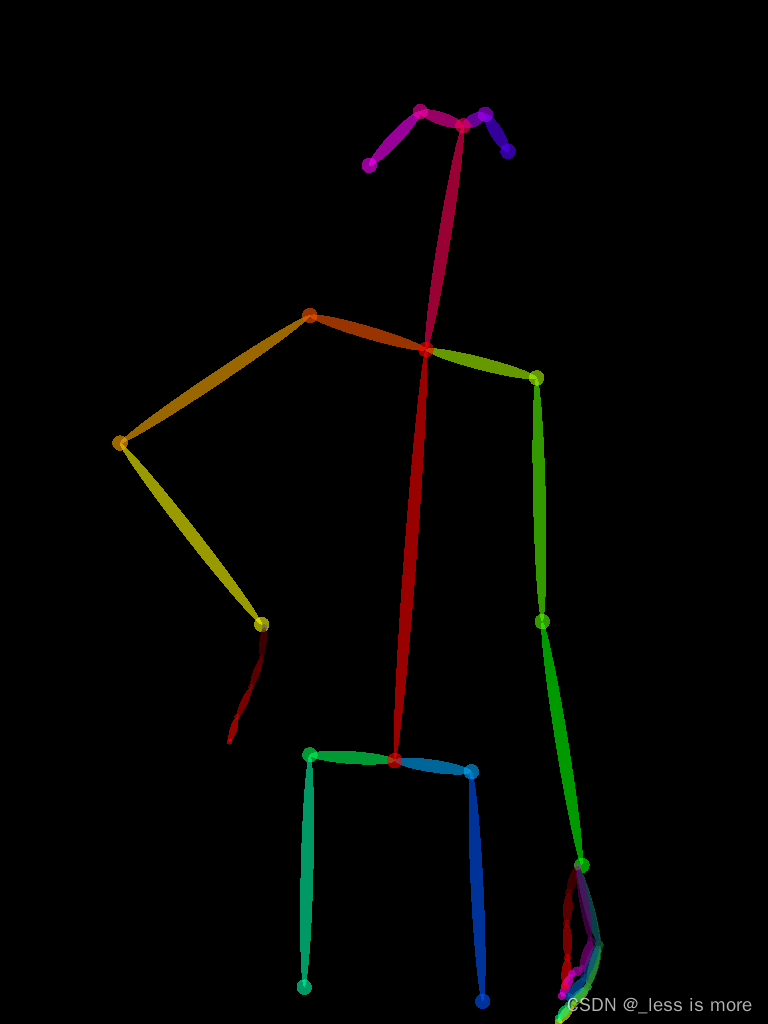
More details about results can be found at openpose
In this section, you can either do it on Colab, Cloud, or local. Unfortunately, I didn’t successfully make use of GPU on Colab, and I can only use CPU, which is super slow when image size at 768 × 1024 (about 13 minutes per image).
If you can accept, then install Tensorflow 1.15, before which you have to change Python version to 3.7 or 3.6.
(1) Get pretrained model
%%bash
FILE_NAME='./CIHP_pgn.zip'
FILE_ID='1Mqpse5Gen4V4403wFEpv3w3JAsWw2uhk'

curl -sc /tmp/cookie "https://drive.google.com/uc?export=download&id=$FILE_ID" > /dev/null
CODE="$(awk '/_warning_/ {print $NF}' /tmp/cookie)"
curl -Lb /tmp/cookie "https://drive.google.com/uc?export=download&confirm=${CODE}&id=$FILE_ID" -o $FILE_NAME
unzip
!unzip CIHP_pgn.zip
(2) Get repo
!cp -r /content/drive/MyDrive/CIHP_PGN ./
%cd CIHP_PGN
Note: I just saved the repo and cleaned it for my own purpose, but you can use official provided code as well.
(3) Prepare data and model
!mkdir -p ./checkpoint
!mkdir -p ./datasets/images
# You also need to download dataset provided or use your own images
!mv ../CIHP_pgn ./checkpoint/CIHP_pgn
!cp ../test/image/0000* ./datasets/images
(4) Configuration
Change to Python 3.6
!sudo update-alternatives --config python3
Install dependencies (Tensorflow 1.15)
!sudo apt-get install python3-pip
!python -m pip install --upgrade pip
!pip install matplotlib opencv-python==4.2.0.32 Pillow scipy tensorflow==1.15
!pip install ipykernel
(5) Run
now you can run your code
!python ./inference_pgn.py
Note: In official repo, the file is named inf_pgn.py, which leads to the same result as mine.
Finally, you can get result looks like
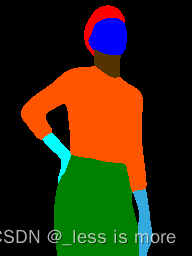
More details can be found at CIHP_PGN
In this section, I will give more explanation about what we really need.
You need conda in this part, which is what I used at least.
(1) Create a new env for oldschool Tensorflow
conda create -n tf python=3.7
(2) Configuration
conda activate tf
install GPU dependencies: cudatoolkit=10.0 cudnn=7.6.5
conda install -c conda-forge cudatoolkit=10.0 cudnn=7.6.5
install Tensorflow 1.15 GPU
pip install tensorflow-gpu==1.15
You may need to install below in a new env
pip install scipy==1.7.3 opencv-python==4.5.5.62 protobuf==3.19.1 Pillow==9.0.1 matplotlib==3.5.1
More info about compatibility between Tensorflow and CUDA can be found here
(3) Prepare data, repo and model as mentioned before
A final dir looks like
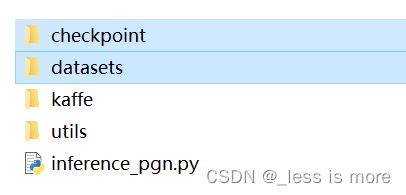
So you basically just put model under checkpoint/CIHP_pgn
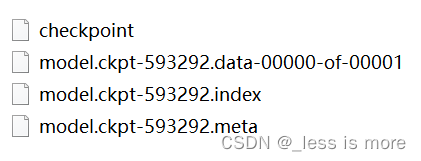
And put data under datasets/images
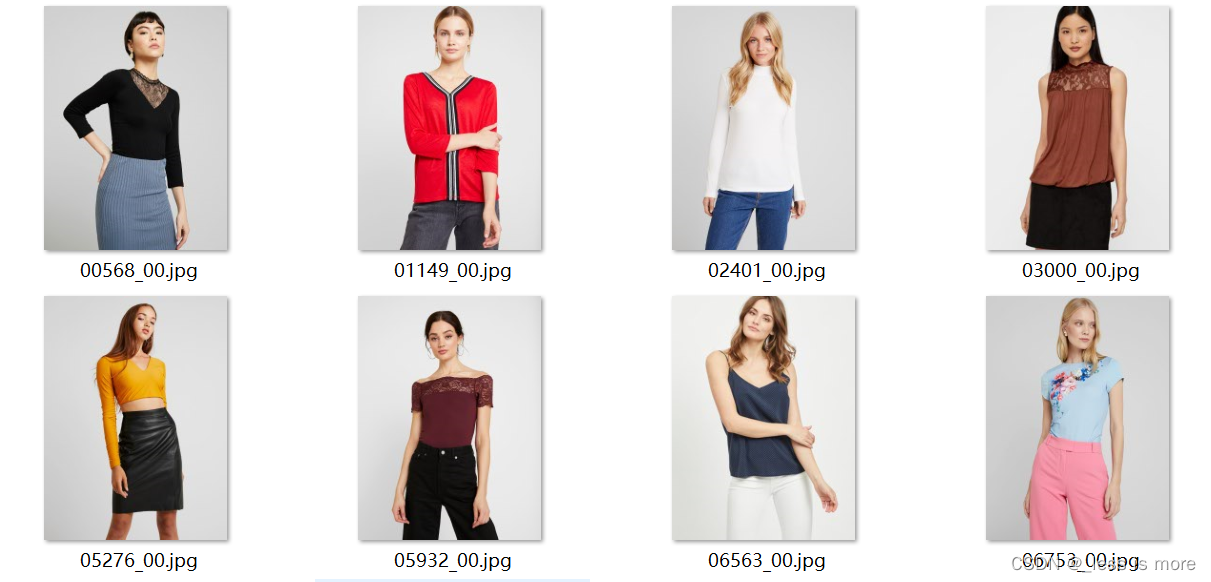
It can be just a few images of people. A repo of my cleaned version can be found at Google Drive. Feel free to download it. If you use official provided inf_pgn.py, same results will be generated.
(4) Run
python inference_pgn.py
Then you should see the output. Unfortunately, I didn’t make it inference with GPU, no matter on server or local.
At local, my GPU is MX250 with 2G memory, which is not enough for inference.
At server, the GPU is RTX A5000, but for some unknown reason, probably something incompatible, the GPU is not invoked for inference. But model is successfully loaded into GPU though.
Fortunately, the server I used has 24 Cores and supports 2 threads per Core, which make it running still fast (20 to 30 seconds per 768×1024 image) even with CPU.
Final result looks like
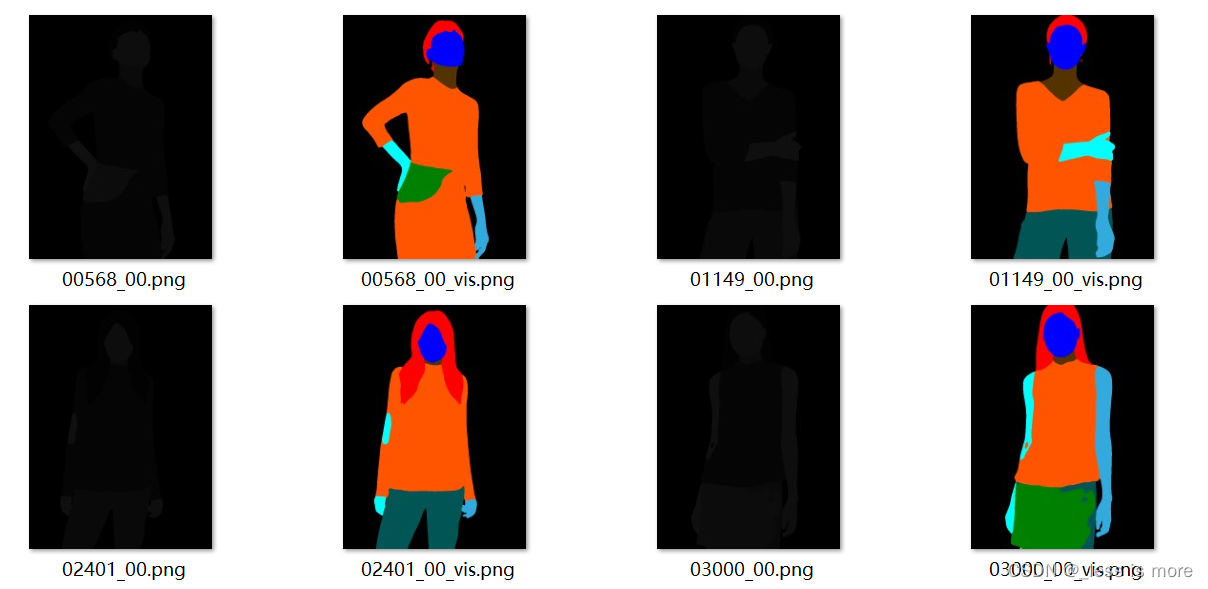
However, the result inferenced with input of 768×1024 is not the same as input of 192×256. The former looks worse as shown above.
Note: The black images are what we really need, because the values of colored one are for example 0, 51, 85, 128, 170, 221, 255, which are not from 0 - 20 and inconsistant with HR-VITON. The values of black one are for example 0, 2, 5, 10, 12, 13, 14, 15, which are needed as labels for getting agnostic images.
One thing to mention, the images provided by official dataset keep both visualization (colored) and label (0 - 20). I don’t know how they did that. I also tried P mode in PIL, but found nothing.
The color and corresponding label: (See Github Issue)
Background (0,0,0)
Hat (128,0,0)
Hair (255,0,0)
Glove (0,85,0)
Sunglasses (170,0,51)
Upper-clothes (255,85,0)
Dress (0,0,85)
Coat (0,119,221)
Socks (85,85,0)
Pants (0,85,85)
torso-skin (85,51,0)
Scarf (52,86,128)
Skirt (0,128,0)
Face (0,0,255)
Left-arm (51,170,221)
Right-arm (0,255,255)
Left-leg (85,255,170)
Right-leg (170,255,85)
Left-shoe (255,255,0)
Right-shoe (255,170,0)
(1) get repo of detectron2
!git clone https://github.com/facebookresearch/detectron2
(2) install dependencies
!python -m pip install -e detectron2
(3) install packages for DensePose
%cd detectron2/projects/DensePose
!pip install av>=8.0.3 opencv-python-headless>=4.5.3.56 scipy>=1.5.4
(4) Prepare your images
!mkdir ./image_path
!cp /content/test/image/0000* ./image_path/
(5) Modify code
At the time I used DensePose, there are some bugs, I have to modify some code to make it work as I want it to. When you follow this tutorial, situation may change.
 alpha=0.7 to 1
 inplace=True to False
This modification is because above change is not enough, image_target_bgr = image_bgr * 0 made a copy instead of a reference and lost our result.
image_target_bgr = image_bgr * 0
to
image_target_bgr = image_bgr
image_target_bgr *= 0
out_fname = './image-densepose/' + image_fpath.split('/')[-1]
out_dir = './image-densepose'
(6) Run
If you are using CPU, add --opts MODEL.DEVICE cpu to end of below command.
!python apply_net.py show configs/densepose_rcnn_R_50_FPN_s1x.yaml \
https://dl.fbaipublicfiles.com/densepose/densepose_rcnn_R_50_FPN_s1x/165712039/model_final_162be9.pkl \
image_path dp_segm -v
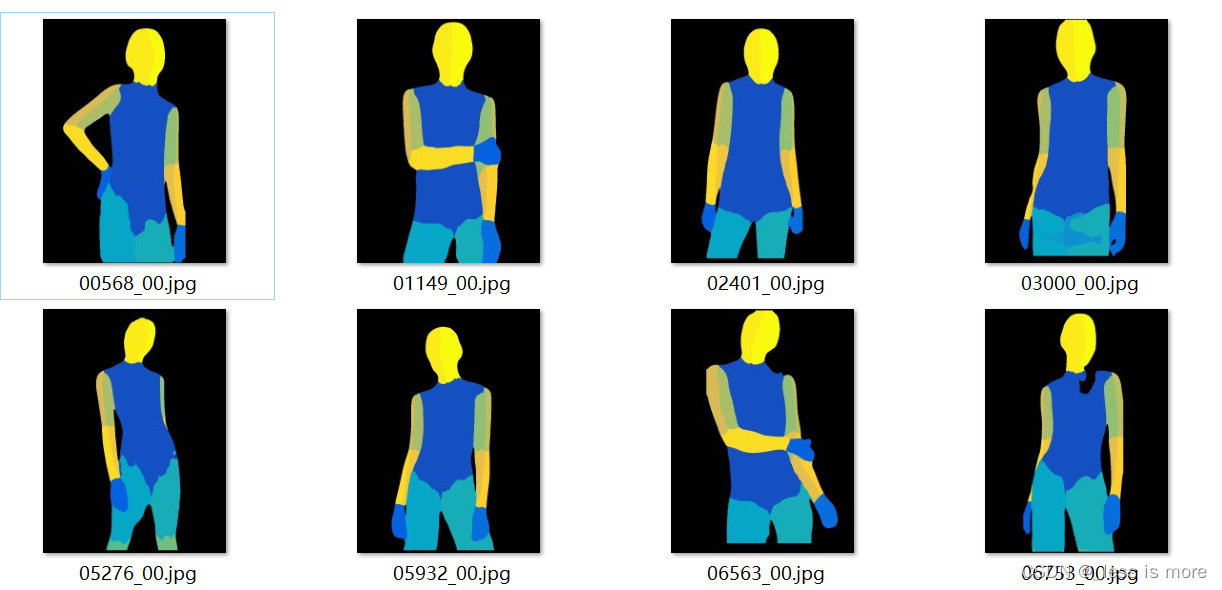
Then you can get results look like
This is a lot easier.
(1) Install
!pip install carvekit_colab
(2) Download models
from carvekit.ml.files.models_loc import download_all
download_all();
(3) Prepare cloth images
!mkdir ./cloth
!cp ./test/cloth/0000* ./cloth/
prepare dir for results
!mkdir ./cloth_mask
(4) Run
#title Upload images from your computer
#markdown Description of parameters
#markdown - `SHOW_FULLSIZE`  - Shows image in full size (may take a long time to load)
#markdown - `PREPROCESSING_METHOD`  - Preprocessing method
#markdown - `SEGMENTATION_NETWORK`  - Segmentation network. Use `u2net` for hairs-like objects and `tracer_b7` for objects
#markdown - `POSTPROCESSING_METHOD`  - Postprocessing method
#markdown - `SEGMENTATION_MASK_SIZE` - Segmentation mask size. Use 640 for Tracer B7 and 320 for U2Net
#markdown - `TRIMAP_DILATION`  - The size of the offset radius from the object mask in pixels when forming an unknown area
#markdown - `TRIMAP_EROSION`  - The number of iterations of erosion that the object's mask will be subjected to before forming an unknown area

import os
import numpy as np
from PIL import Image, ImageOps
from carvekit.web.schemas.config import MLConfig
from carvekit.web.utils.init_utils import init_interface

SHOW_FULLSIZE = False #param {type:"boolean"}
PREPROCESSING_METHOD = "none" #param ["stub", "none"]
SEGMENTATION_NETWORK = "tracer_b7" #param ["u2net", "deeplabv3", "basnet", "tracer_b7"]
POSTPROCESSING_METHOD = "fba" #param ["fba", "none"]
SEGMENTATION_MASK_SIZE = 640 #param ["640", "320"] {type:"raw", allow-input: true}
TRIMAP_DILATION = 30 #param {type:"integer"}
TRIMAP_EROSION = 5 #param {type:"integer"}
DEVICE = 'cpu' # 'cuda'

config = MLConfig(segmentation_network=SEGMENTATION_NETWORK,
                  preprocessing_method=PREPROCESSING_METHOD,
                  postprocessing_method=POSTPROCESSING_METHOD,
                  seg_mask_size=SEGMENTATION_MASK_SIZE,
                  trimap_dilation=TRIMAP_DILATION,
                  trimap_erosion=TRIMAP_EROSION,
                  device=DEVICE)

interface = init_interface(config)

imgs = []
root = '/content/cloth'
for name in os.listdir(root):
    imgs.append(root + '/' + name)

images = interface(imgs)
for i, im in enumerate(images):
    img = np.array(im)
    img = img[...,:3] # no transparency
    idx = (img[...,0]==0)&(img[...,1]==0)&(img[...,2]==0) # background 0 or 130, just try it
    img = np.ones(idx.shape)*255
    img[idx] = 0
    im = Image.fromarray(np.uint8(img), 'L')
    im.save(f'./cloth_mask/{imgs[i].split("/")[-1].split(".")[0]}.jpg')
Make sure your cloth mask results are the same size with input cloth image (768×1024). And looks like
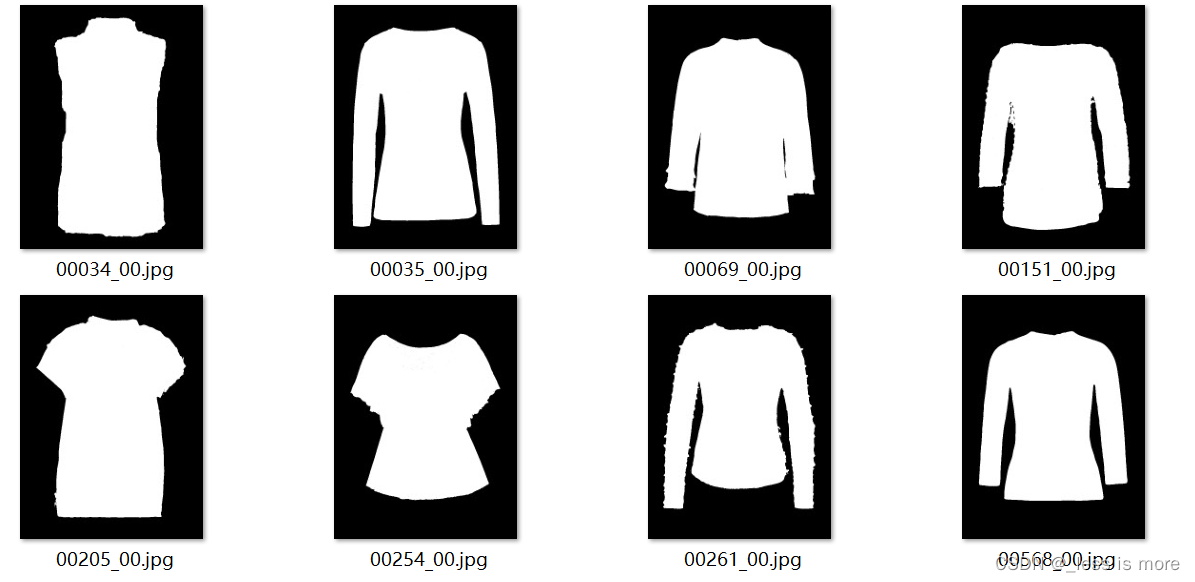
Note: you may have to change above code to get the right results, because sometimes the generated results are different, and I didn’t investigate to much about this tool. Especially the line of idx = (img[...,0]==0)&(img[...,1]==0)&(img[...,2]==0), you may get results of 0 or 130 as background depending on the model you use and settings.
Here is the parse label and corresponding body parts. You may need or not.
0 - 20
Background
Hat
Hair
Glove
Sunglasses
Upper-clothes
Dress
Coat
Socks
Pants
tosor-skin
Scarf
Skirt
Face
Left-arm
Right-arm
Left-leg
Right-leg
Left-shoe
Right-shoe
(1) Install packages
!pip install Pillow tqdm
(2) Prepare data
After all above steps, now you should have a data structure like this, they are under directory of test. If you are not sure which results locate in which dir, check out official dataset structure, you can download it from here.
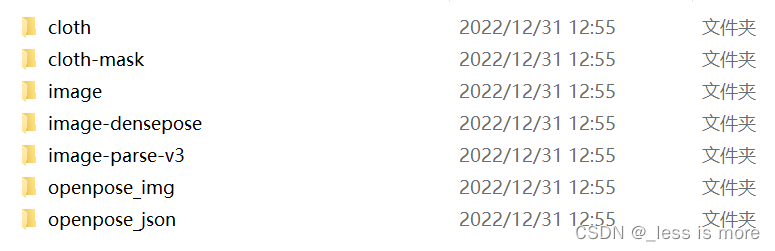
You can zip them into test.zip and unzip them on Colab with !unzip test.zip.
Note: the images under image-parse-v3 (black images with label) are not looking the same as official data (colored images with label), the reason has been mentioned before.
(3) Run
import json
from os import path as osp
import os
import numpy as np
from PIL import Image, ImageDraw
from tqdm import tqdm

def get_im_parse_agnostic(im_parse, pose_data, w=768, h=1024):
    label_array = np.array(im_parse)
    parse_upper = ((label_array == 5).astype(np.float32) +
                    (label_array == 6).astype(np.float32) +
                    (label_array == 7).astype(np.float32))
    parse_neck = (label_array == 10).astype(np.float32)

    r = 10
    agnostic = im_parse.copy()

    # mask arms
    for parse_id, pose_ids in [(14, [2, 5, 6, 7]), (15, [5, 2, 3, 4])]:
        mask_arm = Image.new('L', (w, h), 'black')
        mask_arm_draw = ImageDraw.Draw(mask_arm)
        i_prev = pose_ids[0]
        for i in pose_ids[1:]:
            if (pose_data[i_prev, 0] == 0.0 and pose_data[i_prev, 1] == 0.0) or (pose_data[i, 0] == 0.0 and pose_data[i, 1] == 0.0):
                continue
            mask_arm_draw.line([tuple(pose_data[j]) for j in [i_prev, i]], 'white', width=r*10)
            pointx, pointy = pose_data[i]
            radius = r*4 if i == pose_ids[-1] else r*15
            mask_arm_draw.ellipse((pointx-radius, pointy-radius, pointx+radius, pointy+radius), 'white', 'white')
            i_prev = i
        parse_arm = (np.array(mask_arm) / 255) * (label_array == parse_id).astype(np.float32)
        agnostic.paste(0, None, Image.fromarray(np.uint8(parse_arm * 255), 'L'))

    # mask torso & neck
    agnostic.paste(0, None, Image.fromarray(np.uint8(parse_upper * 255), 'L'))
    agnostic.paste(0, None, Image.fromarray(np.uint8(parse_neck * 255), 'L'))

    return agnostic


if __name__ =="__main__":
    data_path = './test'
    output_path = './test/parse'

    os.makedirs(output_path, exist_ok=True)

    for im_name in tqdm(os.listdir(osp.join(data_path, 'image'))):

        # load pose image
        pose_name = im_name.replace('.jpg', '_keypoints.json')

        try:
            with open(osp.join(data_path, 'openpose_json', pose_name), 'r') as f:
                pose_label = json.load(f)
                pose_data = pose_label['people'][0]['pose_keypoints_2d']
                pose_data = np.array(pose_data)
                pose_data = pose_data.reshape((-1, 3))[:, :2]
        except IndexError:
            print(pose_name)
            continue

        # load parsing image
        parse_name = im_name.replace('.jpg', '.png')
        im_parse = Image.open(osp.join(data_path, 'image-parse-v3', parse_name))

        agnostic = get_im_parse_agnostic(im_parse, pose_data)

        agnostic.save(osp.join(output_path, parse_name))
You can check results under ./test/parse. But it’s all black as well. To ensure you are getting the right agnostic parse images, do below
import numpy as np
from PIL import Image

im_ori = Image.open('./test/image-parse-v3/06868_00.png')
im = Image.open('./test/parse/06868_00.png')
print(np.unique(np.array(im_ori)))
print(np.unique(np.array(im)))
The output may look like
[ 0  2  5  9 10 13 14 15]
[ 0  2  9 13 14 15]
The first row is longer than the second row.
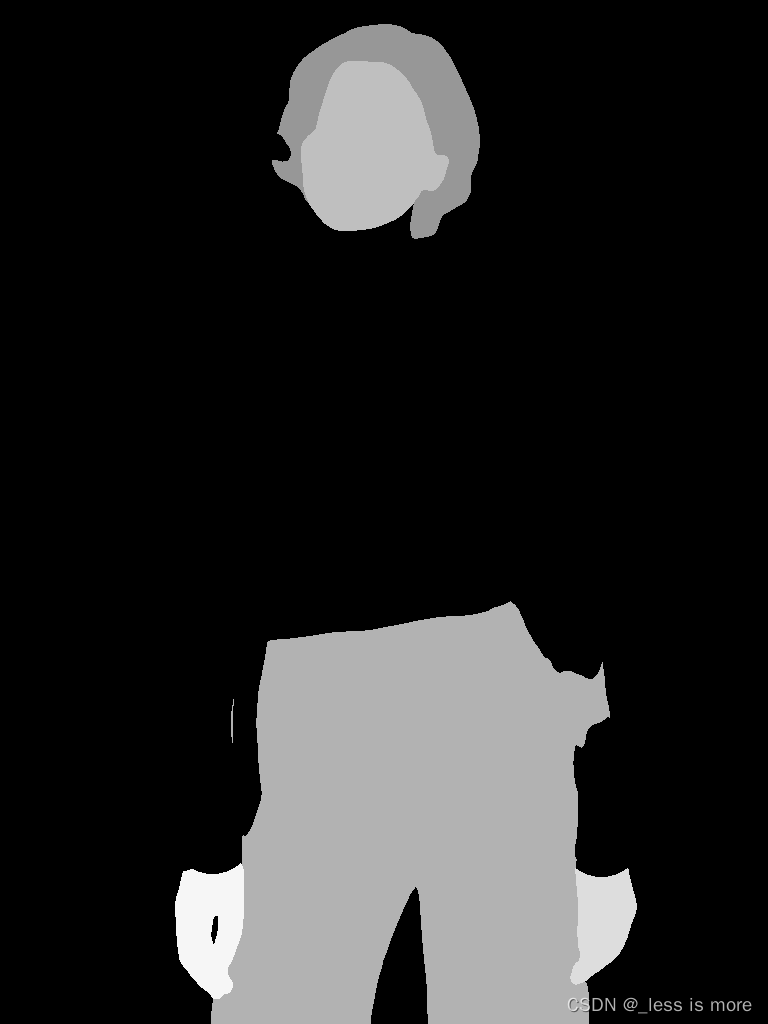
You can also visualize it by
np_im = np.array(im)
np_im[np_im==2] = 151
np_im[np_im==9] = 178
np_im[np_im==13] = 191
np_im[np_im==14] = 221
np_im[np_im==15] = 246
Image.fromarray(np_im)
result may be like, which is cloth-agnostic
Save all the images under parse to image-parse-agnostic-v3.2
Steps are almost the same as above section.
(1) install
!pip install Pillow tqdm
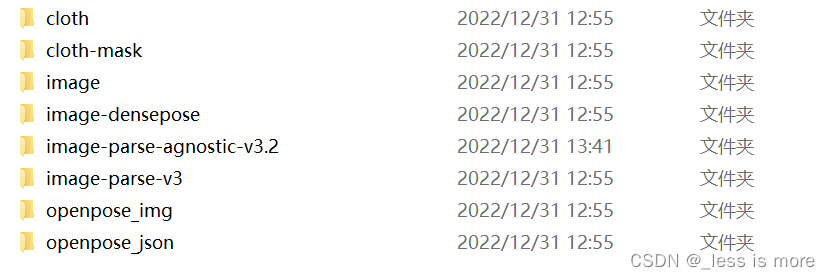
(2) Prepare data
Now it looks like
(3) Run
import json
from os import path as osp
import os
import numpy as np
from PIL import Image, ImageDraw
from tqdm import tqdm

def get_img_agnostic(img, parse, pose_data):
    parse_array = np.array(parse)
    parse_head = ((parse_array == 4).astype(np.float32) +
                    (parse_array == 13).astype(np.float32))
    parse_lower = ((parse_array == 9).astype(np.float32) +
                    (parse_array == 12).astype(np.float32) +
                    (parse_array == 16).astype(np.float32) +
                    (parse_array == 17).astype(np.float32) +
                    (parse_array == 18).astype(np.float32) +
                    (parse_array == 19).astype(np.float32))


    agnostic = img.copy()
    agnostic_draw = ImageDraw.Draw(agnostic)

    length_a = np.linalg.norm(pose_data[5] - pose_data[2])
    length_b = np.linalg.norm(pose_data[12] - pose_data[9])
    point = (pose_data[9] + pose_data[12]) / 2
    pose_data[9] = point + (pose_data[9] - point) / length_b * length_a
    pose_data[12] = point + (pose_data[12] - point) / length_b * length_a
    r = int(length_a / 16) + 1

    # mask arms
    agnostic_draw.line([tuple(pose_data[i]) for i in [2, 5]], 'gray', width=r*10)
    for i in [2, 5]:
        pointx, pointy = pose_data[i]
        agnostic_draw.ellipse((pointx-r*5, pointy-r*5, pointx+r*5, pointy+r*5), 'gray', 'gray')
    for i in [3, 4, 6, 7]:
        if (pose_data[i - 1, 0] == 0.0 and pose_data[i - 1, 1] == 0.0) or (pose_data[i, 0] == 0.0 and pose_data[i, 1] == 0.0):
            continue
        agnostic_draw.line([tuple(pose_data[j]) for j in [i - 1, i]], 'gray', width=r*10)
        pointx, pointy = pose_data[i]
        agnostic_draw.ellipse((pointx-r*5, pointy-r*5, pointx+r*5, pointy+r*5), 'gray', 'gray')

    # mask torso
    for i in [9, 12]:
        pointx, pointy = pose_data[i]
        agnostic_draw.ellipse((pointx-r*3, pointy-r*6, pointx+r*3, pointy+r*6), 'gray', 'gray')
    agnostic_draw.line([tuple(pose_data[i]) for i in [2, 9]], 'gray', width=r*6)
    agnostic_draw.line([tuple(pose_data[i]) for i in [5, 12]], 'gray', width=r*6)
    agnostic_draw.line([tuple(pose_data[i]) for i in [9, 12]], 'gray', width=r*12)
    agnostic_draw.polygon([tuple(pose_data[i]) for i in [2, 5, 12, 9]], 'gray', 'gray')

    # mask neck
    pointx, pointy = pose_data[1]
    agnostic_draw.rectangle((pointx-r*7, pointy-r*7, pointx+r*7, pointy+r*7), 'gray', 'gray')
    agnostic.paste(img, None, Image.fromarray(np.uint8(parse_head * 255), 'L'))
    agnostic.paste(img, None, Image.fromarray(np.uint8(parse_lower * 255), 'L'))

    return agnostic

if __name__ =="__main__":
    data_path = './test'
    output_path = './test/parse'

    os.makedirs(output_path, exist_ok=True)

    for im_name in tqdm(os.listdir(osp.join(data_path, 'image'))):

        # load pose image
        pose_name = im_name.replace('.jpg', '_keypoints.json')

        try:
            with open(osp.join(data_path, 'openpose_json', pose_name), 'r') as f:
                pose_label = json.load(f)
                pose_data = pose_label['people'][0]['pose_keypoints_2d']
                pose_data = np.array(pose_data)
                pose_data = pose_data.reshape((-1, 3))[:, :2]
        except IndexError:
            print(pose_name)
            continue

        # load parsing image
        im = Image.open(osp.join(data_path, 'image', im_name))
        label_name = im_name.replace('.jpg', '.png')
        im_label = Image.open(osp.join(data_path, 'image-parse-v3', label_name))

        agnostic = get_img_agnostic(im, im_label, pose_data)

        agnostic.save(osp.join(output_path, im_name))
Results look like
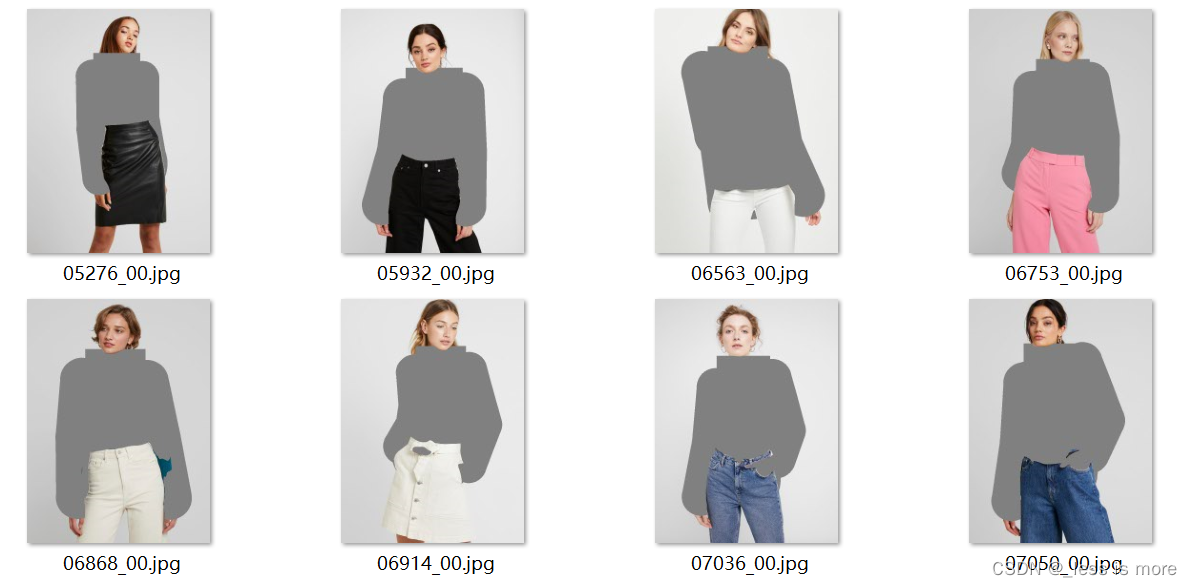
Save them to dir of agnostic-v3.2. Now you are almost done. The final structure of preprocessing results are
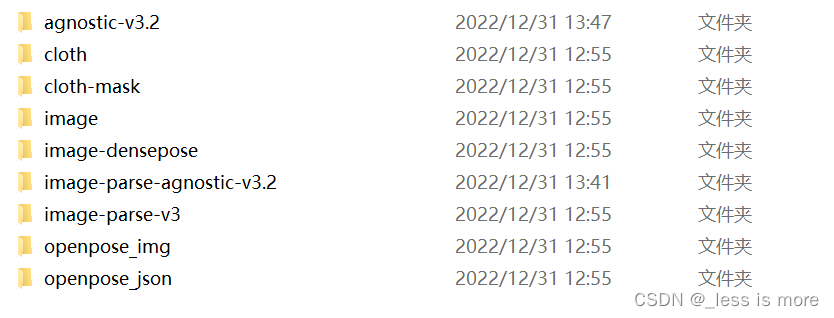
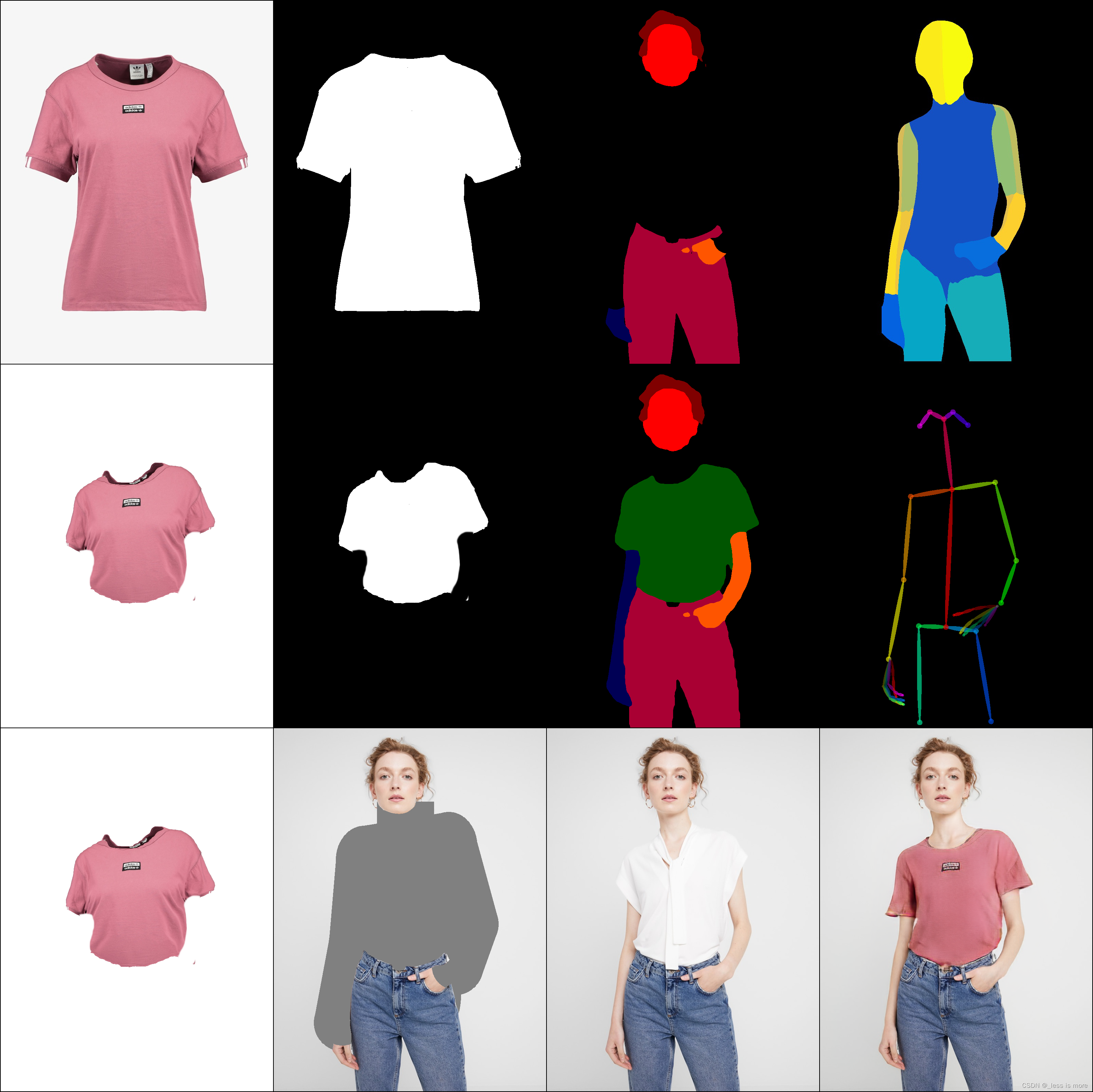
Thanks for reading. It’s not easy to get all this done. Before you run HR-VITON with you preprocessed dataset, note that each person image need a corresponding cloth image even though it’s not used while inference. If you don’t want this behavior, you can either change the source code manually or just add some random images with the same name of person images. After all done, suppose you are testing 5 people images and 3 cloth images, which are all unpaired, you should end up with 3 images under cloth dir and 3 images under cloth-mask; and 5 images under each other dirs: agnostic-v3.2, image, image-densepose, image-parse-agnostic-v3.2, image-parse-v3, openpose_img, and openpose_json.
Final test result
在VMware16.2.4安装Ubuntu一、安装VMware1.打开VMwareWorkstationPro官网,点击即可进入。2.进入后向下滑动找到Workstation16ProforWindows,点击立即下载。3.下载完成,文件大小615MB,如下图:4.鼠标右击,以管理员身份运行。5.点击下一步6.勾选条款,点击下一步7.先勾选,再点击下一步8.去掉勾选,点击下一步9.点击下一步10.点击安装11.点击许可证12.在百度上搜索VM16许可证,复制填入,然后点击输入即可,亲测有效。13.点击完成14.重启系统,点击是15.双击VMwareWorkstationPro图标,进入虚拟机主
需求:要创建虚拟机,就需要给他提供一个虚拟的磁盘,我们就在/opt目录下创建一个10G大小的raw格式的虚拟磁盘CentOS-7-x86_64.raw命令格式:qemu-imgcreate-f磁盘格式磁盘名称磁盘大小qemu-imgcreate-f磁盘格式-o?1.创建磁盘qemu-imgcreate-fraw/opt/CentOS-7-x86_64.raw10G执行效果#ls/opt/CentOS-7-x86_64.raw2.安装虚拟机使用virt-install命令,基于我们提供的系统镜像和虚拟磁盘来创建一个虚拟机,另外在创建虚拟机之前,提前打开vnc客户端,在创建虚拟机的时候,通过vnc
我想在安装前使用geminstallsome-gem命令从rubygems.org安装gem时执行一些代码。文档指出您可以使用http://docs.ruby-lang.org/en/2.2.0/Gem.htmlpre_installHook,如下所示:#Filelib/rubygems.rb,line724defself.pre_install(&hook)@pre_install_hooks文档进一步说明:RubyGemsdefaultsarestoredinrubygems/defaults.rb.Ifyou'repackagingRubyGemsorimplementing
我这个模型:classBunny每当我提交一个表单来创建这个模型时,我都会收到以下错误:#的未定义方法“number_before_type_cast” 最佳答案 我通过将此方法添加到我的Bunny模型中解决了这个问题:defnumber_before_type_castnumberend我不喜欢它,但我想在有人发布更好的解决方案之前它会起作用。 关于ruby-on-rails-Rails验证虚拟属性,我们在StackOverflow上找到一个类似的问题: h
快速导航(持续更新中…)Cesium源码解析一(terrain文件的加载、解析与渲染全过程梳理)Cesium源码解析二(metadataAvailability的含义)Cesium源码解析三(metadata元数据拓展中行列号的分块规则解析)Cesium源码解析四(Quantized-Mesh(.terrain)格式文件在CesiumJS和UE中加载情况的对比)目录1.前言2.本篇的由来3.terrain文件的加载3.1更新环境3.2更新和执行渲染命令3.3数据优化3.4结束当前帧4.总结1.前言 目前市场上三维比较火的实现方案主要有两种,b/s的方案主要是Cesium,c/s的方案主要是u
【适用平台】私有云 说明:完成私有云部分是需要两台虚拟机的,分别为controller、compute两个节点,但我们只需配置一台,然后克隆就方便多啦!需要用到的映射文件:关于vm的安装我就不介绍的,毕竟挺简单的,下面让我们看看基于私有云模块中,虚拟机的搭建吧。1、创建新的虚拟机,这里一般我会选择自定义,毕竟后面的配置都要根据私有云相关来进行搭建,会比较复杂。(如果是基础的可以选择典型,典型的满足一般虚拟机的配置) 2、选择稍后安装操作系统会比较方便后续的选择,这里你也可以自己选择自己的映像文件(但不建议) 3、我们是基于Linux下操作的,所以选择Linux客户机操作系统,版本选择自己
我正在创建一个包含设计的Rails应用程序。我正在尝试使用Ngrok将Twilio消息传递添加到我的站点,我使用了本教程:https://www.twilio.com/blog/2016/04/receive-and-reply-to-sms-in-rails.html我能够在控制台中打开Ngrok并获取他们为我的网址提供的网络ID。当我将url插入浏览器时,我不断收到此错误。我应该访问我自己的Rails本地应用程序。不知道怎么了。我在为ngrok制作的消息传递Controller中添加的内容:classMessagesController"reply"defreplymessage_
VMware虚拟机与本地主机进行磁盘共享前提虚拟机版本为Windows10(专业版,不是可能有问题)本地主机为家庭版或学生版(此版本会有问题,但有替代方式)最好是专业版VMware操作1.关闭防火墙,全部关闭。2.打开电脑属性3.点击共享-》高级共享-》权限4.如果没有everyone,就添加权限选择完全控制,然后应用确定。5.打开cmd输入lusrmgr.msc(只有专业版可以打开)如果不是专业版,可以跳过这一步。点击用户-》administrator密码要复杂密码,否则不行。推荐admaiN@1234类型的密码。设置完密码,点击属性,将禁用解开。6.如果虚拟机的windows不是专业版,可
🚀🚀🚀🚀🚀🚀🚀🚀🚀🚀虚拟机上进行java项目部署,自己的一点总结,一起学习,一起进步,一起成长!🛸🛸🛸🛸🛸🛸🛸🛸🛸🛸目录文章目录虚拟机上进行java项目部署1.JDK安装2.TOMCAT安装3.DOCKER1、YUM安装2、docker部署java4、最后 【yzh2022.9】1.JDK安装1、我们安装VM的时候,使用命令java-version查看 java-version这里显示JDK的信息是openjdkversion"1.8.0_262",我们会发现这个JDK是VM自带的当然你也可以通过命令rpm-qa|grepjava来查看相关的java信息 rpm-qa|grepjava【如果不
我试图了解Ruby线程pre-1.9和1.9(在标准MRI实现中)之间的区别,但就您可以使用它们获得的好处而言,它们似乎几乎相同。这是正确的吗?以我有限的理解:1.9之前的线程是“绿色线程”,这意味着它们由Ruby解释器而非操作系统管理。这样做的一个结果是您永远无法实现真正的并发,因为您永远不会同时运行多个线程(即使您在多核/多处理器系统上)。(但是,如果执行在不同线程之间切换,您可以获得并发的外观,例如,如果一些程序运行而另一个程序正在等待I/O。)1.9线程是native线程,这意味着它们确实由操作系统管理。如果没有全局解释器锁,这将允许Ruby同时运行多个线程(在多核/多处理
