文章目录
城市生态与人类生活息息相关,快速 、准确 、客 观地了解城市生态状况已成为生态领域的一个研究重点 。基于遥感技术,提出一个完全基 于遥感技术 ,以自然因子为主的遥感生态指数 (RSEI)来对城市的生态状况进行快速监测与评价 。该指数利用主成分分析技术集成了植被指数 、湿度分量、地表温度和建筑指数等 4个评价指标,它们分别代表了绿度、湿度、热度和干度等4大生态要素。
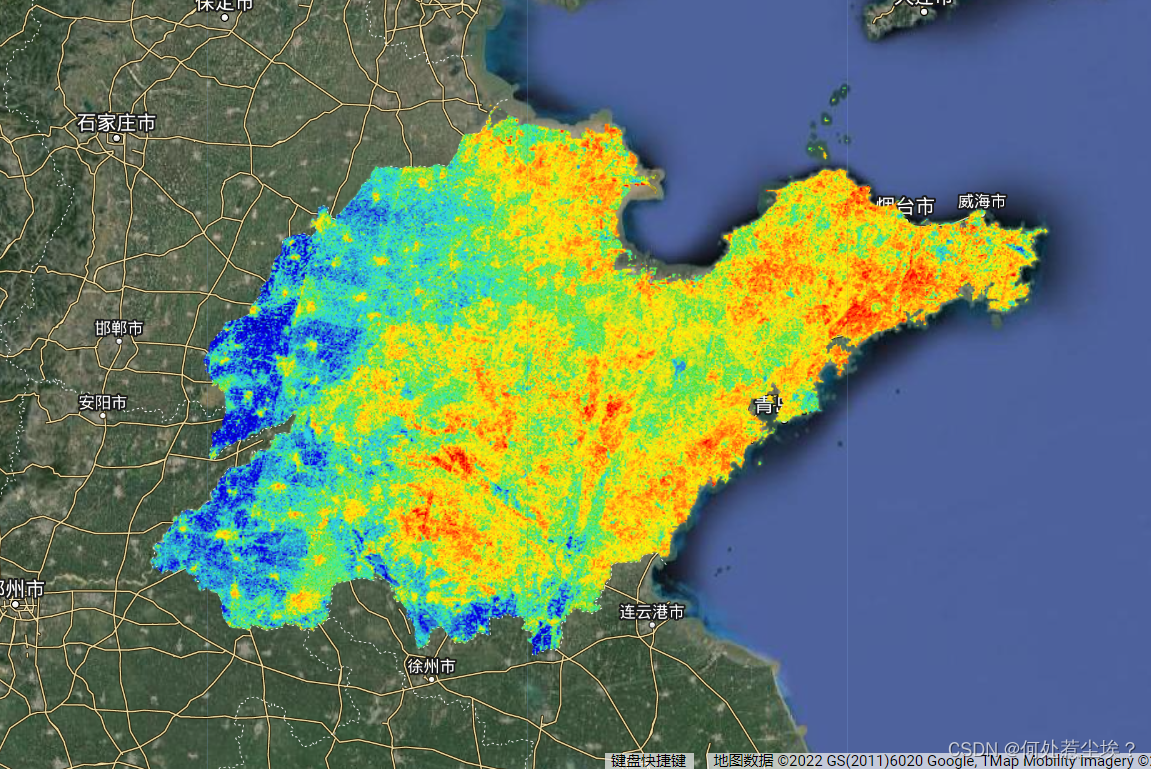
本文基于GEE平台,实现RSEI算法。
运行结果:
代码如下(示例):
// 第一步:定义研究区,自行更换自己的研究区
var roi =
    /* color: #98ff00 */
    /* displayProperties: [
      {
        "type": "rectangle"
      }
    ] */
    ee.Geometry.Polygon(
        [[[120.1210075098537, 35.975189051414006],
          [120.1210075098537, 35.886229778229115],
          [120.25764996590839, 35.886229778229115],
          [120.25764996590839, 35.975189051414006]]], null, false);

Map.centerObject(roi);
代码如下(示例):
// 第二步:加载数据集,定义去云函数
function removeCloud(image){
  var qa = image.select('BQA')
  var cloudMask = qa.bitwiseAnd(1 << 4).eq(0)
  var cloudShadowMask = qa.bitwiseAnd(1 << 8).eq(0)
  var valid = cloudMask.and(cloudShadowMask)
  return image.updateMask(valid)
}

// 数据集去云处理
var L8 = ee.ImageCollection('LANDSAT/LC08/C01/T1_TOA')
           .filterBounds(roi)
           .filterDate('2018-01-01', '2019-12-31')
           .filterMetadata('CLOUD_COVER', 'less_than',50)
           .map(function(image){
                    return image.set('year', ee.Image(image).date().get('year'))
                  })
           .map(removeCloud)


// 影像合成
var L8imgList = ee.List([])
for(var a = 2018; a < 2020; a++){
   var img = L8.filterMetadata('year', 'equals', a).median().clip(roi)
   var L8img = img.set('year', a)
   L8imgList = L8imgList.add(L8img)
 }
代码如下(示例):
// 第三步:主函数,计算生态指标
var L8imgCol = ee.ImageCollection(L8imgList)
                 .map(function(img){
                      return img.clip(roi)
                   })

L8imgCol = L8imgCol.map(function(img){

  // 湿度函数:Wet
  var Wet = img.expression('B*(0.1509) + G*(0.1973) + R*(0.3279) + NIR*(0.3406) + SWIR1*(-0.7112) + SWIR2*(-0.4572)',{
       'B': img.select(['B2']),
       'G': img.select(['B3']),
       'R': img.select(['B4']),
       'NIR': img.select(['B5']),
       'SWIR1': img.select(['B6']),
       'SWIR2': img.select(['B7'])
     })
  img = img.addBands(Wet.rename('WET'))


  // 绿度函数:NDVI
  var ndvi = img.normalizedDifference(['B5', 'B4']);
  img = img.addBands(ndvi.rename('NDVI'))


  // 热度函数:lst 直接采用MODIS产品
  var lst = ee.ImageCollection('MODIS/006/MOD11A1').map(function(img){
                return img.clip(roi)
           })
           .filterDate('2014-01-01', '2019-12-31')

  var year = img.get('year')
  lst=lst.filterDate(ee.String(year).cat('-01-01'),ee.String(year).cat('-12-31')).select(['LST_Day_1km', 'LST_Night_1km']);

  // reproject主要是为了确保分辨率为1000
  var img_mean=lst.mean().reproject('EPSG:4326',null,1000);
  //print(img_mean.projection().nominalScale())

  img_mean = img_mean.expression('((Day + Night) / 2)',{
      'Day': img_mean.select(['LST_Day_1km']),
      'Night': img_mean.select(['LST_Night_1km']),
       })
  img = img.addBands(img_mean.rename('LST'))


  // 干度函数:ndbsi = ( ibi + si ) / 2
  var ibi = img.expression('(2 * SWIR1 / (SWIR1 + NIR) - (NIR / (NIR + RED) + GREEN / (GREEN + SWIR1))) / (2 * SWIR1 / (SWIR1 + NIR) + (NIR / (NIR + RED) + GREEN / (GREEN + SWIR1)))', {
      'SWIR1': img.select('B6'),
      'NIR': img.select('B5'),
      'RED': img.select('B4'),
      'GREEN': img.select('B3')
    })
  var si = img.expression('((SWIR1 + RED) - (NIR + BLUE)) / ((SWIR1 + RED) + (NIR + BLUE))', {
      'SWIR1': img.select('B6'),
      'NIR': img.select('B5'),
      'RED': img.select('B4'),
      'BLUE': img.select('B2')
    })
  var ndbsi = (ibi.add(si)).divide(2)
  return img.addBands(ndbsi.rename('NDBSI'))
})


var bandNames = ['NDVI', "NDBSI", "WET", "LST"]
L8imgCol = L8imgCol.select(bandNames)

//定义归一化函数:归一化
var img_normalize = function(img){
      var minMax = img.reduceRegion({
            reducer:ee.Reducer.minMax(),
            geometry: roi,
            scale: 1000,
            maxPixels: 10e13,
        })
      var year = img.get('year')
      var normalize  = ee.ImageCollection.fromImages(
            img.bandNames().map(function(name){
                  name = ee.String(name);
                  var band = img.select(name);
                  return band.unitScale(ee.Number(minMax.get(name.cat('_min'))), ee.Number(minMax.get(name.cat('_max'))));

              })
        ).toBands().rename(img.bandNames()).set('year', year);
        return normalize;
}
var imgNorcol  = L8imgCol.map(img_normalize);
代码如下(示例):
// 第四步:PCA融合,提取第一主成分
var pca = function(img){

      var bandNames = img.bandNames();
      var region = roi;
      var year = img.get('year')
      // Mean center the data to enable a faster covariance reducer
      // and an SD stretch of the principal components.
      var meanDict = img.reduceRegion({
            reducer:  ee.Reducer.mean(),
            geometry: region,
            scale: 1000,
            maxPixels: 10e13
        });
      var means = ee.Image.constant(meanDict.values(bandNames));
      var centered = img.subtract(means).set('year', year);


      // This helper function returns a list of new band names.
      var getNewBandNames = function(prefix, bandNames){
            var seq = ee.List.sequence(1, 4);
            //var seq = ee.List.sequence(1, bandNames.length());
            return seq.map(function(n){
                  return ee.String(prefix).cat(ee.Number(n).int());
              });
        };

      // This function accepts mean centered imagery, a scale and
      // a region in which to perform the analysis.  It returns the
      // Principal Components (PC) in the region as a new image.
      var getPrincipalComponents = function(centered, scale, region){
            var year = centered.get('year')
            var arrays = centered.toArray();

            // Compute the covariance of the bands within the region.
            var covar = arrays.reduceRegion({
                  reducer: ee.Reducer.centeredCovariance(),
                  geometry: region,
                  scale: scale,
                  bestEffort:true,
                  maxPixels: 10e13
              });

            // Get the 'array' covariance result and cast to an array.
            // This represents the band-to-band covariance within the region.
            var covarArray = ee.Array(covar.get('array'));

            // Perform an eigen analysis and slice apart the values and vectors.
            var eigens = covarArray.eigen();

            // This is a P-length vector of Eigenvalues.
            var eigenValues = eigens.slice(1, 0, 1);
            // This is a PxP matrix with eigenvectors in rows.
            var eigenVectors = eigens.slice(1, 1);

            // Convert the array image to 2D arrays for matrix computations.
            var arrayImage = arrays.toArray(1)
            // Left multiply the image array by the matrix of eigenvectors.
            var principalComponents = ee.Image(eigenVectors).matrixMultiply(arrayImage);

            // Turn the square roots of the Eigenvalues into a P-band image.
            var sdImage = ee.Image(eigenValues.sqrt())
            .arrayProject([0]).arrayFlatten([getNewBandNames('SD',bandNames)]);

            // Turn the PCs into a P-band image, normalized by SD.
            return principalComponents
            // Throw out an an unneeded dimension, [[]] -> [].
            .arrayProject([0])
            // Make the one band array image a multi-band image, [] -> image.
            .arrayFlatten([getNewBandNames('PC', bandNames)])
            // Normalize the PCs by their SDs.
            .divide(sdImage)
            .set('year', year);
        }

        // Get the PCs at the specified scale and in the specified region
        img = getPrincipalComponents(centered, 1000, region);
        return img;
  };

var PCA_imgcol = imgNorcol.map(pca)

Map.addLayer(PCA_imgcol.first(), {"bands":["PC1"]}, 'pc1')
代码如下(示例):
// 第五步:利用PC1,计算RSEI,并归一化
var RSEI_imgcol = PCA_imgcol.map(function(img){
        img = img.addBands(ee.Image(1).rename('constant'))
        var rsei = img.expression('constant - pc1' , {
             constant: img.select('constant'),
             pc1: img.select('PC1')
         })
        rsei = img_normalize(rsei)
        return img.addBands(rsei.rename('rsei'))
    })
print(RSEI_imgcol)

var visParam = {
    palette: '040274, 040281, 0502a3, 0502b8, 0502ce, 0502e6, 0602ff, 235cb1, 307ef3, 269db1, 30c8e2, 32d3ef, 3be285, 3ff38f, 86e26f, 3ae237, b5e22e, d6e21f, fff705, ffd611, ffb613, ff8b13, ff6e08, ff500d, ff0000, de0101, c21301, a71001, 911003'
 };

Map.addLayer(RSEI_imgcol.first().select('rsei'), visParam, 'rsei')
代码如下(示例):
// 第一步:定义研究区,自行更换自己的研究区
var roi =
    /* color: #98ff00 */
    /* displayProperties: [
      {
        "type": "rectangle"
      }
    ] */
    ee.Geometry.Polygon(
        [[[120.1210075098537, 35.975189051414006],
          [120.1210075098537, 35.886229778229115],
          [120.25764996590839, 35.886229778229115],
          [120.25764996590839, 35.975189051414006]]], null, false);

Map.centerObject(roi);

// 第二步:加载数据集,定义去云函数
function removeCloud(image){
  var qa = image.select('BQA')
  var cloudMask = qa.bitwiseAnd(1 << 4).eq(0)
  var cloudShadowMask = qa.bitwiseAnd(1 << 8).eq(0)
  var valid = cloudMask.and(cloudShadowMask)
  return image.updateMask(valid)
}

// 数据集去云处理
var L8 = ee.ImageCollection('LANDSAT/LC08/C01/T1_TOA')
           .filterBounds(roi)
           .filterDate('2018-01-01', '2019-12-31')
           .filterMetadata('CLOUD_COVER', 'less_than',50)
           .map(function(image){
                    return image.set('year', ee.Image(image).date().get('year'))
                  })
           .map(removeCloud)


// 影像合成
var L8imgList = ee.List([])
for(var a = 2018; a < 2020; a++){
   var img = L8.filterMetadata('year', 'equals', a).median().clip(roi)
   var L8img = img.set('year', a)
   L8imgList = L8imgList.add(L8img)
 }

// 第三步:主函数,计算生态指标
var L8imgCol = ee.ImageCollection(L8imgList)
                 .map(function(img){
                      return img.clip(roi)
                   })

L8imgCol = L8imgCol.map(function(img){

  // 湿度函数:Wet
  var Wet = img.expression('B*(0.1509) + G*(0.1973) + R*(0.3279) + NIR*(0.3406) + SWIR1*(-0.7112) + SWIR2*(-0.4572)',{
       'B': img.select(['B2']),
       'G': img.select(['B3']),
       'R': img.select(['B4']),
       'NIR': img.select(['B5']),
       'SWIR1': img.select(['B6']),
       'SWIR2': img.select(['B7'])
     })
  img = img.addBands(Wet.rename('WET'))


  // 绿度函数:NDVI
  var ndvi = img.normalizedDifference(['B5', 'B4']);
  img = img.addBands(ndvi.rename('NDVI'))


  // 热度函数:lst 直接采用MODIS产品
  var lst = ee.ImageCollection('MODIS/006/MOD11A1').map(function(img){
                return img.clip(roi)
           })
           .filterDate('2014-01-01', '2019-12-31')

  var year = img.get('year')
  lst=lst.filterDate(ee.String(year).cat('-01-01'),ee.String(year).cat('-12-31')).select(['LST_Day_1km', 'LST_Night_1km']);

  // reproject主要是为了确保分辨率为1000
  var img_mean=lst.mean().reproject('EPSG:4326',null,1000);
  //print(img_mean.projection().nominalScale())

  img_mean = img_mean.expression('((Day + Night) / 2)',{
      'Day': img_mean.select(['LST_Day_1km']),
      'Night': img_mean.select(['LST_Night_1km']),
       })
  img = img.addBands(img_mean.rename('LST'))


  // 干度函数:ndbsi = ( ibi + si ) / 2
  var ibi = img.expression('(2 * SWIR1 / (SWIR1 + NIR) - (NIR / (NIR + RED) + GREEN / (GREEN + SWIR1))) / (2 * SWIR1 / (SWIR1 + NIR) + (NIR / (NIR + RED) + GREEN / (GREEN + SWIR1)))', {
      'SWIR1': img.select('B6'),
      'NIR': img.select('B5'),
      'RED': img.select('B4'),
      'GREEN': img.select('B3')
    })
  var si = img.expression('((SWIR1 + RED) - (NIR + BLUE)) / ((SWIR1 + RED) + (NIR + BLUE))', {
      'SWIR1': img.select('B6'),
      'NIR': img.select('B5'),
      'RED': img.select('B4'),
      'BLUE': img.select('B2')
    })
  var ndbsi = (ibi.add(si)).divide(2)
  return img.addBands(ndbsi.rename('NDBSI'))
})


var bandNames = ['NDVI', "NDBSI", "WET", "LST"]
L8imgCol = L8imgCol.select(bandNames)

//定义归一化函数:归一化
var img_normalize = function(img){
      var minMax = img.reduceRegion({
            reducer:ee.Reducer.minMax(),
            geometry: roi,
            scale: 1000,
            maxPixels: 10e13,
        })
      var year = img.get('year')
      var normalize  = ee.ImageCollection.fromImages(
            img.bandNames().map(function(name){
                  name = ee.String(name);
                  var band = img.select(name);
                  return band.unitScale(ee.Number(minMax.get(name.cat('_min'))), ee.Number(minMax.get(name.cat('_max'))));

              })
        ).toBands().rename(img.bandNames()).set('year', year);
        return normalize;
}
var imgNorcol  = L8imgCol.map(img_normalize);


// 第四步:PCA融合,提取第一主成分
var pca = function(img){

      var bandNames = img.bandNames();
      var region = roi;
      var year = img.get('year')
      // Mean center the data to enable a faster covariance reducer
      // and an SD stretch of the principal components.
      var meanDict = img.reduceRegion({
            reducer:  ee.Reducer.mean(),
            geometry: region,
            scale: 1000,
            maxPixels: 10e13
        });
      var means = ee.Image.constant(meanDict.values(bandNames));
      var centered = img.subtract(means).set('year', year);


      // This helper function returns a list of new band names.
      var getNewBandNames = function(prefix, bandNames){
            var seq = ee.List.sequence(1, 4);
            //var seq = ee.List.sequence(1, bandNames.length());
            return seq.map(function(n){
                  return ee.String(prefix).cat(ee.Number(n).int());
              });
        };

      // This function accepts mean centered imagery, a scale and
      // a region in which to perform the analysis.  It returns the
      // Principal Components (PC) in the region as a new image.
      var getPrincipalComponents = function(centered, scale, region){
            var year = centered.get('year')
            var arrays = centered.toArray();

            // Compute the covariance of the bands within the region.
            var covar = arrays.reduceRegion({
                  reducer: ee.Reducer.centeredCovariance(),
                  geometry: region,
                  scale: scale,
                  bestEffort:true,
                  maxPixels: 10e13
              });

            // Get the 'array' covariance result and cast to an array.
            // This represents the band-to-band covariance within the region.
            var covarArray = ee.Array(covar.get('array'));

            // Perform an eigen analysis and slice apart the values and vectors.
            var eigens = covarArray.eigen();

            // This is a P-length vector of Eigenvalues.
            var eigenValues = eigens.slice(1, 0, 1);
            // This is a PxP matrix with eigenvectors in rows.
            var eigenVectors = eigens.slice(1, 1);

            // Convert the array image to 2D arrays for matrix computations.
            var arrayImage = arrays.toArray(1)
            // Left multiply the image array by the matrix of eigenvectors.
            var principalComponents = ee.Image(eigenVectors).matrixMultiply(arrayImage);

            // Turn the square roots of the Eigenvalues into a P-band image.
            var sdImage = ee.Image(eigenValues.sqrt())
            .arrayProject([0]).arrayFlatten([getNewBandNames('SD',bandNames)]);

            // Turn the PCs into a P-band image, normalized by SD.
            return principalComponents
            // Throw out an an unneeded dimension, [[]] -> [].
            .arrayProject([0])
            // Make the one band array image a multi-band image, [] -> image.
            .arrayFlatten([getNewBandNames('PC', bandNames)])
            // Normalize the PCs by their SDs.
            .divide(sdImage)
            .set('year', year);
        }

        // Get the PCs at the specified scale and in the specified region
        img = getPrincipalComponents(centered, 1000, region);
        return img;
  };

var PCA_imgcol = imgNorcol.map(pca)

Map.addLayer(PCA_imgcol.first(), {"bands":["PC1"]}, 'pc1')

// 第五步:利用PC1,计算RSEI,并归一化
var RSEI_imgcol = PCA_imgcol.map(function(img){
        img = img.addBands(ee.Image(1).rename('constant'))
        var rsei = img.expression('constant - pc1' , {
             constant: img.select('constant'),
             pc1: img.select('PC1')
         })
        rsei = img_normalize(rsei)
        return img.addBands(rsei.rename('rsei'))
    })
print(RSEI_imgcol)

var visParam = {
    palette: '040274, 040281, 0502a3, 0502b8, 0502ce, 0502e6, 0602ff, 235cb1, 307ef3, 269db1, 30c8e2, 32d3ef, 3be285, 3ff38f, 86e26f, 3ae237, b5e22e, d6e21f, fff705, ffd611, ffb613, ff8b13, ff6e08, ff500d, ff0000, de0101, c21301, a71001, 911003'
 };

Map.addLayer(RSEI_imgcol.first().select('rsei'), visParam, 'rsei')
提示:用完代码记得反馈。
这里是Ruby新手。完成一些练习后碰壁了。练习:计算一系列成绩的字母等级创建一个方法get_grade来接受测试分数数组。数组中的每个分数应介于0和100之间,其中100是最大分数。计算平均分并将字母等级作为字符串返回,即“A”、“B”、“C”、“D”、“E”或“F”。我一直返回错误:avg.rb:1:syntaxerror,unexpectedtLBRACK,expecting')'defget_grade([100,90,80])^avg.rb:1:syntaxerror,unexpected')',expecting$end这是我目前所拥有的。我想坚持使用下面的方法或.join,
项目介绍随着我国经济迅速发展,人们对手机的需求越来越大,各种手机软件也都在被广泛应用,但是对于手机进行数据信息管理,对于手机的各种软件也是备受用户的喜爱小学生兴趣延时班预约小程序的设计与开发被用户普遍使用,为方便用户能够可以随时进行小学生兴趣延时班预约小程序的设计与开发的数据信息管理,特开发了小程序的设计与开发的管理系统。小学生兴趣延时班预约小程序的设计与开发的开发利用现有的成熟技术参考,以源代码为模板,分析功能调整与小学生兴趣延时班预约小程序的设计与开发的实际需求相结合,讨论了小学生兴趣延时班预约小程序的设计与开发的使用。开发环境开发说明:前端使用微信微信小程序开发工具:后端使用ssm:VU
我对如何计算通过{%assignvar=0%}赋值的变量加一完全感到困惑。这应该是最简单的任务。到目前为止,这是我尝试过的:{%assignamount=0%}{%forvariantinproduct.variants%}{%assignamount=amount+1%}{%endfor%}Amount:{{amount}}结果总是0。也许我忽略了一些明显的东西。也许有更好的方法。我想要存档的只是获取运行的迭代次数。 最佳答案 因为{{incrementamount}}将输出您的变量值并且不会影响{%assign%}定义的变量,我
给定一个nxmbool数组:[[true,true,false],[false,true,true],[false,true,true]]有什么简单的方法可以返回“该列中有多少个true?”结果应该是[1,3,2] 最佳答案 使用转置得到一个数组,其中每个子数组代表一列,然后将每一列映射到其中的true数:arr.transpose.map{|subarr|subarr.count(true)}这是一个带有inject的版本,应该在1.8.6上运行,没有任何依赖:arr.transpose.map{|subarr|subarr.in
给定两个大小相等的数组,如何找到不考虑位置的匹配元素的数量?例如:[0,0,5]和[0,5,5]将返回2的匹配项,因为有一个0和一个5共同;[1,0,0,3]和[0,0,1,4]将返回3的匹配项,因为0有两场,1有一场;[1,2,2,3]和[1,2,3,4]将返回3的匹配项。我尝试了很多想法,但它们都变得相当粗糙和令人费解。我猜想有一些不错的Ruby习惯用法,或者可能是一个正则表达式,可以很好地回答这个解决方案。 最佳答案 您可以使用count完成它:a.count{|e|index=b.index(e)andb.delete_at
Ruby中如何“一般地”计算以下格式(有根、无根)的JSON对象的数量?一般来说,我的意思是元素可能不同(例如“标题”被称为其他东西)。没有根:{[{"title":"Post1","body":"Hello!"},{"title":"Post2","body":"Goodbye!"}]}根包裹:{"posts":[{"title":"Post1","body":"Hello!"},{"title":"Post2","body":"Goodbye!"}]} 最佳答案 首先,withoutroot代码不是有效的json格式。它将没有包
目标我正在尝试计算自给定日期以来周的距离,而无需跳过任何步骤。我更喜欢用普通的Ruby来做,但ActiveSupport无疑是一个可以接受的选择。我的代码我写了以下内容,这似乎可行,但对我来说似乎还有很长的路要走。require'date'DAYS_IN_WEEK=7.0defweeks_sincedate_stringdate=Date.parsedate_stringdays=Date.today-dateweeks=days/DAYS_IN_WEEKweeks.round2endweeks_since'2015-06-15'#=>32.57ActiveSupport的#weeks
我遇到了同样的问题here对于python,但对于ruby。我需要输出这样一个小数字:0.00001,而不是1e-5。有关我的特定问题的更多信息,我正在使用f.write("Mynumber:"+small_number.to_s+"\n")输出到一个文件对于我的问题,准确性不是什么大问题,所以只做一个if语句来检查是否small_number那么更通用的方法是什么? 最佳答案 f.printf"Mynumber:%.5f\n",small_number您可以将.5(小数点右侧5位数字)替换为您喜欢的任何特定格式大小,例如,%8
下载微PE工具箱进入官网下载微PE工具箱-下载 安装好后,打开微PE工具箱客户端,选择安装PE到U盘 PE壁纸可选择自己喜欢的壁纸,勾选上包含DOS工具箱,个性化盘符图标 下载原版系统进入网站下载镜像NEXT,ITELLYOU如果没有账号,注册一下就好进入选择开始使用选择win10 这里我们选择消费者版,用迅雷把BT种子下载下来 下面的两个盘符,是PE工具箱安装进U盘后,分成的盘符,注意EFI的盘符,这里面不能删东西,也不能添东西,另一个盘符可以当做正常的U盘空间使用,我们现在需要把下载下来的景象文件复制到正常的U盘空间中去 这个时候我们的系统U盘就只做好了 安装系统我们将U盘插入电脑,开机,
技术选型1,前端小程序原生MINA框架cssJavaScriptWxml2,管理后台云开发Cms内容管理系统web网页3,数据后台小程序云开发云函数云开发数据库(基于MongoDB)云存储4,人脸识别算法基于百度智能云实现人脸识别一,用户端效果图预览老规矩我们先来看效果图,如果效果图符合你的需求,就继续往下看,如果不符合你的需求,可以跳过。1-1,登录注册页可以看到登录页有注册入口,注册页如下我们的注册,需要管理员审核,审核通过后才可以正常登录使用小程序1-2,个人中心页登录成功以后,我们会进入个人中心页我们在个人中心页可以注册人脸,因为我们做人脸识别签到,需要先注册人脸才可以进行人脸比对,进
