🖥️ NodeJS专栏:Node.js从入门到精通
🖥️ 蓝桥杯真题解析:蓝桥杯Web国赛真题解析
🧧 加入社区领红包:海底烧烤店ai(从前端到全栈)
🧑💼个人简介:即将大三的学生,一个不甘平庸的平凡人🍬
👉 你的一键三连是我更新的最大动力❤️!
🏆分享博主自用牛客网🏆:一个非常全面的面试刷题求职网站,真的超级好用🍬
最近博主一直在牛客网刷题巩固基础知识,快来和我一起冲关升级吧!点击进入牛客网
这篇博文是在黑马程序员uniapp-黑马优购项目文档的基础上进行书写的,原文在这里:uniapp-黑马优购,视频教程。
文章资料和接口文档:链接:https://pan.baidu.com/s/1dkJu8aaJEjnLEfERL7j1Nw
提取码:b3ub
如你所见,本人现在正在学习黑马的uniapp,为了让自己能够方便的复习所学知识,我将自己的理解以及一些在学习过程中遇到的问题和解决方法与黑马原有的文档进行结合,书写了这篇博文,如有侵权,联系必删!
因内容较多,本次博客分为上下两篇,下篇请见:uni-app黑马优购项目学习记录(下)
uni-app黑马优购项目学习记录(上)
uni-app 是一个使用 Vue.js 开发所有前端应用的框架。开发者编写一套代码,可发布到 iOS、Android、H5、以及各种小程序(微信/支付宝/百度/头条/QQ/钉钉/淘宝)、快应用等多个平台。
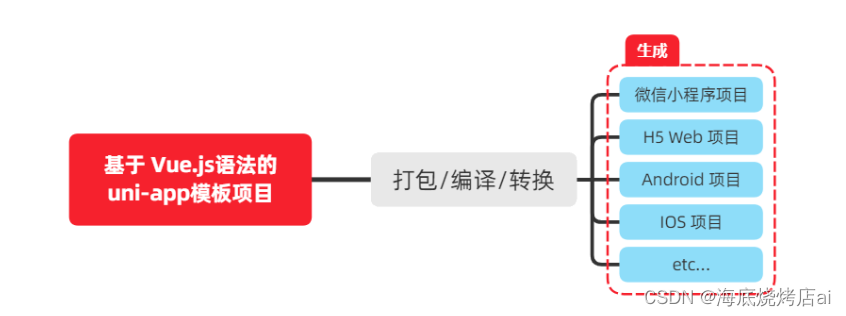
详细的 uni-app 官方文档,请翻阅 https://uniapp.dcloud.net.cn/
uni-app 官方推荐使用 HBuilderX 来开发 uni-app 类型的项目。主要好处:
模板丰富
完善的智能提示
一键运行
访问 HBuilderX 的官网首页 https://www.dcloud.io/hbuilderx.html
点击首页的 DOWNLOAD 按钮
选择下载 正式版 -> App 开发版
将下载的 zip包 进行解压缩
将解压之后的文件夹,存放到纯英文的目录中(且不能包含括号等特殊字符)
双击 HBuilderX.exe 即可启动 HBuilderX
为了方便编写样式(例如:<style lang="scss"></style>),建议安装 scss/sass 编译 插件。插件下载地址:
进入插件下载页面之后,点击右上角的 使用 HBuilderX 导入插件 按钮进行自动安装,截图如下:
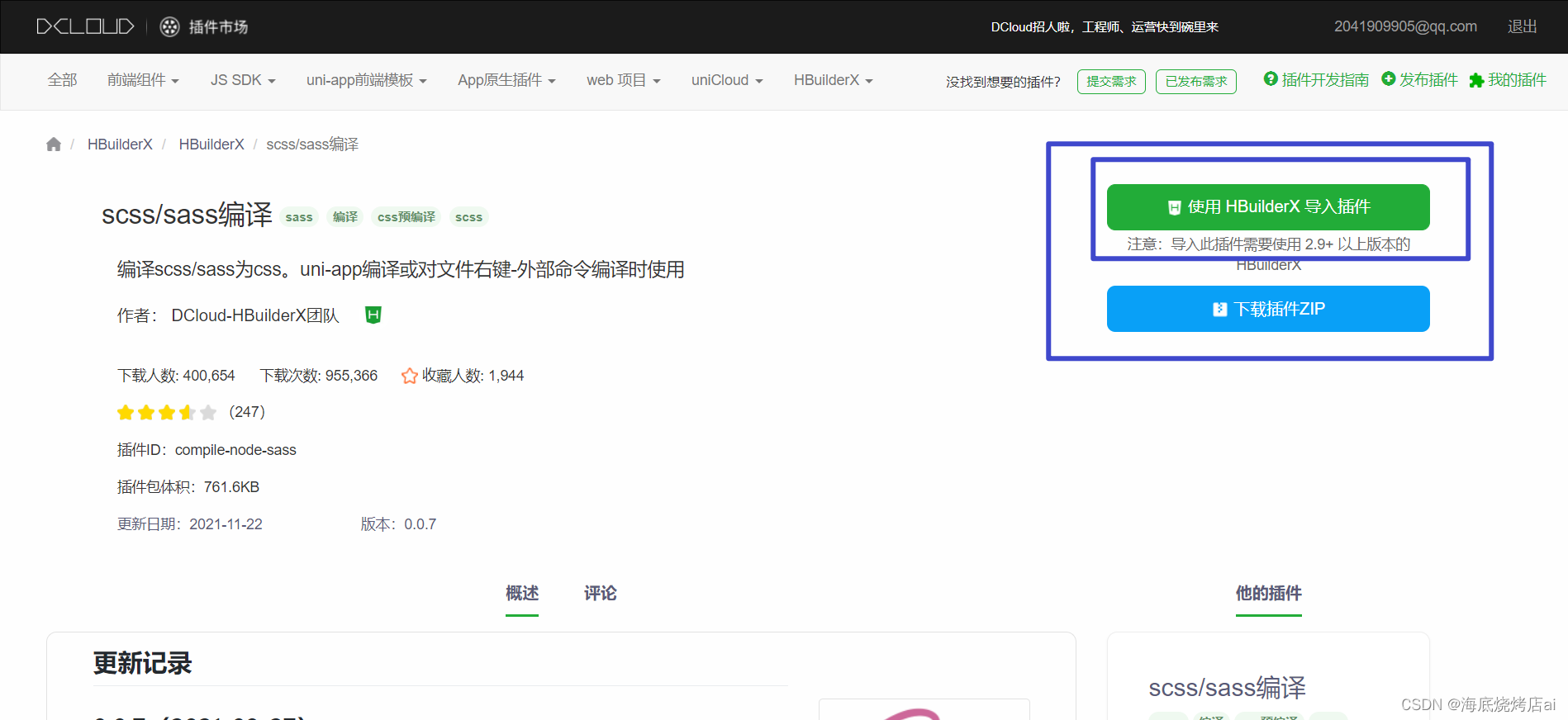
如果没有右侧这两个按钮,可以看一下是不是自己的浏览器安装了屏蔽广告的插件,将插件关闭后就会显示按钮了
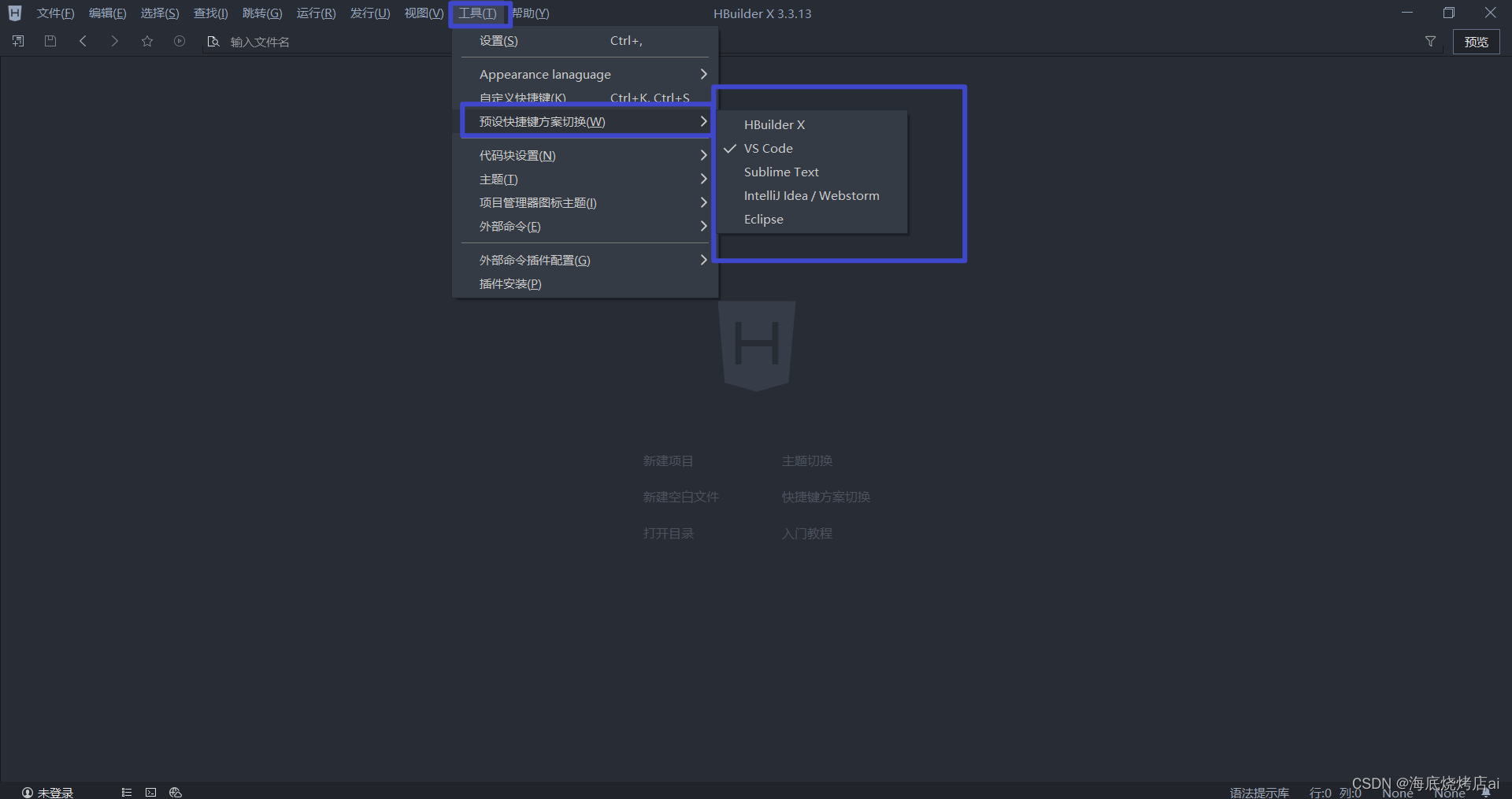
操作步骤:工具 -> 预设快捷键方案切换 -> VS Code
操作步骤:工具 -> 设置 -> 打开 Settings.json 按需进行配置
源码视图下可用的参考配置:
{
  "editor.colorScheme": "Default",
  "editor.fontSize": 12,
  "editor.fontFamily": "Consolas",
  "editor.fontFmyCHS": "微软雅黑 Light",
  "editor.insertSpaces": true,
  "editor.lineHeight": "1.5",
  "editor.minimap.enabled": false,
  "editor.mouseWheelZoom": true,
  "editor.onlyHighlightWord": false,
  "editor.tabSize": 2,
  "editor.wordWrap": true,
  "explorer.iconTheme": "vs-seti",
  "editor.codeassist.px2rem.enabel": false,
  "editor.codeassist.px2upx.enabel": false
}
Tips:可以使用 Ctrl + 鼠标滚轮 缩放编辑器
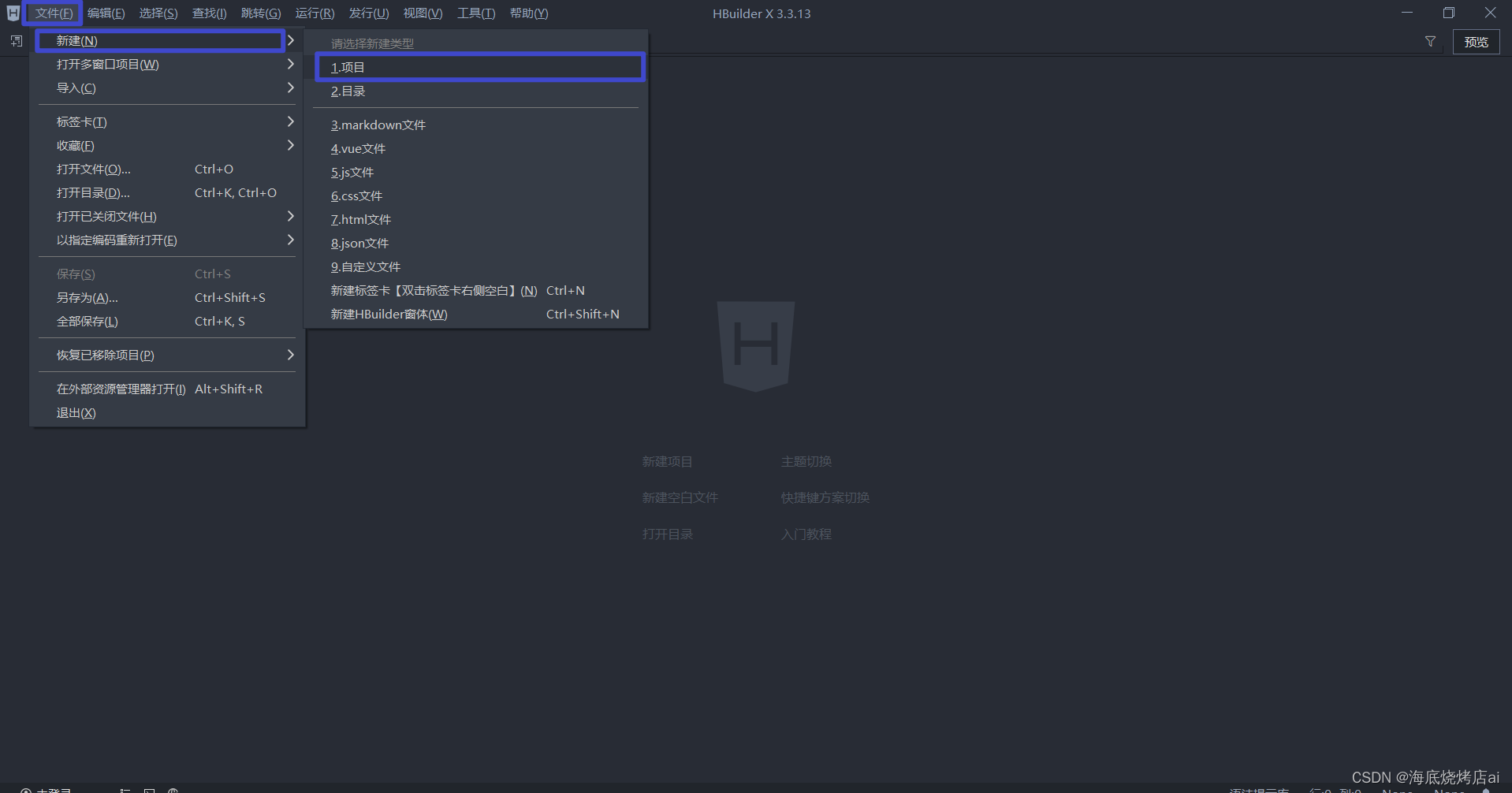
文件 -> 新建 -> 项目
填写项目基本信息
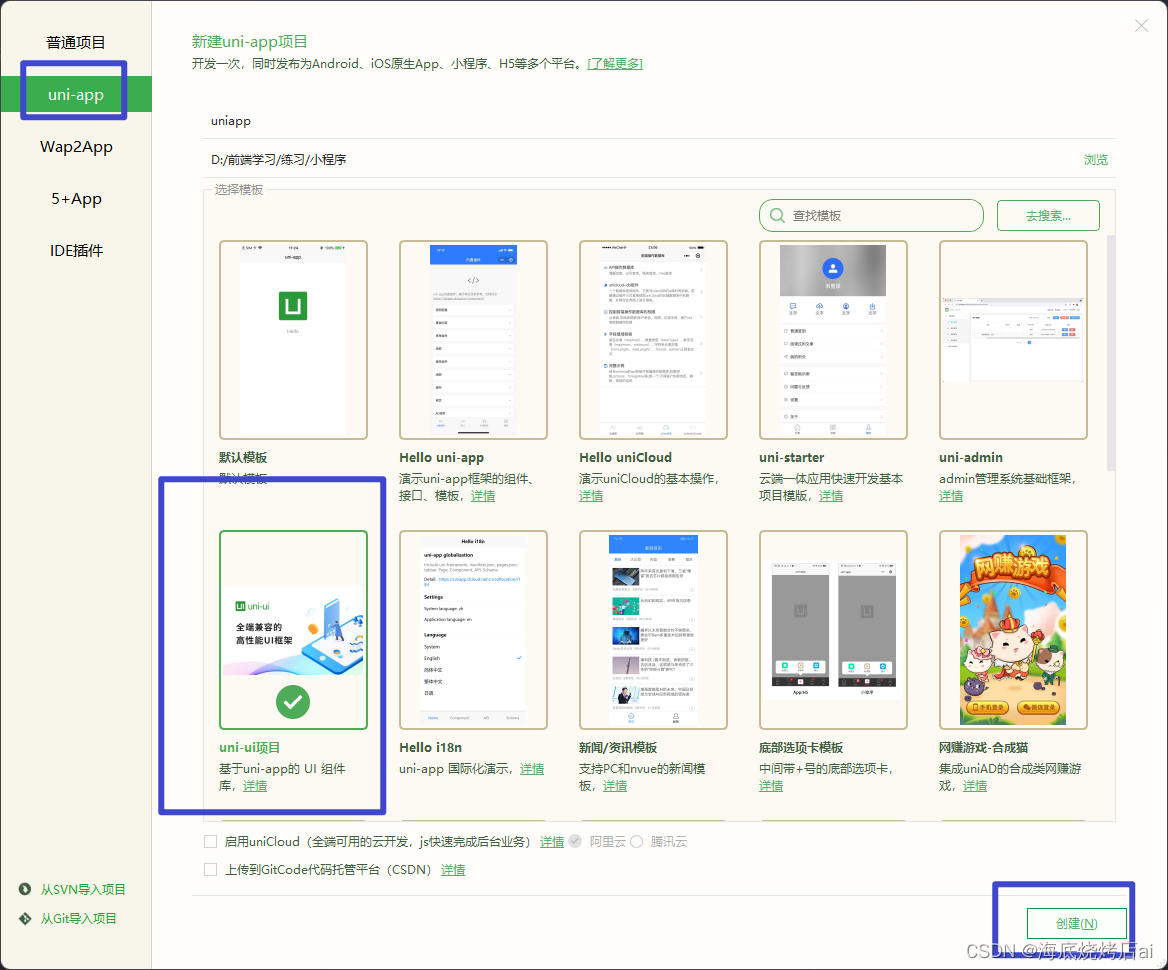
项目模板按需进行选择
项目创建成功
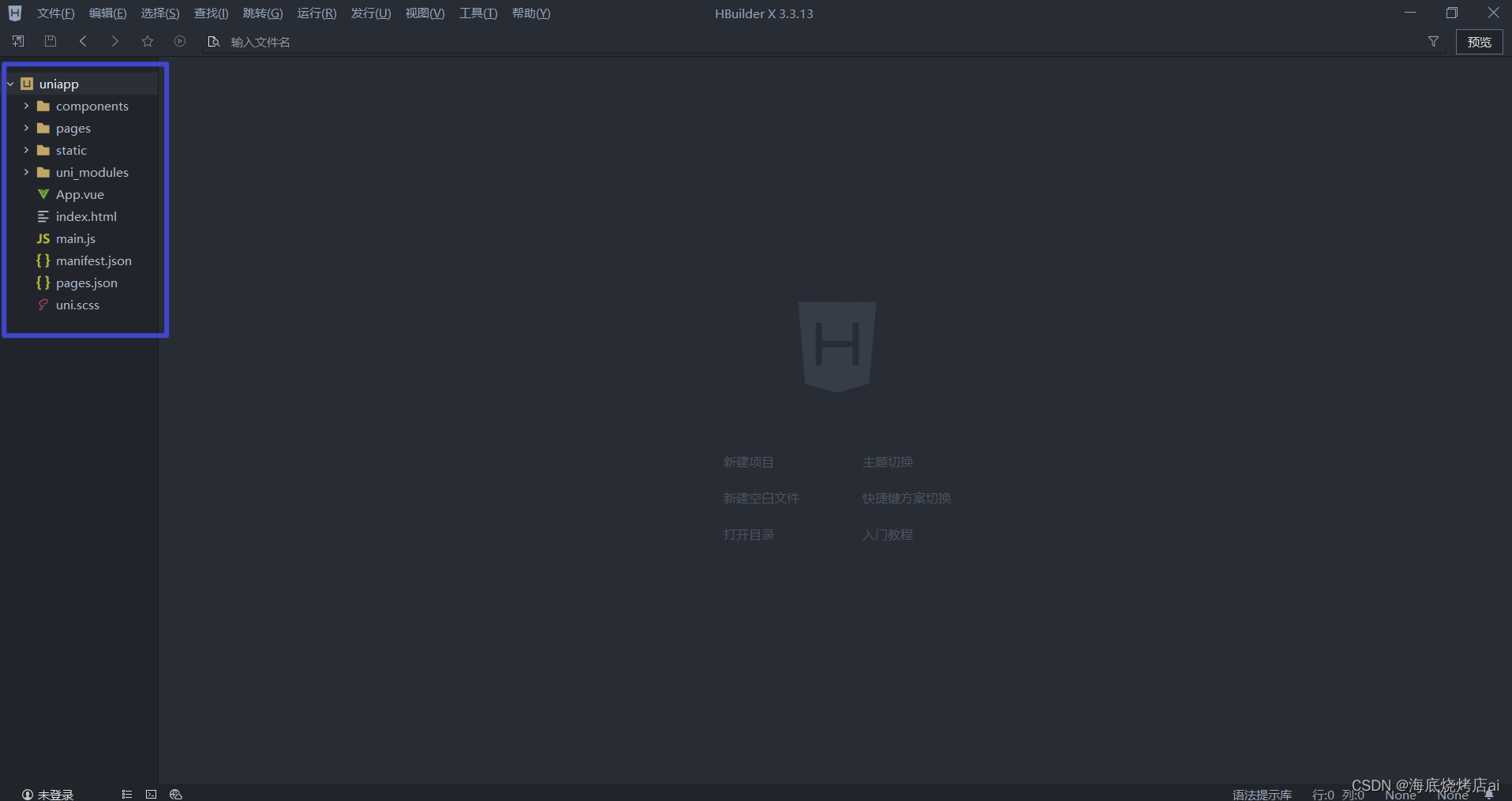
一个 uni-app 项目,默认包含如下目录及文件:
┌─components            uni-app组件目录
│  └─comp-a.vue         可复用的a组件
├─pages                 业务页面文件存放的目录
│  ├─index
│  │  └─index.vue       index页面
│  └─list
│     └─list.vue        list页面
├─static                存放应用引用静态资源(如图片、视频等)的目录,注意:静态资源只能存放于此
├─main.js               Vue初始化入口文件
├─App.vue               应用配置,用来配置小程序的全局样式、生命周期函数等
├─manifest.json         配置应用名称、appid、logo、版本等打包信息
└─pages.json            配置页面路径、页面窗口样式、tabBar、navigationBar 等页面类信息
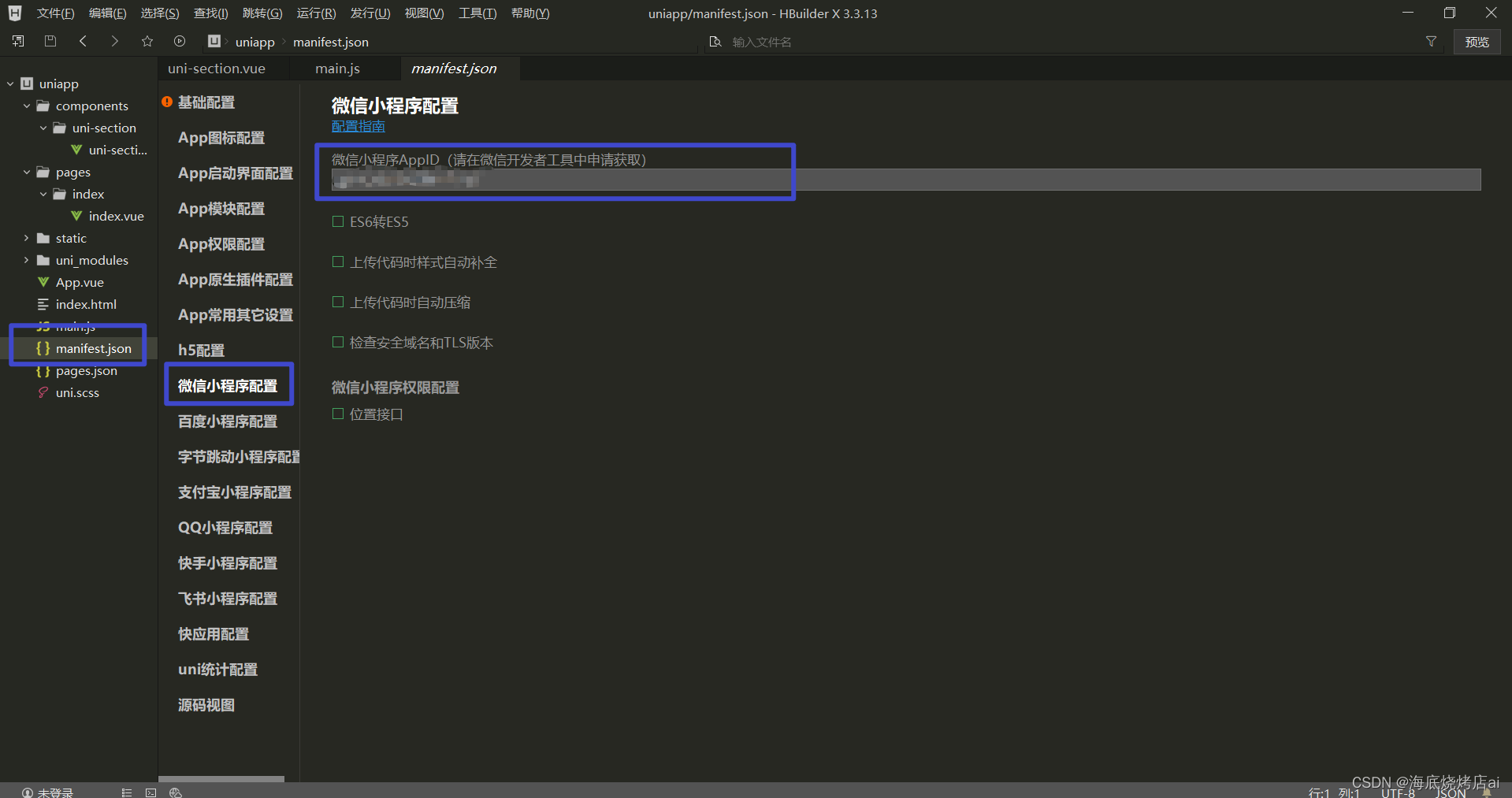
填写自己的微信小程序的 AppID:
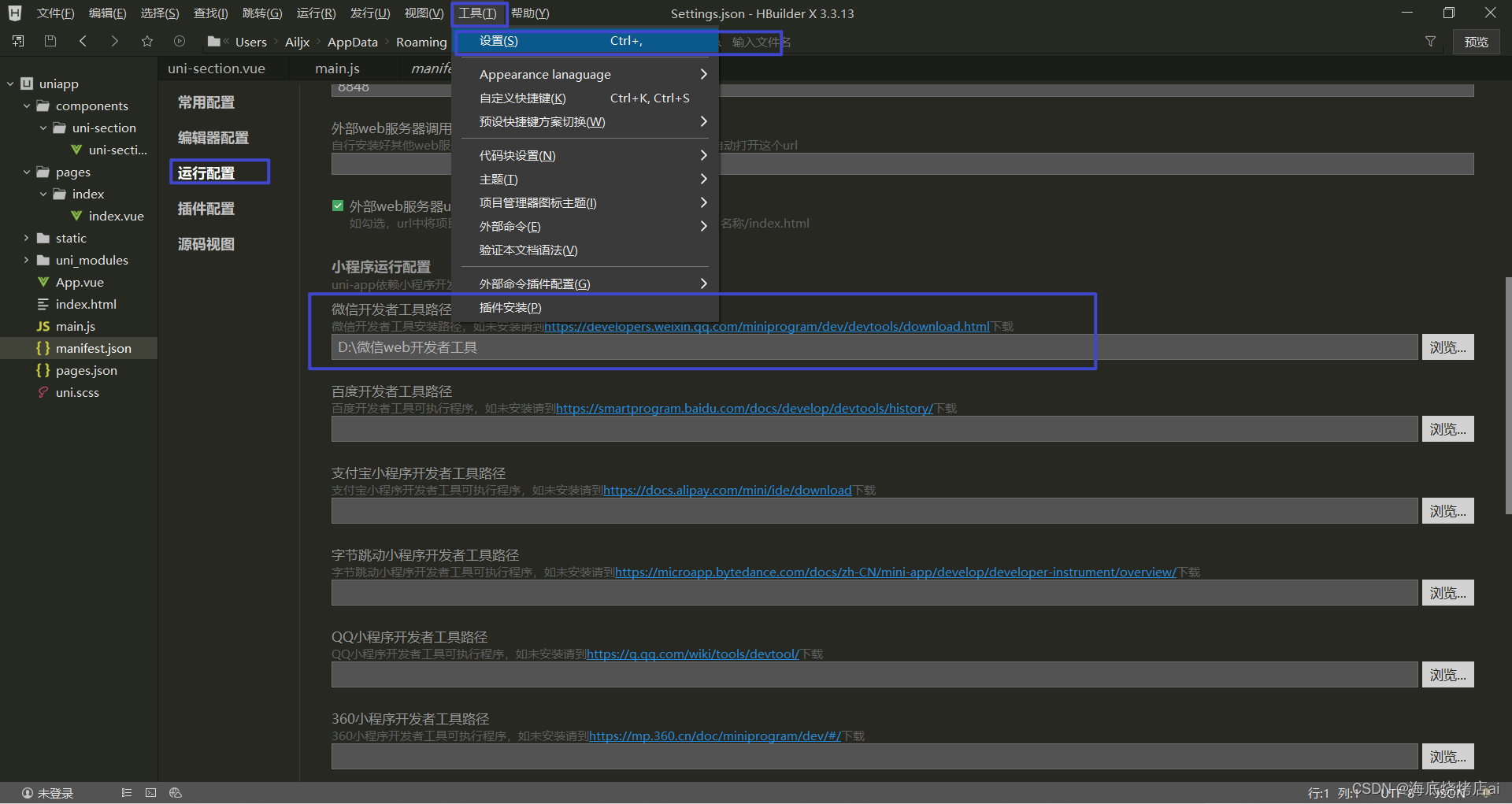
在 HBuilderX 中,配置“微信开发者工具”的安装路径:
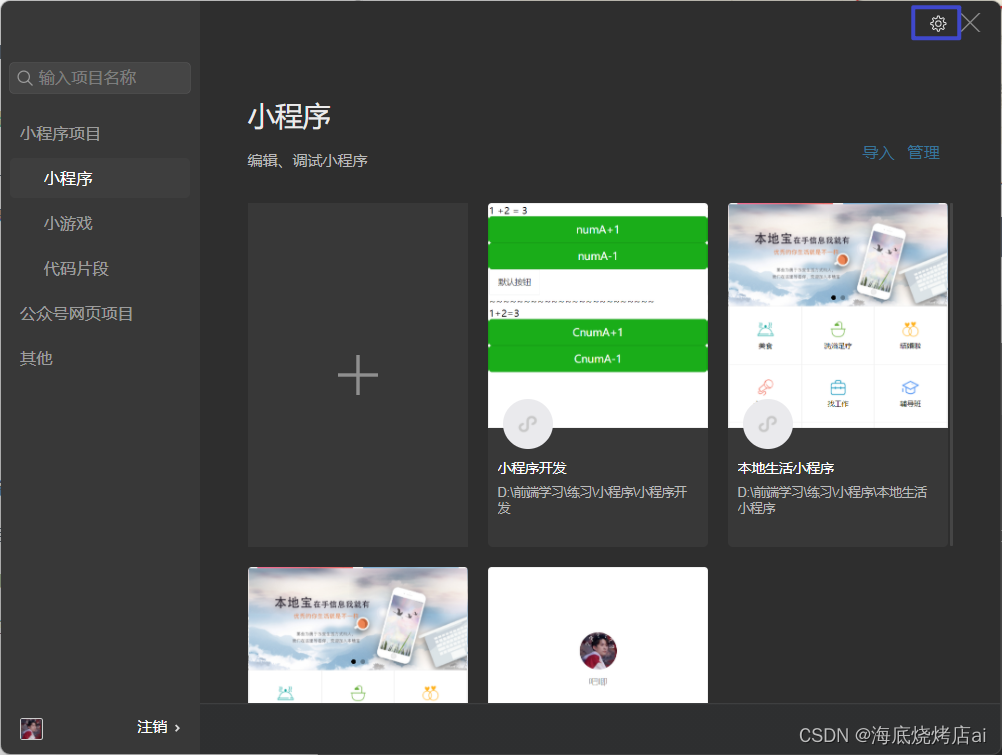
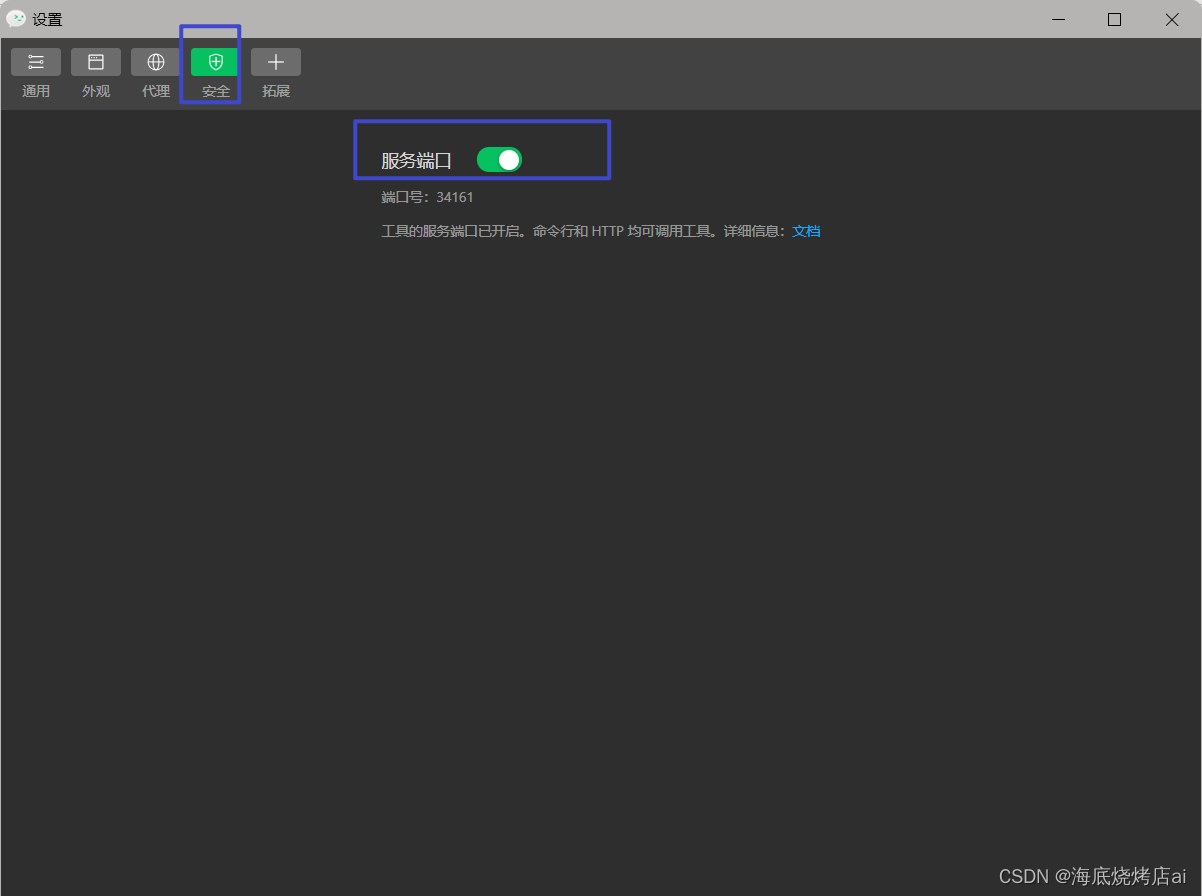
在微信开发者工具中,通过 设置 -> 安全设置 面板,开启“微信开发者工具”的服务端口:
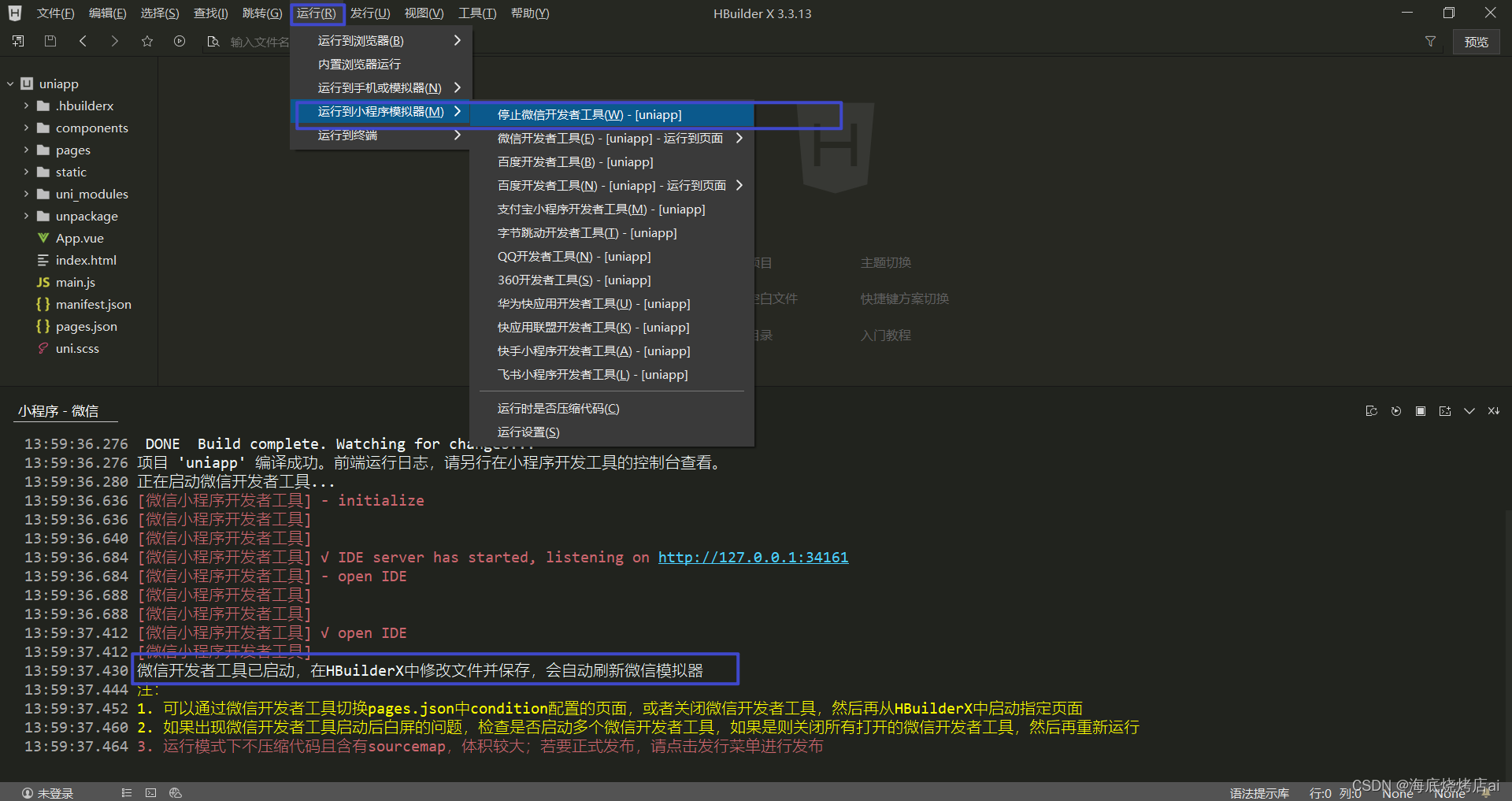
在 HBuilderX 中,点击菜单栏中的 运行 -> 运行到小程序模拟器 -> 微信开发者工具,将当前 uni-app 项目编译之后,自动运行到微信开发者工具中,从而方便查看项目效果与调试:
初次运行成功之后的项目效果:
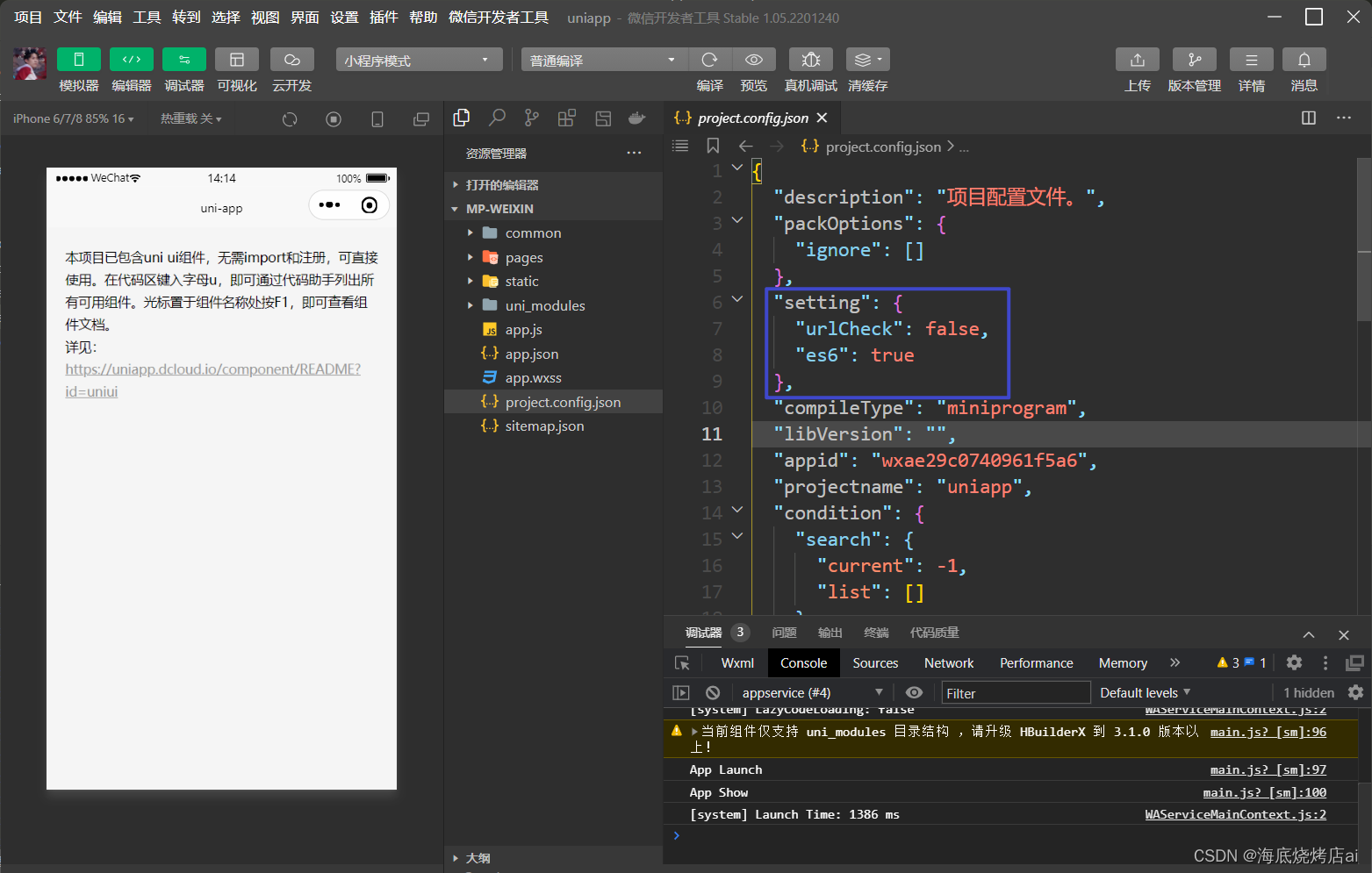
如果运行不成功可以尝试多运行几次
如果想要修改小程序
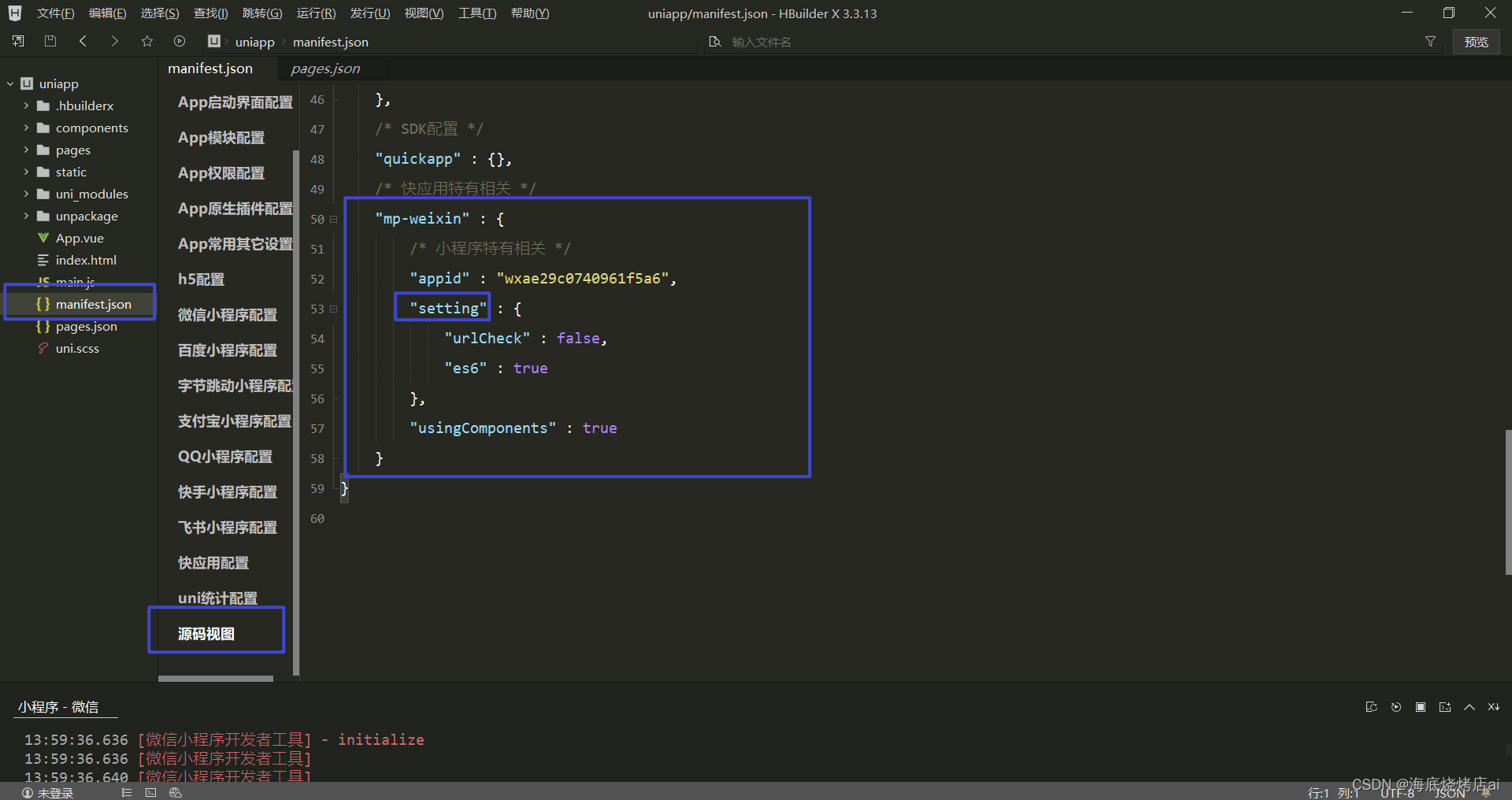
project.config.json里的配置项(如setting内容),不能直接在小程序开发者工具里修改,需要到HBuilderX的项目根目录下manifest.json里选择源码视图进行修改:
在项目根目录中新建 .gitignore 忽略文件,并配置如下:
# 忽略 node_modules 目录
/node_modules
/unpackage/dist
注意:由于我们忽略了
unpackage目录中仅有的dist目录,因此默认情况下,unpackage目录不会被 Git 追踪
此时,为了让 Git 能够正常追踪 unpackage 目录,按照惯例,我们可以在
unpackage目录下创建一个叫做.gitkeep的文件进行占位
打开终端,切换到项目根目录中,运行如下的命令,初始化本地 Git 仓库:
git init
将所有文件都加入到暂存区:
git add .
本地提交更新:
git commit -m "init project"
注册并激活码云账号( 注册页面地址:https://gitee.com/signup )
生成并配置 SSH 公钥
创建空白的码云仓库
把本地项目上传到码云对应的空白仓库中
运行如下的命令,基于 master 分支在本地创建 tabBar 子分支,用来开发和 tabBar 相关的功能:
git checkout -b tabbar
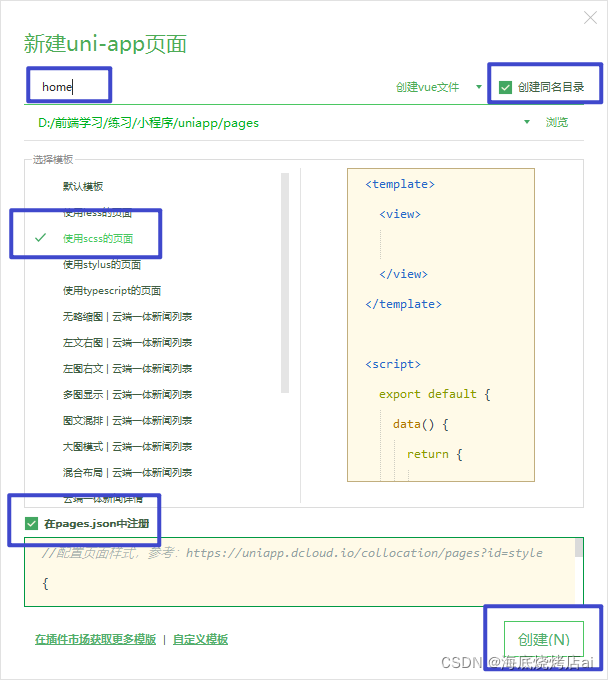
在 pages 目录中,创建首页(home)、分类(cate)、购物车(cart)、我的(my) 这 4 个 tabBar 页面。在 HBuilderX 中,可以通过如下的两个步骤,快速新建页面:
在 pages 目录上鼠标右键,选择新建页面
在弹出的窗口中,填写页面的名称、勾选 scss 模板之后,点击创建按钮。截图如下:
将 资料 目录下的 static 文件夹 拷贝一份,替换掉项目根目录中的 static 文件夹
修改项目根目录中的 pages.json 配置文件,新增 tabBar 的配置节点(与pages配置节点同级)如下:
{
  "tabBar": {
    "selectedColor": "#C00000",
    "list": [
      {
      // 路径
      "pagePath": "pages/home/home",
      // 导航文本
      "text": "首页",
      // 默认图标
      "iconPath": "static/tab_icons/home.png",
      // 选中的图标
      "selectedIconPath": "static/tab_icons/home-active.png"
      },
      {
        "pagePath": "pages/cate/cate",
        "text": "分类",
        "iconPath": "static/tab_icons/cate.png",
        "selectedIconPath": "static/tab_icons/cate-active.png"
      },
      {
        "pagePath": "pages/cart/cart",
        "text": "购物车",
        "iconPath": "static/tab_icons/cart.png",
        "selectedIconPath": "static/tab_icons/cart-active.png"
      },
      {
        "pagePath": "pages/my/my",
        "text": "我的",
        "iconPath": "static/tab_icons/my.png",
        "selectedIconPath": "static/tab_icons/my-active.png"
      }
    ]
  }
}
在 HBuilderX 中,把 pages 目录下的 index首页文件夹 删除掉
同时,把 page.json 中记录的 index 首页 路径删除掉
为了防止小程序运行失败,在微信开发者工具中,手动删除 pages 目录下的 index 首页文件夹
同时,把 components 目录下的组件文件夹删除掉
打开 pages.json 这个全局的配置文件
修改 globalStyle 节点如下:
  "globalStyle": {
    // 小程序导航栏标题颜色,仅支持 black / white
    "navigationBarTextStyle": "white",
    //小程序导航栏标题文字内容
    "navigationBarTitleText": "小陈优购",
    //小程序导航栏背景颜色
    "navigationBarBackgroundColor": "#C00000",
    // 窗口的背景色
    "backgroundColor": "#ffffff",
    "app-plus": {
      "background": "#efeff4"
    }
  }
将本地的 tabbar 分支进行本地的 commit 提交:
git add .
git commit -m "完成了 tabBar 的开发"
将本地的 tabbar 分支推送到远程仓库进行保存:
git push -u origin tabbar
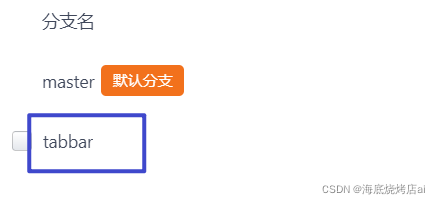
此时码云仓库已经有了
tabbar分支
将本地的 tabbar 分支合并到本地的 master 分支:
git checkout master
git merge tabbar
更新码云仓库代码
因为新的代码我们推到了
tabbar分支里面,master分支里的代码我们还没有更新,可运行以下代码进行更新:
git push
删除本地的 tabbar 分支:
git branch -d tabbar
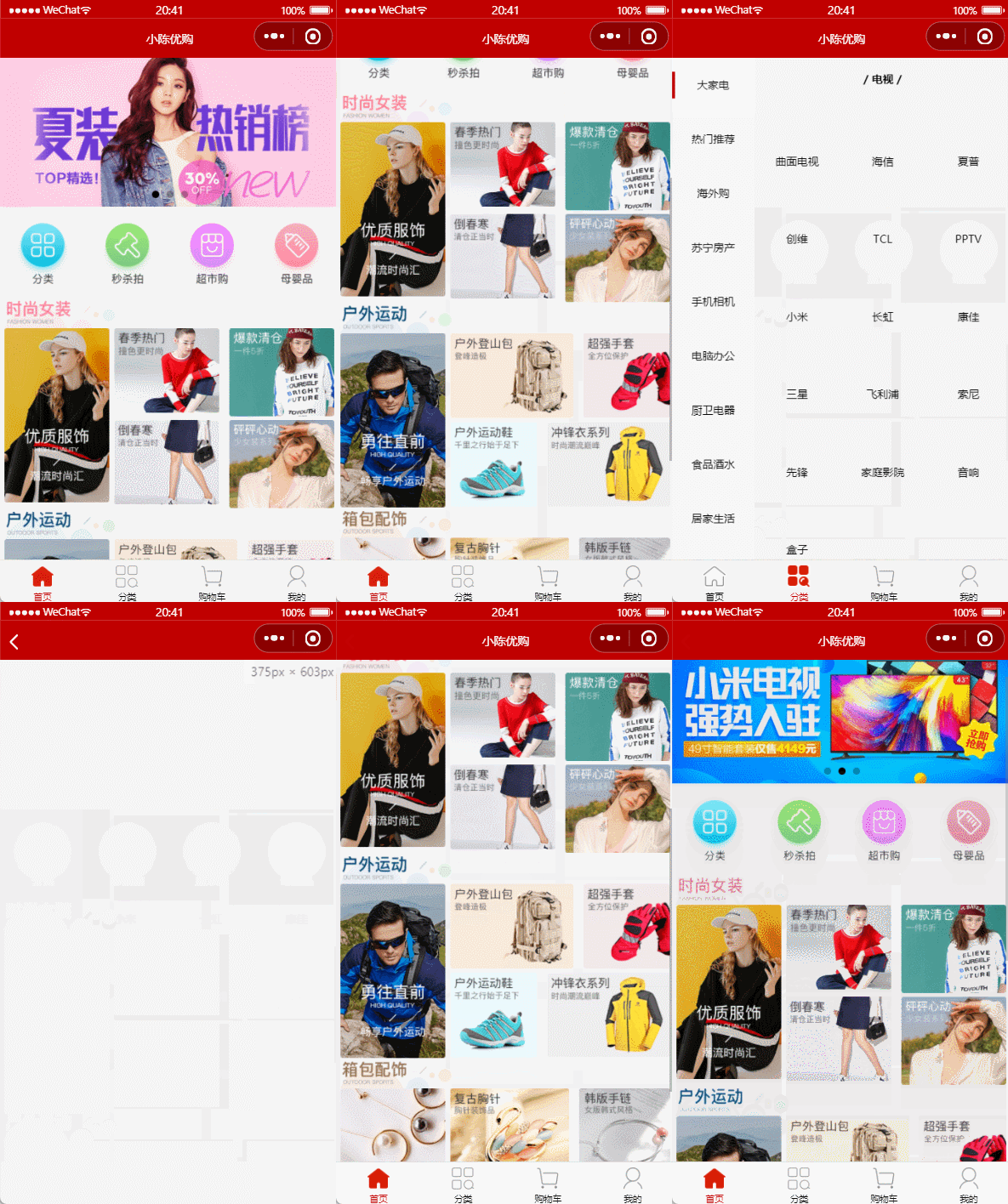
展示:
接口描述:
请求URL:
https://api-ugo-web.itheima.net/api/public/v1/home/swiperdata请求方式:
参数: 无
返回示例
{
    "message": [
        {
            "image_src": "https://api-ugo-web.itheima.net/pyg/banner1.png",
            "open_type": "navigate",
            "goods_id": 129,
            "navigator_url": "/pages/goods_detail/index?goods_id=129"
        }
    ],
    "meta": {
        "msg": "获取成功",
        "status": 200
    }
}
返回参数说明
| 参数名 | 类型 | 说明 |
|---|---|---|
| image_src | string | 图片路径 |
| open_type | string | 打开方式 |
| goods_id | number | 商品id |
| navigator_url | string | 导航链接 |
接口描述:
请求URL:
https://api-ugo-web.itheima.net/api/public/v1/home/catitems请求方式:
参数: 无
返回示例
{
    "message": [
        {
            "name": "分类",
            "image_src": "https://api-ugo-web.itheima.net/pyg/icon_index_nav_4@2x.png",
            "open_type": "switchTab",
            "navigator_url": "/pages/category/index"
        },
        {
            "name": "秒杀拍",
            "image_src": "https://api-ugo-web.itheima.net/pyg/icon_index_nav_3@2x.png"
        },
        {
            "name": "超市购",
            "image_src": "https://api-ugo-web.itheima.net/pyg/icon_index_nav_2@2x.png"
        },
        {
            "name": "母婴品",
            "image_src": "https://api-ugo-web.itheima.net/pyg/icon_index_nav_1@2x.png"
        }
    ],
    "meta": {
        "msg": "获取成功",
        "status": 200
    }
}
返回参数说明
| 参数名 | 类型 | 说明 |
|---|---|---|
| name | string | 标题名称 |
| image_src | string | 图片路径 |
简要描述:
请求URL:
https://api-ugo-web.itheima.net/api/public/v1/home/floordata请求方式:
参数: 无
返回示例
{
    "message": [
        {
            "floor_title": {
                "name": "时尚女装",
                "image_src": "https://api-ugo-web.itheima.net/pyg/pic_floor01_title.png"
            },
            "product_list": [
                {
                    "name": "优质服饰",
                    "image_src": "https://api-ugo-web.itheima.net/pyg/pic_floor01_1@2x.png",
                    "image_width": "232",
                    "open_type": "navigate",
                    "navigator_url": "/pages/goods_list/index?query=服饰"
                },
                {
                    "name": "春季热门",
                    "image_src": "https://api-ugo-web.itheima.net/pyg/pic_floor01_2@2x.png",
                    "image_width": "233",
                    "open_type": "navigate",
                    "navigator_url": "/pages/goods_list/index?query=热"
                },
                {
                    "name": "爆款清仓",
                    "image_src": "https://api-ugo-web.itheima.net/pyg/pic_floor01_3@2x.png",
                    "image_width": "233",
                    "open_type": "navigate",
                    "navigator_url": "/pages/goods_list/index?query=爆款"
                },
                {
                    "name": "倒春寒",
                    "image_src": "https://api-ugo-web.itheima.net/pyg/pic_floor01_4@2x.png",
                    "image_width": "233",
                    "open_type": "navigate",
                    "navigator_url": "/pages/goods_list/index?query=春季"
                },
                {
                    "name": "怦然心动",
                    "image_src": "https://api-ugo-web.itheima.net/pyg/pic_floor01_5@2x.png",
                    "image_width": "233",
                    "open_type": "navigate",
                    "navigator_url": "/pages/goods_list/index?query=心动"
                }
            ]
        },
        {
            "floor_title": {
                "name": "户外活动",
                "image_src": "https://api-ugo-web.itheima.net/pyg/pic_floor02_title.png"
            },
            "product_list": [
                {
                    "name": "勇往直前",
                    "image_src": "https://api-ugo-web.itheima.net/pyg/pic_floor02_1@2x.png",
                    "image_width": "232",
                    "open_type": "navigate",
                    "navigator_url": "/pages/goods_list/index?query=户外"
                },
                {
                    "name": "户外登山包",
                    "image_src": "https://api-ugo-web.itheima.net/pyg/pic_floor02_2@2x.png",
                    "image_width": "273",
                    "open_type": "navigate",
                    "navigator_url": "/pages/goods_list/index?query=登山包"
                },
                {
                    "name": "超强手套",
                    "image_src": "https://api-ugo-web.itheima.net/pyg/pic_floor02_3@2x.png",
                    "image_width": "193",
                    "open_type": "navigate",
                    "navigator_url": "/pages/goods_list/index?query=手套"
                },
                {
                    "name": "户外运动鞋",
                    "image_src": "https://api-ugo-web.itheima.net/pyg/pic_floor02_4@2x.png",
                    "image_width": "193",
                    "open_type": "navigate",
                    "navigator_url": "/pages/goods_list/index?query=运动鞋"
                },
                {
                    "name": "冲锋衣系列",
                    "image_src": "https://api-ugo-web.itheima.net/pyg/pic_floor02_5@2x.png",
                    "image_width": "273",
                    "open_type": "navigate",
                    "navigator_url": "/pages/goods_list/index?query=冲锋衣"
                }
            ]
        },
        {
            "floor_title": {
                "name": "箱包配饰",
                "image_src": "https://api-ugo-web.itheima.net/pyg/pic_floor03_title.png"
            },
            "product_list": [
                {
                    "name": "清新气质",
                    "image_src": "https://api-ugo-web.itheima.net/pyg/pic_floor03_1@2x.png",
                    "image_width": "232",
                    "open_type": "navigate",
                    "navigator_url": "/pages/goods_list?query=饰品"
                },
                {
                    "name": "复古胸针",
                    "image_src": "https://api-ugo-web.itheima.net/pyg/pic_floor03_2@2x.png",
                    "image_width": "263",
                    "open_type": "navigate",
                    "navigator_url": "/pages/goods_list?query=胸针"
                },
                {
                    "name": "韩版手链",
                    "image_src": "https://api-ugo-web.itheima.net/pyg/pic_floor03_3@2x.png",
                    "image_width": "203",
                    "open_type": "navigate",
                    "navigator_url": "/pages/goods_list?query=手链"
                },
                {
                    "name": "水晶项链",
                    "image_src": "https://api-ugo-web.itheima.net/pyg/pic_floor03_4@2x.png",
                    "image_width": "193",
                    "open_type": "navigate",
                    "navigator_url": "/pages/goods_list?query=水晶项链"
                },
                {
                    "name": "情侣表",
                    "image_src": "https://api-ugo-web.itheima.net/pyg/pic_floor03_5@2x.png",
                    "image_width": "273",
                    "open_type": "navigate",
                    "navigator_url": "/pages/goods_list?query=情侣表"
                }
            ]
        }
    ],
    "meta": {
        "msg": "获取成功",
        "status": 200
    }
}
返回参数说明
| 参数名 | 类型 | 说明 |
|---|---|---|
| floor_title | string | 一级分类标题 |
| product_list | array | 一级分类内容 |
| name | string | 名称 |
| image_src | string | 图片路径 |
| image_width | string | 图片宽度 |
| open_type | string | 打开方式 |
| navigator_url | string | 跳转连接 |
运行如下的命令,基于 master 分支在本地创建 home 子分支,用来开发和 home 首页相关的功能:
git checkout -b home
由于平台的限制,小程序项目中不支持 axios,而且原生的 wx.request() API 功能较为简单,不支持拦截器等全局定制的功能。因此,建议在 uni-app 项目中使用 @escook/request-miniprogram 第三方包发起网络数据请求。
请参考 @escook/request-miniprogram 的官方文档进行安装、配置、使用
官方文档:https://www.npmjs.com/package/@escook/request-miniprogram
最终,在项目的 main.js 入口文件中,通过如下的方式进行配置:
import { $http } from '@escook/request-miniprogram'

uni.$http = $http
// 配置请求根路径
$http.baseUrl = 'https://api-ugo-web.itheima.net'

// 请求开始之前做一些事情
$http.beforeRequest = function (options) {
  uni.showLoading({
    title: '数据加载中...',
  })
}

// 请求完成之后做一些事情
$http.afterRequest = function () {
  uni.hideLoading()
}
实现步骤:
在 data 中定义轮播图的数组
在 onLoad 生命周期函数中调用获取轮播图数据的方法
在 methods 中定义获取轮播图数据的方法
示例代码:
//home.vue
export default {
    data() {
      return {
        //存放轮播图数据
        swiperList:[]
      };
    },
    onLoad(){
      //在小程序页面刚加载的时候,调用获取轮播图数据的方法
      this.getSwiperList()
    },
    methods:{
      //获取轮播图数据
      async getSwiperList(){
        //发起请求,从返回的数据中结构出data并起个res的别名
        const {data:res} = await uni.$http.get('/api/public/v1/home/swiperdata')
        //请求失败
        if(res.meta.status !==200){
          return uni.showToast({
            title:'数据请求失败!',
            duration:1500,
            icon:'none',
          })
        }
        //请求成功
        this.swiperList=res.message
      }
    }
  }
如果你在使用接口时报了如下错误:
net::ERR_PROXY_CONNECTION_FAILED(env: Windows,mp,1.05.2201240; lib: 2.24.0)
解决方法: 关掉重启微信开发者工具 。 如果还不行就关机重启,再不行就试试关掉你的Http代理。
出错问题估计是某些进程没有结束导致的。
渲染 UI 结构:
<template>
  <!-- home.vue -->
  <view>
    <!-- 轮播图区域 -->
    <!-- indicator-dots:是否显示面板指示点
          autoplay:是否自动切换
          interval:自动切换时间间隔
          duration:滑动动画时长
          circular:是否采用衔接滑动
          更多配置查看微信小程序开发文档
     -->
    <swiper :indicator-dots="true" :autoplay="true" :interval="3000" :duration="1000" :circular="true">
      <!-- 循环渲染item项 -->
      <swiper-item v-for="(item,i) in swiperList" :key="i">
        <view class="swiper_item">
          <!-- 动态绑定图片的src属性-->
          <image :src="item.image_src" ></image>
        </view>
      </swiper-item>
    </swiper>
  </view>
</template>
美化 UI 结构:
<style lang="scss">
  // home.vue
  swiper{
    height: 330rpx;
    .swiper_item,image {
      height:100% ;
      width: 100%;
    }
  }
</style>
分包可以减少小程序首次启动时的加载时间
为此,我们在项目中,把 tabBar 相关的 4 个页面放到主包中,其它页面(例如:商品详情页、商品列表页)放到分包中。在 uni-app 项目中,配置分包的步骤如下:
在项目根目录中,创建分包的根目录,命名为 subpkg
在 pages.json 中,和 pages 节点平级的位置声明 subPackages 节点,用来定义分包相关的结构:
{
  "pages": [
    {
      "path": "pages/home/home",
      "style": {}
    },
    {
      "path": "pages/cate/cate",
      "style": {}
    },
    {
      "path": "pages/cart/cart",
      "style": {}
    },
    {
      "path": "pages/my/my",
      "style": {}
    }
  ],
  "subPackages": [
    {
      "root": "subpkg",
      "pages": []
    }
  ]
}
在 subpkg 目录上鼠标右键,点击 新建页面 选项,并填写页面的相关信息:

将 <swiper-item></swiper-item> 节点内的 view 组件,改造为 navigator 导航组件,并动态绑定 url 属性 的值。
改造之前的 UI 结构:
<swiper-item v-for="(item, i) in swiperList" :key="i">
  <view class="swiper-item">
    <!-- 动态绑定图片的 src 属性 -->
    <image :src="item.image_src"></image>
  </view>
</swiper-item>
改造之后的 UI 结构:
<swiper-item v-for="(item, i) in swiperList" :key="i">
    <navigator class="swiper-item" :url="'/subpkg/goods_detail/goods_detail?goods_id=' + item.goods_id">
      <!-- 动态绑定图片的 src 属性 -->
      <image :src="item.image_src"></image>
    </navigator>
</swiper-item>
当数据请求失败之后,经常需要调用 uni.showToast({ /* 配置对象 */ }) 方法来提示用户。此时,可以在全局封装一个 uni.$showMsg() 方法,来简化 uni.showToast() 方法的调用。具体的改造步骤如下:
在 main.js 中,为 uni 对象挂载自定义的 $showMsg() 方法:
// 封装的展示消息提示的方法
//接收两个参数,一个title(默认值为数据加载失败),一个duration(持续时间,默认为1500ms)
uni.$showMsg = function (title = '数据加载失败!',duration=1500){
  uni.showToast({
    title,
    duration,
    icon:'none',
  })
}
今后,在需要提示消息的时候,直接调用 uni.$showMsg() 方法即可:
//请求失败
if(res.meta.status !==200) return uni.$showMsg()
实现思路:
定义 data 数据
在 onLoad 中调用获取数据的方法
在 methods 中定义获取数据的方法
示例代码如下:
  // home.vue
export default {
  data() {
    return {
      // 1. 分类导航的数据列表
      navList: [],
    }
  },
  onLoad() {
    // 2. 在 onLoad 中调用获取数据的方法
    this.getNavList()
  },
  methods: {
    // 3. 在 methods 中定义获取数据的方法
    async getNavList() {
      const { data: res } = await uni.$http.get('/api/public/v1/home/catitems')
      if (res.meta.status !== 200) return uni.$showMsg()
      this.navList = res.message
    },
  },
}
定义如下的 UI 结构:
  <!-- home.vue -->
<!-- 分类导航区域 -->
<view class="nav-list">
   <view class="nav-item" v-for="(item, i) in navList" :key="i">
     <image :src="item.image_src" class="nav-img"></image>
   </view>
</view>
通过如下的样式美化页面结构:
  // home.vue
.nav-list {
  display: flex;
  justify-content: space-around;
  margin: 15px 0;

  .nav-img {
    width: 128rpx;
    height: 140rpx;
  }
}
为 nav-item 绑定点击事件处理函数:
<!-- 分类导航区域 -->
<view class="nav-list">
  <view class="nav-item" v-for="(item, i) in navList" :key="i" @click="navClickHandler(item)">
    <image :src="item.image_src" class="nav-img"></image>
  </view>
</view>
定义 navClickHandler 事件处理函数:
// nav-item 项被点击时候的事件处理函数
navClickHandler(item) {
  // 判断点击的是哪个 nav
  if (item.name === '分类') {
    uni.switchTab({
      url: '/pages/cate/cate'
    })
  }
}
实现思路:
定义 data 数据
在 onLoad 中调用获取数据的方法
在 methods 中定义获取数据的方法
示例代码如下:
export default {
  data() {
    return {
      // 1. 楼层的数据列表
      floorList: [],
    }
  },
  onLoad() {
    // 2. 在 onLoad 中调用获取楼层数据的方法
    this.getFloorList()
  },
  methods: {
    // 3. 定义获取楼层列表数据的方法
    async getFloorList() {
      const { data: res } = await uni.$http.get('/api/public/v1/home/floordata')
      if (res.meta.status !== 200) return uni.$showMsg()
      this.floorList = res.message
    },
  },
}
定义如下的 UI 结构:
<view class="floor-list">
      <view class="floor-item" v-for="(item,i) in floorList" :key="i">
        <!-- 楼层标题 -->
        <image :src="item.floor_title.image_src" class="floor-title"></image>
        <!-- 楼层图片区域 -->
        <view class="floor-img-box">
          <!-- 左侧大图片盒子 -->
          <view class="left-img-box">
            <!-- widthFix	缩放模式,宽度不变,高度自动变化,保持原图宽高比不变 -->
            <image :src="item.product_list[0].image_src" :style="{width:item.product_list[0].image_width+'rpx'}" mode="widthFix"></image>
          </view>
          <!-- 右侧4个小图片盒子 -->
          <view class="right-img-box">
            <view class="right-img-item" v-for="(item2,i2) in item.product_list" :key="i2" v-if="i2 !==0">
              <image :src="item2.image_src" mode="widthFix" :style="{width:item2.image_width+'rpx'}"></image>
            </view>
          </view>
        </view>
      </view>
    </view>
美化楼层的样式:
.floor-title {
    height: 60rpx;
    width: 100%;
    display: flex;
  }
  .right-img-box {
    display: flex;
    flex-wrap: wrap;
    justify-content: space-around;
  }
  .floor-img-box {
    display: flex;
    padding-left: 10rpx;
  }
在 subpkg 分包中,新建 goods_list 页面
楼层数据请求成功之后,通过双层 forEach 循环,处理 URL 地址:
// 获取楼层列表数据
async getFloorList() {
  const { data: res } = await uni.$http.get('/api/public/v1/home/floordata')
  if (res.meta.status !== 200) return uni.$showMsg()

  // 通过双层 forEach 循环,处理 URL 地址
  res.message.forEach(floor => {
    floor.product_list.forEach(prod => {
      prod.url = '/subpkg/goods_list/goods_list?' + prod.navigator_url.split('?')[1]
    })
  })

  this.floorList = res.message
}
把图片外层的 view 组件,改造为 navigator 组件,并动态绑定 url 属性 的值:
<!-- 楼层图片区域 -->
<view class="floor-img-box">
  <!-- 左侧大图片的盒子 -->
  <navigator class="left-img-box" :url="item.product_list[0].url">
    <image :src="item.product_list[0].image_src" :style="{width: item.product_list[0].image_width + 'rpx'}" mode="widthFix"></image>
  </navigator>
  <!-- 右侧 4 个小图片的盒子 -->
  <view class="right-img-box">
    <navigator class="right-img-item" v-for="(item2, i2) in item.product_list" :key="i2" v-if="i2 !== 0" :url="item2.url">
      <image :src="item2.image_src" mode="widthFix" :style="{width: item2.image_width + 'rpx'}"></image>
    </navigator>
  </view>
</view>
将本地的 home 分支进行本地的 commit 提交:
切换到home分支
git checkout home
查看当前分支
git branch
git add .
git commit -m "完成了 home 首页的开发"
将本地的 home 分支推送到远程仓库进行保存:
git push -u origin home
将本地的 home 分支合并到本地的 master 分支:
git checkout master
git merge home
更新主仓库(master):
git push
删除本地的 home 分支:
git branch -d home
简要描述:
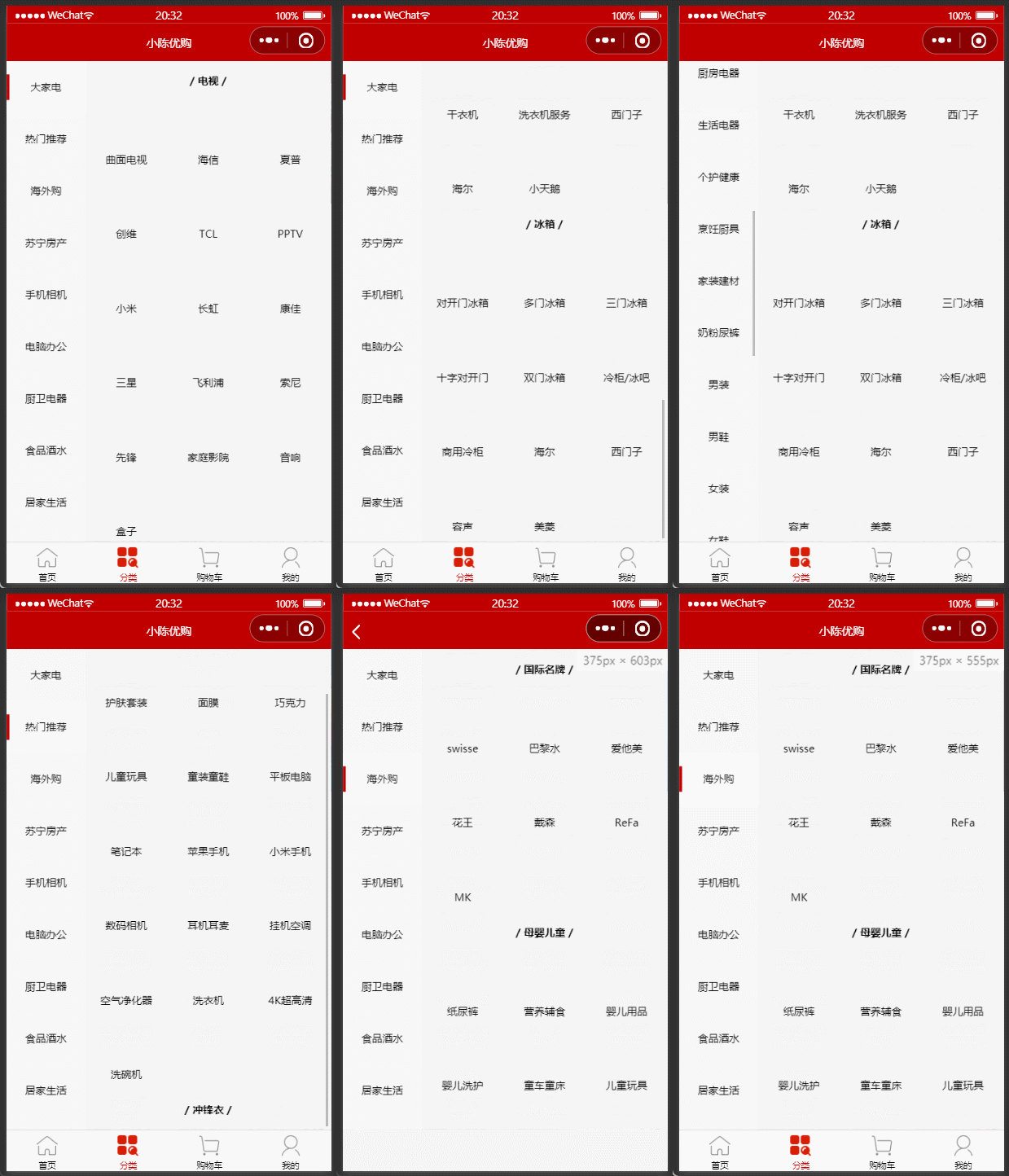
请求URL:
https://api-ugo-web.itheima.net/api/public/v1/categories请求方式:
参数: 无
返回示例
{
  "message": [
    {
      "cat_id": 1,
      "cat_name": "大家电",
      "cat_pid": 0,
      "cat_level": 0,
      "cat_deleted": false,
      "cat_icon": "",
      "children": [
        {
          "cat_id": 3,
          "cat_name": "电视",
          "cat_pid": 1,
          "cat_level": 1,
          "cat_deleted": false,
          "cat_icon": "",
          "children": [
            {
              "cat_id": 5,
              "cat_name": "曲面电视",
              "cat_pid": 3,
              "cat_level": 2,
              "cat_deleted": false,
              "cat_icon": "https://api-ugo-web.itheima.net/full/2fb113b32f7a2b161f5ee4096c319afedc3fd5a1.jpg"
            }
          ]
        }
      ]
    }
  ],
  "meta": {
    "msg": "获取成功",
    "status": 200
  }
}
返回参数说明
| 参数名 | 类型 | |
|---|---|---|
| cat_id | int | 分类id |
| cat_name | string | 分类名称 |
| children | array | 子节点 |
| cat_icon | string | 图标 |
运行如下的命令,基于 master 分支在本地创建 cate 子分支,用来开发分类页面相关的功能:
git checkout -b cate
定义页面结构如下:
<template>
  <view>
    <view class="scroll-view-container">
      <!-- 左侧的滚动视图区域 -->
      <scroll-view class="left-scroll-view" scroll-y :style="{height: wh + 'px'}">
        <view class="left-scroll-view-item active">xxx</view>
        <view class="left-scroll-view-item">xxx</view>
        <view class="left-scroll-view-item">xxx</view>
        <view class="left-scroll-view-item">xxx</view>
        <view class="left-scroll-view-item">xxx</view>
        <view class="left-scroll-view-item">多复制一些节点,演示纵向滚动效果...</view>
      </scroll-view>
      <!-- 右侧的滚动视图区域 -->
      <scroll-view class="right-scroll-view" scroll-y :style="{height: wh + 'px'}">
        <view class="left-scroll-view-item">zzz</view>
        <view class="left-scroll-view-item">zzz</view>
        <view class="left-scroll-view-item">zzz</view>
        <view class="left-scroll-view-item">zzz</view>
        <view class="left-scroll-view-item">多复制一些节点,演示纵向滚动效果</view>
      </scroll-view>
    </view>
  </view>
</template>
动态计算窗口的剩余高度:
<script>
  export default {
    data() {
      return {
        // 窗口的可用高度 = 屏幕高度 - navigationBar高度 - tabBar 高度
        wh: 0
      };
    },
    onLoad() {
      // 获取当前系统的信息
      const sysInfo = uni.getSystemInfoSync()
      // 为 wh 窗口可用高度动态赋值
      this.wh = sysInfo.windowHeight
    }
  }
</script>
美化页面结构:
.scroll-view-container {
  display: flex;

  .left-scroll-view {
    width: 120px;

    .left-scroll-view-item {
      line-height: 60px;
      background-color: #f7f7f7;
      text-align: center;
      font-size: 12px;

      // 激活项的样式
      &.active {
        background-color: #ffffff;
        position: relative;

        // 渲染激活项左侧的红色指示边线
        &::before {
          content: ' ';
          display: block;
          width: 3px;
          height: 30px;
          background-color: #c00000;
          position: absolute;
          left: 0;
          top: 50%;
          transform: translateY(-50%);
        }
      }
    }
  }
}
在 data 中定义分类数据节点:
data() {
  return {
    // 分类数据列表
    cateList: []
  }
}
调用获取分类列表数据的方法:
onLoad() {
  // 调用获取分类列表数据的方法
  this.getCateList()
}
定义获取分类列表数据的方法:
methods: {
  async getCateList() {
    // 发起请求
    const { data: res } = await uni.$http.get('/api/public/v1/categories')
    // 判断是否获取失败
    if (res.meta.status !== 200) return uni.$showMsg()
    // 转存数据
    this.cateList = res.message
  }
}
循环渲染列表结构:
<!-- 左侧的滚动视图区域 -->
<scroll-view class="left-scroll-view" scroll-y :style="{height: wh + 'px'}">
  <block v-for="(item, i) in cateList" :key="i">
    <view class="left-scroll-view-item">{{item.cat_name}}</view>
  </block>
</scroll-view>
<block/>标签上,以渲染一个包含多节点的结构块。
在 data 中定义默认选中项的索引:
data() {
  return {
    // 当前选中项的索引,默认让第一项被选中
    active: 0
  }
}
循环渲染结构时,为选中项动态添加 .active 类名:
<block v-for="(item, i) in cateList" :key="i">
  <view :class="['left-scroll-view-item', i === active ? 'active' : '']">{{item.cat_name}}</view>
</block>
为一级分类的 Item 项绑定点击事件处理函数 activeChanged:
<block v-for="(item, i) in cateList" :key="i">
  <view :class="['left-scroll-view-item', i === active ? 'active' : '']" @click="activeChanged(i)">{{item.cat_name}}</view>
</block>
定义 activeChanged 事件处理函数,动态修改选中项的索引:
methods: {
  // 选中项改变的事件处理函数
  activeChanged(i) {
    this.active = i
  }
}
在 data 中定义二级分类列表的数据节点:
data() {
  return {
    // 二级分类列表
    cateLevel2: []
  }
}
修改 getCateList 方法,在请求到数据之后,为二级分类列表数据赋值:
async getCateList() {
  const { data: res } = await uni.$http.get('/api/public/v1/categories')
  if (res.meta.status !== 200) return uni.$showMsg()
  this.cateList = res.message
  // 为二级分类赋值
  this.cateLevel2 = res.message[0].children
}
修改 activeChanged 方法,在一级分类选中项改变之后,为二级分类列表数据重新赋值:
activeChanged(i) {
  this.active = i
  // 为二级分类列表重新赋值
  this.cateLevel2 = this.cateList[i].children
}
循环渲染右侧二级分类列表的 UI 结构:
<!-- 右侧的滚动视图区域 -->
<scroll-view class="right-scroll-view" scroll-y :style="{height: wh + 'px'}">
  <view class="cate-lv2" v-for="(item2, i2) in cateLevel2" :key="i2">
    <view class="cate-lv2-title">/ {{item2.cat_name}} /</view>
  </view>
</scroll-view>
美化二级分类的标题样式:
.cate-lv2-title {
  font-size: 12px;
  font-weight: bold;
  text-align: center;
  padding: 15px 0;
}
在二级分类的 组件中,循环渲染三级分类的列表结构:
<!-- 右侧的滚动视图区域 -->
<scroll-view class="right-scroll-view" scroll-y :style="{height: wh + 'px'}">
  <view class="cate-lv2" v-for="(item2, i2) in cateLevel2" :key="i2">
    <view class="cate-lv2-title">/ {{item2.cat_name}} /</view>
    <!-- 动态渲染三级分类的列表数据 -->
    <view class="cate-lv3-list">
      <!-- 三级分类 Item 项 -->
      <view class="cate-lv3-item" v-for="(item3, i3) in item2.children" :key="i3">
        <!-- 图片 -->
        <image :src="item3.cat_icon"></image>
        <!-- 文本 -->
        <text>{{item3.cat_name}}</text>
      </view>
    </view>
  </view>
</scroll-view>
美化三级分类的样式:
.cate-lv3-list {
  display: flex;
  flex-wrap: wrap;

  .cate-lv3-item {
    width: 33.33%;
    margin-bottom: 10px;
    display: flex;
    flex-direction: column;
    align-items: center;

    image {
      width: 60px;
      height: 60px;
    }

    text {
      font-size: 12px;
    }
  }
}
在 data 中定义 滚动条距离顶部的距离:
data() {
  return {
    // 滚动条距离顶部的距离
    scrollTop: 0
  }
}
动态为右侧的 <scroll-view> 组件绑定 scroll-top 属性的值:
<!-- 右侧的滚动视图区域 -->
<scroll-view class="right-scroll-view" scroll-y :style="{height: wh + 'px'}" :scroll-top="scrollTop"></scroll-view>
切换一级分类时,动态设置 scrollTop 的值:
// 选中项改变的事件处理函数
activeChanged(i) {
  this.active = i
  this.cateLevel2 = this.cateList[i].children

  // 让 scrollTop 的值在 0 与 1 之间切换
  this.scrollTop = this.scrollTop === 0 ? 1 : 0

  // 可以简化为如下的代码:
  // this.scrollTop = this.scrollTop ? 0 : 1
}
为三级分类的 Item 项绑定点击事件处理函数如下:
<view class="cate-lv3-item" v-for="(item3, i3) in item2.children" :key="i3" @click="gotoGoodsList(item3)">
  <image :src="item3.cat_icon"></image>
  <text>{{item3.cat_name}}</text>
</view>
定义事件处理函数如下:
// 点击三级分类项跳转到商品列表页面
gotoGoodsList(item3) {
  uni.navigateTo({
    url: '/subpkg/goods_list/goods_list?cid=' + item3.cat_id
  })
}
将 cate 分支进行本地提交:
git add .
git commit -m "完成了分类页面的开发"
将本地的 cate 分支推送到码云:
git push -u origin cate
将本地 cate 分支中的代码合并到 master 分支:
git checkout master
git merge cate
git push
删除本地的 cate 分支:
git branch -d cate
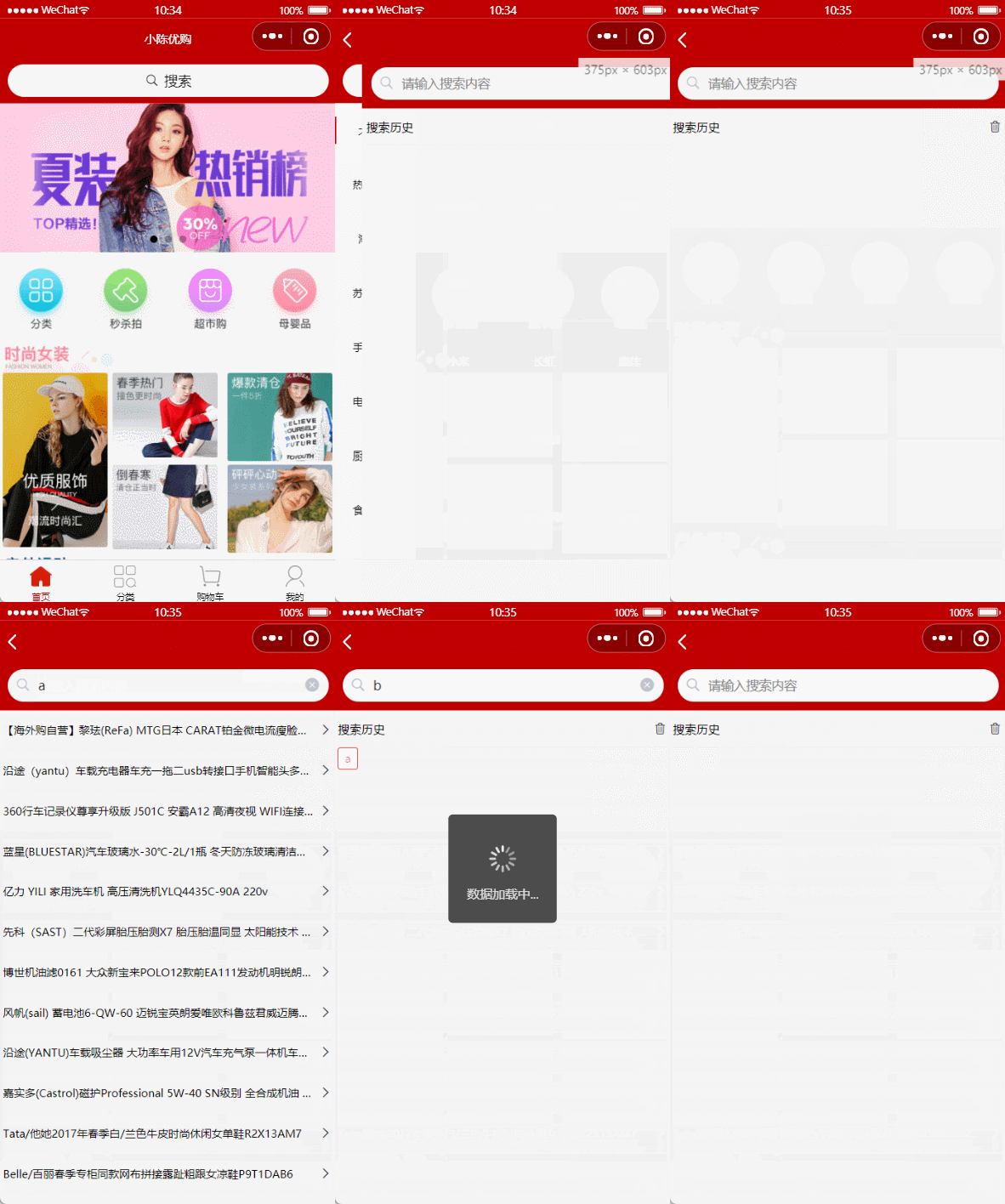
请求URL:
https://api-ugo-web.itheima.net/api/public/v1/goods/qsearch请求方式:
参数:
| 参数名 | 必选 | 类型 | 说明 |
|---|---|---|---|
| query | 是 | string | 关键字 |
返回示例
{
    "message": [
        {
            "goods_id": 57444,
            "goods_name": "创维(Skyworth)42X6 42英寸10核智能酷开网络平板液晶电视(黑色)"
        }
    ],
    "meta": {
        "msg": "获取成功",
        "status": 200
    }
}
返回参数说明
| 参数名 | 类型 | 说明 |
|---|---|---|
| goods_id | number | 商品id |
| goods_name | string | 商品名称 |
运行如下的命令,基于 master 分支在本地创建 search 子分支,用来开发搜索相关的功能:
git checkout -b search
在项目根目录的 components 目录上,鼠标右键,选择 新建组件,填写组件信息后,最后点击 创建 按钮:

项目根目录如果没有
components文件夹,自己手动建一个就行
在分类页面的 UI 结构中,直接以标签的形式使用 my-search 自定义组件:
<!-- 使用自定义的搜索组件 -->
<my-search></my-search>
定义 my-search 组件的 UI 结构如下:
<template>
  <view class="my-search-container">
    <!-- 使用 view 组件模拟 input 输入框的样式 -->
    <view class="my-search-box">
    <!--uni图标组件-->
      <uni-icons type="search" size="17"></uni-icons>
      <text class="placeholder">搜索</text>
    </view>
  </view>
</template>
注意:在当前组件中,我们使用
view组件模拟input输入框的效果;并不会在页面上渲染真正的input输入框。
uni-icons图标组件详情请见:链接
美化自定义 search 组件的样式:
.my-search-container {
  background-color: #c00000;
  height: 50px;
  padding: 0 10px;
  display: flex;
  align-items: center;
}

.my-search-box {
  height: 36px;
  background-color: #ffffff;
  border-radius: 15px;
  width: 100%;
  display: flex;
  align-items: center;
  justify-content: center;

  .placeholder {
    font-size: 15px;
    margin-left: 5px;
  }
}
由于自定义的 my-search 组件高度为 50px,因此,需要重新计算分类页面窗口的可用高度:
onLoad() {
  const sysInfo = uni.getSystemInfoSync()
  // 可用高度 = 屏幕高度 - navigationBar高度 - tabBar高度 - 自定义的search组件高度
  this.wh = sysInfo.windowHeight - 50
}
为了增强组件的通用性,我们允许使用者自定义搜索组件的 背景颜色 和 圆角尺寸。
通过 props 定义 bgcolor 和 radius 两个属性,并指定值类型和属性默认值:
//my-search.vue
//和data节点平级
props: {
  // 背景颜色
  bgcolor: {
    type: String,
    default: '#C00000'
  },
  // 圆角尺寸
  radius: {
    type: Number,
    // 单位是 px
    default: 18
  }
}
通过属性绑定的形式,为 .my-search-container 盒子和 .my-search-box 盒子动态绑定 style 属性:
<view class="my-search-container" :style="{'background-color': bgcolor}">
  <view class="my-search-box" :style="{'border-radius': radius + 'px'}">
    <uni-icons type="search" size="17"></uni-icons>
    <text class="placeholder">搜索</text>
  </view>
</view>
移除对应 scss 样式中的 背景颜色 和 圆角尺寸:
.my-search-container {
  // 移除背景颜色,改由 props 属性控制
  // background-color: #C00000;
  height: 50px;
  padding: 0 10px;
  display: flex;
  align-items: center;
}

.my-search-box {
  height: 36px;
  background-color: #ffffff;
  // 移除圆角尺寸,改由 props 属性控制
  // border-radius: 15px;
  width: 100%;
  display: flex;
  align-items: center;
  justify-content: center;

  .placeholder {
    font-size: 15px;
    margin-left: 5px;
  }
}
在 my-search 自定义组件内部,给类名为 .my-search-box 的 view 绑定 click 事件处理函数:
<view class="my-search-box" :style="{'border-radius': radius + 'px'}" @click="searchBoxHandler">
  <uni-icons type="search" size="17"></uni-icons>
  <text class="placeholder">搜索</text>
</view>
在 my-search 自定义组件的 methods 节点中,声明事件处理函数如下:
methods: {
  // 点击了模拟的 input 输入框
  searchBoxHandler() {
    // 触发外界通过 @click 绑定的 click 事件处理函数
    this.$emit('click')
  }
}
在subpkg分包目录下新建search分包页面
在分类页面中使用 my-search 自定义组件时,即可通过 @click 为其绑定点击事件处理函数:
<!-- 使用自定义的搜索组件 -->
<my-search @click="gotoSearch"></my-search>
同时在分类页面中,定义 gotoSearch 事件处理函数如下:
methods: {
   // 跳转到分包中的搜索页面
   gotoSearch() {
     uni.navigateTo({
       url: '/subpkg/search/search'
     })
   }
}
为自定义组件封装 click 事件目的是解决在自定义组件上直接绑定点击事件@click无效的问题
my-search组件内部不做处理,直接在分类页面为该组件绑定点击事件,你就会发现绑定的这个gotoSearch事件无效实际在my-search组件内部做的处理就是利用了父子组件通信:
@click="gotoSearch"相当于分类页面向my-search传了一个名为click的参数my-search可以通过emit('click')调用这个参数(调用该参数就会执行分类页面的gotoSearch方法)click只是一个自定义的参数名,你可以写成其它的,比如(@myclick="gotoSearch" ,emit('myclick'))只要emit调用的参数与传来的一致就行其实有一种非常简单的方法可以不利用父子组件通信解决这种问题:
在对组件添加点击事件时加上.native
@click.native="gotoSearch"
在 home 首页定义如下的 UI 结构:
<!-- 使用自定义的搜索组件 -->
<view class="search-box">
  <my-search @click="gotoSearch"></my-search>
</view>
在 home 首页定义如下的事件处理函数:
gotoSearch() {
  uni.navigateTo({
    url: '/subpkg/search/search'
  })
}
通过如下的样式实现吸顶的效果:
.search-box {
  // 设置定位效果为“吸顶”
  position: sticky;
  // 吸顶的“位置”
  top: 0;
  // 提高层级,防止被轮播图覆盖
  z-index: 999;
}
定义如下的 UI 结构:
<!-- search.vue -->
<view class="search-box">
  <!-- 使用 uni-ui 提供的搜索组件 -->
  <uni-search-bar @input="input" :radius="100" cancelButton="none"></uni-search-bar>
</view>
uni-search-bar组件:点击查看
修改 uni_modules-> uni-search-bar -> components-> uni-search-bar.vue 组件,将默认的白色搜索背景改为 #C00000 的红色背景:
.uni-searchbar {
	/* #ifndef APP-NVUE */
	display: flex;
	/* #endif */
	flex-direction: row;
	position: relative;
	padding: 10px;
	//修改颜色
	background-color: #C00000;
}
实现搜索框的吸顶效果:
// search.vue
.search-box {
  position: sticky;
  top: 0;
  z-index: 999;
}
定义如下的 input 事件处理函数:
methods: {
  input(e) {
    // e是最新的搜索内容
    console.log(e)
  }
}
给uni-search-bar组件添加:focus="true"即可
<uni-search-bar @input="input" :radius="100" cancelButton="none" :focus="true"></uni-search-bar>
使用手机扫码预览,即可在真机上查看效果。
在 data 中定义防抖的延时器 timerId 如下:
  // search.vue
data() {
  return {
    // 延时器的 timerId
    timer: null,
    // 搜索关键词
    kw: ''
  }
}
修改 input 事件处理函数如下:
input(e) {
  // 清除 timer 对应的延时器
  clearTimeout(this.timer)
  // 重新启动一个延时器,并把 timerId 赋值给 this.timer
  this.timer = setTimeout(() => {
    // 如果 500 毫秒内,没有触发新的输入事件,则为搜索关键词赋值
    this.kw = e
    console.log(this.kw)
  }, 500)
}
在 data 中定义如下的数据节点,用来存放搜索建议的列表数据:
data() {
  return {
    // 搜索结果列表
    searchResults: []
  }
}
在防抖的 setTimeout 中,调用 getSearchList 方法获取搜索建议列表:
this.timer = setTimeout(() => {
  //去除输入值的前后空格
  this.kw = e.trim()
  // 根据关键词,查询搜索建议列表
  this.getSearchList()
}, 500)
在 methods 中定义 getSearchList 方法如下:
// 根据搜索关键词,搜索商品建议列表
async getSearchList() {
  // 判断关键词是否为空
  if (this.kw === '') {
    this.searchResults = []
    return
  }
  // 发起请求,获取搜索建议列表
  const { data: res } = await uni.$http.get('/api/public/v1/goods/qsearch', { query: this.kw })
  if (res.meta.status !== 200) return uni.$showMsg()
  this.searchResults = res.message
}
定义如下的 UI 结构:
<!-- 搜索建议列表 -->
<view class="sugg-list">
  <view class="sugg-item" v-for="(item, i) in searchResults" :key="i" @click="gotoDetail(item.goods_id)">
    <view class="goods-name">{{item.goods_name}}</view>
    <uni-icons type="arrowright" size="16"></uni-icons>
  </view>
</view>
美化搜索建议列表:
.sugg-list {
  padding: 0 5px;

  .sugg-item {
    font-size: 12px;
    padding: 13px 0;
    border-bottom: 1px solid #efefef;
    display: flex;
    align-items: center;
    justify-content: space-between;

    .goods-name {
      // 文字不允许换行(单行文本)
      white-space: nowrap;
      // 溢出部分隐藏
      overflow: hidden;
      // 文本溢出后,使用 ... 代替
      text-overflow: ellipsis;
      margin-right: 3px;
    }
  }
}
点击搜索建议的 Item 项,跳转到商品详情页面:
gotoDetail(goods_id) {
  uni.navigateTo({
    // 指定详情页面的 URL 地址,并传递 goods_id 参数
    url: '/subpkg/goods_detail/goods_detail?goods_id=' + goods_id
  })
}
在 data 中定义搜索历史的假数据:
data() {
  return {
    // 搜索关键词的历史记录
    historyList: ['a', 'app', 'apple']
  }
}
渲染搜索历史区域的 UI 结构:
<!-- 搜索历史 -->
<view class="history-box">
  <!-- 标题区域 -->
  <view class="history-title">
    <text>搜索历史</text>
    <uni-icons type="trash" size="17"></uni-icons>
  </view>
  <!-- 列表区域 -->
  <view class="history-list">
    <uni-tag :inverted="true" type="error" :text="item" v-for="(item, i) in historyList" :key="i"></uni-tag>
  </view>
</view>
美化搜索历史区域的样式:
.history-box {
  padding: 0 5px;

  .history-title {
    display: flex;
    justify-content: space-between;
    align-items: center;
    height: 40px;
    font-size: 13px;
    border-bottom: 1px solid #efefef;
  }

  .history-list {
    display: flex;
    flex-wrap: wrap;

    .uni-tag {
      margin-top: 5px;
      margin-right: 5px;
    }
  }
}
当搜索结果列表的长度不为 0的时候(searchResults.length !== 0),需要展示搜索建议区域,隐藏搜索历史区域
当搜索结果列表的长度等于 0的时候(searchResults.length === 0),需要隐藏搜索建议区域,展示搜索历史区域
使用 v-if 和 v-else 控制这两个区域的显示和隐藏,示例代码如下:
<!-- 搜索建议列表 -->
<view class="sugg-list" v-if="searchResults.length !== 0">
  <!-- 省略其它代码... -->
</view>

<!-- 搜索历史 -->
<view class="history-box" v-else>
  <!-- 省略其它代码... -->
</view>
直接将搜索关键词 push 到 historyList 数组中即可
methods: {
  // 根据搜索关键词,搜索商品建议列表
  async getSearchList() {
    // 省略其它不必要的代码...

    // 1. 查询到搜索建议之后,调用 saveSearchHistory() 方法保存搜索关键词
    this.saveSearchHistory()
  },
  // 2. 保存搜索关键词的方法
  saveSearchHistory() {
    // 2.1 直接把搜索关键词 push 到 historyList 数组中
    this.historyList.push(this.kw)
  }
}
上述实现思路存在的问题:
2.1 关键词前后顺序的问题(可以调用数组的 reverse() 方法对数组进行反转)
2.2 关键词重复的问题(可以使用 Set 对象进行去重操作)
data 中的 historyList 不做任何修改,依然使用 push 进行末尾追加
定义一个计算属性 historys,将 historyList 数组 reverse 反转之后,就是此计算属性的值:
computed: {
  historys() {
    // 注意:由于数组是引用类型,所以不要直接基于原数组调用 reverse 方法,以免修改原数组中元素的顺序
    // 而是应该新建一个内存无关的数组,再进行 reverse 反转
    return [...this.historyList].reverse()
  }
}
页面中渲染搜索关键词的时候,不再使用 data 中的 historyList,而是使用计算属性 historys:
<view class="history-list">
  <uni-tag :text="item" v-for="(item, i) in historys" :key="i"></uni-tag>
</view>
修改 saveSearchHistory 方法如下:
// 保存搜索关键词为历史记录
saveSearchHistory() {
  // this.historyList.push(this.kw)

  // 1. 将 Array 数组转化为 Set 对象
  const set = new Set(this.historyList)
  // 2. 调用 Set 对象的 delete 方法,移除对应的元素
  set.delete(this.kw)
  // 3. 调用 Set 对象的 add 方法,向 Set 中添加元素
  set.add(this.kw)
  // 4. 将 Set 对象转化为 Array 数组
  this.historyList = Array.from(set)
}
<!-- 搜索历史列表区域 -->
<view class="history-list">
  <uni-tag @click="gotoGoodsList(item)" :inverted="true" type="error" :text="item" v-for="(item,i) in historyList"
          :key="i"></uni-tag>
</view>
// 保存搜索关键词的方法
saveSearchHistory() {
   this.historyList=[...new Set([this.kw,...this.historyList])]
}
注意:这个种方法是我自己想的,并不是黑马教程里老师讲的,不知道为什么老师要用那么复杂的方法,知道的大佬还请解答一下🤓
修改 saveSearchHistory 方法如下:
// 保存搜索关键词为历史记录
saveSearchHistory() {
  const set = new Set(this.historyList)
  set.delete(this.kw)
  set.add(this.kw)
  this.historyList = Array.from(set)
  // 调用 uni.setStorageSync(key, value) 将搜索历史记录持久化存储到本地
  uni.setStorageSync('kw', JSON.stringify(this.historyList))
}
在 onLoad 生命周期函数中,加载本地存储的搜索历史记录:
onLoad() {
  this.historyList = JSON.parse(uni.getStorageSync('kw') || '[]')
}
为清空的图标按钮绑定 click 事件:
<uni-icons type="trash" size="17" @click="cleanHistory"></uni-icons>
在 methods 中定义 cleanHistory 处理函数:
	// 清空搜索历史记录
	cleanHistory() {
	  // 清空 data 中保存的搜索历史
	  this.historyList = []
	  // 清空本地存储中记录的搜索历史
	  uni.setStorageSync('kw', '[]')
	}
为搜索历史的 Item 项绑定 click 事件处理函数:
<uni-tag :text="item" v-for="(item, i) in historys" :key="i" @click="gotoGoodsList(item)"></uni-tag>
在 methods 中定义 gotoGoodsList 处理函数:
// 点击跳转到商品列表页面
gotoGoodsList(kw) {
  uni.navigateTo({
    url: '/subpkg/goods_list/goods_list?query=' + kw
  })
}
将 search 分支进行本地提交:
git add .
git commit -m "完成了搜索功能的开发"
将本地的 search 分支推送到码云:
git push -u origin search
将本地 search 分支中的代码合并到 master 分支:
git checkout master
git merge search
git push
删除本地的 search 分支:
git branch -d search
接口描述:
请求URL:
https://api-ugo-web.itheima.net/api/public/v1/goods/search请求方式:
参数:
| 参数名 | 必选 | 类型 | 说明 |
|---|---|---|---|
| query | 否 | string | 关键字 |
| cid | 否 | string | 分类id |
| pagenum | 否 | number | 页码 |
| pagesize | 否 | number | 页容量 |
返回示例
{
    "message": {
        "total": 10,
        "pagenum": 1,
        "goods": [
            {
                "goods_id": 57445,
                "cat_id": 9,
                "goods_name": "创维(Skyworth)65V9E 65英寸25核4K HDR高清智能电视",
                "goods_price": 6499,
                "goods_number": 100,
                "goods_weight": 100,
                "goods_big_logo": "",
                "goods_small_logo": "",
                "add_time": 1516663280,
                "upd_time": 1516663280,
                "hot_mumber": 0,
                "is_promote": false,
                "cat_one_id": 1,
                "cat_two_id": 3,
                "cat_three_id": 9
            }
        ]
    },
    "meta": {
        "msg": "获取成功",
        "status": 200
    }
}
返回参数说明
| 参数名 | 参数说明 | 备注 |
| total | 总条数 | |
| pagenum | 当前页数 | |
| goods_id | 商品ID | |
| cat_id | 分类ID | |
| goods_name | 商品名称 | |
| goods_price | 商品价格 | |
| goods_number | 商品数量 | |
| goods_weight | 商品重量 | |
| goods_big_logo | 商品大图标 | |
| goods_small_logo | 商品小图标 | |
| add_time | 商品添加时间 | |
| upd_time | 商品更新时间 | |
| hot_mumber | 热门商品数 | |
| cat_one_id | 所属一级分类 | |
| cat_two_id | 所属二级分类 | |
| cat_three_id | 所属三级分类 |
运行如下的命令,基于 master 分支在本地创建 goodslist 子分支,用来开发商品列表相关的功能:
git checkout -b goodslist
为了方便发起请求获取商品列表的数据,我们要根据接口的要求,事先定义一个请求参数对象:
// goods_list.vue
data() {
  return {
    // 请求参数对象
    queryObj: {
      // 查询关键词
      query: '',
      // 商品分类Id
      cid: '',
      // 页码值
      pagenum: 1,
      // 每页显示多少条数据
      pagesize: 10
    }
  }
}
将页面跳转时携带的参数,转存到 queryObj 对象中:
onLoad(options) {
  // 将页面参数转存到 this.queryObj 对象中
  this.queryObj.query = options.query || ''
  this.queryObj.cid = options.cid || ''
}
为了方便开发商品分类页面,建议大家通过微信开发者工具,新建商品列表页面的编译模式:
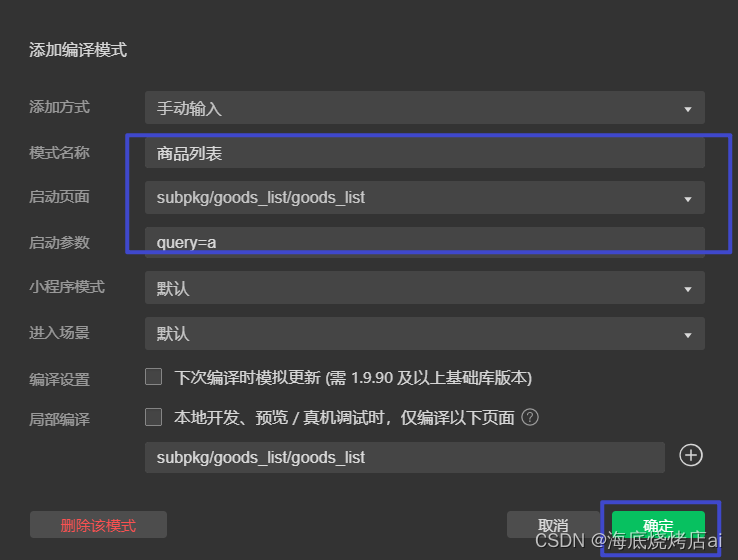
这里我选的页面参数是
query=a,这里参数自己可以设置,只要让接口返回的数据多一点,能够测试后面要写的上拉加载更多就行
在 data 中新增如下的数据节点:
data() {
  return {
    // 商品列表的数据
    goodsList: [],
    // 总数量,用来实现分页
    total: 0
  }
}
在 onLoad 生命周期函数中,调用 getGoodsList 方法获取商品列表数据:
onLoad(options) {
  // 调用获取商品列表数据的方法
  this.getGoodsList()
}
在 methods 节点中,声明 getGoodsList 方法如下:
methods: {
  // 获取商品列表数据的方法
  async getGoodsList() {
    // 发起请求
    const { data: res } = await uni.$http.get('/api/public/v1/goods/search', this.queryObj)
    if (res.meta.status !== 200) return uni.$showMsg()
    // 为数据赋值
    this.goodsList = res.message.goods
    this.total = res.message.total
  }
}
在页面中,通过 v-for 指令,循环渲染出商品的 UI 结构:
<template>
  <view>
    <view class="goods-list">
      <block v-for="(goods, i) in goodsList" :key="i">
        <view class="goods-item">
          <!-- 商品左侧图片区域 -->
          <view class="goods-item-left">
            <image :src="goods.goods_small_logo || defaultPic" class="goods-pic"></image>
          </view>
          <!-- 商品右侧信息区域 -->
          <view class="goods-item-right">
            <!-- 商品标题 -->
            <view class="goods-name">{{goods.goods_name}}</view>
            <view class="goods-info-box">
              <!-- 商品价格 -->
              <view class="goods-price">¥{{goods.goods_price}}</view>
            </view>
          </view>
        </view>
      </block>
    </view>
  </view>
</template>
为了防止某些商品的图片不存在,需要在 data 中定义一个默认的图片:
data() {
  return {
    // 默认的空图片
    defaultPic: 'https://img3.doubanio.com/f/movie/8dd0c794499fe925ae2ae89ee30cd225750457b4/pics/movie/celebrity-default-medium.png'
  }
}
并在页面渲染时按需使用:
<image :src="goods.goods_small_logo || defaultPic" class="goods-pic"></image>
美化商品列表的 UI 结构:
.goods-item {
  display: flex;
  padding: 10px 5px;
  border-bottom: 1px solid #f0f0f0;

  .goods-item-left {
    margin-right: 5px;

    .goods-pic {
      width: 100px;
      height: 100px;
      display: block;
    }
  }

  .goods-item-right {
    display: flex;
    flex-direction: column;
    justify-content: space-between;

    .goods-name {
      font-size: 13px;
    }

    .goods-price {
      font-size: 16px;
      color: #c00000;
    }
  }
}
在 components 目录上鼠标右键,选择 新建组件:
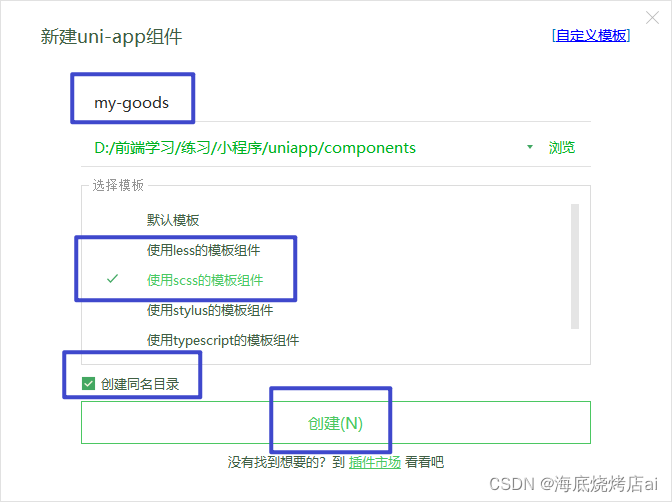
将 goods_list 页面中,关于商品 item 项相关的 UI 结构、样式、data 数据,封装到 my-goods 组件中:
<template>
  <view class="goods-item">
    <!-- 商品左侧图片区域 -->
    <view class="goods-item-left">
      <image :src="goods.goods_small_logo || defaultPic" class="goods-pic"></image>
    </view>
    <!-- 商品右侧信息区域 -->
    <view class="goods-item-right">
      <!-- 商品标题 -->
      <view class="goods-name">{{goods.goods_name}}</view>
      <view class="goods-info-box">
        <!-- 商品价格 -->
        <view class="goods-price">¥{{goods.goods_price}}</view>
      </view>
    </view>
  </view>
</template>

<script>
  export default {
    // 定义 props 属性,用来接收外界传递到当前组件的数据
    props: {
      // 商品的信息对象
      goods: {
        type: Object,
        defaul: {},
      },
    },
    data() {
      return {
        // 默认的空图片
        defaultPic: 'https://img3.doubanio.com/f/movie/8dd0c794499fe925ae2ae89ee30cd225750457b4/pics/movie/celebrity-default-medium.png',
      }
    },
  }
</script>

<style lang="scss">
  .goods-item {
    display: flex;
    padding: 10px 5px;
    border-bottom: 1px solid #f0f0f0;

    .goods-item-left {
      margin-right: 5px;

      .goods-pic {
        width: 100px;
        height: 100px;
        display: block;
      }
    }

    .goods-item-right {
      display: flex;
      flex-direction: column;
      justify-content: space-between;

      .goods-name {
        font-size: 13px;
      }

      .goods-price {
        font-size: 16px;
        color: #c00000;
      }
    }
  }
</style>
在 goods_list 组件中,循环渲染 my-goods 组件即可:
<view class="goods-list">
  <block v-for="(item, i) in goodsList" :key="i">
    <!-- 为 my-goods 组件动态绑定 goods 属性的值 -->
    <my-goods :goods="item"></my-goods>
  </block>
</view>
在 my-goods 组件中,和 data 节点平级,声明 filters 过滤器节点如下:
filters: {
  // 把数字处理为带两位小数点的数字
  tofixed(num) {
    return Number(num).toFixed(2)
  }
}
在渲染商品价格的时候,通过管道符 | 调用过滤器:
<!-- 商品价格 -->
<view class="goods-price">¥{{goods.goods_price | tofixed}}</view>
管道符可以理解为:前一个命令的输出作为下一个命令的输入。
打开项目根目录中的 pages.json 配置文件,为 subPackages 分包中的 goods_list 页面配置上拉触底的距离:
 "subPackages": [
   {
     "root": "subpkg",
     "pages": [
       {
         "path": "goods_detail/goods_detail",
         "style": {}
       },
       {
         "path": "goods_list/goods_list",
         "style": {
           "onReachBottomDistance": 150
         }
       },
       {
         "path": "search/search",
         "style": {}
       }
     ]
   }
 ]
在 goods_list 页面中,和 methods 节点平级,声明 onReachBottom 事件处理函数,用来监听页面的上拉触底行为:
// 触底的事件
onReachBottom() {
  // 让页码值自增 +1
  this.queryObj.pagenum += 1
  // 重新获取列表数据
  this.getGoodsList()
}
改造 methods 中的 getGoodsList 函数,当列表数据请求成功之后,进行新旧数据的拼接处理:
// 获取商品列表数据的方法
async getGoodsList() {
  // 发起请求
  const { data: res } = await uni.$http.get('/api/public/v1/goods/search', this.queryObj)
  if (res.meta.status !== 200) return uni.$showMsg()

  // 为数据赋值:通过展开运算符的形式,进行新旧数据的拼接
  this.goodsList = [...this.goodsList, ...res.message.goods]
  this.total = res.message.total
}
在 data 中定义 isloading 节流阀如下:
data() {
  return {
    // 是否正在请求数据
    isloading: false
  }
}
修改 getGoodsList 方法,在请求数据前后,分别打开和关闭节流阀:
// 获取商品列表数据的方法
async getGoodsList() {
  // ** 打开节流阀
  this.isloading = true
  // 发起请求
  const { data: res } = await uni.$http.get('/api/public/v1/goods/search', this.queryObj)
  // ** 关闭节流阀
  this.isloading = false

  // 省略其它代码...
}
在 onReachBottom 触底事件处理函数中,根据节流阀的状态,来决定是否发起请求:
// 触底的事件
onReachBottom() {
  // 判断是否正在请求其它数据,如果是,则不发起额外的请求
  if (this.isloading) return

  this.queryObj.pagenum += 1
  this.getGoodsList()
}
如果下面的公式成立,则证明没有下一页数据了:
当前的页码值 * 每页显示多少条数据 >= 总数条数
pagenum * pagesize >= total
修改 onReachBottom 事件处理函数如下:
// 触底的事件
onReachBottom() {
  // 判断是否还有下一页数据
  if (this.queryObj.pagenum * this.queryObj.pagesize >= this.total) return uni.$showMsg('数据加载完毕!')

  // 判断是否正在请求其它数据,如果是,则不发起额外的请求
  if (this.isloading) return

  this.queryObj.pagenum += 1
  this.getGoodsList()
}
在 pages.json 配置文件中,为当前的 goods_list 页面单独开启下拉刷新效果:
"subPackages": [{
  "root": "subpkg",
  "pages": [{
    "path": "goods_detail/goods_detail",
    "style": {}
  }, {
    "path": "goods_list/goods_list",
    "style": {
      "onReachBottomDistance": 150,
      "enablePullDownRefresh": true,
      "backgroundColor": "#F8F8F8"
    }
  }, {
    "path": "search/search",
    "style": {}
  }]
}]
监听页面的 onPullDownRefresh 事件处理函数:
// 下拉刷新的事件
onPullDownRefresh() {
  // 1. 重置关键数据
  this.queryObj.pagenum = 1
  this.total = 0
  this.isloading = false
  this.goodsList = []

  // 2. 重新发起请求
  this.getGoodsList(() => uni.stopPullDownRefresh())
}
修改 getGoodsList 函数,接收 cb 回调函数并按需进行调用:
// 获取商品列表数据的方法
async getGoodsList(cb) {
  this.isloading = true
  const { data: res } = await uni.$http.get('/api/public/v1/goods/search', this.queryObj)
  this.isloading = false
  // 只要数据请求完毕,就立即按需调用 cb 回调函数
  cb && cb()

  if (res.meta.status !== 200) return uni.$showMsg()
  this.goodsList = [...this.goodsList, ...res.message.goods]
  this.total = res.message.total
}
将循环时的 block 组件修改为 view 组件,并绑定 click 点击事件处理函数:
<view class="goods-list">
  <view v-for="(item, i) in goodsList" :key="i" @click="gotoDetail(item)">
    <!-- 为 my-goods 组件动态绑定 goods 属性的值 -->
    <my-goods :goods="item"></my-goods>
  </view>
</view>
在 methods 节点中,定义 gotoDetail 事件处理函数:
// 点击跳转到商品详情页面
gotoDetail(item) {
  uni.navigateTo({
    url: '/subpkg/goods_detail/goods_detail?goods_id=' + item.goods_id
  })
}
将 goodslist 分支进行本地提交:
git add .
git commit -m "完成了商品列表页面的开发"
将本地的 goodslist 分支推送到码云:
git push -u origin goodslist
将本地 goodslist 分支中的代码合并到 master 分支:
git checkout master
git merge goodslist
git push
删除本地的 goodslist 分支:
git branch -d goodslist
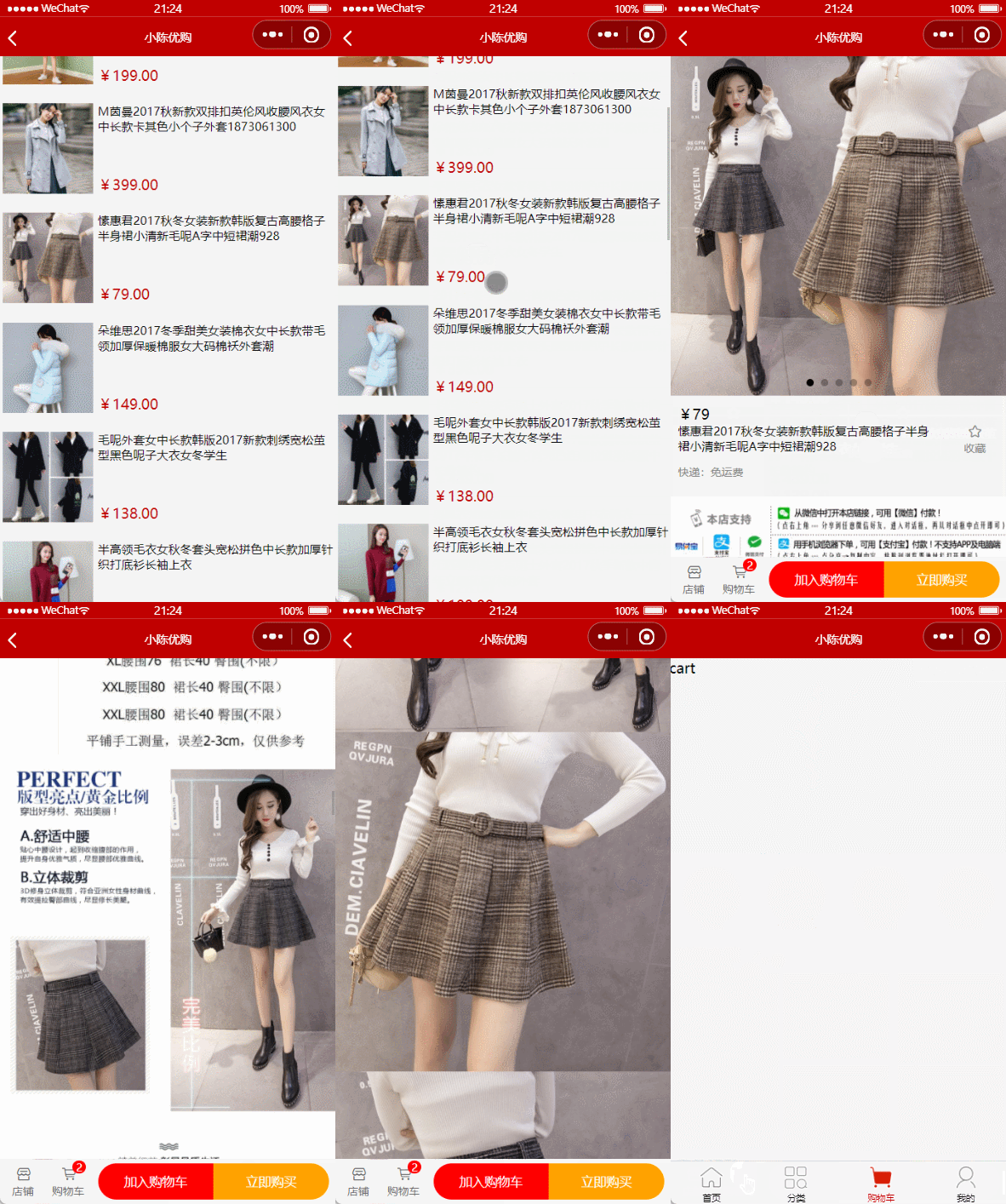
简要描述:
请求URL:
https://api-ugo-web.itheima.net/api/public/v1/goods/detail请求方式:
参数:
| 参数名 | 必选 | 类型 | 说明 |
|---|---|---|---|
| goods_id | 是 | number | 商品id |
返回示例
{
    "message": {
        "goods_id": 8888,
        "cat_id": 1085,
        "goods_name": "spike 经典武士大马士革直刀(微型) 户外野营直刀 收藏礼品刀 饰品刀具",
        "goods_price": 500,
        "goods_number": 100,
        "goods_weight": 100,
        "goods_introduce": "富文本内容",
        "goods_state": 2,
        "is_del": "0",
        "add_time": 1516361489,
        "upd_time": 1516361489,
        "delete_time": null,
        "hot_mumber": 0,
        "is_promote": false,
        "cat_one_id": 995,
        "cat_two_id": 1075,
        "cat_three_id": 1085,
        "goods_cat": "995,1075,1085",
        "pics": [
            {
                "pics_id": 38711,
                "goods_id": 8888,
                "pics_big": "http://image1.suning.cn/uimg/b2c/newcatentries/0070134290-000000000149003877_1_800x800.jpg",
                "pics_mid": "http://image1.suning.cn/uimg/b2c/newcatentries/0070134290-000000000149003877_1_400x400.jpg",
                "pics_sma": "http://image1.suning.cn/uimg/b2c/newcatentries/0070134290-000000000149003877_1_200x200.jpg",
                "pics_big_url": "http://image1.suning.cn/uimg/b2c/newcatentries/0070134290-000000000149003877_1_800x800.jpg",
                "pics_mid_url": "http://image1.suning.cn/uimg/b2c/newcatentries/0070134290-000000000149003877_1_400x400.jpg",
                "pics_sma_url": "http://image1.suning.cn/uimg/b2c/newcatentries/0070134290-000000000149003877_1_200x200.jpg"
            }
        ],
        "attrs": [
            {
                "goods_id": 8888,
                "attr_id": 9210,
                "attr_value": "户外直刀",
                "add_price": 0,
                "attr_name": "主体参数-类别",
                "attr_sel": "only",
                "attr_write": "manual",
                "attr_vals": "放大镜"
            }
        ]
    },
    "meta": {
        "msg": "获取成功",
        "status": 200
    }
}
返回参数说明
| 参数名 | 参数说明 | 备注 |
| goods_id | 商品ID | |
| cat_id | 分类ID | |
| goods_name | 商品名称 | |
| goods_price | 商品价格 | |
| goods_number | 商品数量 | |
| goods_weight | 商品重量 | |
| goods_big_logo | 商品大图标 | |
| goods_small_logo | 商品小图标 | |
| add_time | 商品添加时间 | |
| upd_time | 商品更新时间 | |
| hot_mumber | 热门商品数 | |
| cat_one_id | 所属一级分类 | |
| cat_two_id | 所属二级分类 | |
| cat_three_id | 所属三级分类 | |
| goods_introduce | 商品介绍 | |
| pics | 商品图片列表 | |
| attrs | 商品属性列表 |
运行如下的命令,基于 master 分支在本地创建 goodsdetail 子分支,用来开发商品详情页相关的功能:
git checkout -b goodsdetail
在微信开发者工具中,点击工具栏上的编译模式下拉菜单,选择 添加编译模式 选项:

勾选 启动页面 的路径,并填写了 启动参数 之后,点击 确定 按钮,添加详情页面的编译模式:

在 data 中定义商品详情的数据节点:
data() {
  return {
    // 商品详情对象
    goods_info: {}
  }
}
在 onLoad 中获取商品的 Id,并调用请求商品详情的方法:
onLoad(options) {
  // 获取商品 Id
  const goods_id = options.goods_id
  // 调用请求商品详情数据的方法
  this.getGoodsDetail(goods_id)
}
在 methods 中声明 getGoodsDetail 方法:
methods: {
  // 定义请求商品详情数据的方法
  async getGoodsDetail(goods_id) {
    const { data: res } = await uni.$http.get('/api/public/v1/goods/detail', { goods_id })
    if (res.meta.status !== 200) return uni.$showMsg()
    // 为 data 中的数据赋值
    this.goods_info = res.message
  }
}
使用 v-for 指令,循环渲染如下的轮播图 UI 结构:
<!-- 轮播图区域 -->
<swiper :indicator-dots="true" :autoplay="true" :interval="3000" :duration="1000" :circular="true">
  <swiper-item v-for="(item, i) in goods_info.pics" :key="i">
    <image :src="item.pics_big"></image>
  </swiper-item>
</swiper>
美化轮播图的样式:
swiper {
  height: 750rpx;

  image {
    width: 100%;
    height: 100%;
  }
}
为轮播图中的 image 图片绑定 click 事件处理函数:
<swiper-item v-for="(item, i) in goods_info.pics" :key="i">
  <!-- 把当前点击的图片的索引,传递到 preview() 处理函数中 -->
  <image :src="item.pics_big" @click="preview(i)"></image>
</swiper-item>
在 methods 中定义 preview 事件处理函数:
// 实现轮播图的预览效果
preview(i) {
  // 调用 uni.previewImage() 方法预览图片
  uni.previewImage({
    // 预览时,默认显示图片的索引
    current: i,
    // 所有图片 url 地址的数组
    urls: this.goods_info.pics.map(x => x.pics_big)
  })
}
定义商品信息区域的 UI 结构如下:
<!-- 商品信息区域 -->
<view class="goods-info-box">
  <!-- 商品价格 -->
  <view class="price">¥{{goods_info.goods_price}}</view>
  <!-- 信息主体区域 -->
  <view class="goods-info-body">
    <!-- 商品名称 -->
    <view class="goods-name">{{goods_info.goods_name}}</view>
    <!-- 收藏 -->
    <view class="favi">
      <uni-icons type="star" size="18" color="gray"></uni-icons>
      <text>收藏</text>
    </view>
  </view>
  <!-- 运费 -->
  <view class="yf">快递:免运费</view>
</view>
美化商品信息区域的样式:
// 商品信息区域的样式
.goods-info-box {
  padding: 10px;
  padding-right: 0;

  .price {
    color: #c00000;
    font-size: 18px;
    margin: 10px 0;
  }

  .goods-info-body {
    display: flex;
    justify-content: space-between;

    .goods-name {
      font-size: 13px;
      padding-right: 10px;
    }
    // 收藏区域
    .favi {
      width: 120px;
      font-size: 12px;
      display: flex;
      flex-direction: column;
      justify-content: center;
      align-items: center;
      border-left: 1px solid #efefef;
      color: gray;
    }
  }

  // 运费
  .yf {
    margin: 10px 0;
    font-size: 12px;
    color: gray;
  }
}
在页面结构中,使用 rich-text 组件,将带有 HTML 标签的内容,渲染为小程序的页面结构:
<!-- 商品详情信息 -->
<rich-text :nodes="goods_info.goods_introduce"></rich-text>
修改 getGoodsDetail 方法,从而解决图片底部 空白间隙 的问题:
// 定义请求商品详情数据的方法
async getGoodsDetail(goods_id) {
  const { data: res } = await uni.$http.get('/api/public/v1/goods/detail', { goods_id })
  if (res.meta.status !== 200) return uni.$showMsg()

  // 使用字符串的 replace() 方法,为 img 标签添加行内的 style 样式,从而解决图片底部空白间隙的问题
  res.message.goods_introduce = res.message.goods_introduce.replace(/<img /g, '<img style="display:block;" ')
  this.goods_info = res.message
}
解决 .webp 格式图片在 ios 设备上无法正常显示的问题:
// 定义请求商品详情数据的方法
async getGoodsDetail(goods_id) {
  const { data: res } = await uni.$http.get('/api/public/v1/goods/detail', { goods_id })
  if (res.meta.status !== 200) return uni.$showMsg()

  // 使用字符串的 replace() 方法,将 webp 的后缀名替换为 jpg 的后缀名
  res.message.goods_introduce = res.message.goods_introduce.replace(/<img /g, '<img style="display:block;" ').replace(/webp/g, 'jpg')
  this.goods_info = res.message
}
导致问题的原因:在商品详情数据请求回来之前,data 中 goods_info 的值为 {},因此初次渲染页面时,会导致 商品价格、商品名称 等闪烁的问题。
解决方案:判断 goods_info.goods_name 属性的值是否存在,从而使用 v-if 指令控制页面的显示与隐藏:
<template>
   <!-- 商品价格 -->
  <view class="price" v-if="goods_info.goods_price">
    <!-- 省略其它代码 -->
  </view>
   <!-- 商品名称 -->
  <view class="goods-name" v-if="goods_info.goods_name">
    <!-- 省略其它代码 -->
  </view>
</template>
基于
uni-ui提供的GoodsNav组件来实现商品导航区域的效果
在 data 中,通过 options 和 buttonGroup 两个数组,来声明商品导航组件的按钮配置对象:
data() {
  return {
    // 商品详情对象
    goods_info: {},
    // 左侧按钮组的配置对象
    options: [{
      icon: 'shop',
      text: '店铺'
    }, {
      icon: 'cart',
      text: '购物车',
      info: 2
    }],
    // 右侧按钮组的配置对象
    buttonGroup: [{
        text: '加入购物车',
        backgroundColor: '#ff0000',
        color: '#fff'
      },
      {
        text: '立即购买',
        backgroundColor: '#ffa200',
        color: '#fff'
      }
    ]
  }
}
在页面中使用 uni-goods-nav 商品导航组件:
<!-- 商品导航组件 -->
<view class="goods_nav">
  <!-- fill 控制右侧按钮的样式 -->
  <!-- options 左侧按钮的配置项 -->
  <!-- buttonGroup 右侧按钮的配置项 -->
  <!-- click 左侧按钮的点击事件处理函数 -->
  <!-- buttonClick 右侧按钮的点击事件处理函数 -->
  <uni-goods-nav :fill="true" :options="options" :buttonGroup="buttonGroup" @click="onClick" @buttonClick="buttonClick" />
</view>
美化商品导航组件,使之固定在页面最底部:
.goods-detail-container {
  // 给页面外层的容器,添加 50px 的内padding,
  // 防止页面内容被底部的商品导航组件遮盖
  padding-bottom: 50px;
}

.goods_nav {
  // 为商品导航组件添加固定定位
  position: fixed;
  bottom: 0;
  left: 0;
  width: 100%;
}
点击商品导航组件左侧的按钮,会触发 uni-goods-nav 的 @click 事件处理函数,事件对象 e 中会包含当前点击的按钮相关的信息:
// 左侧按钮的点击事件处理函数
onClick(e) {
  console.log(e)
}
打印的按钮信息对象如下:

根据 e.content.text 的值,来决定进一步的操作:
// 左侧按钮的点击事件处理函数
onClick(e) {
  if (e.content.text === '购物车') {
    // 切换到购物车页面
    uni.switchTab({
      url: '/pages/cart/cart'
    })
  }
}
将 goodsdetail 分支进行本地提交:
git add .
git commit -m "完成了商品详情页面的开发"
将本地的 goodsdetail 分支推送到码云:
git push -u origin goodsdetail
将本地 goodsdetail 分支中的代码合并到 master 分支:
git checkout master
git merge goodsdetail
git push
删除本地的 goodsdetail 分支:
git branch -d goodsdetail
如何在buildr项目中使用Ruby?我在很多不同的项目中使用过Ruby、JRuby、Java和Clojure。我目前正在使用我的标准Ruby开发一个模拟应用程序,我想尝试使用Clojure后端(我确实喜欢功能代码)以及JRubygui和测试套件。我还可以看到在未来的不同项目中使用Scala作为后端。我想我要为我的项目尝试一下buildr(http://buildr.apache.org/),但我注意到buildr似乎没有设置为在项目中使用JRuby代码本身!这看起来有点傻,因为该工具旨在统一通用的JVM语言并且是在ruby中构建的。除了将输出的jar包含在一个独特的、仅限ruby
我在我的Rails项目中使用Pow和powifygem。现在我尝试升级我的ruby版本(从1.9.3到2.0.0,我使用RVM)当我切换ruby版本、安装所有gem依赖项时,我通过运行railss并访问localhost:3000确保该应用程序正常运行以前,我通过使用pow访问http://my_app.dev来浏览我的应用程序。升级后,由于错误Bundler::RubyVersionMismatch:YourRubyversionis1.9.3,butyourGemfilespecified2.0.0,此url不起作用我尝试过的:重新创建pow应用程序重启pow服务器更新战俘
Sinatra新手;我正在运行一些rspec测试,但在日志中收到了一堆不需要的噪音。如何消除日志中过多的噪音?我仔细检查了环境是否设置为:test,这意味着记录器级别应设置为WARN而不是DEBUG。spec_helper:require"./app"require"sinatra"require"rspec"require"rack/test"require"database_cleaner"require"factory_girl"set:environment,:testFactoryGirl.definition_file_paths=%w{./factories./test/
我已经像这样安装了一个新的Rails项目:$railsnewsite它执行并到达:bundleinstall但是当它似乎尝试安装依赖项时我得到了这个错误Gem::Ext::BuildError:ERROR:Failedtobuildgemnativeextension./System/Library/Frameworks/Ruby.framework/Versions/2.0/usr/bin/rubyextconf.rbcheckingforlibkern/OSAtomic.h...yescreatingMakefilemake"DESTDIR="cleanmake"DESTDIR="
我收到这个错误:RuntimeError(自动加载常量Apps时检测到循环依赖当我使用多线程时。下面是我的代码。为什么会这样?我尝试多线程的原因是因为我正在编写一个HTML抓取应用程序。对Nokogiri::HTML(open())的调用是一个同步阻塞调用,需要1秒才能返回,我有100,000多个页面要访问,所以我试图运行多个线程来解决这个问题。有更好的方法吗?classToolsController0)app.website=array.join(',')putsapp.websiteelseapp.website="NONE"endapp.saveapps=Apps.order("
我是Google云的新手,我正在尝试对其进行首次部署。我的第一个部署是RubyonRails项目。我基本上是在关注thisguideinthegoogleclouddocumentation.唯一的区别是我使用的是我自己的项目,而不是他们提供的“helloworld”项目。这是我的app.yaml文件runtime:customvm:trueentrypoint:bundleexecrackup-p8080-Eproductionconfig.ruresources:cpu:0.5memory_gb:1.3disk_size_gb:10当我转到我的项目目录并运行gcloudprevie
我有两个Rails模型,即Invoice和Invoice_details。一个Invoice_details属于Invoice,一个Invoice有多个Invoice_details。我无法使用accepts_nested_attributes_forinInvoice通过Invoice模型保存Invoice_details。我收到以下错误:(0.2ms)BEGIN(0.2ms)ROLLBACKCompleted422UnprocessableEntityin25ms(ActiveRecord:4.0ms)ActiveRecord::RecordInvalid(Validationfa
当我在我的Rails应用程序根目录中运行rakedoc:app时,API文档是使用/doc/README_FOR_APP作为主页生成的。我想向该文件添加.rdoc扩展名,以便它在GitHub上正确呈现。更好的是,我想将它移动到应用程序根目录(/README.rdoc)。有没有办法通过修改包含的rake/rdoctask任务在我的Rakefile中执行此操作?是否有某个地方可以查找可以修改的主页文件的名称?还是我必须编写一个新的Rake任务?额外的问题:Rails应用程序的两个单独文件/README和/doc/README_FOR_APP背后的逻辑是什么?为什么不只有一个?
假设我有这个范围:("aaaaa".."zzzzz")如何在不事先/每次生成整个项目的情况下从范围中获取第N个项目? 最佳答案 一种快速简便的方法:("aaaaa".."zzzzz").first(42).last#==>"aaabp"如果出于某种原因你不得不一遍又一遍地这样做,或者如果你需要避免为前N个元素构建中间数组,你可以这样写:moduleEnumerabledefskip(n)returnto_enum:skip,nunlessblock_given?each_with_indexdo|item,index|yieldit
目录前言滤波电路科普主要分类实际情况单位的概念常用评价参数函数型滤波器简单分析滤波电路构成低通滤波器RC低通滤波器RL低通滤波器高通滤波器RC高通滤波器RL高通滤波器部分摘自《LC滤波器设计与制作》,侵权删。前言最近需要学习放大电路和滤波电路,但是由于只在之前做音乐频谱分析仪的时候简单了解过一点点运放,所以也是相当从零开始学习了。滤波电路科普主要分类滤波器:主要是从不同频率的成分中提取出特定频率的信号。有源滤波器:由RC元件与运算放大器组成的滤波器。可滤除某一次或多次谐波,最普通易于采用的无源滤波器结构是将电感与电容串联,可对主要次谐波(3、5、7)构成低阻抗旁路。无源滤波器:无源滤波器,又称