基于
Vue和Element-UI的电商后台管理系统
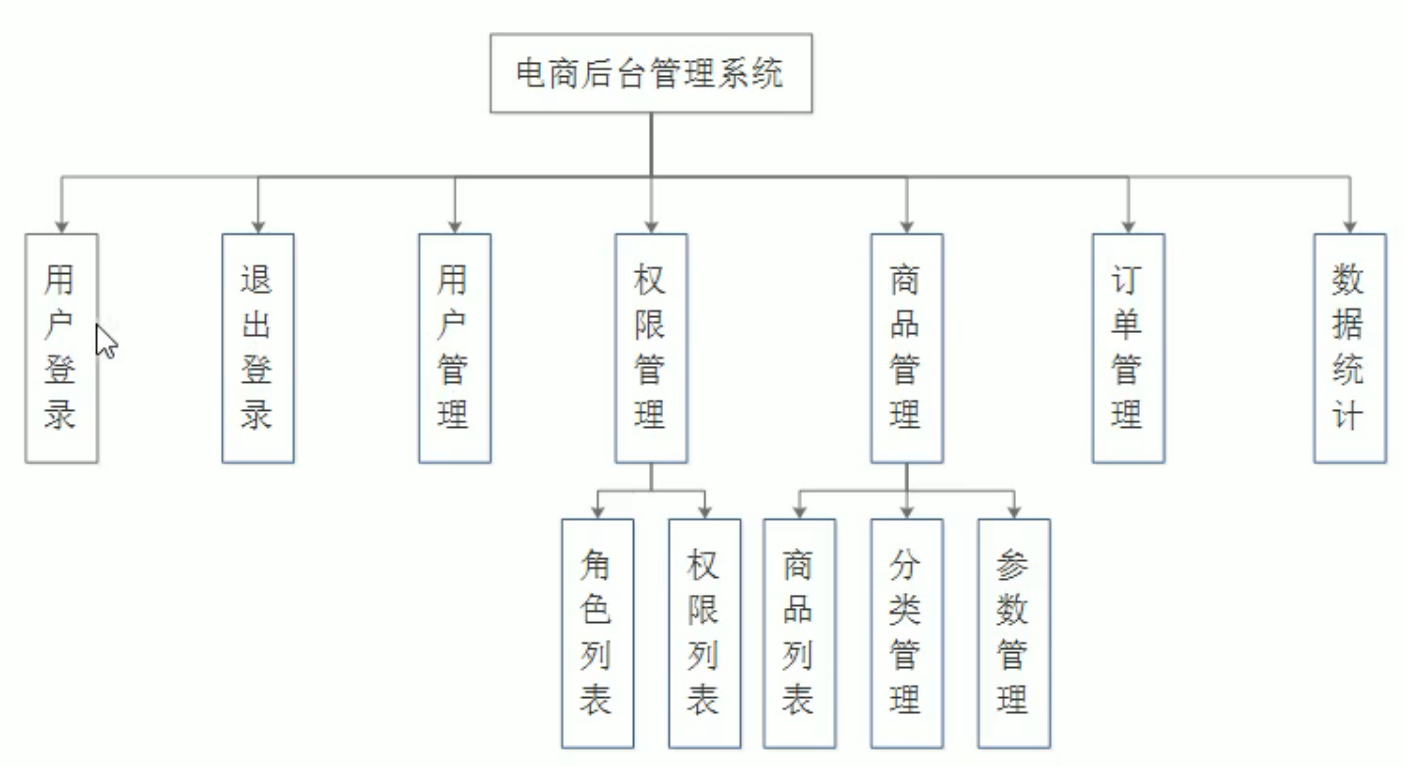
用户登录/退出
用户管理
权限管理
商品管理
订单管理
数据统计
电商后台管理里系统整体采用前后端分离的开发模式,其中前端是基于
Vue技术栈的 SPA 项目
Vue 脚手架Vue 脚手架创建项目Vue 路由Element-UI 组件库axios 库git 远程仓库Gitee 中布局代码
<template>
  <div class="login_container">
    <!-- 登录区域 -->
    <div class="login_box">
      <div class="logo_box">
        <img src="../assets/logo.png" alt="">
      </div>
      <!-- 表单区域 -->
      <el-form class="login_form" ref="loginFormRef" :model="loginForm" :rules="loginFormRules" label-width="0px">
        <!-- 用户名 -->
        <el-form-item prop="username">
          <el-input prefix-icon="el-icon-user" v-model="loginForm.username"></el-input>
        </el-form-item>
        <!-- 密码 -->
        <el-form-item prop="password">
          <el-input prefix-icon="el-icon-lock" v-model="loginForm.password" type="password"></el-input>
        </el-form-item>
        <!-- 按钮 -->
        <el-form-item class="btns">
          <el-button type="primary" @click="login">登录</el-button>
          <el-button type="info" @click="resetLoginForm">重置</el-button>
        </el-form-item>
      </el-form>
    </div>
  </div>
</template>

<style lang="less" scoped>
  .login_container {
    background-color: #2b4b6b;
    height: 100%;
  }

  // 登录部分
  .login_box {
      width: 450px;
      height: 300px;
      background-color: #fff;
      border-radius: 3px;
      position: absolute;
      left: 50%;
      top: 50%;
      transform: translate(-50%, -50%);

      // 图表盒子
      .logo_box {
        height: 130px;
        width: 130px;
        border: 1px solid #eee;
        border-radius: 50%;
        padding: 10px;
        box-shadow: 0 0 10px #ddd;
        position: absolute;
        left: 50%;
        transform: translate(-50%, -50%);
        background-color: #fff;
        img {
          width: 100%;
          height: 100%;
          border-radius: 50%;
          background-color: #eee;
        }
      }

      // 表单
      .login_form {
        position: absolute;
        bottom: 0;
        width: 100%;
        padding: 0 20px;
        box-sizing: border-box;

        // 按钮
        .btns {
          display: flex;
          justify-content: flex-end;
        }
      }
    }
</style>
实现页面
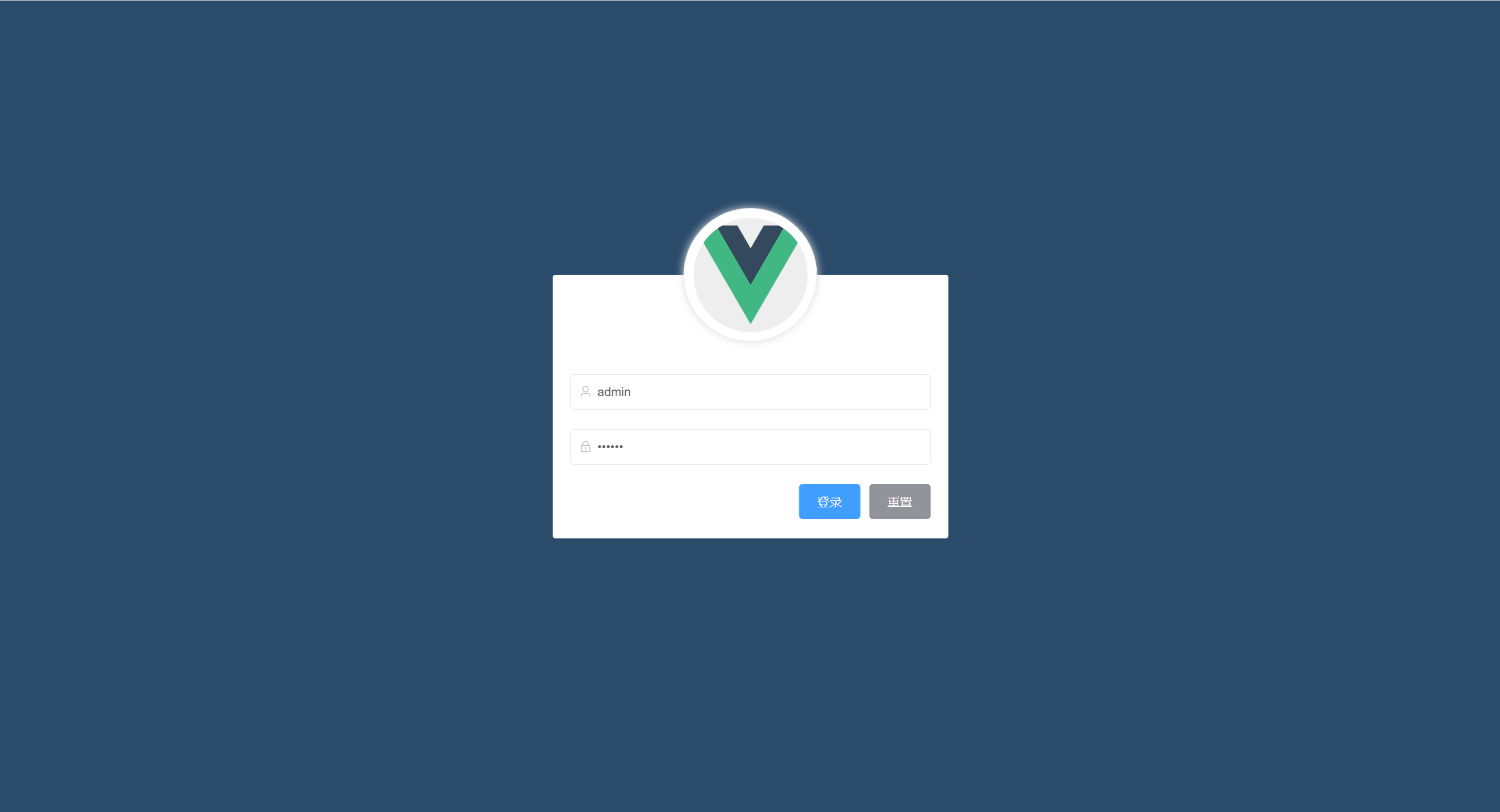
用户在输入账号和密码后,点击登录时表单会进行预验证,判断用户输入的账号和密码是否符合规范,验证通过后向服务器发送
axios请求
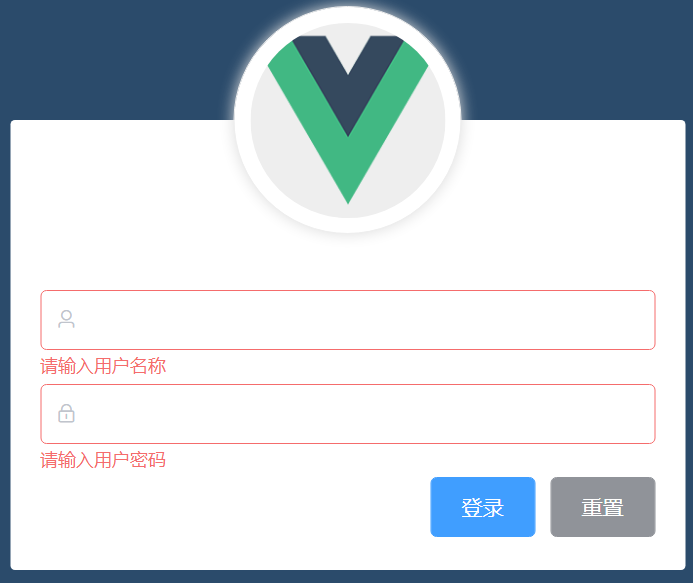
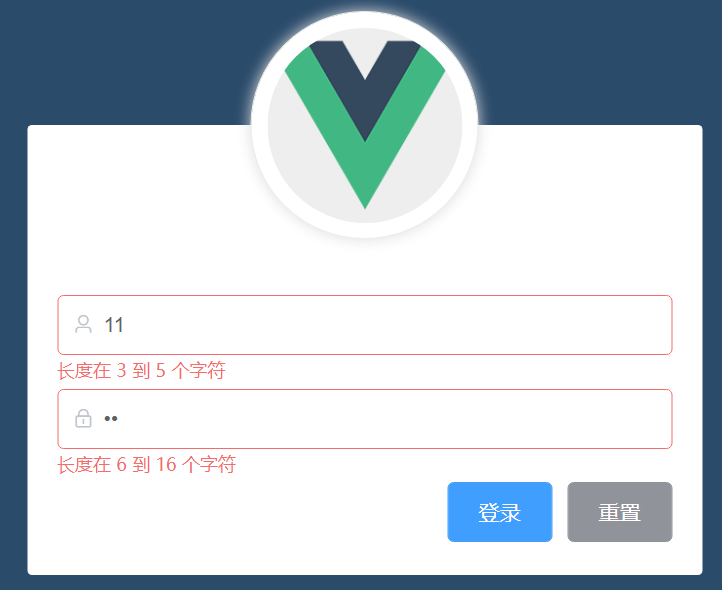
验证规则
// 用户名的验证规则
username: [
    { required: true, message: '请输入用户名称', trigger: 'blur' },
    { min: 3, max: 5, message: '长度在 3 到 5 个字符', trigger: 'blur' }
],
// 密码的验证规则
password: [
    { required: true, message: '请输入用户密码', trigger: 'blur' },
    { min: 6, max: 16, message: '长度在 6 到 16 个字符', trigger: 'blur' }
]
实现效果
在登录成功后,服务器会向我们返回一个
token,我们需要将这个token保存到客户端的sessionStorage中
发送请求并保存 token
<script>
    const { data: res } = await this.$http.post('login', this.loginForm)
    if (res.meta.status === 200) {
        this.$msg.success('登录成功')
        window.sessionStorage.setItem('token', res.data.token)
        this.$router.push('/home')
    } else {
        this.$msg.error('用户名或密码输入错误')
    }
</script>
注意
token
token 就证明我们已经登录了token 保存在 sessionStorage 中
sessionStorage 是会话期间的存储机制,关闭浏览器过后, sessionStorage 就会被清空,token只应在当前网站打开期间生效,所以将 token 保存在 sessionStorage 中如果用户没有登录,但是直接通过 URL 访问特定页面,需要重新导航到登录页面。
在 index.js 中挂载路由导航守卫
// 挂载路由导航守卫
// to 代表将要访问的页面路径,from 代表从哪个页面路径跳转而来,next 代表一个放行的函数
router.beforeEach((to, from, next) => {
    // 如果用户访问的是登录页,那么直接放行
  if (to.path === '/login') return next()
  // 获取 token
  const tokenStr = window.sessionStorage.getItem('token')
  // 没有 token,强制跳转到登录页面
  if (!tokenStr) return next('/login')
  next()
})
基于
token的方式在退出时需要销毁本地的token。这样,后续的请求就不会携带token,必须重新登录生成一个新的token之后才可以访问页面。
退出代码
logout() {
    // 销毁本地 token
    window.sessionStorage.removeItem('token')
    // 通过编程式导航返回到上一页
    this.$router.go(-1)
}
引入
Element-UI中的HeaderAsideMain组件
样式代码
<style lang="less" scoped>
  .home_container {
    height: 100%;
  }

  // 头部区域
  .el-header {
    display: flex;
    justify-content: space-between;
    background-color: #373d41;

    .el-button {
      align-self: center;
    }
  }

  // 侧边栏区域
  .el-aside {
    background-color: #333744;
    .el-menu {
      border-right: none
    }
  }

  // 主题内容区域
  .el-main {
    background-color: #eaedf1;
  }

  .toggle-button {
    background-color: #4a5064;
    font-size: 10px;
    line-height: 24px;
    color: #fff;
    text-align: center;
    letter-spacing: 0.2em;
    cursor: pointer;
  }
</style>
实现效果

向服务器发送
axios请求获取菜单数据
注意
Authorization 字段提供的 token 令牌,那些授权的 API 才能被正常调用Authorization 字段
axios 请求拦截器添加 token,保证拥有获取数据的权限在 main.js 中添加拦截器
// axios 请求拦截
axios.interceptors.request.use(config => {
  // 为请求头对象,添加 Token 验证的 Authorization 字段
  config.headers.Authorization = window.sessionStorage.getItem('token')
  // 最后必须 return config
  return config
})
发起请求获取所有菜单数据
<script>
    methods: {
        // 获取所有菜单数据
        async getMenuList() {
            const { data: res } = await this.$http.get('menus')
            if (res.meta.status !== 200) return this.$msg.error('获取菜单列表失败')
            this.menulist = res.data
        }
    },
    created() {
        this.getMenuList()
    }
</script>
渲染到页面
<el-menu
         background-color="#333744"
         text-color="#fff"
         active-text-color="#409Eff"
         <!-- 只保持一个子菜单的展开 -->
         unique-opened
		<!-- 水平折叠收起菜单 -->
         :collapse="isCollapse"
         :collapse-transition="false"
         router
         :default-active="activePath">
    <!-- 一级菜单 -->
    <!-- index 只接收字符串,所以在后面拼接一个空字符串 -->
    <el-submenu :index="item.id + ''" v-for="item in menulist" :key="item.id">
        <template slot="title">
            <i :class="iconObj[item.id]"></i>
            <span>{{ item.authName }}</span>
        </template>
        <!-- 二级菜单 -->
        <el-menu-item :index="'/' + secitem.path" v-for="secitem in item.children" :key="secitem.id" 		 			@click="savaNavState('/' + secitem.path)">
            <i class="el-icon-menu"></i>
            <span>{{ secitem.authName }}</span>
        </el-menu-item>
    </el-submenu>
</el-menu>
通过
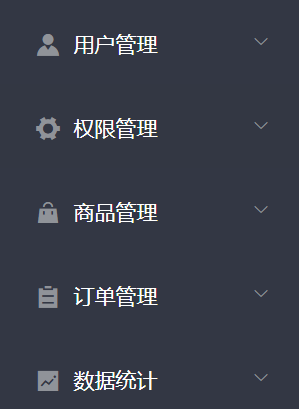
Element-UI为菜单名称添加图标
实现效果
引入
Element-UI中的Breadcrumb,BreadcrumbItem,Card,Row,Col组件,实现面包屑导航和卡片视图
样式代码
<!-- 面包屑导航区域 -->
<el-breadcrumb separator-class="el-icon-arrow-right">
    <el-breadcrumb-item :to="{ path: '/home' }">首页</el-breadcrumb-item>
    <el-breadcrumb-item>用户管理</el-breadcrumb-item>
    <el-breadcrumb-item>用户列表</el-breadcrumb-item>
</el-breadcrumb>
<!-- 卡片区域 -->
<el-card>
</el-card>

<style>
.el-breadcrumb {
  margin-bottom: 15px;
  font-size: 12px;
}

.el-card {
  box-shadow: 0 1px 1px rgba(0, 0, 0, 0.1) !important;
}
</style>
实现效果

向服务器发送请求获取用户数据列表
<script>
    data() {
        return {
            // 查询参数,实现分页
            queryInfo: {
                // 查询字段
                query: '',
                // 当前页码
                ./pagenum: 1,
                // 每页显示的条数
                ./pagesize: 5
            }
        }
    }
    methods: {
        // 获取用户列表
        async getUserList() {
          const { data: res } = await this.$http.get('users', { params: this.queryInfo })
          if (res.meta.status !== 200) {
            return this.$msg.error('获取用户列表失败')
          }
          this.userTable = res.data.users
          this.total = res.data.total
        },
        // 每页显示条数发生变化触发此事件
        handleSizeChange(val) {
          this.queryInfo../pagesize = val
          this.getUserList()
        },
        // 页码值发生变化触发此事件
        handleCurrentChange(val) {
          this.queryInfo../pagenum = val
          this.getUserList()
        }
    },
    created() {
        this.getUserList()
    }
</script>
引入
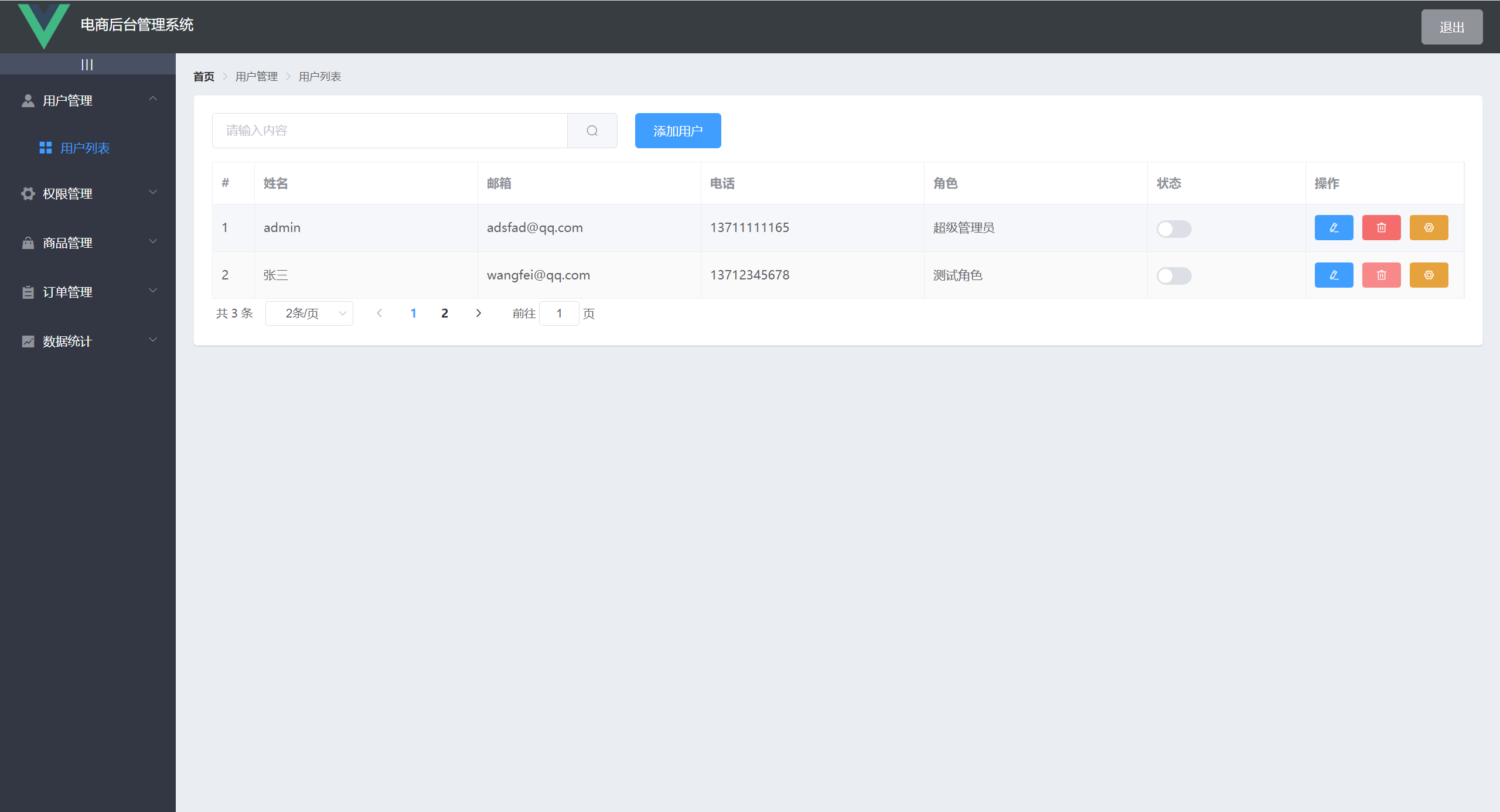
Table,TableColumn将用户数据渲染到表格中,引入Pagination实现分页效果
实现效果
引入
Dialog结合表单展示一个添加用户的对话框
实现效果

为表单添加验证规则
<script>
  data() {
    // 自定义校验规则
    // 邮箱验证
    var checkEmail = (rule, val, cb) => {
      const regEmail = /^(([^<>()[\]\\.,;:\s@"]+(\.[^<>()[\]\\.,;:\s@"]+)*)|(".+"))@((\[[0-9]{1,3}\.[0-9]{1,3}\.[0-9]{1,3}\.[0-9]{1,3}\])|(([a-zA-Z\-0-9]+\.)+[a-zA-Z]{2,}))$/
      if (regEmail.test(val)) return cb()
      cb(new Error('请输入合法的邮箱'))
    }
    // 手机验证
    var checkMobile = (rule, val, cb) => {
      const regMobile = /^(?:(?:\+|00)86)?1(?:(?:3[\d])|(?:4[5-79])|(?:5[0-35-9])|(?:6[5-7])|(?:7[0-8])|(?:8[\d])|(?:9[189]))\d{8}$/
      if (regMobile.test(val)) return cb()
      cb(new Error('请输入合法的手机号码'))
    }
    return {
      // 添加用户验证规则
      addRules: {
        name: [
          { required: true, message: '请输入姓名', trigger: 'blur' },
          { min: 2, max: 4, message: '长度在 2 到 4 个字符', trigger: 'blur' }
        ],
        password: [
          { required: true, message: '请输入密码', trigger: 'blur' },
          { min: 6, max: 16, message: '长度在 6 到 16 个字符', trigger: 'blur' }
        ],
        email: [
          // 验证是否为空
          { required: true, message: '请输入邮箱', trigger: 'blur' },
          // 验证长度
          { min: 6, max: 16, message: '长度在 6 到 16 个字符', trigger: 'blur' },
          // 验证是否合法
          { validator: checkEmail, trigger: 'blur' }
        ],
        mobile: [
          { required: true, message: '请输入手机号码', trigger: 'blur' },
          { min: 6, max: 16, message: '长度在 6 到 16 个字符', trigger: 'blur' },
          { validator: checkMobile, trigger: 'blur' }
        ]
      }
    }
</script>
实现效果

向服务器发送添加用户请求
<script>
export default {
  data() {
    return {
      // 控制添加对话框显示与隐藏
      dialogVisible: false,
      // 与表单动态绑定,保存添加用户的数据,将作为参数发送给服务器
      addForm: {
        username: '',
        password: '',
        email: '',
        mobile: ''
      }
    }
  },
  methods: {
    // 重置添加用户表单
    addDialogClosed() {
      this.$refs.addFormRef.resetFields()
    },
    // 添加用户
    addUser() {
      // 添加用户预验证
      this.$refs.addFormRef.validate(async valid => {
        if (!valid) return false
        const { data: res } = await this.$http.post('users', this.addForm)
        if (res.meta.status !== 201) {
          if (res.meta.status === 400) return this.$msg.error('用户名已存在')
          this.$msg.error('用户添加失败')
        }
        this.$msg.success('用户添加成功')
        // 隐藏添加用户的对话框
        this.dialogVisible = false
        // 重新获取列表
        this.getUserList()
      })
    }
  }
}
</script>
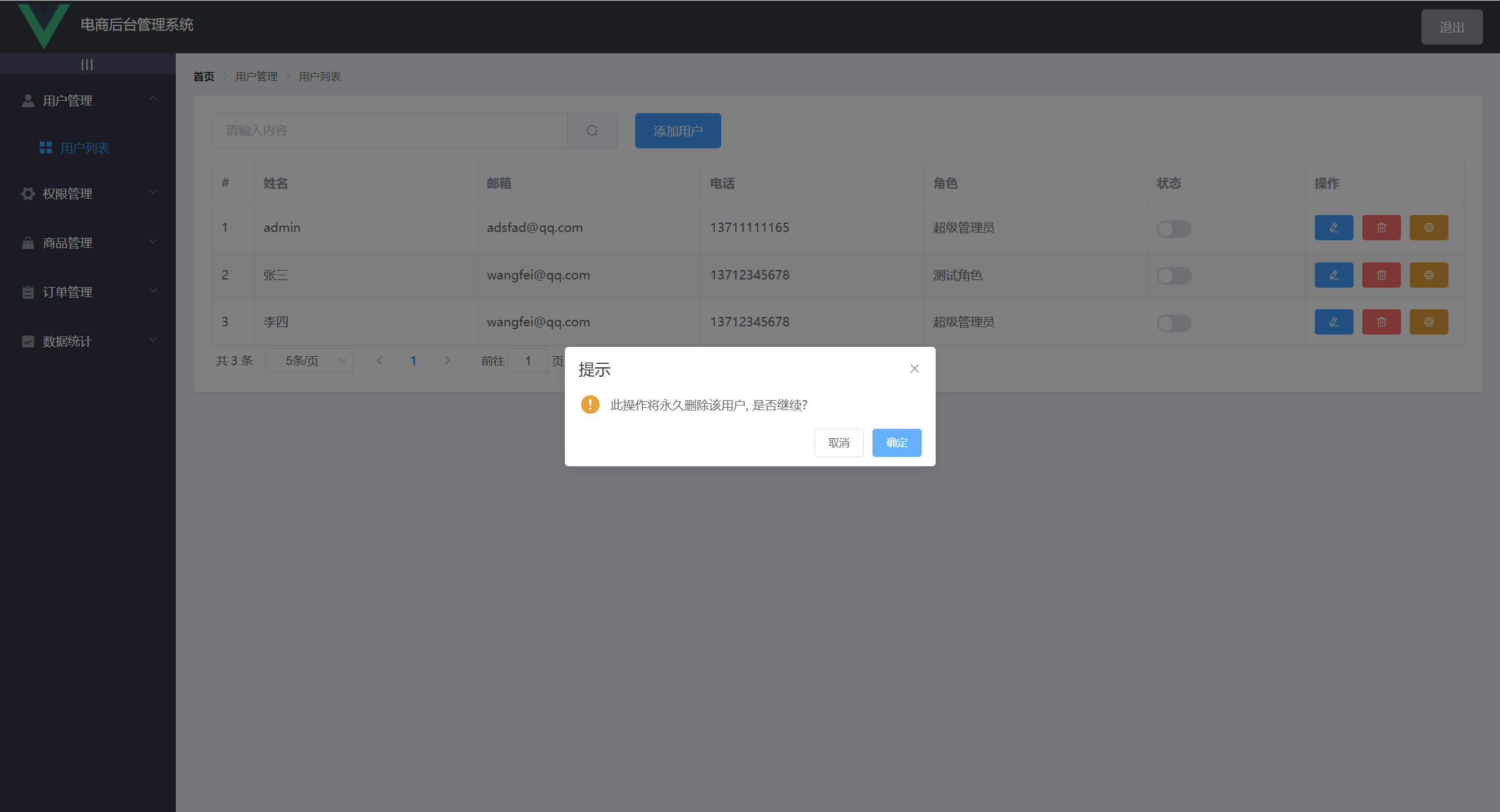
MessageBox 提示用户实现效果
向服务器发送删除用户请求
<template>
	<el-table-column label="操作" width="180">
        <!-- 添加作用域插槽 -->
          <template slot-scope="scope">
            <!-- 删除按钮 -->
            <!-- scope.row 就是这一行的数据 -->
            <el-button type="danger" icon="el-icon-delete" size="mini" @click="deleteById(scope.row.id)">               </el-button>
          </template>
      </el-table-column>
</template>

<script>
	// 删除用户,点击删除按钮时,将该用户的 id 传过来
    async deleteById(id) {
      // 弹框提示是否删除
      const res = await this.$cfm('此操作将永久删除该用户, 是否继续?', '提示', {
        confirmButtonText: '确定',
        cancelButtonText: '取消',
        type: 'warning'
      }).catch(err => err) // 捕获异常
      // 如果用户确认删除,则返回值为字符串 confirm
      // 如果用户取消了删除,则返回值为字符串 cancel
      if (res !== 'confirm') { return this.$msg.info('已取消删除') }
      // 如果确认了删除,则发起 axios 删除请求
      const { data: deleteres } = await this.$http.delete('users/' + id)
      if (deleteres.meta.status !== 200) {
        if (deleteres.meta.status === 400) return this.$msg.error('不允许删除admin账户!')
        return this.$msg.error('删除失败')
      }
      this.getUserList()
      this.$msg.success('删除成功')
    }
</script>
<script>
	// 展示编辑用户对话框
    async showEditUser(id) {
      const { data: res } = await this.$http.get('users/' + id)
      if (res.meta.status !== 200) return this.$msg.error('查询用户信息失败!')
      this.editdialogVisible = true
      // 将查询到的用户信息渲染到表单上
      this.editForm = res.data
    }
</script>
实现效果

点击确定按钮向服务器发送编辑用户请求
<script>
	// 编辑用户
    editUser() {
      // 用户预验证
      this.$refs.editFormRef.validate(async valid => {
        if (!valid) return false
        const { data: res } = await this.$http.put('users/' + this.editForm.id, {
          email: this.editForm.email,
          mobile: this.editForm.mobile
        })
        if (res.meta.status !== 200) return this.$msg.error('修改用户信息失败!')
        this.$msg.success('修改用户信息成功!')
        // 重新获取列表
        this.getUserList()
        // 关闭编辑对话框
        this.editdialogVisible = false
      })
    },
    // 修改用户的状态按钮
    // 监听 Switch 状态的改变
    async userStateChanged(userinfo) {
      const { data: res } = await this.$http.put(`users/${userinfo.id}/state/${userinfo.mg_state}`)
      if (res.meta.status !== 200) {
        // 如果修改失败需要将状态还原
        userinfo.mg_state = !userinfo.mg_state
        this.$msg.error('用户状态更新失败')
      }
      this.$msg.success('用户状态更新成功')
    }
</script>
queryInfo 中的 query 属性和输入框动态绑定,然后向服务器发送获取用户列表的请求布局和用户列表一致
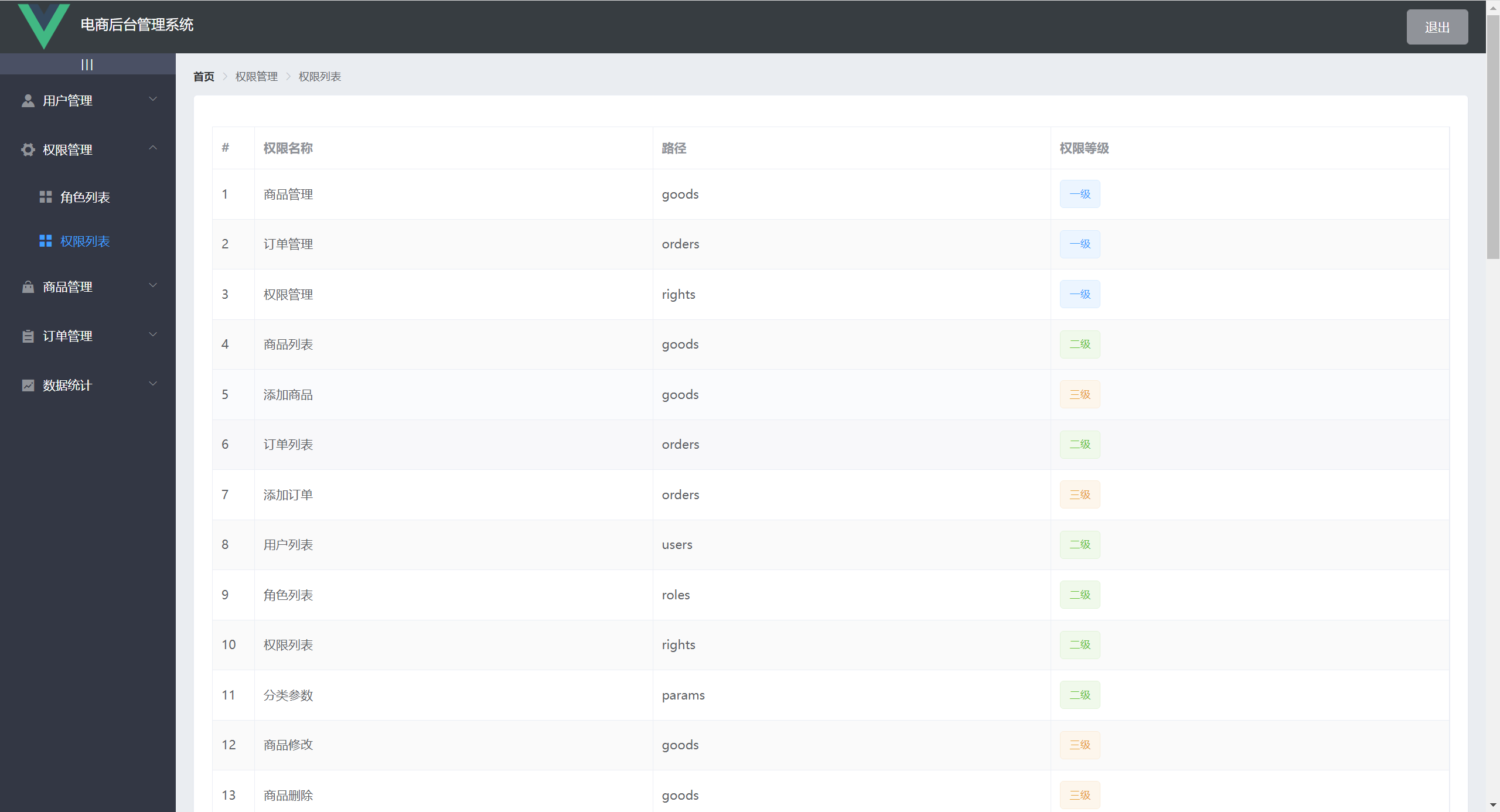
向服务器发送请求获取权限数据列表
<script>
  data() {
    return {
      // 权限列表数据
      rightsTable: []
    }
  },
  methods: {
    async getRightsList() {
      const { data: res } = await this.$http.get('rights/list')
      if (res.meta.status !== 200) return this.$msg.error('获取权限列表失败!')
      this.rightsTable = res.data
    }
  },
  created() {
    this.getRightsList()
  }
</script>
实现效果
布局和用户列表一致
向服务器发送请求获取角色数据列表
<script>
methods: {
    // 获取角色列表
    async getRoleList() {
      const { data: res } = await this.$http.get('roles')
      if (res.meta.status !== 200) return this.$msg.error('获取角色列表失败!')
      this.roleTable = res.data
    }
},
created() {
    this.getRoleList()
 }
</script>
实现效果
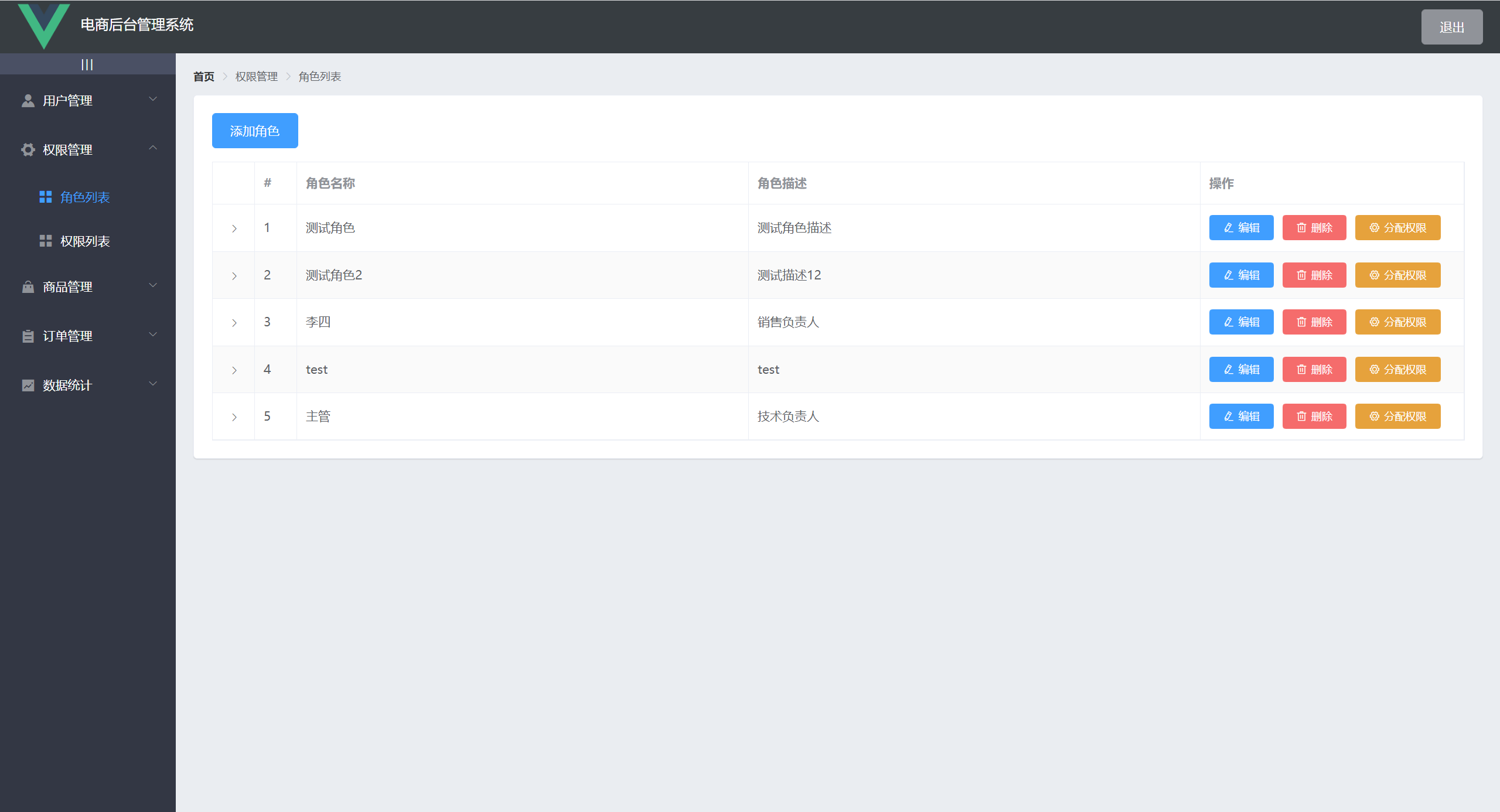
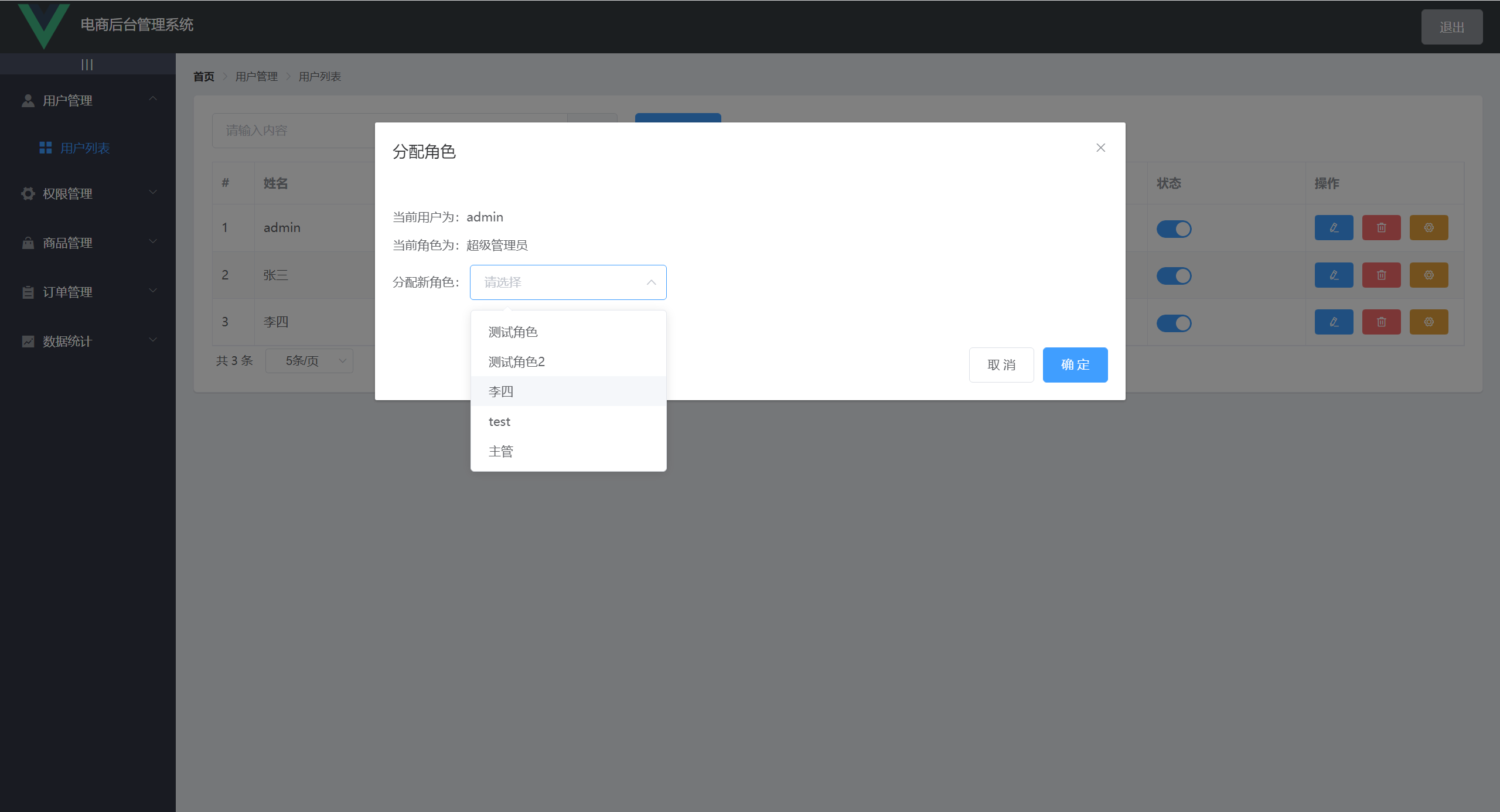
Dialog 组件结合表单展示一个分配角色的对话框Select、Option 组件展示一个选择角色的下拉选择器具体代码
<script>
	// 展示分配角色对话框
    async showSetRolesDialog(userinfo) {
      this.setRoleInfo = userinfo
      const { data: res } = await this.$http.get('roles')
      if (res.meta.status !== 200) return this.$msg.error('获取角色列表失败')
      this.rolesList = res.data
      this.setRolesDialogVisible = true
    }
</script>
实现效果
<script>
	// 提交分配角色
    async commitSetRoles() {
      if (!this.selectRoleId) return this.$msg.error('请选择要分配的角色')
      const { data: res } = await this.$http.put(`users/${this.setRoleInfo.id}/role`, {
        rid: this.selectRoleId
      })
      if (res.meta.status !== 200) return this.$msg.error('分配角色失败')
      this.$msg.success('分配角色成功')
      this.getUserList()
      this.setRolesDialogVisible = false
    },
    // 关闭分配角色对话框后的操作
    closeSetRoleDialog() {
      this.setRoleInfo = ''
      this.selectRoleId = ''
    }
</script>
和用户的增删改查一致,只是调用接口不一样。
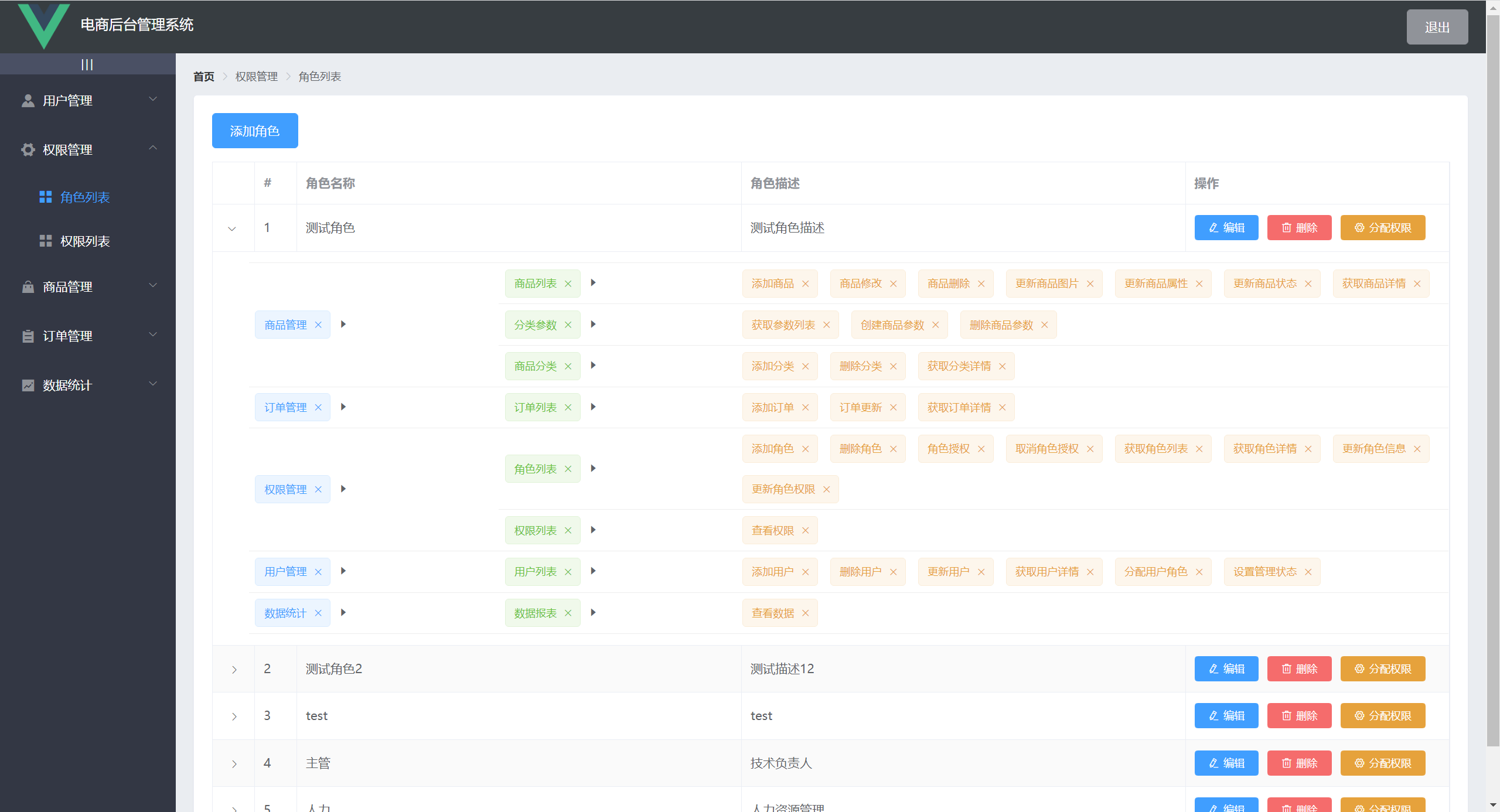
当用户点击某个角色的下拉箭头时,该角色的所有权限数据会以类似于树结构的形式展示出来。
用户也可以删除该角色下的某个权限。
效果如图
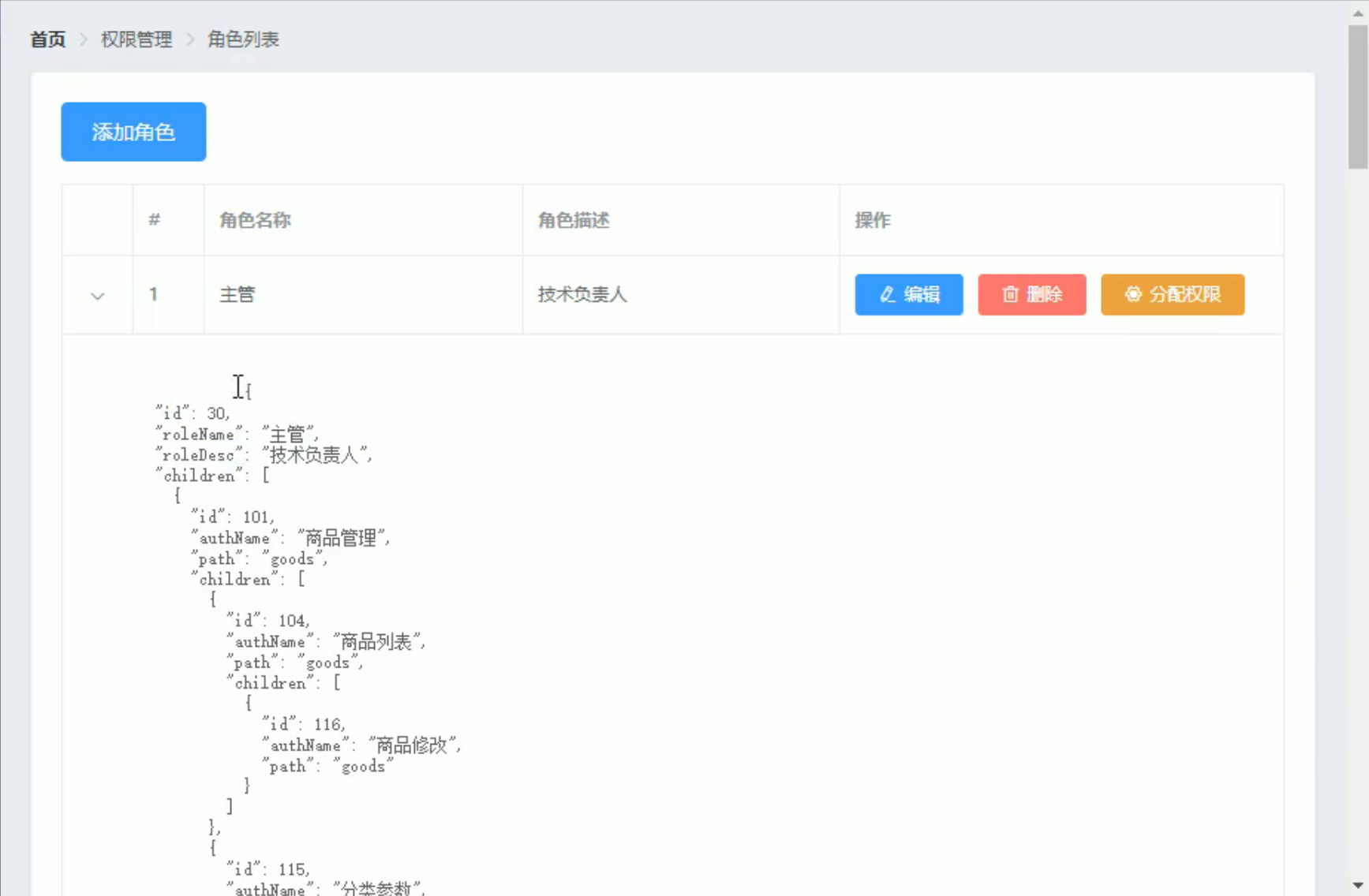
Scoped slot 可以开启展开行功能,el-table-column 的模板会被渲染成为展开行的内容,展开行可访问的属性与使用自定义列模板时的 Scoped slot 相同。scope.row 可以获取该行也就是该角色的数据<!-- 展开列 -->
<el-table-column type="expand">
<template slot-scope="scope">
{{ scope.row }}
</template>
</el-table-column>
效果如图
布局思路
Element-UI 中的 Layout 布局,可以实现基础的 24 分栏,迅速简便地创建布局。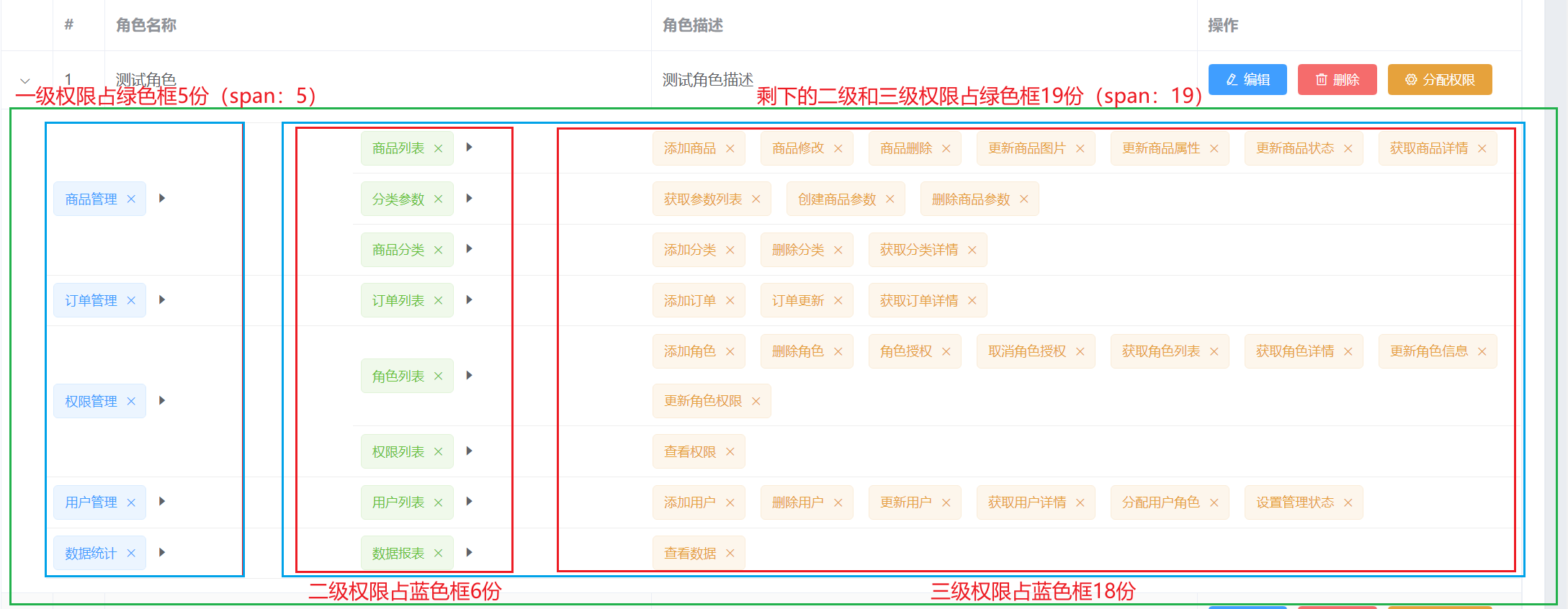
业务逻辑
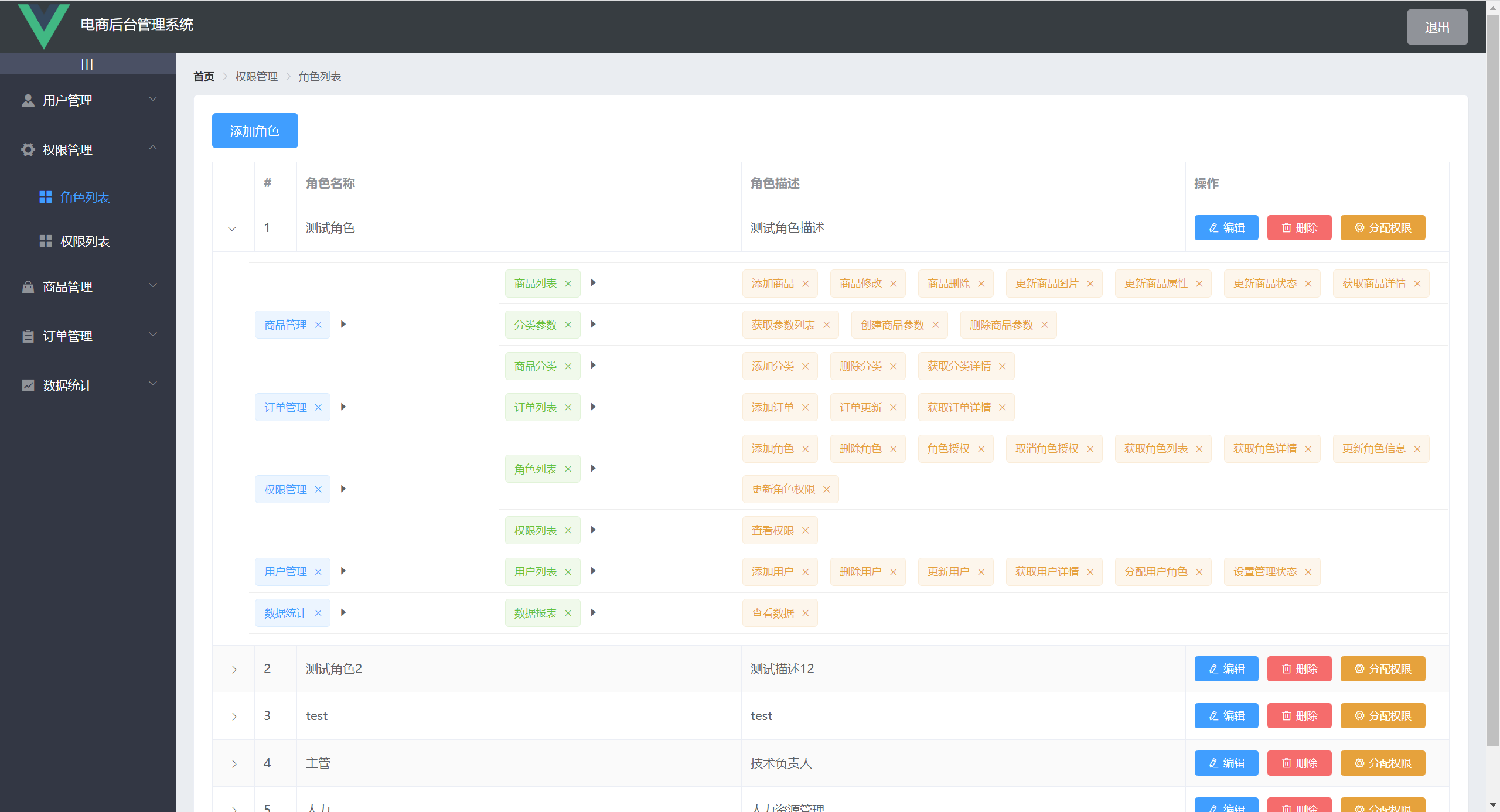
scope.row 获取的数据就是该角色的所有信息,数据是一个对象,每一个对象下都有一个 children 属性,这个 children 属性就是该角色的所有权限了,children 是一个数组,每一个 children 属性下又嵌套这一个 children 属性,一共嵌套三层,这分别就是该角色下的一级、二级、三级权限了。children 下的每个对象,就可以把一级权限渲染出来,在每一个一级权限中又嵌套着二级权限,所以,要想渲染出所有的一级、二级、三级权限需要使用三层 v-for 循环的嵌套。具体实现
引入
Tag组件将权限名称以标签的形式展示,并且将closable设置为true,每个权限标签后面就会显示一个叉号,为后面的删除权限功能做铺垫。为每一个权限标签后面添加
<i class="el-icon-caret-right"></i>进行美化。
<!-- 展开列 -->
<el-table-column type="expand">
    <template slot-scope="scope">
        <el-row :class="['bdbottom', i1 === 0 ? 'bdtop' : '', 'vcenter']" v-for="(item1,i1) in scope.row.children" :key="item1.id" class="first-row">
            <!-- 渲染一级权限 -->
            <el-col :span="5">
                <el-tag closable  @close="removeRightById(scope.row, item1.id)">{{ item1.authName }}</el-tag>
                <i class="el-icon-caret-right"></i>
            </el-col>
            <!-- 渲染二级权限 -->
            <el-col :span="19">
                <el-row :class="[i2 === 0 ? '' : 'bdtop', 'vcenter']" v-for="(item2,i2) in item1.children" :key="item2.id">
                    <el-col :span="6">
                        <el-tag type="success" closable  @close="removeRightById(scope.row, item2.id)">{{ item2.authName }}</el-tag>
                        <i class="el-icon-caret-right"></i>
                    </el-col>
                    <!-- 渲染三级权限 -->
                    <el-col :span="18">
                        <el-tag v-for="item3 in item2.children" :key="item3.id" type="warning" closable  @close="removeRightById(scope.row, item3.id)">{{ item3.authName }}</el-tag>
                    </el-col>
                </el-row>
            </el-col>
        </el-row>
    </template>
</el-table-column>
<style>
	// 添加边框
    // 上边框
    .bdtop {
        border-top: 1px solid #eee;
    }
    // 下边框
    .bdbottom {
        border-bottom: 1px solid #eee;
    }
    // 上下居中
    .vcenter {
        display: flex;
        align-items: center;
    }
</style>
效果如图
使用
MessageBox提示用户

点击确定按钮时分别将该角色的信息和权限 id 作为参数传递过来
<script>
 	// 删除权限
    async removeRightById(role, rightId) {
        const res = await this.$cfm('此操作将永久删除该权限, 是否继续?', '提示', {
            confirmButtonText: '确定',
            cancelButtonText: '取消',
            type: 'warning'
        }).catch(err => err)
        if (res !== 'confirm') return this.$msg.info('已取消删除')
		// 发送请求
        const { data: res1 } = await this.$http.delete(`roles/${role.id}/rights/${rightId}`)
        if (res1.meta.status !== 200) return this.$msg.error('删除权限失败!')
        role.children = res1.data
        this.$msg.success('删除权限成功!')
    }
</srcipt>
注意:
children 属性:
role.children = res1.data布局
使用 Dialog 组件展示一个分配权限的对话框
弹出对话框之前向服务器发送请求获取所有权限
<script>
    // 展示分配权限的对话框
    async showRightsDialog(role) {
        this.defKeys = []
        this.setRightsUserId = role.id
        const { data: res } = await this.$http.get('rights/tree')
        if (res.meta.status !== 200) return this.$msg.error('获取权限列表失败!')
        this.rightsTree = res.data
        // 递归获取三级节点的 id
        this.getLaefKeys(role, this.defKeys)
        this.setRightsDialogVisible = true
    },
    // 通过递归的形式,获取角色下所有三级权限的 id,并保存到 defKeys 数组中
    getLaefKeys(node, arr) {
      // 如果当前 node 节点不包含 children 属性,那么这个节点就是三级节点
      if (!node.children) {
        return arr.push(node.id)
      }
      node.children.forEach(item => this.getLaefKeys(item, arr))
    }
</script>
引用 Tag 组件将权限列表渲染成树形结构
<template>
<!-- 分配权限对话框 -->
    <el-dialog
      title="分配权限"
      :visible.sync="setRightsDialogVisible"
      width="50%">
      <el-tree :data="rightsTree" :props="treeProps" show-checkbox node-key="id" :default-expand-all="true" :default-checked-keys="defKeys" ref="treeRef"></el-tree>
      <span slot="footer" class="dialog-footer">
        <el-button @click="setRightsDialogVisible = false">取 消</el-button>
        <el-button type="primary" @click="commitSetRights">确 定</el-button>
      </span>
    </el-dialog>
</template>
效果如下

提交分配权限
<script>
	// 提交分配的权限
    async commitSetRights() {
      // ... 数组合并
      const setRights = [
        // getCheckedKeys() 返回目前被选中的节点的 key(id)所组成的数组
        ...this.$refs.treeRef.getCheckedKeys(),
        // getHalfCheckedKeys() 返回目前半选中的节点所组成的数组
        ...this.$refs.treeRef.getHalfCheckedKeys()
      ]
      // 将数组转换为用逗号分隔的字符串
      const str = setRights.join(',')
      const { data: res } = await this.$http.post(`roles/${this.setRightsUserId}/rights`, { rids: str })
      if (res.meta.status !== 200) return this.$msg.error('分配权限失败')
      this.$msg.success('分配权限成功')
      // 重新获取权限列表数据
      this.getRoleList()
      // 关闭对话框
      this.setRightsDialogVisible = false
    }
</script>
布局
和角色列表布局一致
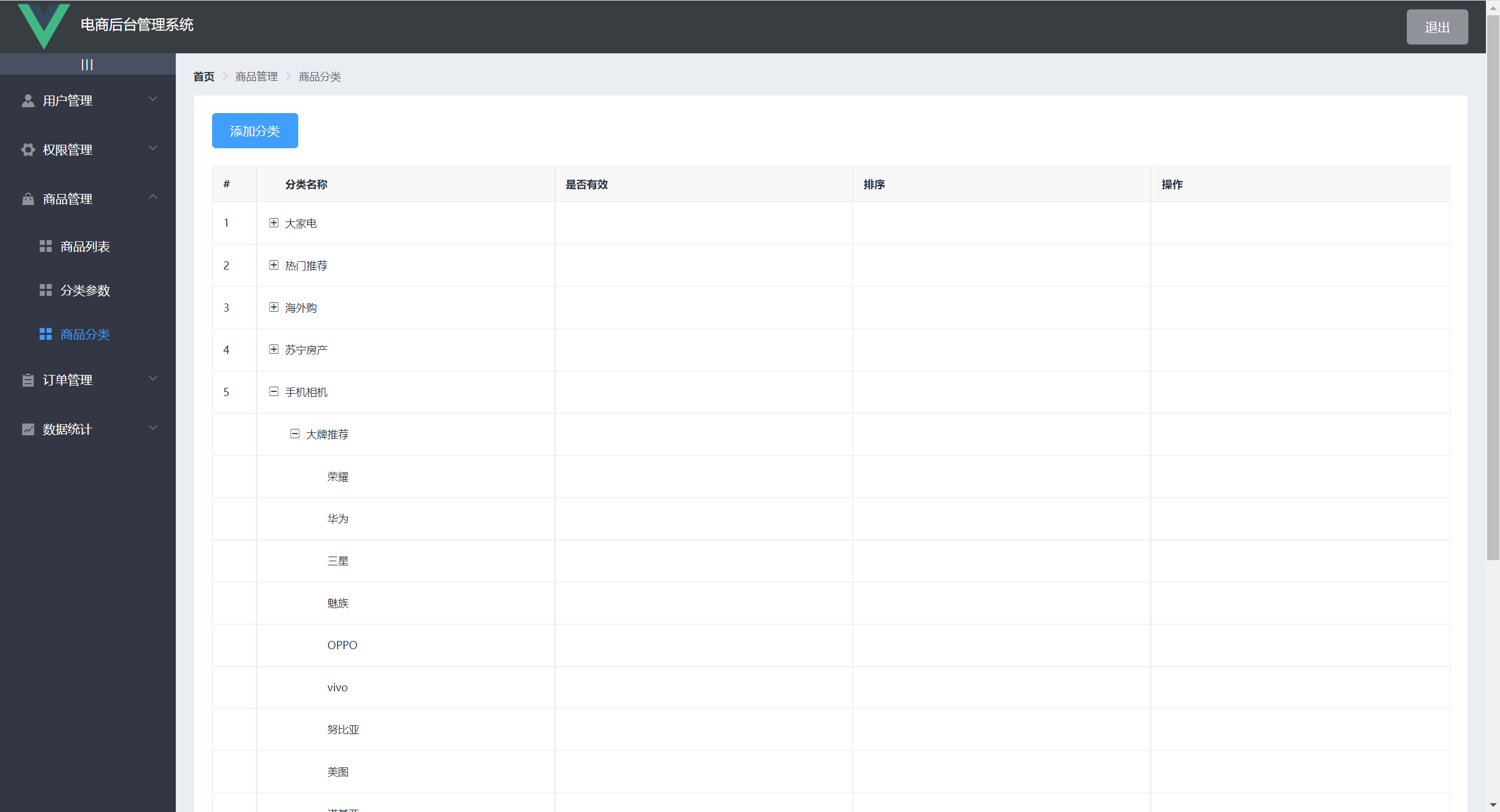
表格部分引用第三方组件 vue-table-with-tree-grid (树形表格组件),可以使商品分类以树形结构分级展示
安装 vue-table-with-tree-grid
npm i vue-table-with-tree-grid -S在 main.js 中引入 vue-table-with-tree-grid
// 引入列表树
import TreeTable from 'vue-table-with-tree-grid'
// 使用列表树
Vue.component('tree-table', TreeTable)
以组件组件标签的形式使用 vue-table-with-tree-grid
<template>
	<!-- data 绑定的是数据源;columns 为 table 指定的列 -->
	<tree-table :data="catelist" :columns="columns"
      :selection-type="false" :expand-type="false"
      show-index index-text="#" border
      :show-row-hover="false">
    </tree-table>
</template>
向服务器发送请求获取商品分类数据列表
<script>
	// 获取商品分类数据
    async getCateList() {
      const { data: res } = await this.$http.get('categories', {
        params: this.queryInfo
      })
      if (res.meta.status !== 200) return this.$msg.error('获取商品分类列表失败')
      // 将获取过来的数据赋值给表格绑定的数据源
      this.catelist = res.data.result
    },
    created() {
      this.getCateList()
  	}
</script>
效果如图
设置自定义列
设置自定义列需要将 columns 绑定的对应列的 type 属性设置为 template,将 template 属性设置为当前列使用的模板名称
<script>
	columns: [
        {
          label: '分类名称',
          prop: 'cat_name'
        },
        {
          label: '是否有效',
          // 表示将当前列定义为模板列
          type: 'template',
          // 表示当前这一列使用的模板名称
          template: 'isok'
        },
        {
          label: '排序',
          // 表示将当前列定义为模板列
          type: 'template',
          // 表示当前这一列使用的模板名称
          template: 'order'
        },
        {
          label: '操作',
          // 表示将当前列定义为模板列
          type: 'template',
          // 表示当前这一列使用的模板名称
          template: 'opt'
        }
      ]
</script>
<template>
		<!-- 是否有效 列 -->
		<!-- slot 绑定的是当前列模板的名称 -->
        <template slot="isok" slot-scope="scope">
          <i class="el-icon-success" v-if="scope.row.cat_deleted === false" style="color: lightgreen;"></i>
          <i class="el-icon-error" v-else style="color: red;"></i>
        </template>
        <!-- 排序 列 -->
        <template slot="order" slot-scope="scope">
          <el-tag size="mini" v-if="scope.row.cat_level === 0">一级</el-tag>
          <el-tag type="success" size="mini" v-else-if="scope.row.cat_level === 1">二级</el-tag>
          <el-tag type="warning" size="mini" v-else>三级</el-tag>
        </template>
        <!-- 操作 列 -->
        <template slot="opt">
          <el-button icon="el-icon-edit" size="mini" type="primary">编辑</el-button>
          <el-button icon="el-icon-delete" size="mini" type="danger">删除</el-button>
        </template>
</template>
效果如下

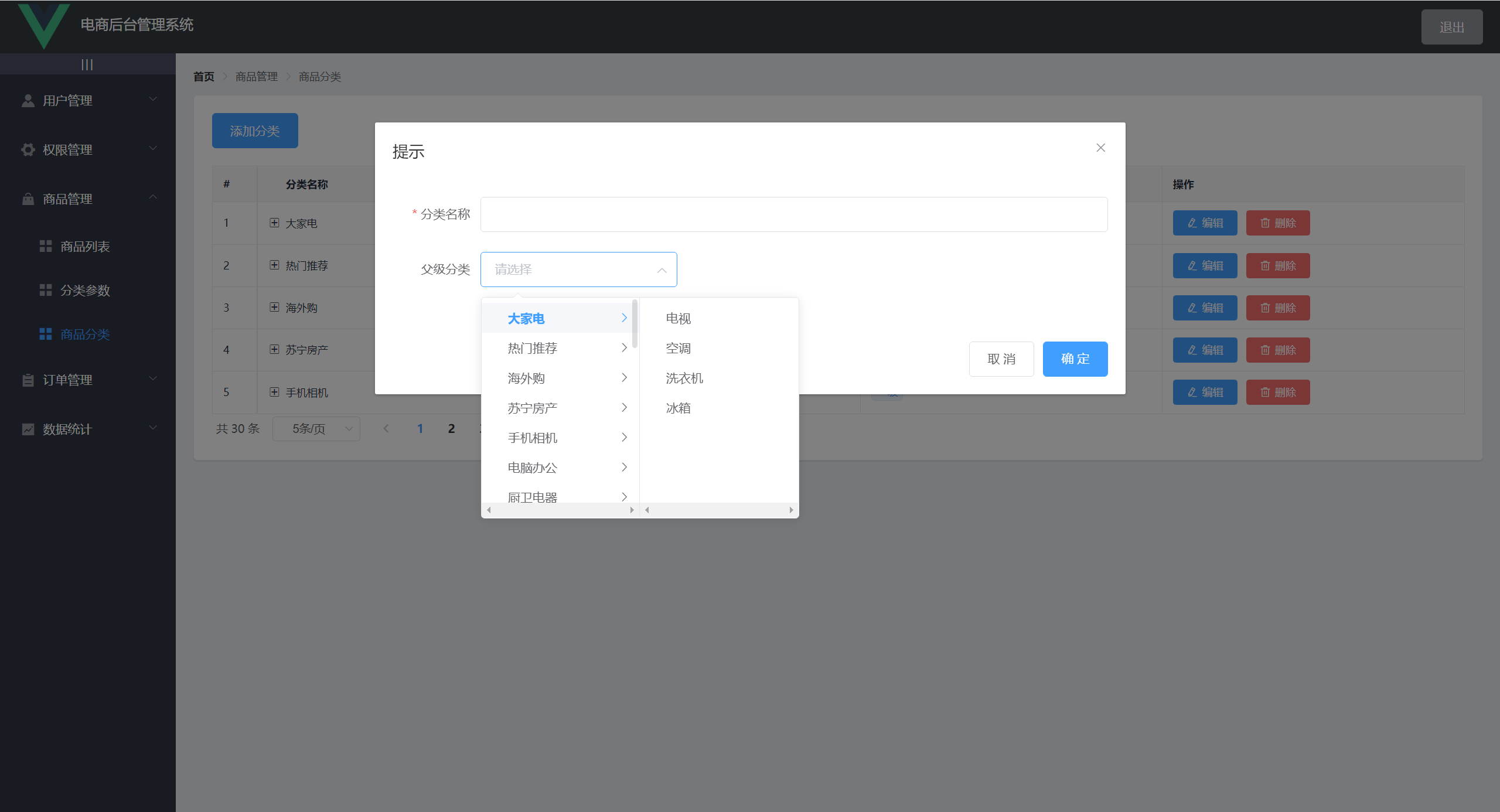
添加分类
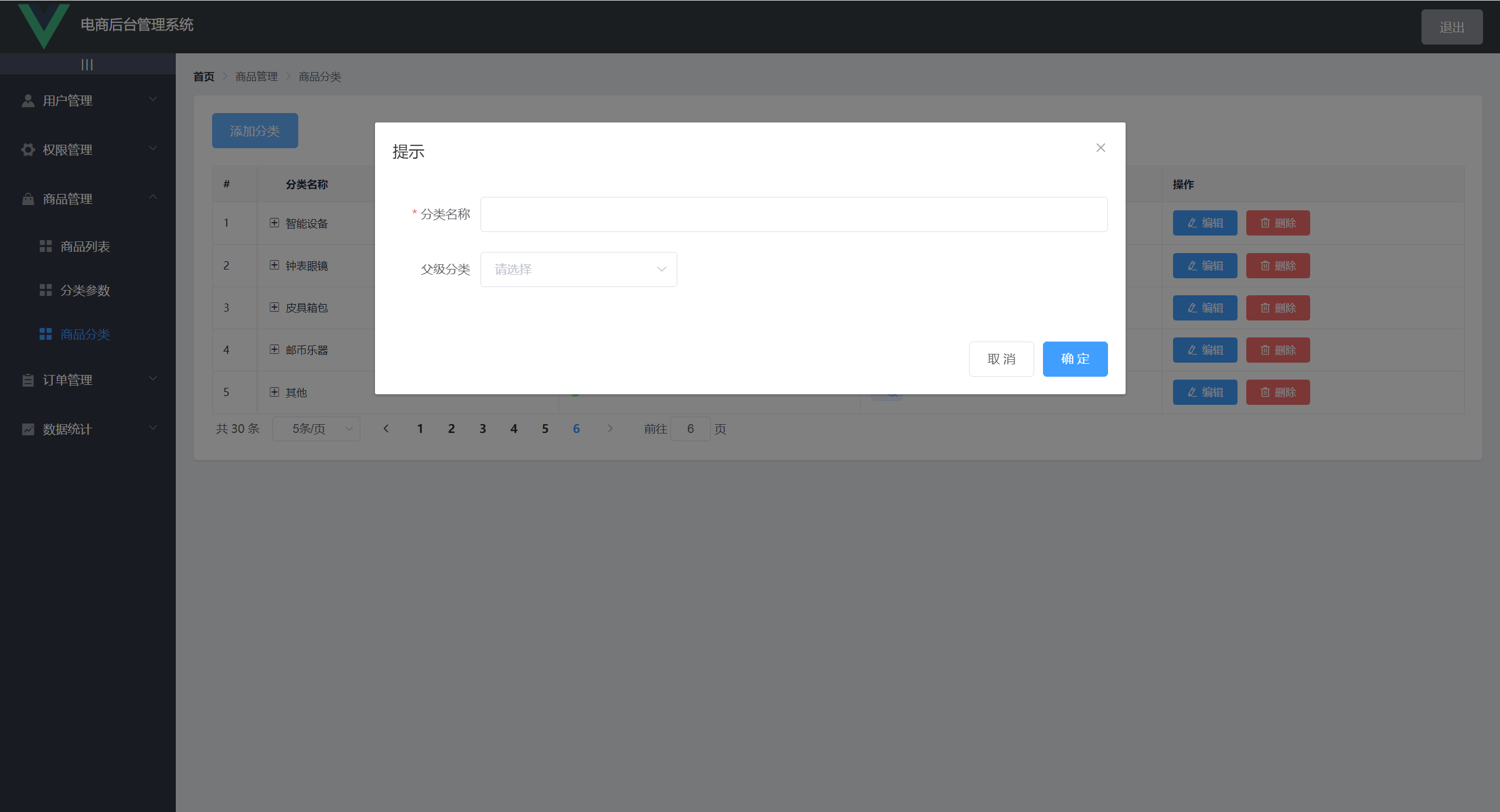
使用 Dialog 组件结合表单展示一个添加分类的对话框
引用 Cascader 级联选择器组件展示所有商品分类
<template>
	<!-- 添加分类对话框 -->
	<el-dialog
      title="提示"
      :visible.sync="addCateDialogVisible"
      width="50%">
      <!-- 添加分类的表单 -->
      <el-form ref="addCateFormRef" :model="addCateForm" :rules="addCateRules" label-width="100px">
        <el-form-item label="分类名称" prop="cat_name">
          <el-input v-model="addCateForm.cat_name"></el-input>
        </el-form-item>
        <el-form-item label="父级分类">
          <!-- 级联选择器 -->
          <!-- options 绑定的数据源 -->
          <el-cascader :options="parentCateList" clearable
          :props="parentCateListProps" v-model="selectKeys"
          @change="parentCateChanged">
          </el-cascader>
        </el-form-item>
      </el-form>
      <span slot="footer" class="dialog-footer">
        <el-button @click="addCateDialogVisible = false">取 消</el-button>
        <el-button type="primary" @click="addCateDialogVisible = false">确 定</el-button>
      </span>
    </el-dialog>
</template>
效果如图
向服务器发送请求获取所有父级分类商品
将服务器返回的数据赋值给级联选择器绑定的数据源
<script>
	// 获取父级分类的列表数据
    async getParentCateList() {
      const { data: res } = await this.$http.get('categories', {
        // type 参数指定为2,就是获取父级分类商品
        params: { type: 2 }
      })
      if (res.meta.status !== 200) return this.$msg.error('获取列表数据失败')
      this.parentCateList = res.data
    }
</script>
效果如图
编辑分类
使用 Dialog 对话框展示一个编辑分类的对话框
<template>
	<!-- 编辑分类对话框 -->
    <el-dialog
      title="编辑分类"
      :visible.sync="editCateDialogVisible"
      width="50%" @close="closeEditCateDialog">
      <!-- 编辑分类的表单 -->
      <el-form ref="editCateFormRef" :model="editCateForm" :rules="editCateRules"
       label-width="100px">
        <el-form-item label="分类名称" prop="cat_name">
          <el-input v-model="editCateForm.cat_name"></el-input>
        </el-form-item>
      </el-form>
      <span slot="footer" class="dialog-footer">
        <el-button @click="editCateDialogVisible = false">取 消</el-button>
        <el-button type="primary" @click="commitEditCate">确 定</el-button>
      </span>
    </el-dialog>
</template>
使用作用域插槽,当点击编辑按钮时,获取当前分类的 id,将这个 id 作为参数向服务器发起编辑请求,获取当前分类的名称并展示到表单的输入框中
<script>
	// 展示编辑分类的对话框
    async showEditCateDialogVisible(id) {
      this.editCateDialogVisible = true
      const { data: res } = await this.$http.get(`categories/${id}`)
      if (res.meta.status !== 200) return this.$msg.error('查询分类数据失败')
      this.editCateForm.cat_name = res.data.cat_name
      this.editCateId = res.data.cat_id
    }
</script>
效果如图

点击确定按钮向服务器发送请求提交此次编辑操作
<script>
	// 提交编辑分类
    async commitEditCate() {
      const { data: res } = await this.$http.put(`categories/${this.editCateId}`, this.editCateForm)
      if (res.meta.status !== 200) return this.$msg.error('编辑分类失败')
      this.$msg.success('编辑分类成功')
      this.getCateList()
      this.editCateDialogVisible = false
    }
</script>
删除分类
使用 MessageBox 对话框提示用户再次确认
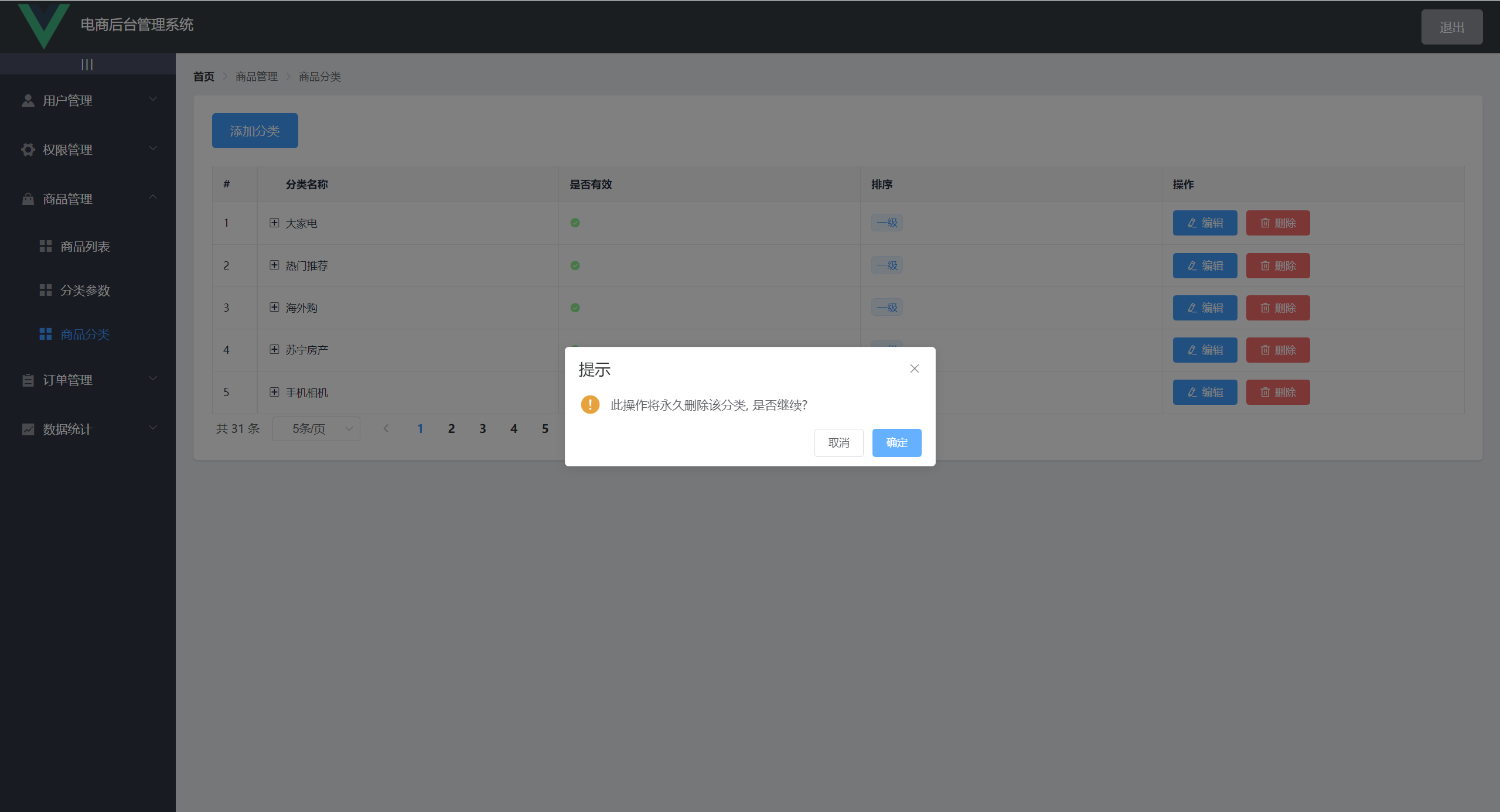
使用作用域插槽,当点击删除按钮时,获取当前分类的 id,当点击确定按钮时,将这个 id 作为参数向服务器发起删除请求
<script>
	// 删除分类
    async deleteEditCateById(id) {
      // 弹框提示是否删除
      const res = await this.$cfm('此操作将永久删除该分类, 是否继续?', '提示', {
        confirmButtonText: '确定',
        cancelButtonText: '取消',
        type: 'warning'
      }).catch(err => err) // 捕获异常

      // 如果用户确认删除,则返回值为字符串 confirm
      // 如果用户取消了删除,则返回值为字符串 cancel
      if (res !== 'confirm') { return this.$msg.info('已取消删除') }
      const { data: res1 } = await this.$http.delete(`categories/${id}`)
      if (res1.meta.status !== 200) return this.$msg.error('删除分类失败')
      this.$msg.success('删除成功')
      this.getCateList()
    }
</script>
布局
也是使用卡片布局
引用 Alert 组件提示用户
引用 Tabs 标签页组件实现动态参数页和静态属性页的局部切换
<template>
<!-- 卡片试图区域 -->
    <el-card>
      <!-- 警告区域 -->
      <el-alert
        title="注意:只允许为第三级分类设置相关参数!"
        type="warning"
        :closable="false"
        show-icon>
      </el-alert>

      <!-- 选择商品分类区域 -->
      <el-row class="cat_opt">
        <el-col>
          <span>选择商品分类:</span>
          <!-- 级联选择器 -->
          <el-cascader
            v-model="selectKeys"
            :options="catelist"
            @change="handleChange">
          </el-cascader>
        </el-col>
      </el-row>

      <!-- Tab 页签区域 -->
      <el-tabs v-model="activeName" @tab-click="handleTabClick">
        <!-- 动态参数页签 -->
        <el-tab-pane label="动态参数" name="many">
          <el-button type="primary" size="mini"
          @click="showAddDialogVisible">添加参数</el-button>
          <!-- 动态参数表格 -->
          <el-table>
             <!-- 展开列 -->
            <el-table-column type="expand"></el-table-column>
            <!-- 索引列 -->
            <el-table-column type="index"></el-table-column>
            <el-table-column label="参数名称" prop="attr_name"></el-table-column>
            <el-table-column label="操作">
              <template slot-scope="scope">
                <el-button type="primary" size="mini" icon="el-icon-edit">编辑</el-button>
                <el-button type="danger" size="mini" icon="el-icon-delete" 		                                     @click="deleteParamsById(scope.row.attr_id)">删除</el-button>
              </template>
            </el-table-column>
          </el-table>
        </el-tab-pane>

        <!-- 静态属性页签 -->
        <el-tab-pane label="静态属性" name="only">
          <el-button type="primary" size="mini"
          @click="showAddDialogVisible">添加属性</el-button>
          <!-- 静态属性表格 -->
          <el-table>
             <!-- 展开列 -->
            <el-table-column type="expand"></el-table-column>
            <!-- 索引列 -->
            <el-table-column type="index"></el-table-column>
            <el-table-column label="属性名称" prop="attr_name"></el-table-column>
            <el-table-column label="操作">
              <template slot-scope="scope">
                <el-button type="primary" size="mini" icon="el-icon-edit">编辑</el-button>
                <el-button type="danger" size="mini" icon="el-icon-delete" 		                                     @click="deleteParamsById(scope.row.attr_id)">删除</el-button>
              </template>
            </el-table-column>
          </el-table>
        </el-tab-pane>
      </el-tabs>
    </el-card>
</template>
效果如图
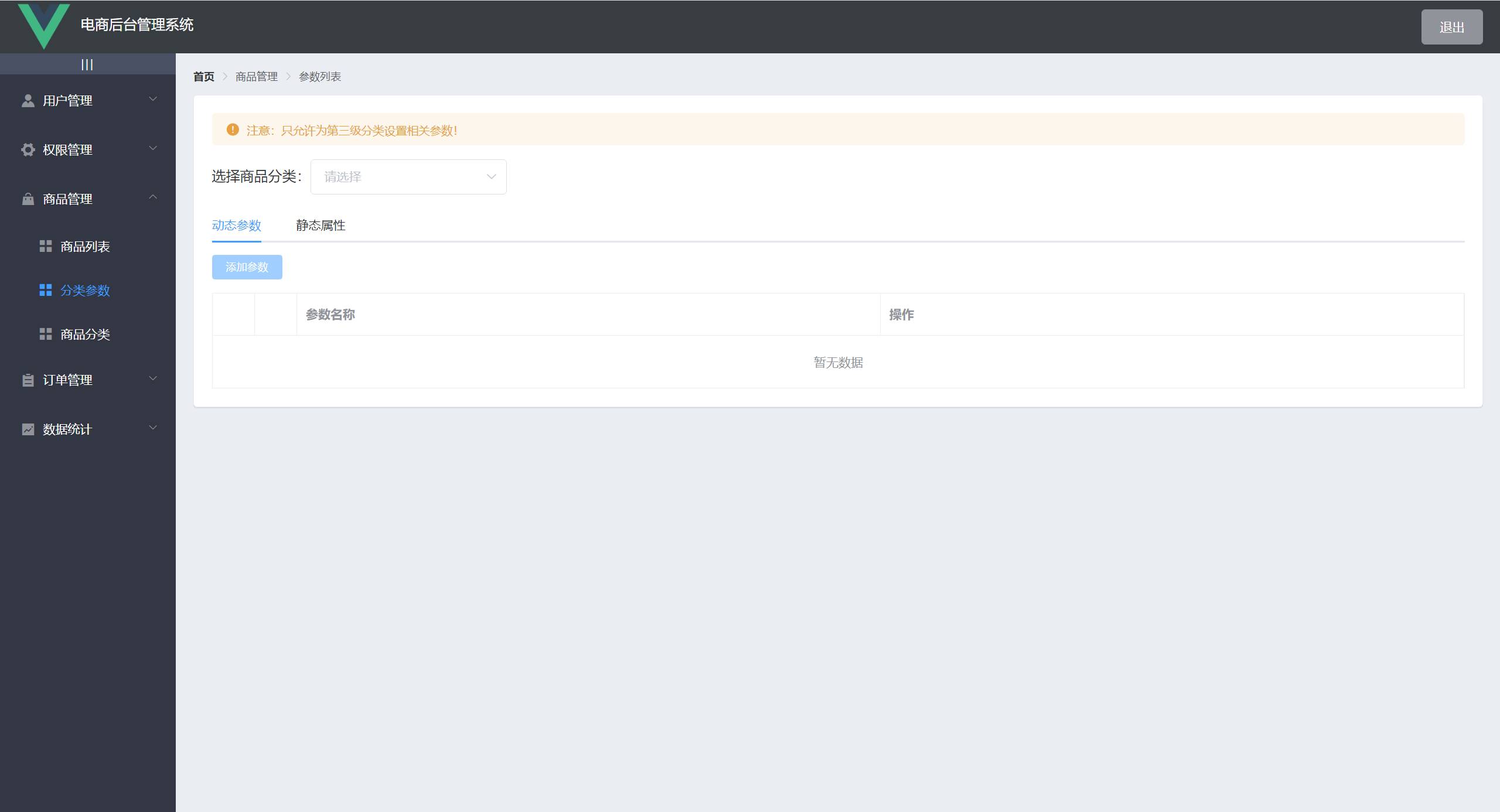
获取商品分类列表
获取商品分类列表,并渲染到级联选择器当中
<script>
	// 获取商品分类列表
    async getCateList() {
      const { data: res } = await this.$http.get('categories')
      if (res.meta.status !== 200) return this.$msg.error('获取商品分类失败')
      // 将获取过来的数据赋值给级联选择器绑定的数据源
      this.catelist = res.data
    }
</script>
当用户选中商品分类时,向服务器发送请求获取商品参数了列表并在表格中展示该分类的所有参数
<script>
	// 当级联选择器选中项发生变化,会触发这个函数
    handleChange() {
      this.getCateParams()
    },
    // 获取参数列表
    async getCateParams() {
      // 判断是否选择的是三级分类
      if (this.selectKeys.length !== 3) {
        // this.$msg.warning('只能选择三级分类')
        this.selectKeys = []
      } else {
        const { data: res } = await this.$http.get(`categories/${this.cateId}/attributes`, {
          params: { sel: this.activeName }
        })
        if (res.meta.status !== 200) return this.$msg.error('获取参数列表失败')
        if (this.activeName === 'many') {
          this.manyTableDate = res.data
        } else {
          this.onlyTableName = res.data
        }
      }
    }
</script>
效果如图
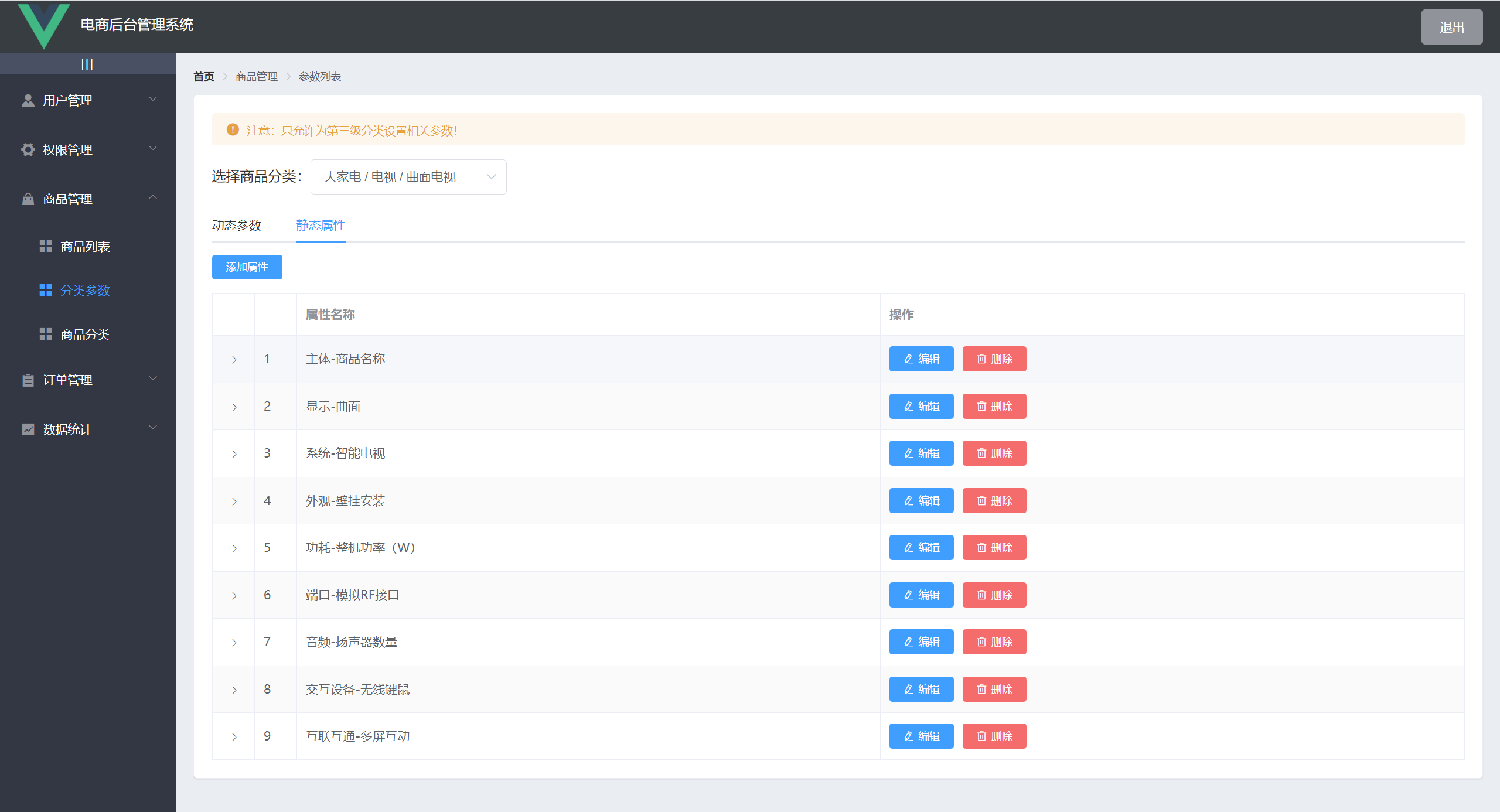
添加分类参数
分类参数包括动态参数和静态属性
当用户点击添加参数/属性时,弹出对话框
因为添加参数和添加属性的对话框布局一样,所以可以共用一个对话框
<template>
	 <!-- 添加参数/属性共用一个对话框 -->
	 <el-dialog
      :title="'添加' + titleText"
      :visible.sync="addDialogVisible"
      width="30%"
      @closed="handleClose">
      <el-form ref="addFormRef" :model="addForm" label-width="120px" :rules="addFormRules">
        <el-form-item :label="titleText + '名称'" prop="attr_name">
          <el-input v-model="addForm.attr_name"></el-input>
        </el-form-item>
      </el-form>
      <span slot="footer" class="dialog-footer">
        <el-button @click="addDialogVisible = false">取 消</el-button>
        <el-button type="primary" @click="commitAdd">确 定</el-button>
      </span>
    </el-dialog>
</template>

<script>
	computed: {
    // 对话框标题
    titleText() {
      if (this.activeName === 'many') return '动态参数'
      return '静态属性'
    }
  }
</script>
提交添加操作
<script>
	// 提交添加操作
    commitAdd() {
      // 表单预验证
      this.$refs.addFormRef.validate(async valid => {
        if (!valid) return false
        const { data: res } = await this.$http.post(`categories/${this.cateId}/attributes`, {
          attr_name: this.addForm.attr_name,
          attr_sel: this.activeName
        })
        if (res.meta.status !== 201) return this.$msg.error('添加失败')
        this.$msg.success('添加成功')
        this.getCateParams()
        this.addDialogVisible = false
      })
    }
</script>
删除分类参数
当用户点击删除按钮时,通过作用域插槽获取当前分类参数的 id
提交删除操作
<script>
    // 根据 id 删除参数
    async deleteParamsById(id) {
      // 弹框提示是否删除
      const res = await this.$cfm('此操作将永久删除该分类, 是否继续?', '提示', {
        confirmButtonText: '确定',
        cancelButtonText: '取消',
        type: 'warning'
      }).catch(err => err) // 捕获异常

      // 如果用户确认删除,则返回值为字符串 confirm
      // 如果用户取消了删除,则返回值为字符串 cancel
      if (res !== 'confirm') { return this.$msg.info('已取消删除') }
      const { data: res1 } = await this.$http.delete(`categories/${this.cateId}/attributes/${id}`)
      if (res1.meta.status !== 200) return this.$msg.error('删除失败')
      this.$msg.success('删除成功')
      this.getCateParams()
    }
</script>
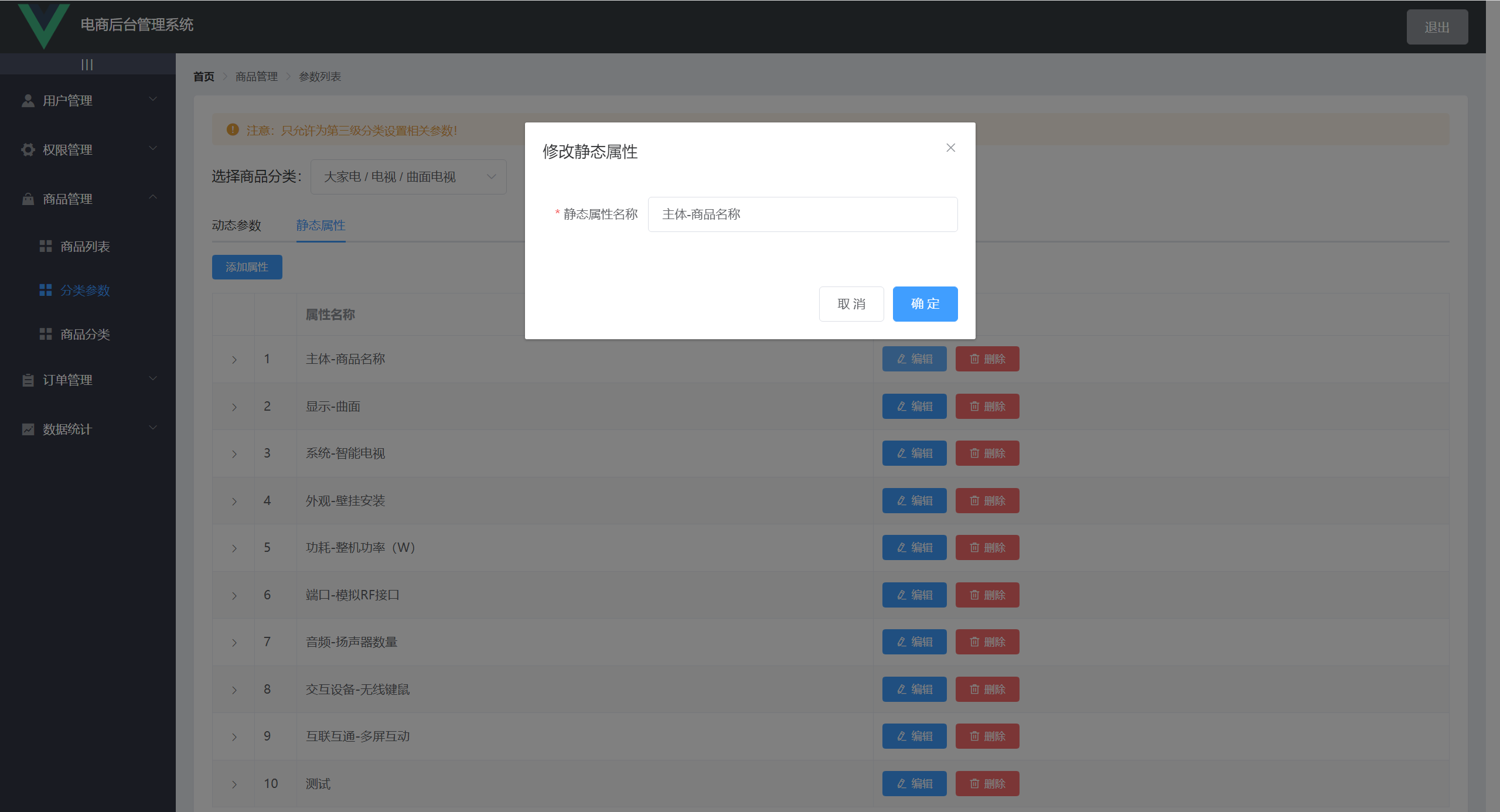
编辑分类参数
id 传递过来id 作为参数向服务器发送请求获取当前要编辑的分类参数的名称<template>
<el-table-column label="操作">
<template slot-scope="scope">
<el-button type="primary" size="mini" icon="el-icon-edit" @click="showEditDialog(scope.row.attr_id)">编辑</el-button>
</template>
</el-table-column>
</template>
<script>
// 显示编辑对话框
async showEditDialog(id) {
const { data: res } = await this.$http.get(`categories/${this.cateId}/attributes/${id}`, {
params: { attr_sel: this.activeName }
})
if (res.meta.status !== 200) return this.$msg.error(`${res.meta.msg}`)
this.editForm = res.data
this.editDialogVisible = true
}
</script>
效果如图
<script>
    // 提交编辑操作
    commitEdit() {
      // 表单预验证
      this.$refs.editFormRef.validate(async valid => {
        if (!valid) return false
        const { data: res1 } = await this.$http.put(`categories/${this.cateId}/attributes/${this.editForm.attr_id}`, {
          attr_name: this.editForm.attr_name,
          attr_sel: this.activeName
        })
        if (res1.meta.status !== 200) return this.$msg.error('编辑失败')
        this.$msg.success(`${res1.meta.msg}`)
        this.getCateParams()
        this.editDialogVisible = false
      })
    }
</script>
添加分类参数的属性
Tag 组件,循环渲染每一个标签<template>
<!-- 展开列 -->
<el-table-column type="expand">
<template slot-scope="scope">
<!-- 循环渲染每一个标签 -->
<el-tag v-for="(item, i) in scope.row.attr_vals" :key="i" closable @close="deleteTag(i, scope.row)">
{{ item }}
</el-tag>
<!-- 添加标签的输入框 -->
<el-input
class="input-new-tag"
v-if="scope.row.inputVisible"
v-model="scope.row.inputValue"
ref="saveTagInput"
size="small"
@keyup.enter.native="handleInputConfirm(scope.row)"
@blur="handleInputConfirm(scope.row)"
>
</el-input>
<!-- 添加按钮 -->
<el-button v-else class="button-new-tag" size="small" @click="showInput(scope.row)">+ New Tag</el-button>
</template>
</el-table-column>
</template>
效果如图
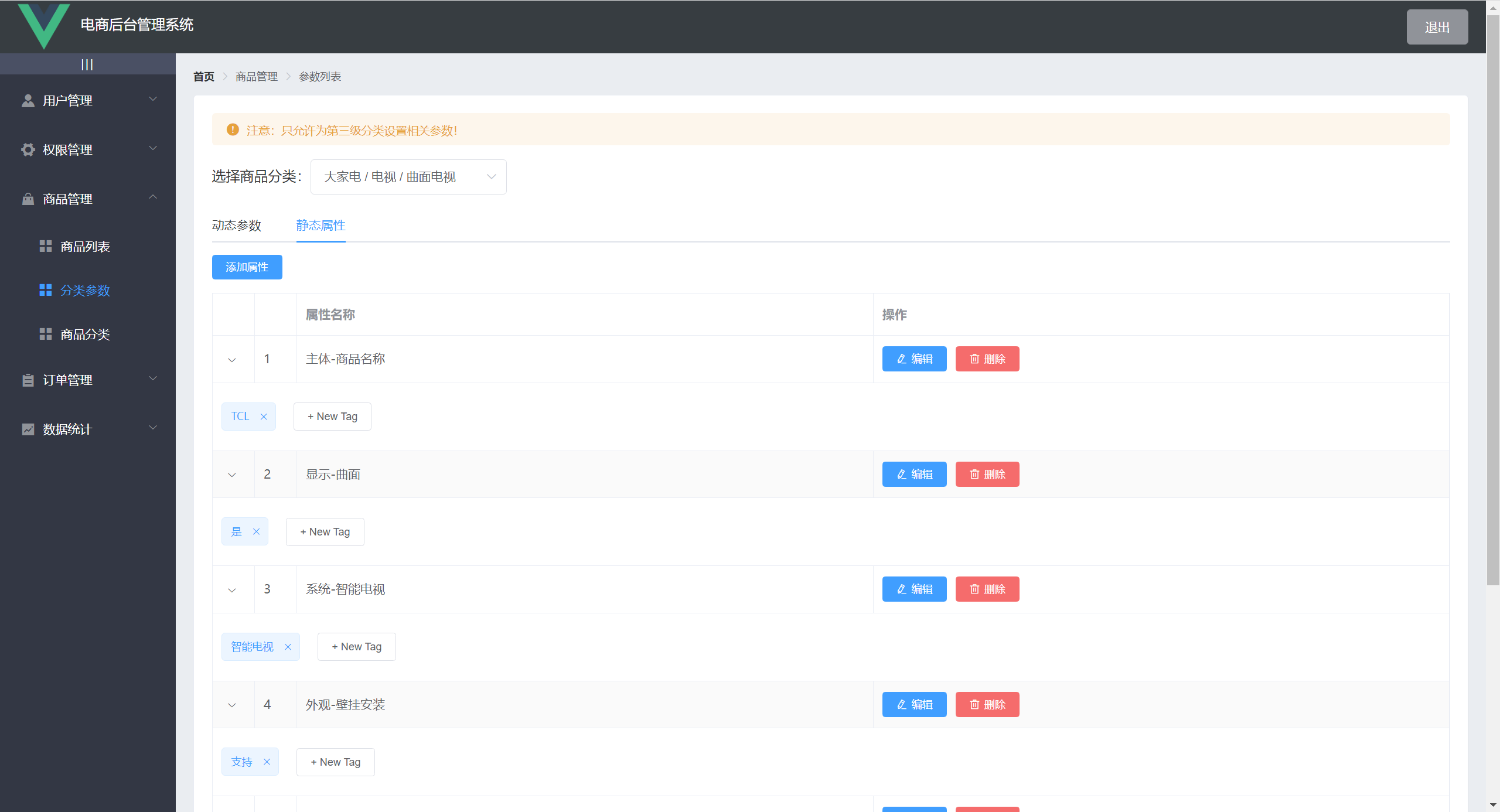
+ New Tag 按钮展示文本框,并且隐藏按钮Enter 键后,向服务器发送请求,提交此次添加操作<script>
// 文本框失去焦点或按下空格键触发这个函数
async handleInputConfirm(row) {
if (row.inputValue.trim().length === 0) {
row.inputValue = ''
row.inputVisible = false
return false
}
// 如果没用 return 出去,就证明用户输入了内容
// 数组追加属性
row.attr_vals.push(row.inputValue.trim())
row.inputValue = ''
row.inputVisible = false
this.saveAttrVal(row)
},
// 将保存属性的方法抽取出来
async saveAttrVal(row) {
const { data: res } = await this.$http.put(`categories/${this.cateId}/attributes/${row.attr_id}`, {
attr_name: row.attr_name,
attr_sel: this.activeName,
attr_vals: row.attr_vals.join(' ')
})
if (res.meta.status !== 200) return this.$msg.error('更新参数属性失败')
this.$msg.success('更新参数属性成功')
}
</script>
删除分类参数的属性
<script>
	// 删除标签
    deleteTag(i, row) {
      // 根据传递过来的索引删除
      row.attr_vals.splice(i, 1)
      this.saveAttrVal(row)
    }
</script>
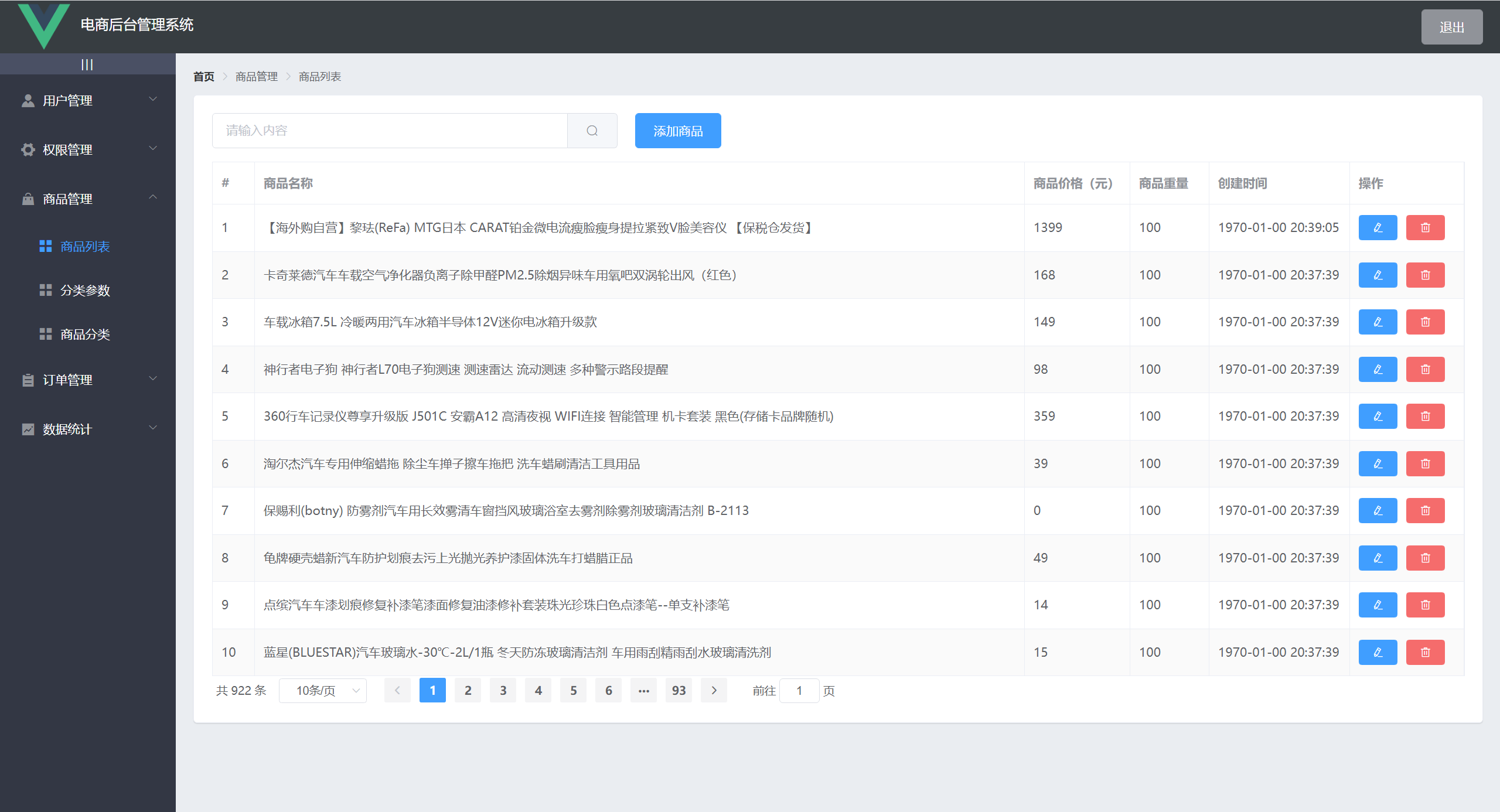
布局
<template>
		<!-- 表格区域 -->
      <el-table :data="goodsTable" stripe border>
        <el-table-column type="index" label="#"></el-table-column>
        <el-table-column prop="goods_name" label="商品名称"></el-table-column>
        <el-table-column prop="goods_price" label="商品价格(元)" width="120px"></el-table-column>
        <el-table-column prop="goods_weight" label="商品重量" width="90px"></el-table-column>
        <el-table-column prop="add_time" label="创建时间" width="160px">
          <template slot-scope="scope">
            {{ scope.row.add_time | dateFormat }}
          </template>
        </el-table-column>
        <el-table-column label="操作" width="130px">
          <template slot-scope="scope">
            <!-- 编辑按钮 -->
            <el-button type="primary" icon="el-icon-edit" size="mini"></el-button>
            <!-- 删除按钮 -->
            <el-button type="danger" icon="el-icon-delete" size="mini" @click="deleteGoodsById(scope.row.goods_id)"></el-button>
          </template>
        </el-table-column>
      </el-table>
</template>

<script>
	// 获取商品列表
    async getGoodsTable() {
      const { data: res } = await this.$http.get('goods', { params: this.queryInfo })
      // console.log(res)
      if (res.meta.status !== 200) return this.$msg.error('获取商品列表失败')
      this.goodsTable = res.data.goods
      this.total = res.data.total
    },
    created() {
      this.getGoodsTable()
    }
</script>
效果如图
id 作为参数传递过来id 作为参数向服务器发送删除请求<script>
// 根据 id 删除商品
async deleteGoodsById(id) {
// 弹框提示是否删除
const res = await this.$cfm('此操作将永久删除该分类, 是否继续?', '提示', {
confirmButtonText: '确定',
cancelButtonText: '取消',
type: 'warning'
}).catch(err => err) // 捕获异常
// 如果用户确认删除,则返回值为字符串 confirm
// 如果用户取消了删除,则返回值为字符串 cancel
if (res !== 'confirm') { return this.$msg.info('已取消删除') }
const { data: res1 } = await this.$http.delete(`goods/${id}`)
if (res1.meta.status !== 200) return this.$msg.error('删除商品失败')
this.$msg.success('商品删除成功')
this.getGoodsTable()
}
</script>
添加商品页面布局
Step 步骤条组件,使用 Tab 标签页 <template>
<!-- 卡片区域 -->
<el-card>
<!-- 提示消息框 -->
<el-alert
title="添加商品信息"
type="info"
center
show-icon
:closable="false">
</el-alert>
<!-- 步骤条 -->
<el-steps :active="activeIndex - 0" finish-status="success" align-center>
<el-step title="基本信息"></el-step>
<el-step title="商品参数"></el-step>
<el-step title="商品属性"></el-step>
<el-step title="商品图片"></el-step>
<el-step title="商品内容"></el-step>
<el-step title="完成"></el-step>
</el-steps>
<!-- 标签页区域 -->
<el-form :model="addForm" :rules="addRules" ref="addFormRef" label-width="100px" label-position="top">
<el-tabs v-model="activeIndex" tab-position="left" :before-leave="beforeTabLeave" @tab-click="tabClicked">
<el-tab-pane label="基本信息" name="0">
<el-form-item label="商品名称" prop="goods_name">
<el-input v-model="addForm.goods_name"></el-input>
</el-form-item>
<el-form-item label="商品价格" prop="goods_price">
<el-input v-model="addForm.goods_price" type="number"></el-input>
</el-form-item>
<el-form-item label="商品数量" prop="goods_number">
<el-input v-model="addForm.goods_number" type="number"></el-input>
</el-form-item>
<el-form-item label="商品重量" prop="goods_weight">
<el-input v-model="addForm.goods_weight" type="number"></el-input>
</el-form-item>
<el-form-item label="商品分类" prop="goods_weight">
<!-- 级联选择器 -->
<el-cascader
v-model="addForm.goods_cat"
:options="catelist"
:props="{ expandTrigger: 'hover', ...cateProps }"
@change="handleChange"
clearable>
</el-cascader>
</el-form-item>
</el-tab-pane>
</el-tabs>
</el-form>
</el-card>
</template>
效果如图

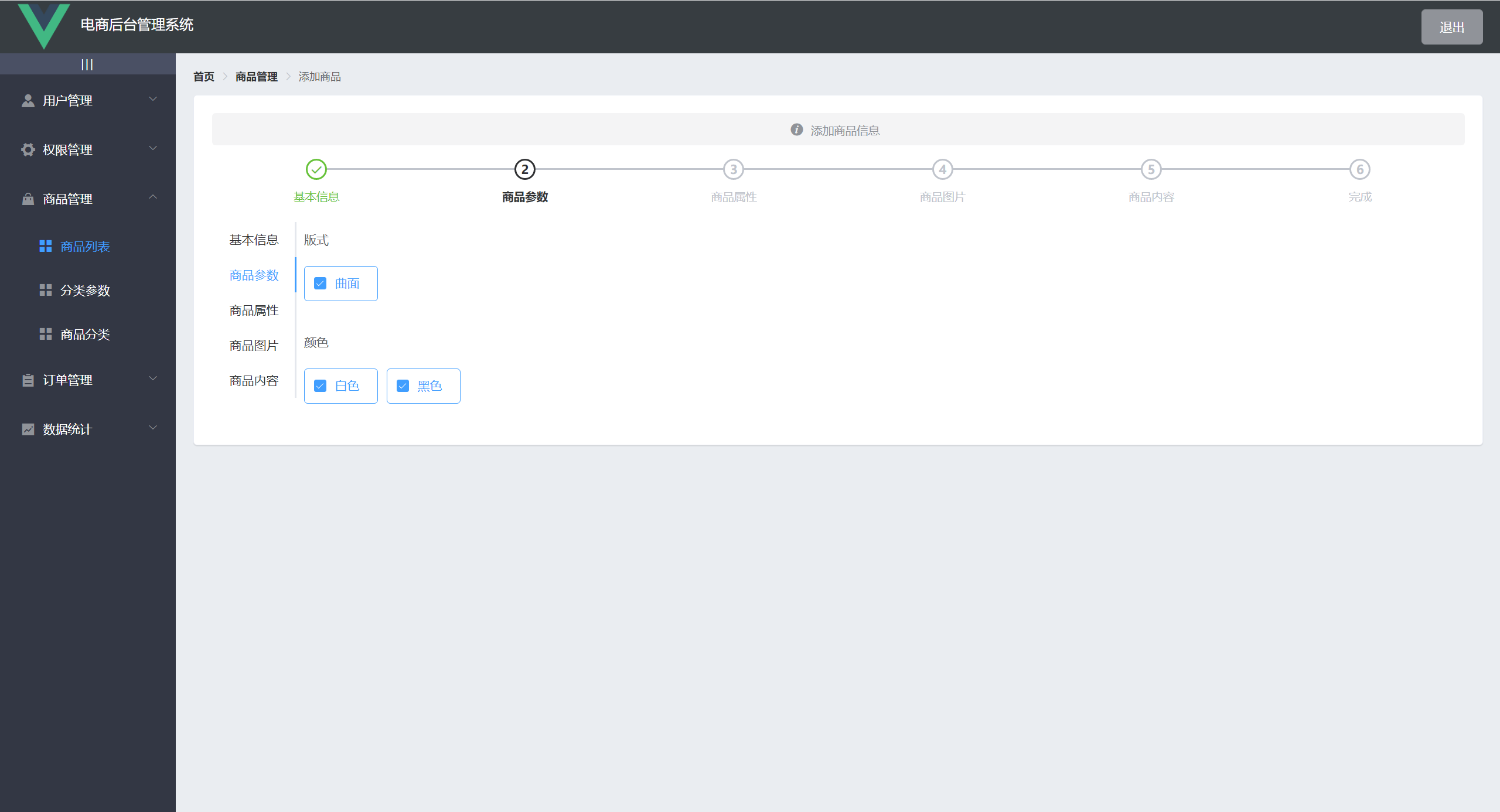
checkbox-group 复选框组组件展示参数
<template>
	<el-tab-pane label="商品参数" name="1">
        <el-form-item :label="item.attr_name" v-for="item in manyTableData" :key="item.attr_id">
            <!-- 复选框组 -->
            <el-checkbox-group v-model="item.attr_vals">
                <el-checkbox :label="cb" v-for="(cb, i) in item.attr_vals" :key="i" border></el-checkbox>
    		</el-checkbox-group>
    	</el-form-item>
    </el-tab-pane>
</template>
效果如图
<template>
	<el-tab-pane label="商品属性" name="2">
        <el-form-item :label="item.attr_name" v-for="item in onlyTableData" :key="item.attr_id">
            <el-input v-model="item.attr_vals"></el-input>
    	</el-form-item>
    </el-tab-pane>
</template>
效果如图
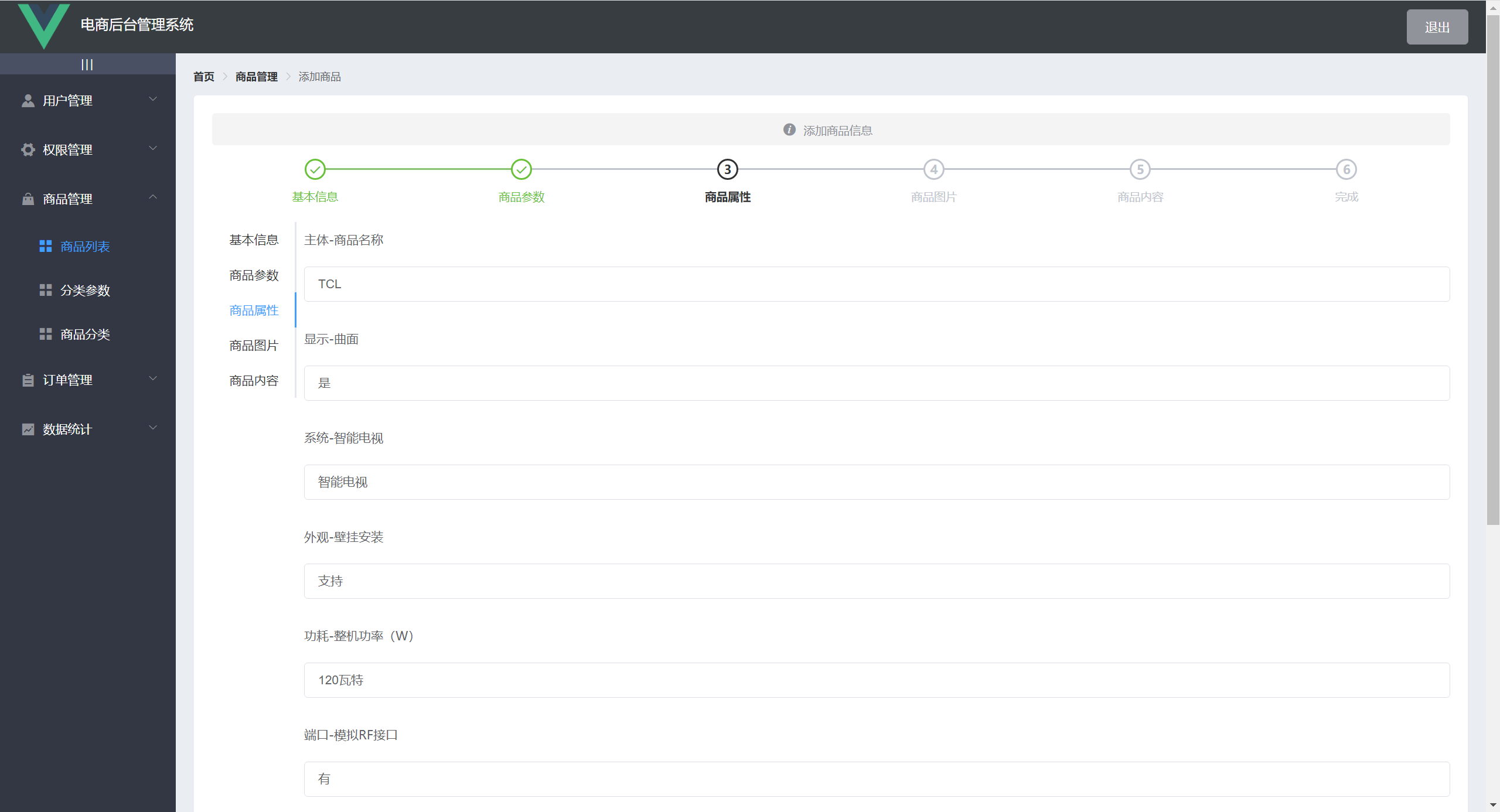
Upload 上传组件实现图片上传的功能<template>
<el-tab-pane label="商品图片" name="3">
<!-- 上传图片 -->
<!-- action 表示图片要上传到的后台 API 地址 -->
<el-upload
action="http://127.0.0.1:8888/api/private/v1/upload"
:on-preview="handlePreview"
:on-remove="handleRemove"
list-type="picture"
:headers="headerObj"
:on-success="handleSuccess">
<el-button size="small" type="primary">点击上传</el-button>
</el-upload>
</el-tab-pane>
</template>
效果如图
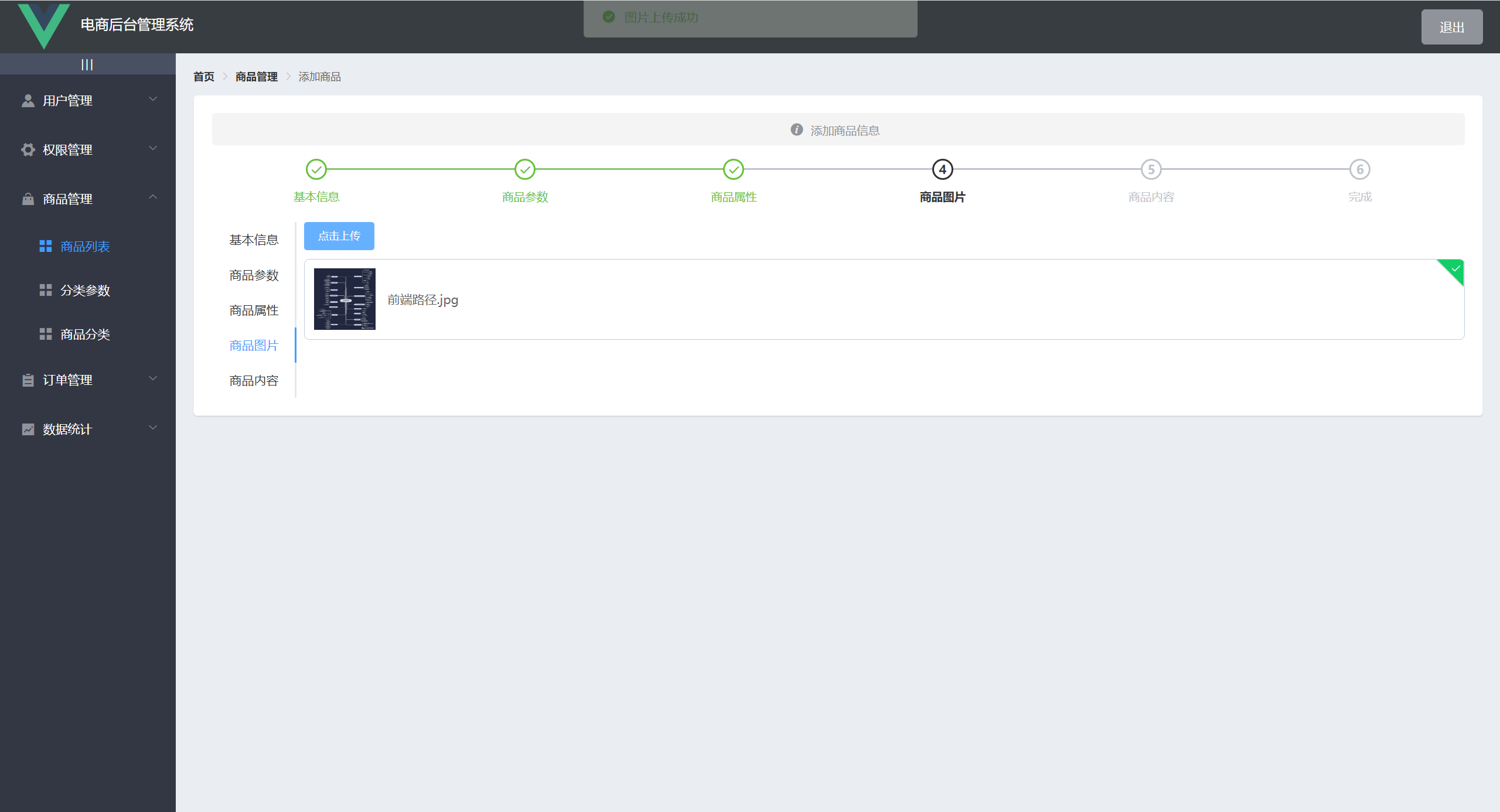
vue-quill-editor 富文本编辑器插件main.js 中导入并注册// 导入富文本编辑器
import VueQuillEditor from 'vue-quill-editor'
// 导入富文本编辑器对应的样式
import 'quill/dist/quill.core.css' // import styles
import 'quill/dist/quill.snow.css' // for snow theme
import 'quill/dist/quill.bubble.css' // for bubble theme
// 使用富文本编辑器
Vue.use(VueQuillEditor)
<template>
	<el-tab-pane label="商品内容" name="4">
        <quill-editor v-model="addForm.goods_introduce"></quill-editor>
        <el-button type="primary" class="addBtn" @click="addGoods">添加商品</el-button>
    </el-tab-pane>
</template>
效果如图
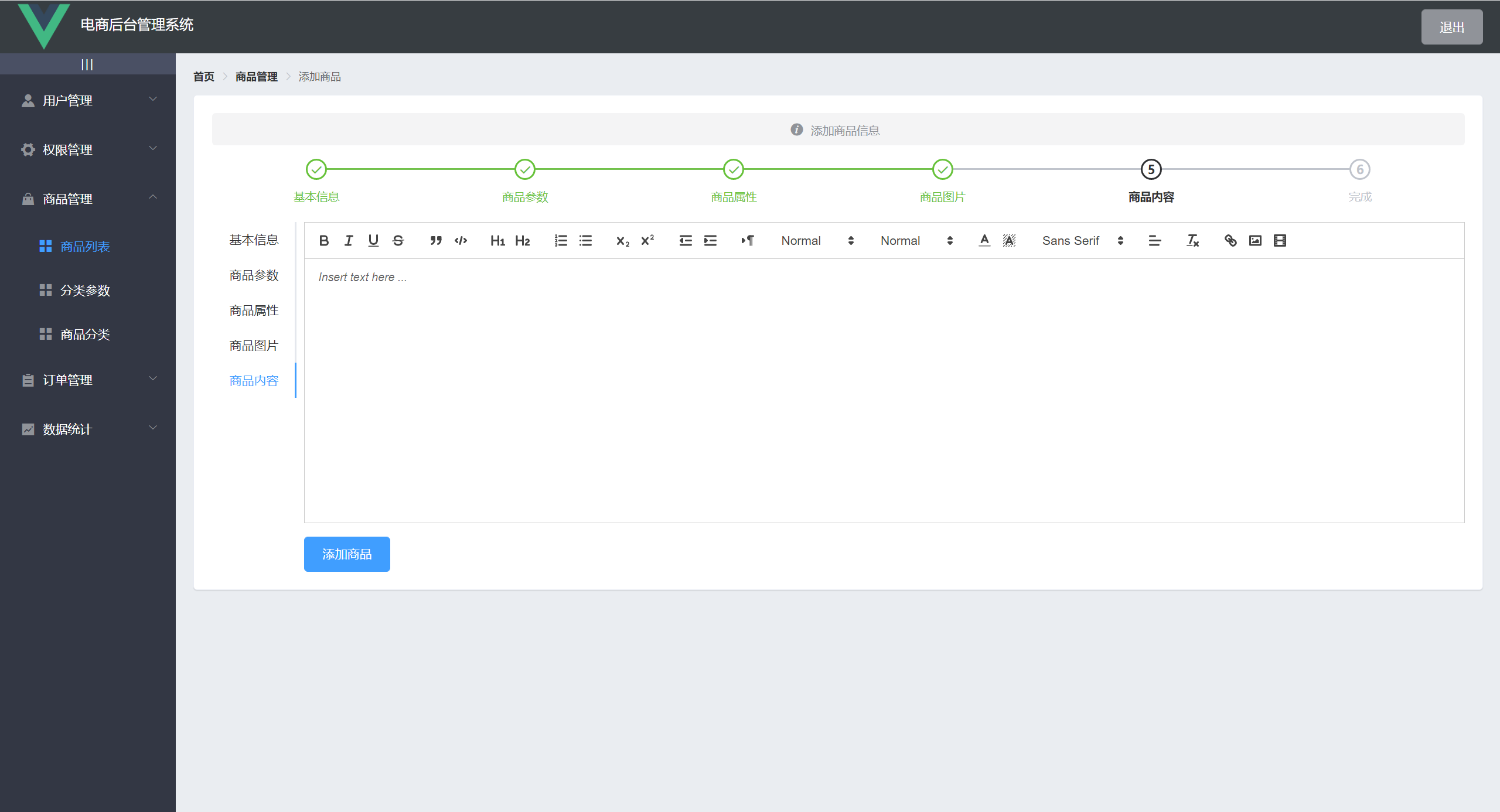
提交添加商品操作
<script>
	// 添加商品
    async addGoods() {
      this.$refs.addFormRef.validate(valid => {
        if (!valid) return this.$msg.error('请填写必要的表单项')
      })
      // 执行添加的业务逻辑
      // _.cloneDeep(obj) 深拷贝
      // 因为级联选择器绑定的数据源格式必须是数组,但是向服务器发送请求传递参数的格式是字符串
      // 所以进行深拷贝
      const form = _.cloneDeep(this.addForm)
      form.goods_cat = form.goods_cat.join(',')
      // 处理动态参数
      this.manyTableData.forEach(item => {
        const newInfo = {
          attr_id: item.attr_id,
          attr_value: item.attr_vals.join(' ')
        }
        this.addForm.attrs.push(newInfo)
      })
      // 处理静态属性
      this.onlyTableData.forEach(item => {
        const newInfo = {
          attr_id: item.attr_id,
          attr_value: item.attr_vals
        }
        this.addForm.attrs.push(newInfo)
      })
      form.attrs = this.addForm.attrs

      // 发起添加商品请求
      // 商品名称只能是唯一的
      const { data: res } = await this.$http.post('goods', form)
      if (res.meta.status !== 201) return this.$msg.error(`${res.meta.msg}`)
      this.$msg.success('商品添加成功')
      this.$router.push('/goods')
    }
</script>
<temaplate>
	  <!-- 表格区域 -->
      <el-table :data="orderlist" border stripe>
        <el-table-column type="index" label="#"></el-table-column>
        <el-table-column label="订单编号" prop="order_number" width="600px"></el-table-column>
        <el-table-column label="订单价格" prop="order_price" width="95px"></el-table-column>
        <el-table-column label="是否付款" prop="pay_status" width="85px">
          <template slot-scope="scope">
            <el-tag v-if="scope.row.pay_status === '1'">已付款</el-tag>
            <el-tag type="danger" v-else>未付款</el-tag>
          </template>
        </el-table-column>
        <el-table-column label="是否发货" prop="is_send" width="95px"></el-table-column>
        <el-table-column label="下单时间" prop="create_time">
          <template slot-scope="scope">
            {{ scope.row.create_time | dateFormat }}
          </template>
        </el-table-column>
        <el-table-column label="操作">
          <template>
            <el-button size="mini" type="primary" class="el-icon-edit" @click="showEditLocationDialog"></el-button>
            <el-button size="mini" type="success" class="el-icon-location" @click="showProcessDialog"></el-button>
          </template>
        </el-table-column>
      </el-table>

        <!-- 分页区域 -->
          <el-pagination
            @size-change="handleSizeChange"
            @current-change="handleCurrentChange"
            :current-./page="queryInfo../pagenum"
            :./page-sizes="[1, 5, 10]"
            :./page-size="queryInfo../pagesize"
            layout="total, sizes, prev, ./pager, next, jumper"
            :total="total">
          </el-pagination>
</temaplate>

<script>
    data() {
      return {
        queryInfo: {
          query: '',
          // 当前页码
          ./pagenum: 1,
          // 每页显示条数
          ./pagesize: 10
        },
        total: 0,
        // 订单数据
        orderlist: []
      }
    },
    methods: {
        // 获取订单列表数据
        async getOrderList() {
          const { data: res } = await this.$http.get('orders', {
            params: this.queryInfo
          })
          if (res.meta.status !== 200) return this.$msg.error('获取订单列表失败')
          this.total = res.data.total
          this.orderlist = res.data.goods
        },
        // 每页显示条数发生变化触发这个函数
        handleSizeChange(val) {
          this.queryInfo../pagesize = val
          this.getOrderList()
        },
        // 当前页发生变化触发这个函数
        handleCurrentChange(val) {
          this.queryInfo../pagenum = val
          this.getOrderList()
        }
    },
    created() {
    	this.getOrderList()
  }
</script>
效果如图
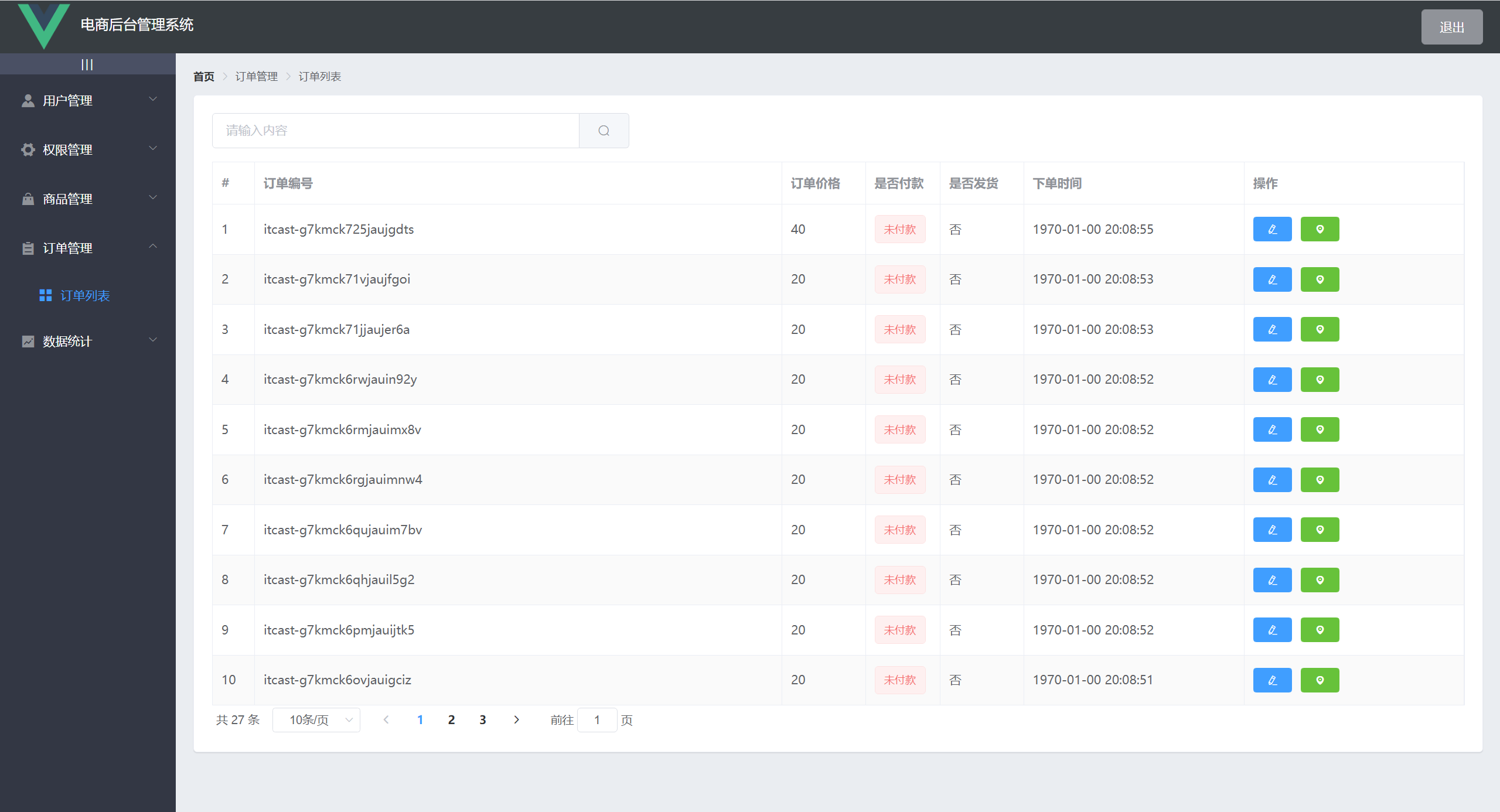
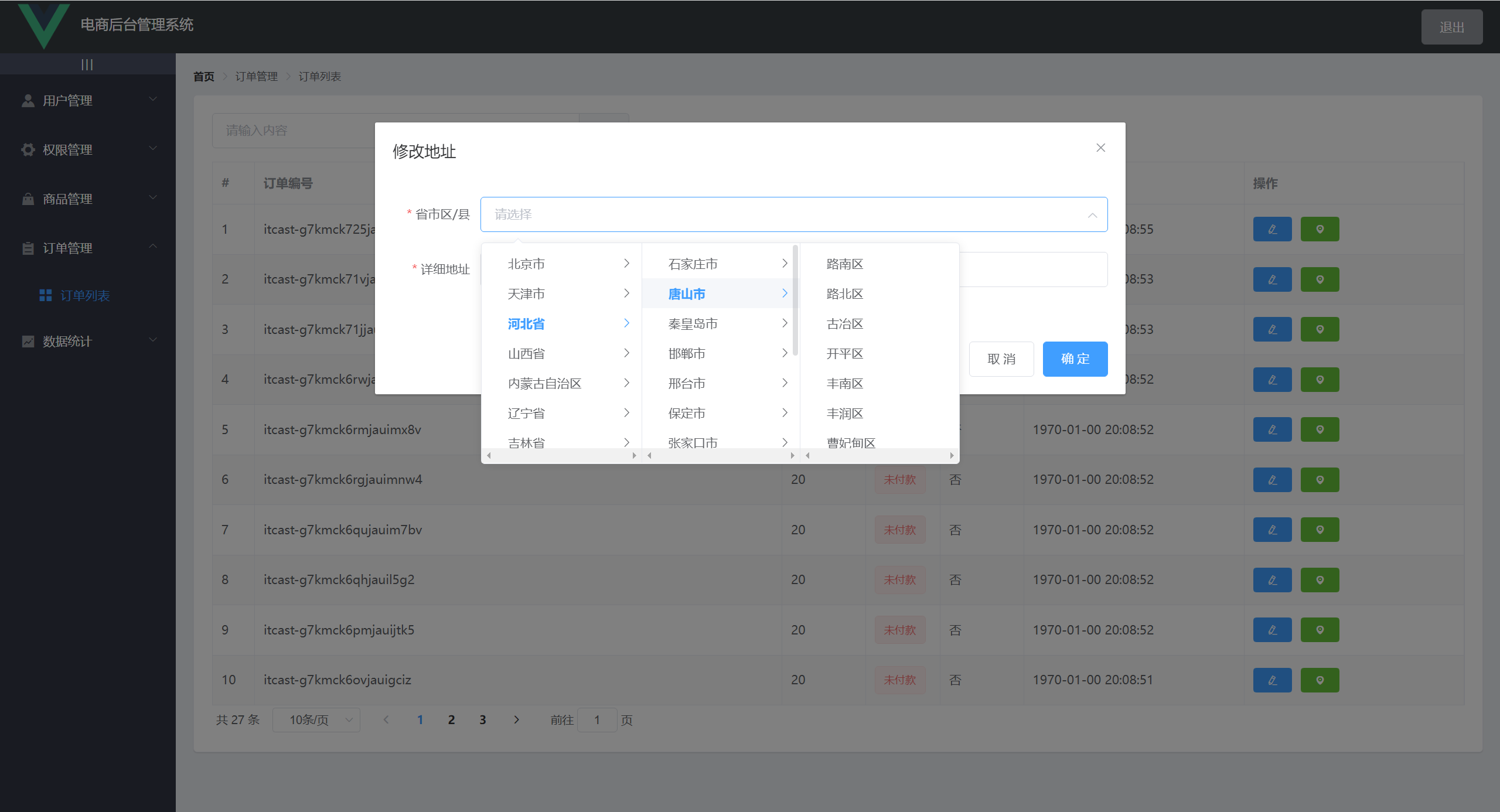
citydata.js 包,渲染到表单的级联选择器当中<template>
<!-- 修改地址的对话框 -->
<el-dialog
title="修改地址"
:visible.sync="editAddressDialogVisible"
width="50%"
@close="addressDialogClosed">
<el-form :model="addressForm" :rules="addressRules" ref="addressRef" label-width="100px">
<el-form-item label="省市区/县" prop="address1">
<el-cascader :options="cityData" v-model="addressForm.address1" :props="{ expandTrigger: 'hover' }">
</el-cascader>
</el-form-item>
<el-form-item label="详细地址" prop="address2">
<el-input v-model="addressForm.address2"></el-input>
</el-form-item>
</el-form>
<span slot="footer">
<el-button @click="editAddressDialogVisible = false">取 消</el-button>
<el-button type="primary" @click="editAddressDialogVisible = false">确 定</el-button>
</span>
</el-dialog>
</template>
<script>
import cityData from './citydata'
data() {
return {
// 控制修改地址对话框的显示与隐藏
editAddressDialogVisible: false,
addressForm: {
address1: [],
address2: ''
},
addressRules: {
address1: {
required: true, message: '请选择省市区/县', trigger: 'blur'
},
address2: {
required: true, message: '请输入详细地址', trigger: 'blur'
}
},
// 省市区/县数据
cityData
}
},
methods: {
// 显示修改地址对话框
showEditLocationDialog() {
this.editAddressDialogVisible = true
},
// 修改地址对话框关闭触发
addressDialogClosed() {
this.$refs.addressRef.resetFields()
}
}
</script>
效果如图
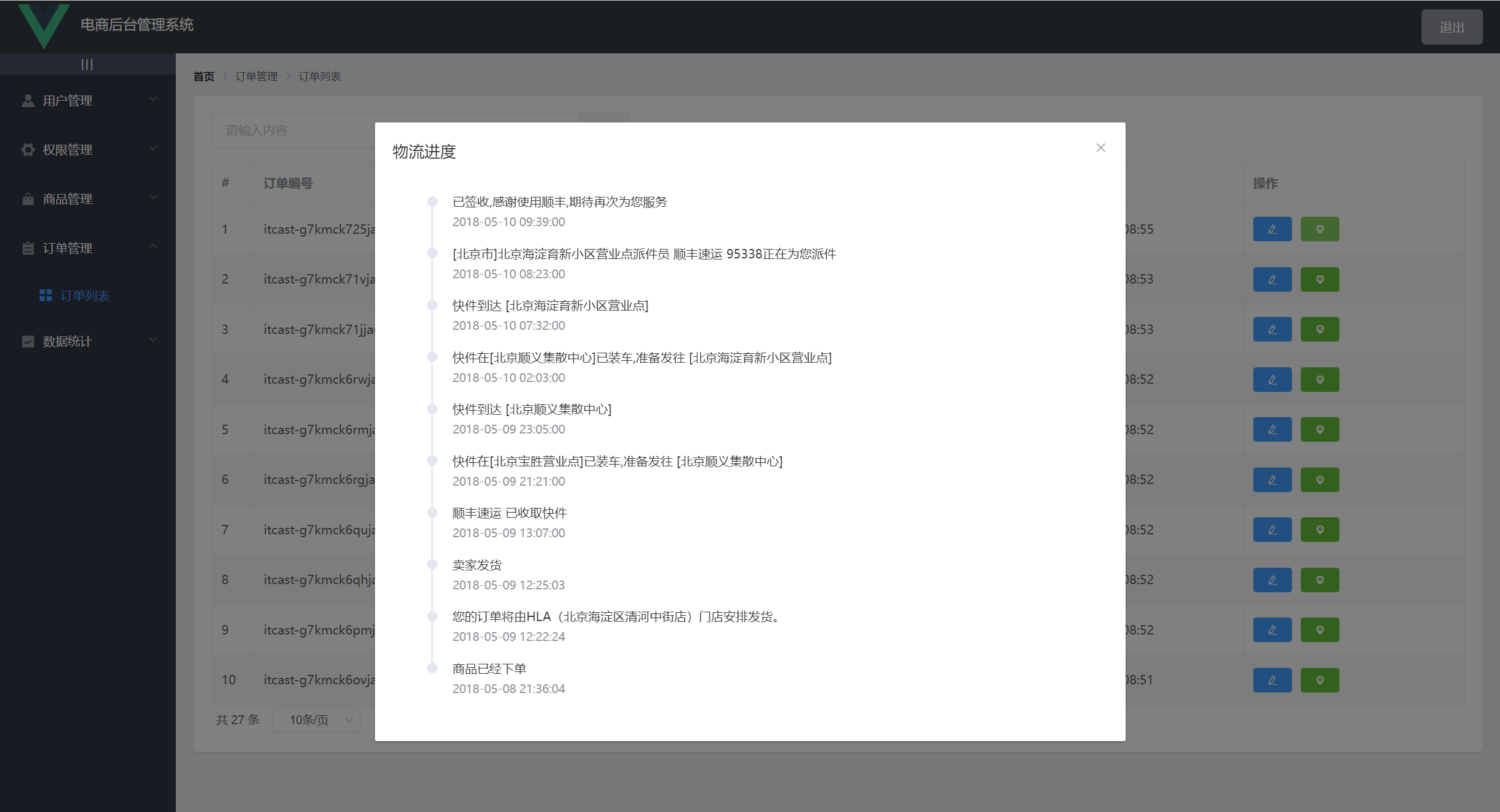
Timeline 时间线组件API 无法使用,这里使用了 Mock.js 根据接口文档的响应数据模拟了查看物流进度的接口// 使用 Mock
var Mock = require('mockjs')
var menuMock = Mock.mock({
data: [
{
time: '2018-05-10 09:39:00',
ftime: '2018-05-10 09:39:00',
context: '已签收,感谢使用顺丰,期待再次为您服务',
location: ''
},
{
time: '2018-05-10 08:23:00',
ftime: '2018-05-10 08:23:00',
context: '[北京市]北京海淀育新小区营业点派件员 顺丰速运 95338正在为您派件',
location: ''
},
{
time: '2018-05-10 07:32:00',
ftime: '2018-05-10 07:32:00',
context: '快件到达 [北京海淀育新小区营业点]',
location: ''
},
{
time: '2018-05-10 02:03:00',
ftime: '2018-05-10 02:03:00',
context: '快件在[北京顺义集散中心]已装车,准备发往 [北京海淀育新小区营业点]',
location: ''
},
{
time: '2018-05-09 23:05:00',
ftime: '2018-05-09 23:05:00',
context: '快件到达 [北京顺义集散中心]',
location: ''
},
{
time: '2018-05-09 21:21:00',
ftime: '2018-05-09 21:21:00',
context: '快件在[北京宝胜营业点]已装车,准备发往 [北京顺义集散中心]',
location: ''
},
{
time: '2018-05-09 13:07:00',
ftime: '2018-05-09 13:07:00',
context: '顺丰速运 已收取快件',
location: ''
},
{
time: '2018-05-09 12:25:03',
ftime: '2018-05-09 12:25:03',
context: '卖家发货',
location: ''
},
{
time: '2018-05-09 12:22:24',
ftime: '2018-05-09 12:22:24',
context: '您的订单将由HLA(北京海淀区清河中街店)门店安排发货。',
location: ''
},
{
time: '2018-05-08 21:36:04',
ftime: '2018-05-08 21:36:04',
context: '商品已经下单',
location: ''
}
],
meta: { status: 200, message: '获取物流信息成功!' }
})
Mock.mock('http://127.0.0.1:8888/api/private/v1/mock/process', 'get', menuMock)
<template>
	<!-- 显示物流进度的对话框 -->
    <el-dialog
      title="物流进度"
      :visible.sync="processDialogVisible"
      width="50%">
      <!-- 时间线 -->
      <el-timeline>
        <el-timeline-item
          v-for="(item, index) in processData"
          :key="index"
          :timestamp="item.time">
          {{item.context}}
        </el-timeline-item>
      </el-timeline>
    </el-dialog>
</template>

<script>
	// 显示物流进度的对话框
    async showProcessDialog() {
      const { data: res } = await this.$http.get('/mock/process')
      if (res.meta.status !== 200) return this.$msg.error('获取物流信息失败')
      this.processData = res.data
      this.processDialogVisible = true
    }
</script>
效果如图
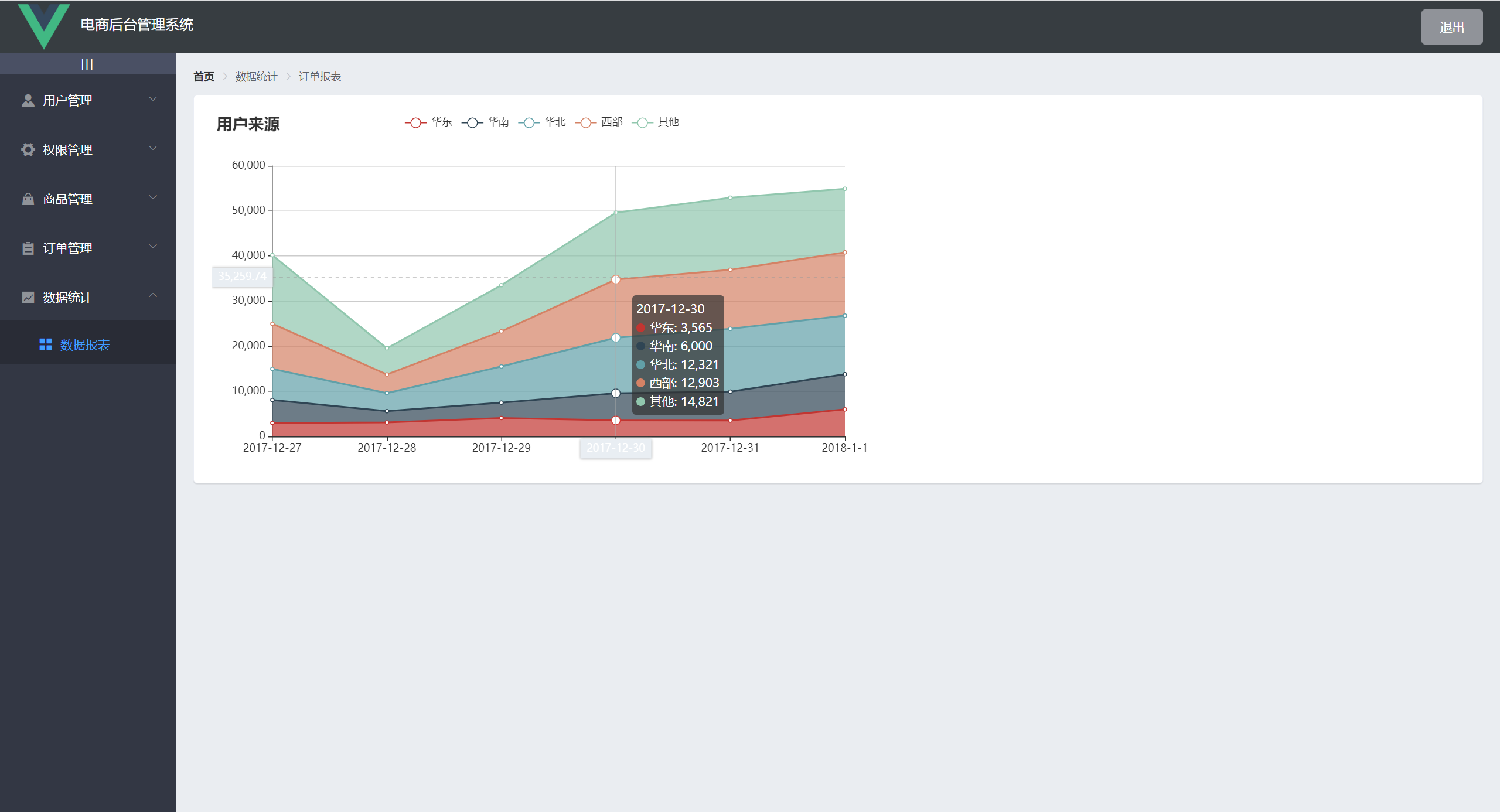
Apache ECharts 数据可视化插件<script>
// 引入 echarts
import * as echarts from 'echarts'
import _ from 'lodash'
export default {
data() {
return {
// 需要合并的数据
options: {
title: {
text: '用户来源'
},
tooltip: {
trigger: 'axis',
axisPointer: {
type: 'cross',
label: {
backgroundColor: '#E9EEF3'
}
}
},
grid: {
left: '3%',
right: '4%',
bottom: '3%',
containLabel: true
},
xAxis: [
{
boundaryGap: false
}
],
yAxis: [
{
type: 'value'
}
]
}
}
},
// 此时页面上的元素已经加载完毕了
async mounted() {
// 基于准备好的dom,初始化echarts实例
var myChart = echarts.init(document.getElementById('main'))
// 发起请求
const { data: res } = await this.$http.get('reports/type/1')
if (res.meta.status !== 200) return this.$message.error('获取折线图数据失败')
// 准备数据和配置数据项
// 调用 lodash 的 merge() 方法,将 res.data 和 this.options 合并成一个新的数据对象
const result = _.merge(res.data, this.options)
// 展示数据
myChart.setOption(result)
}
}
</script>
效果如图
生成打包报告
通过命令行参数的形式生成报告
// 通过 vue-cli 的命令选项可以生成打包报告
// --report 选项可以生成 report.html 以帮助分析打包内容
vue-cli-service build --report
通过可视化的 UI 面板直接查看报告 推荐
在可视化的 UI 面板中,通过**控制台**和分析面板,可以方便地看到项目中所存在的问题
通过 externals 加载外部 CDN 资源
默认情况下,通过 import 语法导入的第三方依赖包最终会被打包合并到同一个文件中,从而导致打包成功后,单文件体积过大大的问题。
为了解决上述的问题,可以通过 webpack 的 externals 节点,来配置并加载外部的 CDN 资源。
module.exports = {
chainWebpack:config=>{
   //发布模式
   config.when(process.env.NODE_ENV === 'production',config=>{
       //entry找到默认的打包入口,调用clear则是删除默认的打包入口
       //add添加新的打包入口
       config.entry('app').clear().add('./src/main-prod.js')

       //使用externals设置排除项
       config.set('externals',{
           vue:'Vue',
           'vue-router':'VueRouter',
           axios:'axios',
           lodash:'_',
           echarts:'echarts',
           nprogress:'NProgress',
           'vue-quill-editor':'VueQuillEditor'
       })
   })
   //开发模式
   config.when(process.env.NODE_ENV === 'development',config=>{
       config.entry('app').clear().add('./src/main-dev.js')
   })
}
设置好排除之后,为了使我们可以使用vue,axios等内容,我们需要加载外部CDN的形式解决引入依赖项。
main-prod.js,删除掉默认的引入代码import Vue from 'vue'
import App from './App.vue'
import router from './router'
// import './plugins/element.js'
//导入字体图标
import './assets/fonts/iconfont.css'
//导入全局样式
import './assets/css/global.css'
//导入第三方组件vue-table-with-tree-grid
import TreeTable from 'vue-table-with-tree-grid'
//导入进度条插件
import NProgress from 'nprogress'
//导入进度条样式
// import 'nprogress/nprogress.css'
// //导入axios
import axios from 'axios'
// //导入vue-quill-editor(富文本编辑器)
import VueQuillEditor from 'vue-quill-editor'
// //导入vue-quill-editor的样式
// import 'quill/dist/quill.core.css'
// import 'quill/dist/quill.snow.css'
// import 'quill/dist/quill.bubble.css'
axios.defaults.baseURL = 'http://127.0.0.1:8888/api/private/v1/'
//请求在到达服务器之前,先会调用use中的这个回调函数来添加请求头信息
axios.interceptors.request.use(config => {
//当进入request拦截器,表示发送了请求,我们就开启进度条
NProgress.start()
//为请求头对象,添加token验证的Authorization字段
config.headers.Authorization = window.sessionStorage.getItem("token")
//必须返回config
return config
})
//在response拦截器中,隐藏进度条
axios.interceptors.response.use(config =>{
//当进入response拦截器,表示请求已经结束,我们就结束进度条
NProgress.done()
return config
})
Vue.prototype.$http = axios
Vue.config.productionTip = false
//全局注册组件
Vue.component('tree-table', TreeTable)
//全局注册富文本组件
Vue.use(VueQuillEditor)
//创建过滤器将秒数过滤为年月日,时分秒
Vue.filter('dateFormat',function(originVal){
const dt = new Date(originVal)
const y = dt.getFullYear()
const m = (dt.getMonth()+1+'').padStart(2,'0')
const d = (dt.getDate()+'').padStart(2,'0')
const hh = (dt.getHours()+'').padStart(2,'0')
const mm = (dt.getMinutes()+'').padStart(2,'0')
const ss = (dt.getSeconds()+'').padStart(2,'0')
return `${y}-${m}-${d} ${hh}:${mm}:${ss}`
})
new Vue({
router,
render: h => h(App)
}).$mount('#app')
<!DOCTYPE html>
<html lang="en">
  <head>
    <meta charset="utf-8">
    <meta http-equiv="X-UA-Compatible" content="IE=edge">
    <meta name="viewport" content="width=device-width,initial-scale=1.0">
    <link rel="icon" href="<%= BASE_URL %>favicon.ico">
    <title>电商后台管理系统</title>

    <!-- nprogress 的样式表文件 -->
    <link rel="stylesheet" href="https://cdn.staticfile.org/nprogress/0.2.0/nprogress.min.css" />
    <!-- 富文本编辑器 的样式表文件 -->
    <link rel="stylesheet" href="https://cdn.staticfile.org/quill/1.3.4/quill.core.min.css" />
    <link rel="stylesheet" href="https://cdn.staticfile.org/quill/1.3.4/quill.snow.min.css" />
    <link rel="stylesheet" href="https://cdn.staticfile.org/quill/1.3.4/quill.bubble.min.css" />
    <!-- element-ui 的样式表文件 -->
    <link rel="stylesheet" href="https://cdn.staticfile.org/element-ui/2.8.2/theme-chalk/index.css" />

    <script src="https://cdn.staticfile.org/vue/2.5.22/vue.min.js"></script>
    <script src="https://cdn.staticfile.org/vue-router/3.0.1/vue-router.min.js"></script>
    <script src="https://cdn.staticfile.org/axios/0.18.0/axios.min.js"></script>
    <script src="https://cdn.staticfile.org/lodash.js/4.17.11/lodash.min.js"></script>
    <script src="https://cdn.staticfile.org/echarts/4.1.0/echarts.min.js"></script>
    <script src="https://cdn.staticfile.org/nprogress/0.2.0/nprogress.min.js"></script>
    <!-- 富文本编辑器的 js 文件 -->
    <script src="https://cdn.staticfile.org/quill/1.3.4/quill.min.js"></script>
    <script src="https://cdn.jsdelivr.net/npm/vue-quill-editor@3.0.4/dist/vue-quill-editor.js"></script>

    <!-- element-ui 的 js 文件 -->
    <script src="https://cdn.staticfile.org/element-ui/2.8.2/index.js"></script>

  </head>
  <body>
    <noscript>
      <strong>We're sorry but vue_shop doesn't work properly without JavaScript enabled. Please enable it to continue.</strong>
    </noscript>
    <div id="app"></div>
    <!-- built files will be auto injected -->
  </body>
</html>
Element-UI 组件按需加载
路由懒加载
首页内容定制
我正在使用i18n从头开始构建一个多语言网络应用程序,虽然我自己可以处理一大堆yml文件,但我说的语言(非常)有限,最终我想寻求外部帮助帮助。我想知道这里是否有人在使用UI插件/gem(与django上的django-rosetta不同)来处理多个翻译器,其中一些翻译器不愿意或无法处理存储库中的100多个文件,处理语言数据。谢谢&问候,安德拉斯(如果您已经在rubyonrails-talk上遇到了这个问题,我们深表歉意) 最佳答案 有一个rails3branchofthetolkgem在github上。您可以通过在Gemfi
我安装了ruby版本管理器,并将RVM安装的ruby实现设置为默认值,这样'哪个ruby'显示'~/.rvm/ruby-1.8.6-p383/bin/ruby'但是当我在emacs中打开inf-ruby缓冲区时,它使用安装在/usr/bin中的ruby。有没有办法让emacs像shell一样尊重ruby的路径?谢谢! 最佳答案 我创建了一个emacs扩展来将rvm集成到emacs中。如果您有兴趣,可以在这里获取:http://github.com/senny/rvm.el
按照目前的情况,这个问题不适合我们的问答形式。我们希望答案得到事实、引用或专业知识的支持,但这个问题可能会引发辩论、争论、投票或扩展讨论。如果您觉得这个问题可以改进并可能重新打开,visitthehelpcenter指导。关闭10年前。问题1)我想知道rubyonrails是否有功能类似于primefaces的gem。我问的原因是如果您使用primefaces(http://www.primefaces.org/showcase-labs/ui/home.jsf),开发人员无需担心javascript或jquery的东西。据我所知,JSF是一个规范,基于规范的各种可用实现,prim
是否有简单的方法来更改默认ISO格式(yyyy-mm-dd)的ActiveAdmin日期过滤器显示格式? 最佳答案 您可以像这样为日期选择器提供额外的选项,而不是覆盖js:=f.input:my_date,as::datepicker,datepicker_options:{dateFormat:"mm/dd/yy"} 关于ruby-on-rails-事件管理员日期过滤器日期格式自定义,我们在StackOverflow上找到一个类似的问题: https://s
电脑0x0000001A蓝屏错误怎么U盘重装系统教学分享。有用户电脑开机之后遇到了系统蓝屏的情况。系统蓝屏问题很多时候都是系统bug,只有通过重装系统来进行解决。那么蓝屏问题如何通过U盘重装新系统来解决呢?来看看以下的详细操作方法教学吧。 准备工作: 1、U盘一个(尽量使用8G以上的U盘)。 2、一台正常联网可使用的电脑。 3、ghost或ISO系统镜像文件(Win10系统下载_Win10专业版_windows10正式版下载-系统之家)。 4、在本页面下载U盘启动盘制作工具:系统之家U盘启动工具。 U盘启动盘制作步骤: 注意:制作期间,U盘会被格式化,因此U盘中的重要文件请注
在应用开发中,有时候我们需要获取系统的设备信息,用于数据上报和行为分析。那在鸿蒙系统中,我们应该怎么去获取设备的系统信息呢,比如说获取手机的系统版本号、手机的制造商、手机型号等数据。1、获取方式这里分为两种情况,一种是设备信息的获取,一种是系统信息的获取。1.1、获取设备信息获取设备信息,鸿蒙的SDK包为我们提供了DeviceInfo类,通过该类的一些静态方法,可以获取设备信息,DeviceInfo类的包路径为:ohos.system.DeviceInfo.具体的方法如下:ModifierandTypeMethodDescriptionstatic StringgetAbiList()Obt
SPI接收数据左移一位问题目录SPI接收数据左移一位问题一、问题描述二、问题分析三、探究原理四、经验总结最近在工作在学习调试SPI的过程中遇到一个问题——接收数据整体向左移了一位(1bit)。SPI数据收发是数据交换,因此接收数据时从第二个字节开始才是有效数据,也就是数据整体向右移一个字节(1byte)。请教前辈之后也没有得到解决,通过在网上查阅前人经验终于解决问题,所以写一个避坑经验总结。实际背景:MCU与一款芯片使用spi通信,MCU作为主机,芯片作为从机。这款芯片采用的是它规定的六线SPI,多了两根线:RDY和INT,这样从机就可以主动请求主机给主机发送数据了。一、问题描述根据从机芯片手
项目介绍随着我国经济迅速发展,人们对手机的需求越来越大,各种手机软件也都在被广泛应用,但是对于手机进行数据信息管理,对于手机的各种软件也是备受用户的喜爱小学生兴趣延时班预约小程序的设计与开发被用户普遍使用,为方便用户能够可以随时进行小学生兴趣延时班预约小程序的设计与开发的数据信息管理,特开发了小程序的设计与开发的管理系统。小学生兴趣延时班预约小程序的设计与开发的开发利用现有的成熟技术参考,以源代码为模板,分析功能调整与小学生兴趣延时班预约小程序的设计与开发的实际需求相结合,讨论了小学生兴趣延时班预约小程序的设计与开发的使用。开发环境开发说明:前端使用微信微信小程序开发工具:后端使用ssm:VU
需求:要创建虚拟机,就需要给他提供一个虚拟的磁盘,我们就在/opt目录下创建一个10G大小的raw格式的虚拟磁盘CentOS-7-x86_64.raw命令格式:qemu-imgcreate-f磁盘格式磁盘名称磁盘大小qemu-imgcreate-f磁盘格式-o?1.创建磁盘qemu-imgcreate-fraw/opt/CentOS-7-x86_64.raw10G执行效果#ls/opt/CentOS-7-x86_64.raw2.安装虚拟机使用virt-install命令,基于我们提供的系统镜像和虚拟磁盘来创建一个虚拟机,另外在创建虚拟机之前,提前打开vnc客户端,在创建虚拟机的时候,通过vnc
我是ruby的新手,我认为重新构建一个我用C#编写的简单聊天程序是个好主意。我正在使用Ruby2.0.0MRI(Matz的Ruby实现)。问题是我想在服务器运行时为简单的服务器命令提供I/O。这是从示例中获取的服务器。我添加了使用gets()获取输入的命令方法。我希望此方法在后台作为线程运行,但该线程正在阻塞另一个线程。require'socket'#Getsocketsfromstdlibserver=TCPServer.open(2000)#Sockettolistenonport2000defcommandsx=1whilex==1exitProgram=gets.chomp
