项目目录
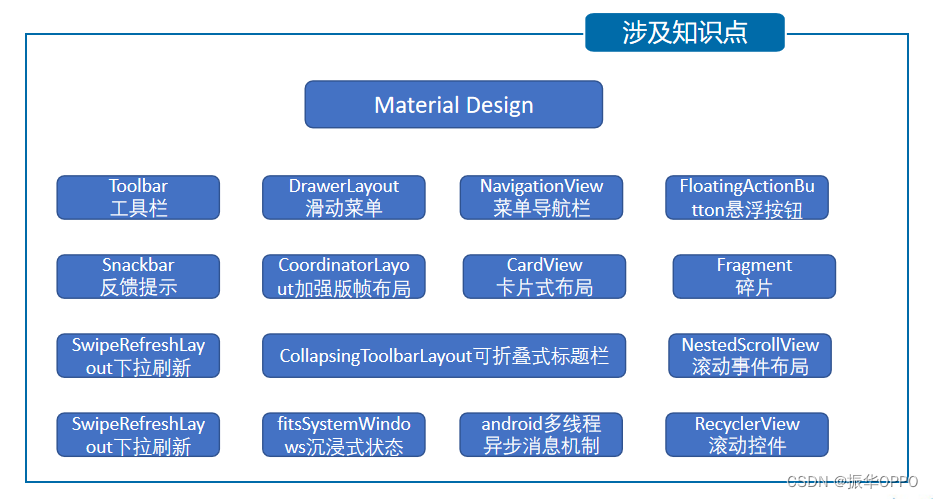
随着人们生活节奏的加快,生活质量的普遍提高,足不出户享受美食的需求日益增长。在此背景下,订餐系统应运而生,即方便了商家,也方便了用户。本项目应用Google界面设计语言Material Design来设计UI,也就是按照Android5.0之后所有内置应用的界面风格来进行设计。
用户打开应用后会进入欢迎界面,然后进行注册登录,主界面有3个底部导航栏:首页、购物车和我的。首先展示所有美食列表,点进去是美食详情页,然后是可折叠式标题栏,可以进行添加购物车,多次点击会增加数量。然后购物车显示添加的商品列表,长按删除商品,点击提交订单后下拉刷新即可。我的里面可以侧滑菜单查看个人信息,可以查看订单信息,并长按删除订单,还可以通过其他应用分享软件。
除了必备的SQLite数据库和基础的布局控件外,着重介绍Material Design的UI设计,它是由谷歌的设计工程师们基于传统优秀的设计原则,结合丰富的创意和科学技术所发明的一套全新的界面设计语言,包含了视觉、运动、互动效果等特性。Material Design的出现,使得Android首次在UI方面超越了iOS。这个库已经在2015年时就推出了,我们应该对这些控件非常熟悉了。
开发环境依旧是在4.2.1上进行开发的,只要你的AS是近两年从官网下载的,都是可以满足的。
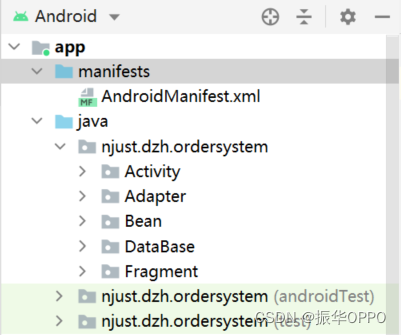
DataBaseHelper类就是我们的数据库,定义了数据库名称为ordersystem.db,版本号为1,然后定义了建表语句,分别是用户表User,购物车表Cart,订单表MyOrder。在onCreate中执行这些建表语句,就可以插入这三张表了。 最后onUpgrade,是在表进行变化时执行重新插入,只需改变版本号即可。DataBaseHelper完整代码如下:
// 数据库访问类
public class DataBaseHelper extends SQLiteOpenHelper {
    // 数据库名称
    public static final String DATABASE = "ordersystem.db";
    // 数据库版本号
    public static final int VERSION = 1;

    // 创建用户表User
    public static final String CREATE_USER = "create table User ("
            + "account text primary key,"
            + "password text)";

    // 创建购物车表Cart
    public static final String CREATE_CART = "create table Cart ("
            + "name text primary key,"
            + "imageId integer,"
            + "price text,"
            + "num integer)";

    // 创建订单表MyOrder
    public static final String CREATE_ORDER = "create table MyOrder ("
            + "id integer primary key,"
            + "time text,"
            + "price text,"
            + "content text)";

    // 创建DB对象时的构造函数
    public DataBaseHelper(Context context) {
        super(context, DATABASE, null, VERSION);
    }

    // 创建数据库
    @Override
    public void onCreate(SQLiteDatabase db) {
        db.execSQL(CREATE_USER);
        db.execSQL(CREATE_CART);
        db.execSQL(CREATE_ORDER);
    }
    // 升级数据库
    @Override
    public void onUpgrade(SQLiteDatabase db, int oldVersion, int newVersion) {
        db.execSQL("drop table if exists User");
        db.execSQL("drop table if exists Cart");
        db.execSQL("drop table if exists MyOrder");
        onCreate(db);
    }
}
首页的layout设计很简单,最外层是加强版FrameLayout,只包含一个SwipeRefreshLayout下拉刷新布局,然后嵌套一个RecyclerView滚动控件,大功告成。代码如下:
<?xml version="1.0" encoding="utf-8"?>
<androidx.coordinatorlayout.widget.CoordinatorLayout xmlns:android="http://schemas.android.com/apk/res/android"
    android:layout_width="match_parent"
    android:layout_height="match_parent"
    xmlns:app="http://schemas.android.com/apk/res-auto">
    <androidx.swiperefreshlayout.widget.SwipeRefreshLayout
        android:id="@+id/swipe_refresh"
        android:layout_width="match_parent"
        android:layout_height="match_parent"
        app:layout_behavior="@string/appbar_scrolling_view_behavior">

        <androidx.recyclerview.widget.RecyclerView
            android:id="@+id/recycler_view"
            android:layout_width="match_parent"
            android:layout_height="match_parent"/>

    </androidx.swiperefreshlayout.widget.SwipeRefreshLayout>

</androidx.coordinatorlayout.widget.CoordinatorLayout>
java文件其实就是展示列表:1、创建数据源 2、创建适配器,同时加载数据源 3、设置适配器。
然后给下拉刷新布局设置个监听器,然后通知适配器更新数据源。
public View onCreateView(LayoutInflater inflater, ViewGroup container, Bundle savedInstanceState) {
        View view = inflater.inflate(R.layout.fragment_home, container, false);
        // 创建数据源
        initFoods();
        RecyclerView recyclerView = view.findViewById(R.id.recycler_view);
        GridLayoutManager gridLayoutManager = new GridLayoutManager(getContext(),2);
        recyclerView.setLayoutManager(gridLayoutManager);
        // 创建适配器,同时加载数据源
        foodAdapter = new FoodAdapter(foodList);
        // 设置适配器
        recyclerView.setAdapter(foodAdapter);
        swipeRefresh = view.findViewById(R.id.swipe_refresh);
        swipeRefresh.setColorSchemeResources(R.color.design_default_color_primary);
        swipeRefresh.setOnRefreshListener(new SwipeRefreshLayout.OnRefreshListener() {
            @Override
            public void onRefresh() {
                refreshFoods();
            }
        });
        return view;
    }
购物车的layout也非常简单,需要注意每个布局/控件的layout_width和layout_height属性。
最外层CoordinatorLayout ,真的太好用了,强烈推荐!和首页布局唯一不同的就是里面还包了一个FloatingActionButton悬浮按钮。
<?xml version="1.0" encoding="utf-8"?>
<androidx.coordinatorlayout.widget.CoordinatorLayout xmlns:android="http://schemas.android.com/apk/res/android"
    xmlns:app="http://schemas.android.com/apk/res-auto"
    android:layout_width="match_parent"
    android:layout_height="match_parent">

    <com.google.android.material.floatingactionbutton.FloatingActionButton
        android:id="@+id/fab"
        android:layout_width="wrap_content"
        android:layout_height="wrap_content"
        android:layout_gravity="bottom|end"
        android:layout_marginBottom="80dp"
        android:layout_marginRight="30dp"
        android:src="@mipmap/nav_task"
        app:maxImageSize="50dp"
        android:backgroundTint="@color/Azure"
        android:elevation="8dp"/>
    <androidx.swiperefreshlayout.widget.SwipeRefreshLayout
        android:id="@+id/swipe_refresh"
        android:layout_width="match_parent"
        android:layout_height="match_parent"
        app:layout_behavior="@string/appbar_scrolling_view_behavior">
        <androidx.recyclerview.widget.RecyclerView
            android:id="@+id/recycler_view"
            android:layout_width="wrap_content"
            android:layout_height="wrap_content"/>
    </androidx.swiperefreshlayout.widget.SwipeRefreshLayout>

</androidx.coordinatorlayout.widget.CoordinatorLayout>
java文件其实就是获取控件实例,然后设置监听器,这里我们就展示悬浮按钮的监听器吧,复习下AlertDialog的标准用法,作为模板。
 // 订单提交
 fab.setOnClickListener(new View.OnClickListener() {
      @Override
      public void onClick(View view) {
          AlertDialog alertDialog = new AlertDialog.Builder(view.getContext())
                  .setTitle("提示")
                  .setIcon(R.drawable.ic_order)
                  .setMessage("您确定要提交订单吗?")
                  .setPositiveButton("确定", new DialogInterface.OnClickListener() {
                      @Override
                      public void onClick(DialogInterface dialogInterface, int i) {
                          cartDao.openDB();
                          cartDao.commitOrder();
                          cartDao.clearCart();
                          cartDao.closeDB();
                          Toast.makeText(getContext(), "下单成功!请下拉刷新页面~", Toast.LENGTH_SHORT).show();
                      }
                  })
                  .setNegativeButton("取消", new DialogInterface.OnClickListener() {
                      @Override
                      public void onClick(DialogInterface dialogInterface, int i) {
                          Toast.makeText(getContext(), "订单已取消", Toast.LENGTH_SHORT).show();
                      }
                  })
                  .show();
            }
    });
布局就很中规中矩了,最常见的布局和控件,不再赘述了,只要花时间都能设计好的布局。
<LinearLayout
        android:layout_width="match_parent"
        android:layout_height="match_parent"
        android:background="@color/Azure"
        android:orientation="vertical">

        <de.hdodenhof.circleimageview.CircleImageView
            android:id="@+id/circle_image"
            android:layout_width="100dp"
            android:layout_height="100dp"
            android:layout_gravity="center_horizontal"
            android:layout_marginTop="20dp"
            app:civ_border_width="2dp"
            android:src="@mipmap/nav_icon"
            app:civ_border_color="@color/CadetBlue"
            android:layout_marginBottom="20dp"/>

        <ImageView
            android:layout_width="match_parent"
            android:layout_height="80dp"
            android:background="@drawable/ic_chihuo"/>

        <View
            style="@style/PersonLineStyle"
            android:layout_marginTop="10dp"
            android:background="@color/white"/>

        <LinearLayout
            android:layout_width="match_parent"
            android:layout_height="wrap_content"
            android:background="@color/LightCyan">
            <ImageView
                style="@style/PersonImageStyle"
                android:src="@drawable/ic_person"/>
            <TextView
                android:id="@+id/person"
                style="@style/PersonTvStyle"
                android:text="@string/person" />
        </LinearLayout>

        <View
            style="@style/PersonLineStyle"
            android:background="@color/white"/>

        <LinearLayout
            android:layout_width="match_parent"
            android:layout_height="wrap_content"
            android:background="@color/LightCyan">
            <ImageView
                style="@style/PersonImageStyle"
                android:src="@drawable/ic_order"/>
            <TextView
                android:id="@+id/order"
                style="@style/PersonTvStyle"
                android:text="@string/order" />
        </LinearLayout>

        <View
            style="@style/PersonLineStyle"
            android:background="@color/white"/>

        <LinearLayout
            android:layout_width="match_parent"
            android:layout_height="wrap_content"
            android:background="@color/LightCyan">
            <ImageView
                style="@style/PersonImageStyle"
                android:src="@drawable/ic_share"/>
            <TextView
                android:id="@+id/share"
                style="@style/PersonTvStyle"
                android:text="@string/share" />
        </LinearLayout>

        <View
            style="@style/PersonLineStyle"
            android:background="@color/white"/>

        <androidx.cardview.widget.CardView
            android:layout_width="match_parent"
            android:layout_height="wrap_content"
            app:cardCornerRadius="6dp"
            android:elevation="5dp">
            <ImageView
                android:layout_width="match_parent"
                android:layout_height="wrap_content"
                android:background="@drawable/ic_more"/>
        </androidx.cardview.widget.CardView>

    </LinearLayout>
java代码就是获取控件实例,然后绑定监听器,最后展示下滑动菜单栏选中事件的监听器,也就是关闭侧滑菜单。
  // 菜单项选中事件的监听器
  navigationView.setNavigationItemSelectedListener(new NavigationView.OnNavigationItemSelectedListener() {
      @Override
      public boolean onNavigationItemSelected(MenuItem item) {
          drawerLayout.closeDrawers();
          return true;
      }
  });
NavigationView是Design Support中提供的一个控件,使得滑动菜单界面的实现变得非常简单。NavigationView使用之前,还需要准备两个东西:menu和headerLayout,menu是用来在NavigationView中显示具体菜单项的,headerLayout则是用来在NavigationView中显示头部布局的。
res/menu/nav_menu.xml 就是具体的菜单项,< menu >标签中嵌套一个< group >标签,group表示一个组,checkableBehavior指定为single表示组中所有菜单项只能单选。然后定义五个< item >,使用id属性指定菜单项的id,icon指定菜单项的图标,title指定菜单项显示的文字,就是这么简单。
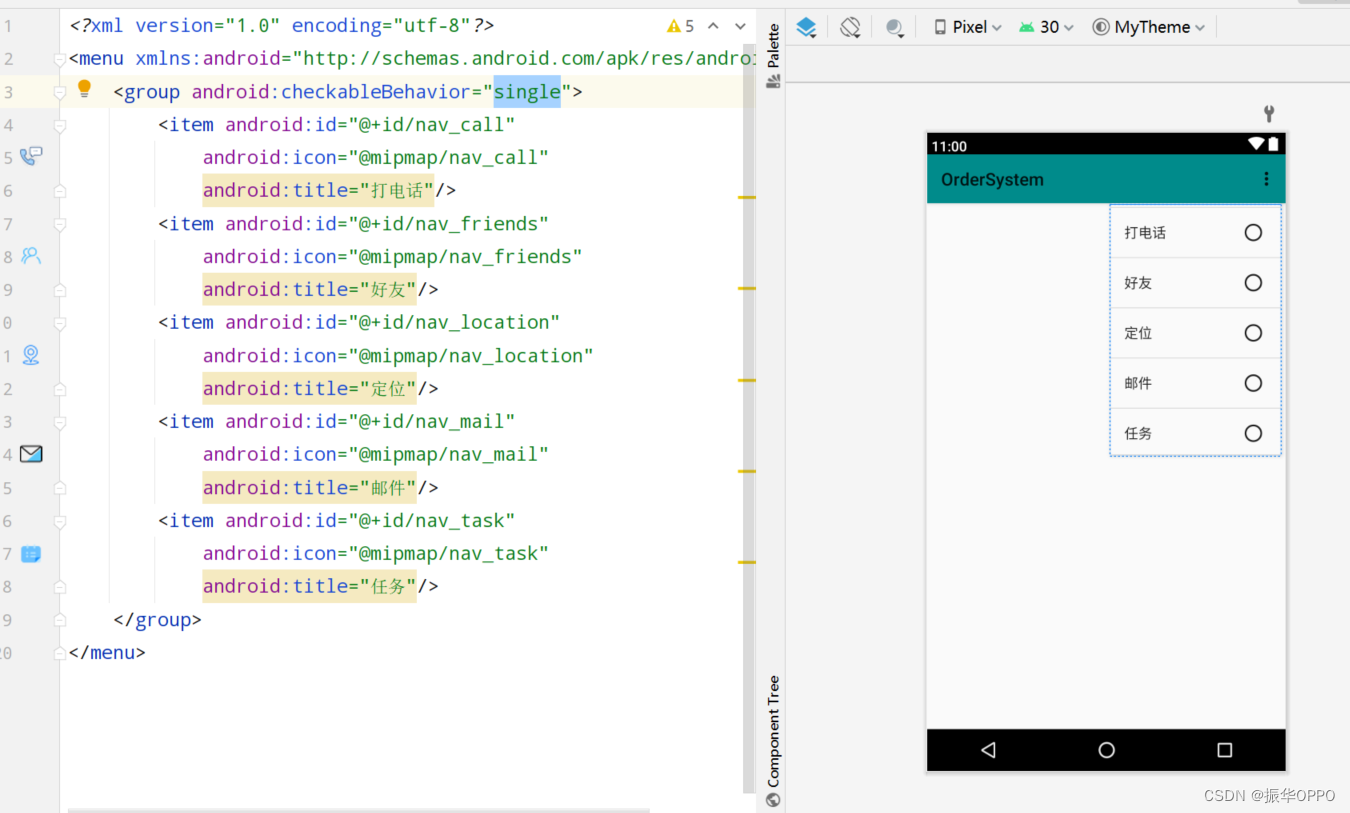
layout/nav_header 中就是头部布局,我们这里简单起见,只放置了头像、用户名和邮箱地址这三项内容,这里就用到了CircleImageView对头像进行圆形化。
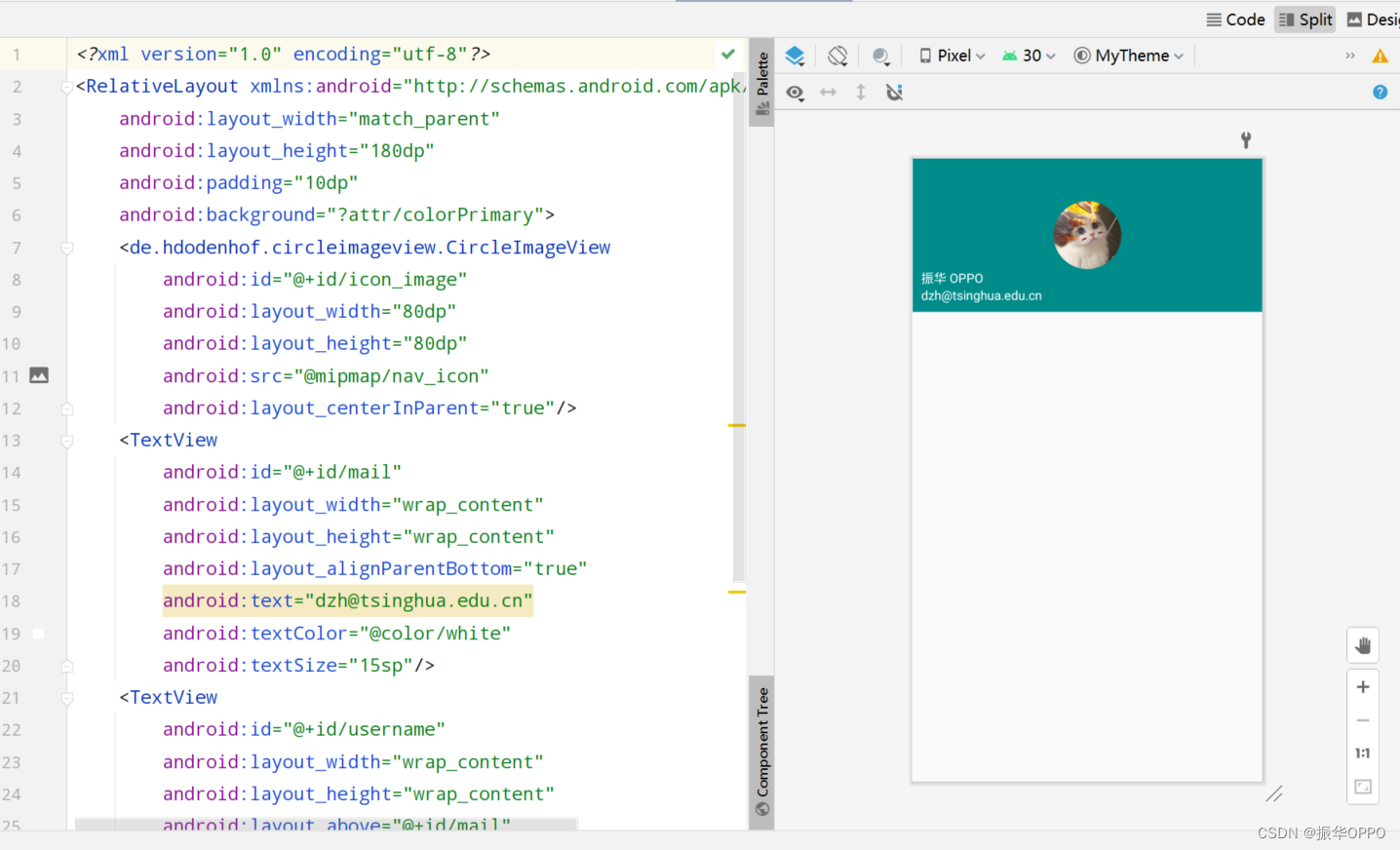
用AS打开项目,进行构建,Build成功后,打开AVD运行项目,因为本项目包含动画效果,所以通过视频展示效果最佳。
Android Studio实现订餐系统
本次订餐系统,不同于以往任何项目,历史性地使用了Material Design来设计UI,drawable图标多达三十个,colors颜色使用了数十种,themes中定义了系统的主题,styles中定义了基础控件的属性。有九个功能页面,每一处点击都与数据库进行交互,可以说代码的健壮性已经经过多次测试,很鲁棒。每一处细节也尽量做到位,耗时25h打造。希望大家能从中学到Material Design的UI设计的风格。
| ♻️下面两种方式都可以获取源代码 |
|---|
| 1️⃣ 点击直接下载 Android Studio 订餐系统 |
| 2️⃣关注公众号《 萌新加油站 》,后台回复: 订餐 |
| 🚀这有你错过的精彩内容 |
|---|
| Android Studio实现饮食搭配系统 |
| Android Studio实现考试管理系统 |
| Android Studio实现天气预报系统 |
| Android Studio实现图书馆订座系统 |
| Android Studio实现前后台分离的选课系统 |
古之立大事者,不惟有超世之才,亦必有坚忍不拔之志。——苏轼
我有一个用户工厂。我希望默认情况下确认用户。但是鉴于unconfirmed特征,我不希望它们被确认。虽然我有一个基于实现细节而不是抽象的工作实现,但我想知道如何正确地做到这一点。factory:userdoafter(:create)do|user,evaluator|#unwantedimplementationdetailshereunlessFactoryGirl.factories[:user].defined_traits.map(&:name).include?(:unconfirmed)user.confirm!endendtrait:unconfirmeddoenden
电脑0x0000001A蓝屏错误怎么U盘重装系统教学分享。有用户电脑开机之后遇到了系统蓝屏的情况。系统蓝屏问题很多时候都是系统bug,只有通过重装系统来进行解决。那么蓝屏问题如何通过U盘重装新系统来解决呢?来看看以下的详细操作方法教学吧。 准备工作: 1、U盘一个(尽量使用8G以上的U盘)。 2、一台正常联网可使用的电脑。 3、ghost或ISO系统镜像文件(Win10系统下载_Win10专业版_windows10正式版下载-系统之家)。 4、在本页面下载U盘启动盘制作工具:系统之家U盘启动工具。 U盘启动盘制作步骤: 注意:制作期间,U盘会被格式化,因此U盘中的重要文件请注
华为OD机试题本篇题目:明明的随机数题目输入描述输出描述:示例1输入输出说明代码编写思路最近更新的博客华为od2023|什么是华为od,od薪资待遇,od机试题清单华为OD机试真题大全,用Python解华为机试题|机试宝典【华为OD机试】全流程解析+经验分享,题型分享,防作弊指南华为o
在应用开发中,有时候我们需要获取系统的设备信息,用于数据上报和行为分析。那在鸿蒙系统中,我们应该怎么去获取设备的系统信息呢,比如说获取手机的系统版本号、手机的制造商、手机型号等数据。1、获取方式这里分为两种情况,一种是设备信息的获取,一种是系统信息的获取。1.1、获取设备信息获取设备信息,鸿蒙的SDK包为我们提供了DeviceInfo类,通过该类的一些静态方法,可以获取设备信息,DeviceInfo类的包路径为:ohos.system.DeviceInfo.具体的方法如下:ModifierandTypeMethodDescriptionstatic StringgetAbiList()Obt
C#实现简易绘图工具一.引言实验目的:通过制作窗体应用程序(C#画图软件),熟悉基本的窗体设计过程以及控件设计,事件处理等,熟悉使用C#的winform窗体进行绘图的基本步骤,对于面向对象编程有更加深刻的体会.Tutorial任务设计一个具有基本功能的画图软件**·包括简单的新建文件,保存,重新绘图等功能**·实现一些基本图形的绘制,包括铅笔和基本形状等,学习橡皮工具的创建**·设计一个合理舒适的UI界面**注明:你可能需要先了解一些关于winform窗体应用程序绘图的基本知识,以及关于GDI+类和结构的知识二.实验环境Windows系统下的visualstudio2017C#窗体应用程序三.
MIMO技术的优缺点优点通过下面三个增益来总体概括:阵列增益。阵列增益是指由于接收机通过对接收信号的相干合并而活得的平均SNR的提高。在发射机不知道信道信息的情况下,MIMO系统可以获得的阵列增益与接收天线数成正比复用增益。在采用空间复用方案的MIMO系统中,可以获得复用增益,即信道容量成倍增加。信道容量的增加与min(Nt,Nr)成正比分集增益。在采用空间分集方案的MIMO系统中,可以获得分集增益,即可靠性性能的改善。分集增益用独立衰落支路数来描述,即分集指数。在使用了空时编码的MIMO系统中,由于接收天线或发射天线之间的间距较远,可认为它们各自的大尺度衰落是相互独立的,因此分布式MIMO
需求:要创建虚拟机,就需要给他提供一个虚拟的磁盘,我们就在/opt目录下创建一个10G大小的raw格式的虚拟磁盘CentOS-7-x86_64.raw命令格式:qemu-imgcreate-f磁盘格式磁盘名称磁盘大小qemu-imgcreate-f磁盘格式-o?1.创建磁盘qemu-imgcreate-fraw/opt/CentOS-7-x86_64.raw10G执行效果#ls/opt/CentOS-7-x86_64.raw2.安装虚拟机使用virt-install命令,基于我们提供的系统镜像和虚拟磁盘来创建一个虚拟机,另外在创建虚拟机之前,提前打开vnc客户端,在创建虚拟机的时候,通过vnc
遍历文件夹我们通常是使用递归进行操作,这种方式比较简单,也比较容易理解。本文为大家介绍另一种不使用递归的方式,由于没有使用递归,只用到了循环和集合,所以效率更高一些!一、使用递归遍历文件夹整体思路1、使用File封装初始目录,2、打印这个目录3、获取这个目录下所有的子文件和子目录的数组。4、遍历这个数组,取出每个File对象4-1、如果File是否是一个文件,打印4-2、否则就是一个目录,递归调用代码实现publicclassSearchFile{publicstaticvoidmain(String[]args){//初始目录Filedir=newFile("d:/Dev");Datebeg
通常,数组被实现为内存块,集合被实现为HashMap,有序集合被实现为跳跃列表。在Ruby中也是如此吗?我正在尝试从性能和内存占用方面评估Ruby中不同容器的使用情况 最佳答案 数组是Ruby核心库的一部分。每个Ruby实现都有自己的数组实现。Ruby语言规范只规定了Ruby数组的行为,并没有规定任何特定的实现策略。它甚至没有指定任何会强制或至少建议特定实现策略的性能约束。然而,大多数Rubyist对数组的性能特征有一些期望,这会迫使不符合它们的实现变得默默无闻,因为实际上没有人会使用它:插入、前置或追加以及删除元素的最坏情况步骤复
因为我现在正在做一些时间测量,我想知道是否可以在不使用Benchmark类或命令行实用程序time的情况下测量用户时间或系统时间。使用Time类只显示挂钟时间,而不显示系统和用户时间,但是我正在寻找具有相同灵active的解决方案,例如time=TimeUtility.now#somecodeuser,system,real=TimeUtility.now-time原因是我有点不喜欢Benchmark,因为它不能只返回数字(编辑:我错了-它可以。请参阅下面的答案。)。当然,我可以解析输出,但感觉不对。*NIX系统的time实用程序也应该可以解决我的问题,但我想知道是否已经在Ruby中实
