文章目录
云原生技术的兴起为企业数字化转型带来新的可能。作为云原生的要素之一,带来更为轻量级虚拟化的容器技术具有举足轻重的推动作用。其实很早之前,容器技术已经有所应用,而 Docker 的出现和兴起彻底带火了容器。其关键因素是 Docker 提供了使用容器的完整工具链,使得容器的上手和使用变得非常简单。工具链中的一个关键,就是定义了新的软件打包格式-容器镜像。镜像包含了软件运行所需要的包含基础 OS 在内的所有依赖,推送至运行时可直接启动。从镜像构建环境到运行环境,镜像的快速分发成为硬需求。同时,大量构建以及依赖的镜像的出现,也给镜像的维护管理带来挑战。镜像仓库的出现成为必然。
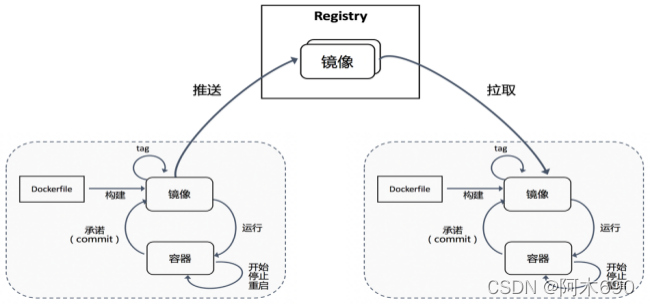
镜像构建之后可以推送至仓库储存和管理,运行时环境在有应用运行需求时,从仓库拉取特定的应用镜像来运行。镜像仓库作为镜像的分发媒介,可以实现特定的管理和访问控制机制。仓库作为镜像传输流动的主要媒介,成为云原生应用平台运转的核心要件。Docker 开源了其 registry 实现, 目前已经成为 CNCF 的沙箱项目Distribution。不过,Distribution 项目仅仅实现了对镜像存储的支持,对企业级的一些管理诉求并无法提供支持。
为了实现企业级镜像仓库的支持,Harbor 项目应运而生
Harbor Registry(又称 Harbor 云原生制品仓库或 Harbor 镜像仓库)由 VMware 公司中国研发中心云原生实验室原创,并于 2016 年 3 月开源。Harbor 在 Docker Distribution的基础上增加了企业用户必需的权限控制、镜像签名、安全漏洞扫描和远程复制等重要功能,还提供了图形管理界面及面向国内用户的中文支持,开源后迅速在中国开发者和用户社区流行,成为中国云原生用户的主流容器镜像仓库。

Harbor是由VMWare在Docker Registry的基础之上进行了二次封装,加进去了很多额外程序,而且提供了一个非常漂亮的web界面。
Feathers
Harbor在物理机上部署是非常难的,而为了简化Harbor的应用,Harbor官方直接把Harbor做成了在容器中运行的应用,而且这个容器在Harbor中依赖类似redis、mysql、pgsql等很多存储系统,所以它需要编排很多容器协同起来工作,因此VMWare Harbor在部署和使用时,需要借助于Docker的单机编排工具( Docker compose)来实现。
Compose 是一个用于定义和运行多容器 Docker 应用程序的工具。使用 Compose,您可以使用 YAML 文件来配置应用程序的服务。然后,使用单个命令,从配置创建并启动所有服务。
// 配置网络源
[root@localhost ~]# curl -o /etc/yum.repos.d/CentOS-Base.repo https://mirrors.aliyun.com/repo/Centos-8.repo

// 安装docker-compose需要先安装docker-ce
[root@localhost ~]# cd /etc/yum.repos.d/

// docker-ce源
[root@localhost yum.repos.d]# curl -o docker-ce.repo https://mirrors.tuna.tsinghua.edu.cn/docker-ce/linux/centos/docker-ce.repo

[root@localhost yum.repos.d]# sed -i 's@https://download.docker.com@https://mirrors.tuna.tsinghua.edu.cn/docker-ce@g' docker-ce.repo

[root@localhost yum.repos.d]# yum -y install docker-ce

// 启动docker


[root@localhost yum.repos.d]# yum clean all
Failed to set locale, defaulting to C.UTF-8
28 files removed

// 启动服务
[root@localhost ~]# systemctl enable --now docker
Created symlink /etc/systemd/system/multi-user.target.wants/docker.service → /usr/lib/systemd/system/docker.service.
[root@localhost ~]# ls /etc/docker/
key.json


// centos8 是没有docker-compose这个包的
[root@localhost ~]# yum list all | grep docker
Failed to set locale, defaulting to C.UTF-8
podman-docker.noarch                                   1:3.4.1-3.module_el8.6.0+954+963caf36                     @appstream
containerd.io.x86_64                                   1.4.12-3.1.el8                                            docker-ce-stable
docker-ce.x86_64                                       3:20.10.12-3.el8                                          docker-ce-stable
docker-ce-cli.x86_64                                   1:20.10.12-3.el8                                          docker-ce-stable
docker-ce-rootless-extras.x86_64                       20.10.12-3.el8                                            docker-ce-stable
docker-scan-plugin.x86_64                              0.12.0-3.el8                                              docker-ce-stable
pcp-pmda-docker.x86_64                                 5.3.5-2.el8                                               appstream


// 下载docker-compose包
[root@localhost ~]# curl -L "https://github.com/docker/compose/releases/download/1.29.2/docker-compose-$(uname -s)-$(uname -m)" -o /usr/local/bin/docker-compose

[root@localhost bin]# cd /usr/local/bin/
[root@localhost bin]# ls
docker-compose

// 给权限,查看版本
[root@localhost bin]# chmod +x docker-compose
[root@localhost bin]# docker-compose --version
docker-compose version 1.29.2, build 5becea4c

// 做软链接
[root@localhost ~]# ln -s /usr/local/bin/docker-compose /usr/bin/docker-compose
[root@localhost harbor]# systemctl disable --now firewalld
Removed /etc/systemd/system/multi-user.target.wants/firewalld.service.
Removed /etc/systemd/system/dbus-org.fedoraproject.FirewallD1.service.
[root@localhost harbor]# systemctl stop --now firewalld

[root@localhost harbor]# cat /etc/selinux/config
SELINUX=disabled	// 修改这一行

// 修改完之后重启
[root@localhost harbor]# reboot
[root@localhost harbor]# setenforce 0
setenforce: SELinux is disabled
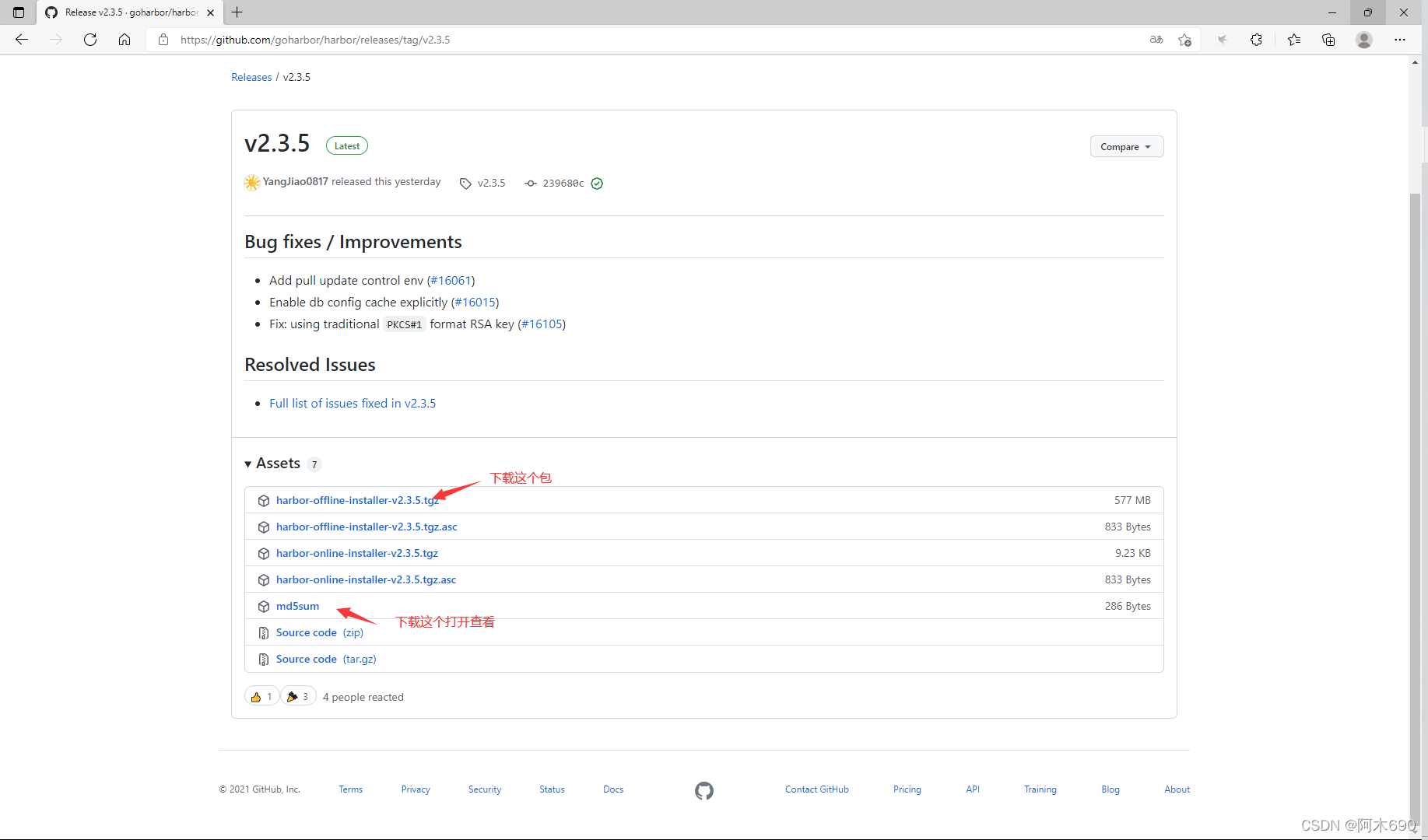
// 上传下载好的harbor包.
[root@localhost ~]# ls
amu  anaconda-ks.cfg  harbor-offline-installer-v2.3.5.tgz

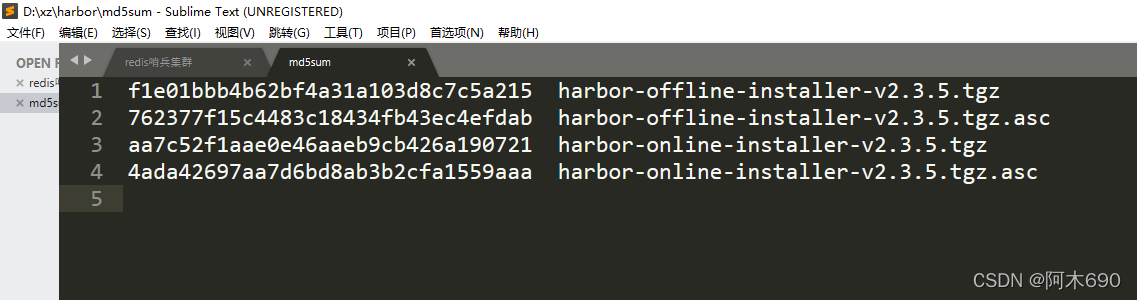
// 查看 md5sum值是否和官网的 md5sum文件里面的值一样
[root@localhost ~]# md5sum harbor-offline-installer-v2.3.5.tgz
f1e01bbb4b62bf4a31a103d8c7c5a215  harbor-offline-installer-v2.3.5.tgz
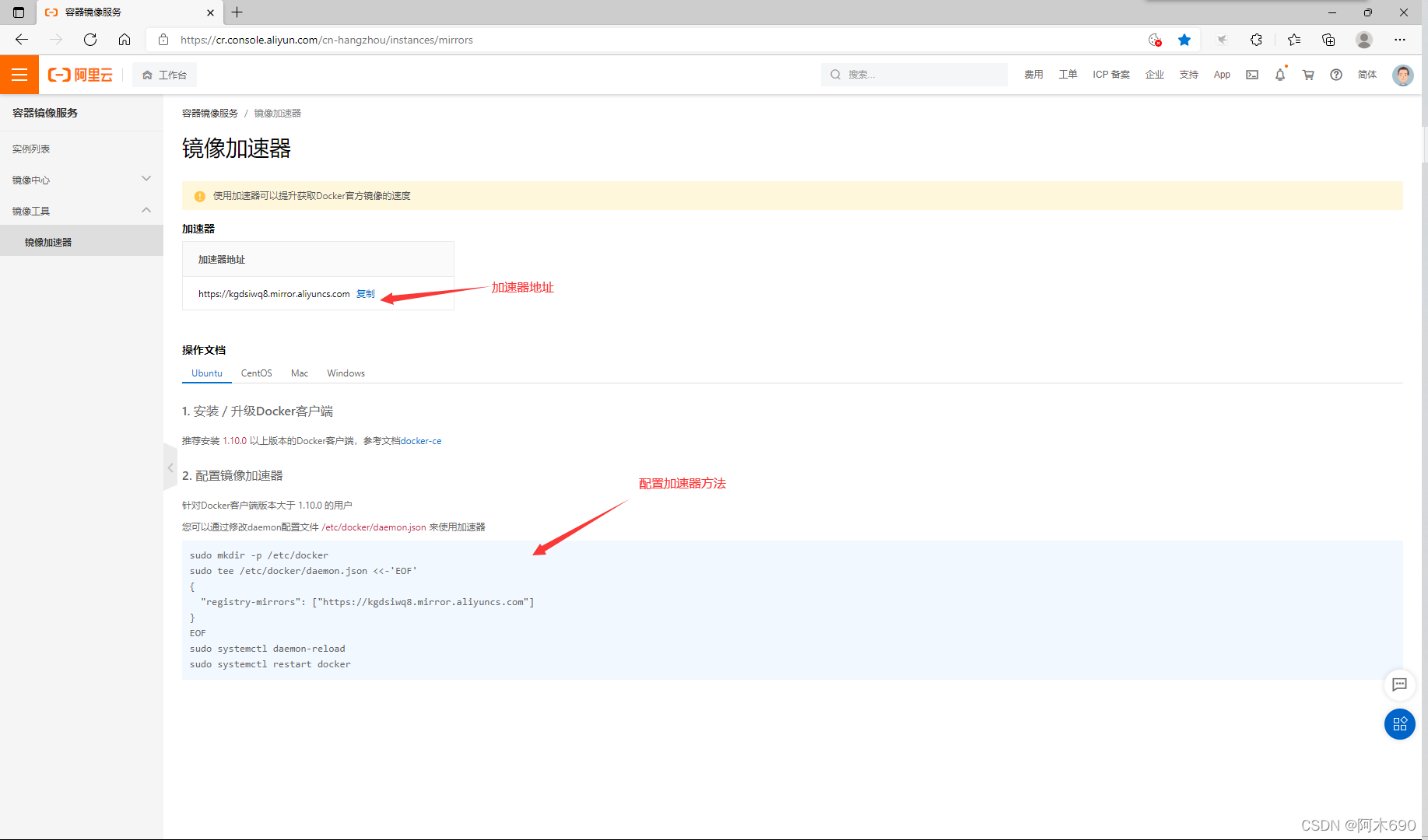
[root@localhost ~]# vim /etc/docker/daemon.json
{
        "registry-mirrors": ["https://kgdsiwq8.mirror.aliyuncs.com"]
}

// 重新加载docker服务
[root@localhost ~]# systemctl daemon-reload
[root@localhost ~]# systemctl restart docker

// 查看加速器配置情况
[root@localhost ~]# docker info
......以上省略
 Experimental: false
 Insecure Registries:
  127.0.0.0/8
 Registry Mirrors:
  https://kgdsiwq8.mirror.aliyuncs.com/		// 加速器配置成功
 Live Restore Enabled: false
// 解压 harbor包到 /usr/local/ 目录下
[root@localhost ~]# tar xf harbor-offline-installer-v2.3.5.tgz -C /usr/local/

[root@localhost ~]# cd /usr/local/
[root@localhost local]# ls
bin  games   include  lib64    sbin   src
etc  harbor  lib      libexec  share

[root@localhost local]# cd harbor/
[root@localhost harbor]# ls
LICENSE    harbor.v2.3.5.tar.gz  install.sh
common.sh  harbor.yml.tmpl       prepare

// 设置主机名
[root@localhost harbor]# hostnamectl set-hostname node1.example.com
[root@localhost harbor]# bash
[root@node1 harbor]# hostname
node1.example.com

[root@node1 harbor]# cp harbor.yml.tmpl harbor.yml
[root@node1 harbor]# vim harbor.yml
# DO NOT use localhost or 127.0.0.1, because Harbor needs to be accessed by external clients.
hostname: node1.example.com	// 添加主机名

# https related config
#https:						// 注释掉证书,不使用证书就需要注释
  # https port for harbor, default is 443
  # port: 443				// 注释
  # The path of cert and key files for nginx
  # certificate: /your/certificate/path		// 注释
  # private_key: /your/private/key/path		// 注释

harbor_admin_password: Harbor12345			// 默认的登录密码

// 以上这些需要修改,其余保持默认

// 添加主机映射
[root@localhost harbor]# vim /etc/hosts
127.0.0.1   localhost localhost.localdomain localhost4 localhost4.localdomain4
::1         localhost localhost.localdomain localhost6 localhost6.localdomain6
192.168.91.137 node1.example.com

// 测试能否ping通 node1.example.com 主机
[root@localhost harbor]# ping node1.example.com
PING node1.example.com (192.168.91.137) 56(84) bytes of data.
64 bytes from node1.example.com (192.168.91.137): icmp_seq=1 ttl=64 time=0.044 ms
64 bytes from node1.example.com (192.168.91.137): icmp_seq=2 ttl=64 time=0.033 ms


// 启动脚本进行安装
[root@localhost harbor]# ./install.sh

[Step 0]: checking if docker is installed ...

Note: docker version: 20.10.12

[Step 1]: checking docker-compose is installed ...

Note: docker-compose version: 1.29.2

[Step 2]: loading Harbor images ...
......安装过程省略
✔ ----Harbor has been installed and started successfully.----

// 安装完成会自动启动很多容器
[root@node1 harbor]# docker ps
CONTAINER ID   IMAGE                                COMMAND                  CREATED         STATUS                            PORTS                                   NAMES
3daa18aedde3   goharbor/harbor-jobservice:v2.3.5    "/harbor/entrypoint.…"   5 seconds ago   Up 4 seconds (health: starting)                                           harbor-jobservice
67cda2a01e08   goharbor/nginx-photon:v2.3.5         "nginx -g 'daemon of…"   5 seconds ago   Up 4 seconds (health: starting)   0.0.0.0:80->8080/tcp, :::80->8080/tcp   nginx
388f512bcfe1   goharbor/harbor-core:v2.3.5          "/harbor/entrypoint.…"   6 seconds ago   Up 4 seconds (health: starting)                                           harbor-core
b4e7fefa599e   goharbor/harbor-db:v2.3.5            "/docker-entrypoint.…"   7 seconds ago   Up 5 seconds (health: starting)                                           harbor-db
9201662bba92   goharbor/redis-photon:v2.3.5         "redis-server /etc/r…"   7 seconds ago   Up 5 seconds (health: starting)                                           redis
42368cf0e78b   goharbor/registry-photon:v2.3.5      "/home/harbor/entryp…"   7 seconds ago   Up 5 seconds (health: starting)                                           registry
ed564a1e593b   goharbor/harbor-registryctl:v2.3.5   "/home/harbor/start.…"   7 seconds ago   Up 5 seconds (health: starting)                                           registryctl
daa189f31bc3   goharbor/harbor-portal:v2.3.5        "nginx -g 'daemon of…"   7 seconds ago   Up 5 seconds (health: starting)                                           harbor-portal
8ac96968e301   goharbor/harbor-log:v2.3.5           "/bin/sh -c /usr/loc…"   7 seconds ago   Up 6 seconds (health: starting)   127.0.0.1:1514->10514/tcp               harbor-log


// 安装完成之后会多两个文件,一个common,一个docker-compose.yml
[root@localhost harbor]# ls /usr/local/harbor/
LICENSE    docker-compose.yml    harbor.yml.tmpl
common     harbor.v2.3.5.tar.gz  install.sh
common.sh  harbor.yml            prepare

[root@node1 harbor]# ss -antl
State  Recv-Q Send-Q Local Address:Port   Peer Address:Port Process
LISTEN 0      128          0.0.0.0:22          0.0.0.0:*
LISTEN 0      128        127.0.0.1:1514        0.0.0.0:*
LISTEN 0      128          0.0.0.0:80          0.0.0.0:*
LISTEN 0      128             [::]:22             [::]:*
LISTEN 0      128             [::]:80             [::]:*
使用系统账号登录
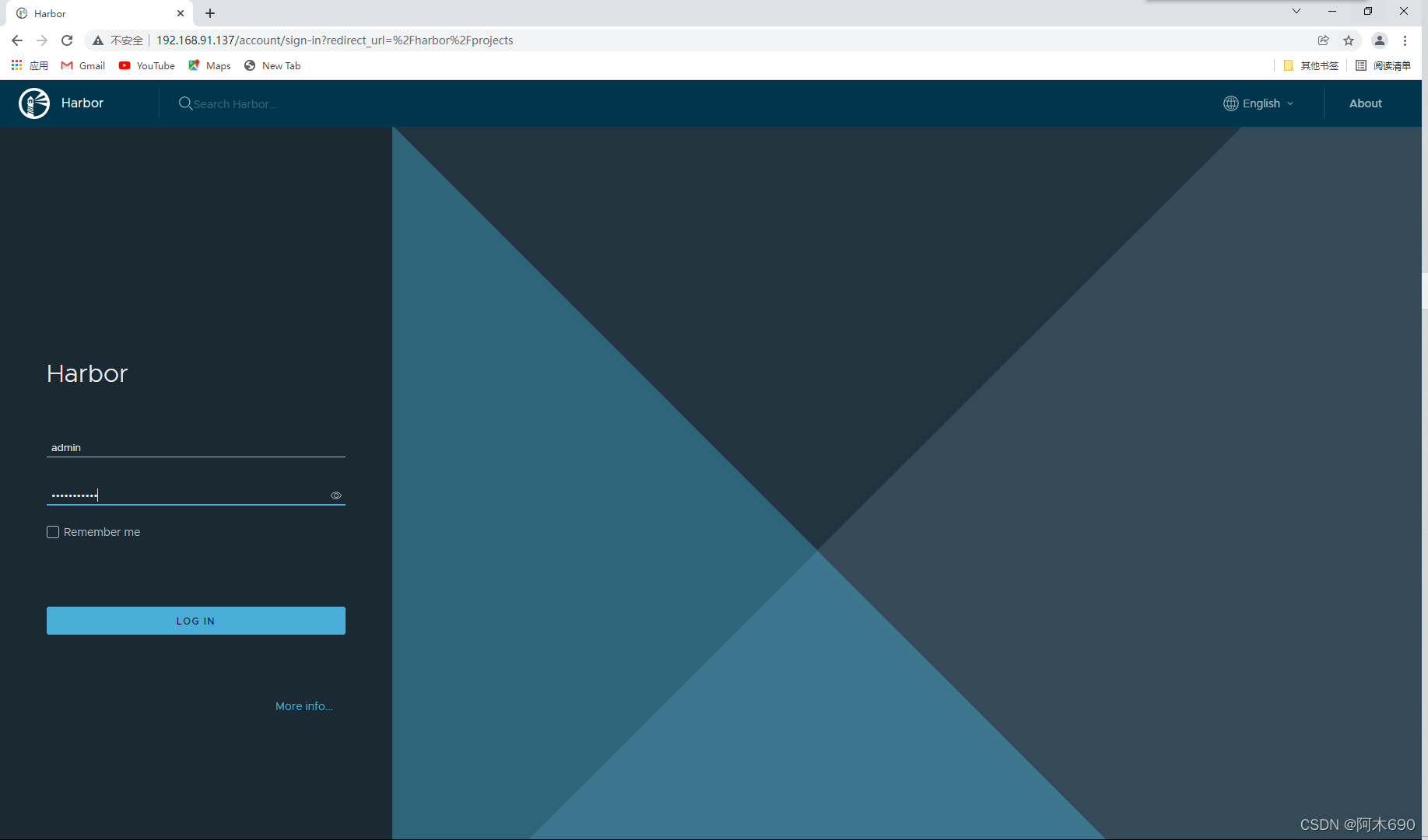
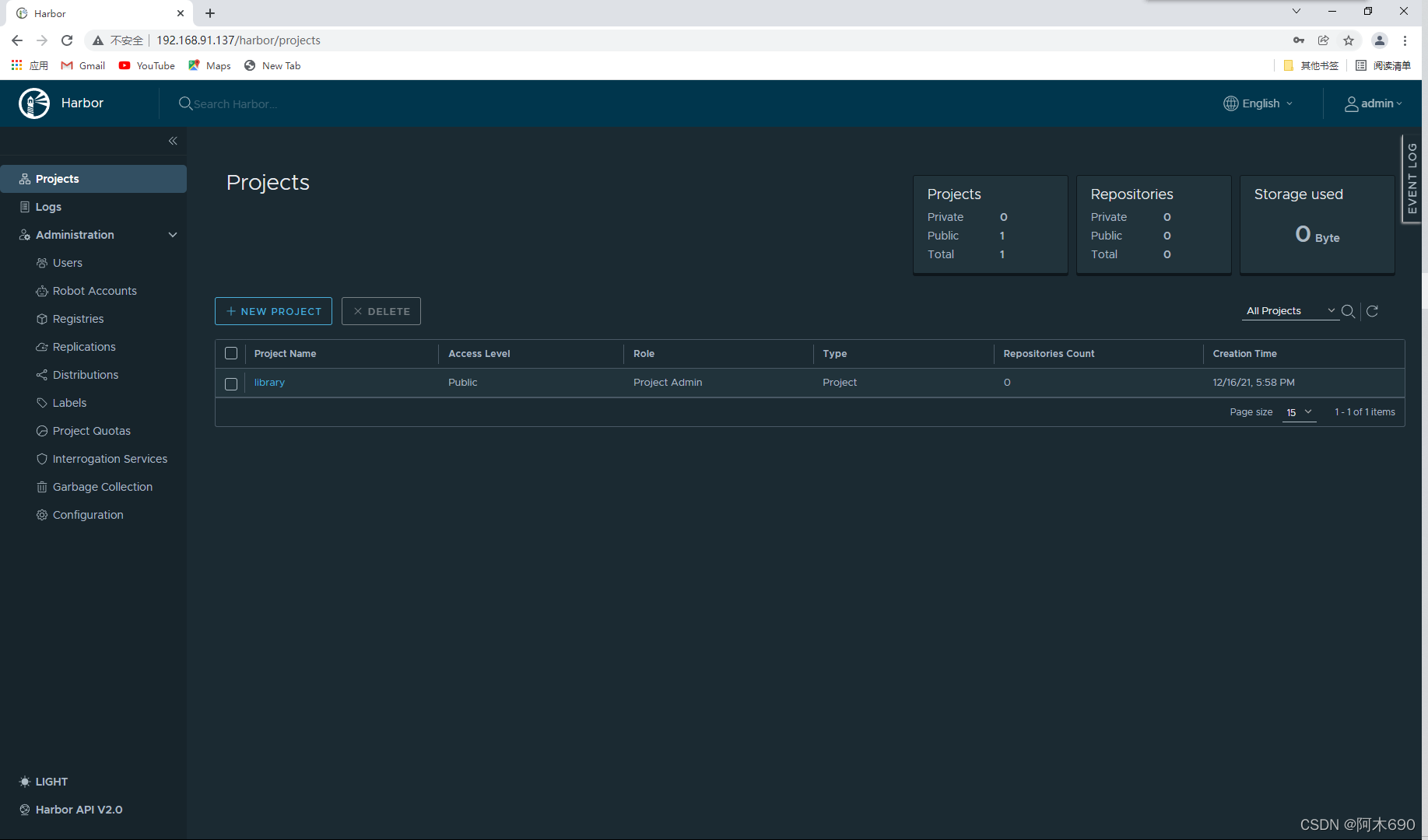
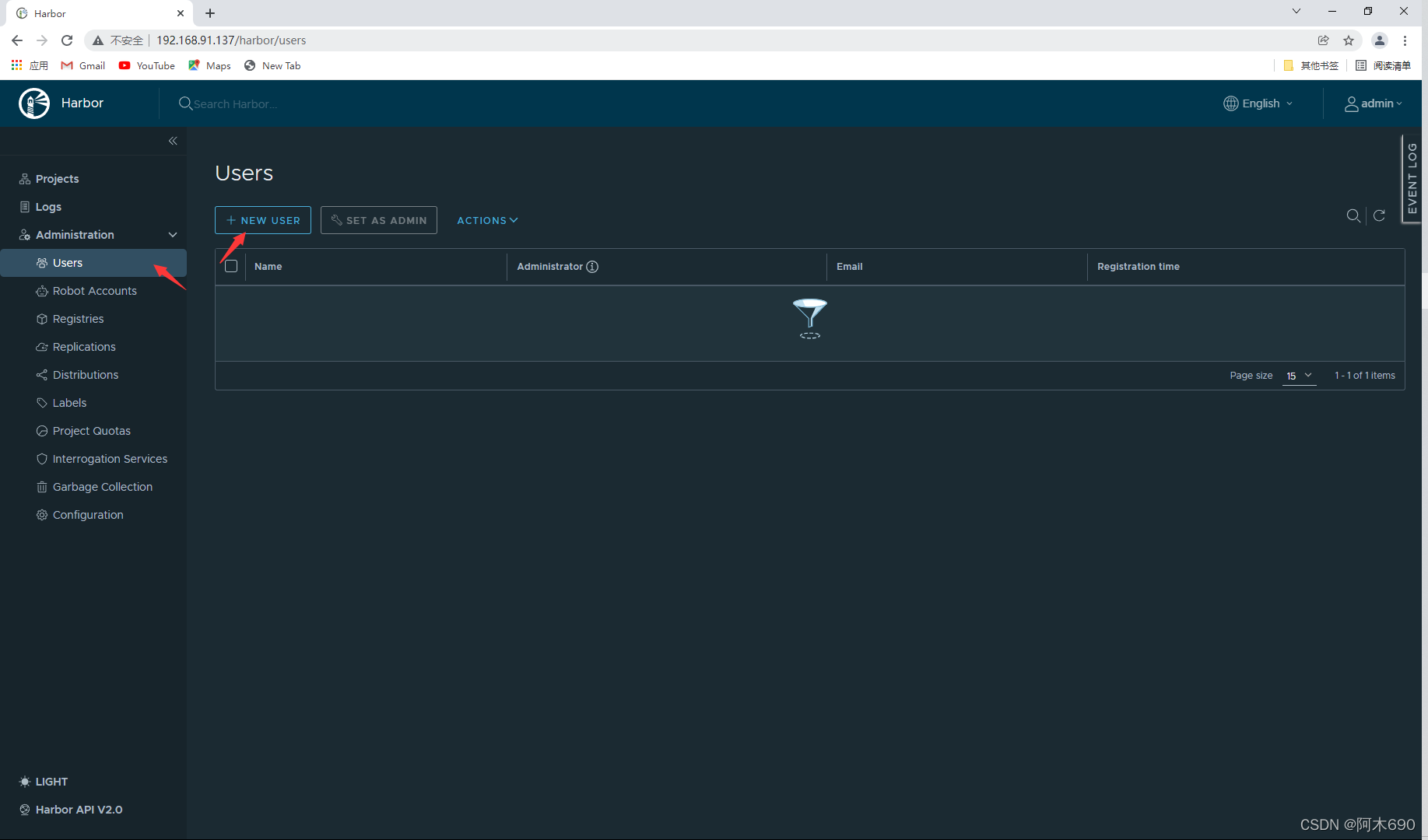
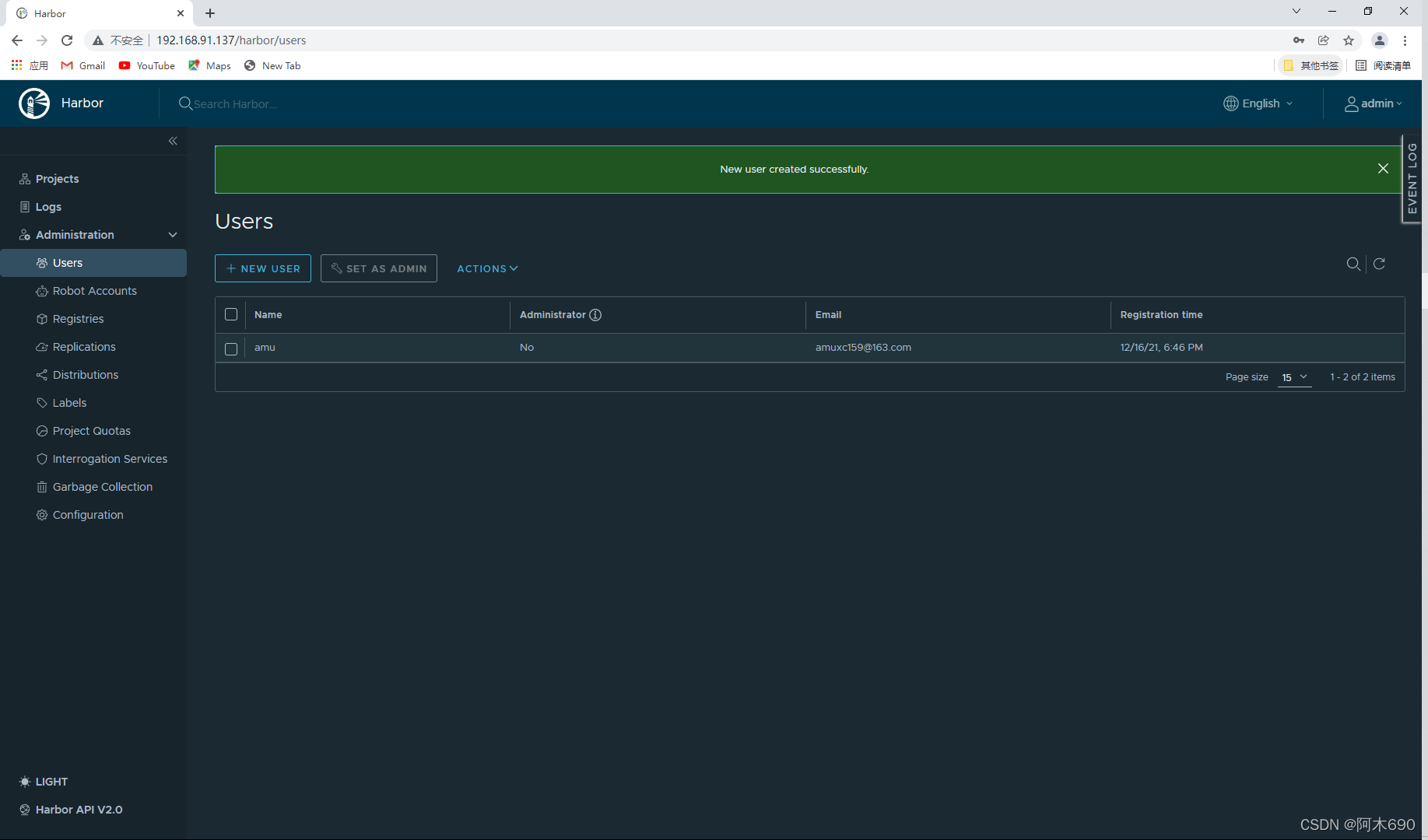
用户管理
创建用户
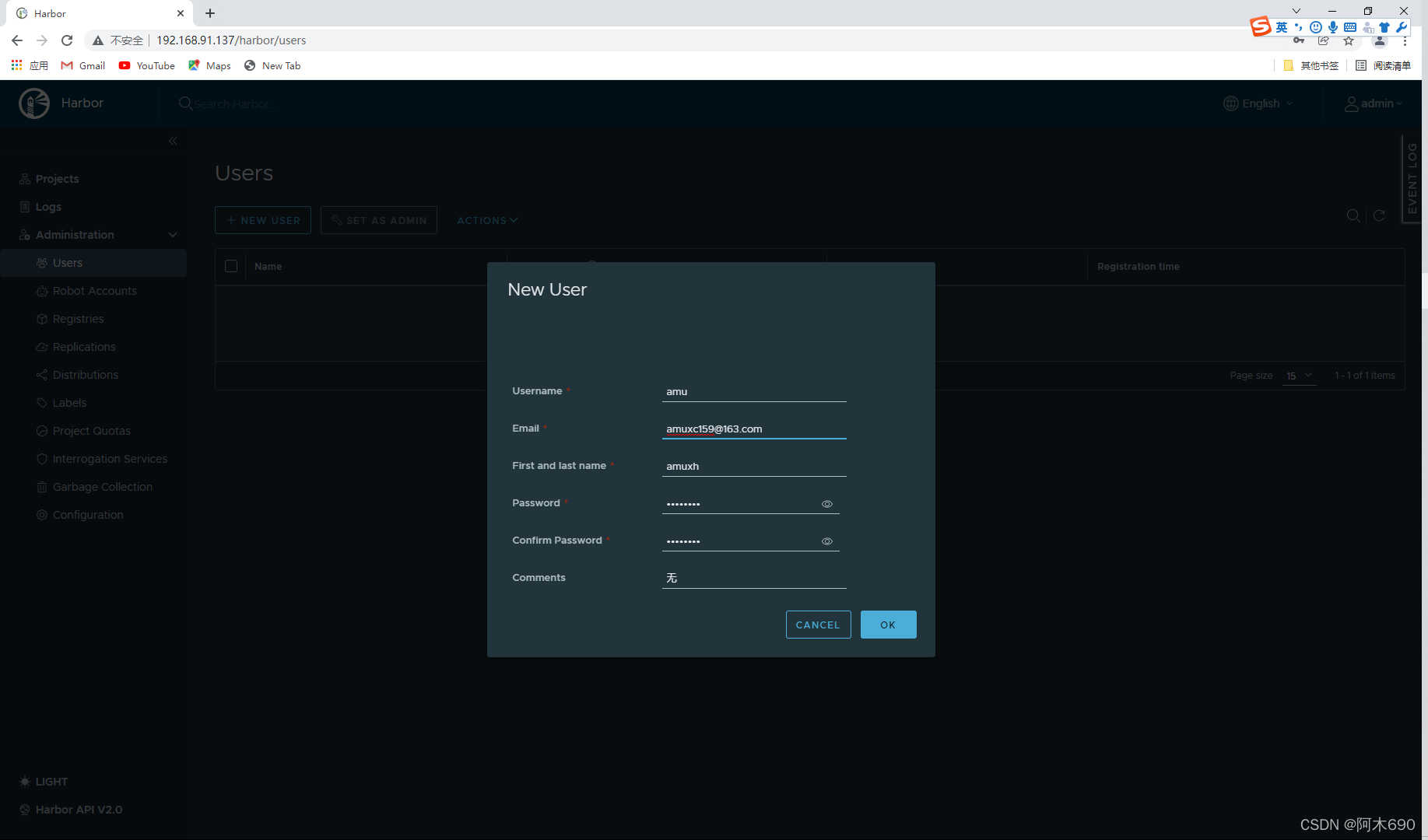
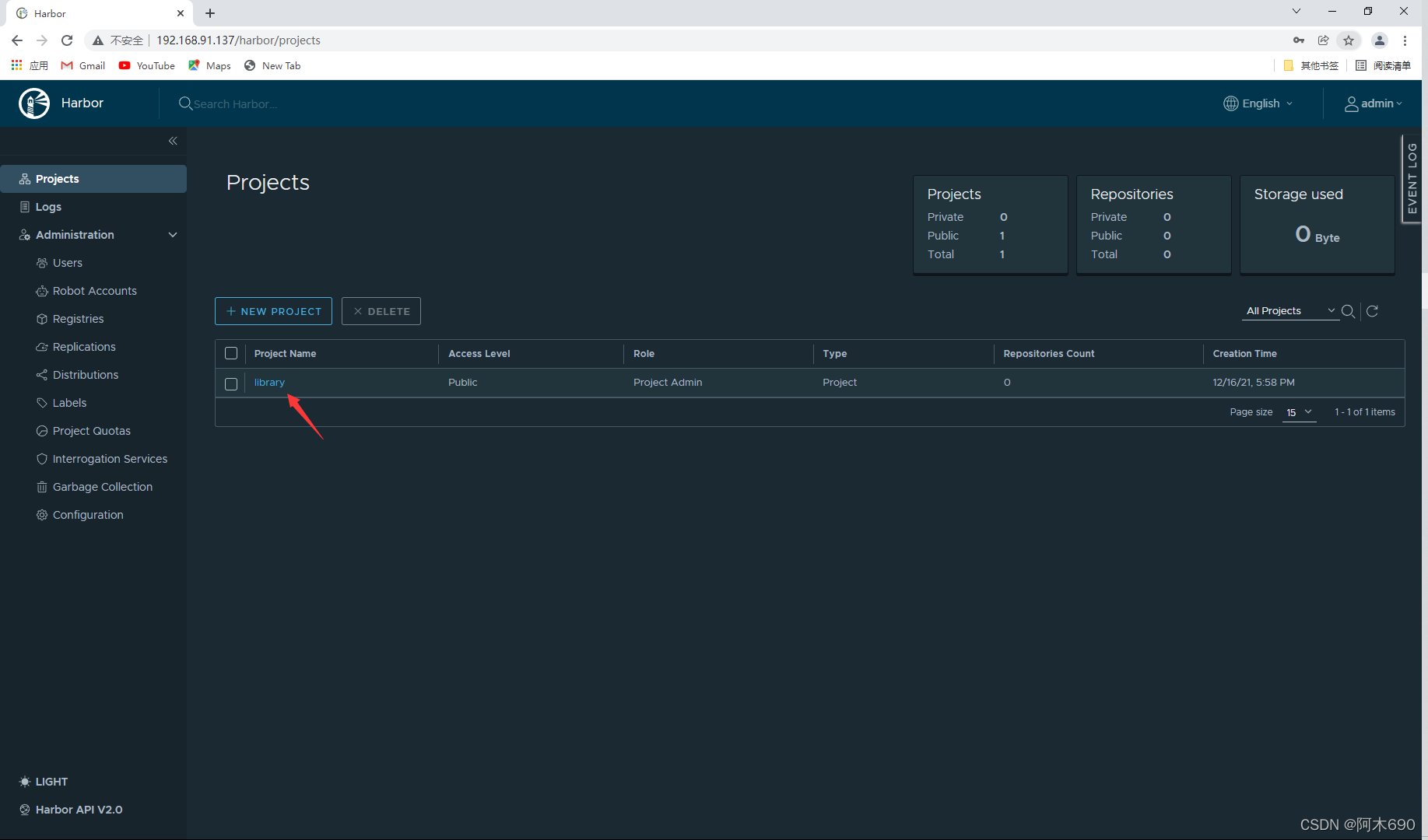
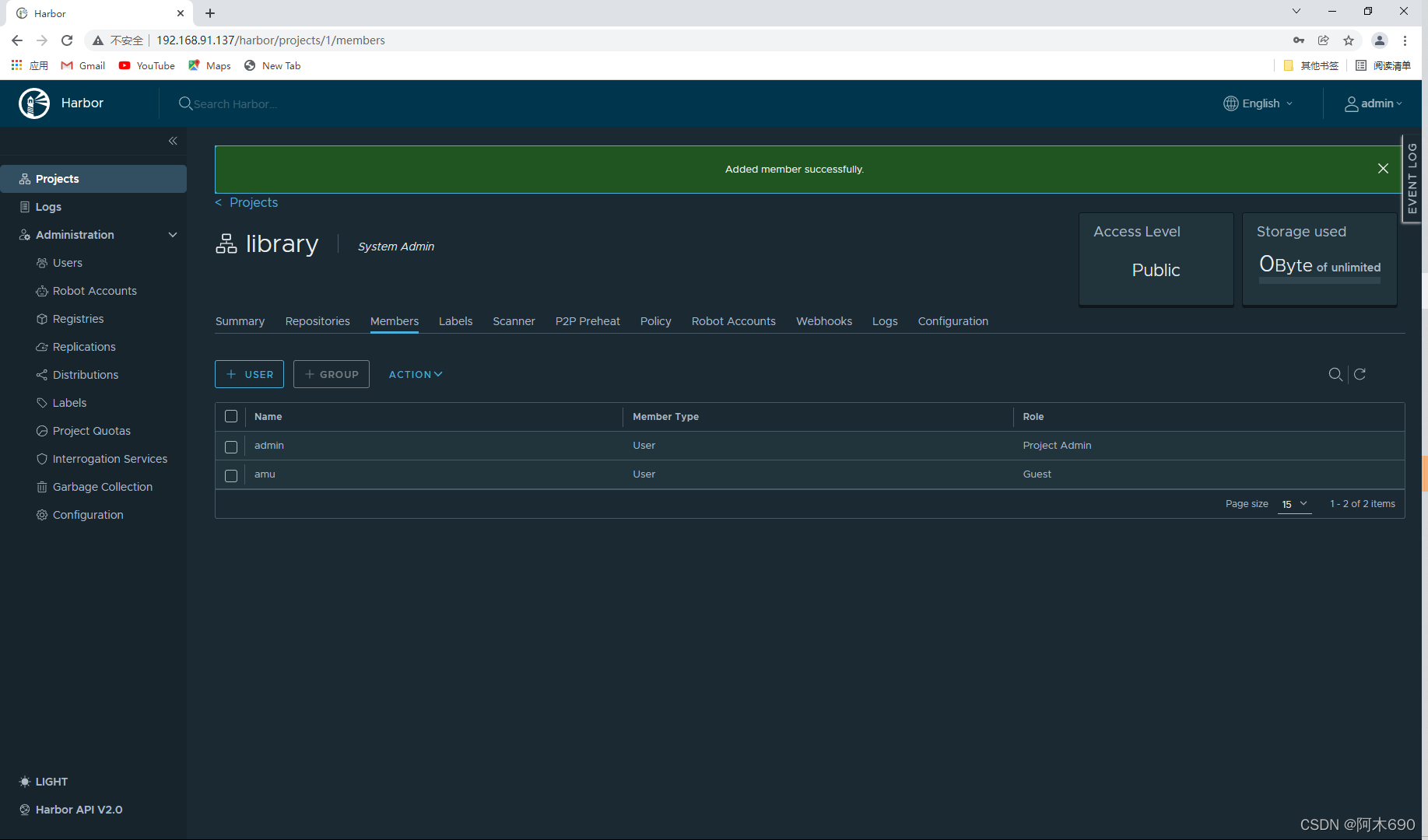
加入项目
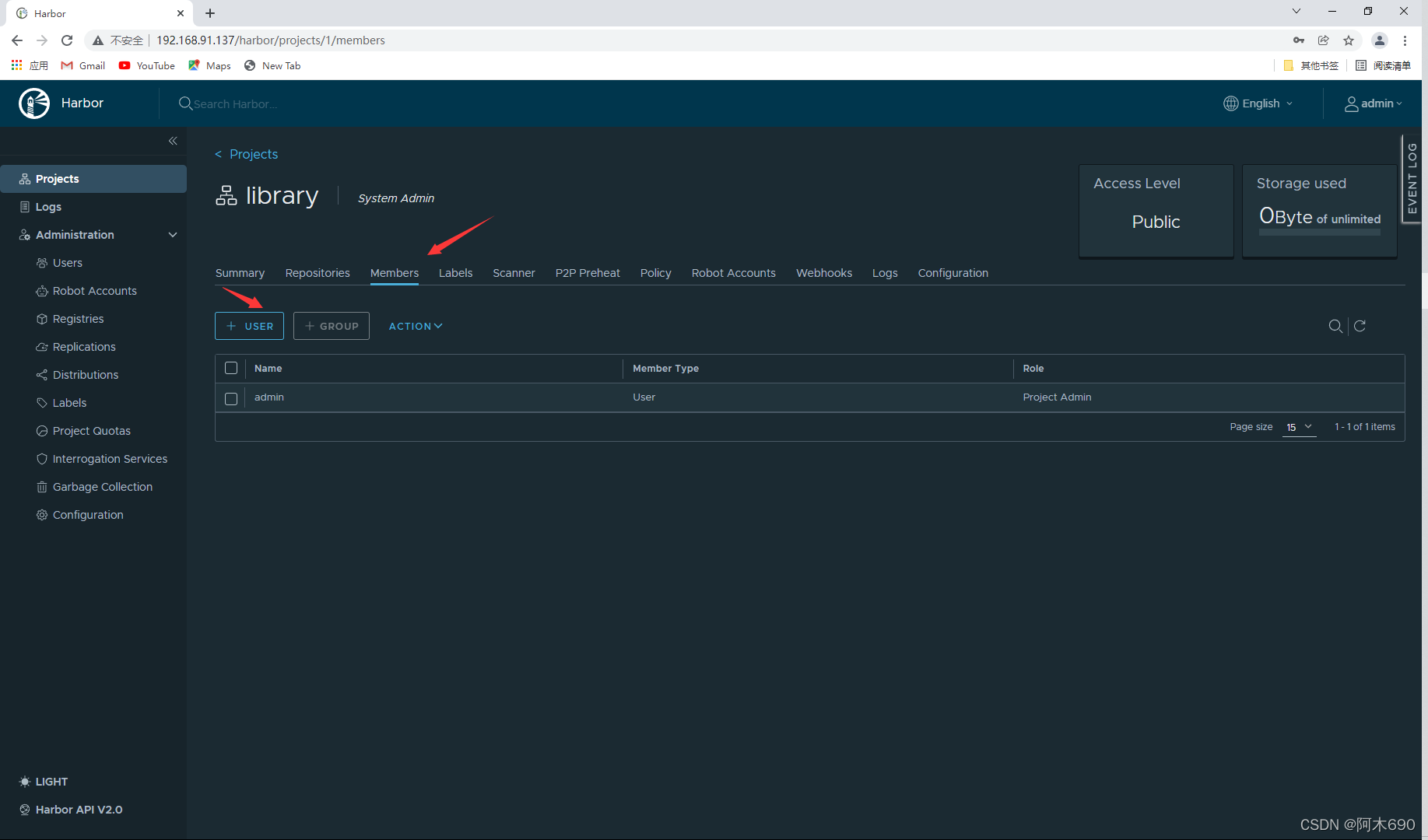
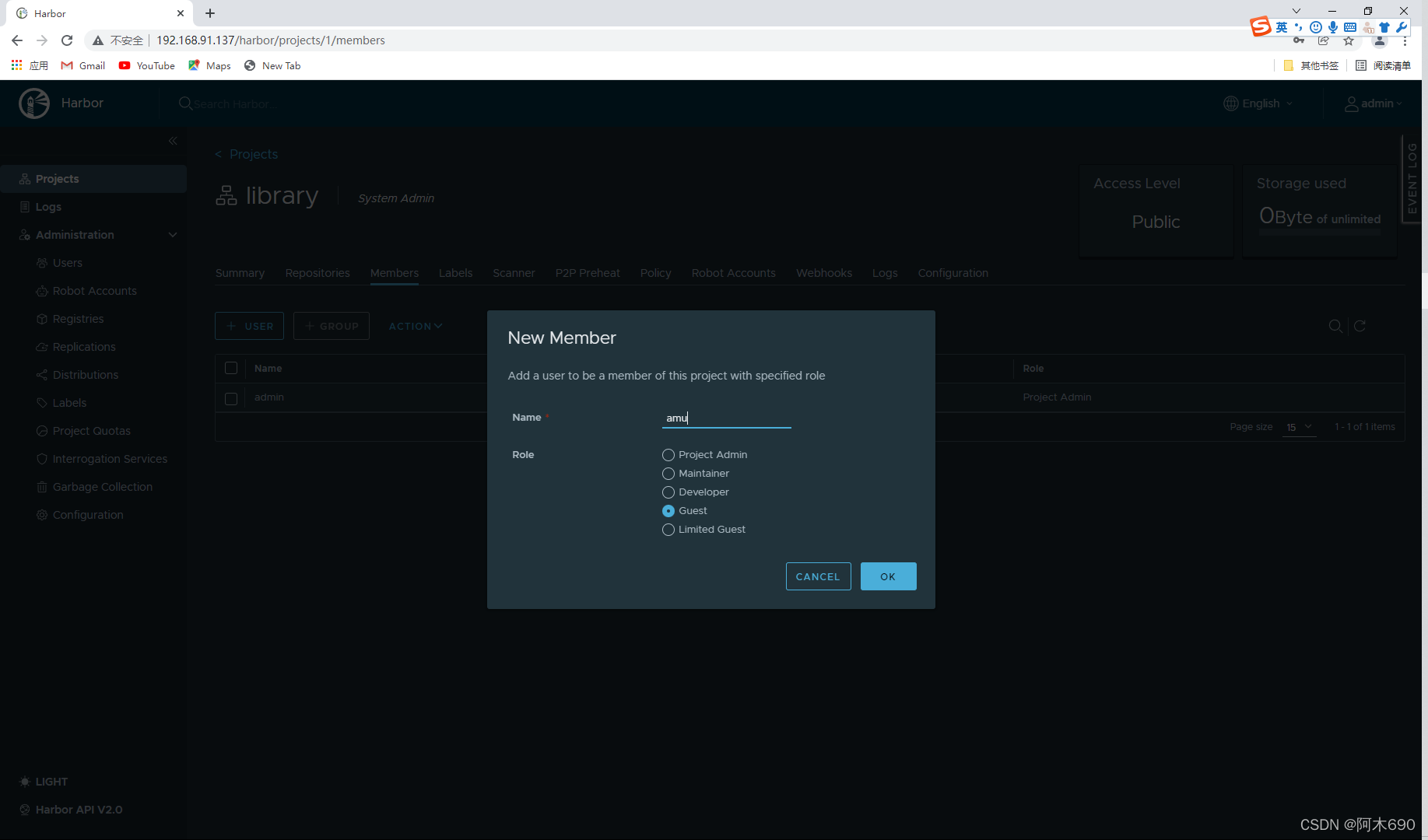
将该用户设置为访客权限
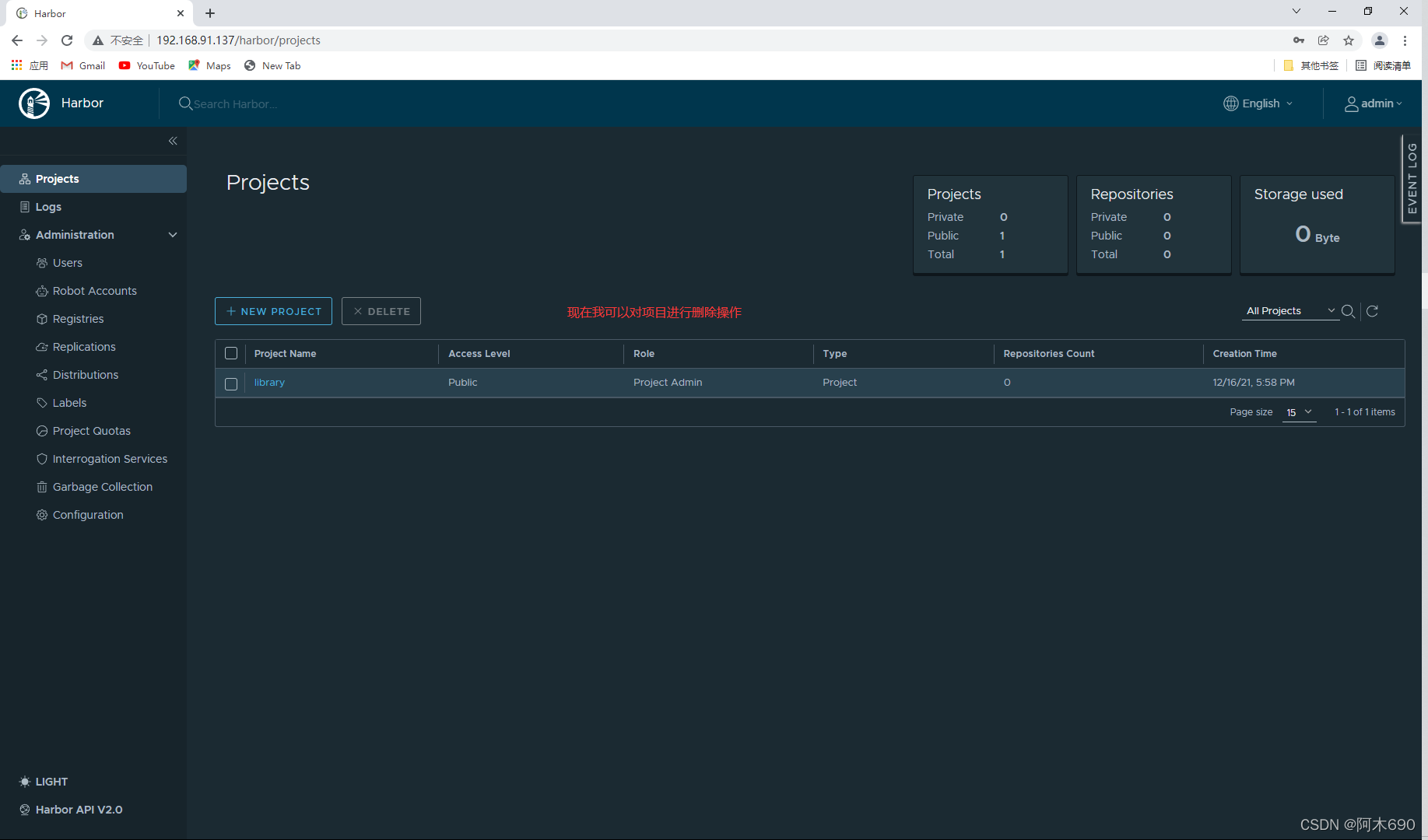
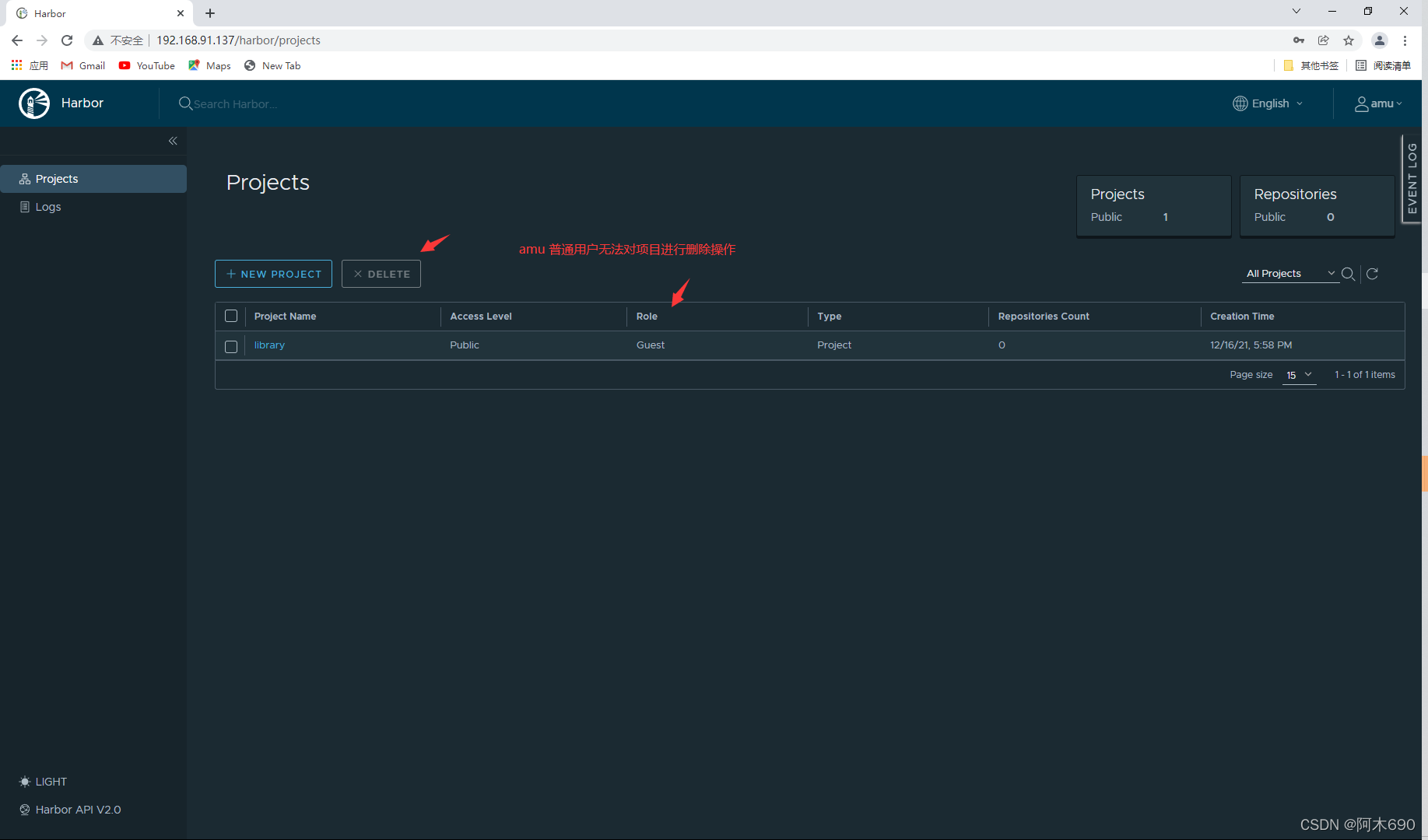
开始权限对比
系统用户可以删除项目
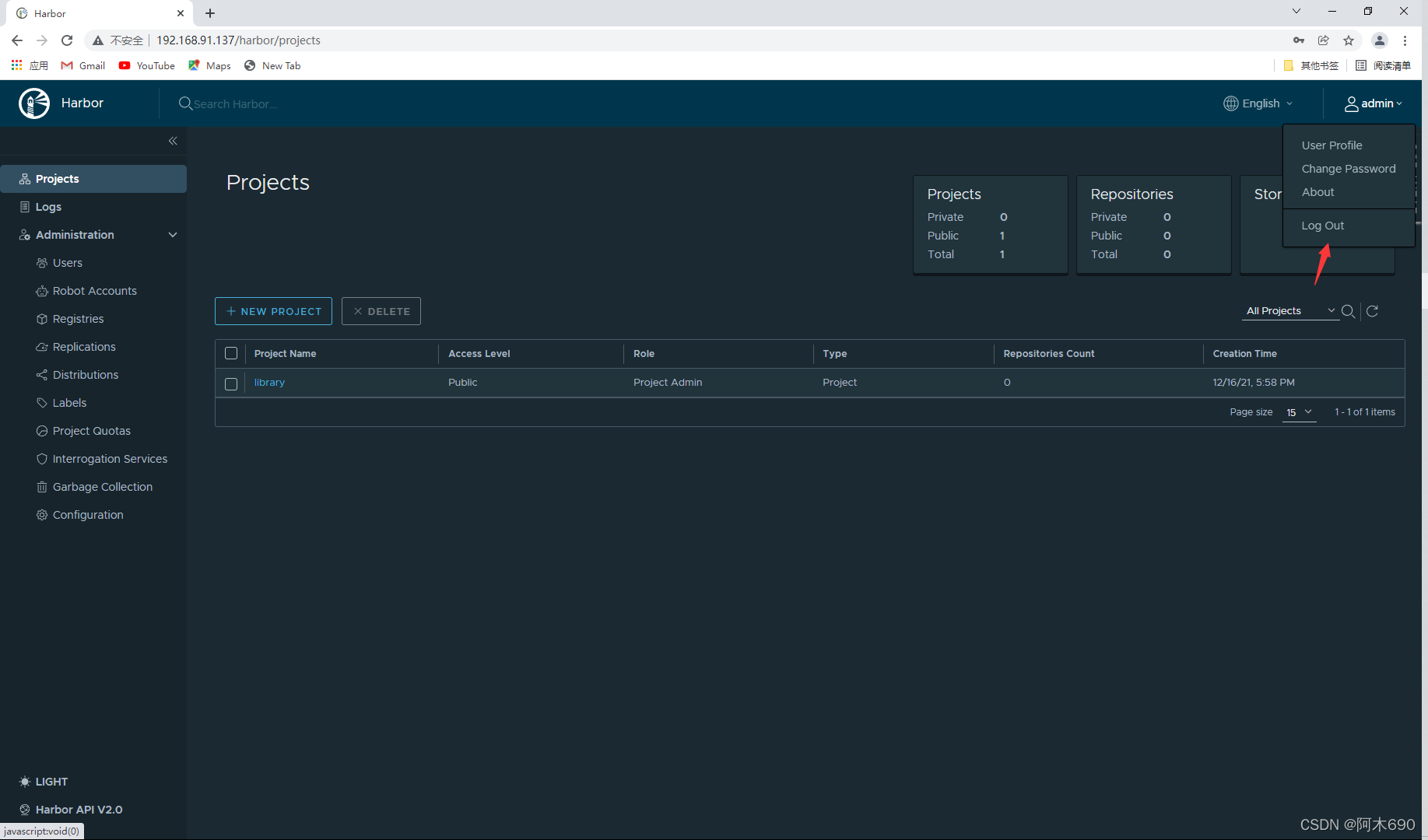
退出切换为 amu 用户
普通用户无法删除项目
因为harbor的服务是由 /usr/local/harbor/中的 docker-compose.yml 配置文件和docker中的 容器 提供的所以,我们在设置开机自启时就需要在此目录中启动容器。
容器启动、停止、重启命令
[root@node1 harbor]# pwd
/usr/local/harbor
[root@node1 harbor]# docker-compose stop
Stopping harbor-jobservice ... done
Stopping nginx             ... done
Stopping harbor-core       ... done
Stopping harbor-db         ... done
Stopping redis             ... done
Stopping registry          ... done
Stopping registryctl       ... done
Stopping harbor-portal     ... done
Stopping harbor-log        ... done

[root@node1 harbor]# docker-compose start
Starting log         ... done
Starting registry    ... done
Starting registryctl ... done
Starting postgresql  ... done
Starting portal      ... done
Starting redis       ... done
Starting core        ... done
Starting jobservice  ... done
Starting proxy       ... done
写一个 harbor_start.sh 脚本
[root@node1 harbor]# vim harbor_enable.sh
#!/bin/bash

cd /usr/local/harbor
docker-compose start

// 给权限
[root@node1 harbor]# chmod +x harbor_enable.sh
[root@node1 harbor]# ll harbor_enable.sh
-rwxr-xr-x. 1 root root 55 Dec 16 18:59 harbor_enable.sh

// 把脚本写入到 /etc/rc.local 文件中
[root@node1 harbor]# vim /etc/rc.local
#!/bin/bash
/bin/bash /usr/local/harbor/harbor_enable.sh	// 添加这行
# THIS FILE IS ADDED FOR COMPATIBILITY PURPOSES
#
# It is highly advisable to create own systemd services or udev rules
# to run scripts during boot instead of using this file.
#
# In contrast to previous versions due to parallel execution during boot
# this script will NOT be run after all other services.
#
# Please note that you must run 'chmod +x /etc/rc.d/rc.local' to ensure
# that this script will be executed during boot.

touch /var/lock/subsys/local

// 给权限
[root@node1 harbor]# chmod +x /etc/rc.local
[root@node1 harbor]# ll /etc/rc.local
lrwxrwxrwx. 1 root root 13 Dec  2  2020 /etc/rc.local -> rc.d/rc.local
重启验证
[root@node1 harbor]# reboot

// 脚本自启动设置成功
[root@node1 ~]# docker ps
CONTAINER ID   IMAGE                                COMMAND                  CREATED          STATUS                    PORTS                                   NAMES
3daa18aedde3   goharbor/harbor-jobservice:v2.3.5    "/harbor/entrypoint.…"   57 minutes ago   Up 39 seconds (healthy)                                           harbor-jobservice
67cda2a01e08   goharbor/nginx-photon:v2.3.5         "nginx -g 'daemon of…"   57 minutes ago   Up 39 seconds (healthy)   0.0.0.0:80->8080/tcp, :::80->8080/tcp   nginx
388f512bcfe1   goharbor/harbor-core:v2.3.5          "/harbor/entrypoint.…"   57 minutes ago   Up 40 seconds (healthy)                                           harbor-core
b4e7fefa599e   goharbor/harbor-db:v2.3.5            "/docker-entrypoint.…"   57 minutes ago   Up 41 seconds (healthy)                                           harbor-db
9201662bba92   goharbor/redis-photon:v2.3.5         "redis-server /etc/r…"   57 minutes ago   Up 40 seconds (healthy)                                           redis
42368cf0e78b   goharbor/registry-photon:v2.3.5      "/home/harbor/entryp…"   57 minutes ago   Up 41 seconds (healthy)                                           registry
ed564a1e593b   goharbor/harbor-registryctl:v2.3.5   "/home/harbor/start.…"   57 minutes ago   Up 40 seconds (healthy)                                           registryctl
daa189f31bc3   goharbor/harbor-portal:v2.3.5        "nginx -g 'daemon of…"   57 minutes ago   Up 40 seconds (healthy)                                           harbor-portal
8ac96968e301   goharbor/harbor-log:v2.3.5           "/bin/sh -c /usr/loc…"   57 minutes ago   Up 42 seconds (healthy)   127.0.0.1:1514->10514/tcp               harbor-log

[root@node1 ~]# ss -antl
State  Recv-Q Send-Q Local Address:Port   Peer Address:Port Process
LISTEN 0      128        127.0.0.1:1514        0.0.0.0:*
LISTEN 0      128          0.0.0.0:80          0.0.0.0:*
LISTEN 0      128          0.0.0.0:22          0.0.0.0:*
LISTEN 0      128             [::]:80             [::]:*
LISTEN 0      128             [::]:22             [::]:*
我正在学习如何使用Nokogiri,根据这段代码我遇到了一些问题:require'rubygems'require'mechanize'post_agent=WWW::Mechanize.newpost_page=post_agent.get('http://www.vbulletin.org/forum/showthread.php?t=230708')puts"\nabsolutepathwithtbodygivesnil"putspost_page.parser.xpath('/html/body/div/div/div/div/div/table/tbody/tr/td/div
我有一个Ruby程序,它使用rubyzip压缩XML文件的目录树。gem。我的问题是文件开始变得很重,我想提高压缩级别,因为压缩时间不是问题。我在rubyzipdocumentation中找不到一种为创建的ZIP文件指定压缩级别的方法。有人知道如何更改此设置吗?是否有另一个允许指定压缩级别的Ruby库? 最佳答案 这是我通过查看rubyzip内部创建的代码。level=Zlib::BEST_COMPRESSIONZip::ZipOutputStream.open(zip_file)do|zip|Dir.glob("**/*")d
类classAprivatedeffooputs:fooendpublicdefbarputs:barendprivatedefzimputs:zimendprotecteddefdibputs:dibendendA的实例a=A.new测试a.foorescueputs:faila.barrescueputs:faila.zimrescueputs:faila.dibrescueputs:faila.gazrescueputs:fail测试输出failbarfailfailfail.发送测试[:foo,:bar,:zim,:dib,:gaz].each{|m|a.send(m)resc
很好奇,就使用rubyonrails自动化单元测试而言,你们正在做什么?您是否创建了一个脚本来在cron中运行rake作业并将结果邮寄给您?git中的预提交Hook?只是手动调用?我完全理解测试,但想知道在错误发生之前捕获错误的最佳实践是什么。让我们理所当然地认为测试本身是完美无缺的,并且可以正常工作。下一步是什么以确保他们在正确的时间将可能有害的结果传达给您? 最佳答案 不确定您到底想听什么,但是有几个级别的自动代码库控制:在处理某项功能时,您可以使用类似autotest的内容获得关于哪些有效,哪些无效的即时反馈。要确保您的提
假设我做了一个模块如下:m=Module.newdoclassCendend三个问题:除了对m的引用之外,还有什么方法可以访问C和m中的其他内容?我可以在创建匿名模块后为其命名吗(就像我输入“module...”一样)?如何在使用完匿名模块后将其删除,使其定义的常量不再存在? 最佳答案 三个答案:是的,使用ObjectSpace.此代码使c引用你的类(class)C不引用m:c=nilObjectSpace.each_object{|obj|c=objif(Class===objandobj.name=~/::C$/)}当然这取决于
我正在尝试使用ruby和Savon来使用网络服务。测试服务为http://www.webservicex.net/WS/WSDetails.aspx?WSID=9&CATID=2require'rubygems'require'savon'client=Savon::Client.new"http://www.webservicex.net/stockquote.asmx?WSDL"client.get_quotedo|soap|soap.body={:symbol=>"AAPL"}end返回SOAP异常。检查soap信封,在我看来soap请求没有正确的命名空间。任何人都可以建议我
关闭。这个问题是opinion-based.它目前不接受答案。想要改进这个问题?更新问题,以便editingthispost可以用事实和引用来回答它.关闭4年前。Improvethisquestion我想在固定时间创建一系列低音和高音调的哔哔声。例如:在150毫秒时发出高音调的蜂鸣声在151毫秒时发出低音调的蜂鸣声200毫秒时发出低音调的蜂鸣声250毫秒的高音调蜂鸣声有没有办法在Ruby或Python中做到这一点?我真的不在乎输出编码是什么(.wav、.mp3、.ogg等等),但我确实想创建一个输出文件。
我在我的项目目录中完成了compasscreate.和compassinitrails。几个问题:我已将我的.sass文件放在public/stylesheets中。这是放置它们的正确位置吗?当我运行compasswatch时,它不会自动编译这些.sass文件。我必须手动指定文件:compasswatchpublic/stylesheets/myfile.sass等。如何让它自动运行?文件ie.css、print.css和screen.css已放在stylesheets/compiled。如何在编译后不让它们重新出现的情况下删除它们?我自己编译的.sass文件编译成compiled/t
我想将html转换为纯文本。不过,我不想只删除标签,我想智能地保留尽可能多的格式。为插入换行符标签,检测段落并格式化它们等。输入非常简单,通常是格式良好的html(不是整个文档,只是一堆内容,通常没有anchor或图像)。我可以将几个正则表达式放在一起,让我达到80%,但我认为可能有一些现有的解决方案更智能。 最佳答案 首先,不要尝试为此使用正则表达式。很有可能你会想出一个脆弱/脆弱的解决方案,它会随着HTML的变化而崩溃,或者很难管理和维护。您可以使用Nokogiri快速解析HTML并提取文本:require'nokogiri'h
我想为Heroku构建一个Rails3应用程序。他们使用Postgres作为他们的数据库,所以我通过MacPorts安装了postgres9.0。现在我需要一个postgresgem并且共识是出于性能原因你想要pggem。但是我对我得到的错误感到非常困惑当我尝试在rvm下通过geminstall安装pg时。我已经非常明确地指定了所有postgres目录的位置可以找到但仍然无法完成安装:$envARCHFLAGS='-archx86_64'geminstallpg--\--with-pg-config=/opt/local/var/db/postgresql90/defaultdb/po
