文章目录
项目是看千锋教育Ghost老师的视频做的,我在老师的基础上把背景处理了一下并且让那根杆子可以动起来,让整个界面更合理了一些
传输门:https://www.bilibili.com/video/BV1VM4y1g7eg?p=1
我这边编译成微信小程序、H5、和安卓App了,都在我的仓库里面,里面也有老师的资料
创作不易请不要吝啬你的star
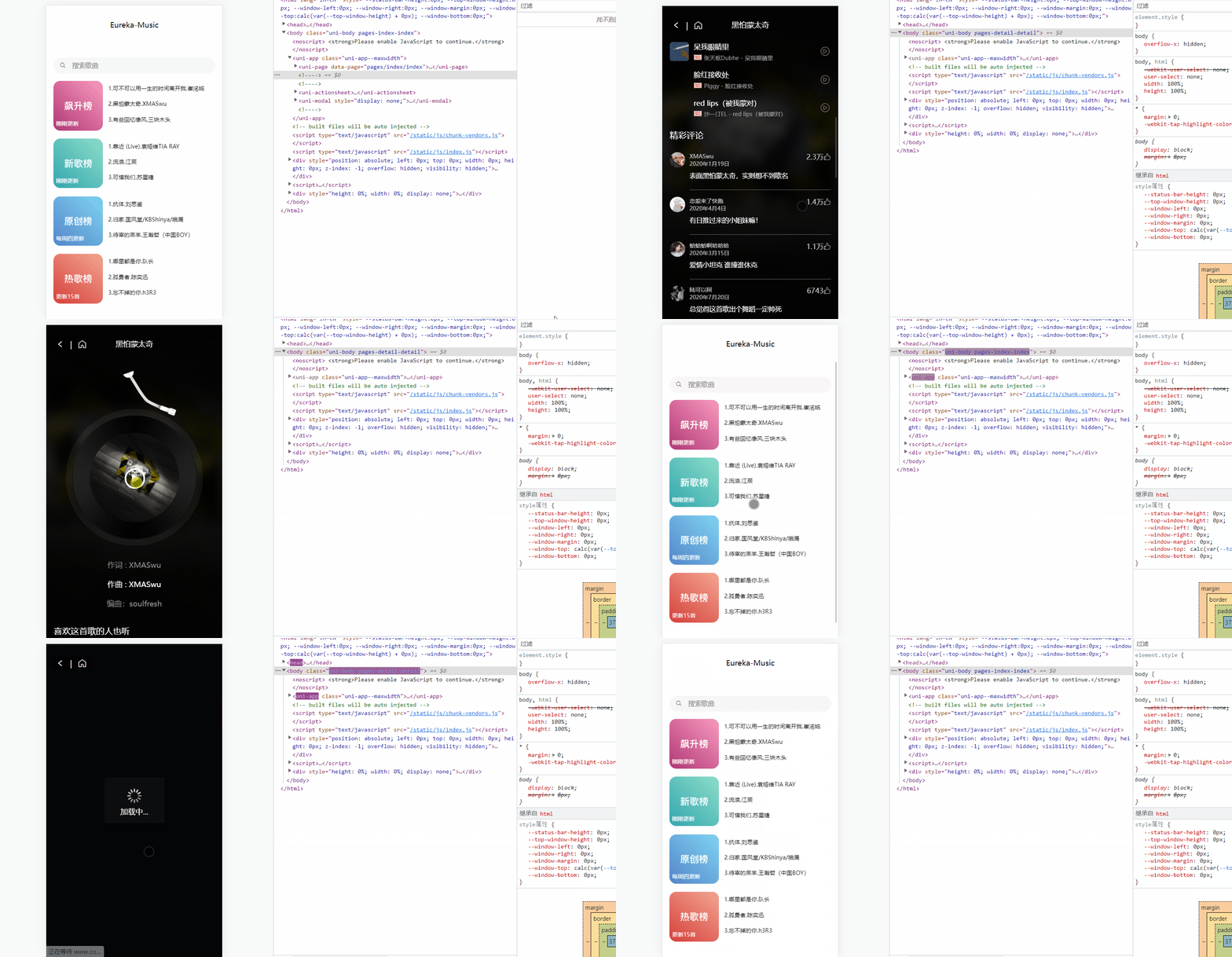
先看下H5端演示(已经跟网易云小程序版做的差不多了):H5演示地址
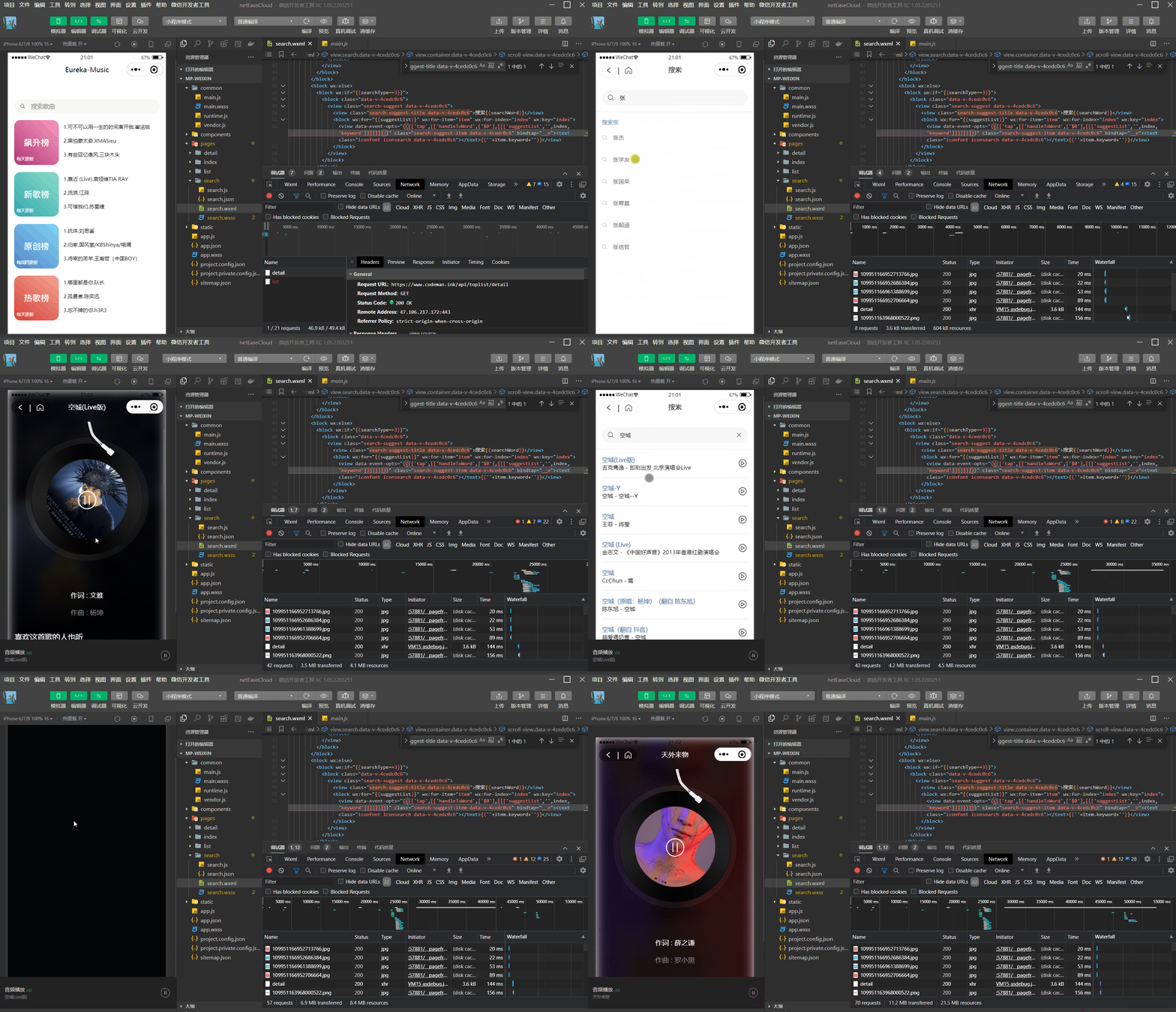
可以看到其实还是有些兼容性的问题的,可能还需要在小程序端调整一下,大部分功能是一样的
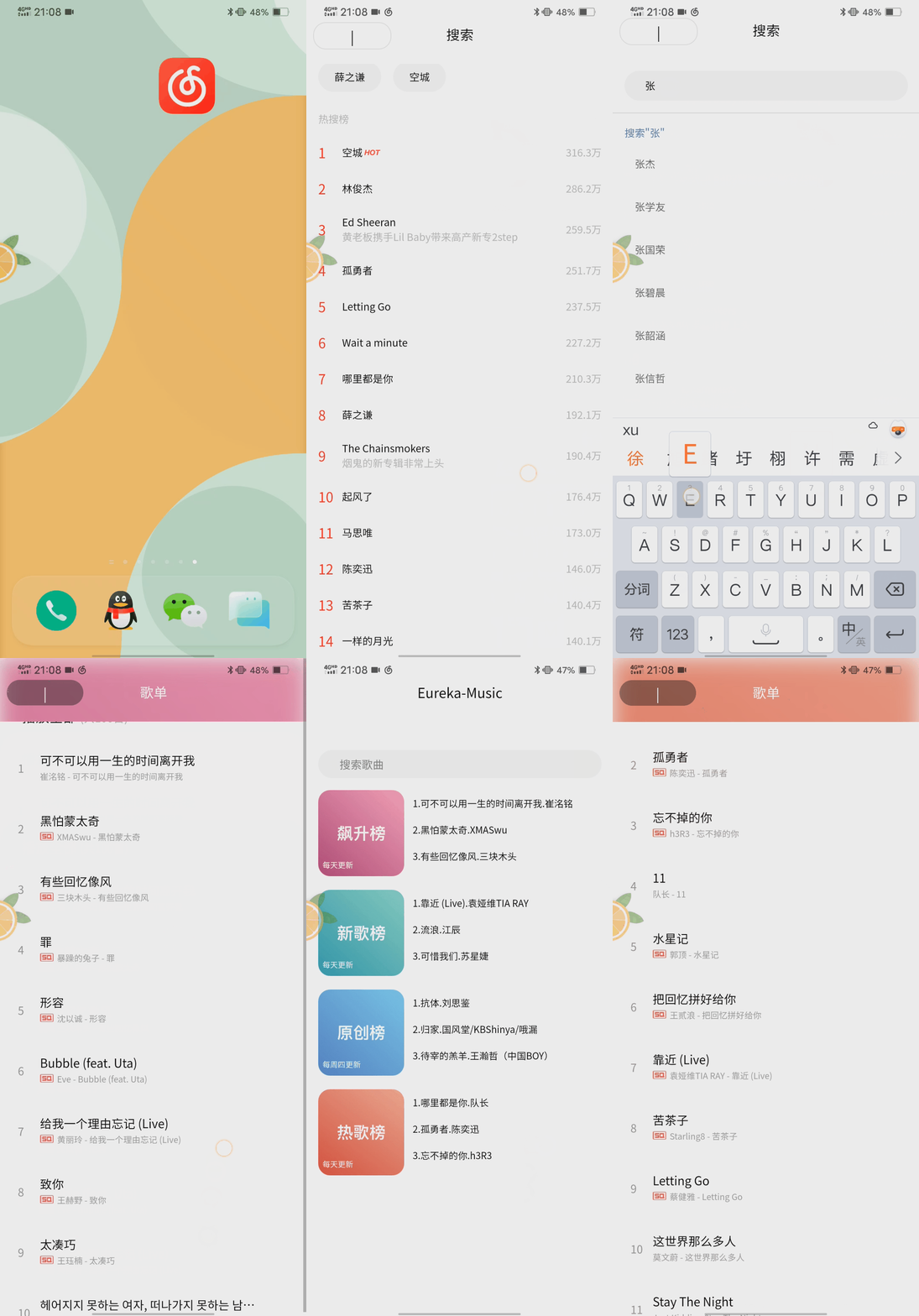
App也有一些兼容性的问题,但是开发效率摆在这里,后期可以调整
项目所需环境:
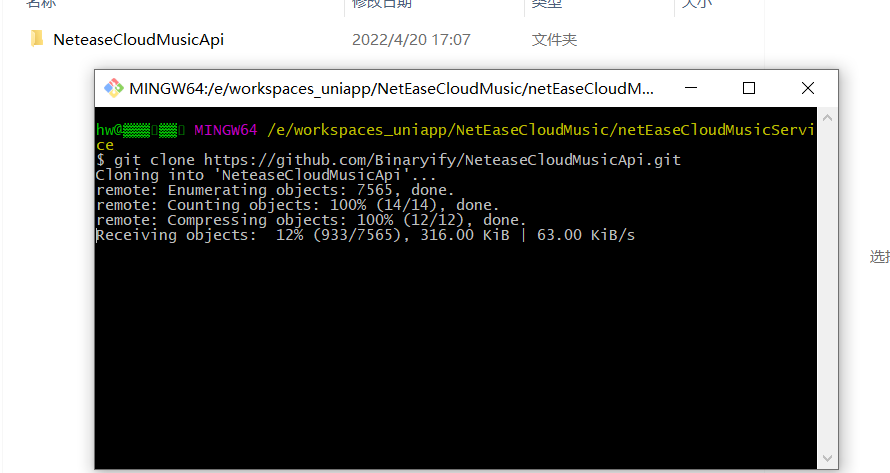
首先我们需要把后端代码克隆下来:
git clone https://github.com/Binaryify/NeteaseCloudMusicApi.git
安装项目所需的依赖模块(cmd进入项目)
cnpm i
安装好了就可以启动了
npm start
然后就可以访问后端了,默认端口3000

我这里在服务器上用docker安装一次
先拉取镜像:
docker pull binaryify/netease_cloud_music_api

启动:
docker run -d -p 3000:3000 --name netease_cloud_music_api binaryify/netease_cloud_music_api
这里接口文档有一些提示:
注意: 在 docker 中运行的时候, 由于使用了 request 来发请求, 所以会检查几个 proxy 相关的环境变量(如下所列), 这些环境变量 会影响到 request 的代理, 详情请参考request 的文档, 如果这些环境变量 指向的代理不可用, 那么就会造成错误, 所以在使用 docker 的时候一定要注意这些环境变量. 不过, 要是你在 query 中加上了 proxy 参数, 那么环境变量会被覆盖, 就会用你通过 proxy 参数提供的代理了.
我这里没管了,详情请参见官网(可以私信我要一下我的接口)
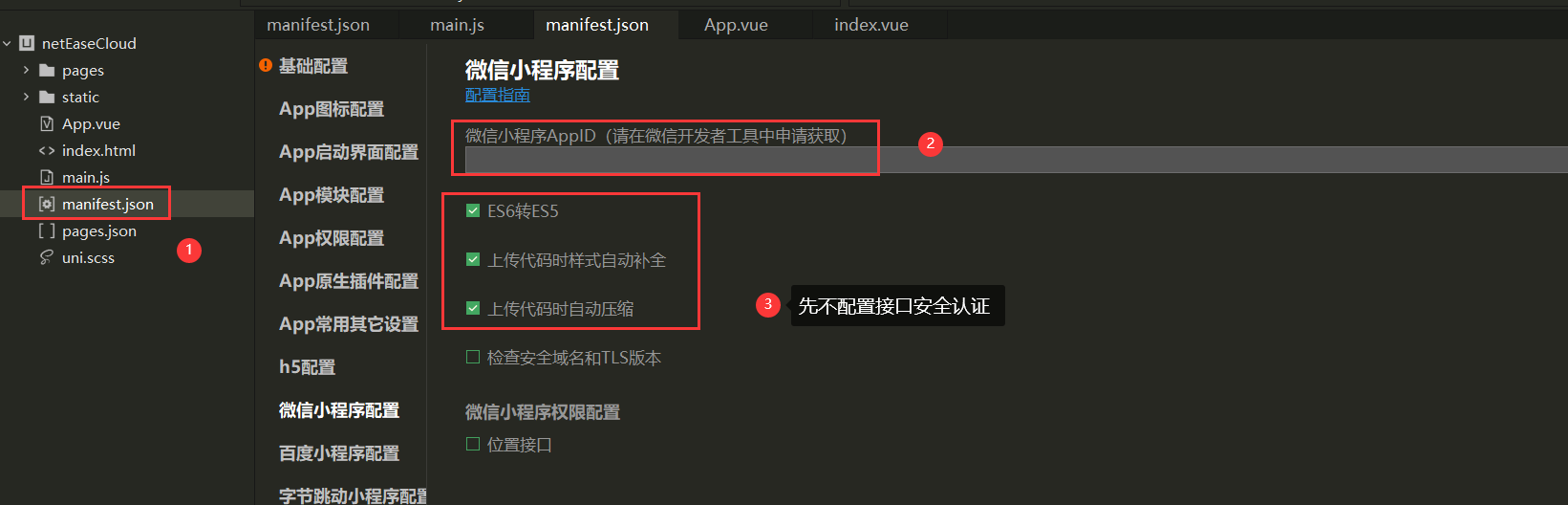
选择创建uniapp的项目并配置好你的小程序AppID
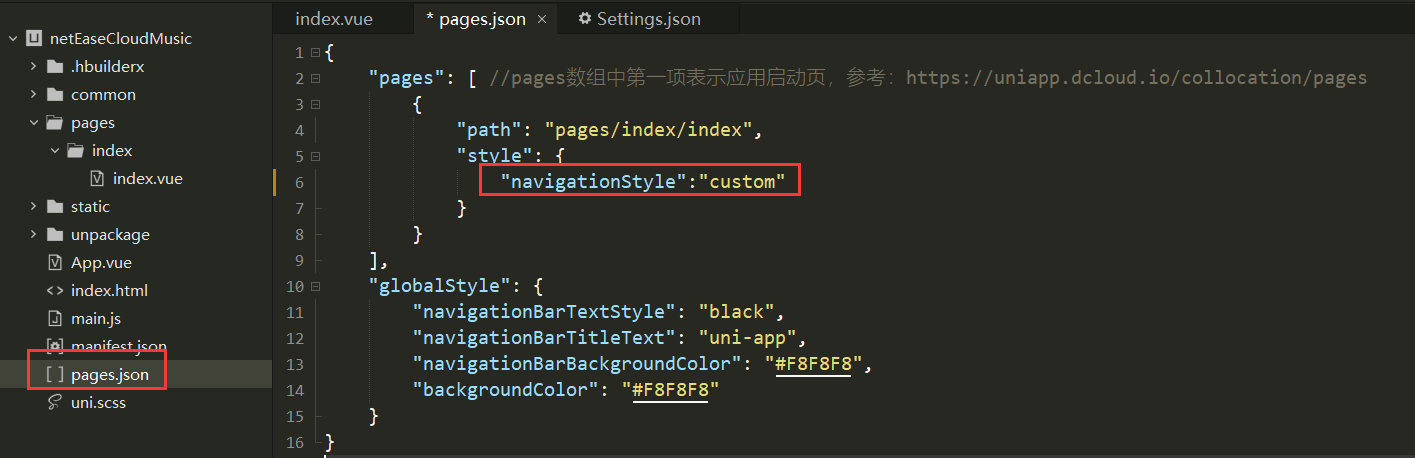
我们可以将navigationStyle设置为空然后自定义
"navigationStyle":"custom"
由于navigationStyle在很多界面都需要用到,所以我们可以将其封装成为一个组件

这里的设置和vue一样,现在index.vue里面使用自定义的组件,然后将值传给封装好的组件
<template>
	<view>
		<musichead title="Eureka-Music"></musichead>
	</view>
</template>
组件用props:['title']进行接收:
<template>
	<view>
		{{title}}
	</view>
</template>
<script>
	export default {
		name:"musichead",
		data() {
			return {

			};
		},
		props:['title']
	}
</script>
<template>
	<view class="index">
		<musichead title="Eureka-Music" :icon="false"></musichead>
		<view class="container">
			<scroll-view scroll-y="true">
				<view class="index-search">
					<text class="iconfont iconsearch"></text>
					<input type="text" placeholder="搜索歌曲" />
				</view>
				<view class="index-list">
					<view class="index-list-item">
						<view class="index-list-img">
							<image src="../../static/wangyiyunyinyue.png" mode=""></image>
							<text>每天更新</text>
						</view>
						<view class="index-list-text">
							<view>1. 音乐一</view>
							<view>1. 音乐一</view>
							<view>1. 音乐一</view>
						</view>
					</view>
				</view>
			</scroll-view>
		</view>
	</view>
</template>

<script>
	import '@/common/iconfont.css'
	export default {
		data() {
			return {
				title: 'Hello'
			}
		},
		onLoad() {

		},
		methods: {

		}
	}
</script>

<style>
	.index {}

	.index-search {
		display: flex;
		/* 上下居中 */
		align-items: center;
		height: 70rpx;
		margin: 70rpx 30rpx 30rpx 30rpx;
		background: #f7f7f7;
		border-radius: 50rpx;
	}

	.index-search text {
		font-size: 26rpx;
		margin-right: 26rpx;
		margin-left: 28rpx;
	}

	.index-search input {
		font-size: 28rpx;
		flex: 1;
	}

	.index-list {
		margin: 0 30rpx;
	}

	.index-list-item {
		display: flex;
		margin-bottom: 34rpx;
	}

	.index-list-img {
		width: 212rpx;
		height: 212rpx;
		position: relative;
		border-radius: 30rpx;
		overflow: hidden;
		margin-right: 22rpx;
	}

	.index-list-img image {
		width: 100%;
		height: 100%;
	}

	.index-list-img text {
		position: absolute;
		left: 12rpx;
		bottom: 16rpx;
		color: white;
		font-size: 20rpx;
	}

	.index-list-text {
		font-size: 24rpx;
		line-height: 66rpx;
	}
</style>
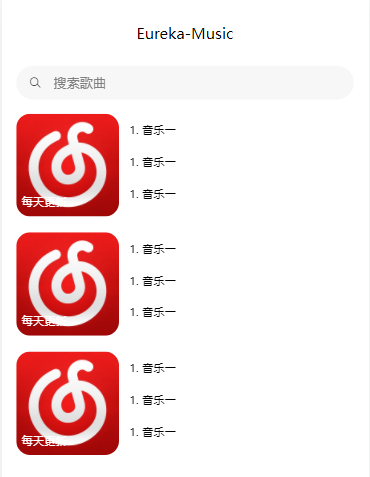
先将样式写到这里:
接下来我们去调用我们的接口
在官方文档里面搜索排行榜,找到接口对应的调用方式
所有榜单内容摘要
说明 : 调用此接口,可获取所有榜单内容摘要

接口地址 : /toplist/detail

调用例子 : /toplist/detail
我们将所有的请求都封装好,在common目录下创建两个文件config.js和api.js
config.js
export const baseUrl = 'http://localhost:3000/';
api.js
import { baseUrl } from './config.js';
/**
 * 歌曲榜单
 */
export function topList(){
	// 只需要前四个榜单
	var listIds = ['3' , '0' , '2' , '1' ];
	return new Promise(function(resolve,reject){
		uni.request({
			url: `${baseUrl}/toplist/detail`,
			method: 'GET',
			data: {},
			success: res => {
				console.log(res);
				let result = res.data.list;
				result.length = 4;
				for(let i=0;i<result.length;i++){
					result[i].listId = listIds[i];
				}
				resolve(result);
			},
			fail: (err) => {
				console.log(err);
			},
			complete: () => {}
		});
	});
}
在首页渲染数据
<view class="index-list">
    <view class="index-list-item" v-for="(item,index) in topList" :key="id">
        <view class="index-list-img">
            <image :src="item.coverImgUrl" mode=""></image>
            <text>{{item.updateFrequency}}</text>
        </view>
        <view class="index-list-text">
            <view v-for="(musicItem,index) in item.tracks" :key="index">
                {{index+1}}.{{musicItem.first}}.{{musicItem.second}}
            </view>
        </view>
    </view>
</view>
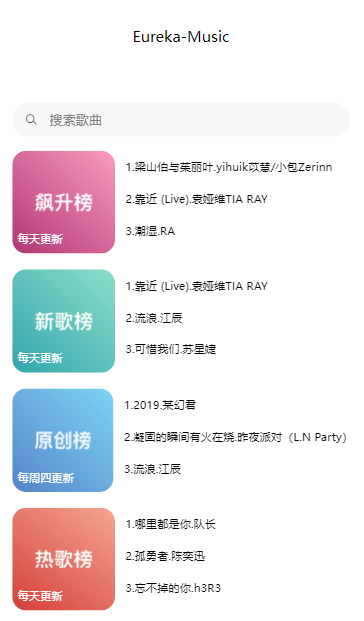
渲染好后前端就有界面了
接下来我们做首页里面的详情页面
首先我们先创建对应的文件
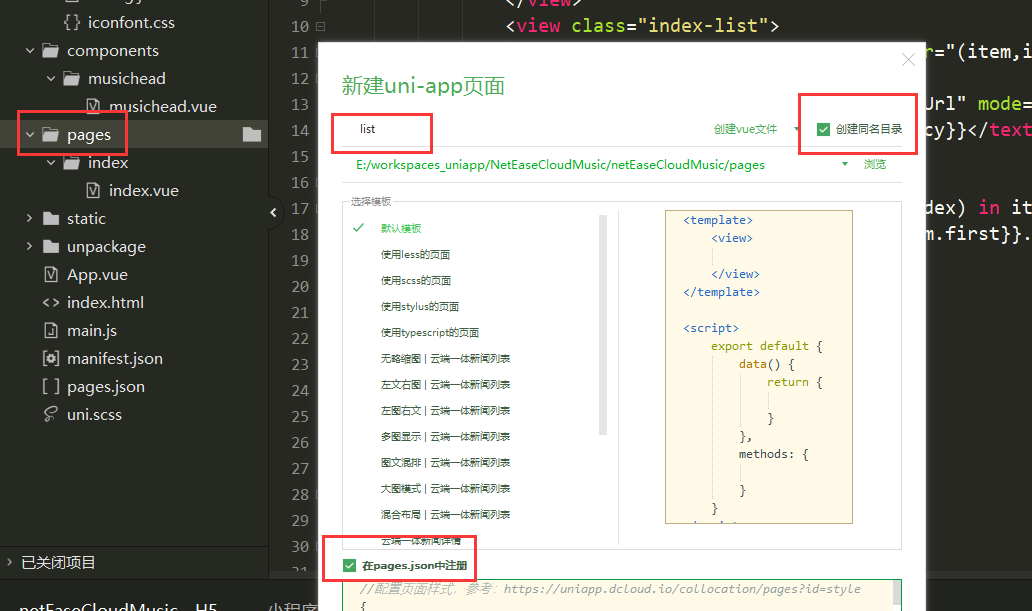
在pages.json中会自动生成路由,记得将head改成我们自定义的
"navigationStyle":"custom",
接下来我们设置一下编译模式让我们不需要每次都点到这个界面中
先进行简单布局,添加一张背景图片
<template>
	<view>
		<musichead title="歌单" :icon="true" color="white"></musichead>
		<!-- 背景图 -->
		<view class="flexbg">

		</view>
	</view>
</template>

<script>
	import musichead from '../../components/musichead/musichead.vue'
	export default {
		data() {
			return {

			}
		},
		methods: {

		},
		onLoad(options) {
			console.log(options)
		}
	}
</script>

<style>

</style>
样式写到全局配置文件App.vue中
.flexbg {
    z-index: -1;
    width: 100%;
    height: 100vh;
    position: fixed;
    left: 0;
    top: 0;
    background-image: url(./static/wangyiyunyinyue.png);
    background-size: cover;
    background-position: center 0;
    /* 背景模糊以及毛边框特效 */
    filter: blur(10px);
    transform: scale(1.2);
}
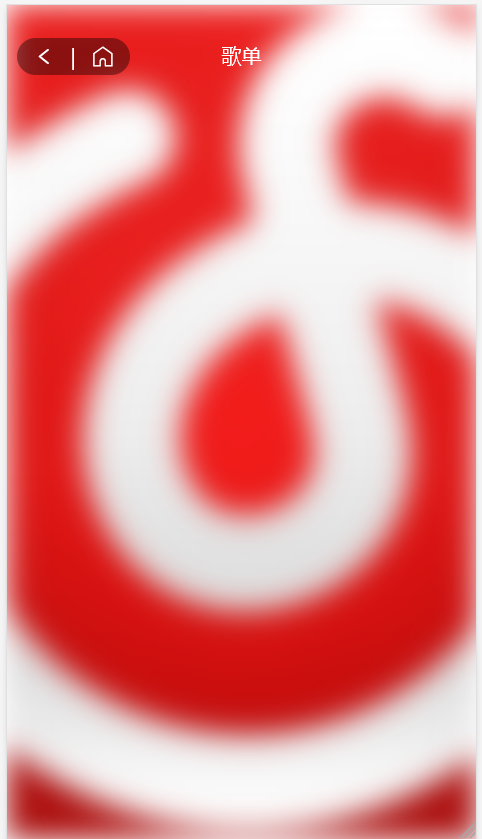
我们就可以得到一个基本的样子:
接下来我们写此界面中滚动条的部分
我们先写一下上面的布局
<scroll-view scroll-y="true">
    <view class="list-head">
        <view class="list-head-img">
            <image src="../../static/logo.jpg" mode=""></image>
            <text class="iconfont iconyousanjiao">30亿</text>
        </view>
        <view class="list-head-text">
            <view>测试文字</view>
            <view>
                <image src="../../static/logo.jpg" mode=""></image>测试文字2
            </view>
            <view>
                段落测试文字段落测试文字段落测试文字段落测试文字段落测试文字
            </view>
        </view>
    </view>
</scroll-view>
<style scoped>
	.list-head {
		display: flex;
	}

	.list-head-img {
		width: 264rpx;
		height: 264rpx;
		border-radius: 30rpx;
		overflow: hidden;
		position: relative;
		margin-left: 26rpx;
		margin-right: 42rpx;
	}

	.list-head-img image {
		width: 100%;
		height: 100%;
	}

	.list-head-img text {
		position: absolute;
		right: 8rpx;
		top: 8rpx;
		color: white;
		font-size: 26rpx;
	}

	.list-head-text {
		flex: 1;
		color: #f0f2f7;
	}

	.list-head-text view:nth-child(1) {
		color: white;
		font-size: 34rpx;
	}

	.list-head-text view:nth-child(2) {
		display: flex;
		margin: 20rpx 0;
	}

	.list-head-text view:nth-child(2) image {
		width: 54rpx;
		height: 54rpx;
		border-radius: 50%;
		margin-right: 34rpx;
		font-size: 24rpx;
		align-items: center;
	}

	.list-head-text view:nth-child(3) {
		line-height: 34rpx;
		font-size: 22rpx;
	}
</style>
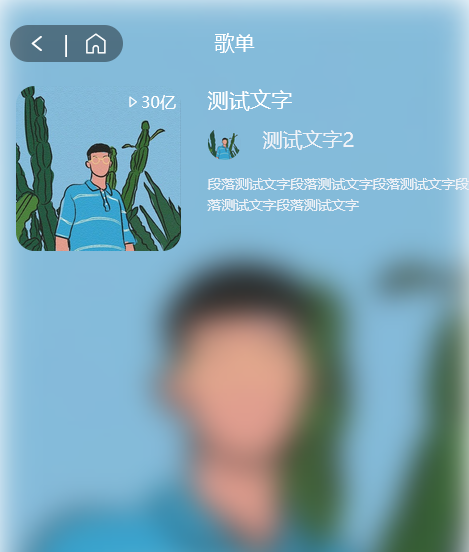
写完之后基本的样子就有了
这里有一个问题,网易云对榜单歌曲的接口进行了限制,在不登录情况下是拿不到信息的

这里我们只能曲线救国,通过歌曲详情接口拿到这些数据,具体做法为:
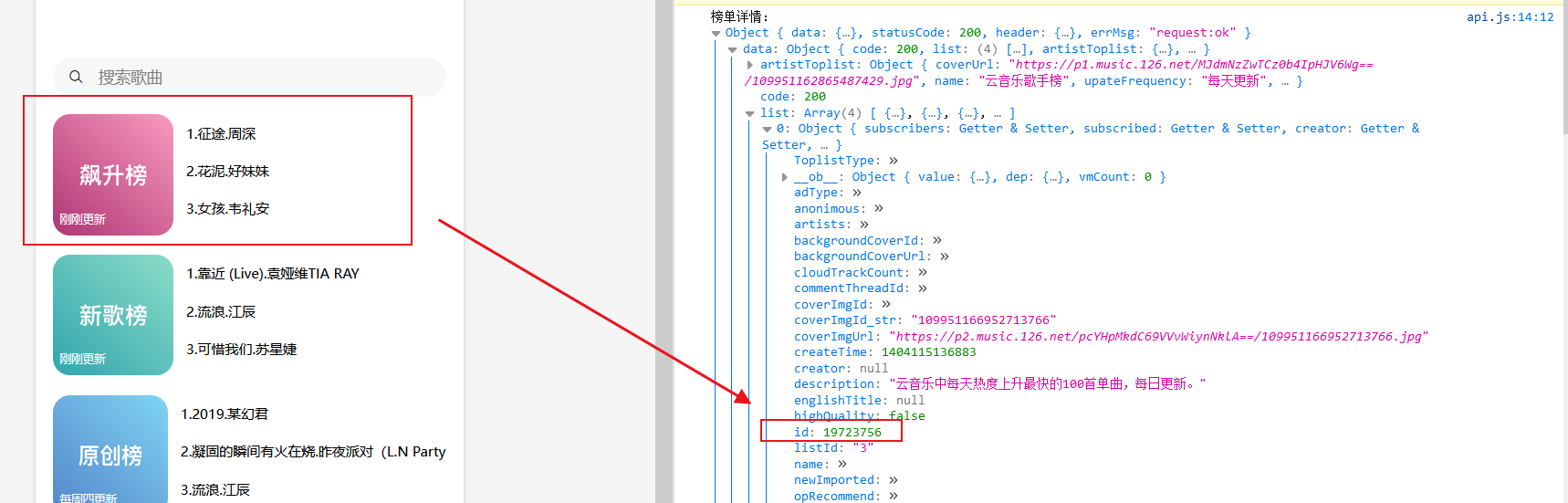
先拿到榜单的id直接传给list组件

list组件再拿着id调用歌单接口:
/**
 * 根据首页歌曲模块获取具体歌单
 * @param {列表id} listId
 */
export function list(listId){
	return uni.request({
		url: `${baseUrl}/playlist/detail?id=${listId}`,
		method: 'GET'
	});
}
这样就可以再不登录的情况下拿到自己想要的榜单数据
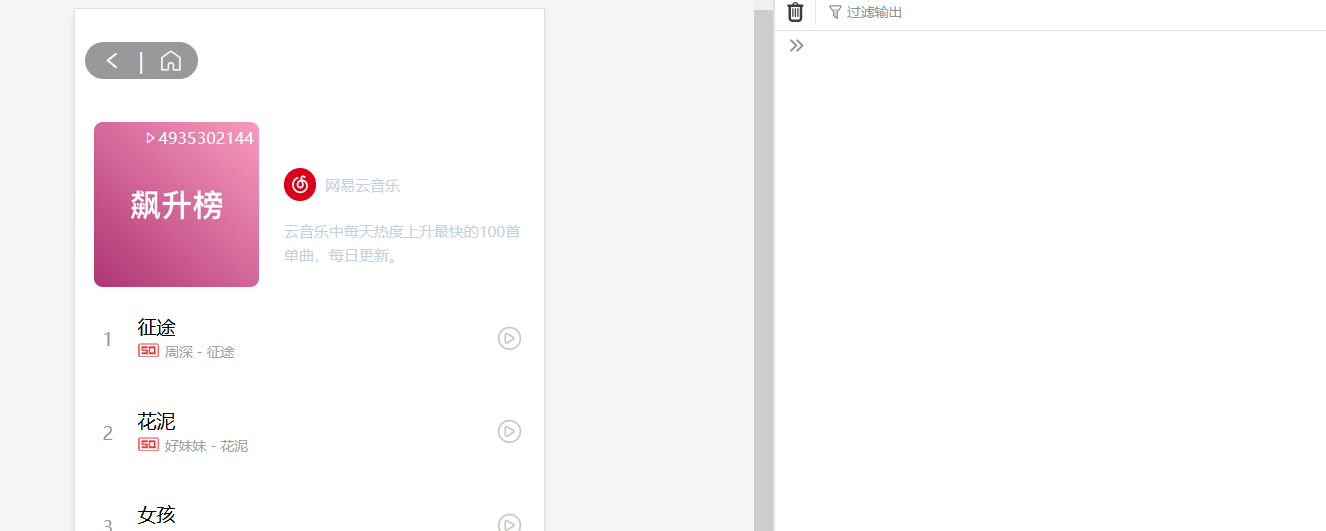
现在我们将数据渲染上去:
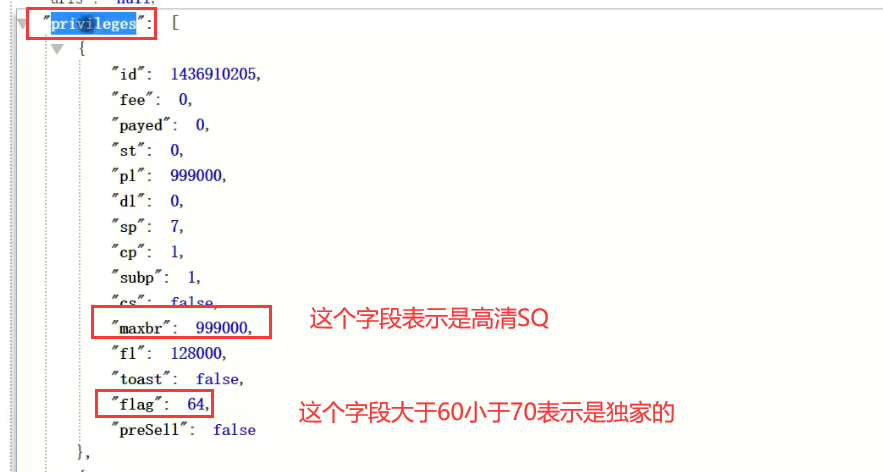
其中列表下面可能会有SQ(高清)和独家的标识,这两个标识可以从下面字段拿到
这里我们添加一个过滤器将榜单上面的数字格式一下,这里由于后面点赞也需要用到这个过滤器,所以我们写到全局文件里面
Vue.filter('formatCount',function(value){

	if( value >= 10000 && value < 100000000 ){
		value /= 10000;
		return value.toFixed(1) + '万';
	}
	else if(value >= 100000000){
		value /= 100000000;
		return value.toFixed(1) + '亿';
	}
	else{
		return value;
	}

});

这里贴一下完整的代码:
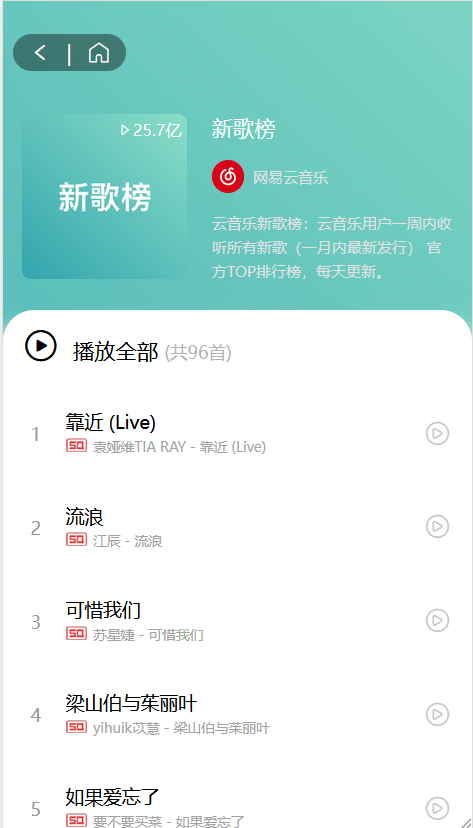
完成后的效果就是这样了,其实已经和网易云一模一样了
<template>
	<view class="list">
		<view class="flexbg" :style="{'background-image':'url('+ playlist.coverImgUrl +')'}"></view>
		<musichead title="歌单" :icon="true" color="white"></musichead>
		<view class="container">
			<scroll-view scroll-y="true">
				<view class="list-head">
					<view class="list-head-img">
						<image :src="playlist.coverImgUrl" mode=""></image>
						<text class="iconfont iconyousanjiao">{{ playlist.playCount | formatCount }}</text>
					</view>
					<view class="list-head-text">
						<view>{{ playlist.name }}</view>
						<view>
							<image :src="playlist.creator.avatarUrl" mode=""></image>
							<text>{{ playlist.creator.nickname }}</text>
						</view>
						<view>{{ playlist.description }}</view>
					</view>
				</view>
				<!-- #ifdef MP-WEIXIN -->
				<button v-show="isShow" class="list-share" open-type="share">
					<text class="iconfont iconicon-"></text>分享给微信好友
				</button>
				<!-- #endif -->
				<view class="list-music">
					<view v-show="isShow" class="list-music-title">
						<text class="iconfont iconbofang1"></text>
						<text>播放全部</text>
						<text>(共{{ playlist.trackCount }}首)</text>
					</view>
					<!-- <view class="list-music-item">
						<view class="list-music-top">1</view>
						<view class="list-music-song">
							<view>与我无关</view>
							<view>
								<image src="../../static/dujia.png" mode=""></image>
								<image src="../../static/sq.png" mode=""></image>
								阿冗 - 与我无关
							</view>
						</view>
						<text class="iconfont iconbofang"></text>
					</view> -->
					<view class="list-music-item" v-for="(item,index) in playlist.tracks" :key="item.id"
						@tap="handleToDetail(item.id)">
						<view class="list-music-top">{{ index + 1 }}</view>
						<view class="list-music-song">
							<view>{{ item.name }}</view>
							<view>
								<image v-if=" privileges[index].flag > 60 && privileges[index].flag < 70"
									src="../../static/dujia.png" mode=""></image>
								<image v-if="privileges[index].maxbr == 999000" src="../../static/sq.png" mode="">
								</image>
								{{ item.ar[0].name }} - {{ item.name }}
							</view>
						</view>
						<text class="iconfont iconbofang"></text>
					</view>
				</view>
			</scroll-view>
		</view>
	</view>
</template>

<script>
	import musichead from '../../components/musichead/musichead.vue'
	import {
		list
	} from '../../common/api.js'
	import '../../common/iconfont.css'
	export default {
		data() {
			return {
				playlist: {
					coverImgUrl: '',
					trackCount: '',
					creator: ''
				},
				privileges: [],
				isShow: false
			}
		},
		components: {
			musichead
		},
		onLoad(options) {
			uni.showLoading({
				title:'加载中...'
			})
			let listId = options.listId;
			list(listId).then((res) => {
				if (res[1].data.code == '200') {
					this.playlist = res[1].data.playlist;
					this.privileges = res[1].data.privileges;
					this.isShow = true;
					uni.hideLoading();
					this.$store.commit('INIT_CHANGE', this.playlist.trackIds);
				}
			});
		},
		methods: {
			handleToDetail(id) {
				uni.navigateTo({
					url: '/pages/detail/detail?songId=' + id
				});
			}
		}
	}
</script>

<style scoped>
	.list-head {
		display: flex;
		margin: 30rpx;
	}

	.list-head-img {
		width: 265rpx;
		height: 265rpx;
		border-radius: 15rpx;
		margin-right: 40rpx;
		overflow: hidden;
		position: relative;
	}

	.list-head-img image {
		width: 100%;
		height: 100%;
	}

	.list-head-img text {
		position: absolute;
		font-size: 26rpx;
		color: white;
		right: 8rpx;
		top: 8rpx;
	}

	.list-head-text {
		flex: 1;
		font-size: 24rpx;
		color: #e1e2e3;
	}

	.list-head-text image {
		width: 52rpx;
		height: 52rpx;
		border-radius: 50%;
	}

	.list-head-text view:nth-child(1) {
		font-size: 34rpx;
		color: #ffffff;
	}

	.list-head-text view:nth-child(2) {
		display: flex;
		align-items: center;
		margin: 30rpx 0;
	}

	.list-head-text view:nth-child(2) text {
		margin-left: 15rpx;
	}

	.list-head-text view:nth-child(3) {
		line-height: 38rpx;
	}

	.list-share {
		width: 330rpx;
		height: 72rpx;
		margin: 0 auto;
		background: rgba(0, 0, 0, 0.4);
		text-align: center;
		line-height: 72rpx;
		font-size: 26rpx;
		color: white;
		border-radius: 36rpx;
	}

	.list-share text {
		margin-right: 15rpx;
	}

	.list-music {
		background: white;
		border-radius: 50rpx;
		overflow: hidden;
		margin-top: 45rpx;
	}

	.list-music-title {
		height: 58rpx;
		line-height: 58rpx;
		margin: 30rpx 30rpx 70rpx 30rpx;
	}

	.list-music-title text:nth-child(1) {
		font-size: 58rpx;
	}

	.list-music-title text:nth-child(2) {
		font-size: 34rpx;
		margin: 0 10rpx 0 25rpx;
	}

	.list-music-title text:nth-child(3) {
		font-size: 28rpx;
		color: #b2b2b2;
	}

	.list-music-item {
		display: flex;
		margin: 0 30rpx 70rpx 44rpx;
		align-items: center;
	}

	.list-music-top {
		width: 56rpx;
		font-size: 28rpx;
		color: #979797;
	}

	.list-music-song {
		flex: 1;
		line-height: 40rpx;
	}

	.list-music-song view:nth-child(1) {
		font-size: 30rpx;
		width: 70vw;
		white-space: nowrap;
		overflow: hidden;
		text-overflow: ellipsis;
	}

	.list-music-song view:nth-child(2) {
		font-size: 22rpx;
		color: #a2a2a2;
		width: 70vw;
		white-space: nowrap;
		overflow: hidden;
		text-overflow: ellipsis;
	}

	.list-music-song image {
		width: 34rpx;
		height: 22rpx;
		margin-right: 10rpx;
	}

	.list-music-item text {
		font-size: 50rpx;
		color: #c8c8c8;
	}
</style>
同样我们要写成自定义头的形式
首先我们写跳转的代码,在每首歌的item中添加事件
@tap="handleToDetail(item.id)
methods: {
    handleToDetail(id) {
        uni.navigateTo({
            url: '/pages/detail/detail?songId=' + id
        });
    }
}
这里的布局元素就稍稍要丰富一些了
先对播放的圆盘以及那根棍子布局一下
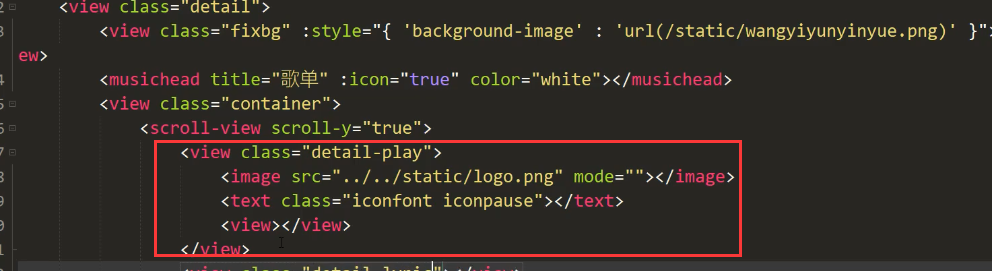
写一点样式让其位置更加合理
.detail-play{ width:580rpx; height:580rpx; background:url(~@/static/disc.png); background-size:cover; margin:210rpx auto 44rpx auto; position: relative;}
.detail-play image{ width:380rpx; height:380rpx; border-radius: 50%; position: absolute; left:0; top:0; right:0; bottom:0; margin:auto; animation:10s linear infinite move; animation-play-state: paused;}
@keyframes move{
from{ transform : rotate(0deg);}
to{ transform : rotate(360deg);}
}
.detail-play .detail-play-run{ animation-play-state: running;}
.detail-play text{ width:100rpx; height:100rpx; font-size:100rpx; position: absolute; left:0; top:0; right:0; bottom:0; margin:auto; color:white;}
.detail-play view{ position: absolute; width:170rpx; height:266rpx; position: absolute; left:60rpx; right:0;  margin:auto; top:-170rpx; background:url(~@/static/needle.png); background-size:cover;}
调完样式之后布局就比较合理了
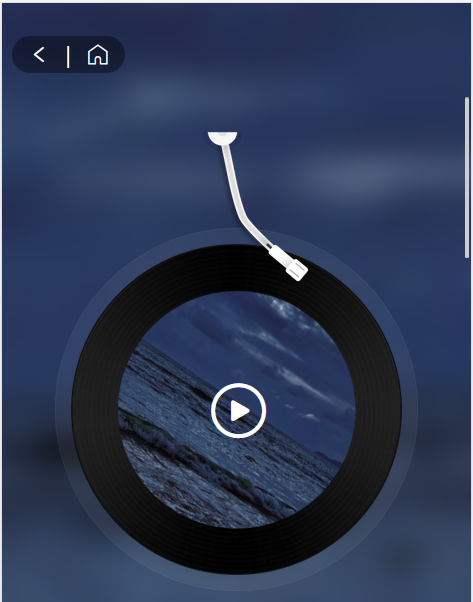
接下来就是其他的一些布局,这里有的组件就不做了
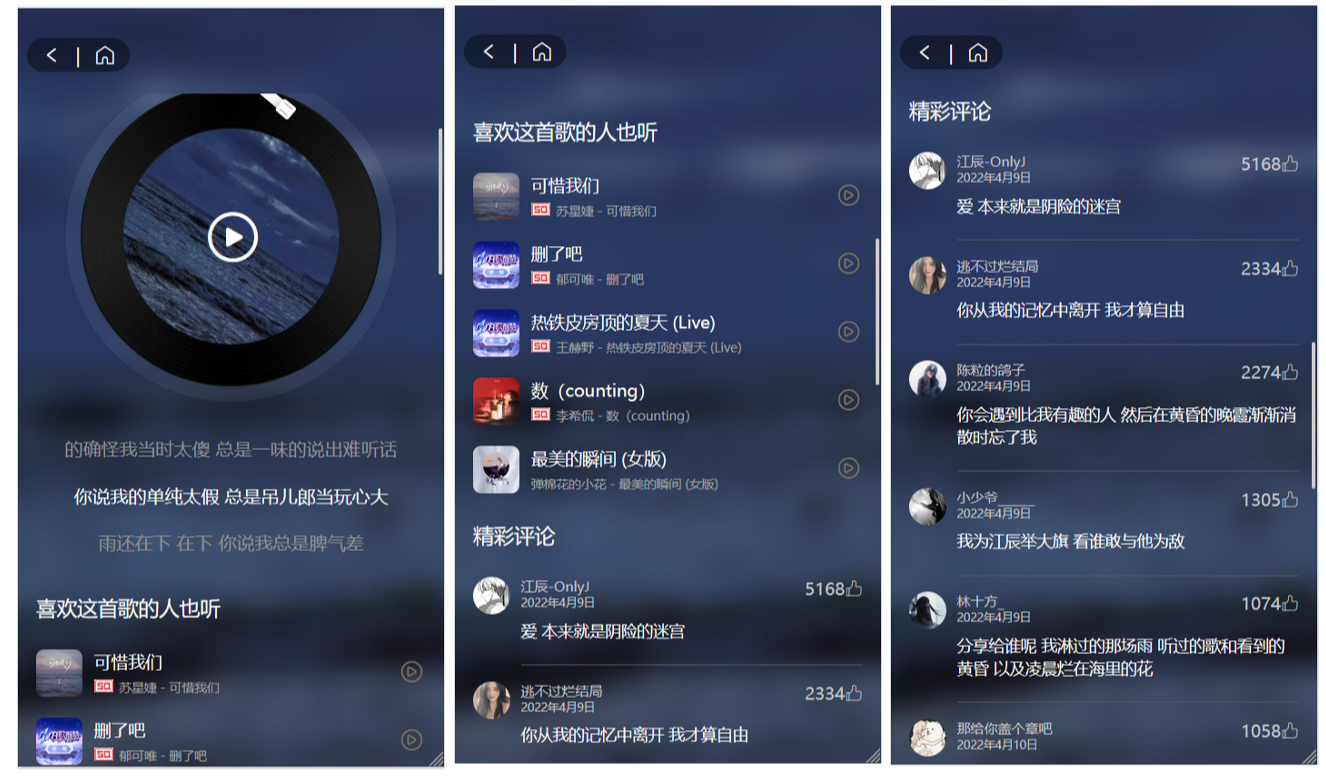
这里写的断断续续的就把最后面弄好的一起贴上来吧,这里面包含了渲染数据的部分,布局的代码都注释掉了
效果:
<template>
	<view class="detail">
		<view class="flexbg" :style="{backgroundImage:'url('+ songDetail.al.picUrl +')'}"></view>
		<musichead :title="songDetail.name" :icon="true" color="white"></musichead>
		<view class="container">
			<scroll-view scroll-y="true">
				<view class="detail-play" @tap="handleToPlay">
					<image :src="songDetail.al.picUrl" :class="{ 'detail-play-run' : isplayrotate }" mode=""></image>
					<text class="iconfont" :class="playicon"></text>
					<view></view>
				</view>
				<view class="detail-lyric">
					<view class="detail-lyric-wrap" :style="{ transform : 'translateY(' +  - (lyricIndex - 1) * 82  + 'rpx)' }">
						<!-- <view class="detail-lyric-item">测试文字阿斯顿撒所</view>
						<view class="detail-lyric-item active">测试文字阿斯</view>
						<view class="detail-lyric-item">测试顿撒所洒水大所大按时</view> -->
						<view class="detail-lyric-item" :class="{ active : lyricIndex == index}" v-for="(item,index) in songLyric" :key="index">{{ item.lyric }}</view>
					</view>
				</view>
				<view class="detail-like">
					<view class="detail-like-title">喜欢这首歌的人也听</view>
					<view class="detail-like-list">
						<!-- <view class="detail-like-item">
							<view class="detail-like-img"><image src="../../static/wangyiyunyinyue.png" mode=""></image></view>
							<view class="detail-like-song">
								<view>蓝</view>
								<view>
									<image src="../../static/dujia.png" mode=""></image>
									<image src="../../static/sq.png" mode=""></image>
									石白其 - 蓝
								</view>
							</view>
							<text class="iconfont iconbofang"></text>
						</view> -->
						<view class="detail-like-item" v-for="(item,index) in songSimi" :key="index" @tap="handleToSimi(item.id)">
							<view class="detail-like-img"><image :src="item.album.picUrl" mode=""></image></view>
							<view class="detail-like-song">
								<view>{{item.name}}</view>
								<view>
									<image v-if="item.privilege.flag > 60 && item.privilege.flag < 70" src="../../static/dujia.png" mode=""></image>
									<image v-if="item.privilege.maxbr == 999000" src="../../static/sq.png" mode=""></image>
									{{item.artists[0].name}} - {{item.name}}
								</view>
							</view>
							<text class="iconfont iconbofang"></text>
						</view>
					</view>
				</view>
				<view class="detail-comment">
					<view class="detail-comment-title">精彩评论</view>
					<!-- <view class="detail-comment-item">
						<view class="detail-comment-img"><image src="../../static/wangyiyunyinyue.png" mode=""></image></view>
						<view class="detail-comment-content">
							<view class="detail-comment-head">
								<view class="detail-comment-name">
									<view>是啊冗的冗</view>
									<view>2020年1月2日</view>
								</view>
								<view class="detail-comment-like">
									56026 <text class="iconfont iconlike"></text>
								</view>
							</view>
							<view class="detail-comment-text">
								测试文字测试文字测试文字测试文字测试文字测试文字测试文字测试文字
							</view>
						</view>
					</view> -->
					<view class="detail-comment-item" v-for="(item,index) in songComment" :key="index">
						<view class="detail-comment-img"><image :src="item.user.avatarUrl" mode=""></image></view>
						<view class="detail-comment-content">
							<view class="detail-comment-head">
								<view class="detail-comment-name">
									<view>{{ item.user.nickname }}</view>
									<view>{{ item.time | formatTime }}</view>
								</view>
								<view class="detail-comment-like">
									{{ item.likedCount | formatCount }} <text class="iconfont iconlike"></text>
								</view>
							</view>
							<view class="detail-comment-text">
								{{ item.content }}
							</view>
						</view>
					</view>
				</view>
			</scroll-view>
		</view>
	</view>
</template>

<script>
	import { songDetail , songUrl , songLyric , songSimi , songComment } from '../../common/api.js';
	import '../../common/iconfont.css'
	export default {
		data() {
			return {
				songDetail : {
					al : { picUrl : '' }
				},
				songSimi : [],
				songComment : [],
				songLyric : [],
				lyricIndex : 0,
				playicon : 'iconpause',
				isplayrotate : true
			}
		},
		onLoad(options){
			this.playMusic(options.songId);
		},
		onUnload(){
			this.cancelLyricIndex();
			// #ifdef H5
			this.bgAudioMannager.destroy();
			// #endif
		},
		onHide(){
			this.cancelLyricIndex();
			// #ifdef H5
			this.bgAudioMannager.destroy();
			// #endif
		},
		methods: {
			playMusic(songId){
				this.$store.commit('NEXT_ID',songId);
				Promise.all([songDetail(songId),songSimi(songId),songComment(songId),songLyric(songId),songUrl(songId)]).then((res)=>{
					if(res[0][1].data.code == '200'){
						this.songDetail = res[0][1].data.songs[0];
					}
					if( res[1][1].data.code == '200' ){
						this.songSimi = res[1][1].data.songs;
					}
					if( res[2][1].data.code == '200' ){
						this.songComment = res[2][1].data.hotComments;
					}
					if(res[3][1].data.code == '200'){
						let lyric = res[3][1].data.lrc.lyric;
						let result = [];
						let re = /\[([^\]]+)\]([^[]+)/g;
						lyric.replace(re,($0,$1,$2)=>{
							result.push({ time : this.formatTimeToSec($1) , lyric : $2 });
						});
						this.songLyric = result;
					}
					if(res[4][1].data.code == '200'){
						// #ifdef MP-WEIXIN
						this.bgAudioMannager = uni.getBackgroundAudioManager();
						this.bgAudioMannager.title = this.songDetail.name;
						// #endif
						// #ifdef H5
						if(!this.bgAudioMannager){
							this.bgAudioMannager = uni.createInnerAudioContext();
						}
						this.playicon = 'iconbofang1';
						this.isplayrotate = false;
						// #endif
						this.bgAudioMannager.src = res[4][1].data.data[0].url;
						this.listenLyricIndex();
						this.bgAudioMannager.onPlay(()=>{
							this.playicon = 'iconpause';
							this.isplayrotate = true;
							this.listenLyricIndex();
						});
						this.bgAudioMannager.onPause(()=>{
							this.playicon = 'iconbofang1';
							this.isplayrotate = false;
							this.cancelLyricIndex();
						});
						this.bgAudioMannager.onEnded(()=>{
							this.playMusic(this.$store.state.nextId);
						});
					}
				});
			},
			formatTimeToSec(time){
				var arr = time.split(':');
				return (parseFloat(arr[0]) * 60 + parseFloat(arr[1])).toFixed(2);
			},
			handleToPlay(){
				if(this.bgAudioMannager.paused){
					this.bgAudioMannager.play();
				}
				else{
					this.bgAudioMannager.pause();
				}
			},
			listenLyricIndex(){
				clearInterval(this.timer);
				this.timer = setInterval(()=>{
					for(var i=0;i<this.songLyric.length;i++){
						if( this.songLyric[this.songLyric.length-1].time < this.bgAudioMannager.currentTime ){
							this.lyricIndex = this.songLyric.length-1;
							break;
						}
						if( this.songLyric[i].time < this.bgAudioMannager.currentTime && this.songLyric[i+1].time > this.bgAudioMannager.currentTime ){
							this.lyricIndex = i;
						}
					}
				});
			},
			cancelLyricIndex(){
				clearInterval(this.timer);
			},
			handleToSimi(songId){
				this.playMusic(songId);
			}
		}
	}
</script>

<style scoped>
	.detail-play{ width:580rpx; height:580rpx; background:url(~@/static/disc.png); background-size:cover; margin:210rpx auto 44rpx auto; position: relative;}
	.detail-play image{ width:380rpx; height:380rpx; border-radius: 50%; position: absolute; left:0; top:0; right:0; bottom:0; margin:auto; animation:10s linear infinite move; animation-play-state: paused;}
	@keyframes move{
		from{ transform : rotate(0deg);}
		to{ transform : rotate(360deg);}
	}
	.detail-play .detail-play-run{ animation-play-state: running;}
	.detail-play text{ width:100rpx; height:100rpx; font-size:100rpx; position: absolute; left:0; top:0; right:0; bottom:0; margin:auto; color:white;}
	.detail-play view{ position: absolute; width:170rpx; height:266rpx; position: absolute; left:60rpx; right:0;  margin:auto; top:-170rpx; background:url(~@/static/needle.png); background-size:cover;}

	.detail-lyric{ height:246rpx; line-height: 82rpx; font-size:32rpx; text-align: center; color:#949495; overflow: hidden;}
	.active{ color:white;}
	.detail-lyric-wrap{ transition: .5s;}
	.detail-lyric-item{ height:82rpx;}

	.detail-like{ margin:0 32rpx;}
	.detail-like-title{ font-size:36rpx; color:white; margin:50rpx 0;}
	.detail-like-list{}
	.detail-like-item{ display: flex; margin-bottom:38rpx; align-items: center;}
	.detail-like-img{ width:82rpx; height:82rpx; border-radius: 15rpx; overflow: hidden; margin-right:20rpx;}
	.detail-like-img image{ width:100%; height:100%;}
	.detail-like-song{ flex:1;}
	.detail-like-song view:nth-child(1){ color:white; font-size:30rpx; width:70vw; white-space: nowrap; overflow: hidden; text-overflow: ellipsis; margin-bottom: 10rpx;}
	.detail-like-song view:nth-child(2){ font-size:22rpx; color:#a2a2a2; width:70vw; white-space: nowrap; overflow: hidden; text-overflow: ellipsis;}
	.detail-like-song image{ width:34rpx; height:22rpx; margin-right:10rpx;}
	.detail-like-item text{ font-size:50rpx; color:#877764;}

	.detail-comment{ margin:0 32rpx;}
	.detail-comment-title{ font-size:36rpx; color:white; margin:50rpx 0;}
	.detail-comment-item{ display: flex; margin-bottom:28rpx;}
	.detail-comment-img{ width:66rpx; height:66rpx; border-radius: 50%; overflow: hidden; margin-right:18rpx;}
	.detail-comment-img image{ width:100%; height:100%}
	.detail-comment-content{ flex:1; color:#cac9cd;}
	.detail-comment-head{ display: flex; justify-content: space-between;}
	.detail-comment-name view:nth-child(1){ font-size:24rpx;}
	.detail-comment-name view:nth-child(2){ font-size:20rpx;}
	.detail-comment-like{ font-size:30rpx;}
	.detail-comment-text{ line-height: 40rpx; color:white; font-size:28rpx; margin-top:16rpx; border-bottom:1px #595860 solid; padding-bottom: 40rpx;}

</style>
http://localhost:3000/song/detail?ids=483937795  ##歌曲详情接口
http://localhost:3000/simi/song?id=483937795	##和当前歌曲相似的歌曲接口
http://localhost:3000/comment/music?id=483937795  ##歌曲评论接口
http://localhost:3000/lyric?id=483937795 		##歌词接口
http://localhost:3000/song/url?id=483937795     ##播放音乐接口
我们在api.js里将这些接口封装一下
/**
 * 歌曲详情接口
 * @param {歌曲id} id
 */
export function songDetail(id) {
	return uni.request({
		url: `${baseUrl}/song/detail?ids=${id}`,
		method: 'GET'
	})
}
/**
 * 播放歌曲接口
 * @param {Object} id
 */
export function songUrl(id) {
	return uni.request({
		url: `${baseUrl}/song/url?id=${id}`,
		method: 'GET'
	})
}
/**
 * 歌词接口
 * @param {Object} id
 */
export function songLyric(id) {
	return uni.request({
		url: `${baseUrl}/lyric?id=${id}`,
		method: 'GET'
	})
}
/**
 * 和当前歌曲类似歌曲接口
 * @param {Object} id
 */
export function songSimi(id) {
	return uni.request({
		url: `${baseUrl}/simi/song?id=${id}`,
		method: 'GET'
	})
}
/**
 * 评论接口
 * @param {Object} id
 */
export function songComment(id) {
	return uni.request({
		url: `${baseUrl}/comment/music?id=${id}`,
		method: 'GET'
	})
}
在4.1里面已经有渲染的代码了
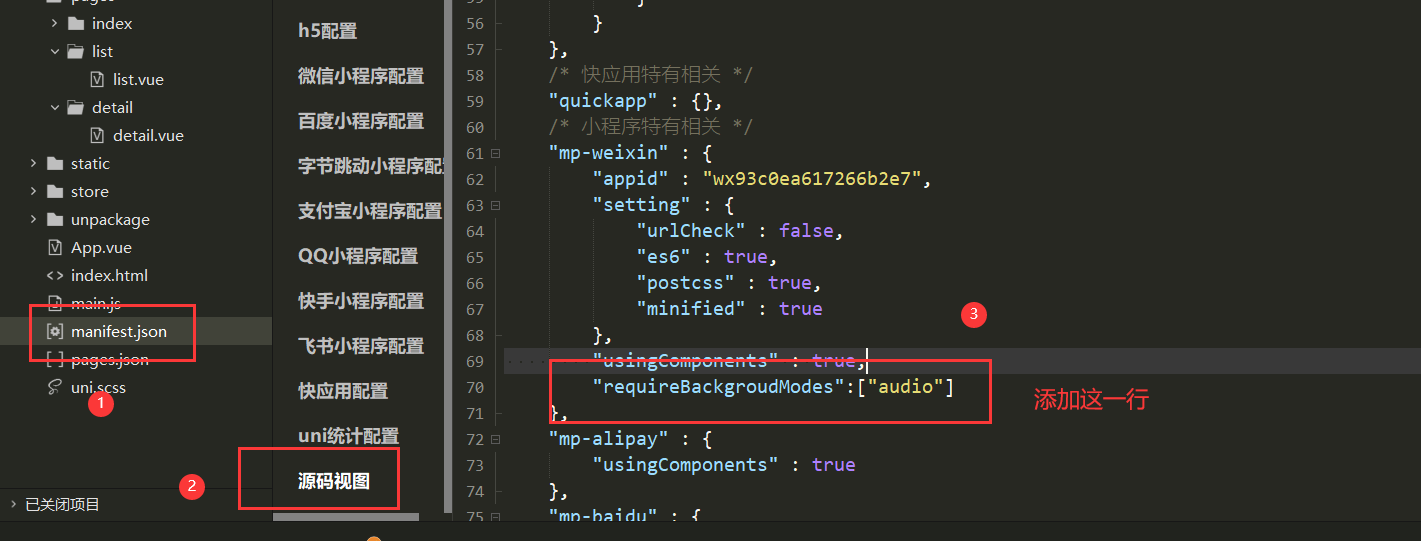
这里需要配置一下,不然在微信小程序端会出现不能播放音乐的现象
"requireBackgroudModes":["audio"]
现在我们有一个问题,当播放完一首歌后我们需要它自动切换到下一首歌,这里就需要我们用VueX传递一下信息了
在Uniapp中内置了VueX,所以不用安装依赖了可以直接引入
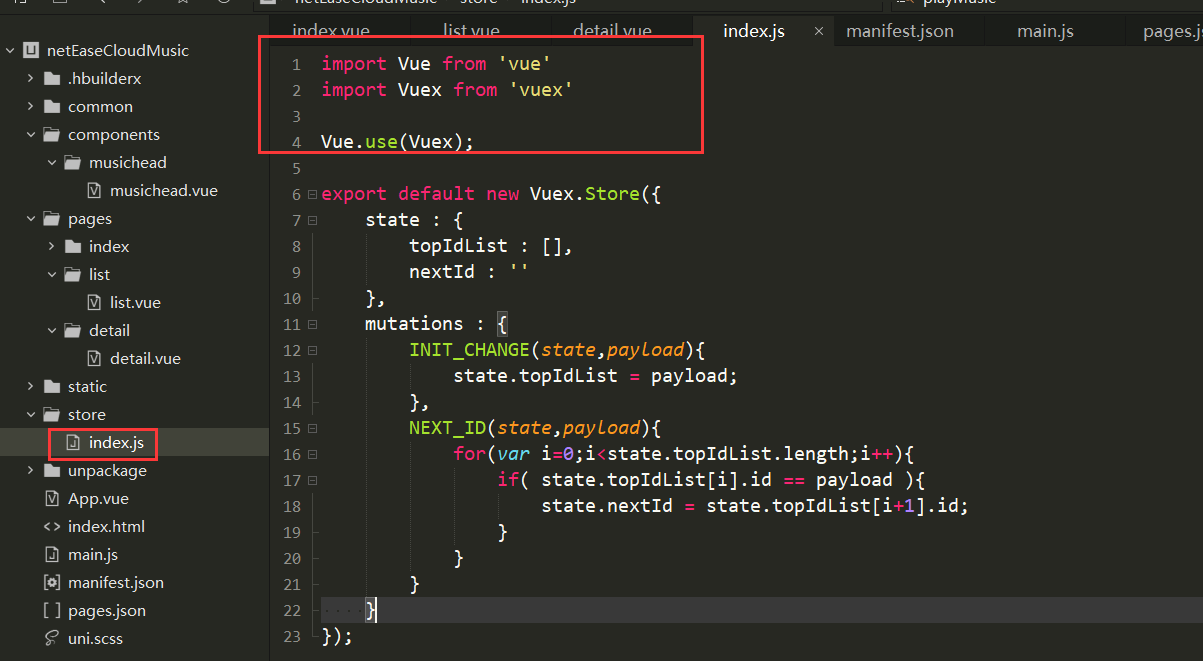
this.$store.commit('INIT_CHANGE', this.playlist.trackIds);
我们看一下有没有存入
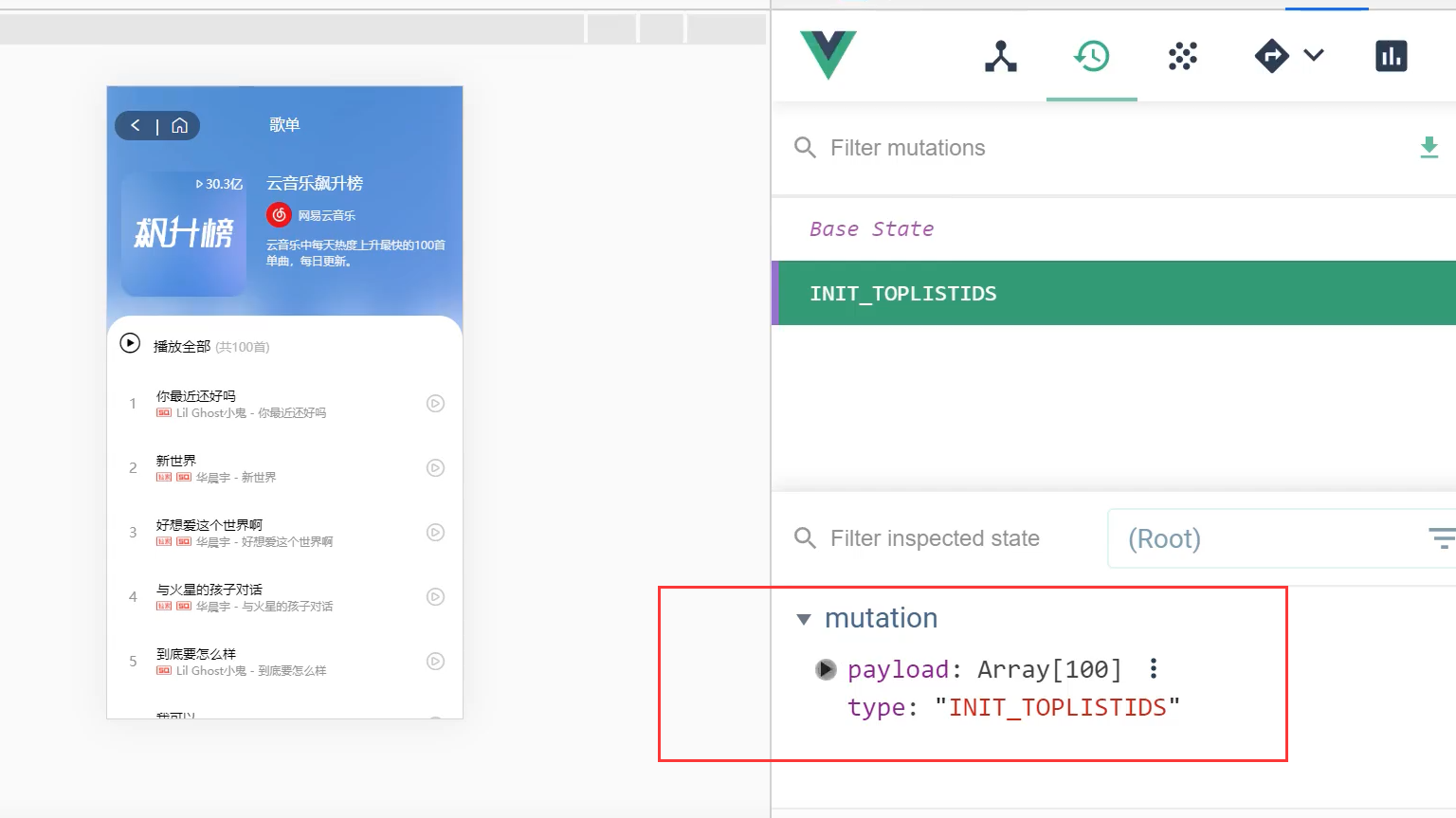
接下来让其播放下一首就可以了
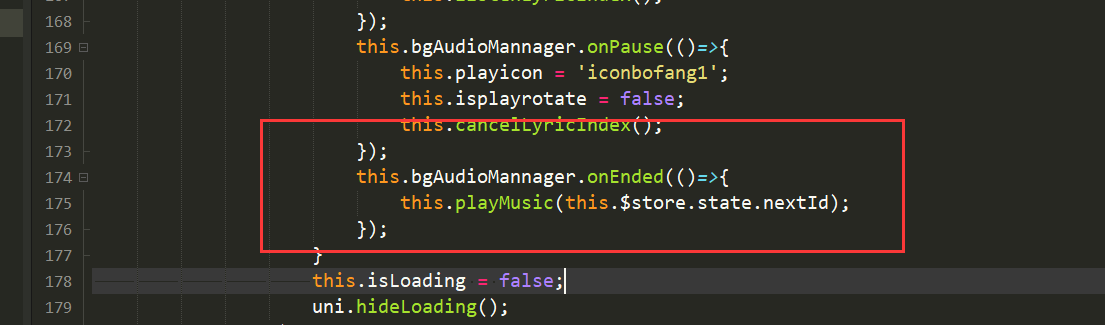
这里的布局和之前类似,先把组件和一些一样的样式复制过来,这里直接贴一下样式
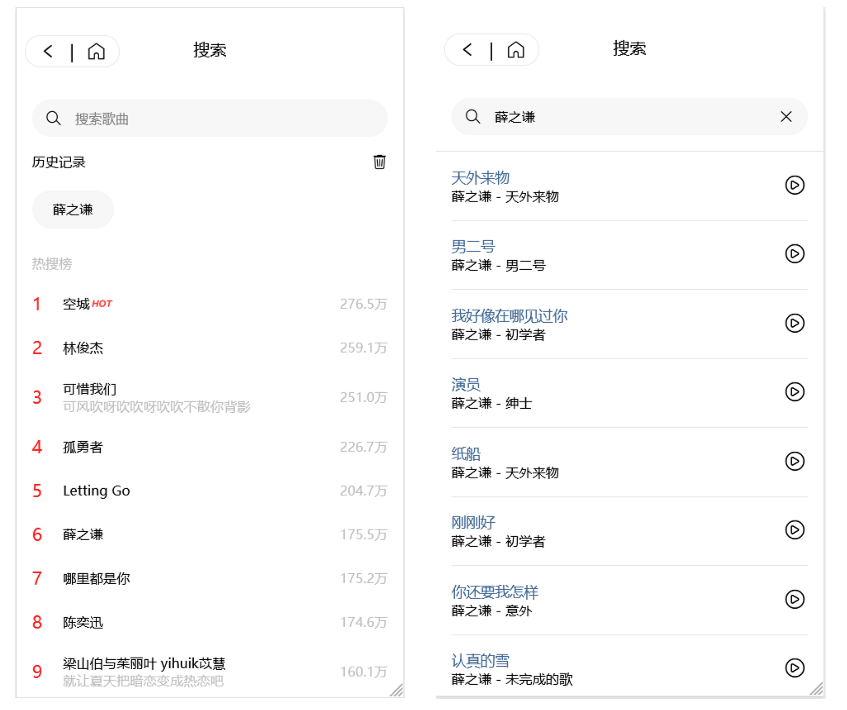
<template>
	<view class="search">
		<musichead title="搜索" :icon="true" :iconBlack="true"></musichead>
		<view class="container">
			<scroll-view scroll-y="true">
				<view class="search-search">
					<text class="iconfont iconsearch"></text>
					<input type="text" placeholder="搜索歌曲" v-model="searchWord" @confirm="handleToSearch" @input="handleToSuggest" />
					<text v-show="searchType == 2" @tap="handleToClose" class="iconfont iconguanbi"></text>
				</view>
				<block v-if="searchType == 1">
					<view class="search-history">
						<view class="search-history-head">
							<text>历史记录</text>
							<text class="iconfont iconlajitong" @tap="handleToClear"></text>
						</view>
						<view class="search-history-list">
							<view v-for="(item,index) in historyList" :key="index" @tap="handleToWord(item)">{{ item }}</view>
						</view>
					</view>
					<view class="search-hot">
						<view class="search-hot-title">热搜榜</view>
						<!-- <view class="search-hot-item">
							<view class="search-hot-top">1</view>
							<view class="search-hot-word">
								<view>
									少年 <image src="../../static/dujia.png" mode="aspectFit"></image>
								</view>
								<view>"少年"这个词实在是太美好了</view>
							</view>
							<text class="search-hot-count">2968644</text>
						</view> -->
						<view class="search-hot-item" v-for="(item,index) in searchHot" :key="index" @tap="handleToWord(item.searchWord)">
							<view class="search-hot-top">{{ index + 1 }}</view>
							<view class="search-hot-word">
								<view>
									{{ item.searchWord }} <image :src="item.iconType ? item.iconUrl : ''" mode="aspectFit"></image>
								</view>
								<view>{{ item.content }}</view>
							</view>
							<text class="search-hot-count">{{ item.score | formatCount }}</text>
						</view>
					</view>
				</block>
				<block v-else-if="searchType == 2">
					<view class="search-result">
						<!-- <view class="search-result-item">
							<view class="search-result-word">
								<view>少年</view>
								<view>
									<image src="../../static/dujia.png" mode=""></image>
									<image src="../../static/dujia.png" mode=""></image>
									许巍 - 爱如少年
								</view>
							</view>
							<text class="iconfont iconbofang"></text>
						</view> -->
						<view class="search-result-item" v-for="(item,index) in searchList" :key="index" @tap="handleToDetail(item.id)">
							<view class="search-result-word">
								<view>{{ item.name }}</view>
								<view>{{ item.artists[0].name }} - {{ item.album.name }}</view>
							</view>
							<text class="iconfont iconbofang"></text>
						</view>
					</view>
				</block>
				<block v-else-if="searchType == 3">
					<view class="search-suggest">
						<view class="search-suggest-title">搜索"{{ this.searchWord }}"</view>
						<!-- <view class="search-suggest-item">
							<text class="iconfont iconsearch"></text>
							少年抖音
						</view> -->
						<view class="search-suggest-item" v-for="(item,index) in suggestList" :key="index" @tap="handleToWord(item.keyword)">
							<text class="iconfont iconsearch"></text>
							{{ item.keyword }}
						</view>
					</view>
				</block>
			</scroll-view>
		</view>
	</view>
</template>

<script>
	import { searchHot , searchWord , searchSuggest } from '../../common/api.js'
	import '../../common/iconfont.css'
	export default {
		data() {
			return {
				searchHot : [],
				searchWord : '',
				historyList : [],
				searchType : 1,
				searchList : [],
				suggestList : []
			}
		},
		onLoad(){
			searchHot().then((res)=>{
				if(res[1].data.code == '200'){
					this.searchHot = res[1].data.data;
				}
			});
			uni.getStorage({
			    key: 'searchHistory',
			    success:(res)=>{
			        this.historyList = res.data;
			    }
			});
		},
		methods: {
			handleToSearch(){
				this.historyList.unshift(this.searchWord);
				this.historyList = [...new Set(this.historyList)];
				if(this.historyList.length > 10){
					this.historyList.length = 10;
				}
				uni.setStorage({
				    key: 'searchHistory',
				    data: this.historyList
				});
				this.getSearchList(this.searchWord);
			},
			handleToClear(){
				uni.removeStorage({
					key:'searchHistory',
					success:()=>{
						this.historyList = [];
					}
				});
			},
			getSearchList(word){
				searchWord(word).then((res)=>{
					if(res[1].data.code == '200'){
						this.searchList = res[1].data.result.songs;
						this.searchType = 2;
					}
				});
			},
			handleToClose(){
				this.searchWord = '';
				this.searchType = 1;
			},
			handleToSuggest(ev){
				let value = ev.detail.value;
				if(!value){
					this.searchType = 1;
					return;
				}
				searchSuggest(value).then((res)=>{
					if(res[1].data.code == '200'){
						this.suggestList = res[1].data.result.allMatch;
						this.searchType = 3;
					}
				});
			},
			handleToWord(word){
				this.searchWord = word;
				this.handleToSearch();
			},
			handleToDetail(songId){
				uni.navigateTo({
					url: '/pages/detail/detail?songId='+songId
				});
			}
		}
	}
</script>

<style scoped>
	.search-search{ display: flex; background:#f7f7f7; height:73rpx; margin:28rpx 30rpx 30rpx 30rpx; border-radius: 50rpx; align-items: center;}
	.search-search text{ margin:0 27rpx;}
	.search-search input{ font-size:26rpx; flex:1;}

	.search-history{ margin:0 30rpx; font-size:26rpx;}
	.search-history-head{ display: flex; justify-content: space-between;}
	.search-history-list{ display: flex; margin-top:36rpx; flex-wrap: wrap;}
	.search-history-list view{ padding:20rpx 40rpx; background:#f7f7f7; border-radius: 50rpx; margin-right:30rpx; margin-bottom: 20rpx;}

	.search-hot{ margin:30rpx 30rpx; font-size:26rpx; color:#bebebe;}
	.search-hot-title{}
	.search-hot-item{ display: flex; align-items: center; margin-top: 40rpx;}
	.search-hot-top{ width:60rpx; color:#fb2221; font-size:34rpx;}
	.search-hot-word{ flex:1;}
	.search-hot-word view:nth-child(1){ font-size::;rpx; color:black;}
	.search-hot-word image{ width:48rpx; height:22rpx;}
	.search-hot-count{}

	.search-result{ border-top: 2rpx #e5e5e5 solid; padding:30rpx;}
	.search-result-item{ display: flex; align-items: center; border-bottom: 2rpx #e5e5e5 solid; padding-bottom:30rpx; margin-bottom: 30rpx;}
	.search-result-item text{ font-size:50rpx;}
	.search-result-word{ flex:1;}
	.search-result-word view:nth-child(1){ font-size:28rpx; color:#3e6694;}
	.search-result-word view:nth-child(2){ font-size:26rpx;}

	.search-suggest{ border-top: 2rpx #e5e5e5 solid; padding:30rpx; font-size:26rpx; }
	.search-suggest-title{ color:#537caa; margin-bottom: 40rpx;}
	.search-suggest-item{ color:#666666; margin-bottom: 70rpx;}
	.search-suggest-item text{ color:#c2c2c2; font-size:26rpx; margin-right:26rpx;}
</style>
http://localhost:3000/search/hot/detail  ##热词的接口
http://localhost:3000/search?keywords=少年	##歌曲搜索结果接口
http://localhost:3000/search/suggest?keywords=少年&type=mobile  ##提示,你如输入"少"会提示可能出现的歌曲
封装一下接口:
export function searchHot() {
	return uni.request({
		url: `${baseUrl}/search/hot/detail`,
		method: 'GET'
	})
}

export function searchWord(word) {
	return uni.request({
		url: `${baseUrl}/search?keywords=${word}`,
		method: 'GET'
	})
}

export function searchSuggest(word) {
	return uni.request({
		url: `${baseUrl}/search/suggest?keywords=${word}&type=mobile`,
		method: 'GET'
	})
}
在5.1节数据已经渲染好了
可能有的同学不知道搜索提示是什么,其实他是我们生活中非常常见的一个功能,由下面的动图演示一下
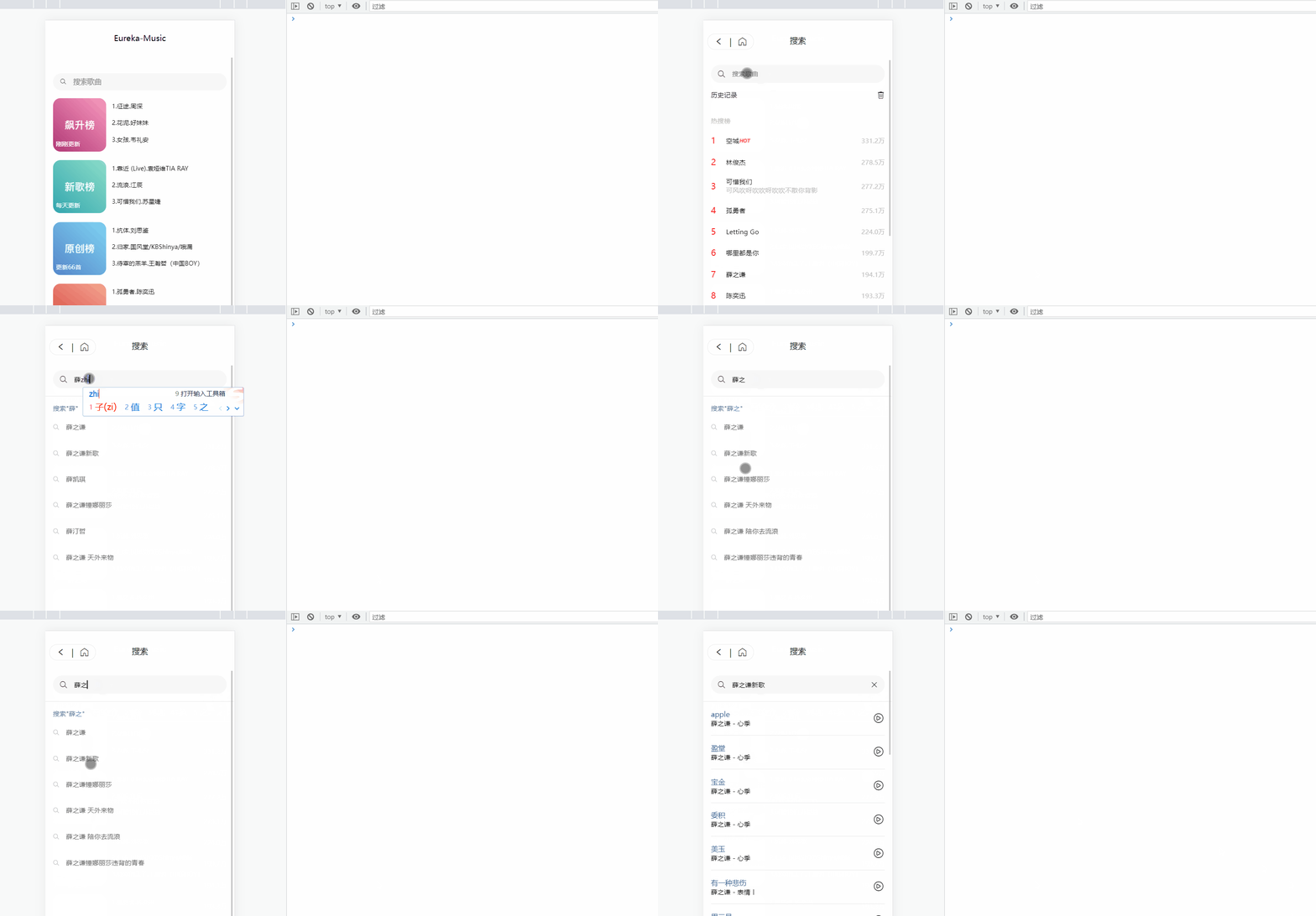
我们写一下搜索提示的逻辑
<block v-else-if="searchType == 3">
    <view class="search-suggest">
        <view class="search-suggest-title">搜索"{{ this.searchWord }}"</view>
        <!-- <view class="search-suggest-item">
<text class="iconfont iconsearch"></text>
少年抖音
</view> -->
        <view class="search-suggest-item" v-for="(item,index) in suggestList" :key="index" @tap="handleToWord(item.keyword)">
            <text class="iconfont iconsearch"></text>
            {{ item.keyword }}
        </view>
    </view>
</block>
这里小程序可能会有一点点问题,稍微修改一下就好
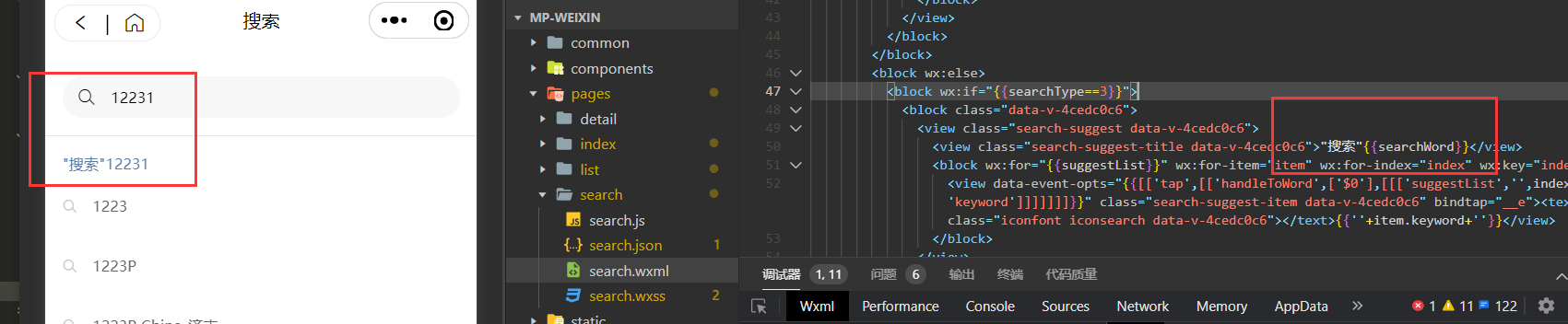
<input type="text" placeholder="搜索歌曲" v-model="searchWord" @confirm="handleToSearch" @input="handleToSuggest"/>
handleToSuggest(ev){
    let value = ev.detail.value;
    //为空返回第一页
    if(!value){
        this.searchType = 1;
        return;
    }
    searchSuggest(value).then((res)=>{
        if(res[1].data.code == '200'){
            this.suggestList = res[1].data.result.allMatch;
            this.searchType = 3;
        }
    });
},
用Loading框还是不够优雅,这里我们使用比较常见的骨架屏进行处理
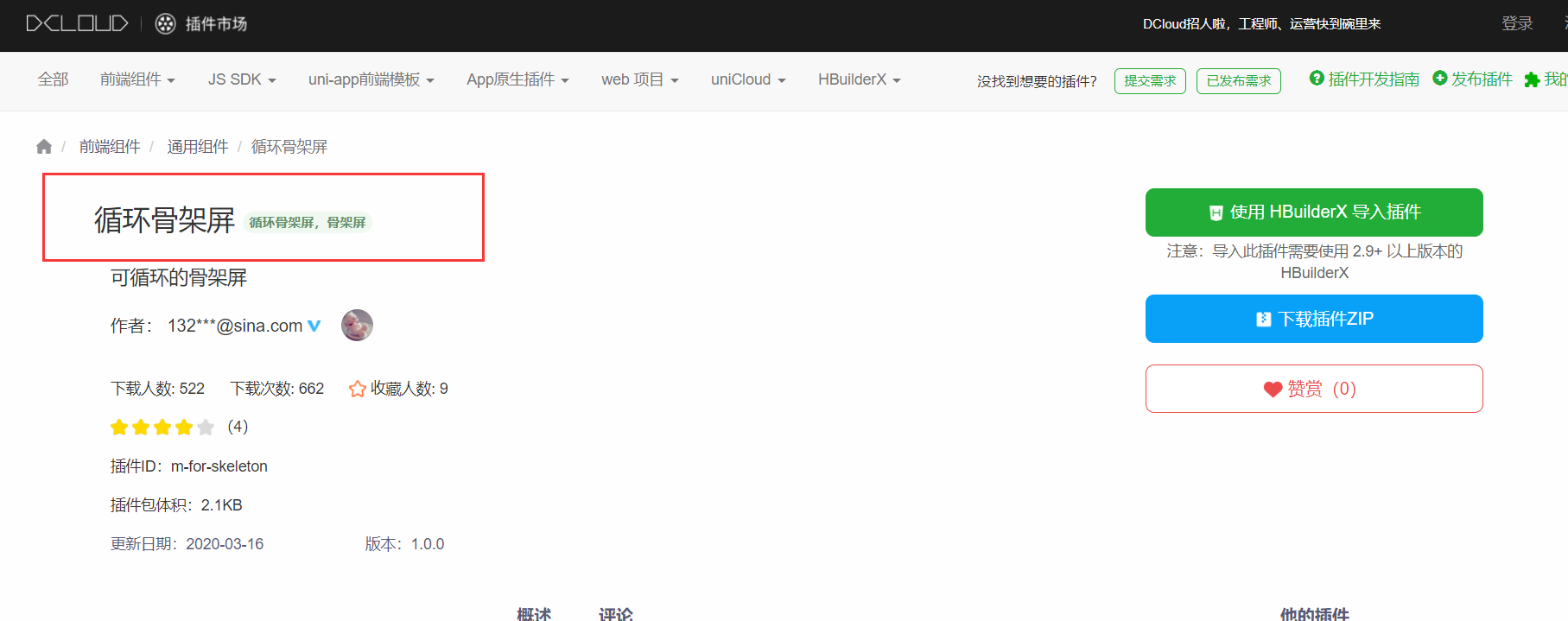
我们去uniapp的插件市场搜索一下骨架屏插件,点击右边添加到自己的HBuilderX中
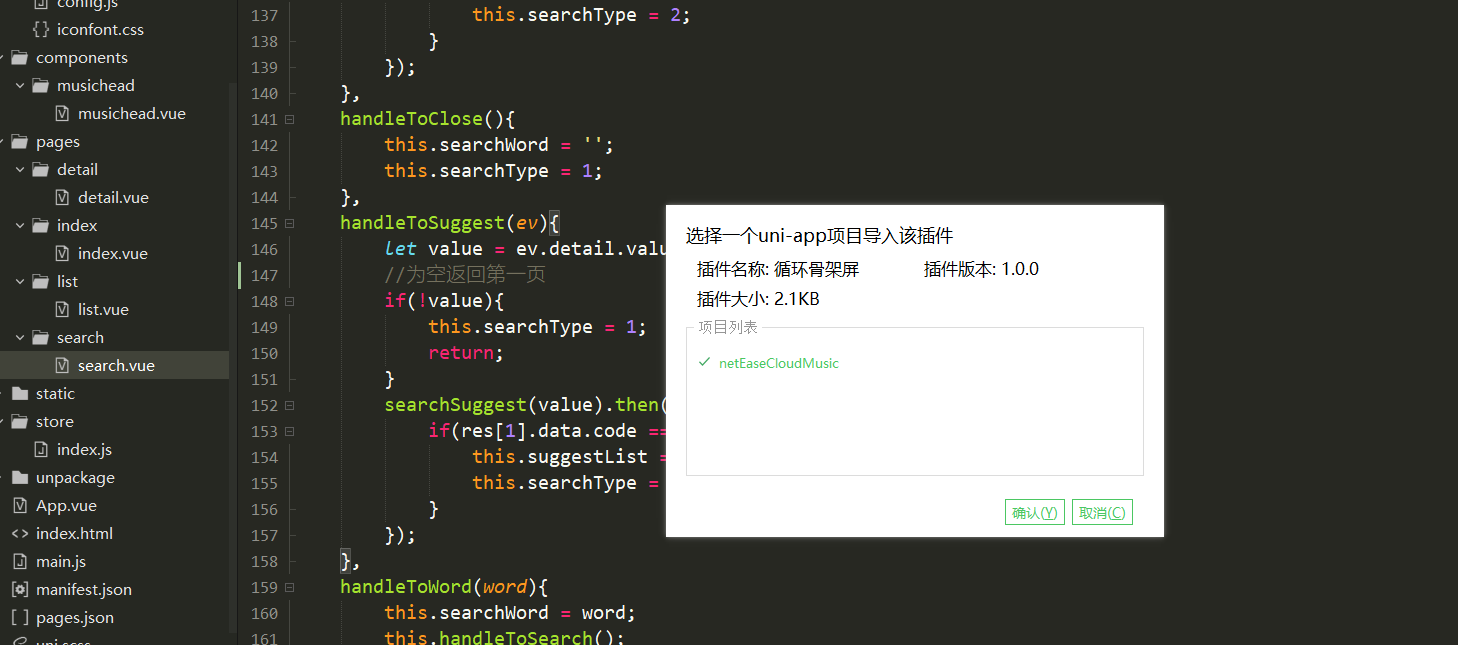
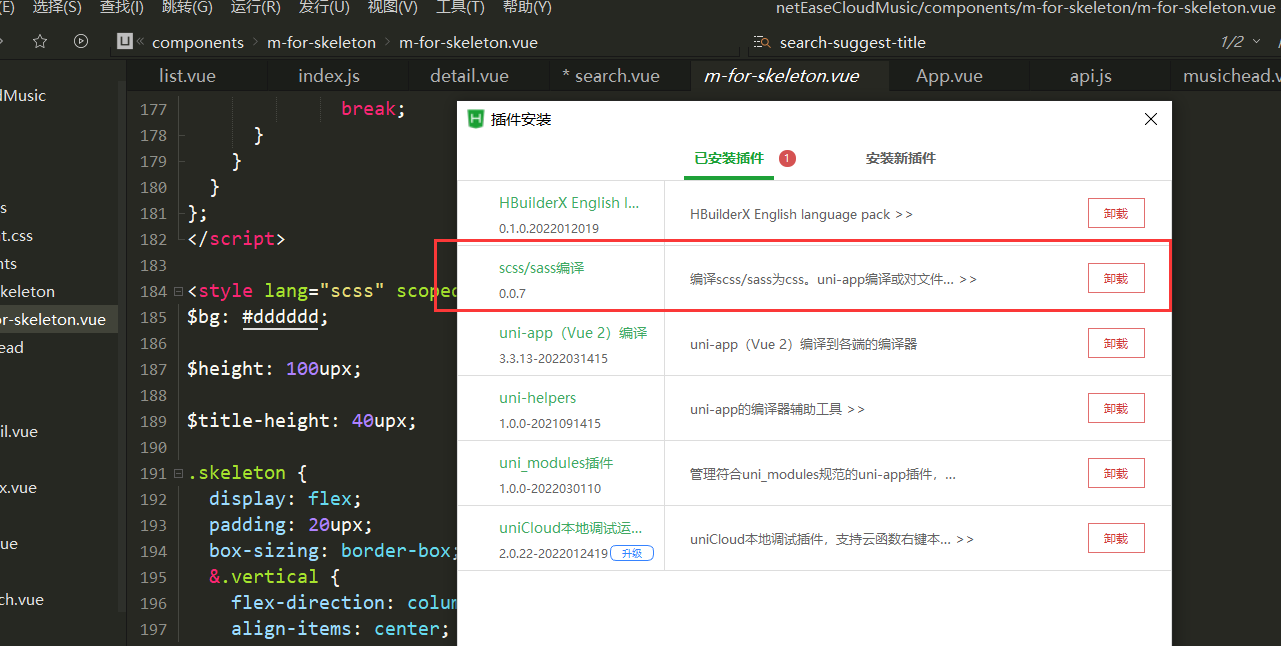
可以看到自动就安装好了,但是插件里面的样式是用scss写的,我们需要安装一下插件才能编译
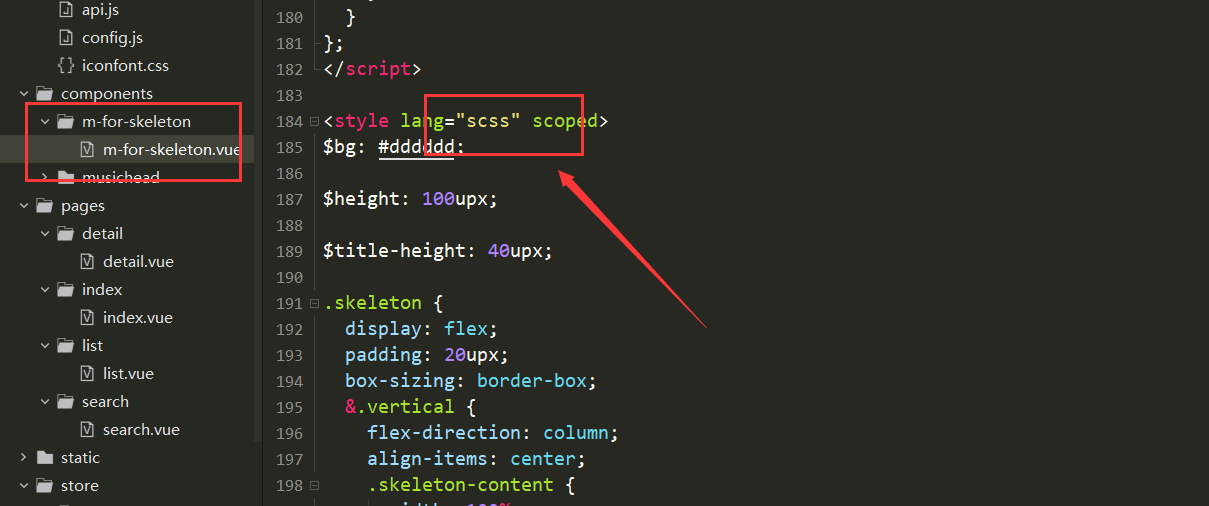
一般是默认安装好的
使用
先导入组件
// 导入组件
import mForSkeleton from "@/components/m-for-skeleton/m-for-skeleton";
我需要在客户计算机上运行Ruby应用程序。通常需要几天才能完成(复制大备份文件)。问题是如果启用sleep,它会中断应用程序。否则,计算机将持续运行数周,直到我下次访问为止。有什么方法可以防止执行期间休眠并让Windows在执行后休眠吗?欢迎任何疯狂的想法;-) 最佳答案 Here建议使用SetThreadExecutionStateWinAPI函数,使应用程序能够通知系统它正在使用中,从而防止系统在应用程序运行时进入休眠状态或关闭显示。像这样的东西:require'Win32API'ES_AWAYMODE_REQUIRED=0x0
Rackup通过Rack的默认处理程序成功运行任何Rack应用程序。例如:classRackAppdefcall(environment)['200',{'Content-Type'=>'text/html'},["Helloworld"]]endendrunRackApp.new但是当最后一行更改为使用Rack的内置CGI处理程序时,rackup给出“NoMethodErrorat/undefinedmethod`call'fornil:NilClass”:Rack::Handler::CGI.runRackApp.newRack的其他内置处理程序也提出了同样的反对意见。例如Rack
我想用ruby编写一个小的命令行实用程序并将其作为gem分发。我知道安装后,Guard、Sass和Thor等某些gem可以从命令行自行运行。为了让gem像二进制文件一样可用,我需要在我的gemspec中指定什么。 最佳答案 Gem::Specification.newdo|s|...s.executable='name_of_executable'...endhttp://docs.rubygems.org/read/chapter/20 关于ruby-在Ruby中编写命令行实用程序
我构建了两个需要相互通信和发送文件的Rails应用程序。例如,一个Rails应用程序会发送请求以查看其他应用程序数据库中的表。然后另一个应用程序将呈现该表的json并将其发回。我还希望一个应用程序将存储在其公共(public)目录中的文本文件发送到另一个应用程序的公共(public)目录。我从来没有做过这样的事情,所以我什至不知道从哪里开始。任何帮助,将不胜感激。谢谢! 最佳答案 无论Rails是什么,几乎所有Web应用程序都有您的要求,大多数现代Web应用程序都需要相互通信。但是有一个小小的理解需要你坚持下去,网站不应直接访问彼此
我尝试运行2.x应用程序。我使用rvm并为此应用程序设置其他版本的ruby:$rvmuseree-1.8.7-head我尝试运行服务器,然后出现很多错误:$script/serverNOTE:Gem.source_indexisdeprecated,useSpecification.Itwillberemovedonorafter2011-11-01.Gem.source_indexcalledfrom/Users/serg/rails_projects_terminal/work_proj/spohelp/config/../vendor/rails/railties/lib/r
刚入门rails,开始慢慢理解。有人可以解释或给我一些关于在application_controller中编码的好处或时间和原因的想法吗?有哪些用例。您如何为Rails应用程序使用应用程序Controller?我不想在那里放太多代码,因为据我了解,每个请求都会调用此Controller。这是真的? 最佳答案 ApplicationController实际上是您应用程序中的每个其他Controller都将从中继承的类(尽管这不是强制性的)。我同意不要用太多代码弄乱它并保持干净整洁的态度,尽管在某些情况下ApplicationContr
我是一个Rails初学者,但我想从我的RailsView(html.haml文件)中查看Ruby变量的内容。我试图在ruby中打印出变量(认为它会在终端中出现),但没有得到任何结果。有什么建议吗?我知道Rails调试器,但更喜欢使用inspect来打印我的变量。 最佳答案 您可以在View中使用puts方法将信息输出到服务器控制台。您应该能够在View中的任何位置使用Haml执行以下操作:-puts@my_variable.inspect 关于ruby-on-rails-如何在我的R
我是Google云的新手,我正在尝试对其进行首次部署。我的第一个部署是RubyonRails项目。我基本上是在关注thisguideinthegoogleclouddocumentation.唯一的区别是我使用的是我自己的项目,而不是他们提供的“helloworld”项目。这是我的app.yaml文件runtime:customvm:trueentrypoint:bundleexecrackup-p8080-Eproductionconfig.ruresources:cpu:0.5memory_gb:1.3disk_size_gb:10当我转到我的项目目录并运行gcloudprevie
当我在我的Rails应用程序根目录中运行rakedoc:app时,API文档是使用/doc/README_FOR_APP作为主页生成的。我想向该文件添加.rdoc扩展名,以便它在GitHub上正确呈现。更好的是,我想将它移动到应用程序根目录(/README.rdoc)。有没有办法通过修改包含的rake/rdoctask任务在我的Rakefile中执行此操作?是否有某个地方可以查找可以修改的主页文件的名称?还是我必须编写一个新的Rake任务?额外的问题:Rails应用程序的两个单独文件/README和/doc/README_FOR_APP背后的逻辑是什么?为什么不只有一个?
如何检查Ruby文件是否是通过“require”或“load”导入的,而不是简单地从命令行执行的?例如:foo.rb的内容:puts"Hello"bar.rb的内容require'foo'输出:$./foo.rbHello$./bar.rbHello基本上,我想调用bar.rb以不执行puts调用。 最佳答案 将foo.rb改为:if__FILE__==$0puts"Hello"end检查__FILE__-当前ruby文件的名称-与$0-正在运行的脚本的名称。 关于ruby-检查是否
