对于数据量较大的数据集,先对其中一部分图片打标签,Autolabelimg利用已标注好的图片进行训练,并利用训练得到的权重对其余数据进行自动标注,然后保存为xml文件。
https://github.com/ultralytics/yolov5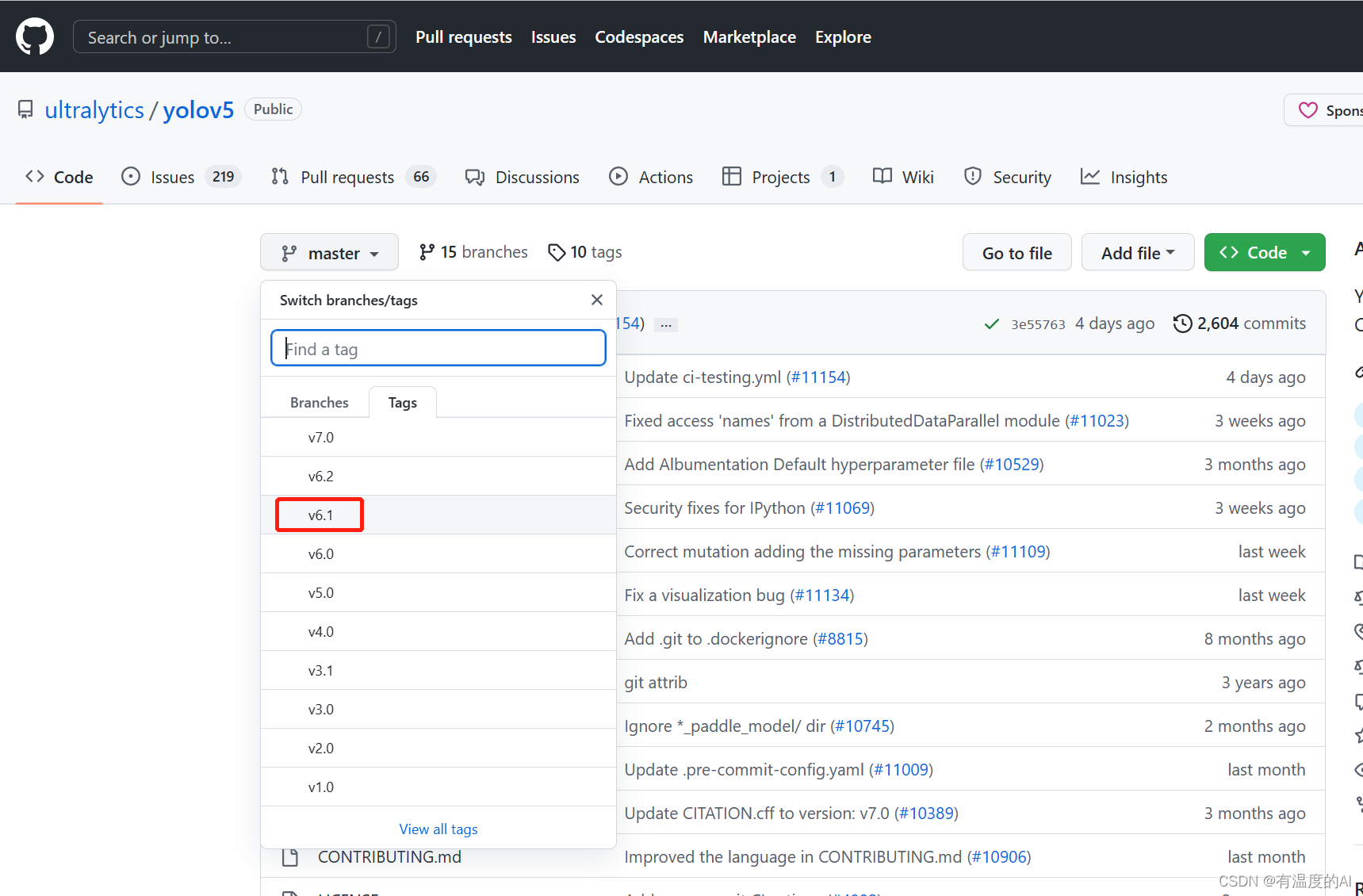
并对已标注的数据集进行训练,得到权重best.pt
import sys
from utils.torch_utils import select_device
from models.common import DetectMultiBackend
from utils.datasets import *
import torch
from utils.general import (check_img_size, non_max_suppression, scale_coords)
from tkinter import *
from tkinter import filedialog
import natsort
# FILE = Path(__file__).resolve()
# ROOT = FILE.parents[0]  # YOLOv5 root directory
# if str(ROOT) not in sys.path:
#     sys.path.append(str(ROOT))  # add ROOT to PATH
# ROOT = Path(os.path.relpath(ROOT, Path.cwd()))  # relative

import os
from os import getcwd
from xml.etree import ElementTree as ET


class Detector():

    def __init__(self):
        self.objectList = []
        self.weights = r""  # 可去官方下载v5 6.0的预训练权重模型
        self.dnn = False
        self.data = r""  # 选择你的配置文件(一般为.yaml)
        self.device = select_device(device='0')
        self.half = self.device.type != 'cpu'  # 半精度化
        self.predefined_classes = []
        self.imgdir = r""  # 你需要标注的图片文件夹
        self.outdir = r""  # 你需要保存的xml文件夹
        self.detect_class = r""  # 你需要自动标注的类型
        self.root_window = None
        self.flag = False

    @torch.no_grad()
    def run(self,
            frame,
            model,
            device,
            half=False,
            img_size=None,
            augment=False,
            visualize=False,
            max_det=1000):
        if img_size is None:
            img_size = [640, 640]
        img0 = frame
        stride, names, pt, jit, onnx, engine = model.stride, model.names, model.pt, model.jit, model.onnx, model.engine
        img_size = check_img_size(img_size, s=stride)
        # Half
        half &= (pt or jit or engine) and device.type != 'cpu'  # half precision only supported by PyTorch on CUDA
        if pt or jit:
            model.model.half() if half else model.model.float()

        img = letterbox(img0, auto=True, new_shape=img_size, stride=32)[0]
        img = img.transpose((2, 0, 1))[::-1]  # HWC to CHW, BGR to RGB
        img = np.ascontiguousarray(img)
        # model.warmup(imgsz=(1, 3, *img_size), half=half)  # warmup
        img = torch.from_numpy(img).to(device)
        img = img.half() if half else img.float()  # uint8 to fp16/32
        img /= 255  # 0 - 255 to 0.0 - 1.0
        if len(img.shape) == 3:
            img = img[None]  # expand for batch dim

        pred = model(img, augment=augment, visualize=visualize)

        pred = non_max_suppression(pred, max_det=max_det)
        for i, det in enumerate(pred):
            if det is not None and len(det):
                det[:, :4] = scale_coords(img.shape[2:], det[:, :4], img0.shape).round()
                info_list = []
                for *xyxy, conf, cls in reversed(det):
                    xyxy = torch.tensor(xyxy).view(-1).tolist()
                    info = [xyxy[0], xyxy[1], xyxy[2], xyxy[3], int(cls)]
                    info_list.append(info)
                return info_list
            else:
                return None

    def create_annotation(self, xn):
        global annotation
        tree = ET.ElementTree()
        tree.parse(xn)
        annotation = tree.getroot()

    # 遍历xml里面每个object的值如果相同就不插入
    def traverse_object(self, AnotPath):
        tree = ET.ElementTree(file=AnotPath)
        root = tree.getroot()
        ObjectSet = root.findall('object')
        for Object in ObjectSet:
            ObjName = Object.find('name').text
            BndBox = Object.find('bndbox')
            x1 = int(BndBox.find('xmin').text)
            y1 = int(BndBox.find('ymin').text)
            x2 = int(BndBox.find('xmax').text)
            y2 = int(BndBox.find('ymax').text)
            self.objectList.append([x1, y1, x2, y2, ObjName])

    # 定义一个创建一级分支object的函数
    def create_object(self, root, objl):  # 参数依次,树根,xmin,ymin,xmax,ymax
        # 创建一级分支object
        _object = ET.SubElement(root, 'object')
        # 创建二级分支
        name = ET.SubElement(_object, 'name')
        # print(obj_name)
        name.text = str(objl[4])
        pose = ET.SubElement(_object, 'pose')
        pose.text = 'Unspecified'
        truncated = ET.SubElement(_object, 'truncated')
        truncated.text = '0'
        difficult = ET.SubElement(_object, 'difficult')
        difficult.text = '0'
        # 创建bndbox
        bndbox = ET.SubElement(_object, 'bndbox')
        xmin = ET.SubElement(bndbox, 'xmin')
        xmin.text = '%s' % objl[0]
        ymin = ET.SubElement(bndbox, 'ymin')
        ymin.text = '%s' % objl[1]
        xmax = ET.SubElement(bndbox, 'xmax')
        xmax.text = '%s' % objl[2]
        ymax = ET.SubElement(bndbox, 'ymax')
        ymax.text = '%s' % objl[3]

    # 创建xml文件的函数
    def create_tree(self, image_name, h, w, imgdir):
        global annotation
        # 创建树根annotation
        annotation = ET.Element('annotation')
        # 创建一级分支folder
        folder = ET.SubElement(annotation, 'folder')
        # 添加folder标签内容
        folder.text = (imgdir)

        # 创建一级分支filename
        filename = ET.SubElement(annotation, 'filename')
        filename.text = image_name

        # 创建一级分支path
        path = ET.SubElement(annotation, 'path')

        # path.text = getcwd() + '\{}\{}'.format(imgdir, image_name)  # 用于返回当前工作目录
        path.text ='{}/{}'.format(imgdir, image_name)  # 用于返回当前工作目录

        # 创建一级分支source
        source = ET.SubElement(annotation, 'source')
        # 创建source下的二级分支database
        database = ET.SubElement(source, 'database')
        database.text = 'Unknown'

        # 创建一级分支size
        size = ET.SubElement(annotation, 'size')
        # 创建size下的二级分支图像的宽、高及depth
        width = ET.SubElement(size, 'width')
        width.text = str(w)
        height = ET.SubElement(size, 'height')
        height.text = str(h)
        depth = ET.SubElement(size, 'depth')
        depth.text = '3'

        # 创建一级分支segmented
        segmented = ET.SubElement(annotation, 'segmented')
        segmented.text = '0'

    def pretty_xml(self, element, indent, newline, level=0):  # elemnt为传进来的Elment类,参数indent用于缩进,newline用于换行
        if element:  # 判断element是否有子元素
            if (element.text is None) or element.text.isspace():  # 如果element的text没有内容
                element.text = newline + indent * (level + 1)
            else:
                element.text = newline + indent * (level + 1) + element.text.strip() + newline + indent * (level + 1)
                # else:  # 此处两行如果把注释去掉,Element的text也会另起一行
                # element.text = newline + indent * (level + 1) + element.text.strip() + newline + indent * level
        temp = list(element)  # 将element转成list
        for subelement in temp:
            if temp.index(subelement) < (len(temp) - 1):  # 如果不是list的最后一个元素,说明下一个行是同级别元素的起始,缩进应一致
                subelement.tail = newline + indent * (level + 1)
            else:  # 如果是list的最后一个元素, 说明下一行是母元素的结束,缩进应该少一个
                subelement.tail = newline + indent * level
            self.pretty_xml(subelement, indent, newline, level=level + 1)  # 对子元素进行递归操作

    def work(self):
        with open(self.detect_class, "r") as f:  # 打开文件
            for line in f.readlines():
                line = line.strip('\n')  # 去掉列表中每一个元素的换行符
                self.predefined_classes.append(line)
        model = DetectMultiBackend(self.weights, device=self.device, dnn=self.dnn, data=self.data)
        model.to(self.device).eval()
        names = model.module.names if hasattr(model, 'module') else model.names
        IMAGES_LIST = os.listdir(self.imgdir)
        for image_name in natsort.natsorted(IMAGES_LIST):
            # print(image_name)
            # 判断后缀只处理图片文件
            if image_name.endswith(('.jpg', '.png', '.jpeg', '.bmp')):
                image = cv2.imread(os.path.join(self.imgdir, image_name))
                if image is None:
                    print(image_name+"图像为空请删除")
                    continue
                file_tail = os.path.splitext(image_name)[1]
                coordinates_list = self.run(image, model, self.device, self.half)
                (h, w) = image.shape[:2]
                # xml_name = ('.\{}\{}.xml'.format(outdir, image_name.strip('.jpg')))
                xml_name = ('{}\{}.xml'.format(self.outdir, image_name.strip('.jpg')))
                if (os.path.exists(xml_name)):
                    self.create_annotation(xml_name)
                    self.traverse_object(xml_name)
                else:
                    self.create_tree(image_name, h, w, self.imgdir)
                if coordinates_list:
                    print(image_name+"已标注完成")
                    for coordinate in coordinates_list:
                        label_id = coordinate[4]
                        if (self.predefined_classes.count(names[label_id]) > 0):
                            object_information = [int(coordinate[0]), int(coordinate[1]), int(coordinate[2]),
                                                  int(coordinate[3]), names[label_id]]
                            if (self.objectList.count(object_information) == 0):
                                self.create_object(annotation, object_information)
                    self.objectList = []
                    # 将树模型写入xml文件
                    tree = ET.ElementTree(annotation)
                    root = tree.getroot()
                    self.pretty_xml(root, '\t', '\n')
                    # tree.write('.\{}\{}.xml'.format(outdir, image_name.strip('.jpg')), encoding='utf-8')
                    tree.write('{}\{}.xml'.format(self.outdir, image_name.strip(file_tail)), encoding='utf-8')
                else:
                    print(image_name)

    # 客户端
    def client(self):
        def creatWindow():
            self.root_window.destroy()
            window()

        def judge(str):
            if (str):
                text = "你已选择" + str
            else:
                text = "你还未选择文件夹,请选择"
            return text

        def test01():
            self.imgdir = r""
            self.imgdir += filedialog.askdirectory()
            creatWindow()

        def test02():
            self.outdir = r""
            self.outdir += filedialog.askdirectory()
            creatWindow()

        def test03():
            self.data = r""
            self.data += filedialog.askopenfilename()
            creatWindow()

        def test04():
            self.weights = r""
            self.weights += filedialog.askopenfilename()
            creatWindow()

        def test05():
            self.detect_class = r""
            self.detect_class += filedialog.askopenfilename()
            creatWindow()

        def tes06():
            self.work()
            self.flag=True
            creatWindow()

        def window():
            self.root_window = Tk()
            self.root_window.title("")
            screenWidth = self.root_window.winfo_screenwidth()  # 获取显示区域的宽度
            screenHeight = self.root_window.winfo_screenheight()  # 获取显示区域的高度
            tk_width = 500  # 设定窗口宽度
            tk_height = 400  # 设定窗口高度
            tk_left = int((screenWidth - tk_width) / 2)
            tk_top = int((screenHeight - tk_width) / 2)
            self.root_window.geometry('%dx%d+%d+%d' % (tk_width, tk_height, tk_left, tk_top))
            self.root_window.minsize(tk_width, tk_height)  # 最小尺寸
            self.root_window.maxsize(tk_width, tk_height)  # 最大尺寸
            self.root_window.resizable(width=False, height=False)
            btn_1 = Button(self.root_window, text='请选择你要标注的图片文件夹', command=test01,
                           height=0)
            btn_1.place(x=169, y=40, anchor='w')

            text = judge(self.imgdir)
            text_label = Label(self.root_window, text=text)
            text_label.place(x=160, y=70, anchor='w')
            btn_2 = Button(self.root_window, text='请选择你要保存的xml文件夹(.xml)', command=test02,
                           height=0)
            btn_2.place(x=169, y=100, anchor='w')
            text = judge(self.outdir)
            text_label = Label(self.root_window, text=text)
            text_label.place(x=160, y=130, anchor='w')
            btn_3 = Button(self.root_window, text='请选择你的配置文件(.yaml)', command=test03,
                           height=0)
            btn_3.place(x=169, y=160, anchor='w')
            text = judge(self.data)
            text_label = Label(self.root_window, text=text)
            text_label.place(x=160, y=190, anchor='w')

            # if(self.outdir and self.imgdir and self.data):
            btn_4 = Button(self.root_window, text='请选择使用的模型(.pt)', command=test04,
                           height=0)
            btn_4.place(x=169, y=220, anchor='w')
            text = judge(self.weights)
            text_label = Label(self.root_window, text=text)
            text_label.place(x=160, y=250, anchor='w')

            btn_5 = Button(self.root_window, text='请选择需要自动标注的类别文件(.txt)', command=test05,
                           height=0)
            btn_5.place(x=169, y=280, anchor='w')
            text = judge(self.detect_class)
            text_label = Label(self.root_window, text=text)
            text_label.place(x=160, y=310, anchor='w')

            btn_6 = Button(self.root_window, text='开始自动标注', command=tes06,
                           height=0)
            btn_6.place(x=169, y=340, anchor='w')
            if (self.flag):
                text = "标注完成"
            else:
                text = "等待标注"
            text_label = Label(self.root_window, text=text)
            text_label.place(x=160, y=370, anchor='w')
            self.root_window.mainloop()

        window()


if __name__ == '__main__':
    detector = Detector()
    detector.client()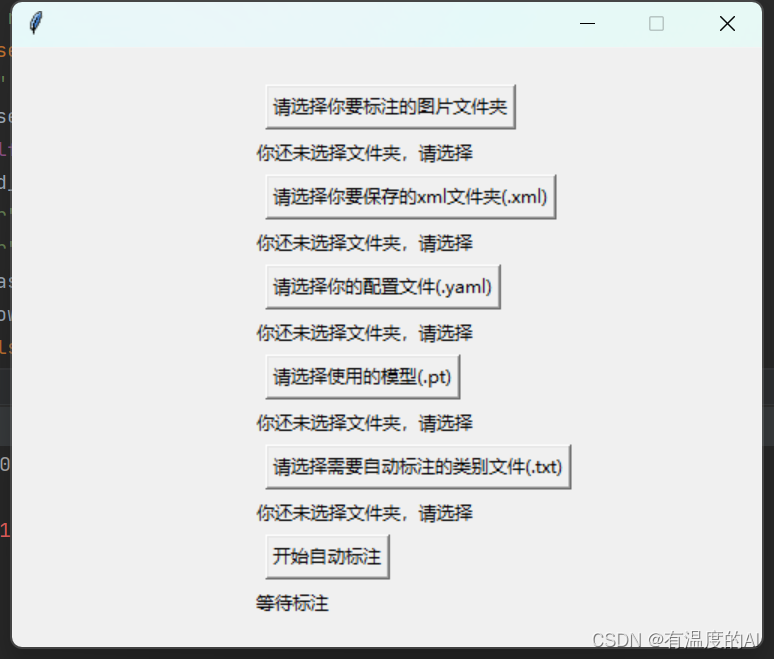
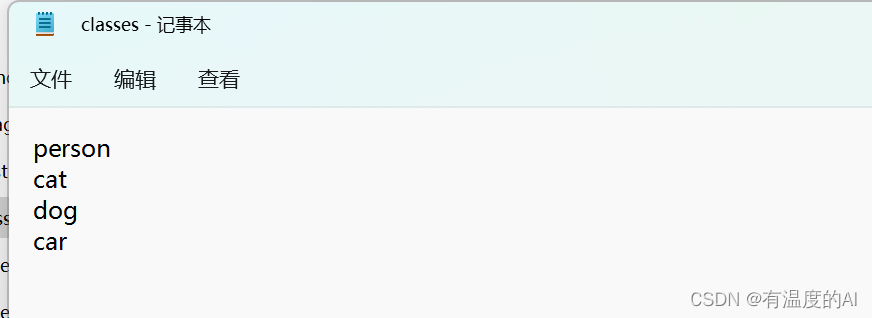
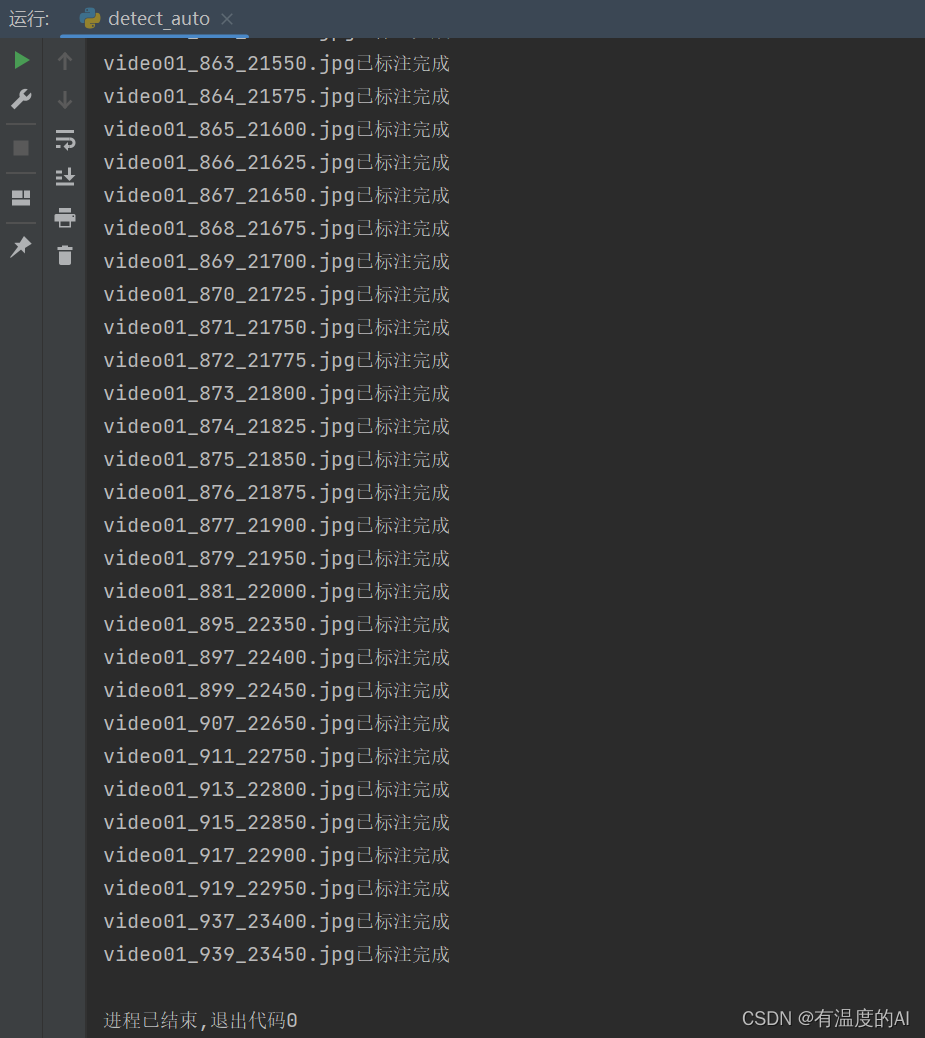
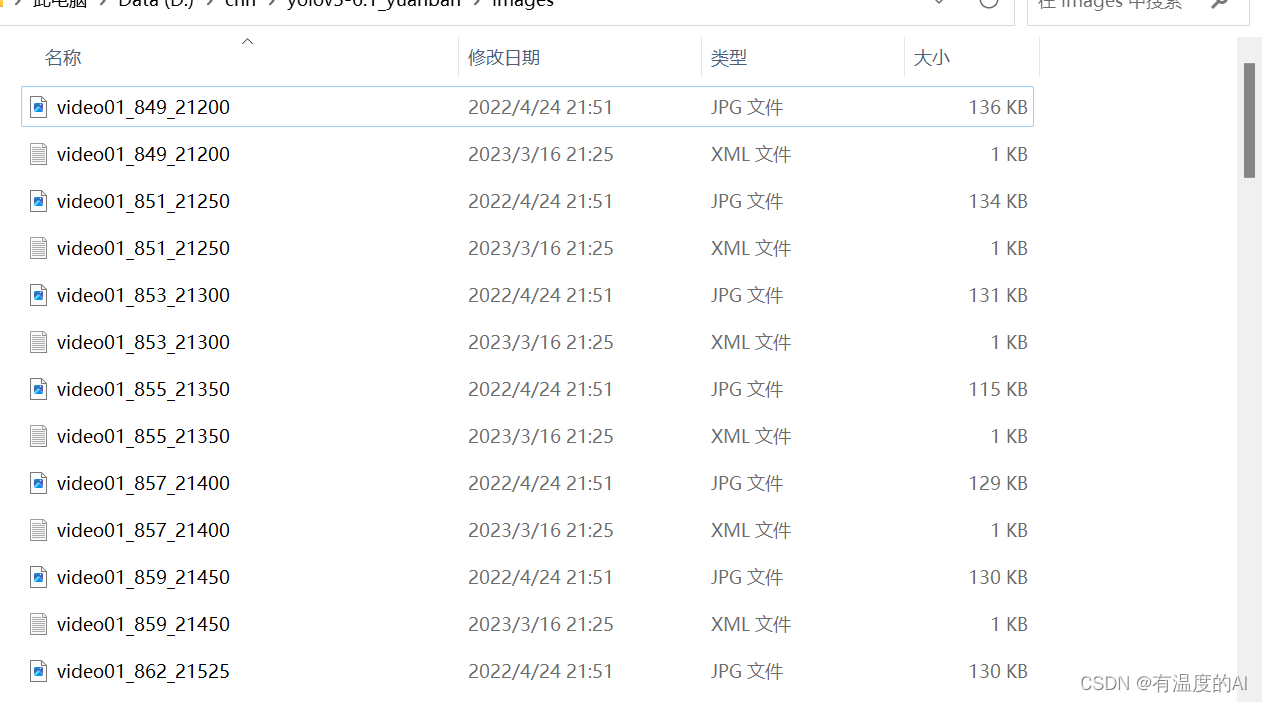
tips:自动标注的质量不是特别高,如果对标注质量有要求的话还需手动进行调整
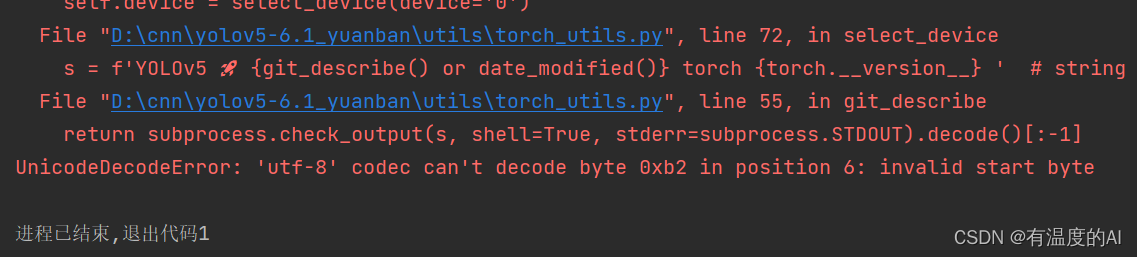
报错处理:改动utils/torch_utils.py文件中第55行如下

【解放双手YOLOv5 6.0自动标注(已开源)】 https://www.bilibili.com/video/BV1TZ4y1S76W/?p=2&share_source=copy_web&vd_source=95705b32f23f70b32dfa1721628d5874
很好奇,就使用rubyonrails自动化单元测试而言,你们正在做什么?您是否创建了一个脚本来在cron中运行rake作业并将结果邮寄给您?git中的预提交Hook?只是手动调用?我完全理解测试,但想知道在错误发生之前捕获错误的最佳实践是什么。让我们理所当然地认为测试本身是完美无缺的,并且可以正常工作。下一步是什么以确保他们在正确的时间将可能有害的结果传达给您? 最佳答案 不确定您到底想听什么,但是有几个级别的自动代码库控制:在处理某项功能时,您可以使用类似autotest的内容获得关于哪些有效,哪些无效的即时反馈。要确保您的提
我收到这个错误:RuntimeError(自动加载常量Apps时检测到循环依赖当我使用多线程时。下面是我的代码。为什么会这样?我尝试多线程的原因是因为我正在编写一个HTML抓取应用程序。对Nokogiri::HTML(open())的调用是一个同步阻塞调用,需要1秒才能返回,我有100,000多个页面要访问,所以我试图运行多个线程来解决这个问题。有更好的方法吗?classToolsController0)app.website=array.join(',')putsapp.websiteelseapp.website="NONE"endapp.saveapps=Apps.order("
无论您是想搭建桌面端、WEB端或者移动端APP应用,HOOPSPlatform组件都可以为您提供弹性的3D集成架构,同时,由工业领域3D技术专家组成的HOOPS技术团队也能为您提供技术支持服务。如果您的客户期望有一种在多个平台(桌面/WEB/APP,而且某些客户端是“瘦”客户端)快速、方便地将数据接入到3D应用系统的解决方案,并且当访问数据时,在各个平台上的性能和用户体验保持一致,HOOPSPlatform将帮助您完成。利用HOOPSPlatform,您可以开发在任何环境下的3D基础应用架构。HOOPSPlatform可以帮您打造3D创新型产品,HOOPSSDK包含的技术有:快速且准确的CAD
C#实现简易绘图工具一.引言实验目的:通过制作窗体应用程序(C#画图软件),熟悉基本的窗体设计过程以及控件设计,事件处理等,熟悉使用C#的winform窗体进行绘图的基本步骤,对于面向对象编程有更加深刻的体会.Tutorial任务设计一个具有基本功能的画图软件**·包括简单的新建文件,保存,重新绘图等功能**·实现一些基本图形的绘制,包括铅笔和基本形状等,学习橡皮工具的创建**·设计一个合理舒适的UI界面**注明:你可能需要先了解一些关于winform窗体应用程序绘图的基本知识,以及关于GDI+类和结构的知识二.实验环境Windows系统下的visualstudio2017C#窗体应用程序三.
我们目前正在为ROR3.2开发自定义cms引擎。在这个过程中,我们希望成为我们的rails应用程序中的一等公民的几个类类型起源,这意味着它们应该驻留在应用程序的app文件夹下,它是插件。目前我们有以下类型:数据源数据类型查看我在app文件夹下创建了多个目录来保存这些:应用/数据源应用/数据类型应用/View更多类型将随之而来,我有点担心应用程序文件夹被这么多目录污染。因此,我想将它们移动到一个子目录/模块中,该子目录/模块包含cms定义的所有类型。所有类都应位于MyCms命名空间内,目录布局应如下所示:应用程序/my_cms/data_source应用程序/my_cms/data_ty
1.postman介绍Postman一款非常流行的API调试工具。其实,开发人员用的更多。因为测试人员做接口测试会有更多选择,例如Jmeter、soapUI等。不过,对于开发过程中去调试接口,Postman确实足够的简单方便,而且功能强大。2.下载安装官网地址:https://www.postman.com/下载完成后双击安装吧,安装过程极其简单,无需任何操作3.使用教程这里以百度为例,工具使用简单,填写URL地址即可发送请求,在下方查看响应结果和响应状态码常用方法都有支持请求方法:getpostputdeleteGet、Post、Put与Delete的作用get:请求方法一般是用于数据查询,
我最喜欢的Google文档功能之一是它会在我工作时不断自动保存我的文档版本。这意味着即使我在进行关键更改之前忘记在某个点进行保存,也很有可能会自动创建一个保存点。至少,我可以将文档恢复到错误更改之前的状态,并从该点继续工作。对于在MacOS(或UNIX)上运行的Ruby编码器,是否有具有等效功能的工具?例如,一个工具会每隔几分钟自动将Gitcheckin我的本地存储库以获取我正在处理的文件。也许我有点偏执,但这点小保险可以让我在日常工作中安心。 最佳答案 虚拟机有些人可能讨厌我对此的回应,但我在编码时经常使用VIM,它具有自动保存功
我想知道是否可以通过自动创建数组来插入数组,如果数组不存在的话,就像在PHP中一样:$toto[]='titi';如果尚未定义$toto,它将创建数组并将“titi”压入。如果已经存在,它只会推送。在Ruby中我必须这样做:toto||=[]toto.push('titi')可以一行完成吗?因为如果我有一个循环,它会测试“||=”,除了第一次:Person.all.eachdo|person|toto||=[]#with1billionofperson,thislineisuseless999999999times...toto.push(person.name)你有更好的解决方案吗?
我正在尝试上传文件。一个简单的hello.txt。我正在关注文档,但无法将其上传到我的存储桶。#STARTAWSCLIENTs3=Aws::S3::Resource.newbucket=s3.bucket(BUCKET_NAME)begins3.buckets[BUCKET_NAME].objects[KEY].write(:file=>FILE_NAME)puts"Uploadingfile#{FILE_NAME}tobucket#{BUCKET_NAME}."bucket.objects.eachdo|obj|puts"#{obj.key}=>#{obj.etag}"endresc
我有一个Highstock图表(带有标记和阴影的线条),并且想以编程方式显示一个highstock工具提示,例如,当我选择某个表上的一行(包含图表数据)我想显示相应的highstock工具提示。这可能吗? 最佳答案 股票图表thissolution不起作用:在thisexample你必须更换这个:chart.tooltip.refresh(chart.series[0].data[i]);为此:chart.tooltip.refresh([chart.series[0].points[i]]);解决方案可用here.
