在搭建系统之前,需要详细阅读讯为公司提供的一些资料(虽然他们家资料一直都做的不完善),搭建好用于开发的Ubuntu虚拟机环境,熟练使用一些常用工具如烧录系统的工具RKDevTool、传输文件的工具FileZilla、远程连接工具MobaXterm等等。当然,本章只针对根文件系统,uboot、kernel的镜像文件和驱动文件需要提前准备好,编译讯为提供的Rockchip的SDK即可得到这些文件。
Ubuntu在镜像网站Index of / (ubuntu.com)提供了各种版本的镜像文件,我们从下面的连接下载最小系统,之后继续安装桌面软件包,进行一系列的配置就可以获得我们需要的系统。
先寻找一个空白的文件夹放置ubuntu-base-20.04.1-base-arm64.tar.gz,然后以root权限建立一个文件夹,将根文件系统解压到这个文件夹中。
sudo mkdir ubuntu-rootfs
sudo tar -xvpf ubuntu-base-20.04.5-base-arm64.tar.gz -C ubuntu-rootfs
接下来在Ubuntu虚拟机上模拟运行arm64架构的最小文件系统,为此需要安装qemu-user-static。
sudo apt-get install qemu-user-static
# 适用于arm 32位架构
sudo cp /usr/bin/qemu-arm-static ubuntu-rootfs/usr/bin/
# 适用于aarch64即arm64架构
sudo cp /usr/bin/qemu-aarch64-static ubuntu-rootfs/usr/bin/
为了连接网络,需要拷贝resolv.conf文件以及配置国内的镜像源。
# 拷贝文件
sudo cp -b /etc/resolv.conf ubuntu-rootfs/etc/resolv.conf
# 修改镜像源
sudo gedit ubuntu-rootfs/etc/apt/sources.list
下面是阿里云镜像源,可以直接复制内容覆盖源镜像列表文件。
# See http://help.ubuntu.com/community/UpgradeNotes for how to upgrade to
# newer versions of the distribution.
deb http://mirrors.aliyun.com/ubuntu-ports/ focal main restricted
# deb-src http://mirrors.aliyun.com/ubuntu-ports/ focal main restricted

## Major bug fix updates produced after the final release of the
## distribution.
deb http://mirrors.aliyun.com/ubuntu-ports/ focal-updates main restricted
# deb-src http://mirrors.aliyun.com/ubuntu-ports/ focal-updates main restricted

## N.B. software from this repository is ENTIRELY UNSUPPORTED by the Ubuntu
## team. Also, please note that software in universe WILL NOT receive any
## review or updates from the Ubuntu security team.
deb http://mirrors.aliyun.com/ubuntu-ports/ focal universe
# deb-src http://mirrors.aliyun.com/ubuntu-ports/ focal universe
deb http://mirrors.aliyun.com/ubuntu-ports/ focal-updates universe
# deb-src http://mirrors.aliyun.com/ubuntu-ports/ focal-updates universe

## N.B. software from this repository is ENTIRELY UNSUPPORTED by the Ubuntu
## team, and may not be under a free licence. Please satisfy yourself as to
## your rights to use the software. Also, please note that software in
## multiverse WILL NOT receive any review or updates from the Ubuntu
## security team.
deb http://mirrors.aliyun.com/ubuntu-ports/ focal multiverse
# deb-src http://mirrors.aliyun.com/ubuntu-ports/ focal multiverse
deb http://mirrors.aliyun.com/ubuntu-ports/ focal-updates multiverse
# deb-src http://mirrors.aliyun.com/ubuntu-ports/ focal-updates multiverse

## N.B. software from this repository may not have been tested as
## extensively as that contained in the main release, although it includes
## newer versions of some applications which may provide useful features.
## Also, please note that software in backports WILL NOT receive any review
## or updates from the Ubuntu security team.
deb http://mirrors.aliyun.com/ubuntu-ports/ focal-backports main restricted universe multiverse
# deb-src http://mirrors.aliyun.com/ubuntu-ports/ focal-backports main restricted universe multiverse

## Uncomment the following two lines to add software from Canonical's
## 'partner' repository.
## This software is not part of Ubuntu, but is offered by Canonical and the
## respective vendors as a service to Ubuntu users.
# deb http://archive.canonical.com/ubuntu focal partner
# deb-src http://archive.canonical.com/ubuntu focal partner

deb http://mirrors.aliyun.com/ubuntu-ports/ focal-security main restricted
# deb-src http://mirrors.aliyun.com/ubuntu-ports/ focal-security main restricted
deb http://mirrors.aliyun.com/ubuntu-ports/ focal-security universe
# deb-src http://mirrors.aliyun.com/ubuntu-ports/ focal-security universe
deb http://mirrors.aliyun.com/ubuntu-ports/ focal-security multiverse
# deb-src http://mirrors.aliyun.com/ubuntu-ports/ focal-security multiverse
编写一个挂载脚本mount.sh,方便进入和退出arm64的文件系统
#!/bin/bash
function mnt() {
  echo "MOUNTING"
  sudo mount -t proc /proc ${2}proc
  sudo mount -t sysfs /sys ${2}sys
  sudo mount -o bind /dev ${2}dev
  #sudo mount -t devpts -o gid=5,mode=620 devpts ${2}dev/pts
  sudo mount -o bind /dev/pts ${2}dev/pts
  sudo chroot ${2}
}
function umnt() {
  echo "UNMOUNTING"
  sudo umount ${2}proc
  sudo umount ${2}sys
  sudo umount ${2}dev/pts
  sudo umount ${2}dev
}
if [ "$1" == "-m" ] && [ -n "$2" ] ;
then
  mnt $1 $2
elif [ "$1" == "-u" ] && [ -n "$2" ];
then
  umnt $1 $2
else
  echo ""
  echo "Either 1’st, 2’nd or both parameters were missing"
  echo ""
  echo "1’st parameter can be one of these: -m(mount) OR -u(umount)"
  echo "2’nd parameter is the full path of rootfs directory(with trailing ‘/’)"
  echo ""
  echo "For example: ch-mount -m /media/sdcard/"
  echo ""
  echo 1st parameter : ${1}
  echo 2nd parameter : ${2}
fi进入arm64的根文件系统后,终端将只能操作arm64的根文件系统,通过exit命令退出并返回Ubuntu虚拟机的终端。
# 进入arm64的根文件系统
./mount.sh -m ubuntu-rootfs/
更新并升级根文件系统。
apt update
apt upgrade
安装一些必要的软件,如vim、sudo、网络管理、蓝牙管理等等。
apt install apt-utils dialog
apt install vim sudo
apt install bash-completion
apt install net-tools iputils-ping ifupdown ethtool
apt install wireless-tools network-manager
apt install ssh rsync udev htop rsyslog
apt install bluetooth* bluez* blueman*
# 可装可不装
apt install curl
apt install openssh-server
apt install git
apt install ffmpeg
配置系统的时区、文字编码。
apt install locales tzdata
# 时区选择
# Asia/Shanghai
dpkg-reconfigure locales
# 勾选英文和中文环境
# en_US.UTF-8 UTF-8
# zh_CN.UTF-8 UTF-8
安装图形环境,依赖非常多,占用空间3G多。
apt install ubuntu-desktop开机默认切换到图形界面。
systemctl set-default graphical.targetNetwork-Manager服务会自动配置网卡,但是其默认配置文件将Ethernet加入了黑名单,以至于Ubuntu提示unmanned。
vi /usr/lib/NetworkManager/conf.d/10-globally-managed-devices.conf
# 文件内容改为如下内容
[keyfile]
unmanaged-devices=*,except:type:ethernet,except:type:wifi,except:type:gsm,except:type:cdma
设置主机名,增加用户,修改账户密码。
# 主机名
echo "RK3588" > /etc/hostname
# 主机IP地址
echo "127.0.0.1 localhost RK3588" > /etc/hosts
# 添加用户
useradd -s '/bin/bash' -m -G adm,sudo user
# 设置密码
passwd user
passwd root
安装中英文语言包和中文输入法。
# 英文环境
apt install language-pack-en-base
apt install language-pack-gnome-en-base

# 中文环境
apt install language-pack-zh-hans-base
apt install language-pack-gnome-zh-hans-base

# 中文输入法
apt install ibus-table-wubi ibus-pinyin ibus-sunpinyin桌面环境需要的包已经基本安装完成,接下来需要一些别的配置。
Ubuntu根文件系统打包成镜像并烧录到emmc后,所占分区大小和镜像的大小一样,为了充分利用emmc的空间,需要在第一次运行时扩充分区大小。根据parameter.txt中rootfs分区对应的名称配置, 默认是对/dev/mmcblk0p6分区进行扩充。创建一个脚本和服务来扩充分区。
vi etc/init.d/firstboot.sh
# 以下是firstboot.sh的内容
#!/bin/bash -e
# first boot configure
# resize filesystem mmcblk0p6
if [ ! -e "/usr/local/first_boot_flag" ] ;
then
  echo "Resizing /dev/mmcblk0p6..."
  resize2fs /dev/mmcblk0p6
  touch /usr/local/first_boot_flag
fi
添加运行权限。
chmod +x etc/init.d/firstboot.shvi lib/systemd/system/firstboot.service
# 以下是firstboot.service的内容
#start
[Unit]
Description=Setup rockchip platform environment
Before=lightdm.service
After=resize-helper.service
[Service]
Type=simple
ExecStart=/etc/init.d/firstboot.sh
[Install]
WantedBy=multi-user.target
#end启动firstboot.service服务。
systemctl enable firstboot.service启用ssh的root帐号登录。
vi /etc/ssh/sshd_config
# 将下面这项设置成yes
PermitRootLogin yes
Ubuntu默认不能用root登录界面,可以配置启用以root登录界面。
vi /usr/share/lightdm/lightdm.conf.d/50-ubuntu.conf
# 添加下面的内容
greeter-show-manual-login=true
all-guest=false

vi /etc/pam.d/gdm-autologin
# 注释掉下面这行
#auth   required        pam_succeed_if.so user != root quiet_success

vi /etc/pam.d/gdm-password
# 注释掉下面这行
#auth   required        pam_succeed_if.so user != root quiet_success

vi /root/.profile
# 添加下面的内容,替换掉 mesg n || true 这一行
tty -s && mesg n || true
可以设置界面的自动登录。
vi /etc/gdm3/custom.conf
# 添加下面的内容,user即账户名
[daemon]
AutomaticLoginEnable=true
AutomaticLogin=user
TimedLoginEnable=true
TimedLogin=user
TimedLoginDelay=10
为方便在没有网络的时候调试,设置通过串口登录root。
vi /lib/systemd/system/serial-getty\@.service
# 替换ExecStart这行
ExecStart=-/sbin/agetty --autologin root --noclear %I $TERM退出arm64文件系统环境,回到宿主机环境,卸载挂载的目录
# 退出arm64的根文件系统
exit
# 卸载挂载的目录
./mount.sh -u ubuntu-rootfs/
讯为RK3588平台采用RTL8723du这款wifi和Bluetooth二合一基于USB总线的无线设备,其驱动被编译成了模块,需要安装这些模块才能启用无线和蓝牙,其中蓝牙还需要RTL官方的固件。这些文件可以在编译Debian后的输出目录的中(/lib/firmware)找到,需要将这些文件拷贝到我们的根文件系统中。8723du.ko是wifi的驱动,rtk_btusb.ko是蓝牙的驱动。
# copy 8723du.ko to ubuntu-rootfs/lib/modules/5.10.66
# copy rtk_btusb.ko to ubuntu-rootfs/lib/modules/5.10.66
# copy rtl8723du_config rtl8723du_fw to /lib/firmware
# Linux会自动安装modprobe安装过的驱动
# depmod也许会提示缺少modules.order modules.builtin文件,这些文件是编译内核后生成的,同样复制到ubuntu-rootfs/lib/modules/5.10.66即可
depmod
modprobe 8723du.ko
modprobe rtk_btusb.ko
制作镜像脚本,空间分配6G
vi mkimage.sh
# mkimage.sh内容如下
#!/bin/bash
rootfs_dir=$1
rootfs_file=$2
rootfs_mnt="mnt"
if [ ! $rootfs_dir ] || [ ! $rootfs_file ];
then
  echo "Folder or target is empty."
  exit 0
fi
if [ -f "$rootfs_file" ]; then
  echo "-- Delete exist $rootfs_file ..."
  rm -f "$rootfs_file"
fi
echo "-- Create $rootfs_file ..."
dd if=/dev/zero of="$rootfs_file" bs=1M count=6144
sudo mkfs.ext4 -F -L linuxroot "$rootfs_file"
if [ ! -d "$rootfs_mnt" ]; then
  mkdir $rootfs_mnt
fi
echo "-- Copy data to $rootfs_file ..."
sudo mount $rootfs_file $rootfs_mnt
sudo cp -rfp $rootfs_dir/* $rootfs_mnt
sudo sync
sudo umount $rootfs_mnt
rm -r $rootfs_mnt
echo "-- Resize $rootfs_file ..."
/sbin/e2fsck -p -f "$rootfs_file"
/sbin/resize2fs -M "$rootfs_file"
echo "-- Done."
制作镜像,制作完成后即可进行烧录。
./mkimage.sh ubuntu-rootfs rootfs.img1)Ubuntu选择语言的界面为空,选择输入法的界面为空,原因未知。

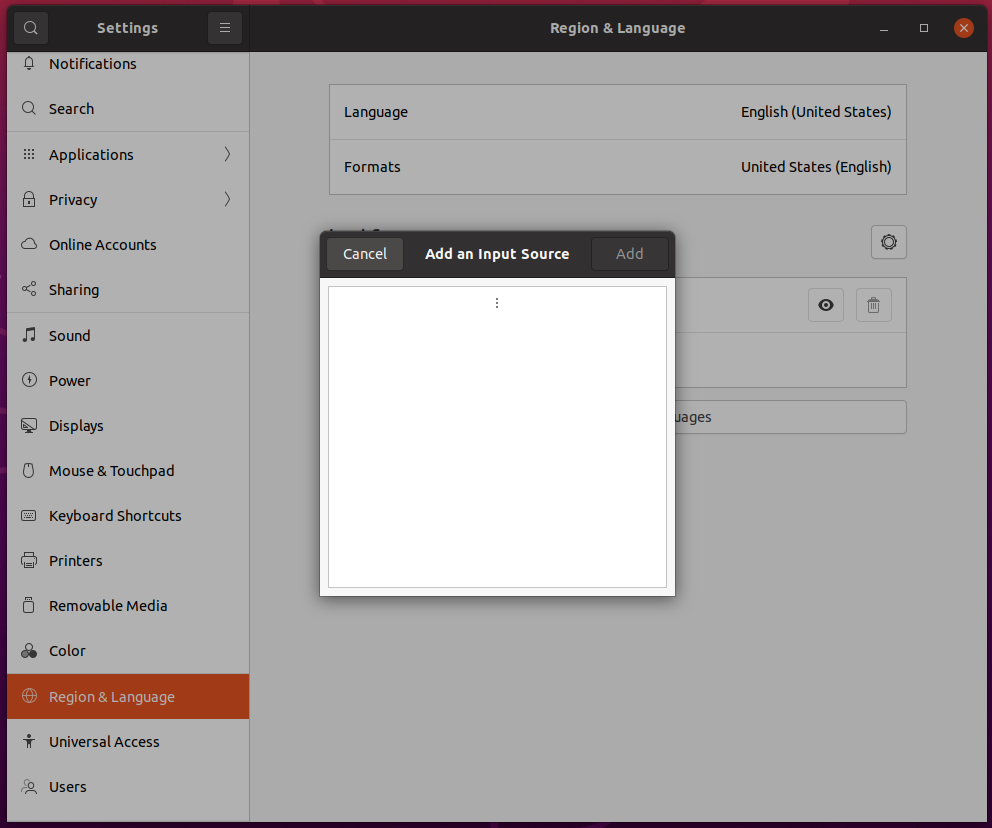
2)firefly的Ubuntu镜像优化的很不错,用wayland替代了XServer,界面非常流畅,但是运行在非firefly的设备上,会在开机显示logo时提示 This's not a firefly's product。
我试过重新启动apache,缓存的页面仍然出现,所以一定有一个文件夹在某个地方。我没有“公共(public)/缓存”,那么我还应该查看哪些其他地方?是否有一个URL标志也可以触发此效果? 最佳答案 您需要触摸一个文件才能清除phusion,例如:touch/webapps/mycook/tmp/restart.txt参见docs 关于ruby-如何在Ubuntu中清除RubyPhusionPassenger的缓存?,我们在StackOverflow上找到一个类似的问题:
导读:随着叮咚买菜业务的发展,不同的业务场景对数据分析提出了不同的需求,他们希望引入一款实时OLAP数据库,构建一个灵活的多维实时查询和分析的平台,统一数据的接入和查询方案,解决各业务线对数据高效实时查询和精细化运营的需求。经过调研选型,最终引入ApacheDoris作为最终的OLAP分析引擎,Doris作为核心的OLAP引擎支持复杂地分析操作、提供多维的数据视图,在叮咚买菜数十个业务场景中广泛应用。作者|叮咚买菜资深数据工程师韩青叮咚买菜创立于2017年5月,是一家专注美好食物的创业公司。叮咚买菜专注吃的事业,为满足更多人“想吃什么”而努力,通过美好食材的供应、美好滋味的开发以及美食品牌的孵
之前在培训新生的时候,windows环境下配置opencv环境一直教的都是网上主流的vsstudio配置属性表,但是这个似乎对新生来说难度略高(虽然个人觉得完全是他们自己的问题),加之暑假之后对cmake实在是爱不释手,且这样配置确实十分简单(其实都不需要配置),故斗胆妄言vscode下配置CV之法。其实极为简单,图比较多所以很长。如果你看此文还配不好,你应该思考一下是不是自己的问题。闲话少说,直接开始。0.CMkae简介有的人到大二了都不知道cmake是什么,我不说是谁。CMake是一个开源免费并且跨平台的构建工具,可以用简单的语句来描述所有平台的编译过程。它能够根据当前所在平台输出对应的m
C#实现简易绘图工具一.引言实验目的:通过制作窗体应用程序(C#画图软件),熟悉基本的窗体设计过程以及控件设计,事件处理等,熟悉使用C#的winform窗体进行绘图的基本步骤,对于面向对象编程有更加深刻的体会.Tutorial任务设计一个具有基本功能的画图软件**·包括简单的新建文件,保存,重新绘图等功能**·实现一些基本图形的绘制,包括铅笔和基本形状等,学习橡皮工具的创建**·设计一个合理舒适的UI界面**注明:你可能需要先了解一些关于winform窗体应用程序绘图的基本知识,以及关于GDI+类和结构的知识二.实验环境Windows系统下的visualstudio2017C#窗体应用程序三.
在VMware16.2.4安装Ubuntu一、安装VMware1.打开VMwareWorkstationPro官网,点击即可进入。2.进入后向下滑动找到Workstation16ProforWindows,点击立即下载。3.下载完成,文件大小615MB,如下图:4.鼠标右击,以管理员身份运行。5.点击下一步6.勾选条款,点击下一步7.先勾选,再点击下一步8.去掉勾选,点击下一步9.点击下一步10.点击安装11.点击许可证12.在百度上搜索VM16许可证,复制填入,然后点击输入即可,亲测有效。13.点击完成14.重启系统,点击是15.双击VMwareWorkstationPro图标,进入虚拟机主
需求:要创建虚拟机,就需要给他提供一个虚拟的磁盘,我们就在/opt目录下创建一个10G大小的raw格式的虚拟磁盘CentOS-7-x86_64.raw命令格式:qemu-imgcreate-f磁盘格式磁盘名称磁盘大小qemu-imgcreate-f磁盘格式-o?1.创建磁盘qemu-imgcreate-fraw/opt/CentOS-7-x86_64.raw10G执行效果#ls/opt/CentOS-7-x86_64.raw2.安装虚拟机使用virt-install命令,基于我们提供的系统镜像和虚拟磁盘来创建一个虚拟机,另外在创建虚拟机之前,提前打开vnc客户端,在创建虚拟机的时候,通过vnc
我正在运行Ubuntu11.10并像这样安装Ruby1.9:$sudoapt-getinstallruby1.9rubygems一切都运行良好,但ri似乎有空文档。ri告诉我文档是空的,我必须安装它们。我执行此操作是因为我读到它会有所帮助:$rdoc--all--ri现在,当我尝试打开任何文档时:$riArrayNothingknownaboutArray我搜索的其他所有内容都是一样的。 最佳答案 这个呢?apt-getinstallri1.8编辑或者试试这个:(非rvm)geminstallrdocrdoc-datardoc-da
我试图在Ubuntu14.04中使用Curl安装RVM。我运行了以下命令:\curl-sSLhttps://get.rvm.io|bash-sstable出现如下错误:curl:(7)Failedtoconnecttoget.rvm.ioport80:Networkisunreachable非常感谢解决此问题的任何帮助。谢谢 最佳答案 在执行curl之前尝试这个:echoipv4>>~/.curlrc 关于ruby-在Ubuntu14.04中使用Curl安装RVM时出错,我们在Stack
我正在寻找用于Rails的优质管理插件。似乎大多数现有的插件/gem(例如“restful_authentication”、“acts_as_authenticated”)都围绕着self注册等展开。但是,我正在寻找一种功能齐全的基于管理/管理角色的解决方案——但不是简单地附加到另一个非基于角色的解决方案。如果我找不到,我想我会自己动手......只是不想重新发明轮子。 最佳答案 RyanBates最近做了两个关于授权的railscast(注意身份验证和授权之间的区别;身份验证检查用户是否如她所说的那样,授权检查用户是否有权访问资源
我正在根据Rakefile中的现有测试文件动态生成测试任务。假设您有各种以模式命名的单元测试文件test_.rb.所以我正在做的是创建一个以“测试”命名空间内的文件名命名的任务。使用下面的代码,我可以用raketest:调用所有测试require'rake/testtask'task:default=>'test:all'namespace:testdodesc"Runalltests"Rake::TestTask.new(:all)do|t|t.test_files=FileList['test_*.rb']endFileList['test_*.rb'].eachdo|task|n
