地址
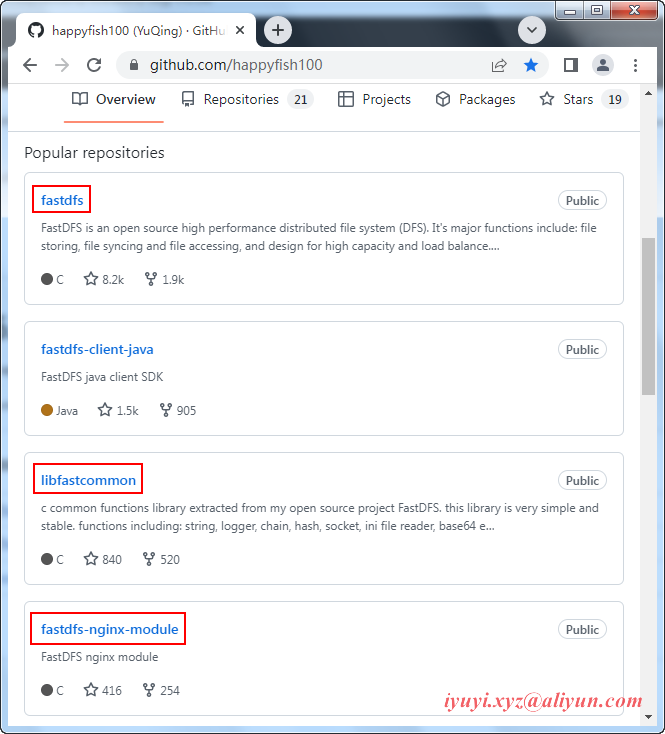
wget 下载
wget https://github.com/happyfish100/libfastcommon/archive/refs/tags/V1.0.57.tar.gz
wget https://github.com/happyfish100/libserverframe/archive/refs/tags/V1.1.15.tar.gz
wget https://github.com/happyfish100/fastdfs/archive/refs/tags/V6.08.tar.gz
wget https://github.com/happyfish100/fastdfs-nginx-module/archive/refs/tags/V1.22.tar.gz
wget http://nginx.org/download/nginx-1.18.0.tar.gz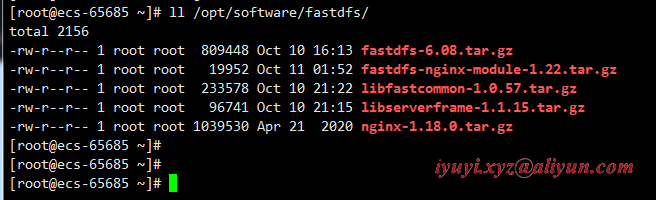
安装gcc环境(若以安装可以忽略)
gcc 4.8.5 试过了,可以的安装
yum install -y gcc gcc-c++

[root@ecs-65685 ~]# gcc --version
gcc (GCC) 4.8.5 20150623 (Red Hat 4.8.5-44)
Copyright (C) 2015 Free Software Foundation, Inc.
This is free software; see the source for copying conditions.  There is NO
warranty; not even for MERCHANTABILITY or FITNESS FOR A PARTICULAR PURPOSE.
安装libevent(运行时需求)
yum install -y libevent
解压
mkire /opt/fastdfs
tar -zxvf /opt/software/fastdfs/libfastcommon-1.0.57.tar.gz -C /opt/fastdfs/
编译&安装
cd /opt/fastdfs/libfastcommon-1.0.57
./make.sh clean && ./make.sh && ./make.sh install在老版本中要建立软连接,而新版本中不需要建立软连接,usr/lib存在文件则不需要操作
find /usr/lib64 -name libfastcommon.so
find /usr/lib -name libfastcommon.so
解压
tar -zxvf /opt/software/fastdfs/libserverframe-1.1.15.tar.gz -C /opt/fastdfs编译&安装
cd /opt/fastdfs/libfastcommon-1.0.55
./make.sh clean && ./make.sh && ./make.sh install
解压目录
tar -zxvf fastdfs-6.08.tar.gz -C /opt/fastdfs/编译&安装
cd /opt/fastdfs/fastdfs-6.08
./make.sh clean && ./make.sh && ./make.sh install 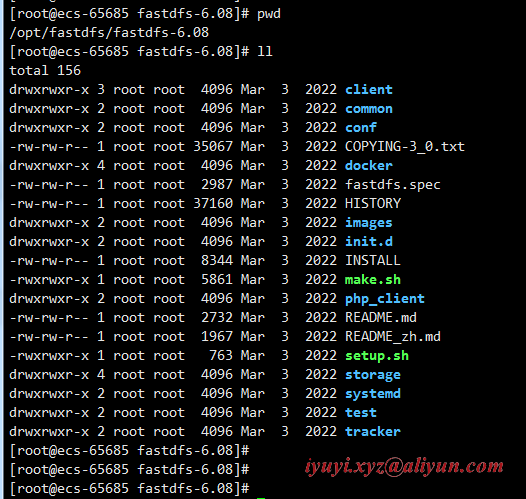
进入 fastdfs 的配置文件目录 /etc/fdfs,对4个文件进行备份,这是个好习惯,作用很大的。
cd /etc/fdfs
cp client.conf client.conf.bak
cp storage.conf storage.conf.bak
cp storage_ids.conf storage_ids.conf.bak
cp tracker.conf tracker.conf.bak 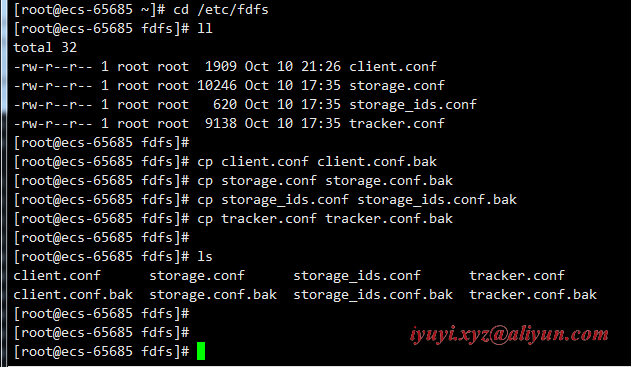
编译安装后 生成的 fastdfs 主程序
ls /usr/bin|grep fdfs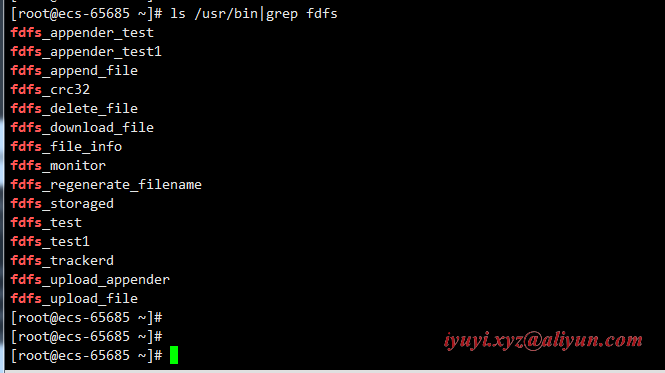
fastdfs 已经安装完成,配置tracker和storage了。
1 创建tracker服务器文件存放路径
在配置tracker之前,首先需要创建tracker服务器的文件路径,即用于存储tracker的数据文件和日志文件等。
这里我选择在/opt/fastdfs/data目录下创建一个fastdfs_tracker目录用于存放tracker服务器的相关文件。
mkdir -p /opt/fastdfs/data/fastdfs_tracker
2 编辑安装 fastdfs 软件时产生的tracker.conf配置文件
vim /etc/fdfs/tracker.conf

[root@ecs-65685 fdfs]# rm -rf client.conf.bak
# is this config file disabled
# false for enabled
# true for disabled
disabled = false # 启用配置文件(默认启用)

# the tracker server port
port = 22122 # 设置tracker的端口号,通常采用22122这个默认端口

# the base path to store data and log files
base_path = /opt/fastdfs/data/fastdfs_tracker # 设置tracker的数据文件和日志目录

# HTTP port on this tracker server
http.server_port = 9991 # 设置tracker服务的http端口号,和tracker-nginx的http端口相关
3 启动tracker
保存配置后启动tracker,命令如下
service fdfs_trackerd start如果不能启动,或提示用 systemctl 可改用命令
systemctl start fdfs_trackerd成功后应该可以看到
卡住了,按 Catrl + C 还是启动成功的(补)
如果启动命令执行成功,那么同时在刚才创建的tracker文件目录 /opt/fastdfs/data/fastdfs_tracker 中就可以看到启动后新生成的data和logs目录。

tracker服务的端口也应当被正常监听,最后再通过netstat命令查看一下端口监听情况。
[root@ecs-65685 data]# netstat -lntup |grep fdfs
tcp        0      0 0.0.0.0:22122           0.0.0.0:*               LISTEN      5577/fdfs_trackerd
1 创建storage服务器文件存放路径
同理,步骤基本与配置tracker一致,首先是创建storage服务器的文件目录。
需要注意的是同tracker相比多建了一个目录,因为storage还需要一个文件存储路径,用于存放接收的文件。
mkdir /opt/fastdfs/data/fastdfs_storage
mkdir /opt/fastdfs/data/fastdfs_storage_data
2 编辑安装 fastdfs 软件时产生的storage.conf配置文件
vim storage.conf
# is this config file disabled
# false for enabled
# true for disabled
disabled = false # 启用配置文件(默认启用)

# the name of the group this storage server belongs to
#
# comment or remove this item for fetching from tracker server,
# in this case, use_storage_id must set to true in tracker.conf,
# and storage_ids.conf must be configured correctly.
group_name = group1 # 组名,根据实际情况修改

# the storage server port
port = 23000  # 设置storage的端口号,默认是23000,同一个组的storage端口号必须一致

# the base path to store data and log files
# NOTE: the binlog files maybe are large, make sure
#       the base path has enough disk space,
#       eg. the disk free space should > 50GB
base_path = /opt/fastdfs/data/fastdfs_storage # 设置storage数据文件和日志目录

# store path (disk or mount point) count, default value is 1
store_path_count = 1  #存储路径个数,需要和store_path个数匹配

# store_path#, based on 0, to configure the store paths to store files
# if store_path0 not exists, it's value is base_path (NOT recommended)
# the paths must be exist.
#
# IMPORTANT NOTE:
#       the store paths' order is very important, don't mess up!!!
#       the base_path should be independent (different) of the store paths

store_path0 = /opt/fastdfs/data/fastdfs_storage_data # 图片文件实际存储路径

# tracker_server can ocur more than once for multi tracker servers.
# the value format of tracker_server is "HOST:PORT",
#   the HOST can be hostname or ip address,
#   and the HOST can be dual IPs or hostnames seperated by comma,
#   the dual IPS must be an inner (intranet) IP and an outer (extranet) IP,
#   or two different types of inner (intranet) IPs.
#   for example: 192.168.2.100,122.244.141.46:22122
#   another eg.: 192.168.1.10,172.17.4.21:22122

tracker_server = 192.168.0.98:22122
#tracker_server = 192.168.209.122:22122
#tracker 服务器的 IP地址和端口号,
#如果是单机搭建,IP不要写127.0.0.1,否则启动不成功(此处的ip是我的CentOS虚拟机ip,也不是映射的公网地址)

# the port of the web server on this storage server
http.server_port = 9992 # 设置storage的http 端口号,和stroage-nginx的http端口相关
3 启动storage
service fdfs_storaged start
systemctl start fdfs_storaged
netstat -unltp | grep fdfs
4 检查fastdfs的tracker与storage是否整合成功
上面可以看到此时已经正常监听tracker的22122端口和storage的23000端口,至此storage服务器就已经配置完成。
确定了storage服务器启动成功后,还有一项工作就是看看storage服务器是否已经登记到tracker服务器(也可以理解为tracker与storage是否整合成功)。
运行以下命令:
 [root@ecs-65685 ~]# /usr/bin/fdfs_monitor /etc/fdfs/storage.conf
[2022-10-10 23:29:24] DEBUG - base_path=/opt/fastdfs/data/fastdfs_storage, connect_timeout=5, network_timeout=60, tracker_server_count=1, anti_steal_token=0, anti_steal_secret_key length=0, use_connection_pool=1, g_connection_pool_max_idle_time=3600s, use_storage_id=0, storage server id count: 0

server_count=1, server_index=0

tracker server is 192.168.0.98:22122

group count: 1

Group 1:
group name = group1
disk total space = 40,188 MB
disk free space = 18,461 MB
trunk free space = 0 MB
storage server count = 1
active server count = 1
storage server port = 23000
storage HTTP port = 9992
store path count = 1
subdir count per path = 256
current write server index = 0
current trunk file id = 0

	Storage 1:
		id = 192.168.0.98
		ip_addr = 192.168.0.98  ACTIVE
		http domain =
		version = 6.08
		join time = 2022-10-10 23:17:35
		up time = 2022-10-10 23:17:35
		total storage = 40,188 MB
		free storage = 18,461 MB
		upload priority = 10
		store_path_count = 1
		subdir_count_per_path = 256
		storage_port = 23000
		storage_http_port = 9992
		current_write_path = 0
		source storage id =
		if_trunk_server = 0
		connection.alloc_count = 256
		connection.current_count = 0
		connection.max_count = 0
		total_upload_count = 0
		success_upload_count = 0
		total_append_count = 0
		success_append_count = 0
		total_modify_count = 0
		success_modify_count = 0
		total_truncate_count = 0
		success_truncate_count = 0
		total_set_meta_count = 0
		success_set_meta_count = 0
		total_delete_count = 0
		success_delete_count = 0
		total_download_count = 0
		success_download_count = 0
		total_get_meta_count = 0
		success_get_meta_count = 0
		total_create_link_count = 0
		success_create_link_count = 0
		total_delete_link_count = 0
		success_delete_link_count = 0
		total_upload_bytes = 0
		success_upload_bytes = 0
		total_append_bytes = 0
		success_append_bytes = 0
		total_modify_bytes = 0
		success_modify_bytes = 0
		stotal_download_bytes = 0
		success_download_bytes = 0
		total_sync_in_bytes = 0
		success_sync_in_bytes = 0
		total_sync_out_bytes = 0
		success_sync_out_bytes = 0
		total_file_open_count = 0
		success_file_open_count = 0
		total_file_read_count = 0
		success_file_read_count = 0
		total_file_write_count = 0
		success_file_write_count = 0
		last_heart_beat_time = 2022-10-10 23:29:10
		last_source_update = 2022-10-10 23:24:44
		last_sync_update = 1970-01-01 08:00:00
		last_synced_timestamp = 1970-01-01 08:00:00
5 加入开机启动
[root@ecs-65685 ~]# ll /etc/rc.d/rc.local
-rw-r--r-- 1 root root 473 Jan 14  2022 /etc/rc.d/rc.local
[root@ecs-65685 ~]#
[root@ecs-65685 ~]# chmod +x /etc/rc.d/rc.local
[root@ecs-65685 ~]#
[root@ecs-65685 ~]# ll /etc/rc.d/rc.local
-rwxr-xr-x 1 root root 473 Jan 14  2022 /etc/rc.d/rc.local
[root@ecs-65685 ~]#
[root@ecs-65685 ~]# vim /etc/rc.d/rc.local

#!/bin/bash
# THIS FILE IS ADDED FOR COMPATIBILITY PURPOSES
#
# It is highly advisable to create own systemd services or udev rules
# to run scripts during boot instead of using this file.
#
# In contrast to previous versions due to parallel execution during boot
# this script will NOT be run after all other services.
#
# Please note that you must run 'chmod +x /etc/rc.d/rc.local' to ensure
# that this script will be executed during boot.

touch /var/lock/subsys/local
service fdfs_trackerd start
service fdfs_storaged start
1 编辑客户端client.conf配置文件
测试时需要设置客户端的配置文件,编辑/etc/fdfs目录下的client.conf 文件
vim /etc/fdfs/client.conf

# the base path to store log files
base_path = /opt/fastdfs/data/fastdfs_tracker # tracker服务器文件路径

# tracker_server can ocur more than once for multi tracker servers.
# the value format of tracker_server is "HOST:PORT",
#   the HOST can be hostname or ip address,
#   and the HOST can be dual IPs or hostnames seperated by comma,
#   the dual IPS must be an inner (intranet) IP and an outer (extranet) IP,
#   or two different types of inner (intranet) IPs.
#   for example: 192.168.2.100,122.244.141.46:22122
#   another eg.: 192.168.1.10,172.17.4.21:22122

tracker_server = 192.168.0.98:22122 # tracker服务IP地址和端口号
#tracker_server = 192.168.0.197:22122

#HTTP settings
http.tracker_server_port = 9991 # tracker 服务的 http.server_port 端口号,必须和tracker配置文件里的设置对应起来
2 准备需要上传的图片
配置完成后就可以模拟文件上传了,先给/home/img/目录下放一张图片(1.png)
/usr/bin/fdfs_upload_file /etc/fdfs/client.conf /home/img/0.jpggroup1/M00/00/00/wKgAYmNEPCuAXEJUABnyrhpMC68201.png
如果返回了一个路径,就表示文件已经上传成功了。
组名:group1
磁盘:M00
目录:00/00
文件名称:wKgAYmNEPCuAXEJUABnyrhpMC68201.png
当文件存储到某个子目录后,即认为该文件存储成功,接下来会为该文件生成一个文件名,文件名由group、存储目录、两级子目录、fileid、文件后缀名(由客户端指定,主要用于区分文件类型)拼接而成。
同时在之前配置的storage服务器的实际文件存储路径中也可以根据返回的路径找到实际文件。
3 查看上传的图片新的信息
/usr/bin/fdfs_file_info /etc/fdfs/client.conf group1/M00/00/00/wKgAYmNEPCuAXEJUABnyrhpMC68201.png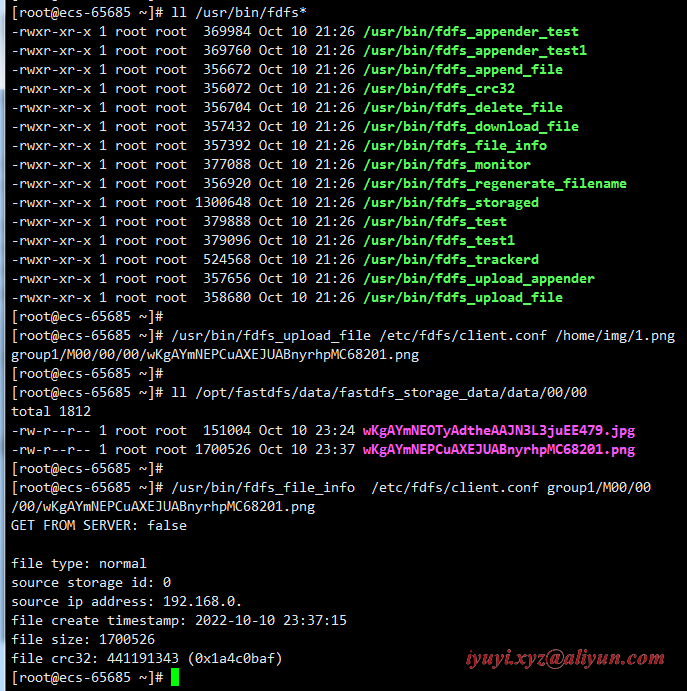
4 下载图片
不需要跟保存路径,默认下载到当前目录
/usr/bin/fdfs_download_file /etc/fdfs/client.conf group1/M00/00/00/wKgAYmNEPCuAXEJUABnyrhpMC68201.png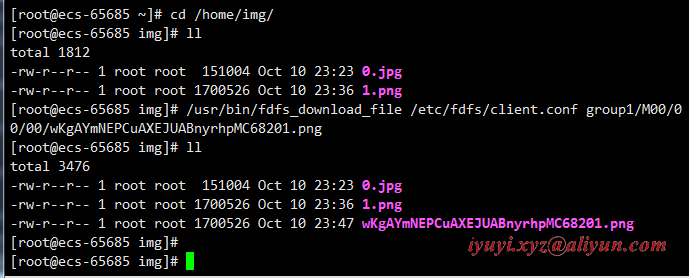
5 查看存储节点状态
 [root@ecs-65685 ~]# /usr/bin/fdfs_monitor /etc/fdfs/client.conf
[2022-10-10 23:49:32] DEBUG - base_path=/opt/fastdfs/data/fastdfs_tracker, connect_timeout=5, network_timeout=60, tracker_server_count=1, anti_steal_token=0, anti_steal_secret_key length=0, use_connection_pool=0, g_connection_pool_max_idle_time=3600s, use_storage_id=0, storage server id count: 0

server_count=1, server_index=0

tracker server is 192.168.0.98:22122

group count: 1

Group 1:
group name = group1
disk total space = 40,188 MB
disk free space = 18,456 MB
trunk free space = 0 MB
storage server count = 1
active server count = 1
storage server port = 23000
storage HTTP port = 9992
store path count = 1
subdir count per path = 256
current write server index = 0
current trunk file id = 0

	Storage 1:
		id = 192.168.0.98
		ip_addr = 192.168.0.98  ACTIVE
		http domain =
		version = 6.08
		join time = 2022-10-10 23:17:35
		up time = 2022-10-10 23:17:35
		total storage = 40,188 MB
		free storage = 18,456 MB
		upload priority = 10
		store_path_count = 1
		subdir_count_per_path = 256
		storage_port = 23000
		storage_http_port = 9992
		current_write_path = 0
		source storage id =
		if_trunk_server = 0
		connection.alloc_count = 256
		connection.current_count = 0
		connection.max_count = 1
		total_upload_count = 2
		success_upload_count = 2
		total_append_count = 0
		success_append_count = 0
		total_modify_count = 0
		success_modify_count = 0
		total_truncate_count = 0
		success_truncate_count = 0
		total_set_meta_count = 0
		success_set_meta_count = 0
		total_delete_count = 0
		success_delete_count = 0
		total_download_count = 1
		success_download_count = 1
		total_get_meta_count = 0
		success_get_meta_count = 0
		total_create_link_count = 0
		success_create_link_count = 0
		total_delete_link_count = 0
		success_delete_link_count = 0
		total_upload_bytes = 1851530
		success_upload_bytes = 1851530
		total_append_bytes = 0
		success_append_bytes = 0
		total_modify_bytes = 0
		success_modify_bytes = 0
		stotal_download_bytes = 1700526
		success_download_bytes = 1700526
		total_sync_in_bytes = 0
		success_sync_in_bytes = 0
		total_sync_out_bytes = 0
		success_sync_out_bytes = 0
		total_file_open_count = 3
		success_file_open_count = 3
		total_file_read_count = 7
		success_file_read_count = 7
		total_file_write_count = 8
		success_file_write_count = 8
		last_heart_beat_time = 2022-10-10 23:49:09
		last_source_update = 2022-10-10 23:37:14
		last_sync_update = 1970-01-01 08:00:00
		last_synced_timestamp = 1970-01-01 08:00:00
解压
[root@ecs-65685 src]# tar -zxvf /opt/software/fastdfs/fastdfs-nginx-module-1.22.tar.gz -C /opt/fastdfs/
[root@ecs-65685 src]# cd /opt/fastdfs/fastdfs-nginx-module-1.22/src
[root@ecs-65685 src]# ll
total 84
-rw-rw-r-- 1 root root 43493 Sep 15 12:23 common.c
-rw-rw-r-- 1 root root  3995 Sep 15 12:23 common.h
-rw-rw-r-- 1 root root  1078 Sep 15 12:23 config
-rw-rw-r-- 1 root root  3725 Sep 15 12:23 mod_fastdfs.conf
-rw-rw-r-- 1 root root 28668 Sep 15 12:23 ngx_http_fastdfs_module.c修改fastdfs-nginx-module软件安装包里面的config文件
vim /opt/fastdfs/fastdfs-nginx-module-1.22/src/config
# ngx_module_incs="/usr/include"
# CORE_INCS="$CORE_INCS /usr/include"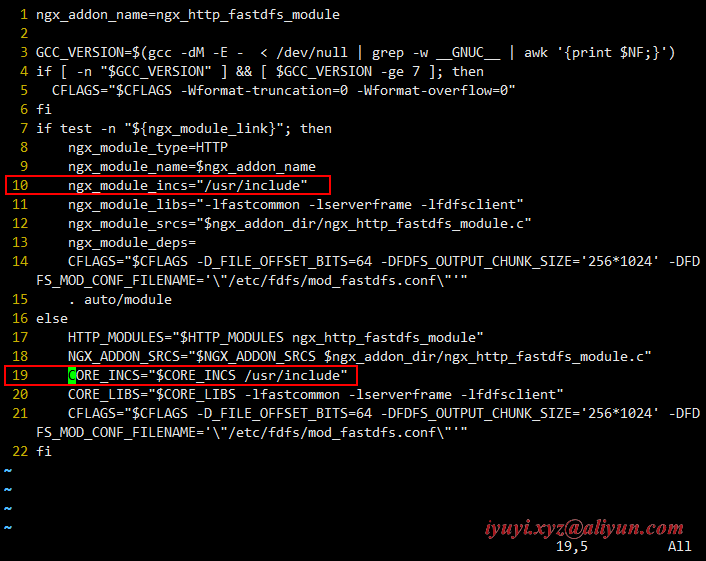
1 安装nginx前期准备工作 CentOS 7.9 安装 nginx-1.22.0:https://www.cnblogs.com/huaxiayuyi/p/16759643.html
2 编译安装nginx(nginx_storage)
./configure \
--user=nginxxyz \
--group=nginxxyz \
--with-threads \
--with-file-aio \
--with-http_ssl_module \
--with-http_v2_module \
--with-http_realip_module \
--with-http_addition_module \
--with-http_xslt_module=dynamic \
--with-http_image_filter_module=dynamic \
--with-http_geoip_module=dynamic \
--with-http_sub_module \
--with-http_dav_module \
--with-http_flv_module \
--with-http_mp4_module \
--with-http_gunzip_module \
--with-http_gzip_static_module \
--with-http_auth_request_module \
--with-http_random_index_module \
--with-http_secure_link_module \
--with-http_degradation_module \
--with-http_slice_module \
--with-http_stub_status_module \
--with-stream=dynamic \
--with-stream_ssl_module \
--with-stream_realip_module \
--with-stream_geoip_module=dynamic \
--with-stream_ssl_preread_module \
--with-compat \
--with-pcre-jit \
--prefix=/opt/fastdfs/nginx/nginx_storage_9992 \
--add-module=/opt/fastdfs/fastdfs-nginx-module-1.22/src
3 编辑修改nginx(nginx.conf)配置文件
vim /opt/fastdfs/nginx/nginx_storage_9992/conf/nginx.conf

[root@ecs-65685 nginx-1.22.0]# egrep -v "#|^$" /opt/fastdfs/nginx/nginx_storage_9992/conf/nginx.conf
worker_processes  1;
events {
    worker_connections  1024;
}
http {
    include       mime.types;
    default_type  application/octet-stream;
    sendfile        on;
    keepalive_timeout  65;
    server {
        listen       9992;
        server_name  localhost;
        location / {
            if ($args ~ type=download){
                add_header Content-Disposition "attachment;";
            }
            root /opt/fastdfs/data/fastdfs_storage_data;   #文件实际存储路径
            ngx_fastdfs_module;   #模块名称
        }
        error_page   500 502 503 504  /50x.html;
        location = /50x.html {
            root   html;
        }
    }
}
4 授权
chown -R nginxxyz:nginxxyz /opt/fastdfs/nginx/nginx_storage_99925 拷贝fastdfs的配置文件
将Fastdfs软件包里面的http.conf和mime.types拷贝到/etc/fdfs目录下。
cp /opt/fastdfs/fastdfs-6.08/conf/http.conf /etc/fdfs/
cp /opt/fastdfs/fastdfs-6.08/conf/mime.types /etc/fdfs/
6 拷贝fastdfs-nginx-module的配置文件mod_fastdfs.conf
cp /opt/fastdfs/fastdfs-nginx-module-1.23/src/mod_fastdfs.conf /etc/fdfs/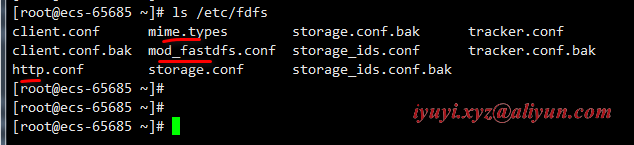
7 编辑拷贝的mod_fastdfs.conf配置文件
[root@ecs-65685 ~]# vim /etc/fdfs/mod_fastdfs.conf
[root@ecs-65685 ~]# egrep -v '^$|#' /etc/fdfs/mod_fastdfs.conf
#include http.conf   #这一行必须存在,导入引用文件
connect_timeout=2
network_timeout=30
base_path=/opt/fastdfs/data/fastdfs_tracker # 设置storage数据文件和日志目录
load_fdfs_parameters_from_tracker=true
storage_sync_file_max_delay = 86400
use_storage_id = false
storage_ids_filename = storage_ids.conf
tracker_server=192.168...:22122 # tracker服务的IP地址以及端口号
storage_server_port=23000 # storage服务的端口号
group_name=group1
url_have_group_name = true # 文件url 中是否有 group 名
store_path_count=1
store_path0=/opt/fastdfs/data/fastdfs_storage_data # 文件实际存储路径
log_level=info
log_filename=
response_mode=proxy
if_alias_prefix=
flv_support = true
flv_extension = flv
group_count = 2 # 设置组的个数,默认为0,事实上这次只使用了group1
# 文件尾部追加这2个group setting:
[group1]
group_name=group1
storage_server_port=23000
store_path_count=1
store_path0=/opt/fastdfs/data/fastdfs_storage_data
[group2]
group_name=group2
storage_server_port=23000
store_path_count=1
store_path0=/opt/fastdfs/data/fastdfs_storage_data注意:include http.conf必须存在,导入引用文件
8 启动nginx
/opt/fastdfs/nginx/nginx_storage_9992/sbin/nginx -t
/opt/fastdfs/nginx/nginx_storage_9992/sbin/nginx
netstat -lntup |grep nginx
9 关闭防火墙
# 关闭防火墙
systemctl stop firewalld

# 配置允许放行
firewall-cmd --zone=public --permanent --add-port=23000/tcp && firewall-cmd --reload
firewall-cmd --zone=public --permanent --add-port=22122/tcp && firewall-cmd --reload
firewall-cmd --zone=public --permanent --add-port=9991/tcp && firewall-cmd --reload
firewall-cmd --zone=public --permanent --add-port=9992/tcp && firewall-cmd --reload云主机需配置安全组,在入方向规则,允许放行

10 测试storage的http访问:浏览器访问ip+http端口号
http://http://114.116...:9992/group1/M00/00/00/wKgAYmNEPCuAXEJUABnyrhpMC68201.png 
1 进入 nginx 安装包
改变一下安装路径:--prefix=/opt/fastdfs/nginx/nginx_tracker_9991
./configure \
--user=nginxxyz \
--group=nginxxyz \
--with-threads \
--with-file-aio \
--with-http_ssl_module \
--with-http_v2_module \
--with-http_realip_module \
--with-http_addition_module \
--with-http_xslt_module=dynamic \
--with-http_image_filter_module=dynamic \
--with-http_geoip_module=dynamic \
--with-http_sub_module \
--with-http_dav_module \
--with-http_flv_module \
--with-http_mp4_module \
--with-http_gunzip_module \
--with-http_gzip_static_module \
--with-http_auth_request_module \
--with-http_random_index_module \
--with-http_secure_link_module \
--with-http_degradation_module \
--with-http_slice_module \
--with-http_stub_status_module \
--with-stream=dynamic \
--with-stream_ssl_module \
--with-stream_realip_module \
--with-stream_geoip_module=dynamic \
--with-stream_ssl_preread_module \
--with-compat \
--with-pcre-jit \
--prefix=/opt/fastdfs/nginx/nginx_tracker_9991 \
--add-module=/opt/fastdfs/fastdfs-nginx-module-1.22/src
2 编译安装nginx(nginx_tracker)
vim /opt/fastdfs/nginx/nginx_tracker_9991/conf/nginx.conf
user root;
worker_processes  1;
events {
    worker_connections  102400;
}
http {
    include       mime.types;
    default_type  application/octet-stream;
    sendfile        on;
    upstream fdfs_group1 {
      server 127.0.0.1:9992;  # 负载均衡是访问的实际地址是storage的http.server_port:9992
    }
    server {
        listen       9991; # tracker服务的http端口号,访问这个端口的时候会自动去访问上面负载的实际地址storage_nginx的http地址。
        server_name  localhost;
        location /group1/M00 {
           proxy_pass http://fdfs_group1;
        }
        error_page   500 502 503 504  /50x.html;
        location = /50x.html {
            root   html;
        }
    }
}
3 授权
chown -R nginxxyz:nginxxyz /opt/fastdfs/nginx/nginx_tracker_99914 启动nginx
/opt/fastdfs/nginx/nginx_tracker_9991/sbin/nginx -t
/opt/fastdfs/nginx/nginx_tracker_9991/sbin/nginx
netstat -lntup |grep nginx
5 测试tracker的http访问:浏览器访问ip+http端口号
http://114.116...:9991/group1/M00/00/00/wKgAYmNEOTyAdtheAAJN3L3juEE479.jpg
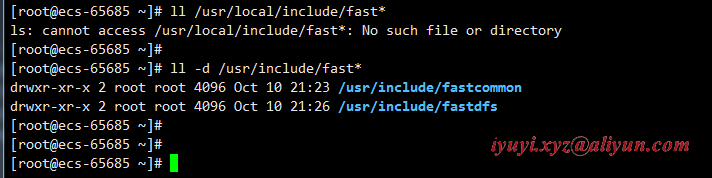
1 fastdfs 6.08版本执行 ./make.sh install 报错 No such file or directory
是选择的 libfastcommon 低于1.0.56
gcc -Wall -D_FILE_OFFSET_BITS=64 -D_GNU_SOURCE -g -O1 -DDEBUG_FLAG -o fdfs_monitor fdfs_monitor.c  ../common/fdfs_global.o ../common/fdfs_http_shared.o ../common/mime_file_parser.o ../tracker/tracker_proto.o ../tracker/fdfs_shared_func.o ../tracker/fdfs_server_id_func.o ../storage/trunk_mgr/trunk_shared.o tracker_client.o client_func.o client_global.o storage_client.o -L/usr/lib64 -lpthread -lfastcommon -I../common -I../tracker -I/usr/include/fastcommon
../common/fdfs_http_shared.o: In function `fdfs_http_get_content_type_by_extname':
/opt/fastdfs/fastdfs-6.08/client/../common/fdfs_http_shared.c:75: undefined reference to `fc_hash_find_ex'
../common/fdfs_http_shared.o: In function `fdfs_http_params_load':
/opt/fastdfs/fastdfs-6.08/client/../common/fdfs_http_shared.c:285: undefined reference to `fc_hash_destroy'
../common/fdfs_http_shared.o: In function `fdfs_http_params_destroy':
/opt/fastdfs/fastdfs-6.08/client/../common/fdfs_http_shared.c:304: undefined reference to `fc_hash_destroy'
../common/mime_file_parser.o: In function `load_mime_types_from_file':
/opt/fastdfs/fastdfs-6.08/client/../common/mime_file_parser.c:72: undefined reference to `fc_hash_init_ex'
/opt/fastdfs/fastdfs-6.08/client/../common/mime_file_parser.c:111: undefined reference to `fc_hash_insert_ex'
collect2: error: ld returned 1 exit status
make: *** [fdfs_monitor] Error 1
mkdir -p /usr/bin
mkdir -p /etc/fdfs
cp -f fdfs_trackerd /usr/bin
if [ ! -f /etc/fdfs/tracker.conf ]; then cp -f ../conf/tracker.conf /etc/fdfs/tracker.conf; fi
if [ ! -f /etc/fdfs/storage_ids.conf ]; then cp -f ../conf/storage_ids.conf /etc/fdfs/storage_ids.conf; fi
mkdir -p /usr/bin
mkdir -p /etc/fdfs
cp -f fdfs_storaged  /usr/bin
if [ ! -f /etc/fdfs/storage.conf ]; then cp -f ../conf/storage.conf /etc/fdfs/storage.conf; fi
mkdir -p /usr/bin
mkdir -p /etc/fdfs
mkdir -p /usr/lib64
mkdir -p /usr/lib
cp -f fdfs_monitor fdfs_test fdfs_test1 fdfs_crc32 fdfs_upload_file fdfs_download_file fdfs_delete_file fdfs_file_info fdfs_appender_test fdfs_appender_test1 fdfs_append_file fdfs_upload_appender fdfs_regenerate_filename /usr/bin
cp: cannot stat ‘fdfs_monitor’: No such file or directory
cp: cannot stat ‘fdfs_test’: No such file or directory
cp: cannot stat ‘fdfs_test1’: No such file or directory
cp: cannot stat ‘fdfs_crc32’: No such file or directory
cp: cannot stat ‘fdfs_upload_file’: No such file or directory
cp: cannot stat ‘fdfs_download_file’: No such file or directory
cp: cannot stat ‘fdfs_delete_file’: No such file or directory
cp: cannot stat ‘fdfs_file_info’: No such file or directory
cp: cannot stat ‘fdfs_appender_test’: No such file or directory
cp: cannot stat ‘fdfs_appender_test1’: No such file or directory
cp: cannot stat ‘fdfs_append_file’: No such file or directory
cp: cannot stat ‘fdfs_upload_appender’: No such file or directory
cp: cannot stat ‘fdfs_regenerate_filename’: No such file or directory
make: *** [install] Error 1 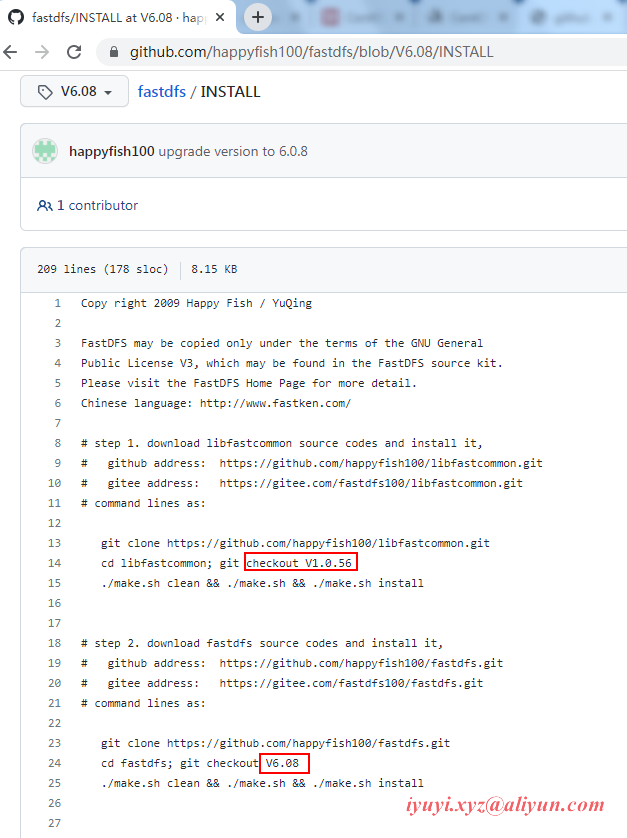
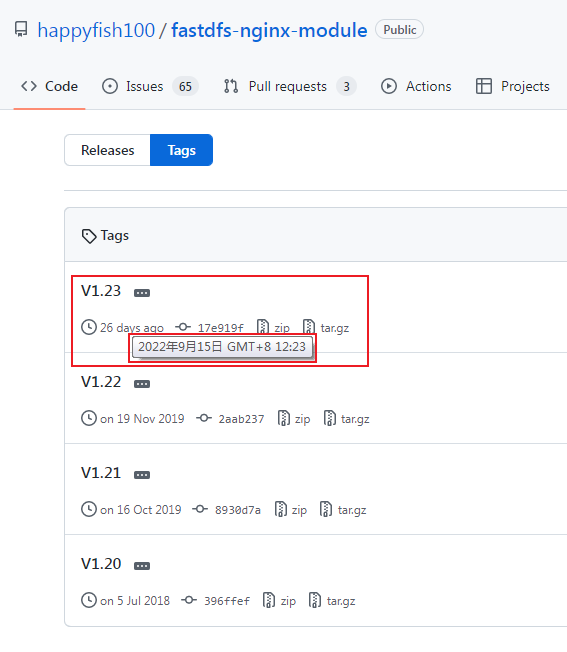
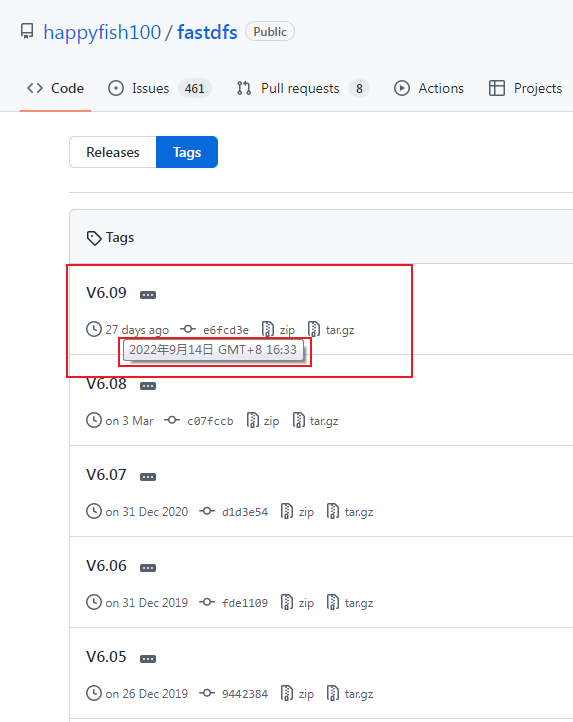
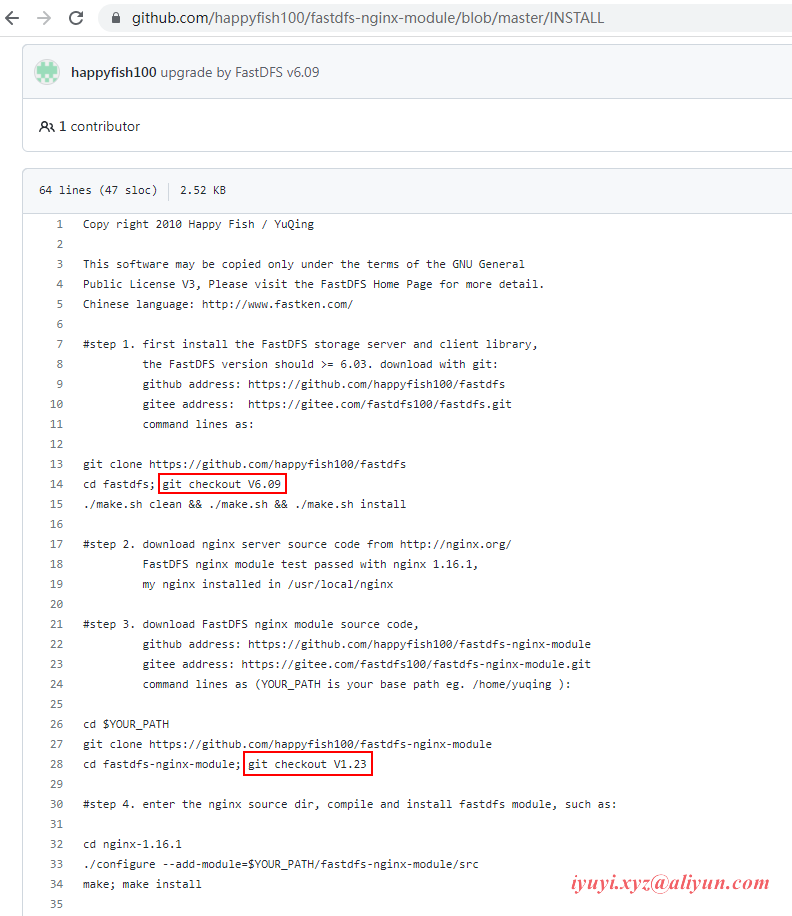
2 fastdfs-nginx-module-1.23 需使用 fastdfs-6.09 版本
https://github.com/happyfish100/fastdfs-nginx-module/tags
看好对应版本号,不要瞎折腾。
https://github.com/happyfish100/fastdfs/tags
https://github.com/happyfish100/fastdfs-nginx-module/blob/master/INSTALL
192.168.0.
http.server_port = 9991 # tracker-nginx的http端口相关
/opt/fastdfs/data/fastdfs_tracker

http.server_port = 9992 # stroage-nginx的http端口相关
/opt/fastdfs/data/fastdfs_storage

/opt/fastdfs/data/fastdfs_storage_data

http.tracker_server_port = 9991 # client.conf配置文件

systemctl start fdfs_tracker
systemctl start fdfs_storaged
netstat -unltp | grep fdfs

make && make install
echo $?
egrep -v "#|^$" nginx.conf
chown -R nginxxyz:nginxxyz  /opt/fastdfs/nginx/nginx_tracker_9991
chown -R nginxxyz:nginxxyz  /opt/fastdfs/nginx/nginx_storage_9992

/opt/fastdfs/nginx/nginx_tracker_9991/sbin/nginx
/opt/fastdfs/nginx/nginx_storage_9992/sbin/nginx

group1/M00/00/00/wKgAYmNEOTyAdtheAAJN3L3juEE479.jpg
group1/M00/00/00/wKgAYmNEPCuAXEJUABnyrhpMC68201.png

# 执行完stop,浏览器还可以访问呢!??
systemctl stop fdfs_tracker
systemctl stop fdfs_storaged
一、概述在之前的一篇博文中,记录了AT24C01、AT24C02芯片的读写驱动,先将之前的相关文章include一下:1.IIC驱动:4位数码管显示模块TM1637芯片C语言驱动程序2.AT24C01/AT24C02读写:AT24C01/AT24C02系列EEPROM芯片单片机读写驱动程序本文记录分享AT24C04、AT24C08、AT24C16芯片的单片机C语言读写驱动程序。二、芯片对比介绍型号容量bit容量byte页数字节/页器件寻址位可寻址器件数WordAddress位数/字节数备注AT24C044k5123216A2A149/1WordAddress使用P0位AT24C088k1024
这个问题在这里已经有了答案:JavascriptparseInt()withleadingzeros(7个答案)关闭8年前。在IE8中发现了一件奇怪的事情:parseInt('01')//1parseInt('02')//2parseInt('03')//3/*...*/parseInt('07')//7parseInt('08')//0!!!parseIntr('09')//9ok谁能澄清一下?
这个问题在这里已经有了答案:关闭10年前。PossibleDuplicate:JavaScriptfunctionparseInt()doesn'tparsenumberswithleading0correctly在JS中解析时出现奇怪的问题。parseInt("08")//Theresultis:0parseInt("07")//Theresultis:7为什么会这样?
我想从字符串中获取准确的时区,例如“Asia/Shanghai”中的+08:00 最佳答案 使用LoadLocation功能。 关于go-我如何从字符串中获取准确的时区信息,例如+08:00from"Asia/Shanghai"usinggolang?,我们在StackOverflow上找到一个类似的问题: https://stackoverflow.com/questions/56441264/
我有一个WinForms屏幕,上面有一个DataGridView和后退/下一步按钮。在FormLoad上,网格中填充了来自XML文档的值。然后用户可以更改网格中任何单元格的值。我创建了一个SaveGridValuesToXml方法,它使用来自网格单元格的更新值更新XML文件。这大部分工作正常,我已经从网格上的Leave事件触发了SaveGridValuesToXml方法,因此当用户单击后退或下一步并且网格失去焦点时,将调用保存方法。我遇到的问题是,除了在网格失去焦点时获得焦点的单元格之外,所有单元格值都已更新并正确反射(reflect)在XML文件中。例如,在三列网格中,如果我更新第一
我有一个要序列化为xml文档的集合。该类是:publicclassContacts{publicListcontacts{get;set;}}我的主要问题是现在我的xml看起来问题是,我想看起来像这样:有办法吗? 最佳答案 [XmlRoot("contacts")]publicclassContacts{[XmlElement("contact")]publicListcontacts{get;set;}}应该给你:.........(XmlRootAttribute将Contacts重命名为contacts;XmlElementA
???博主昵称:跳楼梯企鹅????博主主页面链接:https://blog.csdn.net/weixin_50481708?spm=1000.2115.3001.5343?创作初心:本博客的初心为与技术朋友们相互交流,每个人的技术都存在短板,博主也是一样,虚心求教,希望各位技术友给予指导?博主座右铭:发现光,追随光,成为光,散发光?博主研究方向:渗透测试、机器学习?博主寄语:感谢各位技术友的支持,您的支持就是我前进的动力利用MSF工具内网复现MS08-067一、初识MSF1.MSF是什么2.MSF目录结构
我想使用只有Vista或更高版本的操作系统支持的dll中的函数。因为我用的是XP,不想升级到Vista或者Win7。有没有一种方法可以使用dlls/api函数在我当前XP上安装的VS08中进行编码? 最佳答案 如果您安装了WindowsSDK,您应该能够为更高版本的Windows制作二进制文件。不过,您将无法运行。http://www.microsoft.com/download/en/details.aspx?id=3138 关于c++-在安装了VS08的旧XP中使用最新的dll函数,
我的wxs文件中的两个组件标签如下=602]]>但是我收到如下错误ICE08:Component:Comp.Comp2hasaduplicateGUID:{2963D8E7-CBEC-50C8-AF4B-65E895FE3283}尽管我给了一个autogenguid值“*”,我怎么会收到这个错误谢谢, 最佳答案 Component元素的star-GUID根据文件的目标位置计算稳定的GUID。GUID的稳定性对于future的更新(尤其是打补丁)至关重要。它在许多情况下都很好用,但将文件放入完全相同位置的互斥组件不是一个。在这种情况下
我需要显示一次向导,这是我的Windows窗体应用程序在安装后第一次运行时。我想我可以使用像firstrun=false这样的用户设置。但是我还需要处理卸载程序然后重新安装的情况。该用户设置将如何重置?它已经存在于该用户的...\Users--user--\AppData\Roaming...的配置文件中。我需要在重新安装后运行该向导,因此我需要重置该设置。我是否需要使用自定义安装程序操作来执行此操作? 最佳答案 最好让您的安装程序在注册表中创建FirstRun键并将其设置为true(或1或其他),并确保您的卸载程序完全删除该键。然
