小程序canvas 缩放/拖动/还原/封装和实例
之前写过web端的canvas 缩放/拖动/还原/封装和实例。最近小程序也需要用到,但凡是涉及小程序canvas还是比较多坑的,而且难用多了,于是在web的基础上重新写了小程序的相关功能。实现功能有:
效果如下:
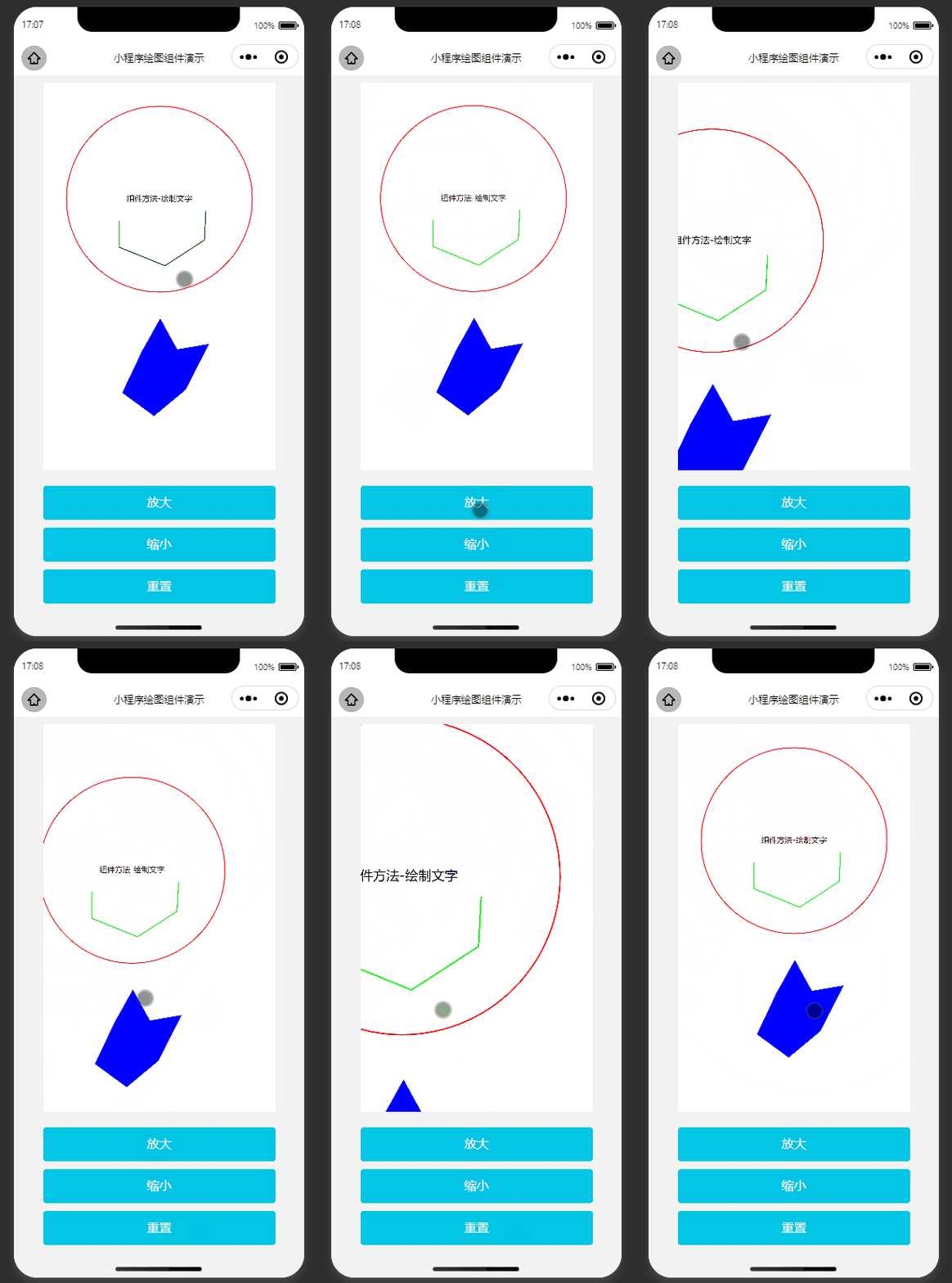
案例涉及到2个文件,一个是绘图组件canvas.vue,另一个是canvasDraw.js,核心是canvasDraw.js里定义的CanvasDraw类
小程序获取#canvas对象后就可以创建CanvasDraw实例了,创建实例时可以根据需要设置各种配置,其中drawCallBack是必须的,是用户自定义的绘图方法,程序会在this.canvasDraw.draw()后再回调drawCallBack()来实现用户的绘图。
拖动、缩放画布都会调用this.canvasDraw.draw()。
    /** 初始化canvas */
    initCanvas() {
      const query = wx.createSelectorQuery().in(this)

      query
        .select('#canvas')
        .fields({ node: true, size: true, rect: true })
        .exec((res) => {
          const ele = res[0]
          this.canvasEle = ele

          // 配置项
          const option = {
            ele: this.canvasEle, // canvas元素
            drawCallBack: this.draw, // 必须:用户自定义绘图方法
            scale: 1, // 当前缩放倍数
            scaleStep: 0.1, // 缩放步长(按钮)
            touchScaleStep: 0.005, // 缩放步长(手势)
            maxScale: 2, // 缩放最大倍数(缩放比率倍数)
            minScale: 0.5, // 缩放最小倍数(缩放比率倍数)
            translate: { x: 0, y: 0 }, // 默认画布偏移
            isThrottleDraw: true, // 是否开启节流绘图(建议开启,否则安卓调用频繁导致卡顿)
            throttleInterval: 20, // 节流绘图间隔,单位ms
            pixelRatio: wx.getSystemInfoSync().pixelRatio, // 像素比(高像素比可以解决高清屏幕模糊问题)
          }
          this.canvasDraw = new CanvasDraw(option) // 创建CanvasDraw实例后就可以使用实例的所有方法了
          this.canvasDraw.draw() // 可以按实际需要调用绘图方法
        })
    },
canvasDraw.draw() // 绘图
canvasDraw.clear() // 清除画布
canvasDraw.reset() // 重置画布(恢复到第一次绘制的状态)
canvasDraw.zoomIn() // 中心放大
canvasDraw.zoomOut() // 中心缩小
canvasDraw.zoomTo(scale, zoomCenter) // 缩放到指定倍数(可指定缩放中心点)
canvasDraw.destory() // 销毁
canvasDraw.drawShape(opt) // 内置简化绘制多边形方法
canvasDraw.drawLines(opt) // 内置简化绘制多线段方法
canvasDraw.drawText(opt) // 内置简化绘制文字方法
canvas.vue
<template>
  <view class="canvas-wrap">
    <canvas
      type="2d"
      id="canvas"
      class="canvas"
      disable-scroll="true"
      @touchstart="touchstart"
      @touchmove="touchmove"
      @touchend="touchend"
      @tap="tap"
    ></canvas>
  </view>
</template>
<script>
import { CanvasDraw } from './canvasDraw'

export default {
  data() {
    this.canvasDraw = null // 绘图对象
    this.canvasEle = null // canvas元素对象
    return {}
  },

  created() {},
  beforeDestroy() {
    /** 销毁对象 */
    if (this.canvasDraw) {
      this.canvasDraw.destroy()
      this.canvasDraw = null
    }
  },
  mounted() {
    /** 初始化 */
    this.initCanvas()
  },
  methods: {
    /** 初始化canvas */
    initCanvas() {
      const query = wx.createSelectorQuery().in(this)

      query
        .select('#canvas')
        .fields({ node: true, size: true, rect: true })
        .exec((res) => {
          const ele = res[0]
          this.canvasEle = ele

          // 配置项
          const option = {
            ele: this.canvasEle, // canvas元素
            drawCallBack: this.draw, // 必须:用户自定义绘图方法
            scale: 1, // 当前缩放倍数
            scaleStep: 0.1, // 缩放步长(按钮)
            touchScaleStep: 0.005, // 缩放步长(手势)
            maxScale: 2, // 缩放最大倍数(缩放比率倍数)
            minScale: 0.5, // 缩放最小倍数(缩放比率倍数)
            translate: { x: 0, y: 0 }, // 默认画布偏移
            isThrottleDraw: true, // 是否开启节流绘图(建议开启,否则安卓调用频繁导致卡顿)
            throttleInterval: 20, // 节流绘图间隔,单位ms
            pixelRatio: wx.getSystemInfoSync().pixelRatio, // 像素比(高像素比可以解决高清屏幕模糊问题)
          }
          this.canvasDraw = new CanvasDraw(option) // 创建CanvasDraw实例后就可以使用实例的所有方法了
          this.canvasDraw.draw() // 可以按实际需要调用绘图方法
        })
    },

    /** 用户自定义绘图内容 */
    draw() {
      // 默认绘图方式-圆形
      const { ctx } = this.canvasDraw
      ctx.beginPath()
      ctx.strokeStyle = '#f00'
      ctx.arc(150, 150, 120, 0, 2 * Math.PI)
      ctx.stroke()

      // 组件方法-绘制多边形
      const shapeOption = {
        points: [
          { x: 127, y: 347 },
          { x: 151, y: 304 },
          { x: 173, y: 344 },
          { x: 214, y: 337 },
          { x: 184, y: 396 },
          { x: 143, y: 430 },
          { x: 102, y: 400 },
        ],
        fillStyle: '#00f',
      }
      this.canvasDraw.drawShape(shapeOption)

      // 组件方法-绘制多线段
      const linesOption = {
        points: [
          { x: 98, y: 178 },
          { x: 98, y: 212 },
          { x: 157, y: 236 },
          { x: 208, y: 203 },
          { x: 210, y: 165 },
        ],
        strokeStyle: '#0f0',
      }
      this.canvasDraw.drawLines(linesOption)

      // 组件方法-绘制文字
      const textOption = {
        text: '组件方法-绘制文字',
        isCenter: true,
        point: { x: 150, y: 150 },
        fillStyle: '#000',
      }
      this.canvasDraw.drawText(textOption)
    },

    /** 中心放大 */
    zoomIn() {
      this.canvasDraw.zoomIn()
    },

    /** 中心缩小 */
    zoomOut() {
      this.canvasDraw.zoomOut()
    },

    /** 重置画布(回复初始效果) */
    reset() {
      this.canvasDraw.reset()
    },

    /** 事件绑定 */
    tap(e) {
      const p = {
        x: (e.detail.x - this.canvasEle.left) / this.canvasDraw.scale,
        y: (e.detail.y - this.canvasEle.top) / this.canvasDraw.scale,
      }
      console.log('点击坐标:', p)
    },
    touchstart(e) {
      this.canvasDraw.touchstart(e)
    },
    touchmove(e) {
      this.canvasDraw.touchmove(e)
    },
    touchend(e) {
      this.canvasDraw.touchend(e)
    },
  },
}
</script>
<style scoped>
.canvas-wrap {
  position: relative;
  flex: 1;
  width: 100%;
  height: 100%;
}

.canvas {
  width: 100%;
  flex: 1;
}
</style>
canvasDraw.js
/**
 * @Author: 大话主席
 * @Description: 自定义小程序绘图类
 */

/**
 * 绘图类
 * @param {object} option
 */
export function CanvasDraw(option) {
  if (!option.ele) {
    console.error('canvas对象不存在')
    return
  }
  if (!option.drawCallBack) {
    console.error('缺少必须配置项:drawCallBack')
    return
  }
  const { ele } = option

  /** 外部可访问属性 */
  this.canvasNode = ele.node // wx的canvas节点
  this.canvasNode.width = ele.width // 设置canvas节点宽度
  this.canvasNode.height = ele.height // 设置canvas节点高度
  this.ctx = this.canvasNode.getContext('2d')
  this.zoomCenter = { x: ele.width / 2, y: ele.height / 2 } // 缩放中心点
  this.touchMoveEvent = null // 触摸移动事件

  /** 内部使用变量 */
  let startPoint = { x: 0, y: 0 } // 拖动开始坐标
  let startDistance = 0 // 拖动开始时距离(二指缩放)
  let curTranslate = {} // 当前偏移
  let curScale = 1 // 当前缩放
  let preScale = 1 // 上次缩放
  let drawTimer = null // 绘图计时器,用于节流
  let touchEndTimer = null // 触摸结束计时器,用于节流
  let fingers = 1 // 手指触摸个数

  /**
   * 根据像素比重设canvas尺寸
   */
  this.resetCanvasSize = () => {
    this.canvasNode.width = ele.width * this.pixelRatio
    this.canvasNode.height = ele.height * this.pixelRatio
  }

  /**
   * 初始化
   */
  this.init = () => {
    const optionCopy = JSON.parse(JSON.stringify(option))
    this.scale = optionCopy.scale ?? 1 // 当前缩放倍数
    this.scaleStep = optionCopy.scaleStep ?? 0.1 // 缩放步长(按钮)
    this.touchScaleStep = optionCopy.touchScaleStep ?? 0.005 // 缩放步长(手势)
    this.maxScale = optionCopy.maxScale ?? 2 // 缩放最大倍数(缩放比率倍数)
    this.minScale = optionCopy.minScale ?? 0.5 // 缩放最小倍数(缩放比率倍数)
    this.translate = optionCopy.translate ?? { x: 0, y: 0 } // 默认画布偏移
    this.isThrottleDraw = optionCopy.isThrottleDraw ?? true // 是否开启节流绘图(建议开启,否则安卓调用频繁导致卡顿)
    this.throttleInterval = optionCopy.throttleInterval ?? 20 // 节流绘图间隔,单位ms
    this.pixelRatio = optionCopy.pixelRatio ?? 1 // 像素比(高像素比解决高清屏幕模糊问题)

    startPoint = { x: 0, y: 0 } // 拖动开始坐标
    startDistance = 0 // 拖动开始时距离(二指缩放)
    curTranslate = JSON.parse(JSON.stringify(this.translate)) // 当前偏移
    curScale = this.scale // 当前缩放
    preScale = this.scale // 上次缩放
    drawTimer = null // 绘图计时器,用于节流
    fingers = 1 // 手指触摸个数

    this.resetCanvasSize()
  }

  this.init()

  /**
   * 绘图(会进行缩放和位移)
   */
  this.draw = () => {
    this.clear()
    this.ctx.translate(this.translate.x * this.pixelRatio, this.translate.y * this.pixelRatio)
    this.ctx.scale(this.scale * this.pixelRatio, this.scale * this.pixelRatio)
    // console.log('当前位移', this.translate.x, this.translate.y, '当前缩放倍率', this.scale)
    option.drawCallBack()
    drawTimer = null
  }

  /**
   * 设置默认值(
   */
  this.setDefault = () => {
    curTranslate.x = this.translate.x
    curTranslate.y = this.translate.y
    curScale = this.scale
    preScale = this.scale
  }

  /**
   * 清除画布(重设canvas尺寸会清空地图并重置canvas内置的scale/translate等)
   */
  this.clear = () => {
    this.resetCanvasSize()
  }

  /**
   * 绘制多边形
   */
  this.drawShape = (opt) => {
    this.ctx.beginPath()
    this.ctx.lineWidth = '1'
    this.ctx.fillStyle = opt.isSelect ? opt.HighlightfillStyle : opt.fillStyle
    this.ctx.strokeStyle = opt.HighlightStrokeStyle

    for (let i = 0; i < opt.points.length; i++) {
      const p = opt.points[i]
      if (i === 0) {
        this.ctx.moveTo(p.x, p.y)
      } else {
        this.ctx.lineTo(p.x, p.y)
      }
    }
    this.ctx.closePath()
    if (opt.isSelect) {
      this.ctx.stroke()
    }
    this.ctx.fill()
  }

  /**
   * 绘制多条线段
   */
  this.drawLines = (opt) => {
    this.ctx.beginPath()
    this.ctx.strokeStyle = opt.strokeStyle
    for (let i = 0; i < opt.points.length; i++) {
      const p = opt.points[i]
      if (i === 0) {
        this.ctx.moveTo(p.x, p.y)
      } else {
        this.ctx.lineTo(p.x, p.y)
      }
    }
    this.ctx.stroke()
  }

  /**
   * 绘制文字
   */
  this.drawText = (opt) => {
    this.ctx.fillStyle = opt.isSelect ? opt.HighlightfillStyle : opt.fillStyle
    if (opt.isCenter) {
      this.ctx.textAlign = 'center'
      this.ctx.textBaseline = 'middle'
    }
    this.ctx.fillText(opt.text, opt.point.x, opt.point.y)
  }

  /**
   * 重置画布(恢复到第一次绘制的状态)
   */
  this.reset = () => {
    this.init()
    this.draw()
  }

  /**
   * 中心放大
   */
  this.zoomIn = () => {
    this.zoomTo(this.scale + this.scaleStep)
  }

  /**
   * 中心缩小
   */
  this.zoomOut = () => {
    this.zoomTo(this.scale - this.scaleStep)
  }

  /**
   * 缩放到指定倍数
   * @param {number} scale 缩放大小
   * @param {object} zoomCenter 缩放中心点(可选
   */
  this.zoomTo = (scale, zoomCenter0) => {
    // console.log('缩放到:', scale, '缩放中心点:', zoomCenter0)
    this.scale = scale
    this.scale = this.scale > this.maxScale ? this.maxScale : this.scale
    this.scale = this.scale < this.minScale ? this.minScale : this.scale

    const zoomCenter = zoomCenter0 || this.zoomCenter
    this.translate.x = zoomCenter.x - ((zoomCenter.x - this.translate.x) * this.scale) / preScale
    this.translate.y = zoomCenter.y - ((zoomCenter.y - this.translate.y) * this.scale) / preScale
    this.draw()
    preScale = this.scale
    curTranslate.x = this.translate.x
    curTranslate.y = this.translate.y
  }

  /**
   * 触摸开始
   */
  this.touchstart = (e) => {
    fingers = e.touches.length
    if (fingers > 2) return
    this.setDefault()
    // 单指
    if (fingers === 1) {
      startPoint.x = e.touches[0].x
      startPoint.y = e.touches[0].y
    } else if (fingers === 2) {
      startDistance = this.get2PointsDistance(e)
    }
  }

  /**
   * 触摸移动
   */
  this.touchmove = (e) => {
    if (fingers > 2) return
    if (this.isThrottleDraw) {
      if (drawTimer) return
      this.touchMoveEvent = e
      drawTimer = setTimeout(this.touchmoveSelf, this.throttleInterval)
    } else {
      this.touchMoveEvent = e
      this.touchmoveSelf()
    }
  }

  /**
   * 触摸移动实际执行
   */
  this.touchmoveSelf = () => {
    const e = this.touchMoveEvent
    // 单指移动
    if (fingers === 1) {
      this.translate.x = curTranslate.x + (e.touches[0].x - startPoint.x)
      this.translate.y = curTranslate.y + (e.touches[0].y - startPoint.y)
      this.draw()
    } else if (fingers === 2 && e.touches.length === 2) {
      // 双指缩放
      const newDistance = this.get2PointsDistance(e)
      const distanceDiff = newDistance - startDistance
      const zoomCenter = {
        x: (e.touches[0].x + e.touches[1].x) / 2,
        y: (e.touches[0].y + e.touches[1].y) / 2,
      }
      this.zoomTo(curScale + this.touchScaleStep * distanceDiff, zoomCenter)
    } else {
      drawTimer = null
    }
  }

  /**
   * 触摸结束
   */
  this.touchend = () => {
    if (this.isThrottleDraw) {
      touchEndTimer = setTimeout(this.setDefault, this.throttleInterval)
    } else {
      this.setDefault()
    }
  }

  /**
   * 销毁
   */
  this.destroy = () => {
    clearTimeout(drawTimer)
    clearTimeout(touchEndTimer)
    drawTimer = null
    touchEndTimer = null
    this.canvasNode = null
    this.ctx = null
    this.touchMoveEvent = null
    option.drawCallBack = null
  }

  /**
   * 获取2触摸点距离
   * @param {object} e 触摸对象
   * @returns 2触摸点距离
   */
  this.get2PointsDistance = (e) => {
    if (e.touches.length < 2) return 0
    const xMove = e.touches[1].x - e.touches[0].x
    const yMove = e.touches[1].y - e.touches[0].y
    return Math.sqrt(xMove * xMove + yMove * yMove)
  }
}

export default CanvasDraw
兄弟,如果帮到你,点个赞再走
我需要在客户计算机上运行Ruby应用程序。通常需要几天才能完成(复制大备份文件)。问题是如果启用sleep,它会中断应用程序。否则,计算机将持续运行数周,直到我下次访问为止。有什么方法可以防止执行期间休眠并让Windows在执行后休眠吗?欢迎任何疯狂的想法;-) 最佳答案 Here建议使用SetThreadExecutionStateWinAPI函数,使应用程序能够通知系统它正在使用中,从而防止系统在应用程序运行时进入休眠状态或关闭显示。像这样的东西:require'Win32API'ES_AWAYMODE_REQUIRED=0x0
Rackup通过Rack的默认处理程序成功运行任何Rack应用程序。例如:classRackAppdefcall(environment)['200',{'Content-Type'=>'text/html'},["Helloworld"]]endendrunRackApp.new但是当最后一行更改为使用Rack的内置CGI处理程序时,rackup给出“NoMethodErrorat/undefinedmethod`call'fornil:NilClass”:Rack::Handler::CGI.runRackApp.newRack的其他内置处理程序也提出了同样的反对意见。例如Rack
我想用ruby编写一个小的命令行实用程序并将其作为gem分发。我知道安装后,Guard、Sass和Thor等某些gem可以从命令行自行运行。为了让gem像二进制文件一样可用,我需要在我的gemspec中指定什么。 最佳答案 Gem::Specification.newdo|s|...s.executable='name_of_executable'...endhttp://docs.rubygems.org/read/chapter/20 关于ruby-在Ruby中编写命令行实用程序
我构建了两个需要相互通信和发送文件的Rails应用程序。例如,一个Rails应用程序会发送请求以查看其他应用程序数据库中的表。然后另一个应用程序将呈现该表的json并将其发回。我还希望一个应用程序将存储在其公共(public)目录中的文本文件发送到另一个应用程序的公共(public)目录。我从来没有做过这样的事情,所以我什至不知道从哪里开始。任何帮助,将不胜感激。谢谢! 最佳答案 无论Rails是什么,几乎所有Web应用程序都有您的要求,大多数现代Web应用程序都需要相互通信。但是有一个小小的理解需要你坚持下去,网站不应直接访问彼此
我尝试运行2.x应用程序。我使用rvm并为此应用程序设置其他版本的ruby:$rvmuseree-1.8.7-head我尝试运行服务器,然后出现很多错误:$script/serverNOTE:Gem.source_indexisdeprecated,useSpecification.Itwillberemovedonorafter2011-11-01.Gem.source_indexcalledfrom/Users/serg/rails_projects_terminal/work_proj/spohelp/config/../vendor/rails/railties/lib/r
刚入门rails,开始慢慢理解。有人可以解释或给我一些关于在application_controller中编码的好处或时间和原因的想法吗?有哪些用例。您如何为Rails应用程序使用应用程序Controller?我不想在那里放太多代码,因为据我了解,每个请求都会调用此Controller。这是真的? 最佳答案 ApplicationController实际上是您应用程序中的每个其他Controller都将从中继承的类(尽管这不是强制性的)。我同意不要用太多代码弄乱它并保持干净整洁的态度,尽管在某些情况下ApplicationContr
我是一个Rails初学者,但我想从我的RailsView(html.haml文件)中查看Ruby变量的内容。我试图在ruby中打印出变量(认为它会在终端中出现),但没有得到任何结果。有什么建议吗?我知道Rails调试器,但更喜欢使用inspect来打印我的变量。 最佳答案 您可以在View中使用puts方法将信息输出到服务器控制台。您应该能够在View中的任何位置使用Haml执行以下操作:-puts@my_variable.inspect 关于ruby-on-rails-如何在我的R
如何检查Ruby文件是否是通过“require”或“load”导入的,而不是简单地从命令行执行的?例如:foo.rb的内容:puts"Hello"bar.rb的内容require'foo'输出:$./foo.rbHello$./bar.rbHello基本上,我想调用bar.rb以不执行puts调用。 最佳答案 将foo.rb改为:if__FILE__==$0puts"Hello"end检查__FILE__-当前ruby文件的名称-与$0-正在运行的脚本的名称。 关于ruby-检查是否
是否可以在应用程序中包含的gem代码中知道应用程序的Rails文件系统根目录?这是gem来源的示例:moduleMyGemdefself.included(base)putsRails.root#returnnilendendActionController::Base.send:include,MyGem谢谢,抱歉我的英语不好 最佳答案 我发现解决类似问题的解决方案是使用railtie初始化程序包含我的模块。所以,在你的/lib/mygem/railtie.rbmoduleMyGemclassRailtie使用此代码,您的模块将在
前言作为一名程序员,自己的本质工作就是做程序开发,那么程序开发的时候最直接的体现就是代码,检验一个程序员技术水平的一个核心环节就是开发时候的代码能力。众所周知,程序开发的水平提升是一个循序渐进的过程,每一位程序员都是从“菜鸟”变成“大神”的,所以程序员在程序开发过程中的代码能力也是根据平时开发中的业务实践来积累和提升的。提高代码能力核心要素程序员要想提高自身代码能力,尤其是新晋程序员的代码能力有很大的提升空间的时候,需要针对性的去提高自己的代码能力。提高代码能力其实有几个比较关键的点,只要把握住这些方面,就能很好的、快速的提高自己的一部分代码能力。1、多去阅读开源项目,如有机会可以亲自参与开源
