提示:根据用户Ubuntu系统版本存在差异,对比着阅读。
官方软件下载仓库网站:
https://repo.anaconda.com/archive/
安装目录
Anaconda简介:
Anaconda就是可以便捷获取包且对包能够进行管理,同时对环境可以统一管理的发行版本。Anaconda包含了conda、Python在内的超过180个科学包及其依赖项。
提示:以下是本篇文章正文内容,下面安装教程可供参考
Anaconda官网软件下载,无法找到对应链接。这个方法暂时不推荐。
Press “CTRL+ALT+T” to open the terminal of your Ubuntu 22.04 and run the below-given command to update system repositories:
$ sudo apt update
In the next step, we will download the “curl” utility as it permits fetching the installation script of Anaconda:
$ sudo apt install curl -y
Switch to the “/tmp” directly with the help of the “cd” command to make it your present working directory:
$ cd /tmp
After that, utilize the following “curl” command for downloading the Anaconda installer script. Also, make sure you download the latest version by firstly visiting their official site[首选最新的Anaconda3-2022.05-Linux-x86_64.sh]:
curl --output anaconda.sh https://repo.anaconda.com/archive/Anaconda3-2022.05-Linux-x86_64.sh
Then, match the “SHA-256” checksum of the downloaded Anaconda script with the code displayed on the official site:
~/tmp sha256sum anaconda.sh
a7c0afe862f6ea19a596801fc138bde0463abcbce1b753e8d5c474b506a2db2d  anaconda.sh
Till this point, we have fulfilled all prerequisites, and our Ubuntu 22.04 is all ready for the installation of Anaconda. To do so, run the downloaded Anaconda installer script:
$ bash anaconda.sh
Upon doing so, the Anaconda installation wizard will appear on the terminal; press “Enter” to continue:
bash anaconda.sh

Welcome to Anaconda3 2022.05

In order to continue the installation process, please review the license
agreement.
Please, press ENTER to continue
>>>
Carefully read the Anaconda End User License Agreement:
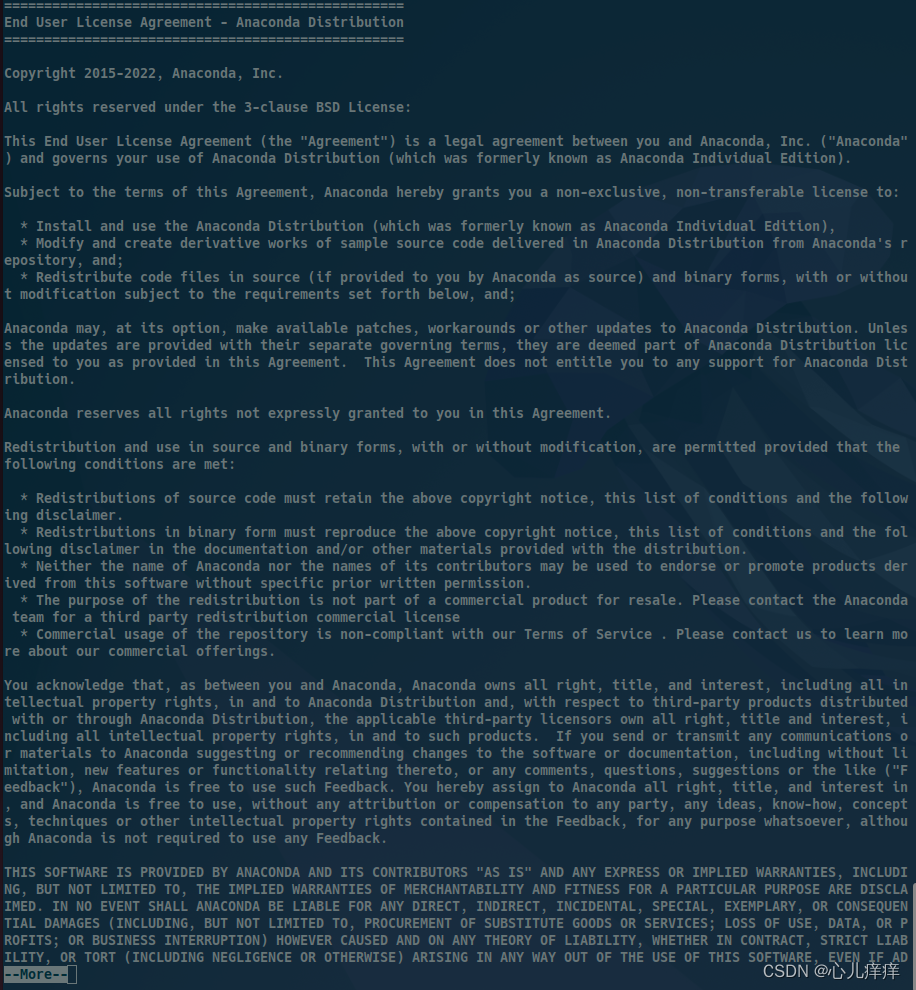
After reading the License agreement of Anaconda, type out “yes” to move ahead:
The following packages listed on https://www.anaconda.com/cryptography are included in the repository accessible
through Anaconda Distribution that relate to cryptography.

Last updated February 25, 2022

Do you accept the license terms? [yes|no]
[no] >>>
Please answer 'yes' or 'no':'
>>> yes

Anaconda3 will now be installed into this location:
/home/xxxx/anaconda3

  - Press ENTER to confirm the location
  - Press CTRL-C to abort the installation
  - Or specify a different location below
Specify the directory location of your Ubuntu 22.04 system where you want to save the files related to the Anaconda installation. In our case, we have selected the “/home/xxxx/anaconda3” directory(直接回车键):
Anaconda3 will now be installed into this location:
/home/xxx/anaconda3

  - Press ENTER to confirm the location
  - Press CTRL-C to abort the installation
  - Or specify a different location below

[/home/xxxx/anaconda3] >>>
Wait for a few minutes as the Anaconda installation will take some time to complete:
Preparing transaction: done
Executing transaction: |

    Installed package of scikit-learn can be accelerated using scikit-learn-intelex.
    More details are available here: https://intel.github.io/scikit-learn-intelex

    For example:

        $ conda install scikit-learn-intelex
        $ python -m sklearnex my_application.py


done
installation finished.
Do you wish the installer to initialize Anaconda3
by running conda init? [yes|no]
[no] >>> yes
no change     /home/xxxx/anaconda3/condabin/conda
no change     /home/xxxx/anaconda3/bin/conda
no change     /home/xxxx/anaconda3/bin/conda-env
no change     /home/xxxx/anaconda3/bin/activate
no change     /home/xxxx/anaconda3/bin/deactivate
no change     /home/xxxx/anaconda3/etc/profile.d/conda.sh
no change     /home/xxxx/anaconda3/etc/fish/conf.d/conda.fish
no change     /home/xxxx/anaconda3/shell/condabin/Conda.psm1
no change     /home/xxxx/anaconda3/shell/condabin/conda-hook.ps1
no change     /home/xxxx/anaconda3/lib/python3.9/site-packages/xontrib/conda.xsh
no change     /home/xxxx/anaconda3/etc/profile.d/conda.csh
modified      /home/xxxx/.zshrc
The below-given output signifies that we have successfully installed Anaconda on Ubuntu 22.04:
==> For changes to take effect, close and re-open your current shell. <==

If you'd prefer that conda's base environment not be activated on startup,
   set the auto_activate_base parameter to false:

conda config --set auto_activate_base false

Thank you for installing Anaconda3!

===========================================================================

Working with Python and Jupyter is a breeze in DataSpell. It is an IDE
designed for exploratory data analysis and ML. Get better data insights
with DataSpell.

DataSpell for Anaconda is available at: https://www.anaconda.com/dataspell
PS:
For changes to take effect, close and re-open your current shell.
关闭当前命令行,并重新打开,刚刚安装和初始化Anaconda设置才可以生效。
重新打开一个命令行(terminal)直接就进入了conda的base环境,如下:
(bash)/home/xxxx:$
If you'd prefer that conda's base environment not be activated on startup, set the auto_activate_base parameter to false:
如果您希望 conda 的基础环境在启动时不被激活,请将 auto_activate_base 参数设置为 false
设置命令如下:
conda config --set auto_activate_base false
当然以上的一条命令执行完毕后,依旧需要重启一下命令行才能生效。想要再次进入conda的base基础环境,只需要使用对应的conda指令即可。
命令如下:
conda activate base
After installing Anaconda, the next step is to activate the added environment settings in the “.bashrc or .zshrc” file by executing the following command:
使用默认shell:
# 默认是bash配置文件
$ source ~/.bashrc
使用zsh:
# 如果更换成了zsh配置文件
$ source ~/.zshrc
Lastly, execute the below-given “conda” command to verify if Anaconda is working on your Ubuntu 22.04 system:
$ conda list
 packages in environment at /home/xxxx/anaconda3:
#
# Name                    Version                   Build  Channel
_ipyw_jlab_nb_ext_conf    0.1.0            py39h06a4308_1
_libgcc_mutex             0.1                        main
_openmp_mutex             4.5                       1_gnu
aiohttp                   3.8.1            py39h7f8727e_1
aiosignal                 1.2.0              pyhd3eb1b0_0
alabaster                 0.7.12             pyhd3eb1b0_0
anaconda                  2022.05                  py39_0
anaconda-client           1.9.0            py39h06a4308_0
anaconda-navigator        2.1.4            py39h06a4308_0
anaconda-project          0.10.2             pyhd3eb1b0_0
anyio                     3.5.0            py39h06a4308_0
appdirs                   1.4.4              pyhd3eb1b0_0
argon2-cffi               21.3.0             pyhd3eb1b0_0
argon2-cffi-bindings      21.2.0           py39h7f8727e_0
arrow                     1.2.2              pyhd3eb1b0_0
astroid                   2.6.6            py39h06a4308_0
astropy                   5.0.4            py39hce1f21e_0
asttokens                 2.0.5              pyhd3eb1b0_0
Or check out the installed version of Anaconda by typing out “conda” command with the “–version” option:
$ conda --version
As you can see from the given output, we have “conda 4.5.11” installed on our Ubuntu 22.04:
(base) conda --version
conda 4.12.0
In the terminal, you can write out the following command to remove Anaconda from your system:
$ rm -rf ~/anaconda3
We have provided the basic method to install Anaconda on Ubuntu 22.04. After installation, you can explore this platform as required.
To install Anaconda in Ubuntu 22.04, download the Anaconda installer file with the “$ curl –output anaconda.sh https://repo.anaconda.com/archive/Anaconda3-5.3.1-Linux-x86_64.sh” command, then install the “bash anaconda.sh” script and verify using “conda list” or “conda –version” commands. This write-up discussed the procedure of installing Anaconda on Ubuntu 22.04. Give it a try and step into the world of data science learning.
代码如下(示例):
# 1.查看conda的版本号
conda --version
# 2.查看虚拟环境列表
conda info --envs
# 3.创建虚拟环境并指定python的版本号为3.8
conda create -n virtualname pip python=3.9
# 4.激活虚拟环境
conda activate virtualname
# 5.退出虚拟环境
conda deactivate
# 6.删除虚拟环境
conda remove --name virtualname --all
代码如下(示例):
# 1.安装包
conda install PackageName
# 2.安装多个包
conda install name1 name2 ...
# 3.安装包并指定版本号
conda install PackageName=版本号
# 4.卸载包
conda remove PackageName
# 5.更新包
conda update PackageName
# 6.更新环境中的所有包
conda update --all
# 7.列出已安装的包
conda list
# 8.搜寻包
conda search PackageName
conda create --name <env_name> <package_names>
<env_name> 即创建的环境名。建议以英文命名,且不加空格,名称两边不加尖括号“<>”。
<package_names> 即安装在环境中的包名。名称两边不加尖括号“<>”。
① 如果要安装指定的版本号,则只需要在包名后面以 python=3.9 和版本号的形式执行。
如: conda create --name python2 python=2.7,即创建一个名为“pytorch”的环境,环境中安装版本为2.7的python。
② 如果要在新创建的环境中创建多个包,则直接在 <package_names> 后以空格隔开,添加多个包名即可。
如: conda create -n python3 python=3.5 numpy pandas ,即创建一个名为“pytorch”的环境,环境中安装版本为3.5的python,同时也安装了numpy和pandas库。
--name 同样可以替换为 -n 。
在命令行中输入下列指令创建虚拟环境:
conda create -n pytorch1.12 python==3.9
其中 pytorch为本次创建的虚拟环境的名称,1.12为创建的pytorch虚拟环境的版本:
Collecting package metadata (current_repodata.json): done
Solving environment: failed with repodata from current_repodata.json, will retry with next repodata source.
Collecting package metadata (repodata.json): done
Solving environment: done


==> WARNING: A newer version of conda exists. <==
  current version: 4.12.0
  latest version: 22.9.0

Please update conda by running

    $ conda update -n base -c defaults conda


## Package Plan ##

  environment location: /home/xxxx/anaconda3/envs/pytorch


  added / updated specs:
    - numpy
    - python==3.9

The following packages will be downloaded:

    package                    |            build
    ---------------------------|-----------------
    _openmp_mutex-5.1          |            1_gnu          21 KB
    ca-certificates-2022.07.19 |       h06a4308_0         124 KB
    certifi-2022.9.24          |   py39h06a4308_0         154 KB
    ld_impl_linux-64-2.38      |       h1181459_1         654 KB
    libgcc-ng-11.2.0           |       h1234567_1         5.3 MB
    libgomp-11.2.0             |       h1234567_1         474 KB
    libstdcxx-ng-11.2.0        |       h1234567_1         4.7 MB
    ncurses-6.3                |       h5eee18b_3         781 KB
    numpy-1.23.1               |   py39h6c91a56_0          11 KB
    numpy-base-1.23.1          |   py39ha15fc14_0         5.6 MB
    openssl-1.1.1q             |       h7f8727e_0         2.5 MB
    pip-22.2.2                 |   py39h06a4308_0         2.3 MB
    python-3.9.0               |       hdb3f193_2        18.1 MB
    setuptools-63.4.1          |   py39h06a4308_0         1.1 MB
    sqlite-3.39.3              |       h5082296_0         1.1 MB
    tk-8.6.12                  |       h1ccaba5_0         3.0 MB
    tzdata-2022c               |       h04d1e81_0         107 KB
    xz-5.2.6                   |       h5eee18b_0         394 KB
    zlib-1.2.12                |       h5eee18b_3         103 KB
    ------------------------------------------------------------
                                           Total:        46.5 MB
Proceed ([y]/n)? y

Downloading and Extracting Packages
tzdata-2022c         | 107 KB    | ################################################################################################################################################################# | 100%
numpy-base-1.23.1    | 5.6 MB    | ################################################################################################################################################################# | 100%
zlib-1.2.12          | 103 KB    | ################################################################################################################################################################# | 100%
_openmp_mutex-5.1    | 21 KB     | ################################################################################################################################################################# | 100%
python-3.9.0         | 18.1 MB   | ################################################################################################################################################################# | 100%
sqlite-3.39.3        | 1.1 MB    | ################################################################################################################################################################# | 100%
libgcc-ng-11.2.0     | 5.3 MB    | ################################################################################################################################################################# | 100%
pip-22.2.2           | 2.3 MB    | ################################################################################################################################################################# | 100%
tk-8.6.12            | 3.0 MB    | ################################################################################################################################################################# | 100%
ncurses-6.3          | 781 KB    | ################################################################################################################################################################# | 100%
xz-5.2.6             | 394 KB    | ################################################################################################################################################################# | 100%
numpy-1.23.1         | 11 KB     | ################################################################################################################################################################# | 100%
libstdcxx-ng-11.2.0  | 4.7 MB    | ################################################################################################################################################################# | 100%
libgomp-11.2.0       | 474 KB    | ################################################################################################################################################################# | 100%
setuptools-63.4.1    | 1.1 MB    | ################################################################################################################################################################# | 100%
ld_impl_linux-64-2.3 | 654 KB    | ################################################################################################################################################################# | 100%
ca-certificates-2022 | 124 KB    | ################################################################################################################################################################# | 100%
certifi-2022.9.24    | 154 KB    | ################################################################################################################################################################# | 100%
openssl-1.1.1q       | 2.5 MB    | ################################################################################################################################################################# | 100%
Preparing transaction: done
Verifying transaction: done
Executing transaction: done
#
# To activate this environment, use
#
#     $ conda activate pytorch
#
# To deactivate an active environment, use
#
#     $ conda deactivate
conda activate pytorch
创建完成后,在Anaconda的安装目录的envs文件夹下,会生成刚刚创建的虚拟环境名称的文件夹。
然后我们打开pycharm,选择对应的conda环境。
/home/xxxx/anaconda3/env/bin/python3.9”我正在学习如何使用Nokogiri,根据这段代码我遇到了一些问题:require'rubygems'require'mechanize'post_agent=WWW::Mechanize.newpost_page=post_agent.get('http://www.vbulletin.org/forum/showthread.php?t=230708')puts"\nabsolutepathwithtbodygivesnil"putspost_page.parser.xpath('/html/body/div/div/div/div/div/table/tbody/tr/td/div
我有一个Ruby程序,它使用rubyzip压缩XML文件的目录树。gem。我的问题是文件开始变得很重,我想提高压缩级别,因为压缩时间不是问题。我在rubyzipdocumentation中找不到一种为创建的ZIP文件指定压缩级别的方法。有人知道如何更改此设置吗?是否有另一个允许指定压缩级别的Ruby库? 最佳答案 这是我通过查看rubyzip内部创建的代码。level=Zlib::BEST_COMPRESSIONZip::ZipOutputStream.open(zip_file)do|zip|Dir.glob("**/*")d
类classAprivatedeffooputs:fooendpublicdefbarputs:barendprivatedefzimputs:zimendprotecteddefdibputs:dibendendA的实例a=A.new测试a.foorescueputs:faila.barrescueputs:faila.zimrescueputs:faila.dibrescueputs:faila.gazrescueputs:fail测试输出failbarfailfailfail.发送测试[:foo,:bar,:zim,:dib,:gaz].each{|m|a.send(m)resc
很好奇,就使用rubyonrails自动化单元测试而言,你们正在做什么?您是否创建了一个脚本来在cron中运行rake作业并将结果邮寄给您?git中的预提交Hook?只是手动调用?我完全理解测试,但想知道在错误发生之前捕获错误的最佳实践是什么。让我们理所当然地认为测试本身是完美无缺的,并且可以正常工作。下一步是什么以确保他们在正确的时间将可能有害的结果传达给您? 最佳答案 不确定您到底想听什么,但是有几个级别的自动代码库控制:在处理某项功能时,您可以使用类似autotest的内容获得关于哪些有效,哪些无效的即时反馈。要确保您的提
假设我做了一个模块如下:m=Module.newdoclassCendend三个问题:除了对m的引用之外,还有什么方法可以访问C和m中的其他内容?我可以在创建匿名模块后为其命名吗(就像我输入“module...”一样)?如何在使用完匿名模块后将其删除,使其定义的常量不再存在? 最佳答案 三个答案:是的,使用ObjectSpace.此代码使c引用你的类(class)C不引用m:c=nilObjectSpace.each_object{|obj|c=objif(Class===objandobj.name=~/::C$/)}当然这取决于
我正在尝试使用ruby和Savon来使用网络服务。测试服务为http://www.webservicex.net/WS/WSDetails.aspx?WSID=9&CATID=2require'rubygems'require'savon'client=Savon::Client.new"http://www.webservicex.net/stockquote.asmx?WSDL"client.get_quotedo|soap|soap.body={:symbol=>"AAPL"}end返回SOAP异常。检查soap信封,在我看来soap请求没有正确的命名空间。任何人都可以建议我
关闭。这个问题是opinion-based.它目前不接受答案。想要改进这个问题?更新问题,以便editingthispost可以用事实和引用来回答它.关闭4年前。Improvethisquestion我想在固定时间创建一系列低音和高音调的哔哔声。例如:在150毫秒时发出高音调的蜂鸣声在151毫秒时发出低音调的蜂鸣声200毫秒时发出低音调的蜂鸣声250毫秒的高音调蜂鸣声有没有办法在Ruby或Python中做到这一点?我真的不在乎输出编码是什么(.wav、.mp3、.ogg等等),但我确实想创建一个输出文件。
我在我的项目目录中完成了compasscreate.和compassinitrails。几个问题:我已将我的.sass文件放在public/stylesheets中。这是放置它们的正确位置吗?当我运行compasswatch时,它不会自动编译这些.sass文件。我必须手动指定文件:compasswatchpublic/stylesheets/myfile.sass等。如何让它自动运行?文件ie.css、print.css和screen.css已放在stylesheets/compiled。如何在编译后不让它们重新出现的情况下删除它们?我自己编译的.sass文件编译成compiled/t
我想将html转换为纯文本。不过,我不想只删除标签,我想智能地保留尽可能多的格式。为插入换行符标签,检测段落并格式化它们等。输入非常简单,通常是格式良好的html(不是整个文档,只是一堆内容,通常没有anchor或图像)。我可以将几个正则表达式放在一起,让我达到80%,但我认为可能有一些现有的解决方案更智能。 最佳答案 首先,不要尝试为此使用正则表达式。很有可能你会想出一个脆弱/脆弱的解决方案,它会随着HTML的变化而崩溃,或者很难管理和维护。您可以使用Nokogiri快速解析HTML并提取文本:require'nokogiri'h
我想为Heroku构建一个Rails3应用程序。他们使用Postgres作为他们的数据库,所以我通过MacPorts安装了postgres9.0。现在我需要一个postgresgem并且共识是出于性能原因你想要pggem。但是我对我得到的错误感到非常困惑当我尝试在rvm下通过geminstall安装pg时。我已经非常明确地指定了所有postgres目录的位置可以找到但仍然无法完成安装:$envARCHFLAGS='-archx86_64'geminstallpg--\--with-pg-config=/opt/local/var/db/postgresql90/defaultdb/po
