目录
浮动动作按钮(FAB)已经成为最简单的组件之一,成为设计师和开发人员快速和必不可少的最爱。
家人们,这篇文章将向您展示如何使您的应用程序FAB交互式,以及如何制作自己的动画。但是让我们从简单的开始,将浮动操作按钮添加到一个Android项目中。
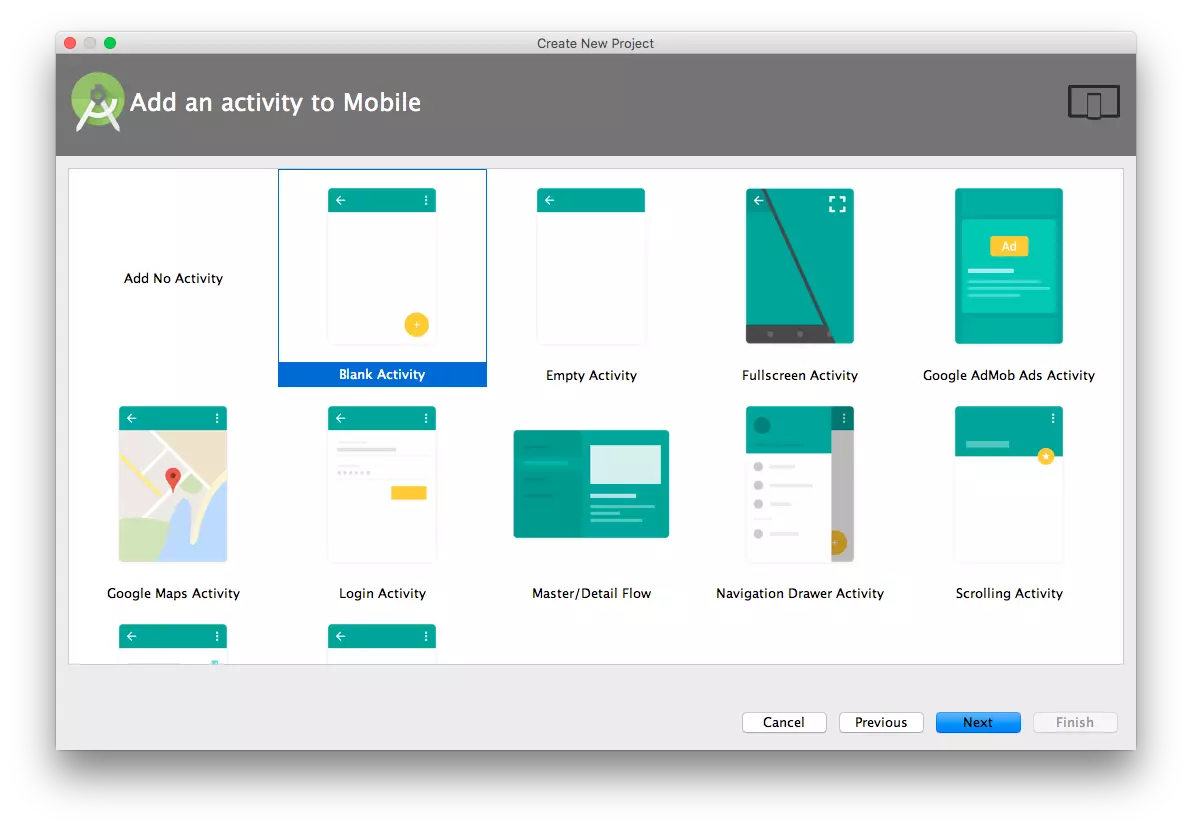
浮动动作按钮看起来像这样的布局文件,如果创建一个空白活动的Android Studio项目,将自动生成;
<android.support.design.widget.FloatingActionButton
    android:id="@+id/fab"
    android:layout_width="wrap_content"
    android:layout_height="wrap_content"
    android:layout_gravity="bottom|end"
    android:layout_margin="@dimen/fab_margin"
    android:src="@android:drawable/ic_menu_help"
    />
浮动操作按钮可以是两种尺寸之一。默认为56dp, mini为40dp。要进一步讨论使用FAB的设计原则;在最近的Android应用程序中,FAB会对元素列表的滚动做出反应,在我看来,它应该在滚动时隐藏起来。

为了显示这个动画,我创建了一个recyclerView,这样FAB就可以对滚动做出反应;
public class FAB_Hide_on_Scroll extends FloatingActionButton.Behavior {

    public FAB_Hide_on_Scroll(Context context, AttributeSet attrs) {
        super();
    }

    @Override
    public void onNestedScroll(CoordinatorLayout coordinatorLayout, FloatingActionButton child, View target, int dxConsumed, int dyConsumed, int dxUnconsumed, int dyUnconsumed) {
        super.onNestedScroll(coordinatorLayout, child, target, dxConsumed, dyConsumed, dxUnconsumed, dyUnconsumed);

        //child -> Floating Action Button
        if (child.getVisibility() == View.VISIBLE && dyConsumed > 0) {
            child.hide();
        } else if (child.getVisibility() == View.GONE && dyConsumed < 0) {
            child.show();
        }
    }

    @Override
    public boolean onStartNestedScroll(CoordinatorLayout coordinatorLayout, FloatingActionButton child, View directTargetChild, View target, int nestedScrollAxes) {
        return nestedScrollAxes == ViewCompat.SCROLL_AXIS_VERTICAL;
    }
}
我正在使用FloatingActionButton. behavior()类,根据官方文档,它的主要功能是移动FloatingActionButton视图,以便任何显示的零食条不覆盖它们。但在我们的例子中,这个类是扩展的,所以我们可以实现我们自己的行为。
让我们更详细地了解一下这个行为类。它的目的是,无论何时启动滚动,如果滚动是垂直的,onStartNestedScroll()方法将返回true, onNestedScroll()方法将从那里隐藏或显示浮动操作按钮,这取决于其当前的可见性状态。
这个类的构造函数是这个视图行为的重要组成部分,它使这个视图可以从XML文件中膨胀;
    public FAB_Hide_on_Scroll(Context context, AttributeSet attrs) {
        super();
    }
要使用此行为,请向浮动操作按钮添加layout_behavior属性。该属性包含包名,加上末尾的类名,或者换句话说,这个类在项目中的确切位置。在我的例子中,它是这样的 ;
app:layout_behavior="com.valdio.valdioveliu.floatingactionbuttonproject.Scrolling_Floating_Action_Button.FAB_Hide_on_Scroll"
这个动画看起来很酷,但它可以更好。我个人更喜欢在滚动应用程序内容时将FAB移出屏幕,这样更真实。我的意思是:
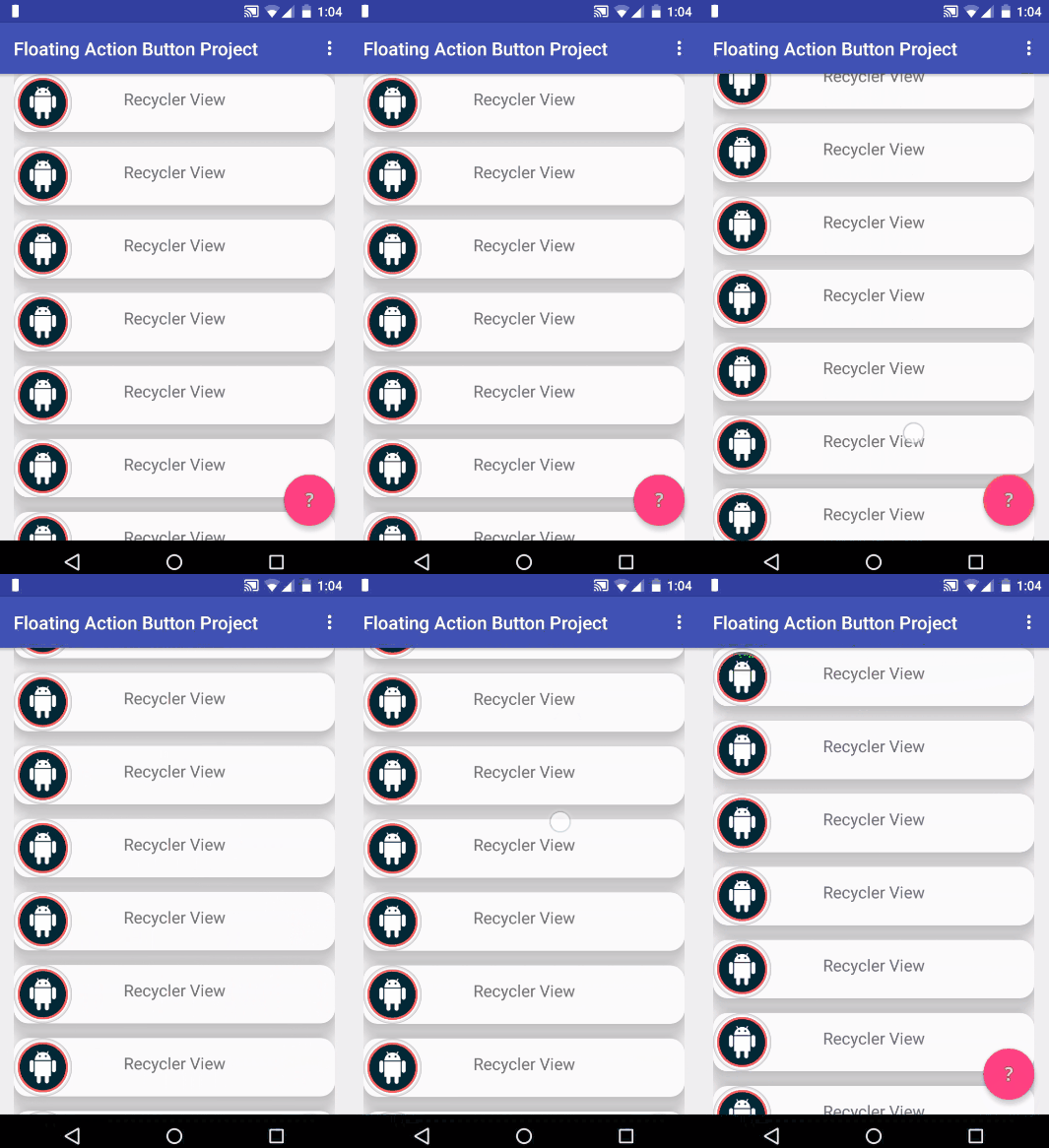
应用与前面相同的逻辑,只是FAB隐藏的方式发生了变化。
动画很简单。FAB使用线性插值器垂直地浮在屏幕上。FAB向下浮动一段距离,根据其高度加上底部边界计算,将其完全从屏幕中移除,并在向上滚动时浮动回其原始位置。
如果仔细查看代码,就会发现我删除了View。可见和视图。GONE检查if语句,因为在这种情况下视图没有隐藏,只是浮出屏幕。
public class FAB_Float_on_Scroll extends FloatingActionButton.Behavior {

    public FAB_Float_on_Scroll(Context context, AttributeSet attrs) {
        super();
    }

    @Override
    public void onNestedScroll(CoordinatorLayout coordinatorLayout, FloatingActionButton child, View target, int dxConsumed, int dyConsumed, int dxUnconsumed, int dyUnconsumed) {
        super.onNestedScroll(coordinatorLayout, child, target, dxConsumed, dyConsumed, dxUnconsumed, dyUnconsumed);

        //child -> Floating Action Button
        if (dyConsumed > 0) {
            CoordinatorLayout.LayoutParams layoutParams = (CoordinatorLayout.LayoutParams) child.getLayoutParams();
            int fab_bottomMargin = layoutParams.bottomMargin;
            child.animate().translationY(child.getHeight() + fab_bottomMargin).setInterpolator(new LinearInterpolator()).start();
        } else if (dyConsumed < 0) {
            child.animate().translationY(0).setInterpolator(new LinearInterpolator()).start();
        }
    }

    @Override
    public boolean onStartNestedScroll(CoordinatorLayout coordinatorLayout, FloatingActionButton child, View directTargetChild, View target, int nestedScrollAxes) {
        return nestedScrollAxes == ViewCompat.SCROLL_AXIS_VERTICAL;
    }
}
我看到许多Android应用程序制作了令人印象深刻的浮动操作按钮菜单,看起来和工作得都很好。下面是一个例子:
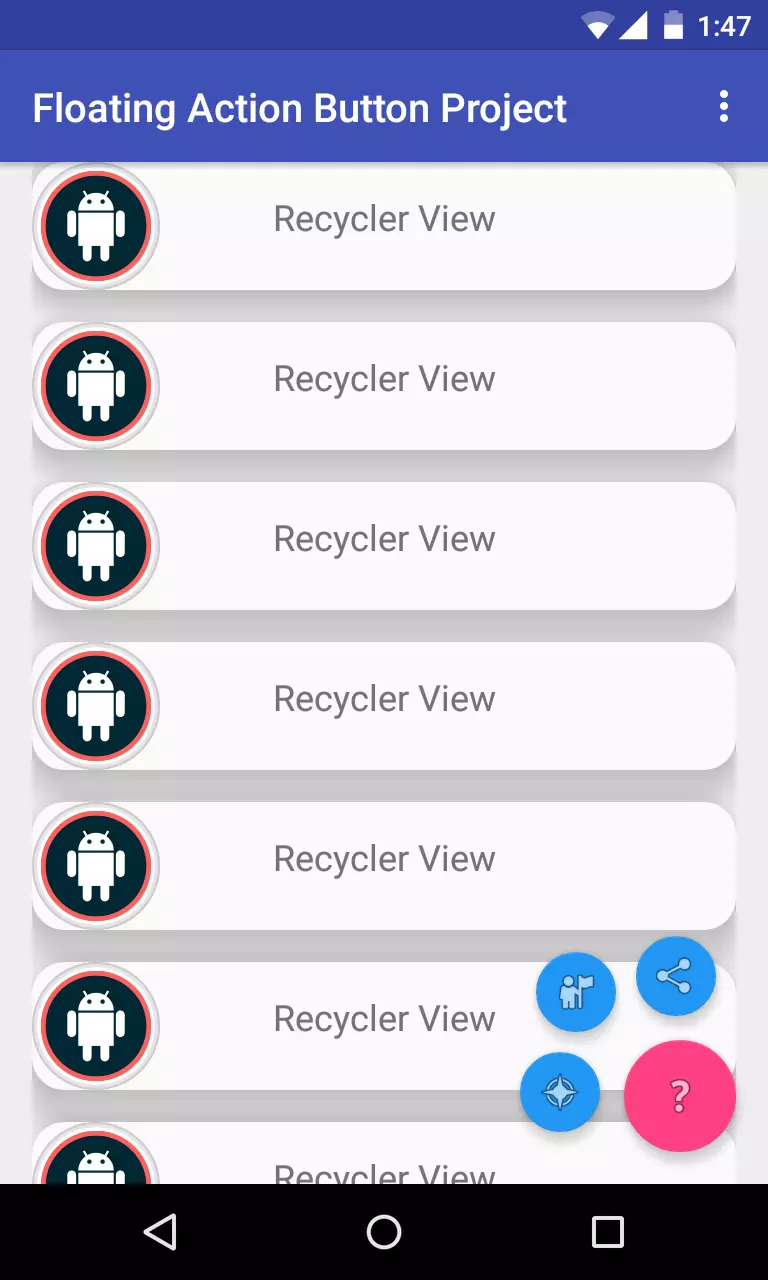
现在你已经知道我们在做什么了,让我们开始建造吧。
创建此菜单的第一步是包含3个小按钮的布局。
所有的小按钮都是不可见的,位于布局的底部,在主FAB下面。
内部 fab_layout.xml:
<FrameLayout xmlns:android="http://schemas.android.com/apk/res/android"
    xmlns:app="http://schemas.android.com/apk/res-auto"
    android:layout_width="match_parent"
    android:layout_height="match_parent">

    <android.support.design.widget.FloatingActionButton
        android:id="@+id/fab_1"
        android:layout_width="wrap_content"
        android:layout_height="wrap_content"
        android:layout_gravity="bottom|end"
        android:layout_margin="@dimen/fab_margin"
        android:src="@android:drawable/ic_menu_compass"
        android:visibility="invisible"
        app:backgroundTint="@color/colorFAB"
        app:fabSize="mini" />

    <android.support.design.widget.FloatingActionButton
        android:id="@+id/fab_2"
        android:layout_width="wrap_content"
        android:layout_height="wrap_content"
        android:layout_gravity="bottom|end"
        android:layout_margin="@dimen/fab_margin"
        android:src="@android:drawable/ic_menu_myplaces"
        android:visibility="invisible"
        app:backgroundTint="@color/colorFAB"
        app:fabSize="mini" />

    <android.support.design.widget.FloatingActionButton
        android:id="@+id/fab_3"
        android:layout_width="wrap_content"
        android:layout_height="wrap_content"
        android:layout_gravity="bottom|end"
        android:layout_margin="@dimen/fab_margin"
        android:src="@android:drawable/ic_menu_share"
        android:visibility="invisible"
        app:backgroundTint="@color/colorFAB"
        app:fabSize="mini" />
</FrameLayout>
将此布局包含在主要FAB下的活动布局中。
<include layout="@layout/fab_layout" />
现在布局已经设置好了,下一步是制作动画来显示和隐藏每个小型fab。
注意:在创建这些动画时,我遇到了触摸事件和小型fab的问题。当动画完成时,小fab的实际位置没有改变,只有视图出现在新的位置,所以你不能在正确的位置上实际执行触摸事件。我解决这个问题的方法是设置每个FAB的布局参数到它的新位置,然后执行将视图拉到新位置的动画。
其余部分,我将展示一个小型fab的动画制作过程。这个过程与其他的相同,只是重定位参数不同。
  FrameLayout.LayoutParams layoutParams = (FrameLayout.LayoutParams) fab1.getLayoutParams();
  layoutParams.rightMargin += (int) (fab1.getWidth() * 1.7);
  layoutParams.bottomMargin += (int) (fab1.getHeight() * 0.25);
  fab1.setLayoutParams(layoutParams);
  fab1.startAnimation(show_fab_1);
  fab1.setClickable(true);
在这里,我重新定位fab1,通过添加右边缘和底部边缘到它的layoutParams和开始动画。
FrameLayout.LayoutParams layoutParams = (FrameLayout.LayoutParams) fab1.getLayoutParams();
  layoutParams.rightMargin -= (int) (fab1.getWidth() * 1.7);
  layoutParams.bottomMargin -= (int) (fab1.getHeight() * 0.25);
  fab1.setLayoutParams(layoutParams);
  fab1.startAnimation(hide_fab_1);
  fab1.setClickable(false);
隐藏的过程与前面的动画相反。
在这个FAB上使用的动画是:
  //Animations
  Animation show_fab_1 = AnimationUtils.loadAnimation(getApplication(), R.anim.fab1_show);
  Animation hide_fab_1 = AnimationUtils.loadAnimation(getApplication(), R.anim.fab1_hide);
现在剩下的就是动画了。在res/anim/文件夹中,我创建了所有动画文件。这些内容并不多,但是如果您需要帮助来理解每个标签或属性的作用;
内部 ab1_show.xml:
<?xml version="1.0" encoding="utf-8"?>
<set xmlns:android="http://schemas.android.com/apk/res/android"
    android:fillAfter="true">

    <!-- Rotate -->
    <rotate
        android:duration="500"
        android:fromDegrees="30"
        android:interpolator="@android:anim/linear_interpolator"
        android:pivotX="50%"
        android:pivotY="50%"
        android:repeatCount="4"
        android:repeatMode="reverse"
        android:toDegrees="0"></rotate>

    <!--Move-->
    <translate
        android:duration="1000"
        android:fromXDelta="170%"
        android:fromYDelta="25%"
        android:interpolator="@android:anim/linear_interpolator"
        android:toXDelta="0%"
        android:toYDelta="0%"></translate>

    <!--Fade In-->
    <alpha
        android:duration="2000"
        android:fromAlpha="0.0"
        android:interpolator="@android:anim/decelerate_interpolator"
        android:toAlpha="1.0"></alpha>

</set>
内部 fab1_hide.xml:
<?xml version="1.0" encoding="utf-8"?>
<set xmlns:android="http://schemas.android.com/apk/res/android"
    android:fillAfter="true">

    <!--Move-->
    <translate
        android:duration="1000"
        android:fromXDelta="-170%"
        android:fromYDelta="-25%"
        android:interpolator="@android:anim/linear_interpolator"
        android:toXDelta="0%"
        android:toYDelta="0%"></translate>

    <!--Fade Out-->
    <alpha
        android:duration="2000"
        android:fromAlpha="1.0"
        android:interpolator="@android:anim/accelerate_interpolator"
        android:toAlpha="0.0"></alpha>

</set>
最后,如果您查看负责移动视图的translate标记,那么在java代码中添加和减去的用于重新定位FAB的因子(170%和25%)对应于具有边距的因子。
同样的过程也适用于其他两个fab2,但迁移因子为(150%和150%)fab2和(25%和170%)fab3。
如果你想用fab制作一些特殊的动画,你可以使用ViewAnimationUtils类在视图上制作显示动画。
本文的其余部分将特别关注这个类以及如何使用它构建揭示动画。不幸的是,这个类只适用于API版本21 (LOLLIPOP)或更高版本。
由于本文的其余代码示例与前面的示例解耦,我使用了一个新的Activity。如果您决定继续,创建一个名为RevealActivity的新空白活动。确保这个活动的布局文件有一个浮动操作按钮,因为我们将利用它来启动我们的动画。在我的例子中,这个FAB有android:id=“@+id/ FAB”
要在视图上制作一个显示动画,你需要在动画执行后显示一个布局。
布局取决于你想在应用中显示的视图,但为了保持简单,我构建了一个示例布局“animation -show”。
在layouts文件夹中创建一个新文件fab_reveal_layout.xml,并插入以下代码。
<?xml version="1.0" encoding="utf-8"?>
<LinearLayout xmlns:android="http://schemas.android.com/apk/res/android"
    xmlns:app="http://schemas.android.com/apk/res-auto"
    android:layout_width="match_parent"
    android:layout_height="match_parent"
    android:id="@+id/fabContainerLayout"
    android:layout_gravity="center_vertical|center_horizontal"
    android:background="@color/colorPrimary"
    android:gravity="center"
    android:visibility="gone"
    android:orientation="horizontal">

    <FrameLayout
        android:layout_width="wrap_content"
        android:layout_height="wrap_content">

        <android.support.design.widget.FloatingActionButton
            android:id="@+id/f2"
            android:layout_width="wrap_content"
            android:layout_height="wrap_content"
            android:layout_marginLeft="@dimen/fab_margin"
            android:layout_marginRight="@dimen/fab_margin"
            android:src="@android:drawable/ic_dialog_email"
            app:backgroundTint="@color/colorFAB" />


        <TextView
            android:layout_width="wrap_content"
            android:layout_height="wrap_content"
            android:layout_gravity="right"
            android:elevation="8dp"
            android:text="Fab2"
            android:textColor="#fff" />
    </FrameLayout>

    <LinearLayout
        android:layout_width="wrap_content"
        android:layout_height="wrap_content"
        android:orientation="vertical">

        <FrameLayout
            android:layout_width="wrap_content"
            android:layout_height="wrap_content"
            android:layout_marginBottom="@dimen/fab_margin"
            android:layout_marginTop="@dimen/fab_margin">

            <android.support.design.widget.FloatingActionButton xmlns:app="http://schemas.android.com/apk/res-auto"
                android:id="@+id/f1"
                android:layout_width="wrap_content"
                android:layout_height="wrap_content"
                android:layout_marginLeft="@dimen/fab_margin"
                android:layout_marginRight="@dimen/fab_margin"
                android:elevation="0dp"
                android:src="@android:drawable/ic_dialog_map"
                app:backgroundTint="@color/colorFAB"
                app:borderWidth="0dp"
                app:fabSize="normal" />

            <TextView
                android:layout_width="wrap_content"
                android:layout_height="wrap_content"
                android:layout_gravity="right"
                android:elevation="8dp"
                android:text="Fab1"
                android:textColor="#fff" />
        </FrameLayout>

        <FrameLayout
            android:layout_width="wrap_content"
            android:layout_height="wrap_content"
            android:layout_marginBottom="@dimen/fab_margin"
            android:layout_marginTop="@dimen/fab_margin">

            <android.support.design.widget.FloatingActionButton
                android:id="@+id/f4"
                android:layout_width="wrap_content"
                android:layout_height="wrap_content"
                android:layout_marginLeft="@dimen/fab_margin"
                android:layout_marginRight="@dimen/fab_margin"
                android:src="@android:drawable/ic_dialog_alert"
                app:backgroundTint="@color/colorFAB" />

            <TextView
                android:layout_width="wrap_content"
                android:layout_height="wrap_content"
                android:layout_gravity="right"
                android:elevation="8dp"
                android:text="Fab4"
                android:textColor="#fff" />
        </FrameLayout>
    </LinearLayout>


    <FrameLayout
        android:layout_width="wrap_content"
        android:layout_height="wrap_content">

        <android.support.design.widget.FloatingActionButton
            android:id="@+id/f3"
            android:layout_width="wrap_content"
            android:layout_height="wrap_content"
            android:layout_marginLeft="@dimen/fab_margin"
            android:layout_marginRight="@dimen/fab_margin"
            android:src="@android:drawable/ic_dialog_dialer"
            app:backgroundTint="@color/colorFAB" />

        <TextView
            android:layout_width="wrap_content"
            android:layout_height="wrap_content"
            android:layout_gravity="right"
            android:elevation="8dp"
            android:text="Fab3"
            android:textColor="#fff" />
    </FrameLayout>
</LinearLayout>
实际上,这个文件中的容器LinearLayout有一个可见属性visibility="gone",所以当你在文件中插入这段代码时,什么都不可见。要检查这个布局,从LinearLayout删除可见性属性或看一下下面的图片。
创建此文件后,将其包含在活动的布局文件中
activity_reveal.xml
<?xml version="1.0" encoding="utf-8"?>
<android.support.design.widget.CoordinatorLayout xmlns:android="http://schemas.android.com/apk/res/android"
    //...>

    //...
    <include layout="@layout/content_reveal" />

    <include layout="@layout/fab_reveal_layout" />

    <android.support.design.widget.FloatingActionButton
        android:id="@+id/fab"
        android:layout_width="wrap_content"
        android:layout_height="wrap_content"
        android:layout_gravity="bottom|end"
        android:layout_margin="@dimen/fab_margin"
        android:src="@drawable/ic_add" />

</android.support.design.widget.CoordinatorLayout>
我正在学习如何使用Nokogiri,根据这段代码我遇到了一些问题:require'rubygems'require'mechanize'post_agent=WWW::Mechanize.newpost_page=post_agent.get('http://www.vbulletin.org/forum/showthread.php?t=230708')puts"\nabsolutepathwithtbodygivesnil"putspost_page.parser.xpath('/html/body/div/div/div/div/div/table/tbody/tr/td/div
我有一个Ruby程序,它使用rubyzip压缩XML文件的目录树。gem。我的问题是文件开始变得很重,我想提高压缩级别,因为压缩时间不是问题。我在rubyzipdocumentation中找不到一种为创建的ZIP文件指定压缩级别的方法。有人知道如何更改此设置吗?是否有另一个允许指定压缩级别的Ruby库? 最佳答案 这是我通过查看rubyzip内部创建的代码。level=Zlib::BEST_COMPRESSIONZip::ZipOutputStream.open(zip_file)do|zip|Dir.glob("**/*")d
类classAprivatedeffooputs:fooendpublicdefbarputs:barendprivatedefzimputs:zimendprotecteddefdibputs:dibendendA的实例a=A.new测试a.foorescueputs:faila.barrescueputs:faila.zimrescueputs:faila.dibrescueputs:faila.gazrescueputs:fail测试输出failbarfailfailfail.发送测试[:foo,:bar,:zim,:dib,:gaz].each{|m|a.send(m)resc
很好奇,就使用rubyonrails自动化单元测试而言,你们正在做什么?您是否创建了一个脚本来在cron中运行rake作业并将结果邮寄给您?git中的预提交Hook?只是手动调用?我完全理解测试,但想知道在错误发生之前捕获错误的最佳实践是什么。让我们理所当然地认为测试本身是完美无缺的,并且可以正常工作。下一步是什么以确保他们在正确的时间将可能有害的结果传达给您? 最佳答案 不确定您到底想听什么,但是有几个级别的自动代码库控制:在处理某项功能时,您可以使用类似autotest的内容获得关于哪些有效,哪些无效的即时反馈。要确保您的提
假设我做了一个模块如下:m=Module.newdoclassCendend三个问题:除了对m的引用之外,还有什么方法可以访问C和m中的其他内容?我可以在创建匿名模块后为其命名吗(就像我输入“module...”一样)?如何在使用完匿名模块后将其删除,使其定义的常量不再存在? 最佳答案 三个答案:是的,使用ObjectSpace.此代码使c引用你的类(class)C不引用m:c=nilObjectSpace.each_object{|obj|c=objif(Class===objandobj.name=~/::C$/)}当然这取决于
我正在尝试使用ruby和Savon来使用网络服务。测试服务为http://www.webservicex.net/WS/WSDetails.aspx?WSID=9&CATID=2require'rubygems'require'savon'client=Savon::Client.new"http://www.webservicex.net/stockquote.asmx?WSDL"client.get_quotedo|soap|soap.body={:symbol=>"AAPL"}end返回SOAP异常。检查soap信封,在我看来soap请求没有正确的命名空间。任何人都可以建议我
关闭。这个问题是opinion-based.它目前不接受答案。想要改进这个问题?更新问题,以便editingthispost可以用事实和引用来回答它.关闭4年前。Improvethisquestion我想在固定时间创建一系列低音和高音调的哔哔声。例如:在150毫秒时发出高音调的蜂鸣声在151毫秒时发出低音调的蜂鸣声200毫秒时发出低音调的蜂鸣声250毫秒的高音调蜂鸣声有没有办法在Ruby或Python中做到这一点?我真的不在乎输出编码是什么(.wav、.mp3、.ogg等等),但我确实想创建一个输出文件。
我在我的项目目录中完成了compasscreate.和compassinitrails。几个问题:我已将我的.sass文件放在public/stylesheets中。这是放置它们的正确位置吗?当我运行compasswatch时,它不会自动编译这些.sass文件。我必须手动指定文件:compasswatchpublic/stylesheets/myfile.sass等。如何让它自动运行?文件ie.css、print.css和screen.css已放在stylesheets/compiled。如何在编译后不让它们重新出现的情况下删除它们?我自己编译的.sass文件编译成compiled/t
我想将html转换为纯文本。不过,我不想只删除标签,我想智能地保留尽可能多的格式。为插入换行符标签,检测段落并格式化它们等。输入非常简单,通常是格式良好的html(不是整个文档,只是一堆内容,通常没有anchor或图像)。我可以将几个正则表达式放在一起,让我达到80%,但我认为可能有一些现有的解决方案更智能。 最佳答案 首先,不要尝试为此使用正则表达式。很有可能你会想出一个脆弱/脆弱的解决方案,它会随着HTML的变化而崩溃,或者很难管理和维护。您可以使用Nokogiri快速解析HTML并提取文本:require'nokogiri'h
我想为Heroku构建一个Rails3应用程序。他们使用Postgres作为他们的数据库,所以我通过MacPorts安装了postgres9.0。现在我需要一个postgresgem并且共识是出于性能原因你想要pggem。但是我对我得到的错误感到非常困惑当我尝试在rvm下通过geminstall安装pg时。我已经非常明确地指定了所有postgres目录的位置可以找到但仍然无法完成安装:$envARCHFLAGS='-archx86_64'geminstallpg--\--with-pg-config=/opt/local/var/db/postgresql90/defaultdb/po
