Python GUI之ttkbootstrap
tkinter是python自带的标准gui库,对于我们自己日常做一些小程序出来给自己使用是非常不错的。因为tkinter相比较其它强大的gui库(PyQT,WxPython等等)而言要简单、方便、学起来也容易得很多,基本上两三天就能学会,所以非常是nice的。但是喃,它做出来的界面,如果你是没有一定的经验与技术是做不出来好看界面的,这样就很难受额。也会很影响我们把自己做的小程序分享给别个使用。不管怎么说都现在这个时代了,要是让别人拿个20年前的界面程序来盯着看也非常难受不是,哈哈哈!!!熟话说,爱美之心人皆有之,那何况对于我们自己的作品而言喃,那肯定还是要追求一下完美好看,不是?
所以,ttkbootstrap(第三方库)官方就很nice啊,直接把他俩结合了起来,并给它穿上了一件“皮肤”(叮:tkinter,您的外挂已到账!)。简单来说就是会tkinter了,那么也就基本上也会ttkbootstrap了,如果不会,那直接学ttkbootstrap难度也与tkinter差不多,简直就是太nice了,哈哈哈。
那么,之所以推出ttkbootstrap出来当然是为了解决界面好看的问题,它自己封装了很多主题来供用户选择,里面的主题切换出来的效果也很现代化好看。所以,我们要学简单的gui库那么就学ttkbootstrap吧!!!好了,接下来我们就开始对它做一些简单的使用了解吧!对了,学习ttkbootstrap的小伙伴们一定要去官方文档里面的查看内容,里面也提供了好几个项目来供大家参考!
(提示:本文是考虑在对tkinter有一定了解的基础上与大家分享学习的,因为下面的内容大多数都没注释,所以没有基础的小伙伴还请见谅!)
这两张图片是截取官网上提供的展示效果图。
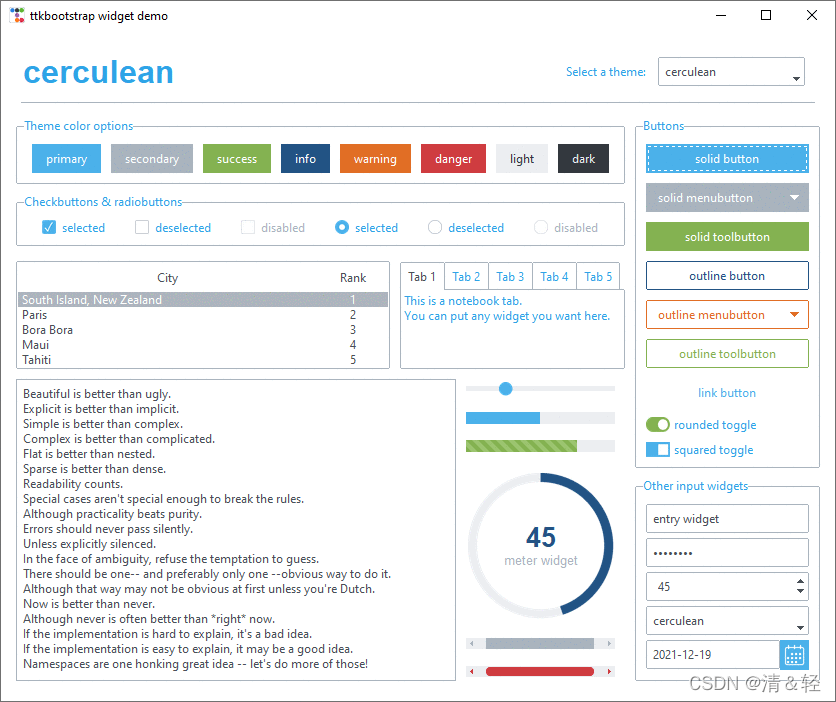
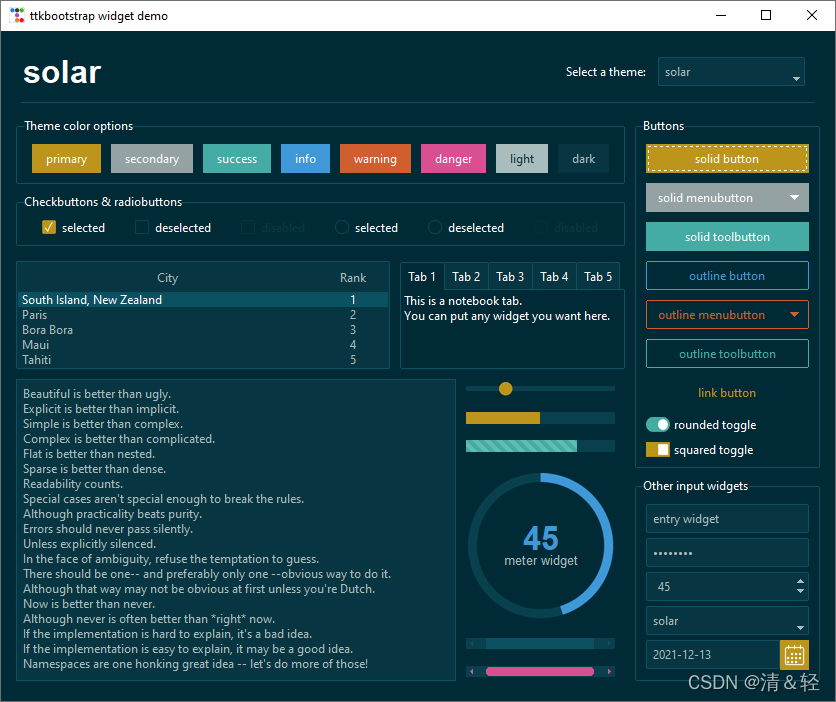
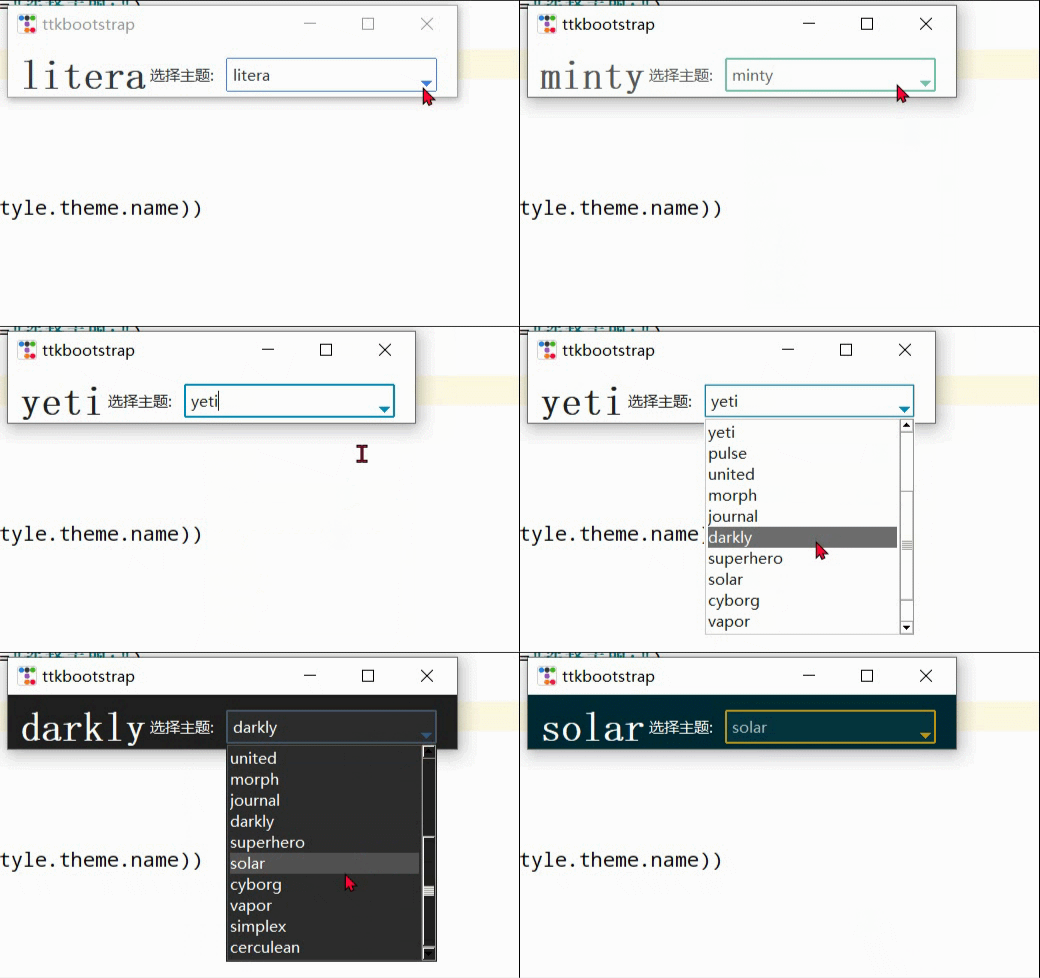
简单的主题切换,由于当前窗口上组件很少,所以感觉效果不明显,但是当组件布局很多时就会很好看。
import ttkbootstrap as ttk
from ttkbootstrap.constants import *
root = ttk.Window()
style = ttk.Style()
theme_names = style.theme_names()#以列表的形式返回多个主题名
theme_selection = ttk.Frame(root, padding=(10, 10, 10, 0))
theme_selection.pack(fill=X, expand=YES)
lbl = ttk.Label(theme_selection, text="选择主题:")
theme_cbo = ttk.Combobox(
        master=theme_selection,
        text=style.theme.name,
        values=theme_names,
)
theme_cbo.pack(padx=10, side=RIGHT)
theme_cbo.current(theme_names.index(style.theme.name))
lbl.pack(side=RIGHT)
def change_theme(event):
    theme_cbo_value = theme_cbo.get()
    style.theme_use(theme_cbo_value)
    theme_selected.configure(text=theme_cbo_value)
    theme_cbo.selection_clear()
theme_cbo.bind('<<ComboboxSelected>>', change_theme)
theme_selected = ttk.Label(
        master=theme_selection,
        text="litera",
        font="-size 24 -weight bold"
)
theme_selected.pack(side=LEFT)
root.mainloop()
首先对它实例化创建应用程序窗口的一些简单介绍。
import ttkbootstrap as ttk
#实例化创建应用程序窗口
root = ttk.Window(
        title="窗口名字",        #设置窗口的标题
        themename="litera",     #设置主题
        size=(1066,600),        #窗口的大小
        position=(100,100),     #窗口所在的位置
        minsize=(0,0),          #窗口的最小宽高
        maxsize=(1920,1080),    #窗口的最大宽高
        resizable=None,         #设置窗口是否可以更改大小
        alpha=1.0,              #设置窗口的透明度(0.0完全透明)
        )
# root.place_window_center()    #让显现出的窗口居中
# root.resizable(False,False)   #让窗口不可更改大小
# root.wm_attributes('-topmost', 1)#让窗口位置其它窗口之上
root.mainloop()
import ttkbootstrap as ttk
from ttkbootstrap.constants import *
root = ttk.Window()
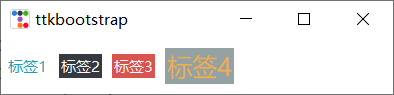
ttk.Label(root,text="标签1",bootstyle=INFO).pack(side=ttk.LEFT, padx=5, pady=10)
ttk.Label(root,text="标签2",bootstyle="inverse").pack(side=ttk.LEFT, padx=5, pady=10)
ttk.Label(root,text="标签3",bootstyle="inverse-danger").pack(side=ttk.LEFT, padx=5, pady=10)
ttk.Label(root, text="标签4", bootstyle=WARNING, font=("微软雅黑", 15), background='#94a2a4').pack(side=LEFT, padx=5, pady=10)
root.mainloop()
'''
# bootstyle colors
PRIMARY = 'primary'
SECONDARY = 'secondary'
SUCCESS = 'success'
DANGER = 'danger'
WARNING = 'warning'
INFO = 'info'
LIGHT = 'light'
DARK = 'dark'

# bootstyle types
OUTLINE = 'outline'
LINK = 'link'
TOGGLE = 'toggle'
INVERSE = 'inverse'
STRIPED = 'striped'
TOOLBUTTON = 'toolbutton'
ROUND = 'round'
SQUARE = 'square'
'''
按钮样式

import ttkbootstrap as ttk
from ttkbootstrap.constants import *
root = ttk.Window()
ttk.Button(root, text="Button 1", bootstyle=SUCCESS).pack(side=LEFT, padx=5, pady=10)
ttk.Button(root, text="Button 2", bootstyle=(INFO, OUTLINE)).pack(side=LEFT, padx=5, pady=10)
ttk.Button(root, text="Button 3", bootstyle=(PRIMARY, "outline-toolbutton")).pack(side=LEFT, padx=5, pady=10)
ttk.Button(root, text="Button 4", bootstyle="link").pack(side=LEFT, padx=5, pady=10)
ttk.Button(root, text="Button 5", bootstyle="success-link").pack(side=LEFT, padx=5, pady=10)
ttk.Button(root, text="Button 6", state="disabled").pack(side=LEFT, padx=5, pady=10) #在禁用状态下创建按钮
root.mainloop()
按钮点击
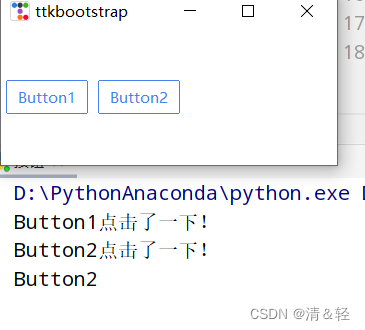
import ttkbootstrap as ttk
from ttkbootstrap.constants import *
root = ttk.Window()
#为按钮添加点击事件
#法一
def button1():
    print("Button1点击了一下!")
ttk.Button(root,text="Button1", bootstyle=(PRIMARY, "outline-toolbutton"),command=button1).pack(side=LEFT, padx=5, pady=10)
#法二
def button2(event): #这里要加一个参数,不然会报错
    print("Button2点击了一下!")
    button_text = event.widget["text"] #得到按钮上的文本
    print(button_text)
b = ttk.Button(root,text="Button2", bootstyle=(PRIMARY, "outline-toolbutton"))
b.pack(side=LEFT, padx=5, pady=10)
b.bind("<Button-1>", button2) #<Button-1>鼠标左键
root.mainloop()
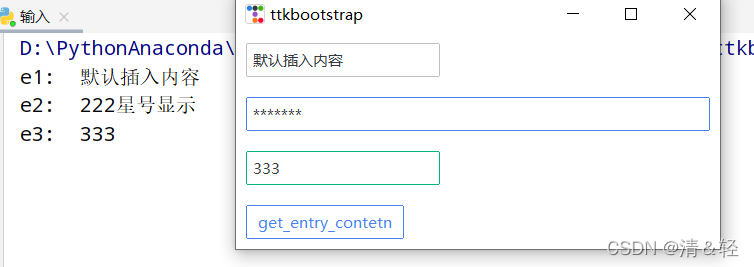
import ttkbootstrap as ttk
from ttkbootstrap.constants import *
root = ttk.Window()
e1 = ttk.Entry(root,show=None)
e1.insert('0',"默认插入内容")
e1.grid(row=5, column=1, sticky=ttk.W, padx=10,pady=10)
e2 = ttk.Entry(root,show="*",width=50,bootstyle=PRIMARY)
e2.grid(row=10, column=1, sticky=ttk.W, padx=10, pady=10)
e3_content = ttk.StringVar()
e3 = ttk.Entry(root,bootstyle='success', textvariable=e3_content).grid(row=15, column=1, sticky=ttk.W, padx=10, pady=10)
def get_entry_contetn():
    print("e1: ",e1.get())
    print("e2: ",e2.get())
    print("e3: ",e3_content.get())
ttk.Button(root,text="get_entry_contetn", bootstyle=(PRIMARY, "outline-toolbutton"),command=get_entry_contetn).grid(row=20, column=1, sticky=ttk.W, padx=10, pady=10)
root.mainloop()
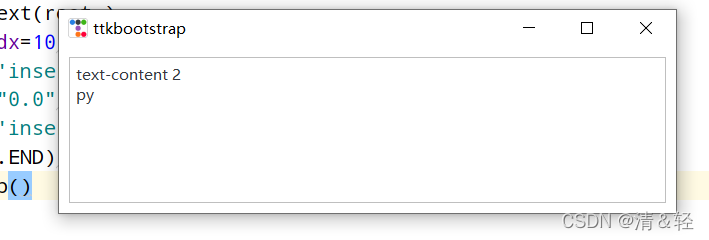
import ttkbootstrap as ttk
from ttkbootstrap.constants import *
root = ttk.Window()
text = ttk.Text(root,)
text.pack(padx=10,pady=10,fill=BOTH)
text.insert('insert','text-content 1') #插入内容
text.delete("0.0",'end') #删除内容
text.insert('insert','text-content 2\npy')
text.see(ttk.END) #光标跟随着插入的内容移动
root.mainloop()
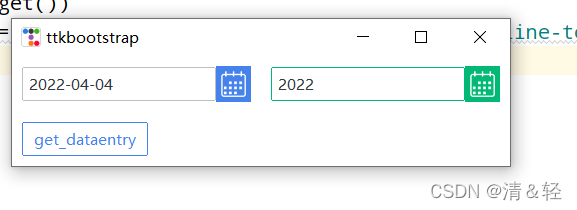
import ttkbootstrap as ttk
from ttkbootstrap.constants import *
root = ttk.Window()
de1 = ttk.DateEntry()
de1.grid(row=6, column=1, sticky=ttk.W,padx=10, pady=10)
print(de1.entry.get())

de2 = ttk.DateEntry(bootstyle="success",dateformat=r"%Y") #r"%Y-%m-%d"
de2.grid(row=6, column=2, sticky=ttk.W,padx=10, pady=10)
def get_dataentry():
    print(de2.entry.get())
ttk.Button(root,text="get_dataentry", bootstyle=(PRIMARY, "outline-toolbutton"),command=get_dataentry).grid(row=20, column=1, sticky=ttk.W, padx=10, pady=10)
root.mainloop()
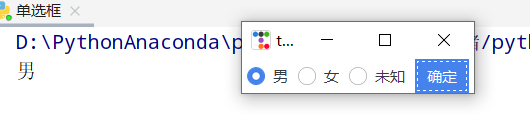
import ttkbootstrap as ttk
root = ttk.Window()
variable_value = ttk.StringVar()
variable_value_dist = {
    "0":"男",
    "1":"女",
    "2":"未知"
}
ttk.Radiobutton(root, text='男', variable=variable_value, value=0).pack(side=ttk.LEFT, padx=5)
ttk.Radiobutton(root, text='女', variable=variable_value, value=1).pack(side=ttk.LEFT, padx=5)
ttk.Radiobutton(root, text='未知', variable=variable_value, value=2).pack(side=ttk.LEFT, padx=5)
def ensure():
    print(variable_value_dist[variable_value.get()])
ttk.Button(text="确定", command=ensure).pack(side=ttk.LEFT, padx=5)
root.mainloop()
import ttkbootstrap as ttk
root = ttk.Window()
variable_content = [
    [ttk.StringVar(),"111"],
    [ttk.StringVar(),"222"],
    [ttk.StringVar(),"333"],
    [ttk.StringVar(),"666"]
]
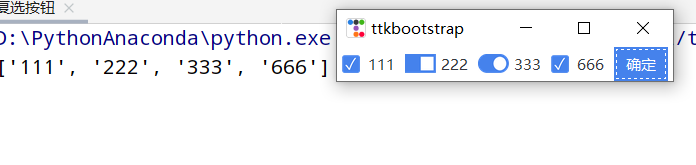
ttk.Checkbutton(root, text="111", variable=variable_content[0][0]).pack(side=ttk.LEFT, padx=5)
ttk.Checkbutton(root, text="222", variable=variable_content[1][0], bootstyle="square-toggle").pack(side=ttk.LEFT, padx=5)
ttk.Checkbutton(root, text="333", variable=variable_content[2][0], bootstyle="round-toggle").pack(side=ttk.LEFT, padx=5)
ttk.Checkbutton(root, text="666", variable=variable_content[3][0]).pack(side=ttk.LEFT, padx=5)
def ensure():
    print([v for i, v in variable_content if i.get()])
ttk.Button(text="确定",command=ensure).pack(side=ttk.LEFT, padx=5)
root.mainloop()
import ttkbootstrap as ttk
from ttkbootstrap.constants import *
root = ttk.Window()
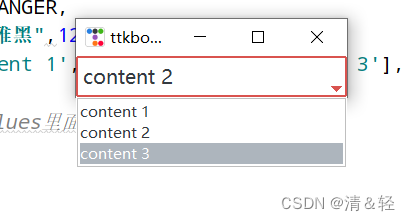
cbo = ttk.Combobox(
            master=root,
            bootstyle = DANGER,
            font = ("微软雅黑",12),
            values=['content 1', 'content 2', 'content 3'],
        )
cbo.current(1) #首先展示values里面索引的对应的值
cbo.pack()
# cbo.set('set other')
def ensure(event):
    print(cbo.get())
cbo.bind('<<ComboboxSelected>>', ensure)
root.mainloop()
import ttkbootstrap as ttk
from ttkbootstrap.constants import *
root = ttk.Window()
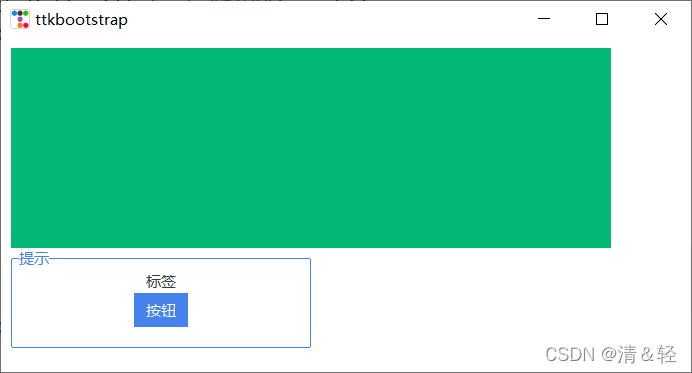
f = ttk.Frame(bootstyle=SUCCESS)
f.place(x=10,y=10,width=600,height=200)

lf = ttk.Labelframe(text="提示",bootstyle=PRIMARY,width=100,height=60)
lf.place(x=10,y=210,width=300,height=100)
ttk.Label(lf,text="标签").pack()
ttk.Button(lf,text="按钮").pack()
root.mainloop()
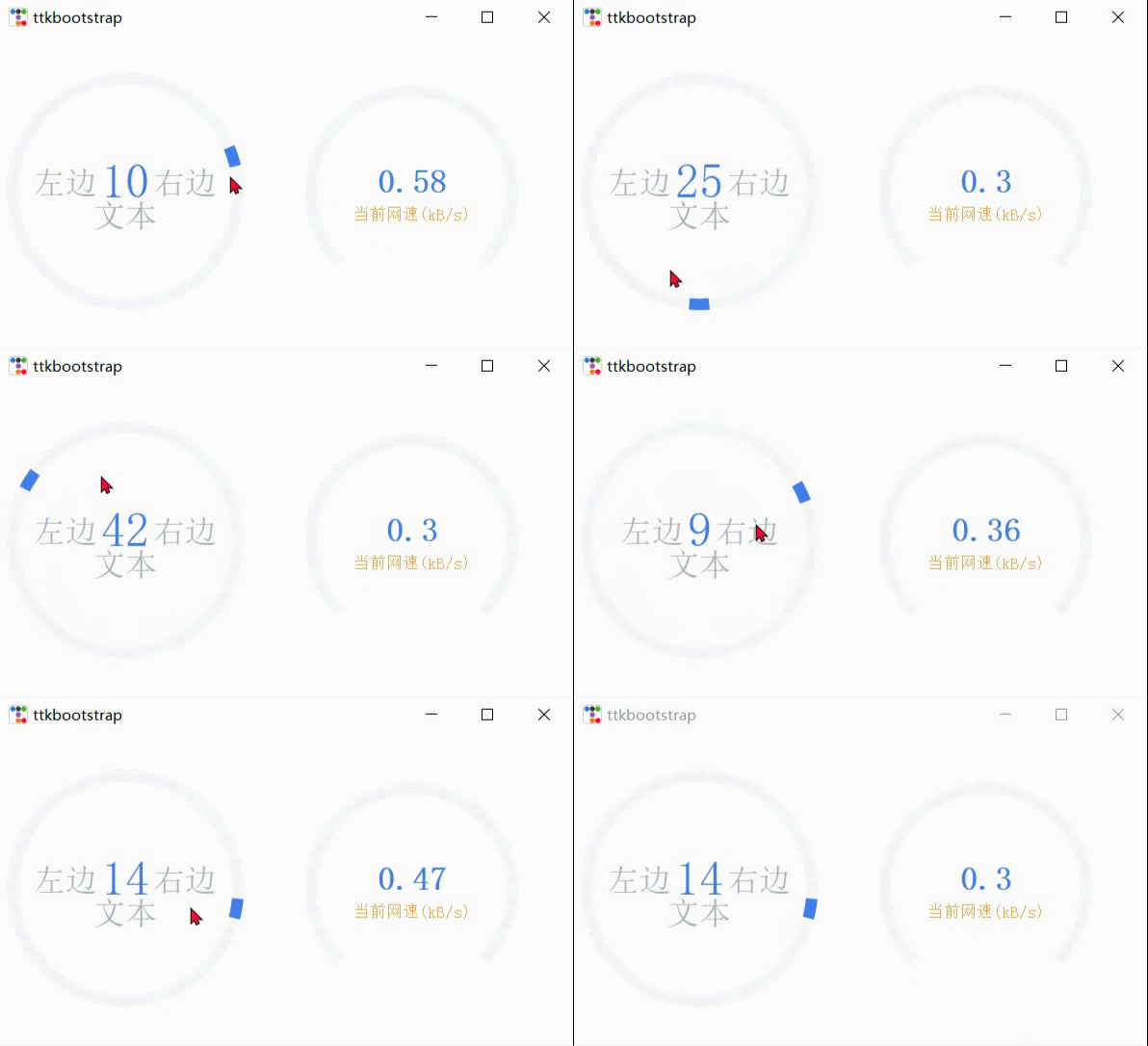
import psutil,time,threading
import ttkbootstrap as ttk
from ttkbootstrap.constants import *
root = ttk.Window()
ttk.Meter(
        master=root,
        bootstyle=DEFAULT,
        metertype="full",#将仪表显示为一个完整的圆形或半圆形(semi)
        wedgesize=5, #设置弧周围的指示器楔形长度,如果大于 0,则此楔形设置为以当前仪表值为中心的指示器
        amounttotal=50, #仪表的最大值,默认100
        amountused=10, #仪表的当前值
        metersize=200,#仪表大小
        showtext=True, #指示是否在仪表上显示左、中、右文本标签
        interactive=True, #是否可以手动调节数字的大小
        textleft='左边', #插入到中心文本左侧的短字符串
        textright='右边',
        textfont="-size 30", #中间数字大小
        subtext="文本",
        subtextstyle=DEFAULT,
        subtextfont="-size 20",#文本大小
        ).pack(side=ttk.LEFT, padx=5)
def _():
        meter = ttk.Meter(
                metersize=180,
                padding=50,
                amountused=0,
                metertype="semi",
                subtext="当前网速(kB/s)",
                subtextstyle="warning",
                interactive=False,
                bootstyle='primary',
                )
        meter.pack(side=ttk.LEFT, padx=5)
        while True:
                meter.configure(amountused=round(getNet(),2))
def getNet():
    recv_before = psutil.net_io_counters().bytes_recv
    time.sleep(1)
    recv_now = psutil.net_io_counters().bytes_recv
    recv = (recv_now - recv_before)/1024
    return recv

t = threading.Thread(target=_)
t.setDaemon(True)
t.start()
root.mainloop()
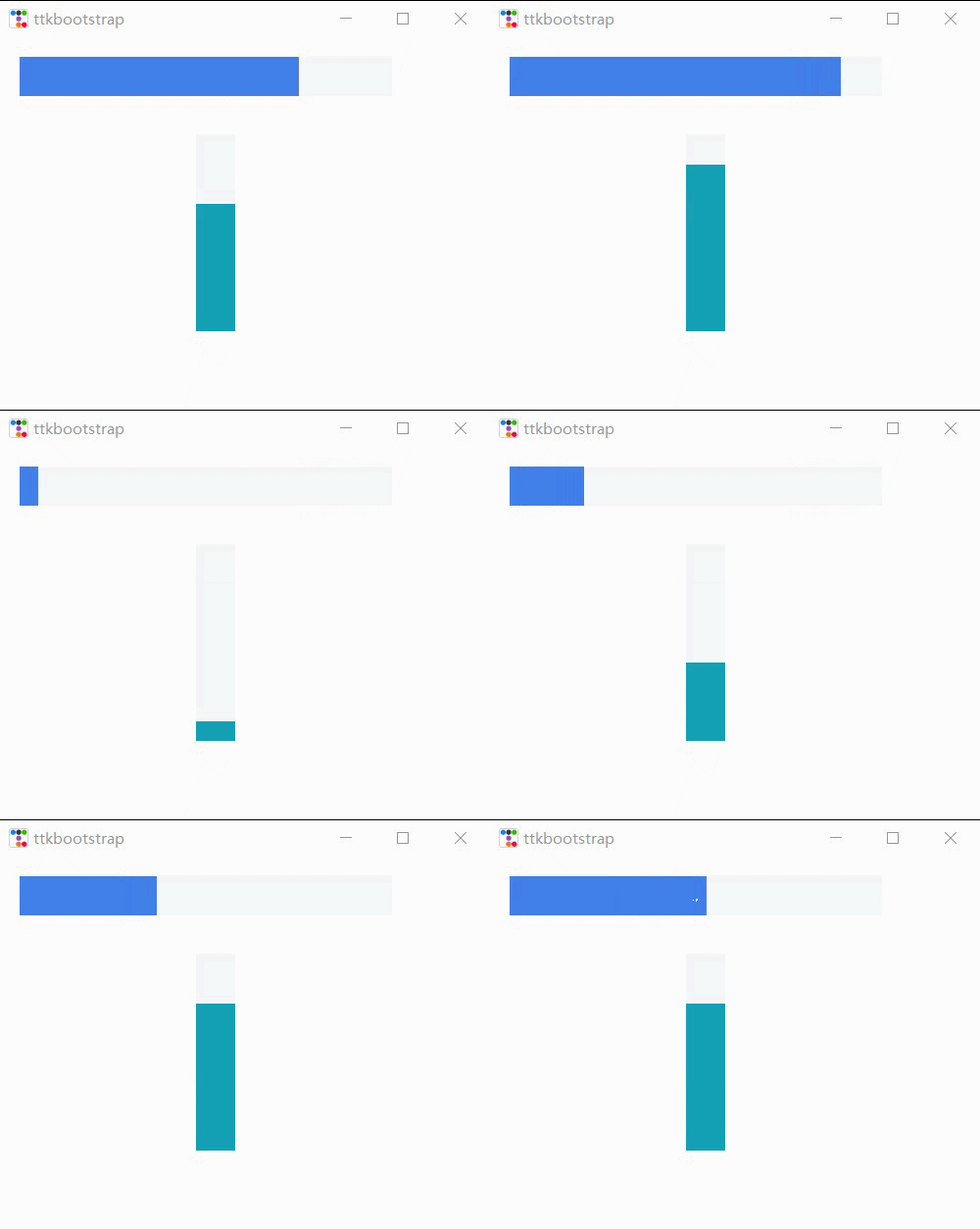
import time,threading
import ttkbootstrap as ttk
from ttkbootstrap.constants import *
root = ttk.Window(size=(500,380))
def _():
    f = ttk.Frame(root).pack(fill=BOTH, expand=YES)
    p1 = ttk.Progressbar(f, bootstyle=PRIMARY)
    p1.place(x=20, y=20, width=380, height=40)
    p1.start() #间隔默认为50毫秒(20步/秒)
    p2 = ttk.Progressbar(f, bootstyle=INFO,orient=VERTICAL)
    p2.place(x=200, y=100, width=40, height=200)
    p2.step(10) #步长
    while True:
        for i in range(0,50,5):
            p2.step(i) #以步长i增长
            # p2.stop()#停止
            time.sleep(1)
t = threading.Thread(target=_)
t.setDaemon(True)
t.start()
root.mainloop()
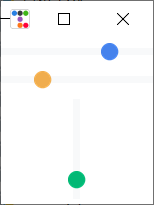
import threading,time
import ttkbootstrap as ttk
from ttkbootstrap.constants import *
root = ttk.Window()
ttk.Scale(
    master=root,
    orient=HORIZONTAL,
    value=75,
    from_=0,
    to=100
).pack(fill=X, pady=5, expand=YES)
ttk.Scale(master=root,orient=HORIZONTAL,bootstyle=WARNING,value=75,from_=100,to=0).pack(fill=X, pady=5, expand=YES)
def scale():
    s2 = ttk.Scale(
        master=root,
        bootstyle=SUCCESS,
        orient=VERTICAL,
        value=0,
        from_=100,
        to=0
    )
    s2.pack(fill=X, pady=5, expand=YES)
    for i in range(101):
        s2.configure(value=i)
        time.sleep(0.1)
        # print(s2.get())
t = threading.Thread(target=scale)
t.setDaemon(True)
t.start()
root.mainloop()
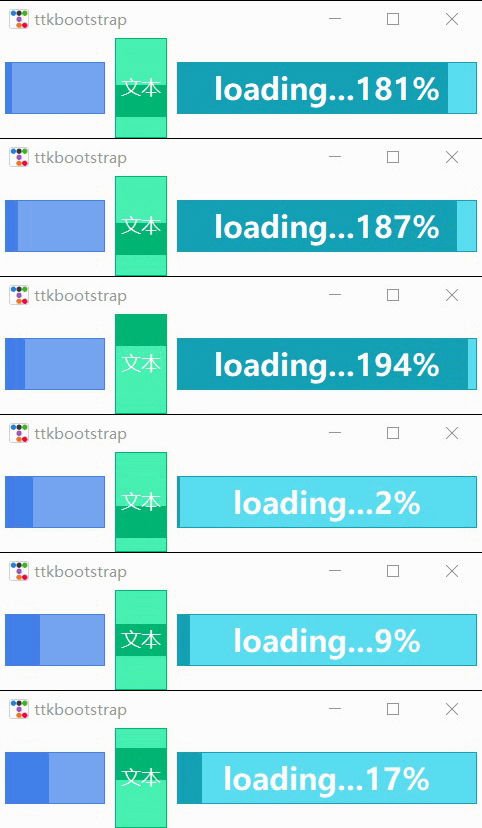
import ttkbootstrap as ttk
from ttkbootstrap.constants import *
root = ttk.Window()
fg1 = ttk.Floodgauge(
    master=None,
    cursor=None,
    font=None,
    length=None,
    maximum=100,
    mode=DETERMINATE,
    orient=HORIZONTAL,
    bootstyle=PRIMARY,
    takefocus=False,
    text=None,
    value=0,
    mask=None,
)
fg1.pack(side=ttk.LEFT, padx=5)
fg1.start()
fg2 = ttk.Floodgauge(
    master=root,
    bootstyle="success",
    font=("微软雅黑",12), #文本字体
    length=100,  #水尺长度
    maximum=10, #增加到10
    mode=INDETERMINATE, #来回不确定
    orient=VERTICAL, #放置垂直方向
    text="文本", #文本
)
fg2.pack(side=ttk.LEFT, padx=5)
fg2.start()
fg3 = ttk.Floodgauge(
    root,
    bootstyle=INFO,
    length=300,
    maximum=200,
    font=("微软雅黑", 18, 'bold'),
    mask='loading...{}%',
)
fg3.pack(side=ttk.LEFT, padx=5)
fg3.start()
# fg3.stop()
# fg3.configure(mask='...{}%')
fg3.configure(value=25) #初始值
fg3.step(50) #将上面25该值增加50步
root.mainloop()
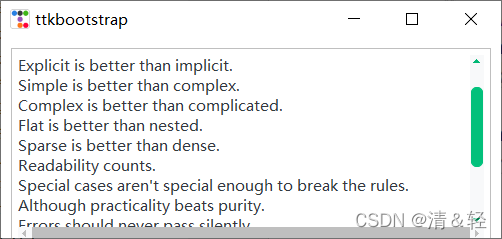
import ttkbootstrap as ttk
from ttkbootstrap.constants import *
root = ttk.Window(size=(500,200))
f = ttk.Frame(root).pack(fill=BOTH, expand=YES)
text_content = '''
The Zen of Python, by Tim Peters

Beautiful is better than ugly.
Explicit is better than implicit.
Simple is better than complex.
Complex is better than complicated.
Flat is better than nested.
Sparse is better than dense.
Readability counts.
Special cases aren't special enough to break the rules.
Although practicality beats purity.
Errors should never pass silently.
Unless explicitly silenced.
In the face of ambiguity, refuse the temptation to guess.
There should be one-- and preferably only one --obvious way to do it.
Although that way may not be obvious at first unless you're Dutch.
Now is better than never.
Although never is often better than *right* now.
If the implementation is hard to explain, it's a bad idea.
If the implementation is easy to explain, it may be a good idea.
Namespaces are one honking great idea -- let's do more of those!
'''
# t = ttk.Text(f)
# t.insert("0.0",text_content)
# t.place(x=10,y=10,width=480,height=200)
# sl_x = ttk.Scrollbar(t,orient=HORIZONTAL) #使滚动条水平放置
# #放到窗口的底部, 填充X轴竖直方向
# sl_x.pack(side=ttk.BOTTOM, fill=ttk.X)
# sl_y = ttk.Scrollbar(t,bootstyle="round-success") #滚动条默认垂直放置
# #放到窗口的右侧, 填充Y轴竖直方向
# sl_y.pack(side=ttk.RIGHT, fill=ttk.Y)
# #两个控件相关联
# sl_x.config(command=t.xview)
# t.config(yscrollcommand=sl_x.set)
# sl_y.config(command=t.yview)
# t.config(yscrollcommand=sl_y.set)

##滚动文本框
from ttkbootstrap.scrolled import ScrolledText
st = ScrolledText(f, padding=5, height=10, autohide=True)
st.pack(fill=BOTH, expand=YES)
st.insert(END, text_content)

root.mainloop()
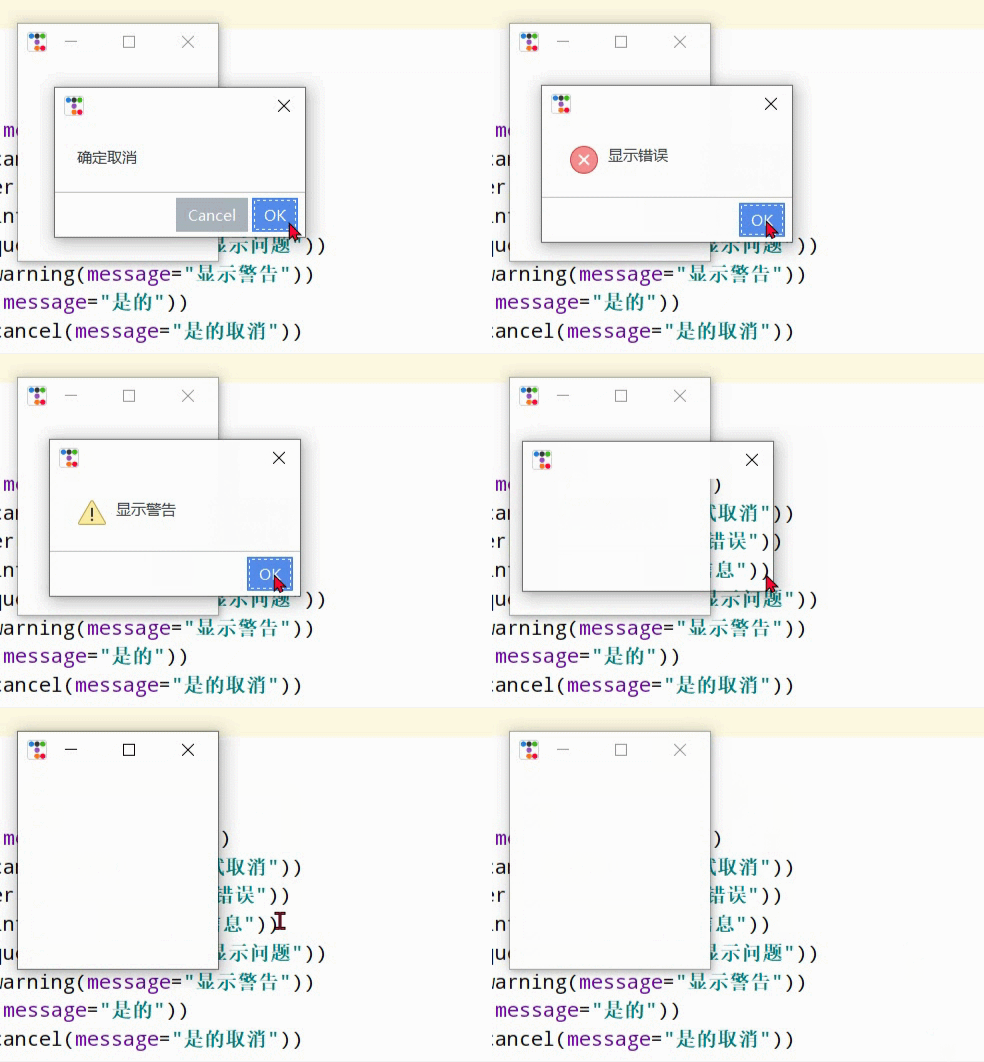
import ttkbootstrap as ttk
from ttkbootstrap.dialogs import Messagebox
root = ttk.Window()
print("ok: ",Messagebox.ok(
    message="要在消息框中显示的消息",
    title="消息框的标题",
    alert=False, #指定是否响铃,默认False
))
print("okcancel: ",Messagebox.okcancel(message="确定取消"))
print("retrycancel: ",Messagebox.retrycancel(message="重试取消"))
print("retrycancel: ",Messagebox.show_error(message="显示错误"))
print("retrycancel: ",Messagebox.show_info(message="显示信息"))
print("retrycancel: ",Messagebox.show_question(message="显示问题"))
print("retrycancel: ",Messagebox.show_warning(message="显示警告"))
print("retrycancel: ",Messagebox.yesno(message="是的"))
print("retrycancel: ",Messagebox.yesnocancel(message="是的取消"))
root.mainloop()
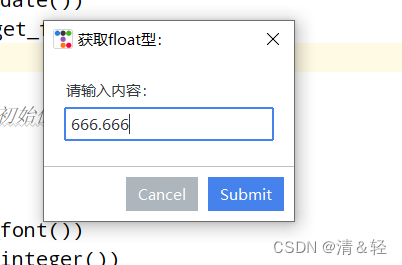
import ttkbootstrap as ttk
from ttkbootstrap.dialogs import Querybox
root = ttk.Window()
print("获取日期:",Querybox.get_date())
print("获取float型:",Querybox.get_float(
    prompt="请输入内容:",
    title="获取float型: ",
    initialvalue=666.666, #设置初始值
    # minvalue=None,
    # maxvalue=None
))
print("获取字体:",Querybox.get_font())
print("获取整数:",Querybox.get_integer())
print("获取字符串:",Querybox.get_string())
root.mainloop()
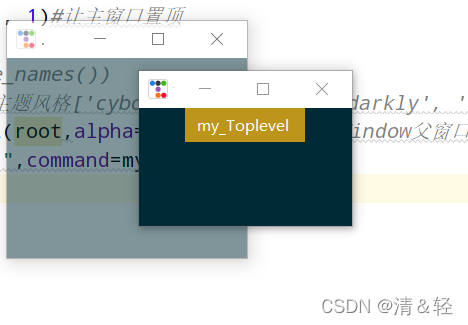
import ttkbootstrap as ttk
root = ttk.Window()
root.wm_attributes('-topmost', 1)#让主窗口置顶
def my():
    ttk.Style("solar")
    #print(ttk.Style().theme_names())#可设置主题风格['cyborg', 'journal', 'darkly', 'flatly', 'solar', 'minty', 'litera', 'united', 'pulse', 'cosmo', 'lumen', 'yeti', 'superhero']
    mytoplevel = ttk.Toplevel(root,alpha=0.5)##里面的参数和Window()父窗口一致
ttk.Button(text="my_Toplevel ",command=my).pack()
root.mainloop()
新增,之前总是感觉好像缺了点什么,今天才想起来,哈哈哈!!!
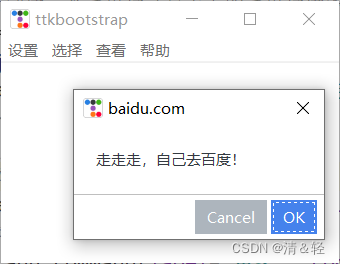
import ttkbootstrap as ttk
from ttkbootstrap.dialogs import Messagebox
root = ttk.Window()
# 在窗口上创建一个菜单栏(最上方的菜单栏横条)
menubar = ttk.Menu(root)
def dianji(): #定义一个点击事件方法
    Messagebox.show_info(title='走走走!', message='该功能还未开放!')   #消息提示框窗口
# 定义一个竖条
filemenu = ttk.Menu(menubar)
# 在菜单单元中添加一个菜单项File
menubar.add_cascade(label='设置', menu=filemenu)
# 在设置菜单项添加命令选项
filemenu.add_command(label='更多', command=dianji)
# 添加一条分割线
filemenu.add_separator()
# 定义一个子菜单条
submenu = ttk.Menu(filemenu)  # 和上面定义菜单一样,不过此处是在设置上创建一个空的菜单
submenu.add_command(label="背景")  # 给submenu添加功能选项
submenu.add_command(label="字体")
submenu.add_command(label="大小")
# 添加一个展开下拉菜单,并把上面的子菜单嵌入给它
filemenu.add_cascade(label='个性化', menu=submenu, underline=0)
# 同样的在File中加入Exit小菜单,此处对应命令为window.quit
filemenu.add_command(label='退出', command=root.quit)
# 在顶部再添加多个菜单项
otherfunction = ttk.Menu(menubar)
menubar.add_cascade(label='选择', menu=otherfunction)
menubar.add_cascade(label='查看', menu=otherfunction)
otherfunction.add_command(label='该功能未开放!')
#帮助
def baidu():
    Messagebox.okcancel(title='baidu.com', message='走走走,自己去百度!')
help = ttk.Menu(menubar, tearoff=0)
menubar.add_cascade(label='帮助', menu=help)
help.add_command(label='help', command=baidu)
# 将菜单配置给窗口
root.config(menu=menubar)

root.mainloop()
import ttkbootstrap as ttk
from ttkbootstrap.constants import *
root = ttk.Window()
f = ttk.Frame(root)
f.pack(pady=5, fill=X, side=TOP)
nb = ttk.Notebook(f)
nb.pack(
    side=LEFT,
    padx=(10, 0),
    expand=YES,
    fill=BOTH
)
nb_text = "This is a notebook tab.\nYou can put any widget you want here."
nb.add(ttk.Label(nb, text=nb_text), text="Tab 1", sticky=NW)
nb.add(
    child=ttk.Label(nb, text="notebook tab 2."),
    text="Tab 2",
    sticky=NW
)
f2 = ttk.Frame(nb)
ttk.Button(f2,text="notebook button").pack(side=ttk.LEFT, padx=5, pady=10)
nb.add(f2, text='Tab 3')
root.mainloop()
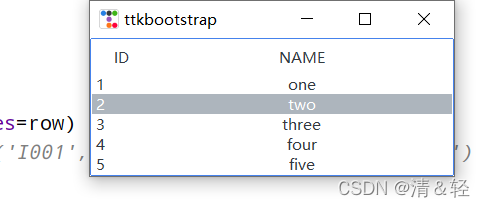
import ttkbootstrap as ttk
from ttkbootstrap.constants import *
root = ttk.Window()
tv = ttk.Treeview(
        master=root,
        columns=[0, 1],
        show=HEADINGS,
        height=5
    )
table_data = [
    (1,'one'),
    (2, 'two'),
    (3, 'three'),
    (4, 'four'),
    (5, 'five')
]
for row in table_data:
    tv.insert('', END, values=row)
# print(tv.get_children())#('I001', 'I002', 'I003', 'I004', 'I005')
tv.selection_set('I002')
tv.heading(0, text='ID')
tv.heading(1, text='NAME')
tv.column(0, width=60)
tv.column(1, width=300, anchor=CENTER)
tv.pack(side=LEFT, anchor=NE, fill=X)
root.mainloop()
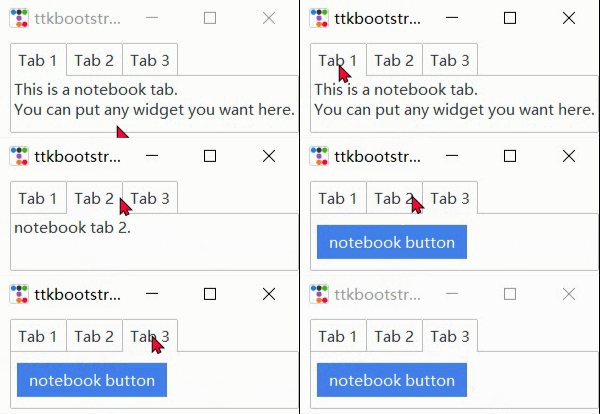
左边是官网上提供的方法,右边是一个自己定义的方法。
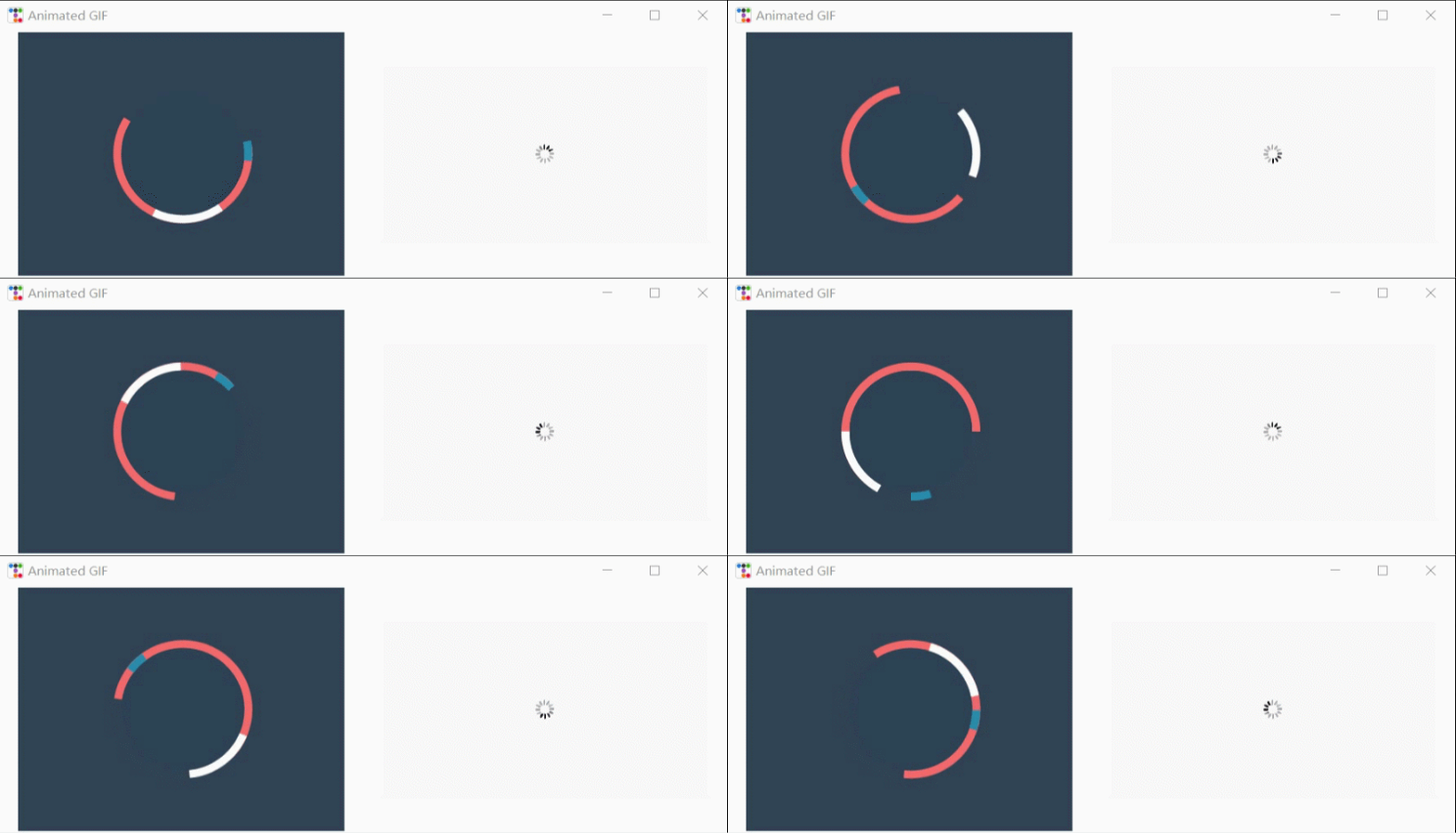
from pathlib import Path
from itertools import cycle
import ttkbootstrap as ttk
from ttkbootstrap.constants import *
from PIL import Image, ImageTk, ImageSequence
class AnimatedGif(ttk.Frame):
    def __init__(self, master):
        super().__init__(master, width=400, height=300)

        # open the GIF and create a cycle iterator
        file_path = Path(__file__).parent / "guanwang.gif"
        with Image.open(file_path) as im:
            # create a sequence
            sequence = ImageSequence.Iterator(im)
            images = [ImageTk.PhotoImage(s) for s in sequence]
            self.image_cycle = cycle(images)

            # length of each frame
            self.framerate = im.info["duration"]

        self.img_container = ttk.Label(self, image=next(self.image_cycle))
        self.img_container.pack(fill="both", expand="yes")
        self.after(self.framerate, self.next_frame)

    def next_frame(self):
        """Update the image for each frame"""
        self.img_container.configure(image=next(self.image_cycle))
        self.after(self.framerate, self.next_frame)

def loadingGif(app):
    numIdx = 12  # gif的帧数
    file_path = Path(__file__).parent / "TestGif.gif"
    frames = [ttk.PhotoImage(file=file_path, format='gif -index %i' % (i)) for i in range(numIdx)]
    def run(rate):
        frame = frames[rate]
        rate += 1
        gif_label.configure(image=frame)  # 显示当前帧的图片
        gif_label.after(100, run, rate % numIdx)  # 0.1秒(100毫秒)之后继续执行函数(run)
    gif_label = ttk.Label(app)
    gif_label.pack(side=LEFT,padx=20,fill=BOTH, expand=YES)
    run(0)
if __name__ == "__main__":
    app = ttk.Window("Animated GIF", themename="litera")
    gif = AnimatedGif(app)
    gif.pack(side=LEFT,padx=20,fill=BOTH, expand=YES)
    loadingGif(app)
    app.mainloop()
import ttkbootstrap as ttk
from ttkbootstrap.constants import *
from tkinter.filedialog import askopenfilename
root = ttk.Window()
def open_file():
    path = askopenfilename()
    # print(path)
    if not path:
        return
ttk.Button(root, text="打开文件", command=open_file).pack(fill=X, padx=10, pady=10)
root.mainloop()
import ttkbootstrap as ttk
from ttkbootstrap.constants import *
import webbrowser
root = ttk.Window()
def open_url(event):
    webbrowser.open("http://www.baidu.com", new=0)  # 启动web浏览器访问给定的URL
label = ttk.Label(root,text="https://www.baidu.com/",bootstyle=PRIMARY)
label.pack(fill=BOTH)
label.bind("<Button-1>", open_url)
root.mainloop()
好了,分享已经没有了!
那么,就感谢大家查阅啦!!!
我想用这两种语言中的任何一种(最好是ruby)制作一个窗口管理器。老实说,除了我需要加载某种X模块外,我不知道从哪里开始。因此,如果有人有线索,如果您能指出正确的方向,那就太好了。谢谢 最佳答案 XCB,X的下一代API使用XML格式定义X协议(protocol),并使用脚本生成特定语言绑定(bind)。它在概念上与SWIG类似,只是它描述的不是CAPI,而是X协议(protocol)。目前,C和Python存在绑定(bind)。理论上,Ruby端口只是编写一个从XML协议(protocol)定义语言到Ruby的翻译器的问题。生
我在HTML页面上有一个文本字段,用于检查您是否输入了1到365之间的值。如果用户输入了无效值,如非数字字符或不在范围内的值,它显示一个弹出窗口。我在watirwiki上看到有一个select_no_wait方法,用于在您从列表中选择无效值时关闭弹出窗口。处理键盘事件时出现的弹出窗口的好方法是什么?我是否需要按照select_no_wait方法的实现方式进行操作,或者我们是否可以启动一个不同的进程来消除调用set方法时可能出现的弹出窗口。带有Javascript验证函数的HTML文件示例如下:varnum=0functionvalidate(e){varcharPressed=Stri
我正在将一些遗留的Watir脚本迁移到Watir-Webdriver。除了他们如何设计Watir-Webdriver来处理弹出窗口之外,迁移大部分进行得很顺利。他们没有使用久经考验的“附加”方法,而是用简化的“窗口”方法取而代之。语法非常简单,但是我很难理解如何在不关闭父窗口的情况下关闭单独的子窗口。目前我的代码是这样的-b.button(:xpath=>PREVIEWBUTTON).clickb.window(:title,POPUPWINDOW).useDOb.closeend目前正在发生的是b.close方法正在关闭子窗口和父窗口。我不确定为什么会这样,因为b.close方法包含
我正在使用带有Pow、Ruby、Rails和一堆有用的gem的Mac。每当我尝试打开我的应用程序时,我最近都会遇到此错误。Bundler::RubyVersionMismatch:您的Ruby版本为1.9.3,但您的Gemfile指定为2.0.0我明白这个错误,但我找不到为什么它没有在这里使用正确的版本。一些有用的信息:堆栈跟踪Bundler::RubyVersionMismatch:YourRubyversionis1.9.3,butyourGemfilespecified2.0.0~/.rvm/gems/ruby-2.0.0-p247/gems/bundler-1.3.5/lib/
我正在尝试从selenium-webdriver(ruby)实现以下方法get_all_window_idsget_all_window_titlesget_all_window_names我运行了SeleniumIDE并将我的脚本导出到RubyTest::Unit。另存为.rb使用AptanaStudio3打开我的脚本进行编辑初始代码片段如下:require"rubygems"require"selenium-webdriver"require"test/unit"classSwitchToPopup3我不断得到的错误是NoMethodError:undefinedmethod`ge
我是WATIR测试的新手(我喜欢它吗!)并且遇到了如何将我的WATIR脚本重新聚焦到新打开的窗口的问题。这是我的(简化的)脚本....#!/usr/bin/rubyrequire'rubygems'require'watir-webdriver'browser=Watir::Browser.newbrowser.goto("http://0:3050")browser.text_field(:name,"userkey300203830").set("OKJHNB")browser.button(:id,"interview48").clickputs"ExpectedResult:"
关闭。这个问题是opinion-based.它目前不接受答案。想要改进这个问题?更新问题,以便editingthispost可以用事实和引用来回答它.关闭8年前。Improvethisquestion我作为承包商加入了一个Rails项目。该项目已经进行了一年多。代码由大约10名不同的开发人员编写,其中大多数也是承包商。他们有不同的代码风格。其中一些来自Java。该代码在metric_fu方面得分很低。许多函数非常长(100-300行)。有些函数有大量的逻辑分支、循环和递归。每个请求都会生成大量的sql查询。性能很差。许多过时的代码从未使用过但从未有机会被清理。核心架构明显错误或设计过度
您好,我想使用rubyonrails在单击提交按钮时打开新窗口,这是我的代码'btnbtn-mdbtn-success'do%>CreateNewWindow我试过:target=>"_blank"提交,但它不起作用,请帮助我 最佳答案 使用formtarget="_blank"。'btnbtn-mdbtn-success',:formtarget=>"_blank"do%>CreateNewWindow此链接将为您提供帮助http://www.w3schools.com/tags/att_button_formtarget.a
在RSpec中我可以使用这样的代码切换到弹出窗口,link,我怎么能在cucumber步骤中做这样的事情?login_window=page.driver.find_window('PPA_identity_window')main_window=page.driver.find_window('')#Weusethistoexecutethenextinstructionsinthepopupwindowpage.within_window(login_window)do#Normallyfillintheformandloginfill_in'email',:with=>""fil
版本ruby1.9.2-p290导轨3.0.9rvm下的mysql2-0.2.13Ubuntu11.04gem使用“geminstallmysql2-v'rails和“railsc”工作正常。我需要使用activerecord3.0.9在Rails环境之外运行脚本。当我运行脚本时,这是输出:======================/home/ross/work/x/library/models.rb:27:in`eval':!!!Missingthemysql2gem.AddittoyourGemfile:gem'mysql2'(RuntimeError)from/home/ros
