实现一个学生类,包括学号,姓名,性别,年龄,籍贯等基本信息。
开发一个系统,能够输入n个学生的基本信息,并保存在文件中;能够查询、修改、删除学生信息。
实现一个排序算法,能够对n个学生进行排序输出。
1.首先创建一个学生类Student,在Student类里定义私有属性和私有方法,使用__slots__变量包括所有的私有属性,将学号、姓名、性别、年龄、籍贯定义为私有属性,不能动态的增加和删除类的属性;在初始化方法里为属性赋值,每次创建一个对象的时候都会调用初始化方法,Student类内部重写了__str__()方法,直接打印对象的时候显示__str__()方法里面的内容,Student使用@property装饰器,在函数声明之前使用,代表这个方法的名字就是一个属性,以后对这个方法的调用就可以不用方法形式,而是使用属性形式,要“存”数据,可以在另一个方法前面加上@xxx.setter,代表通过这个方法对属性“赋值”。
2.本系统采用的是tkinter库实现UI界面,界面主要分为登录、选择、增添学生、删除学生、修改学生、查询单个学生、查询多个学生、退出等多功能界面。
登录界面:使用tkinter库里面的Canvas类创建了一个画布,然后使用PhotoImage方法将图片导入,最后使用Canvas类里面的create_image()方法将图片放入画布中,实现了图片导入到界面中;同时使用两个Label标签显示User name和Password,每个Label对应一个输入框,获取用户在输入框输入的内容,与文件中的内容进行匹配,匹配成功,方可进去系统,如果密码错误,则弹出messagebox,显示输入的密码与用户名不匹配,同时还可以可以进行注册
选择界面:当用户输入正确的用户名和密码,则会进入到选择界面,选择界面里有六个按钮,分别为添加、删除、修改、查询单个学生、查询全部学生和退出,当用户点击相应的按钮,会进入相应的界面。
添加学生:在添加学生界面,用户可以输入学生的学号、姓名、性别、年龄、籍贯等信息,获取这个Entry里面的值构建相应的学生类对象,通过字典进行存储,字典的键为学生的学号,因为学号是唯一的,值为类对象,当添加的学生的学号存在时,会弹出messagebox信息,提示用户该学生已经存在。
删除学生:输入学生的相关信息,从字典内删除学生信息,如果学生不存在,则弹出信息,显示该学生不存在。
修改学生: 输入需要修改的学生的相关信息,如果学生不存在,则弹出信息提示用户不存在,如果用户存在,则在字典中先删除有关该学生的信息,然后在添加修改之后的信息。
查询单个学生的信息:输入学生的学号,如果学生的学号不存在,则提示用户学号不存在,如果存在,则在文本框里显示学生的信息。
查询所有学生的信息:遍历整个字典,将字典所有的值都显示到文本框中,在查询界面还可以将所有的信息按照年龄进行牌序。
相关函数:
作用:实现用户的登录
参数:无
作用:实现用户的注册
参数:window,其中window为用户登录的主界面
作用: 实现一个用户可以选择的操作
参数:window, 其中window为用户登录的主界面
作用: 实现用户对学生的增添操作
参数:window_option,其中window_option为用户的选择界面
作用:实现用户对学生的删除操作
参数:window_option,其中window_option为用户的选择界面
作用:实现用户对学生的修改操作
参数:window_option,其中window_option为用户的选择界面
作用:实现用户对单个学生的查询操作
参数:window_option,其中window_option为用户的选择界面
作用:实现用户对所有学生的查询操作
参数:window_option,其中window_option为用户的选择界面
作用:实现用户将学生信息保存到文件中
参数:无
作用:实现用户读取文件中的学生的信息
参数:无
学生管理系统登录界面主要包括一个Welcome图标,还有用户输入用户名和密码的输入框,可以进行输入输出操作。图4为学生管理系统的登录界面。
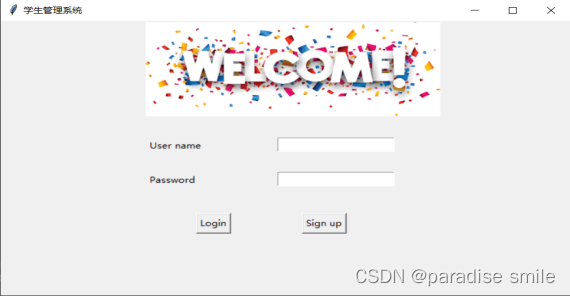
图4 学生管理系统登录界面
学生管理系统的选择界面由6个按钮组成,用户可以进行添加学生、删除学生、修改学生、查询单个学生、查阅全部学生信息和退出界面等操作。图5为选择界面。
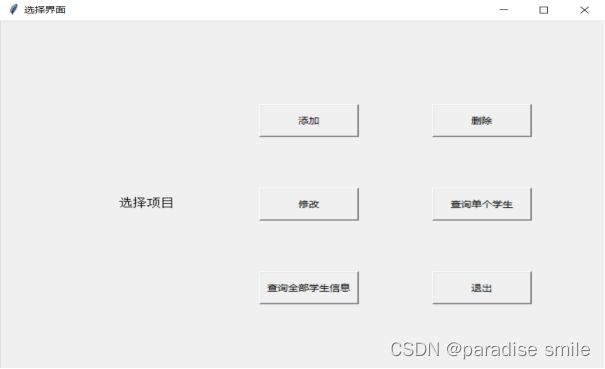
图5 学生管理系统之选择界面
添加学生信息界面包括学生学号、姓名、性别、年龄、籍贯等信息的输入。图6为学生管理系统的添加界面。

图6 学生管理系统之添加学生界面
删除学生信息界面包括学生学号、姓名、性别、年龄、籍贯等信息的输入。图7为学生管理系统的删除界面。
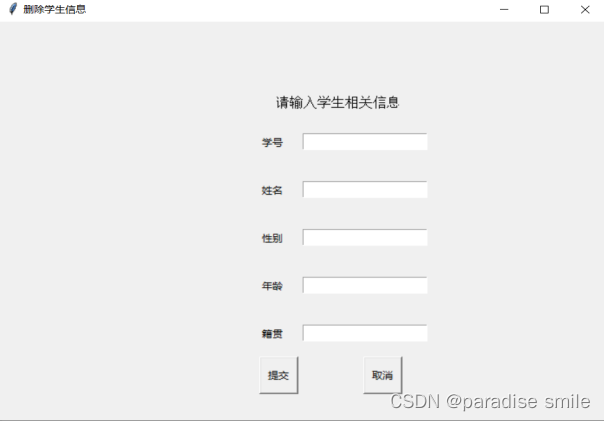
图7 学生管理系统之删除界面
修改学生信息界面包括学生学号、姓名、性别、年龄、籍贯等信息的输入。图8为学生管理系统的修改界面。
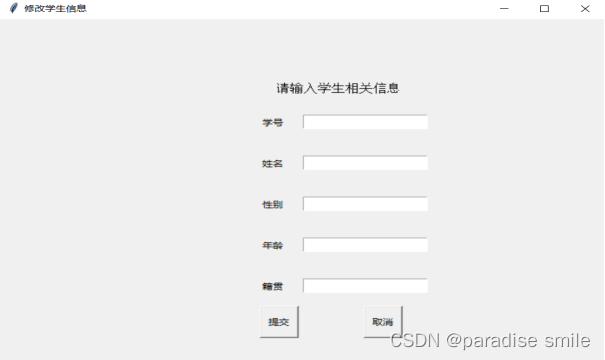
图8 学生管理系统之修改界面
查询单个学生信息界面包括输入学生的学号,点击确定按钮进行查询,然后会在文本框里显示相关学生的信息。图9为学生管理系统之查询单个学生信息界面。
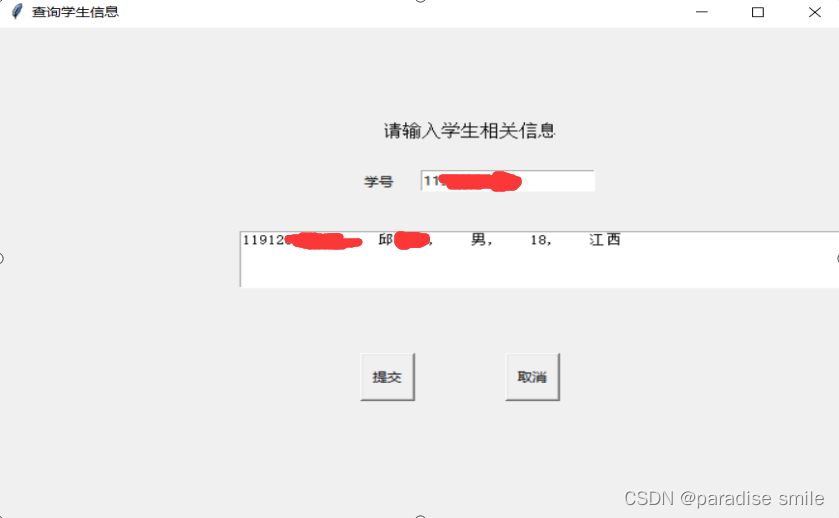
图9 学生管理系统之查询单个学生信息
查询所有学生信息界面一个显示学生信息的文本框,包括提交、排序(按年龄进行排序)、取消等按钮,可以进行相关的操作。图10为学生管理系统之查询所有学生信息界面
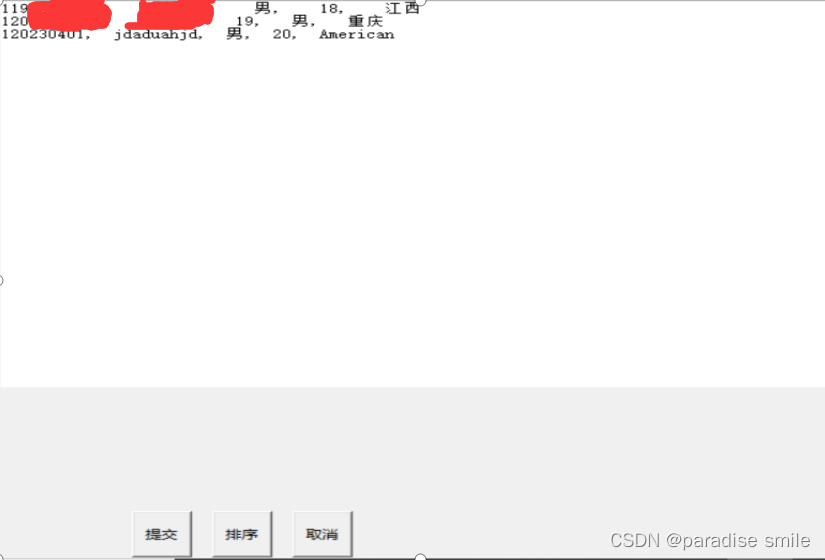
图10 查询所有学生信息界面
进行排序后的界面如图11所示
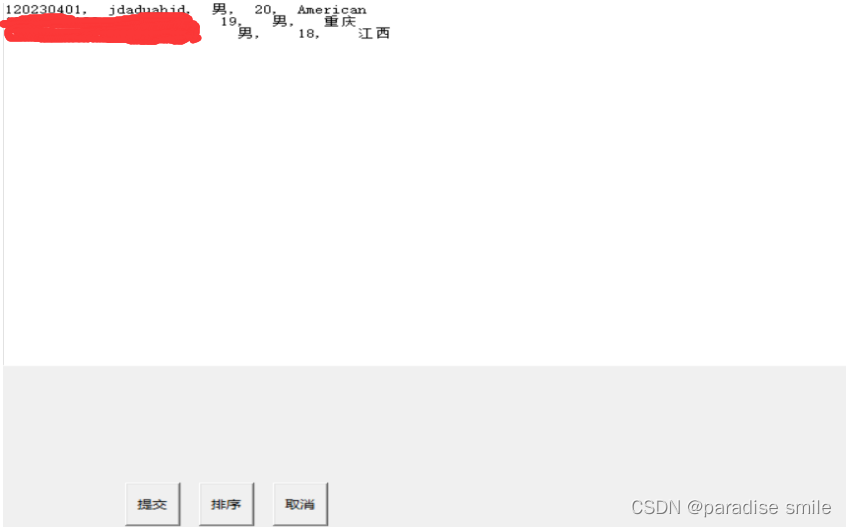
图11 学生管理系统之所有学生排序后界面
1.student类
class Student(object):  # 创建学生类
    __slots__ = ('__stu_id', '__name', '__age', '__gender', '__native_place')

    def __init__(self, stu_id, name, gender, age, native_place):
        self.stu_id = stu_id
        self.name = name
        self.age = age
        self.gender = gender
        self.native_place = native_place

    def __str__(self):
        return f"{self.stu_id}, {self.name}, {self.age}, {self.gender}, {self.native_place}"


########对属性”取”操作#########
    @property
    def stu_id(self):
        return self.__stu_id

    @property
    def name(self):
        return self.__name

    @property
    def age(self):
        return self.__age

    @property
    def gender(self):
        return self.__gender

    @property
    def native_place(self):
        return self.__native_place

 #########定义属性,对属性”赋值”操作#########
    @stu_id.setter
    def stu_id(self, stu_id):
        self.__stu_id = stu_id

    @name.setter
    def name(self, name):
        self.__name = name

    @age.setter
    def age(self, age):
        self.__age = age

    @gender.setter
    def gender(self, gender):
        self.__gender = gender

    @native_place.setter
    def native_place(self, native_place):
        self.__native_place = native_place
2.add_student类
import tkinter as tk
from task.manager1 import student
from tkinter import messagebox
from task.manager1.sava_load import stu_dicts
from task.manager1.sava_load import save_file

def insert_student(window_option):
    def student_information():
        if entry_usr_id.get() in stu_dicts:  # 判断学生学号是否存在 key
            tk.messagebox.showwarning(message='This student_number has exited')
            return
        if len(entry_usr_id.get()) != 11:
            tk.messagebox.showwarning(message='This length of student_number is wrong, please try again!')
            return
        if not entry_usr_id.get().isdigit():
            tk.messagebox.showwarning(message='The number of student_number should be a number, please try again!')
            return
        stu = student.Student(entry_usr_id.get(), entry_usr_name.get(), entry_usr_gender.get(),
                              entry_usr_age.get(), entry_usr_place.get())  # 放入字典

        stu_dicts[entry_usr_id.get()] = stu  # 将学生对象放入字典的 key = 数据值
        save_file()
        show_display()

    def show_display():
        #显示隐藏的窗口
        window_option.deiconify()
        window_add.withdraw()

    window_option.withdraw()
    window_add = tk.Toplevel(window_option)
    window_add.title('添加学生信息')
    window_add.geometry('700x500')

    tk.Label(window_add, text='请输入学生相关信息', font=('Arial', 12), width=15, height=2).place(x=320, y=80)

    tk.Label(window_add, text='学号').place(x=300, y=140)
    tk.Label(window_add, text='姓名').place(x=300, y=200)
    tk.Label(window_add, text='性别').place(x=300, y=260)
    tk.Label(window_add, text='年龄').place(x=300, y=320)
    tk.Label(window_add, text='籍贯').place(x=300, y=380)

    var_id = tk.StringVar()
    entry_usr_id = tk.Entry(window_add, textvariable=var_id)
    entry_usr_id.place(x=350, y=140)

    var_name = tk.StringVar()
    entry_usr_name = tk.Entry(window_add, textvariable=var_name)
    entry_usr_name.place(x=350, y=200)

    var_gender = tk.StringVar()
    entry_usr_gender = tk.Entry(window_add, textvariable=var_gender)
    entry_usr_gender.place(x=350, y=260)

    var_age = tk.StringVar()
    entry_usr_age = tk.Entry(window_add, textvariable=var_age)
    entry_usr_age.place(x=350, y=320)

    var_place = tk.StringVar()
    entry_usr_place = tk.Entry(window_add, textvariable=var_place)
    entry_usr_place.place(x=350, y=380)

    button_yes = tk.Button(window_add, text='提交', width=5, height=2, command=student_information)
    button_yes.place(x=300, y=420)

    button_cancel = tk.Button(window_add, text='取消', width=5, height=2, command=show_display)
    button_cancel.place(x=420, y=420)
3.delete_student类
import tkinter as tk
from task.manager1.sava_load import stu_dicts
from tkinter import messagebox
from task.manager1.sava_load import save_file


def remove_student(window_option):  # 删除学生信息
   def student_information():
      if entry_usr_id.get() in stu_dicts:  # 判断学生学号是否存在 key
         del stu_dicts[entry_usr_id.get()]
         save_file()
      else:
         tk.messagebox.showwarning(message='The student is not exit')
      show_display()

   def show_display():
      # 显示隐藏的窗口
      window_option.deiconify()
      window_del.withdraw()

   window_option.withdraw()
   window_del = tk.Toplevel(window_option)
   window_del.title('删除学生信息')
   window_del.geometry('700x500')

   tk.Label(window_del, text='请输入学生相关信息', font=('Arial', 12), width=15, height=2).place(x=320, y=80)

   tk.Label(window_del, text='请输入学生相关信息', font=('Arial', 12), width=15, height=2).place(x=320, y=80)

   tk.Label(window_del, text='学号').place(x=300, y=140)
   tk.Label(window_del, text='姓名').place(x=300, y=200)
   tk.Label(window_del, text='性别').place(x=300, y=260)
   tk.Label(window_del, text='年龄').place(x=300, y=320)
   tk.Label(window_del, text='籍贯').place(x=300, y=380)

   var_id = tk.StringVar()
   entry_usr_id = tk.Entry(window_del, textvariable=var_id)
   entry_usr_id.place(x=350, y=140)

   var_name = tk.StringVar()
   entry_usr_name = tk.Entry(window_del, textvariable=var_name)
   entry_usr_name.place(x=350, y=200)

   var_gender = tk.StringVar()
   entry_usr_gender = tk.Entry(window_del, textvariable=var_gender)
   entry_usr_gender.place(x=350, y=260)

   var_age = tk.StringVar()
   entry_usr_age = tk.Entry(window_del, textvariable=var_age)
   entry_usr_age.place(x=350, y=320)

   var_place = tk.StringVar()
   entry_usr_place = tk.Entry(window_del, textvariable=var_place)
   entry_usr_place.place(x=350, y=380)

   button_yes = tk.Button(window_del, text='提交', width=5, height=2, command=student_information)
   button_yes.place(x=300, y=420)

   button_cancel = tk.Button(window_del, text='取消', width=5, height=2, command=show_display)
   button_cancel.place(x=420, y=420)
4.modify_student类
import tkinter as tk
from task.manager1 import student
from tkinter import messagebox
from task.manager1.sava_load import stu_dicts
from task.manager1.sava_load import save_file

def modify_student(window_option):  # 修改学生信息
	def student_information():
		if entry_usr_id.get() not in stu_dicts:  # 判断学生学号是否存在 key
			tk.messagebox.showwarning(message='This student_number does not exited')
			return

		else:
			del stu_dicts[entry_usr_id.get()]
			stu = student.Student(entry_usr_id.get(), entry_usr_name.get(), entry_usr_gender.get(),
		                      entry_usr_age.get(), entry_usr_place.get())  # 放入字典

			stu_dicts[entry_usr_id.get()] = stu  # 将学生对象放入字典的 key = 数据值
			save_file()
			show_display()

	def show_display():
		# 显示隐藏的窗口
		window_option.deiconify()
		window_modify.withdraw()

	window_option.withdraw()
	window_modify = tk.Toplevel(window_option)
	window_modify.title('修改学生信息')
	window_modify.geometry('700x500')

	tk.Label(window_modify, text='请输入学生相关信息', font=('Arial', 12), width=15, height=2).place(x=320, y=80)

	tk.Label(window_modify, text='学号').place(x=300, y=140)

	tk.Label(window_modify, text='姓名').place(x=300, y=200)
	tk.Label(window_modify, text='性别').place(x=300, y=260)
	tk.Label(window_modify, text='年龄').place(x=300, y=320)
	tk.Label(window_modify, text='籍贯').place(x=300, y=380)

	var_id = tk.StringVar()
	entry_usr_id = tk.Entry(window_modify, textvariable=var_id)
	entry_usr_id.place(x=350, y=140)

	var_name = tk.StringVar()
	entry_usr_name = tk.Entry(window_modify, textvariable=var_name)
	entry_usr_name.place(x=350, y=200)

	var_gender = tk.StringVar()
	entry_usr_gender = tk.Entry(window_modify, textvariable=var_gender)
	entry_usr_gender.place(x=350, y=260)

	var_age = tk.StringVar()
	entry_usr_age = tk.Entry(window_modify, textvariable=var_age)
	entry_usr_age.place(x=350, y=320)

	var_place = tk.StringVar()
	entry_usr_place = tk.Entry(window_modify, textvariable=var_place)
	entry_usr_place.place(x=350, y=380)

	button_yes = tk.Button(window_modify, text='提交', width=5, height=2, command=student_information)
	button_yes.place(x=300, y=420)

	button_cancel = tk.Button(window_modify, text='取消', width=5, height=2, command=show_display)
	button_cancel.place(x=420, y=420)
5.option
import tkinter as tk
from task.manager1.add_student import insert_student
from task.manager1.delete_student import remove_student
from task.manager1.modify_student import modify_student
from task.manager1.search_student import search_student
from task.manager1.show_all_info import show_all

def options(window):
    window.withdraw()
    window_option = tk.Toplevel(window)
    window_option.title('选择界面')
    window_option.geometry('700x500')

    def quit(window_option):
        window_option.withdraw()
        window.deiconify()

    #定义标签
    label = tk.Label(window_option, text='选择项目', font=('Arial', 12), width=15, height=2)
    label.place(x=100, y=240)

    button_add = tk.Button(window_option, text='添加', width=15, height=2, command=lambda: insert_student(window_option))
    button_del = tk.Button(window_option, text='删除', width=15, height=2, command=lambda: remove_student(window_option))
    button_modify = tk.Button(window_option, text='修改', width=15, height=2, command=lambda: modify_student(window_option))
    button_search = tk.Button(window_option, text='查询单个学生', width=15, height=2, command=lambda: search_student(window_option))
    button_show_all = tk.Button(window_option, text='查询全部学生信息', width=15, height=2, command=lambda: show_all(window_option))
    button_quit = tk.Button(window_option, text='退出', width=15, height=2, command=lambda: quit(window_option))


    button_add.place(x=300, y=120)
    button_del.place(x=500, y=120)
    button_modify.place(x=300, y=240)
    button_search.place(x=500, y=240)
    button_show_all.place(x=300, y=360)
    button_quit.place(x=500, y=360)
6.save_load
from task.manager1 import student
stu_dicts = {}


def save_file():  # 保存学生信息到文件
   f = open('student.txt', 'w', encoding='utf-8')
   for stu in stu_dicts.values():
      f.write(str(stu) + "\n")  # stu会调用类__tr__
   f.close()


def load_file():  # 读取文件
   f = open("student.txt", 'r', encoding='utf-8')
   buf_list = f.readlines()
   for buf in buf_list:
      buf = buf.strip()  # 去除\n
      info_list = buf.split(',')  # 用逗号切割
      stu = student.Student(*info_list)  # 列表信息拆包 得到每个数据
      stu_id = info_list[0]
      stu_dicts[stu_id] = stu

   f.close()
7、search_student
import tkinter as tk
from tkinter import messagebox
from task.manager1.sava_load import stu_dicts
from task.manager1.sava_load import load_file

load_file()
def search_student(window_option):
   def student_information():
      stu_id = entry_usr_id.get()
      if stu_id not in stu_dicts:
         tk.messagebox.showwarning(message='This student_number does not exited')
      else:
         show_message(window_search)


   def show_display():
      # 显示隐藏的窗口
      window_option.deiconify()
      window_search.withdraw()
   def show_message(window_search):
      var = stu_dicts[entry_usr_id.get()]
      t = tk.Text(window_search, height=4)
      t.insert('end', var)
      t.place(x=200, y=200)

   window_option.withdraw()
   window_search = tk.Toplevel(window_option)
   window_search.title('查询学生信息')
   window_search.geometry('700x500')

   tk.Label(window_search, text='请输入学生相关信息', font=('Arial', 12), width=15, height=2).place(x=320, y=80)

   tk.Label(window_search, text='学号').place(x=300, y=140)

   var_id = tk.StringVar()
   entry_usr_id = tk.Entry(window_search, textvariable=var_id)
   entry_usr_id.place(x=350, y=140)

   button_yes = tk.Button(window_search, text='提交', width=5, height=2, command=student_information)
   button_yes.place(x=300, y=320)

   button_cancel = tk.Button(window_search, text='取消', width=5, height=2, command=show_display)
   button_cancel.place(x=420, y=320)
8、show_all_info
import tkinter as tk
from task.manager1.sava_load import load_file
from task.manager1.sava_load import stu_dicts


load_file()
def show_all(window_option):
   window_option.withdraw()
   window_search_all = tk.Toplevel(window_option)
   window_search_all.title('查询学生信息')
   window_search_all.geometry('1000x800')
   t = tk.Text(window_search_all, height=30, width=400)
   t.place(x=200, y=200)

   def show_information():
      for value in stu_dicts.values():
         t.insert('end', value)
         t.insert('end', '\n')

   def another_show_information():
      t.delete('1.0', 'end')
      stu_dict1 = stu_dicts.copy()
      stu_dict1 = dict(sorted(stu_dict1.items(), key=lambda x: x[1].stu_id, reverse=True))
      for item in stu_dict1.items():
         t.insert('end', item[1])
         t.insert('end', '\n')

   def show_display():
      # 显示隐藏的窗口
      window_option.deiconify()
      window_search_all.withdraw()

   button_sort = tk.Button(window_search_all, text='排序', width=5, height=2, command=another_show_information)
   button_sort.place(x=360, y=720)

   button_yes = tk.Button(window_search_all, text='提交', width=5, height=2, command=show_information)
   button_yes.place(x=300, y=720)

   button_cancel = tk.Button(window_search_all, text='取消', width=5, height=2, command=show_display)
   button_cancel.place(x=420, y=720)
9.main
```student
import tkinter as tk
import pickle
from tkinter import messagebox
from task.manager1.option import options


window = tk.Tk()
window.title('学生管理系统')
window.geometry('700x400')

#welcome image
canvas = tk.Canvas(window, height=200, width=500)
image_file = tk.PhotoImage(file='download.png')
image = canvas.create_image(80, 0, anchor='nw', image=image_file)
canvas.pack(side='top')

#user information
tk.Label(window, text='User name').place(x=180, y=170)
tk.Label(window, text='Password').place(x=180, y=220)

var_usr_name = tk.StringVar()
entry_usr_name = tk.Entry(window, textvariable=var_usr_name)
entry_usr_name.place(x=340, y=170)


var_usr_pwd = tk.StringVar()
entry_usr_pwd = tk.Entry(window, textvariable=var_usr_pwd, show='*')
entry_usr_pwd.place(x=340, y=220)


def usr_login():
    usr_name = var_usr_name.get()
    usr_pwd = var_usr_pwd.get()
    try:
        with open('usrs_info.txt', 'rb') as usr_file:
            usrs_info = pickle.load(usr_file)
    except FileNotFoundError:
        with open('usrs_info.txt', 'wb') as usr_file:
            usrs_info = {'admin': 'admin'}
            pickle.dump(usrs_info, usr_file)
    if usr_name in usrs_info:
        if usr_pwd == usrs_info[usr_name]:
            tk.messagebox.showinfo(title="Welcome", message='How are you ' + usr_name)
            options(window)
        else:
            tk.messagebox.showerror(message='Error, your password is wrong, try again')
    else:
        is_sign_up = tk.messagebox.askyesno('Welcome',
                                            'You have not sign up yet, Sing up today?')
        if is_sign_up:
            usr_sign_up()


def usr_sign_up(window):
    def sign_to():
        np = new_pwd.get()
        npf = new_pwd_confirm.get()
        nn = new_name.get()
        with open('usrs_info.txt', 'rb') as urs_file:
            exit_usr_info = pickle.load(urs_file)

        if np != npf:
            tk.messagebox.showerror(title='Error', message='Password and confirm password must be the same')
        elif nn in exit_usr_info:
            tk.messagebox.showerror(title='Error', message='The user has already signed up')
        else:
            exit_usr_info[nn] = np
            with open('usrs_info.txt', 'wb') as urs_file:
                pickle.dump(exit_usr_info, urs_file)
            tk.messagebox.showinfo(message="Welcome, You have successfully signed up")
            window_sign_up.destroy()

    window_sign_up = tk.Toplevel(window)
    window_sign_up.geometry('350x200')
    window_sign_up.title('Sign up window')

    new_name = tk.StringVar()
    tk.Label(window_sign_up, text='User name:').place(x=10, y=10)
    entry_new_name = tk.Entry(window_sign_up, textvariable=new_name)
    entry_new_name.place(x=150, y=10)

    new_pwd = tk.StringVar()
    tk.Label(window_sign_up, text='Password:').place(x=10, y=50)
    entry_new_pwd = tk.Entry(window_sign_up, textvariable=new_pwd, show='*')
    entry_new_pwd.place(x=150, y=50)

    new_pwd_confirm = tk.StringVar()
    tk.Label(window_sign_up, text='Confirm Password:').place(x=10, y=90)
    entry_new_pwd_confirm = tk.Entry(window_sign_up, textvariable=new_pwd_confirm, show='*')
    entry_new_pwd_confirm.place(x=150, y=90)

    btn_comfirm_sign_up = tk.Button(window_sign_up, text='Sign up', command=sign_to)
    btn_comfirm_sign_up.place(x=150, y=130)


btn_login = tk.Button(window, text='Login', command=usr_login)
btn_login.place(x=240, y=280)
btn_sign_up = tk.Button(window, text='Sign up', command=lambda: usr_sign_up(window))
btn_sign_up.place(x=370, y=280)

window.mainloop()
我正在使用i18n从头开始构建一个多语言网络应用程序,虽然我自己可以处理一大堆yml文件,但我说的语言(非常)有限,最终我想寻求外部帮助帮助。我想知道这里是否有人在使用UI插件/gem(与django上的django-rosetta不同)来处理多个翻译器,其中一些翻译器不愿意或无法处理存储库中的100多个文件,处理语言数据。谢谢&问候,安德拉斯(如果您已经在rubyonrails-talk上遇到了这个问题,我们深表歉意) 最佳答案 有一个rails3branchofthetolkgem在github上。您可以通过在Gemfi
我安装了ruby版本管理器,并将RVM安装的ruby实现设置为默认值,这样'哪个ruby'显示'~/.rvm/ruby-1.8.6-p383/bin/ruby'但是当我在emacs中打开inf-ruby缓冲区时,它使用安装在/usr/bin中的ruby。有没有办法让emacs像shell一样尊重ruby的路径?谢谢! 最佳答案 我创建了一个emacs扩展来将rvm集成到emacs中。如果您有兴趣,可以在这里获取:http://github.com/senny/rvm.el
是否有简单的方法来更改默认ISO格式(yyyy-mm-dd)的ActiveAdmin日期过滤器显示格式? 最佳答案 您可以像这样为日期选择器提供额外的选项,而不是覆盖js:=f.input:my_date,as::datepicker,datepicker_options:{dateFormat:"mm/dd/yy"} 关于ruby-on-rails-事件管理员日期过滤器日期格式自定义,我们在StackOverflow上找到一个类似的问题: https://s
电脑0x0000001A蓝屏错误怎么U盘重装系统教学分享。有用户电脑开机之后遇到了系统蓝屏的情况。系统蓝屏问题很多时候都是系统bug,只有通过重装系统来进行解决。那么蓝屏问题如何通过U盘重装新系统来解决呢?来看看以下的详细操作方法教学吧。 准备工作: 1、U盘一个(尽量使用8G以上的U盘)。 2、一台正常联网可使用的电脑。 3、ghost或ISO系统镜像文件(Win10系统下载_Win10专业版_windows10正式版下载-系统之家)。 4、在本页面下载U盘启动盘制作工具:系统之家U盘启动工具。 U盘启动盘制作步骤: 注意:制作期间,U盘会被格式化,因此U盘中的重要文件请注
在应用开发中,有时候我们需要获取系统的设备信息,用于数据上报和行为分析。那在鸿蒙系统中,我们应该怎么去获取设备的系统信息呢,比如说获取手机的系统版本号、手机的制造商、手机型号等数据。1、获取方式这里分为两种情况,一种是设备信息的获取,一种是系统信息的获取。1.1、获取设备信息获取设备信息,鸿蒙的SDK包为我们提供了DeviceInfo类,通过该类的一些静态方法,可以获取设备信息,DeviceInfo类的包路径为:ohos.system.DeviceInfo.具体的方法如下:ModifierandTypeMethodDescriptionstatic StringgetAbiList()Obt
项目介绍随着我国经济迅速发展,人们对手机的需求越来越大,各种手机软件也都在被广泛应用,但是对于手机进行数据信息管理,对于手机的各种软件也是备受用户的喜爱小学生兴趣延时班预约小程序的设计与开发被用户普遍使用,为方便用户能够可以随时进行小学生兴趣延时班预约小程序的设计与开发的数据信息管理,特开发了小程序的设计与开发的管理系统。小学生兴趣延时班预约小程序的设计与开发的开发利用现有的成熟技术参考,以源代码为模板,分析功能调整与小学生兴趣延时班预约小程序的设计与开发的实际需求相结合,讨论了小学生兴趣延时班预约小程序的设计与开发的使用。开发环境开发说明:前端使用微信微信小程序开发工具:后端使用ssm:VU
需求:要创建虚拟机,就需要给他提供一个虚拟的磁盘,我们就在/opt目录下创建一个10G大小的raw格式的虚拟磁盘CentOS-7-x86_64.raw命令格式:qemu-imgcreate-f磁盘格式磁盘名称磁盘大小qemu-imgcreate-f磁盘格式-o?1.创建磁盘qemu-imgcreate-fraw/opt/CentOS-7-x86_64.raw10G执行效果#ls/opt/CentOS-7-x86_64.raw2.安装虚拟机使用virt-install命令,基于我们提供的系统镜像和虚拟磁盘来创建一个虚拟机,另外在创建虚拟机之前,提前打开vnc客户端,在创建虚拟机的时候,通过vnc
我想用这两种语言中的任何一种(最好是ruby)制作一个窗口管理器。老实说,除了我需要加载某种X模块外,我不知道从哪里开始。因此,如果有人有线索,如果您能指出正确的方向,那就太好了。谢谢 最佳答案 XCB,X的下一代API使用XML格式定义X协议(protocol),并使用脚本生成特定语言绑定(bind)。它在概念上与SWIG类似,只是它描述的不是CAPI,而是X协议(protocol)。目前,C和Python存在绑定(bind)。理论上,Ruby端口只是编写一个从XML协议(protocol)定义语言到Ruby的翻译器的问题。生
因为我现在正在做一些时间测量,我想知道是否可以在不使用Benchmark类或命令行实用程序time的情况下测量用户时间或系统时间。使用Time类只显示挂钟时间,而不显示系统和用户时间,但是我正在寻找具有相同灵active的解决方案,例如time=TimeUtility.now#somecodeuser,system,real=TimeUtility.now-time原因是我有点不喜欢Benchmark,因为它不能只返回数字(编辑:我错了-它可以。请参阅下面的答案。)。当然,我可以解析输出,但感觉不对。*NIX系统的time实用程序也应该可以解决我的问题,但我想知道是否已经在Ruby中实
这是我在ActiveAdmin中的自定义页面ActiveAdmin.register_page"Settings"doaction_itemdolink_to('Importprojects','settings/importprojects')endcontentdopara"Text"endcontrollerdodefimportprojectssystem"rakedataspider:import_projects_ninja"para"OK"endendend我想做的是,当我单击“导入项目”按钮时,我想在Controller中执行rake任务。但是我无法访问该方法。可能是什
