WPF 项目开发入门(一) 安装运行
WPF 项目开发入门(二) WPF 页面布局
WPF 项目开发入门(三)WPF 窗体与页面
WPF 项目开发入门(四) MVVM 模式 与 TreeView树组件
WPF 项目开发入门(五)ListView列表组件 与 Expander组件
WPF 项目开发入门(六)DataGrid组件
WPF 项目开发入门(七) From表单组件
WPF 项目开发入门(八)数据库驱动配置与数据库操作
WPF 项目开发入门(九)数据库连接 NHibernate使用
WPF 项目开发入门(十)DevExpress 插件+NHibernate登录
WPF 项目开发入门(十一)DevExpress 插件 Grid表格应用
布局是页面元素进行排版的重要组件,大到项目的后台UI框架,小到页面UI元素的排放组合都需要用到布局元素进行排版。
在WPF中布局分为以下几种布局方式
| 名称 | 备注 |
|---|---|
| Gird | 表格布局 |
| StackPanel | 顺序布局 |
| DockPanel | 上下左右布局 |
| WrapPanel | 折叠排序布局 |
Gird表格布局是行和列组合在一起布局方式。它与HTML中的table,Excel 单元格非常显示,通过设置行与列来达到对UI组件的位置进行排放。
Gird布局定义内容
<Grid.ColumnDefinitions>----列设置
<Grid.RowDefinitions>-------行设置
<Button Grid.Row="1"  Grid.Column="2"/> ----组件所在位置,Grid.Row行,Grid.Column列位置
Grid.ColumnDefinitions 列
<Grid.ColumnDefinitions>
    <ColumnDefinition Width="200"></ColumnDefinition>----第1列 对应Grid.Column="0"
    <ColumnDefinition Width="*"></ColumnDefinition>------第2列 对应Grid.Column="1"
</Grid.ColumnDefinitions>
<Button Grid.Row="0"  Grid.Column="0"/>
<Button Grid.Row="0"  Grid.Column="1"/>
Grid. ColumnDefinitions列属性设置,定义列的固定宽度与列宽百分。
*表示占用剩余的全部宽度;两行都是*,将平分剩余宽度;一个2*,一个*,则前者占剩余全部宽度的2/3,后者占1/3Grid.RowDefinitions 行
<Grid.RowDefinitions>
 <RowDefinition Height="40"></RowDefinition>----第1行 对应Grid.Row="0"
 <RowDefinition Height="Auto"></RowDefinition>--第2行 对应Grid.Row="1"
 <RowDefinition Height="*"></RowDefinition>-----第4行 对应Grid.Row="3"
</Grid.RowDefinitions>
<Button Grid.Row="0"  Grid.Column="0"/>
<Button Grid.Row="1"  Grid.Column="0"/>
<Button Grid.Row="3"  Grid.Column="0"/>
Grid. RowDefinitions行属性设置,定义行的固定宽度与列宽百分。
*表示占用剩余的全部宽度;两行都是*,将平分剩余宽度;一个2*,一个*,则前者占剩余全部宽度的2/3,后者占1/3计算器实例
创建个计算器布局。首先,创建一个显示值的标签,然后创建计算器按钮。每个按钮的边距为 5,以确保控件周围有 5 个像素的边距。显示值的标签部分使用了像HTML中table合并单元格 ColumnSpan 一样合并第一行的所有列。
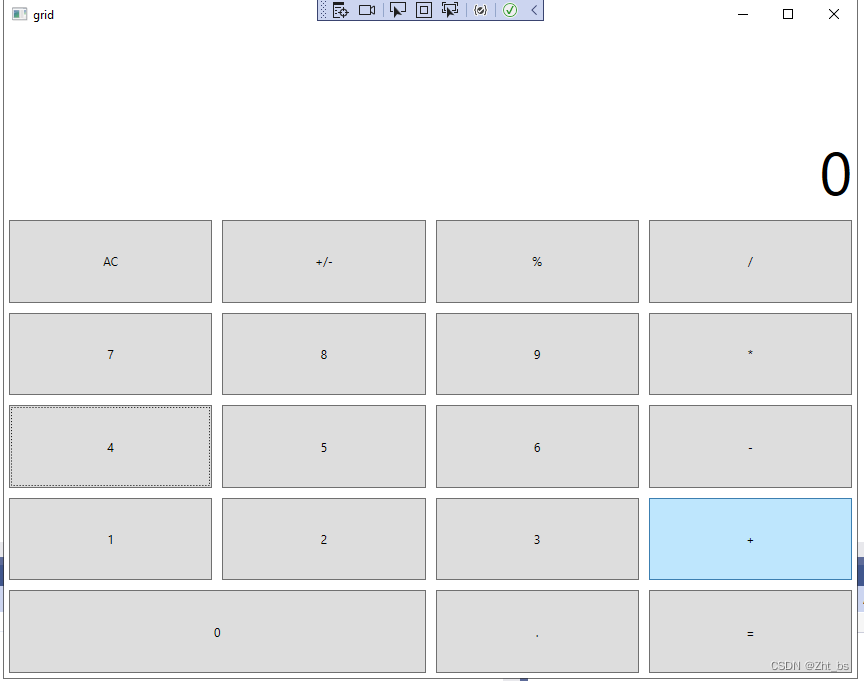
xaml代码部分
  <Grid>
        <Grid.ColumnDefinitions>
            <ColumnDefinition Width="*"/>-----------列1设置
            <ColumnDefinition Width="*"/>-----------列2设置
            <ColumnDefinition Width="*"/>-----------列3设置
            <ColumnDefinition Width="*"/>-----------列4设置
        </Grid.ColumnDefinitions>
        <Grid.RowDefinitions>
            <RowDefinition Height="2*"/>-----------行1设置
            <RowDefinition Height="*"/>------------行2设置
            <RowDefinition Height="*"/>
            <RowDefinition Height="*"/>
            <RowDefinition Height="*"/>
            <RowDefinition Height="*"/>
        </Grid.RowDefinitions>

        <Label Content="0"
               HorizontalAlignment="Right"
               VerticalAlignment="Bottom"
               FontSize="60"
               Grid.ColumnSpan="4"/>

        <Button Content="AC"
                Margin="5"
                Grid.Column="0"
                Grid.Row="1"/>

        <Button Content="+/-"
                Margin="5"
                Grid.Row="1"
                Grid.Column="1"/>
        <Button Content="%"
                Margin="5"
                Grid.Row="1"
                Grid.Column="2"/>
        <Button Content="/"
                Margin="5"
                Grid.Row="1"
                Grid.Column="3"/>

        <Button Content="7"
                Margin="5"
                Grid.Row="2"
                Grid.Column="0"/>
        <Button Content="8"
                Margin="5"
                Grid.Row="2"
                Grid.Column="1"/>
        <Button Content="9"
                Margin="5"
                Grid.Row="2"
                Grid.Column="2"/>
        <Button Content="*"
                Margin="5"
                Grid.Row="2"
                Grid.Column="3"/>

        <Button Content="4"
                Margin="5"
                Grid.Row="3"
                Grid.Column="0"/>
        <Button Content="5"
                Margin="5"
                Grid.Row="3"
                Grid.Column="1"/>
        <Button Content="6"
                Margin="5"
                Grid.Row="3"
                Grid.Column="2"/>
        <Button Content="-"
                Margin="5"
                Grid.Row="3"
                Grid.Column="3"/>

        <Button Content="1"
                Margin="5"
                Grid.Row="4"
                Grid.Column="0"/>
        <Button Content="2"
                Margin="5"
                Grid.Row="4"
                Grid.Column="1"/>
        <Button Content="3"
                Margin="5"
                Grid.Row="4"
                Grid.Column="2"/>
        <Button Content="+"
                Margin="5"
                Grid.Row="4"
                Grid.Column="3"/>
        <Button Content="0"
                Margin="5"
                Grid.Row="5"
                Grid.Column="0"
                Grid.ColumnSpan="2"/>
        <Button Content="."
                Margin="5"
                Grid.Row="5"
                Grid.Column="2"/>
        <Button Content="="
                Margin="5"
                Grid.Row="5"
                Grid.Column="3"/>
    </Grid>
其他grid布局例子
<Window x:Class="WpfApp1.布局.grid"
      xmlns="http://schemas.microsoft.com/winfx/2006/xaml/presentation"
      xmlns:x="http://schemas.microsoft.com/winfx/2006/xaml"
      xmlns:mc="http://schemas.openxmlformats.org/markup-compatibility/2006"
      xmlns:d="http://schemas.microsoft.com/expression/blend/2008"
      xmlns:local="clr-namespace:WpfApp1.布局"
      mc:Ignorable="d"
      d:DesignHeight="450" d:DesignWidth="800"
      Title="grid">
    <Grid>
        <Grid.RowDefinitions>
        <RowDefinition Height="40"></RowDefinition>-----定义位置高度
        <RowDefinition Height="Auto"></RowDefinition>
        <RowDefinition Height="2*"></RowDefinition>
        <RowDefinition Height="*"></RowDefinition>
        </Grid.RowDefinitions>
        <Button Grid.Row="0" Content="Button 1"></Button>//Grid.Row指位置高度
        <Button Grid.Row="1" Content="Button 2"></Button>
        <Button Grid.Row="2" Content="Button 3"></Button>
        <Button Grid.Row="3" Content="Button 4"></Button>
    </Grid>
</Window>
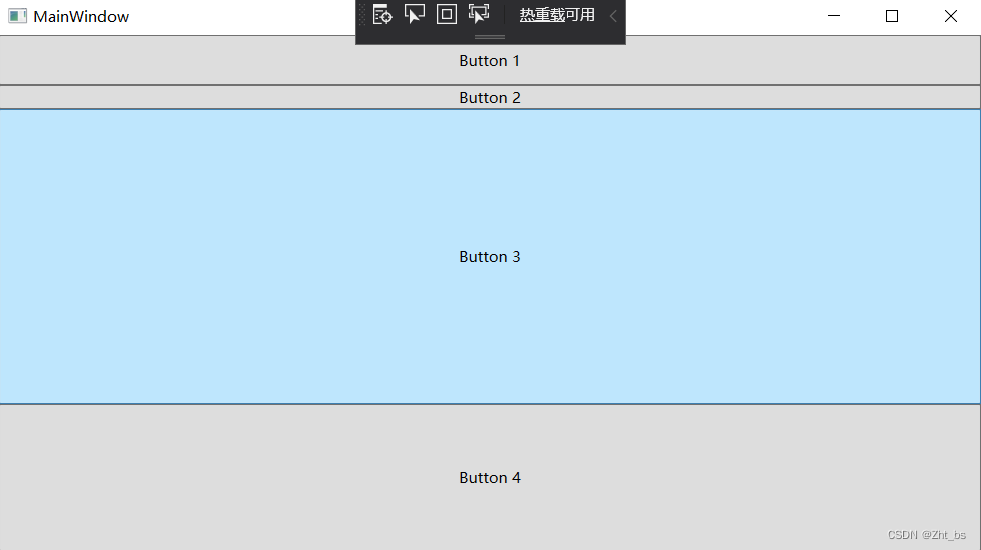
示例图
StackPanel 是一个垂直或水平排列控件的控件。使用 Orientation 属性来指定是垂直对齐还是水平对齐。
StackPanel 使用时样子
<StackPanel Orientation=" Horizontal ">------水平方向
    <Label Height="30"/>
    <TextBox  Height="30"/>
    <TextBox Height="30"/>
    <Button  Height="30"/>
</StackPanel>
StackPanel 实例代码
<Grid>
    <StackPanel>-----------------------------默认垂直布局
            <Label Height="30"/>
            <TextBox Height="30"/>
            <TextBox Height="30"/>
            <Button Height="30"/>
            <StackPanel
                Orientation="Horizontal" ----设置水平布局
                Height="100"
                Margin="10">
                <Label Height="30" Width="100"/>
                <TextBox Height="30" Width="100"/>
                <TextBox Height="30" Width="100"/>
                <Button Height="30" Width="100"/>
            </StackPanel>
    </StackPanel>
</Grid>
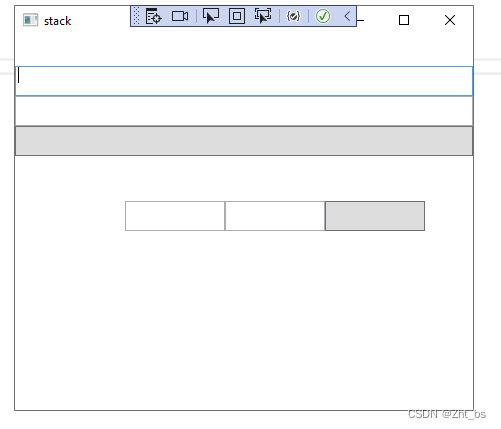
效果图
垂直与水平对齐
通过指定 VerticalAlignment 属性来指定控件的对齐方式。 StackPanel 的顶部选择 Top,底部选择 Bottom,中间选择 Center。您可以通过指定 HorizontalAlignment 属性来指定控件的对齐位置。从 StackPanel 的左边(Left)开始,从右边开始(Right),中间对齐(Center)。如果选择(Stretch),它将整体扩展。
Margin 属性
您可以通过设置Margin属性来设置边距。通过指定 Margin = ”10,20,30,40″,可以按左、上、右、下的顺序设置边距。
<StackPanel VerticalAlignment="Center" --------------对齐方式
                    HorizontalAlignment="Stretch"----对齐位置
                    Margin="10,20,30,40">------------边距
   <Label Content="文字内容"/>
   <TextBox Text="0000"/>
   <Button Content="请开始查询"/>
</StackPanel>
效果图

DockPanel 布局是上下左右水平和垂直排序组件。
[外链图片转存失败,源站可能有防盗链机制,建议将图片保存下来直接上传(img-ZWHNUuXR-1656036353975)(D:\build\Typora\wpf\Snipaste_2021-11-30_23-59-22.png)]
在DockPanel布局中中其他组件指定 DockPanel.Dock 并决定将其向上、向下、向左或向右的位置。
LastChildFill 元素
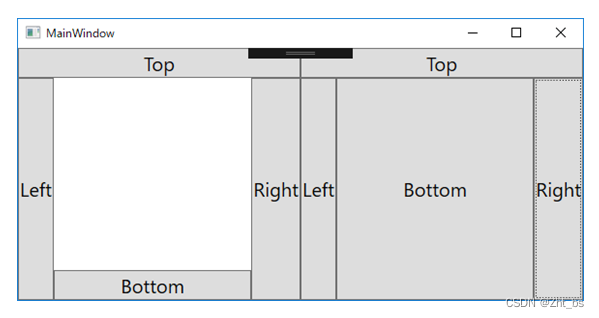
LastChildFill 元素来设置框架中的最后一个元素是否填充剩余空间。默认值为 True,如果不需要填充剩余空间,则将其显式设置为 False
 <Grid>
   <Grid.ColumnDefinitions>
      <ColumnDefinition/>
      <ColumnDefinition/>
    </Grid.ColumnDefinitions>
      <DockPanel LastChildFill="False">
         <Button DockPanel.Dock="Top" Content="Top" FontSize="20"/>
         <Button DockPanel.Dock="Left" Content="Left" FontSize="20"/>
         <Button DockPanel.Dock="Right" Content="Right" FontSize="20"/>
         <Button DockPanel.Dock="Bottom" Content="Bottom" FontSize="20"/>
      </DockPanel>
      <DockPanel Grid.Column="1" LastChildFill="True">--------底部Bottom组件自动充实
         <Button DockPanel.Dock="Top" Content="Top" FontSize="20"/>
         <Button DockPanel.Dock="Left" Content="Left" FontSize="20"/>
         <Button DockPanel.Dock="Right" Content="Right" FontSize="20"/>
         <Button DockPanel.Dock="Bottom" Content="Bottom" FontSize="20"/>
      </DockPanel>
</Grid>
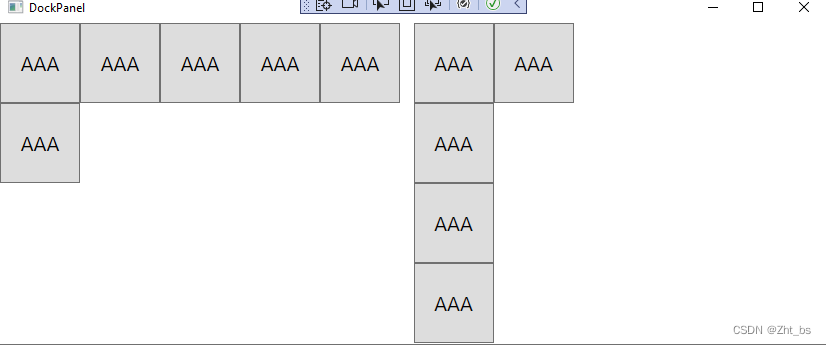
WrapPanel 是一个将控件按纵向或横向排列。在排列控件时,如果控件在区域排列不下,该组件的特点是在向后折叠的同时排列控件。
WrapPanel 指定控件的放置方向以及分配给一个控件的垂直和水平宽度。
Orientation 方向属性
指定 Vertical 以垂直排列控件,指定 Horizontal 以水平排列它们。
使用 ItemHeight 指定一个控件的垂直宽度,使用 ItemWidth 指定水平宽度。
横排列例子
<WrapPanel Orientation="Horizontal"
           ItemHeight="80"
           ItemWidth="80">
    <Button Content="AAA" FontSize="20"/>
    <Button Content="AAA" FontSize="20"/>
    <Button Content="AAA" FontSize="20"/>
    <Button Content="AAA" FontSize="20"/>
    <Button Content="AAA" FontSize="20"/>
    <Button Content="AAA" FontSize="20"/>
</WrapPanel>
水平排列
<WrapPanel Orientation="Vertical"
           ItemHeight="80"
           ItemWidth="80">
    <Button Content="AAA" FontSize="20"/>
    <Button Content="AAA" FontSize="20"/>
    <Button Content="AAA" FontSize="20"/>
    <Button Content="AAA" FontSize="20"/>
    <Button Content="AAA" FontSize="20"/>
</WrapPanel>
唯一的区别是Orientation属性设置。
实例代码
<Grid>
   <Grid.ColumnDefinitions>
     <ColumnDefinition/>
     <ColumnDefinition/>
   </Grid.ColumnDefinitions>
   <WrapPanel Orientation="Horizontal"
                   ItemHeight="80"
                   ItemWidth="80">
            <Button Content="AAA" FontSize="20"/>
            <Button Content="AAA" FontSize="20"/>
            <Button Content="AAA" FontSize="20"/>
            <Button Content="AAA" FontSize="20"/>
            <Button Content="AAA" FontSize="20"/>
            <Button Content="AAA" FontSize="20"/>
        </WrapPanel>
        <WrapPanel Grid.Column = "1"
                   Orientation="Vertical"
                   ItemHeight="80"
                   ItemWidth="80">
            <Button Content="AAA" FontSize="20"/>
            <Button Content="AAA" FontSize="20"/>
            <Button Content="AAA" FontSize="20"/>
            <Button Content="AAA" FontSize="20"/>
            <Button Content="AAA" FontSize="20"/>
   </WrapPanel>
</Grid>
效果图
在实际的项目开发中制作一个符合管理后台要求的UI设计,需要将WPF中多种布局组件进行组合使用。
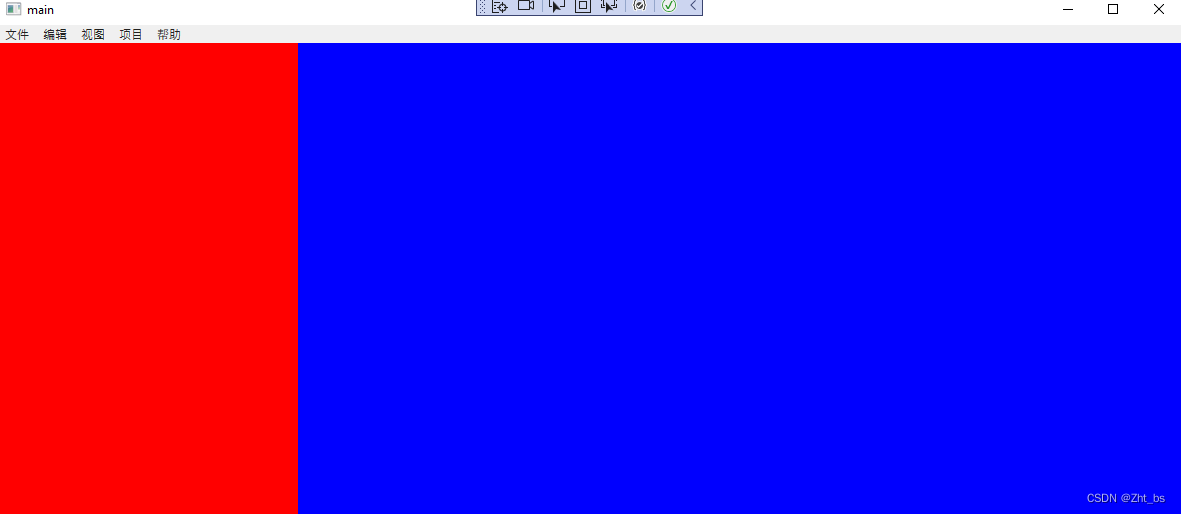
1 使用 DockPanel 布局将页面分成3个操作部分。
<DockPanel>
<Menu DockPanel.Dock="Top"></Menu>
<Grid DockPanel.Dock="Left"></Grid>
<Grid DockPanel.Dock="Right"></Grid>
</DockPanel>
[外链图片转存失败,源站可能有防盗链机制,建议将图片保存下来直接上传(img-ztnYcidU-1656036353976)(D:\build\Typora\wpf\Snipaste_2021-11-30_17-23-21.png)]
2 Left部分组件,使用Grid布局创建高于宽
<Grid Grid.IsSharedSizeScope="True" DockPanel.Dock="Left">
  <Grid x:Name="layer0Grid"  Panel.ZIndex="0">
     <Grid.RowDefinitions>
         <RowDefinition Height="*"></RowDefinition>------------设置Grid布局的高
      </Grid.RowDefinitions>
      <Grid.ColumnDefinitions>
        <ColumnDefinition Width="300"></ColumnDefinition>------设置Grid布局的宽300
     </Grid.ColumnDefinitions>
     <Border Background="red"></Border>
    </Grid>
</Grid>
3 Right部分组件,使用Grid布局创建高于宽
<Grid Grid.IsSharedSizeScope="True" DockPanel.Dock="Right">
   <Grid x:Name="conetext"  Panel.ZIndex="0">
      <Grid.RowDefinitions>
          <RowDefinition Height="*"></RowDefinition>-----------设置Grid布局的高自适应
      </Grid.RowDefinitions>
      <Grid.ColumnDefinitions>
          <ColumnDefinition Width="*"></ColumnDefinition>------设置Grid布局的宽自适应
      </Grid.ColumnDefinitions>
      <Border Background="Blue"></Border></Grid>
   </Grid>
</Grid>
4 整体布局代码
<Window x:Class="WpfApp1.布局.main"
        xmlns="http://schemas.microsoft.com/winfx/2006/xaml/presentation"
        xmlns:x="http://schemas.microsoft.com/winfx/2006/xaml"
        xmlns:d="http://schemas.microsoft.com/expression/blend/2008"
        xmlns:mc="http://schemas.openxmlformats.org/markup-compatibility/2006"
        xmlns:local="clr-namespace:WpfApp1.布局"
        mc:Ignorable="d"
        Title="main" Height="450" Width="1200">
    <DockPanel>
        <Menu DockPanel.Dock="Top">   ----------------top部分菜单组件
            <MenuItem Header="文件" />
            <MenuItem Header="编辑" />
            <MenuItem Header="视图" />
            <MenuItem Header="项目" />
            <MenuItem Header="帮助" />
        </Menu>
        <Grid Grid.IsSharedSizeScope="True" DockPanel.Dock="Left">
            <Grid x:Name="layer0Grid"  Panel.ZIndex="0">
                <Grid.RowDefinitions>
                    <RowDefinition Height="*"></RowDefinition>
                </Grid.RowDefinitions>
                <Grid.ColumnDefinitions>
                    <ColumnDefinition Width="300"></ColumnDefinition>
                </Grid.ColumnDefinitions>
            </Grid>
            <Border Background="red"></Border>------------加入菜单树与手风琴组件
        </Grid>
        <Grid Grid.IsSharedSizeScope="True" DockPanel.Dock="Right">
            <Grid x:Name="conetext"  Panel.ZIndex="0">
                <Grid.RowDefinitions>
                    <RowDefinition Height="*"></RowDefinition>
                </Grid.RowDefinitions>
                <Grid.ColumnDefinitions>
                    <ColumnDefinition Width="*"></ColumnDefinition>
                </Grid.ColumnDefinitions>
                <Border Background="Blue"></Border>-------内容组件部分
            </Grid>
        </Grid>
    </DockPanel>
</Window>
效果图
如何在buildr项目中使用Ruby?我在很多不同的项目中使用过Ruby、JRuby、Java和Clojure。我目前正在使用我的标准Ruby开发一个模拟应用程序,我想尝试使用Clojure后端(我确实喜欢功能代码)以及JRubygui和测试套件。我还可以看到在未来的不同项目中使用Scala作为后端。我想我要为我的项目尝试一下buildr(http://buildr.apache.org/),但我注意到buildr似乎没有设置为在项目中使用JRuby代码本身!这看起来有点傻,因为该工具旨在统一通用的JVM语言并且是在ruby中构建的。除了将输出的jar包含在一个独特的、仅限ruby
我正在编写一个包含C扩展的gem。通常当我写一个gem时,我会遵循TDD的过程,我会写一个失败的规范,然后处理代码直到它通过,等等......在“ext/mygem/mygem.c”中我的C扩展和在gemspec的“扩展”中配置的有效extconf.rb,如何运行我的规范并仍然加载我的C扩展?当我更改C代码时,我需要采取哪些步骤来重新编译代码?这可能是个愚蠢的问题,但是从我的gem的开发源代码树中输入“bundleinstall”不会构建任何native扩展。当我手动运行rubyext/mygem/extconf.rb时,我确实得到了一个Makefile(在整个项目的根目录中),然后当
我在我的Rails项目中使用Pow和powifygem。现在我尝试升级我的ruby版本(从1.9.3到2.0.0,我使用RVM)当我切换ruby版本、安装所有gem依赖项时,我通过运行railss并访问localhost:3000确保该应用程序正常运行以前,我通过使用pow访问http://my_app.dev来浏览我的应用程序。升级后,由于错误Bundler::RubyVersionMismatch:YourRubyversionis1.9.3,butyourGemfilespecified2.0.0,此url不起作用我尝试过的:重新创建pow应用程序重启pow服务器更新战俘
我已经像这样安装了一个新的Rails项目:$railsnewsite它执行并到达:bundleinstall但是当它似乎尝试安装依赖项时我得到了这个错误Gem::Ext::BuildError:ERROR:Failedtobuildgemnativeextension./System/Library/Frameworks/Ruby.framework/Versions/2.0/usr/bin/rubyextconf.rbcheckingforlibkern/OSAtomic.h...yescreatingMakefilemake"DESTDIR="cleanmake"DESTDIR="
我已经在Sinatra上创建了应用程序,它代表了一个简单的API。我想在生产和开发上进行部署。我想在部署时选择,是开发还是生产,一些方法的逻辑应该改变,这取决于部署类型。是否有任何想法,如何完成以及解决此问题的一些示例。例子:我有代码get'/api/test'doreturn"Itisdev"end但是在部署到生产环境之后我想在运行/api/test之后看到ItisPROD如何实现? 最佳答案 根据SinatraDocumentation:EnvironmentscanbesetthroughtheRACK_ENVenvironm
我们的git存储库中目前有一个Gemfile。但是,有一个gem我只在我的环境中本地使用(我的团队不使用它)。为了使用它,我必须将它添加到我们的Gemfile中,但每次我checkout到我们的master/dev主分支时,由于与跟踪的gemfile冲突,我必须删除它。我想要的是类似Gemfile.local的东西,它将继承从Gemfile导入的gems,但也允许在那里导入新的gems以供使用只有我的机器。此文件将在.gitignore中被忽略。这可能吗? 最佳答案 设置BUNDLE_GEMFILE环境变量:BUNDLE_GEMFI
这似乎非常适得其反,因为太多的gem会在window上破裂。我一直在处理很多mysql和ruby-mysqlgem问题(gem本身发生段错误,一个名为UnixSocket的类显然在Windows机器上不能正常工作,等等)。我只是在浪费时间吗?我应该转向不同的脚本语言吗? 最佳答案 我在Windows上使用Ruby的经验很少,但是当我开始使用Ruby时,我是在Windows上,我的总体印象是它不是Windows原生系统。因此,在主要使用Windows多年之后,开始使用Ruby促使我切换回原来的系统Unix,这次是Linux。Rub
我正在玩HTML5视频并且在ERB中有以下片段:mp4视频从在我的开发环境中运行的服务器很好地流式传输到chrome。然而firefox显示带有海报图像的视频播放器,但带有一个大X。问题似乎是mongrel不确定ogv扩展的mime类型,并且只返回text/plain,如curl所示:$curl-Ihttp://0.0.0.0:3000/pr6.ogvHTTP/1.1200OKConnection:closeDate:Mon,19Apr201012:33:50GMTLast-Modified:Sun,18Apr201012:46:07GMTContent-Type:text/plain
假设我有这个范围:("aaaaa".."zzzzz")如何在不事先/每次生成整个项目的情况下从范围中获取第N个项目? 最佳答案 一种快速简便的方法:("aaaaa".."zzzzz").first(42).last#==>"aaabp"如果出于某种原因你不得不一遍又一遍地这样做,或者如果你需要避免为前N个元素构建中间数组,你可以这样写:moduleEnumerabledefskip(n)returnto_enum:skip,nunlessblock_given?each_with_indexdo|item,index|yieldit
是否可以为特定(或所有)项目使用多个布局?例如,我有几个项目,我想对其应用两种不同的布局。一个是绿色的,一个是蓝色的(但是)。我想将它们编译到我的输出目录中的两个不同文件夹中(例如v1和v2)。我一直在玩弄规则和编译block,但我不知道这是怎么回事。因为,每个项目在编译过程中只编译一次,我不能告诉nanoc第一次用layout1编译,第二次用layout2编译。我试过这样的东西,但它导致输出文件损坏。compile'*'doifitem.binary?#don’tfilterbinaryitemselsefilter:erblayout'layout1'layout'layout2'
