目录
Docker 是一个开源的应用容器引擎,基于 GO语言并遵从 Apache2.0 协议开源。Docker 可以让开发者打包他们的应用以及依赖包到一个轻量级、可移植的容器中,然后发布到任何流行的 Linux 机器上,也可以实现虚拟化。容器是完全使用沙箱机制,相互之间不会有任何接口(类似 iPhone 的 app),更重要的是容器性能开销极低。
Docker的三大概念:
- 镜像:可以将镜像理解为包含应用程序以及依赖环境的一个文件系统,他是静态的;
- 容器:容器是基于镜像创建的,他是动态的。容器相当于镜像的一个实例,一个镜像是可以创建多个容器的,但是一个容器只能装一个镜像
- 仓库:用来存储镜像的
docker search 镜像关键词
例如:搜索含有pika关键词的镜像docker search pika
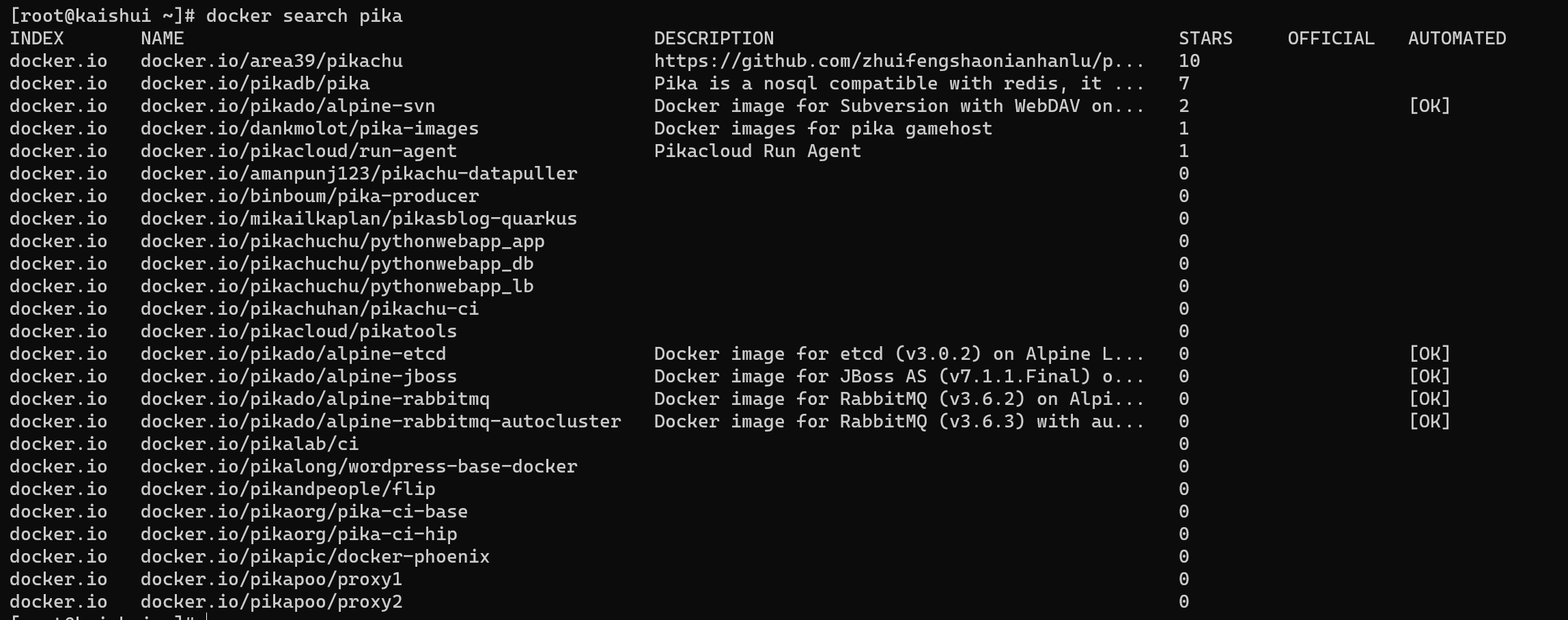
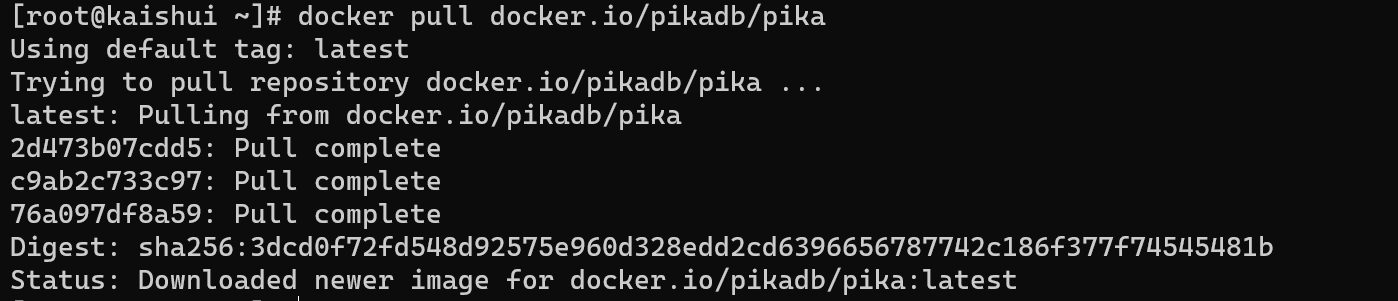
docker pull 镜像name
例如:下载上述第二个镜像docker pull docker pull docker.io/pikadb/pika
docker images
Usage:  docker images [OPTIONS] [REPOSITORY[:TAG]]

options:
-a, --all				显示所有镜像(默认情况下隐藏中间镜像)
    --digests  			显示摘要(显示sha256)
-f, --filter filter 	基于提供的条件的滤波器输出
    --format string 	自定义格式打印
    --help				打印用法
    --no-trunc			不截断输出
-q, --quiet 仅显示IDdocker images -a或者docker images --all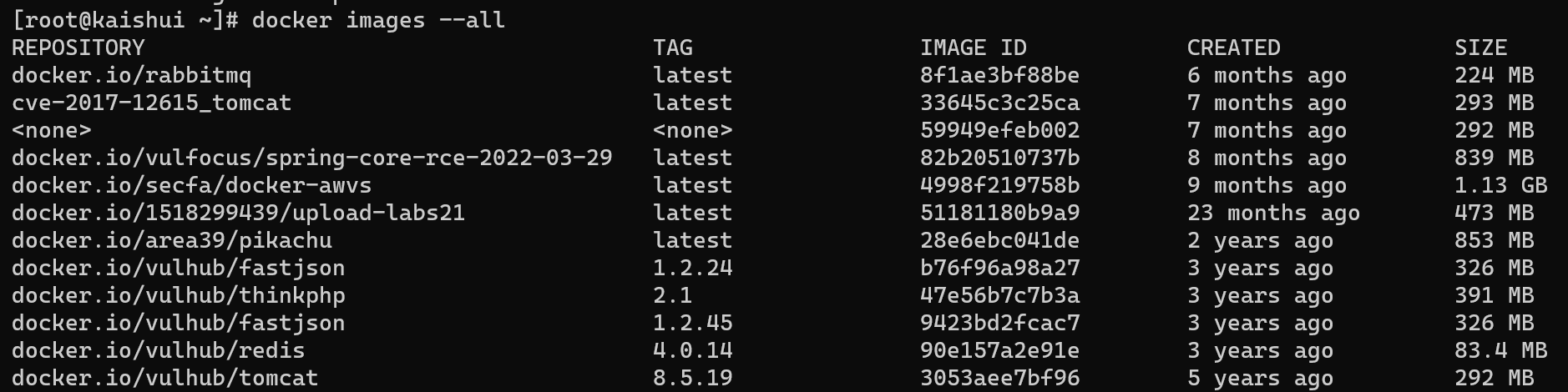
docker images --digests:比docker images -a多了一个DIGEST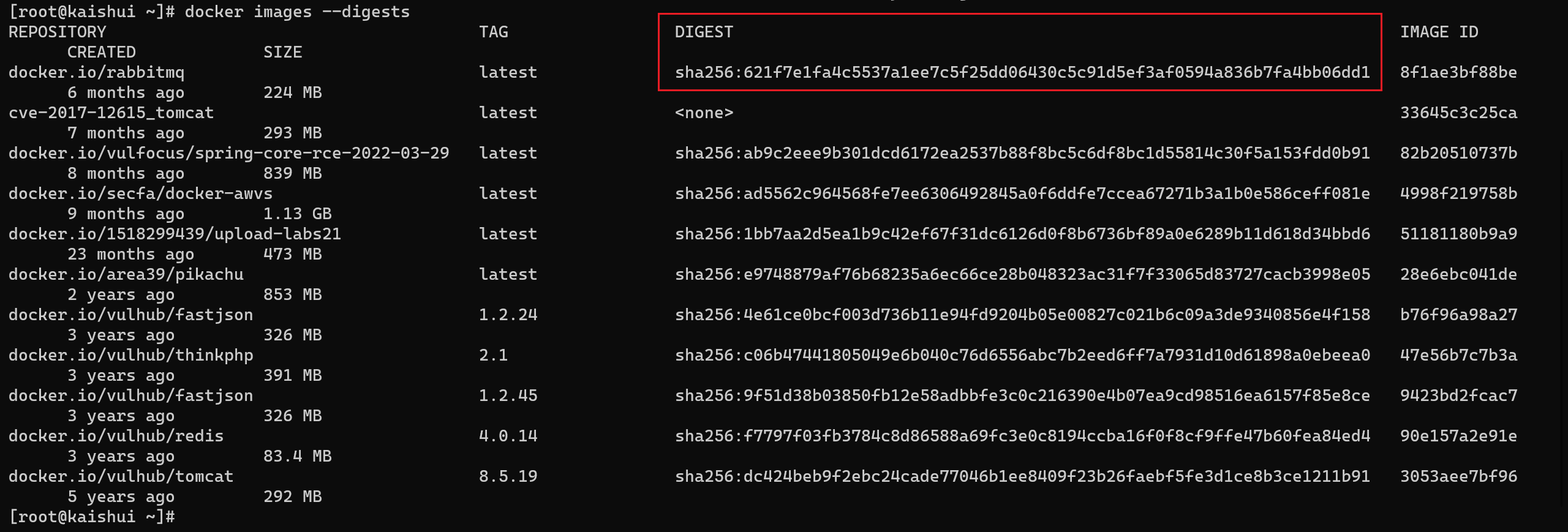
docker images -filter filter有关docker images的过滤参考docker images 命令详解_redrose2100的博客-CSDN博客_docker images命令
docker images --format string例如:只显示镜像ID和镜像名docker images --format "{{.ID}}: {{.Repository}}"
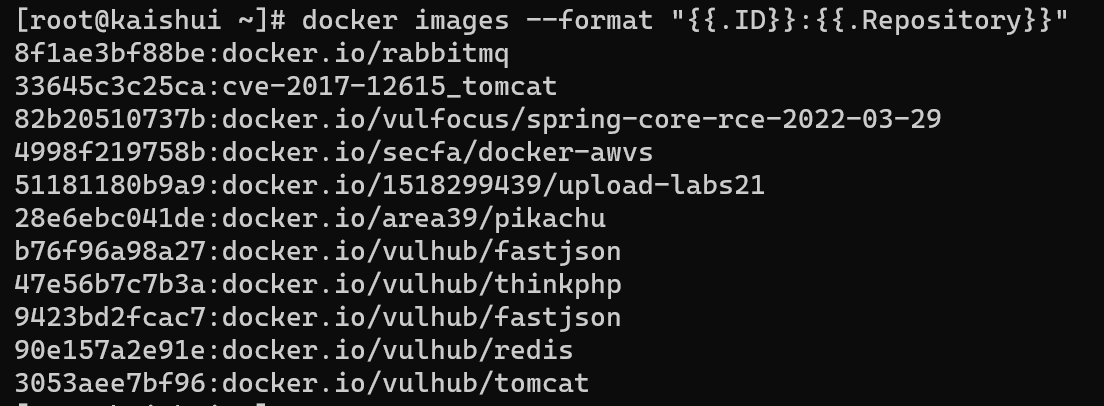
.ID.Repository.Tag.Digest.CreatedSince.CreatedAt.Sizedocker images --no-trunc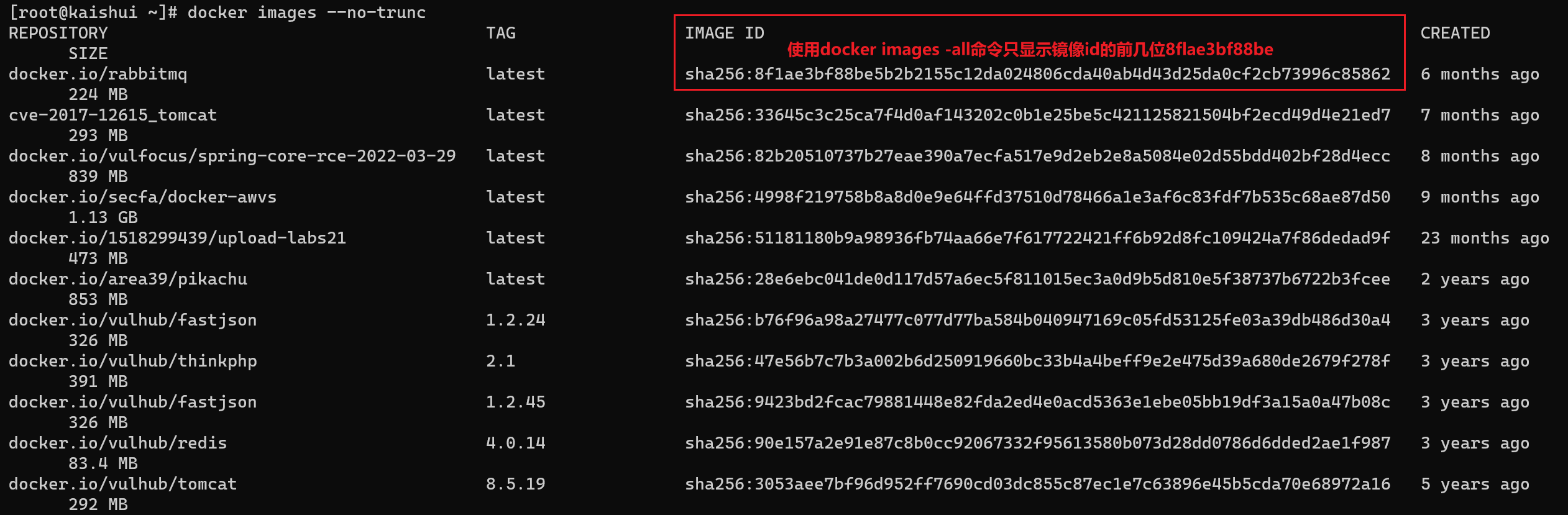
docker images -q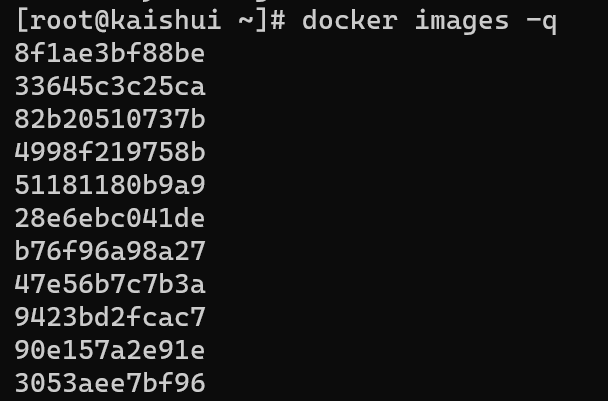
docker inpect 镜像
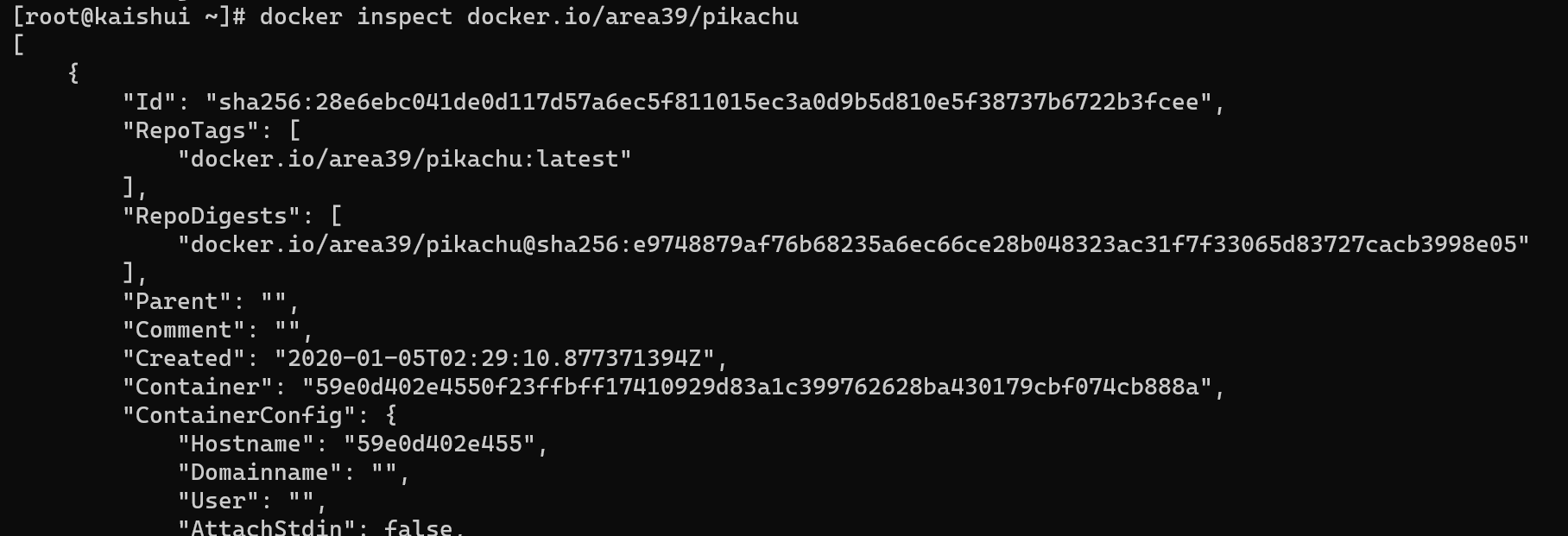
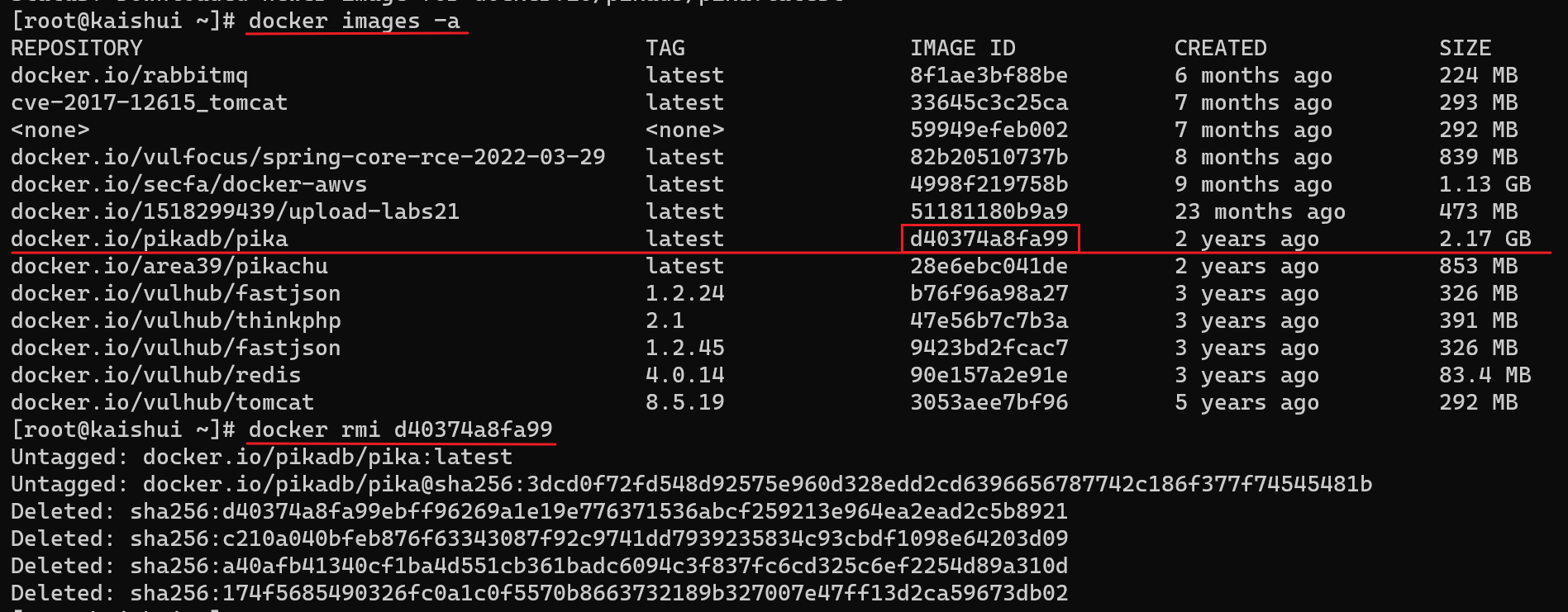
docker rmi 镜像id
例如:删除刚刚下载pika镜像:先使用docker images -all查看镜像的id,再使用docker rmi d40374a8fa99删除镜像
docker create --name 容器名 镜像名:镜像tag
例如:创建一个名为kaishui的容器,使用的镜像是docker.io/secfa/docker-awvs:latest
docker create --name kaishui docker.io/secfa/docker-awvs:latest

docker run --name 容器名 -d 镜像名:镜像tag
例如:创建一个名为xiaofeng的容器并立即执行,使用的镜像是docker.io/secfa/docker-awvs:latest
docker run --name xiaofeng -d docker.io/secfa/docker-awvs:latest

Usage:  docker run [OPTIONS] IMAGE [COMMAND] [ARG...]

Run a command in a new container

Options:
      --add-host list                         Add a custom host-to-IP mapping (host:ip) (default [])
  -a, --attach list                           Attach to STDIN, STDOUT or STDERR (default [])
      --blkio-weight uint16                   Block IO (relative weight), between 10 and 1000, or 0 to disable (default 0)
      --blkio-weight-device weighted-device   Block IO weight (relative device weight) (default [])
      --cap-add list                          Add Linux capabilities (default [])
      --cap-drop list                         Drop Linux capabilities (default [])
      --cgroup-parent string                  Optional parent cgroup for the container
      --cidfile string                        Write the container ID to the file
      --cpu-count int                         CPU count (Windows only)
      --cpu-percent int                       CPU percent (Windows only)
      --cpu-period int                        Limit CPU CFS (Completely Fair Scheduler) period
      --cpu-quota int                         Limit CPU CFS (Completely Fair Scheduler) quota
      --cpu-rt-period int                     Limit CPU real-time period in microseconds
      --cpu-rt-runtime int                    Limit CPU real-time runtime in microseconds
  -c, --cpu-shares int                        CPU shares (relative weight)
      --cpus decimal                          Number of CPUs (default 0.000)
      --cpuset-cpus string                    CPUs in which to allow execution (0-3, 0,1)
      --cpuset-mems string                    MEMs in which to allow execution (0-3, 0,1)
      --credentialspec string                 Credential spec for managed service account (Windows only)
  -d, --detach                                后台运行该容器
      --detach-keys string                    Override the key sequence for detaching a container
      --device list                           Add a host device to the container (default [])
      --device-read-bps throttled-device      Limit read rate (bytes per second) from a device (default [])
      --device-read-iops throttled-device     Limit read rate (IO per second) from a device (default [])
      --device-write-bps throttled-device     Limit write rate (bytes per second) to a device (default [])
      --device-write-iops throttled-device    Limit write rate (IO per second) to a device (default [])
      --disable-content-trust                 Skip image verification (default true)
      --dns list                              Set custom DNS servers (default [])
      --dns-option list                       Set DNS options (default [])
      --dns-search list                       Set custom DNS search domains (default [])
      --entrypoint string                     Overwrite the default ENTRYPOINT of the image
  -e, --env list                              Set environment variables (default [])
      --env-file list                         Read in a file of environment variables (default [])
      --expose list                           Expose a port or a range of ports (default [])
      --group-add list                        Add additional groups to join (default [])
      --health-cmd string                     Command to run to check health
      --health-interval duration              Time between running the check (ns|us|ms|s|m|h) (default 0s)
      --health-retries int                    Consecutive failures needed to report unhealthy
      --health-timeout duration               Maximum time to allow one check to run (ns|us|ms|s|m|h) (default 0s)
      --help                                  Print usage
  -h, --hostname string                       Container host name
      --init                                  Run an init inside the container that forwards signals and reaps processes
      --init-path string                      Path to the docker-init binary
  -i, --interactive                           Keep STDIN open even if not attached
      --io-maxbandwidth string                Maximum IO bandwidth limit for the system drive (Windows only)
      --io-maxiops uint                       Maximum IOps limit for the system drive (Windows only)
      --ip string                             Container IPv4 address (e.g. 172.30.100.104)
      --ip6 string                            Container IPv6 address (e.g. 2001:db8::33)
      --ipc string                            IPC namespace to use
      --isolation string                      Container isolation technology
      --kernel-memory string                  Kernel memory limit
  -l, --label list                            Set meta data on a container (default [])
      --label-file list                       Read in a line delimited file of labels (default [])
      --link list                             Add link to another container (default [])
      --link-local-ip list                    Container IPv4/IPv6 link-local addresses (default [])
      --log-driver string                     Logging driver for the container
      --log-opt list                          Log driver options (default [])
      --mac-address string                    Container MAC address (e.g. 92:d0:c6:0a:29:33)
  -m, --memory string                         Memory limit
      --memory-reservation string             Memory soft limit
      --memory-swap string                    Swap limit equal to memory plus swap: '-1' to enable unlimited swap
      --memory-swappiness int                 Tune container memory swappiness (0 to 100) (default -1)
      --name string                           Assign a name to the container
      --network string                        Connect a container to a network (default "default")
      --network-alias list                    Add network-scoped alias for the container (default [])
      --no-healthcheck                        Disable any container-specified HEALTHCHECK
      --oom-kill-disable                      Disable OOM Killer
      --oom-score-adj int                     Tune host's OOM preferences (-1000 to 1000)
      --pid string                            PID namespace to use
      --pids-limit int                        Tune container pids limit (set -1 for unlimited)
      --privileged                            Give extended privileges to this container
  -p, --publish list                          容器端口到本机端口的映射
  -P, --publish-all                           Publish all exposed ports to random ports
      --read-only                             Mount the container's root filesystem as read only
      --restart string                        Restart policy to apply when a container exits (default "no")
      --rm                                    Automatically remove the container when it exits
      --runtime string                        Runtime to use for this container
      --security-opt list                     Security Options (default [])
      --shm-size string                       Size of /dev/shm, default value is 64MB
      --sig-proxy                             Proxy received signals to the process (default true)
      --stop-signal string                    Signal to stop a container, SIGTERM by default (default "SIGTERM")
      --stop-timeout int                      Timeout (in seconds) to stop a container
      --storage-opt list                      Storage driver options for the container (default [])
      --sysctl map                            Sysctl options (default map[])
      --tmpfs list                            Mount a tmpfs directory (default [])
  -t, --tty                                   Allocate a pseudo-TTY
      --ulimit ulimit                         Ulimit options (default [])
  -u, --user string                           Username or UID (format: <name|uid>[:<group|gid>])
      --userns string                         User namespace to use
      --uts string                            UTS namespace to use
  -v, --volume list                           Bind mount a volume (default [])
      --volume-driver string                  Optional volume driver for the container
      --volumes-from list                     Mount volumes from the specified container(s) (default [])
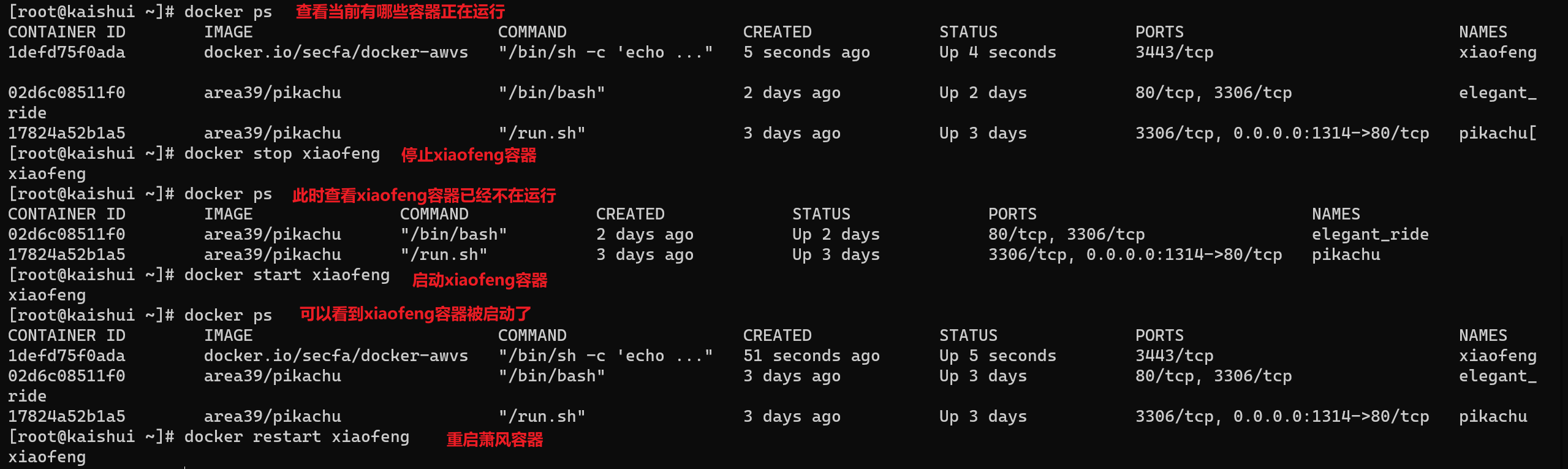
-w, --workdir string Working directory inside the containerdocker start 容器名:启动一个或多个已经被停止的容器
docker stop 容器名 :停止一个运行中的容器
docker restart 容器名 :重启容器
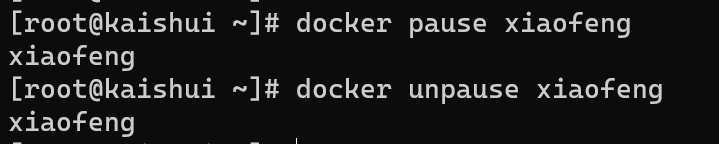
docker pause 容器名暂停容器内的进程
docker unpause 容器名恢复容器内的进程
docker exec -it 容器名 /bin/bash

docker ps

Usage:  docker ps [OPTIONS]

List containers

Options:
  -a, --all             显示正在运行的所有容器(默认就是这个)
  -f, --filter filter   Filter output based on conditions provided
      --format string   Pretty-print containers using a Go template
      --help            Print usage
  -n, --last int       	显示最近创建的n个容器(默认是-1)
  -l, --latest          显示最近创建的最后一个容器
      --no-trunc        Don't truncate output
  -q, --quiet           只显示id
-s, --size 显示总大小例如:显示最近创建的3个容器:docker ps -n 3

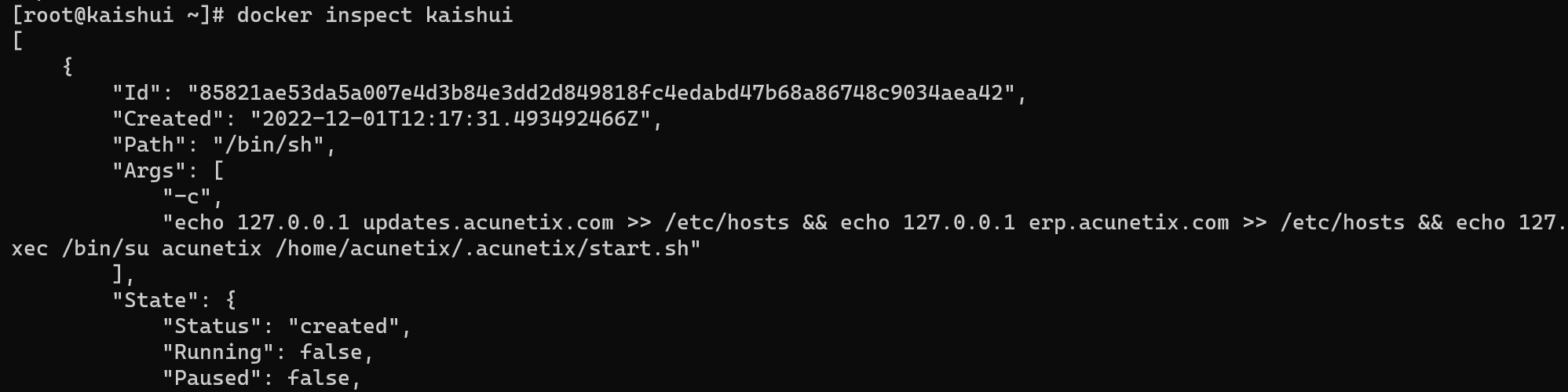
docker inspect 容器名
docker top 容器名

docker top --since="时间"查看时间后发生的docker事件

可以添加-f参数来过滤指定的镜像或者容器
docker log 容器名 -since="时间"显示该时间后的容器日志
Usage:  docker logs [OPTIONS] CONTAINER

Fetch the logs of a container
Options:
      --details        Show extra details provided to logs
  -f, --follow         Follow log output
      --help           Print usage
      --since string   显示该时间后的日志
      --tail string    显示日志的后几行 (default "all")
-t, --timestamps 显示时间戳docker stats 容器名 --no-stream 不加--no-stream参数会一直实时更新

system-view进入系统视图quit退到系统视图sysname交换机命名vlan20创建vlan(进入vlan20)displayvlan显示vlanundovlan20删除vlan20displayvlan20显示vlan里的端口20Interfacee1/0/24进入端口24portlink-typeaccessvlan20把当前端口放入vlan20undoporte1/0/10删除当前VLAN端口10displaycurrent-configuration显示当前配置02配置交换机支持TELNETinterfacevlan1进入VLAN1ipaddress192.168.3.100
1.错误信息:Errorresponsefromdaemon:Gethttps://registry-1.docker.io/v2/:net/http:requestcanceledwhilewaitingforconnection(Client.Timeoutexceededwhileawaitingheaders)或者:Errorresponsefromdaemon:Gethttps://registry-1.docker.io/v2/:net/http:TLShandshaketimeout2.报错原因:docker使用的镜像网址默认为国外,下载容易超时,需要修改成国内镜像地址(首先阿里
1.postman介绍Postman一款非常流行的API调试工具。其实,开发人员用的更多。因为测试人员做接口测试会有更多选择,例如Jmeter、soapUI等。不过,对于开发过程中去调试接口,Postman确实足够的简单方便,而且功能强大。2.下载安装官网地址:https://www.postman.com/下载完成后双击安装吧,安装过程极其简单,无需任何操作3.使用教程这里以百度为例,工具使用简单,填写URL地址即可发送请求,在下方查看响应结果和响应状态码常用方法都有支持请求方法:getpostputdeleteGet、Post、Put与Delete的作用get:请求方法一般是用于数据查询,
Ⅰ软件测试基础一、软件测试基础理论1、软件测试的必要性所有的产品或者服务上线都需要测试2、测试的发展过程3、什么是软件测试找bug,发现缺陷4、测试的定义使用人工或自动的手段来运行或者测试某个系统的过程。目的在于检测它是否满足规定的需求。弄清预期结果和实际结果的差别。5、测试的目的以最小的人力、物力和时间找出软件中潜在的错误和缺陷6、测试的原则28原则:20%的主要功能要重点测(eg:支付宝的支付功能,其他功能都是次要的)80%的错误存在于20%的代码中7、测试标准8、测试的基本要求功能测试性能测试安全性测试兼容性测试易用性测试外观界面测试可靠性测试二、质量模型衡量一个优秀软件的维度①功能性功
ES一、简介1、ElasticStackES技术栈:ElasticSearch:存数据+搜索;QL;Kibana:Web可视化平台,分析。LogStash:日志收集,Log4j:产生日志;log.info(xxx)。。。。使用场景:metrics:指标监控…2、基本概念Index(索引)动词:保存(插入)名词:类似MySQL数据库,给数据Type(类型)已废弃,以前类似MySQL的表现在用索引对数据分类Document(文档)真正要保存的一个JSON数据{name:"tcx"}二、入门实战{"name":"DESKTOP-1TSVGKG","cluster_name":"elasticsear
(本文是网络的宏观的概念铺垫)目录计算机网络背景网络发展认识"协议"网络协议初识协议分层OSI七层模型TCP/IP五层(或四层)模型报头以太网碰撞路由器IP地址和MAC地址IP地址与MAC地址总结IP地址MAC地址计算机网络背景网络发展 是最开始先有的计算机,计算机后来因为多项技术的水平升高,逐渐的计算机变的小型化、高效化。后来因为计算机其本身的计算能力比较的快速:独立模式:计算机之间相互独立。 如:有三个人,每个人做的不同的事物,但是是需要协作的完成。 而这三个人所做的事是需要进行协作的,然而刚开始因为每一台计算机之间都是互相独立的。所以前面的人处理完了就需要将数据
Linux操作系统——网络配置与SSH远程安装完VMware与系统后,需要进行网络配置。第一个目标为进行SSH连接,可以从本机到VMware进行文件传送,首先需要进行网络配置。1.下载远程软件首先需要先下载安装一款远程软件:FinalShell或者xhell7FinalShellxhell7FinalShell下载:Windows下载http://www.hostbuf.com/downloads/finalshell_install.exemacOS下载http://www.hostbuf.com/downloads/finalshell_install.pkg2.配置CentOS网络安装好
文章目录一基础定义二创建逻辑卷2-1准备物理设备2-2创建物理卷2-3创建卷组2-4创建逻辑卷2-5创建文件系统并挂载文件三扩展卷组和缩减卷组3-1准备物理设备3-2创建物理卷3-3扩展卷组3-4查看卷组的详细信息以验证3-5缩减卷组四扩展逻辑卷4-1检查卷组是否有可用的空间4-2扩展逻辑卷4-3扩展文件系统五删除逻辑卷5-1备份数据5-2卸载文件系统5-3删除逻辑卷5-4删除卷组5-5删除物理卷六LVM逻辑卷缩容6-1缩容注意事项6-2标准缩容步骤一基础定义LVM,LogicalVolumeManger,逻辑卷管理,Linux磁盘分区管理的一种机制,建立在硬盘和分区上的一个逻辑层,提高磁盘分
如何在Ruby中获取linux系统(这必须适用于Fedora、Ubuntu等)的软件/硬件信息? 最佳答案 Chef背后的优秀人才,拥有一颗名为Ohai的优秀gemhttps://github.com/opscode/ohai以散列形式返回系统信息,例如操作系统、内核、规范、fqdn、磁盘、空间、内存、用户、接口(interface)、sshkey等。它非常完整,非常好。它还会安装命令行二进制文件(也称为ohai)。 关于ruby-如何在Ruby中获取linux系统信息,我们在Stack
我在LinuxMint17.2上。我最近使用apt-getpurgeruby删除了ruby。然后我安装了rbenv然后rbenvinstall2.3.0所以现在,~/.rbenv/versions/2.3.0/bin/ruby存在。但是现在,我无法执行geminstallrubocop。我明白了:$geminstallrubocoprbenv:gem:commandnotfoundThe`gem'commandexistsintheseRubyversions:2.3.0但是我可以~/.rbenv/versions/2.3.0/bin/geminstallrubocop。但是,
